How to Connect GitHub Copilot to MCP Storage: Developer Setup Guide
Microsoft reported that GitHub Copilot reached 4.7 million paid subscribers as of January 2026, a 75% year-over-year increase [Microsoft Q2 FY26 Earnings Call]. This guide explains how to connect GitHub Copilot to MCP storage, bridging the code-context gap. Using remote MCP endpoints, the assistant can read, write, search, and manage files in a secure cloud workspace.

The Code-Context Gap
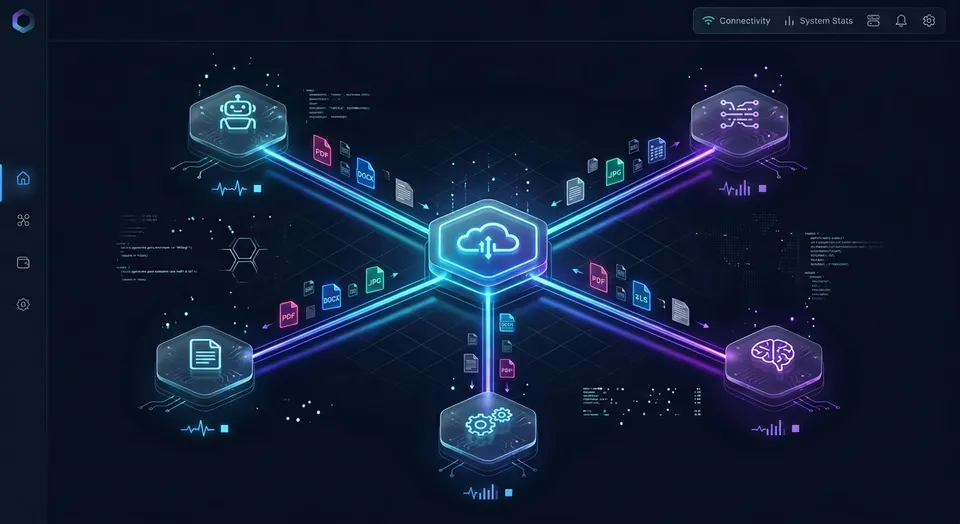
Microsoft reported that GitHub Copilot reached 4.7 million paid subscribers as of January 2026, a 75% year-over-year increase [Microsoft Q2 FY26 Earnings Call]. The rapid adoption indicates that AI-assisted coding is now standard practice, yet most setups restrict the assistant's scope to local file directories. This leaves a major gap: developers cannot query, search, or update remote organizational documents and databases directly from their editor chat panel. The Model Context Protocol (MCP) bridges this gap by enabling remote storage endpoints to serve files and search tools directly to the coding client.
AI coding tools traditionally work in a local sandbox. When a developer prompts the coding assistant in their editor, the model only parses the files that are currently open or stored locally in the active workspace. This isolation makes it difficult to coordinate work across a team or build systems that require context from a shared repository of documents. The standard workaround has been to download large document sets locally, which introduces version synchronization issues and exposes sensitive data on local hard drives. Connecting your coding assistant to a secure remote storage server solves these issues by enabling real-time access to cloud documents without local storage overhead.
By exposing cloud workspaces as MCP servers, teams can connect tools like GitHub Copilot to their centralized document storage. The AI assistant can then query and update these workspaces using standard protocol commands. This setup maintains a single source of truth for project documents, requirements, and design specifications, making them instantly available to the coding assistant during active development sessions.
Related guides
- How to Connect Manus AI to MCP StorageConnecting Manus AI to MCP storage enables the autonomous agent to securely read, write, and persist files within a...
- How to Connect Hermes Agent to MCP StorageOnly 57. This guide explains how to connect the Hermes Agent to MCP storage servers, enabling durable reads, writes,...
- How to Set Up GitHub Copilot in VS Code with Custom MCP ServersThis guide explains how to set up a github copilot vscode workspace configuration with custom Model Context Protocol...
- How to Connect GitHub Copilot to OneDrive via MCPConnecting GitHub Copilot to OneDrive via MCP enables developers to query enterprise specifications and technical...
- How to Connect Copilot to SharePoint via MCP: Integration GuideConnecting Copilot to SharePoint via MCP allows coding assistants in VS Code to retrieve enterprise SharePoint...
- How to Connect and Use Google Drive with GitHub CopilotStandard GitHub Copilot configurations lack a native connector for Google Drive, requiring developers to copy context...
More on this subject: GitHub Copilot (137 guides)
Compare Transport Protocols: Stdio vs. Hosted HTTP
The Model Context Protocol supports two primary communication channels: local Stdio processes and remote HTTP endpoints. Stdio configurations run the MCP server as a subprocess on the local machine. This is suitable for local filesystem utilities or personal scripts that run inside the developer's local environment. However, when working in teams, local configurations fall short. If every developer must host a local instance of a database or file catalog, synchronizing credentials, tokens, and data updates becomes an administrative burden.
Remote HTTP endpoints solve this synchronization problem. Instead of running a local script, the client connects to a hosted MCP server over the internet. Fastio serves coding agents such as GitHub Copilot over streamable HTTP at https://mcp.fast.io/mcp/code. Connecting to a remote HTTP endpoint allows developers to point their local GitHub Copilot client directly to a shared cloud workspace. This centralized setup ensures that every team member, human or agent, accesses the exact same data source in real time.
When comparing remote cloud storage solutions, standard options like Amazon S3, Dropbox, or Google Drive do not offer native MCP tooling. Developers who want to connect GitHub Copilot to those systems must build, deploy, and maintain their own custom MCP gateway. In contrast, Fastio provides shared workspaces designed specifically for human-agent collaboration. The workspace acts as the central intelligence layer where files are stored, versioned, and automatically indexed. This setup eliminates the need to build a custom API translation layer, allowing teams to connect their coding assistant directly to secure remote storage using standard configuration files.
How to Connect GitHub Copilot to Remote MCP Storage
Configuring a remote MCP server in GitHub Copilot requires adding the server details to a JSON configuration file. You can define this configuration at the project level or at the user level, depending on whether you want the settings to apply to a specific repository or to your entire development environment. To configure the server at the project level in VS Code, create a file named .vscode/mcp.json in the root directory of your repository and add the server under servers. For user-level configuration in VS Code, run the MCP: Open User Configuration command and add the same entry there. The GitHub Copilot CLI keeps its servers in ~/.copilot/mcp-config.json under mcpServers.
Here is the .vscode/mcp.json structure required to connect the client to a remote Fastio workspace:
{
  "servers": {
    "fastio-storage": {
      "type": "http",
      "url": "https://mcp.fast.io/mcp/code"
    }
  }
}
When writing this configuration, you must follow strict JSON formatting. Standard JSON does not support comments or trailing commas, and errors in the syntax will cause the Copilot extension to fail to load the server. Because Fastio signs you in with OAuth in the browser, the file holds no credentials and can be committed for the whole team. Scope access carefully at sign-in: on the Review Permissions screen, grant the agent only the read or write access and the workspaces it needs.


Access persistent cloud storage directly from your Copilot chat session
Connect GitHub Copilot to a dedicated, team-accessible workspace with auto-indexing and full audit logs. Secure your code credentials and shared documents with a 14-day free trial.
Querying Workspace Intelligence inside the IDE Chat
Once the configuration file is saved and GitHub Copilot loads the server, the assistant can interact with your remote workspaces. In VS Code, you must toggle the chat window into Agent Mode to allow the assistant to actively execute tools. When Agent Mode is active, Copilot automatically detects the available tools exposed by the Fastio MCP server, enabling it to perform file operations, query data, and retrieve document context based on your prompts.
Rather than running complex API scripts, you can direct the assistant using natural language:
- "Search the project-specs workspace for the latest database schema files."
- "Write the newly generated API endpoints to the development-logs folder in the shared workspace."
- "Read the requirements document in the workspace and write a test suite that matches the specifications."
When the assistant searches for files, it uses Fastio's built-in Intelligence Mode. If Intelligence is enabled on a workspace, all uploaded files are automatically indexed for hybrid search, which combines exact full-text matching with semantic meaning-based retrieval. This means the assistant can find files containing a specific contract number or locate documents based on the general concept of your query. When returning information, the assistant provides page-level citations back to the source documents, ensuring that you can verify the accuracy of the generated code against the original files.
For structured documents like invoices, contracts, or CSV sheets, developers can use Metadata Views. This feature turns unstructured documents into a live, queryable database. Users describe the fields they want extracted in natural language, and Fastio's AI automatically designs a typed schema supporting Text, Integer, Decimal, Boolean, URL, JSON, and Date & Time formats. The system then parses the files and populates a structured spreadsheet view. Developers can find more about structured document processing on the Metadata Views product page. Through the MCP server, the coding assistant can query these Metadata Views programmatically. For example, the agent can query for all invoices where the total exceeds a certain amount, allowing it to build financial reports or write automated payment scripts based directly on the structured database values.
Steps to Manage Workspace Lifecycle and Trial Settings
Connecting your coding assistant to a shared workspace allows you to coordinate development tasks with the rest of your team. Fastio includes Collaborative Notes, which brings real-time co-editing to every workspace with live multiplayer cursors. Both human developers and autonomous AI agents act as first-class co-editors in these notes. When you are writing code, your connected Copilot agent can update a collaborative note in the background, writing technical documentation or logging bugs while you continue editing files. Because these notes are automatically indexed, they provide an up-to-date knowledge base that the assistant can query in subsequent chat sessions.
For agency and freelance developers, the ownership transfer feature simplifies project delivery. A developer or agent can set up a workspace under a personal user account, configure the folders, establish the metadata views, and write the initial code. Once the project is complete, the developer can transfer the entire organization to a human client using a secure claim link. The developer can retain administrative access to continue maintaining the codebase, while the client gains full ownership and billing control.
Creating a Fastio user account is free, but doing real work requires an organization on a paid subscription. Monthly plans start with a trial of up to 14 days that requires a credit card to activate, which can be initiated via the pricing page. Fastio offers three main subscription tiers: the Starter plan at $9.99/mo (or $99/year) providing 250 GB storage and 100,000 credits; the Business plan at $49.99/mo (or $499/year) supporting up to 10 seats, 5 TB storage, and 600,000 credits; and the Enterprise plan at $199.99/mo (or $1,999/year) supporting up to 30 seats, 25 TB storage, and 3 million credits.
Troubleshooting MCP Connection Failures
When setting up a remote MCP server in GitHub Copilot, you may encounter connection or permission errors. The most common issue is an unauthorized response, typically pointing to an incomplete or expired sign-in. To resolve this, restart the server in VS Code, complete the Fastio sign-in in the browser, and confirm on the Review Permissions screen that the connection can reach the workspace you need. If you connect a headless agent with an API key instead, ensure that your HTTP headers use the prefix Bearer before the key string.
Another common source of failure is a transport protocol mismatch. If the server is configured to use legacy Server-Sent Events (SSE) but the client expects a streamable HTTP connection, the handshake will fail, resulting in connection timeouts. Developers should verify that the server URL matches the streamable HTTP endpoint at /mcp/code and that the type field in the JSON configuration is set to http rather than stdio. If you are working in an environment with proxy servers or enterprise networks, confirm that your organization's IT policy allows external MCP servers. Organizations can establish registry allowlists that restrict Copilot to connecting only to approved domain names.
Finally, developers must understand the security boundaries of their remote connections. Fastio secures data in transit and at rest using industry-standard transport security and strong encryption, running on certified partner infrastructure provided by Google Cloud Platform and Cloudflare. When designing workflows that handle regulated or sensitive personal data, you must ensure that your external integrations comply with your organization's internal security policies, managing data isolation and token scopes carefully to prevent unauthorized data exposure.
Sources
References used to verify factual claims in this guide.
-
GitHub Copilot reached 4.7 million paid subscribers as of January 2026, marking a 75% year-over-year increase.
-
Fastio pricing plans include Starter at $9.99/mo, Business at $49.99/mo, and Enterprise at $199.99/mo, with storage limits up to 25 TB.
Frequently Asked Questions
Can GitHub Copilot connect to remote MCP servers?
Yes, GitHub Copilot supports remote MCP servers. By configuring the server type as http and providing the server's URL and authentication headers in your mcp.json file, you can connect the coding assistant to external remote cloud storage and remote web APIs.
How do I configure remote MCP storage in Copilot?
You configure remote storage in VS Code by adding a server under servers in your project-level .vscode/mcp.json file, with the type set to http and the URL pointing to the server's endpoint (https://mcp.fast.io/mcp/code for Fastio). Fastio signs you in with OAuth in the browser, so no Authorization header is needed.
What is the benefit of MCP storage for coding agents?
MCP storage provides coding agents with access to a shared, persistent cloud workspace instead of restricting them to local files. This enables the assistant to perform hybrid search, query structured document metadata, collaborate with human team members, and log development activity in real time.
Related Resources

Access persistent cloud storage directly from your Copilot chat session
Connect GitHub Copilot to a dedicated, team-accessible workspace with auto-indexing and full audit logs. Secure your code credentials and shared documents with a 14-day free trial.