How to Connect OpenAI Codex to Dropbox Storage
Connecting OpenAI Codex to Dropbox allows coding agents to search, read, and ground code in Dropbox-hosted files using remote MCP queries instead of downloading raw folders. While direct API connectors encounter rate limits and context bloat, syncing Dropbox folders into an intelligent Fast.io workspace enables hybrid semantic search over project documentation. Developers can reference architectural guidelines and schema specifications directly within Codex while keeping local drives clean.

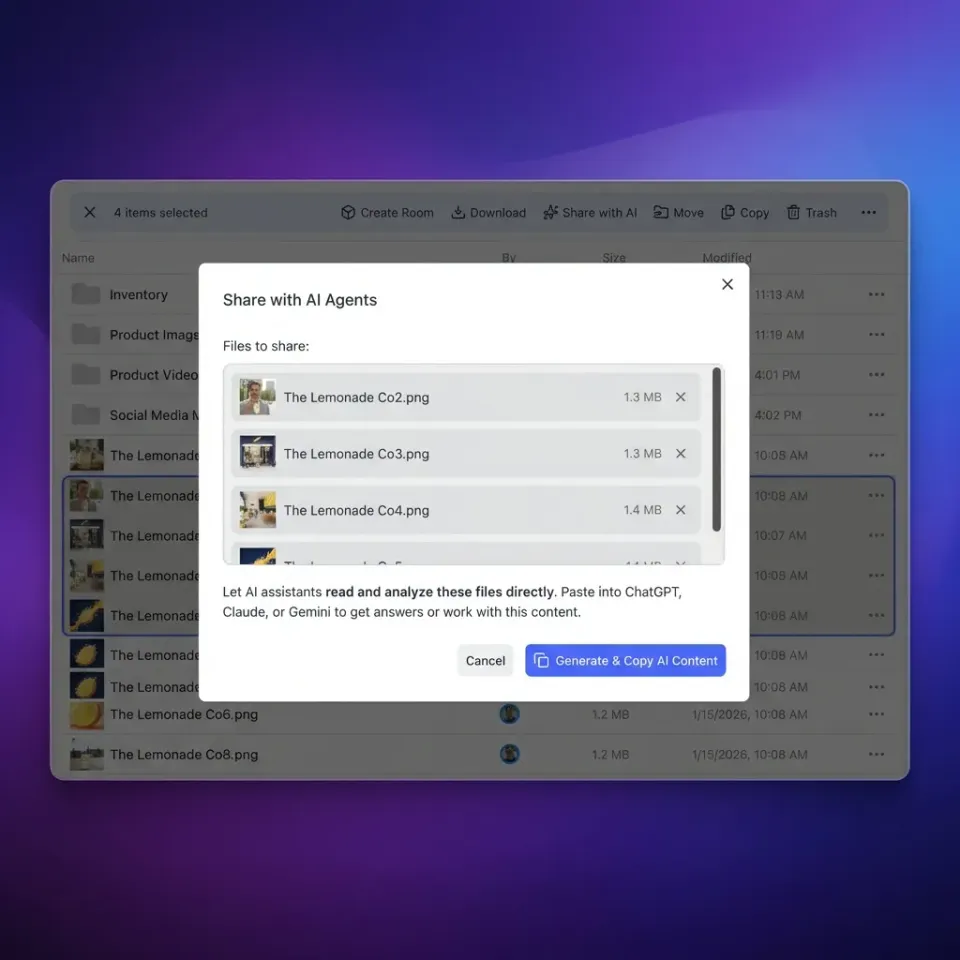
The Local Sync Dilemma: Why Codex Needs Cloud Storage Grounding
Engineering teams that maintain technical documentation in cloud storage face a persistent trade-off when connecting coding agents: pulling whole directories across standard REST APIs rapidly exhausts rate limits, while keeping files on local disks introduces placeholder corruption.
Modern software engineering rarely lives entirely inside a Git repository. While source code and deployment manifests reside in version control, essential technical requirements frequently live in cloud storage managed across departments. Product managers draft business logic, functional requirements, and user stories in shared Dropbox folders. System architects maintain architecture decision records, data models, and security policies in cloud documents. Frontend engineers depend on centralized design system tokens, SVG asset catalogs, and UI mockups stored across shared company directories.
When developers use OpenAI Codex to implement complex features, refactor services, or scaffold components, grounding the model in these external specifications is essential. Without direct access to technical documentation, coding agents make assumptions about data structures, guess parameter types, and invent non-existent API endpoints. The resulting code requires extensive manual correction and frequently violates team standards.
Connecting OpenAI Codex to Dropbox allows coding agents to search, read, and ground code in Dropbox-hosted files using remote MCP queries instead of downloading raw folders.
The initial instinct for many developers is to bring these cloud files onto their local workstations. Engineers install the Dropbox desktop client on macOS or Windows and attempt to expose the cloud directory to their editor. Some configure operating system symlinks pointing from their local project repository to the Dropbox folder. Others open their entire Dropbox directory tree as a secondary workspace root in their IDE.
Both approaches introduce serious filesystem issues because of how modern cloud storage clients manage disk capacity. To prevent corporate storage collections from overwhelming developer laptops, Dropbox relies on Smart Sync and Selective Sync. These mechanisms replace physical files on disk with virtual filesystem placeholders, known as dataless files or reparse points. On macOS, this behavior is managed by Apple's File Provider framework; on Windows, it relies on the Cloud Files API and NTFS reparse points.
These virtual placeholders create significant hazards for development tooling, language servers, and AI indexing routines:
Empty File Reads: When an indexing process or background file watcher inspects an unhydrated placeholder, the filesystem often returns an immediate end-of-file signal or zero bytes. The agent registers the file as empty text. When Codex attempts to generate code based on an unhydrated OpenAPI specification or database schema, it operates on blank context, resulting in hallucinated fields and broken imports.
Cascading Hydration Freezes: In other configurations, attempting to read a dataless placeholder triggers an operating system interception event that demands immediate file hydration over the network. If Codex or an IDE indexer walks a folder containing hundreds of documents, PDF guidelines, and asset packages, the desktop client launches concurrent download tasks for every file. Developer workstations experience sudden network spikes, disk thrashing, and high CPU load, freezing the development environment.
Context Fragmentation: If engineers deselect folders using Selective Sync to reclaim local disk space, the files disappear from the local filesystem altogether. Codex can no longer inspect the documentation under any circumstance, forcing developers to leave the editor, search the web interface, and copy text into prompt windows manually.
By decoupling local storage from agent retrieval, developers can ground Codex in accurate team documentation without turning their workstations into fragile synchronization targets.
Related guides
- How to Connect OpenClaw to Dropbox: Fast Agent Storage IntegrationAn OpenClaw Dropbox integration provides autonomous AI agents with indexed, semantic access to existing Dropbox folders...
- How to Connect Claude Desktop to Dropbox Storage via MCPClaude Desktop Dropbox integration connects Anthropic's desktop client to Dropbox cloud storage via Model Context...
- Codex Google Drive Integration: Connect Coding Agents to Cloud StorageA Codex Google Drive integration links autonomous coding agents to cloud repositories containing project documentation,...
- Codex Dropbox Integration: Connect OpenAI Coding Agents to Dropbox FilesConnecting OpenAI Codex to Dropbox gives coding agents indexed semantic search over repository design files, assets,...
- OpenAI Codex Usage Limits: API Tiers, Rate Caps, and Token BudgetsOpenAI Codex usage limits are tier-based rate caps (requests per minute and tokens per minute) and monthly spending...
- How to Connect OpenAI Codex to Google Drive via MCP ServerConnecting OpenAI Codex to Google Drive gives coding agents access to project documentation, API schemas, and...
More on this subject: AI Coding Assistants (96 guides)
Direct Connector Bottlenecks: Rate Limits and Context Window Saturation
Engineering teams looking to connect Codex to cloud files already keep their assets in Dropbox, Google Drive, OneDrive, Box, or SharePoint. The goal is never to abandon existing storage tools or force teammates to migrate their daily workflows. The objective is to make those existing files accessible to Codex without creating new operational friction.
Developers evaluating direct connections typically explore native remote MCP servers or third-party integration toolkits. On September 30, 2026, Dropbox Help documented setup procedures for connecting the Dropbox remote MCP server to AI clients, including Codex CLI (documented in Dropbox Help). Similarly, integration platforms like Composio provide connector toolkits linking Codex to Dropbox endpoints (documented in the Composio Dropbox framework).
With a direct MCP connector, Codex communicates with Dropbox over the network, invoking tools such as ListFolder, GetFileMetadata, and GetFileContent. For example, a developer can ask Codex to inspect a folder and summarize a specification. The agent calls ListFolder to discover directory contents, identifies the relevant file ID, and invokes GetFileContent to retrieve document text.
While direct connections avoid local filesystem placeholders, they introduce significant technical bottlenecks during agentic coding sessions:
Dropbox API Rate Limits: In automated agent workflows, Codex frequently executes multi-turn tool loops. An autonomous agent exploring a project repository may call directory listing tools repeatedly across nested folder hierarchies. The Dropbox API enforces rate limits on
/files/list_folderand file content downloads to safeguard infrastructure. When an agent fires rapid consecutive requests across large directories, Dropbox responds with HTTP 429 "Too Many Requests" and aRetry-Afterheader. This halts agent execution, breaks continuous coding flows, and leaves tasks incomplete.Context Window Saturation: Direct file retrieval tools pull entire document payloads into the model's prompt.
GetFileContentextracts raw text from entire documents without granular chunking. When Codex downloads a monolithic architecture document or an exhaustive API schema to answer a targeted question, it dumps thousands of tokens into the prompt context. This consumes context budget, inflates inference costs, and dilutes the model's focus, increasing the likelihood that Codex ignores subtle coding constraints.Lexical Search Limitations: Standard cloud storage search endpoints rely on exact filename matches or simple keyword queries. If an engineer asks Codex how to format webhook payloads according to team security standards, a basic search tool fails unless the file name or literal text matches the exact search term. Traditional storage search lacks semantic understanding, forcing the agent to guess which files to inspect.
Competitor content overlooks rate limits when polling Dropbox /files/list_folder across large directories, failing to show how pre-indexed MCP search avoids full payload downloads. Overcoming these hurdles requires an intermediary architecture that pre-indexes cloud files and serves compact semantic excerpts.
The Decoupled Architecture: Syncing Dropbox into Intelligent Fast.io Workspaces
The decoupled architecture separates storage persistence from agent retrieval. The team keeps Dropbox as its primary storage environment for human workflows. Files, folders, and shared team spaces remain in Dropbox exactly as they are.
Cloud Sync connects Google Drive, Dropbox, Box and OneDrive folders to a workspace, one-way or two-way, on a schedule or on demand, never continuous, live or real-time; SharePoint libraries through the OneDrive connector. By establishing a scheduled or on-demand sync from a team Dropbox folder into a Fast.io workspace, files are ingested cleanly into cloud-hosted storage without touching local developer machines.
Once files arrive in the workspace, Fast.io's Intelligence Mode processes the corpus. Instead of treating files as static blobs, the platform automatically parses documents, including PDFs, markdown, Word documents, and text files, and generates hybrid search indices combining full-text search, semantic vector embeddings, and metadata value extraction.
When OpenAI Codex needs context to answer a query or implement a function, it does not poll Dropbox APIs or download monolithic specification files. Instead, Codex queries the Fast.io remote MCP server. The server executes a semantic search across the pre-indexed workspace and returns only the specific, relevant text excerpts accompanied by document citations.
This architecture delivers three distinct advantages:
Elimination of Agent-Induced Rate Limits: Because Codex queries the Fast.io MCP endpoint rather than the live Dropbox API, rapid reasoning loops and consecutive queries never trigger Dropbox HTTP 429 throttling.
Minimal Context Consumption: Codex receives compact, relevant excerpts rather than whole file payloads, preserving prompt window capacity and lowering token costs.
Semantic Relevance: Codex finds technical specifications based on conceptual meaning rather than exact keyword matches.
When evaluating retrieval performance across cloud storage providers, independent benchmark results confirm the efficiency of pre-indexed workspaces. In published tests comparing agent storage connectors at Fast.io Benchmarks, Fastio was measured the fastest and the lowest cost of the providers tested.


Ground OpenAI Codex in your team's Dropbox documentation
Connect Codex to an intelligent Fast.io workspace synced with Dropbox. Search technical documentation over remote MCP with hybrid retrieval and version history. Starts with a 14-day free trial.
Step-by-Step Setup: Connecting OpenAI Codex to Dropbox via Fast.io
Connecting OpenAI Codex to Dropbox files through Fast.io requires three straightforward configuration phases. First, you establish a synchronization link from your existing Dropbox folder into a dedicated Fast.io workspace. Second, you activate workspace intelligence so all incoming files are parsed, chunked, and indexed for semantic and keyword search. Third, you register the remote MCP endpoint with OpenAI Codex using either the native Fastio plugin or a direct custom server definition.
Once configured, OpenAI Codex operates directly against the indexed workspace. Rather than scanning physical directories on your local workstation or downloading massive files across the network, Codex issues targeted semantic search queries. Fast.io processes the query against its vector and full-text index, returning concise excerpts and document citations that Codex uses to ground code generation. This workflow keeps developer machines clean, avoids API rate limits, and maintains accurate context across development sessions.
Step 1: Configure Cloud Sync from Dropbox to a Workspace
Create a dedicated workspace in Fast.io, such as Engineering-Specifications. Under workspace settings, select Cloud Sync and choose Dropbox. Authorize the Dropbox connection and select the target folder holding your team's specifications, schemas, or design assets. Choose your sync mode (one-way or two-way) and schedule (such as hourly or on demand). Cloud Sync connects Google Drive, Dropbox, Box and OneDrive folders to a workspace, one-way or two-way, on a schedule or on demand, never continuous, live or real-time; SharePoint libraries through the OneDrive connector. Once configured, your Dropbox documents are mirrored into the cloud workspace.
Step 2: Enable Intelligence Mode for Document Indexing
In your workspace settings, toggle Intelligence Mode on. Fast.io automatically extracts document text, generates semantic vector embeddings, and builds full-text search indices for all synced files. This turns your static Dropbox documentation into a live retrieval corpus without requiring a separate vector database.
Step 3: Connect Codex via the Fastio Plugin or Custom MCP Endpoint
OpenAI Codex can connect to Fast.io using either the plugin directory or a custom MCP configuration. Review the setup steps at Fast.io MCP Documentation and tool-surface specifics at Fast.io MCP Skill Guide.
Option A: Fastio Plugin (Preferred)
In the Codex CLI, run codex plugin add fast-io@openai-curated-remote or open /plugins; in Codex in the ChatGPT desktop app, use the Plugins tab. Sign in to Fastio when prompted.
Option B: Custom MCP Server (Alternative and IDE Extension)
For the Codex IDE extension, or environments where plugins are restricted, configure the remote MCP endpoint directly:
codex mcp add fastio --url https://mcp.fast.io/mcp/operations
codex mcp login fastio
During the OAuth sign-in flow, your browser opens the Review Permissions screen. Select either Read Only or Read & Write, and specify which organizations and workspaces the Codex connection can access. Scoping the connection to the Engineering-Specifications workspace allows Codex to query project files while isolating unrelated team data.
To disconnect the integration at any time, remove the connector in Codex, then in Fastio navigate to Settings, select Devices & Agents, open Connected Devices, and select Revoke.
Step 4: Query Specifications and Ground Code Generation
Once connected, Codex has access to the workspace retrieval tools. When prompting Codex in your terminal or IDE, ask the agent to ground its implementation in the synced documentation.
For example, prompt Codex:
Review the authentication token refresh requirements in our engineering specifications and implement the auth handler in src/auth/refresh.ts.
Codex invokes the search tool on the Fast.io MCP endpoint, retrieves the relevant requirements from the synced Dropbox files, and writes code that complies with your team's architecture.
Multi-Agent Governance, Advisory File Leases, and Predictable Pricing
When engineering teams connect autonomous AI agents to shared technical documentation, governance and operational safety become immediate priorities. Without centralized controls, autonomous agents can inadvertently overwrite critical files, introduce conflicting architectural edits, or access sensitive repositories outside their task scope. Fast.io provides a coordination layer designed specifically for multi-agent and human collaboration, incorporating structured permission models, comprehensive change tracking, and concurrency management.
By enforcing organization-wide and workspace-level access controls, administrators make sure that coding agents only interact with designated project assets. A detailed activity log provides complete visibility into every file creation, modification, and deletion executed across the organization. For multi-developer teams running concurrent agent sessions, advisory file leases prevent race conditions and uncoordinated overwrites without locking developers out of their work. Combined with transparent subscription plans and metered credit allowances, teams can scale agentic workflows with predictable costs.
Role-Based Permissions and Workspace Scoping
Fast.io enforces role-based permissions set per organization, workspace, and share through member roles. Permissions are never applied at the individual folder or file level; all members of a workspace access its contents according to their workspace role.
Engineering teams can isolate data by creating separate workspaces or scoped shares. For instance, an organization can maintain an internal core architecture workspace for internal developers, while sharing a dedicated external assets share with third-party contractors. Codex agents only access the workspaces permitted during OAuth authentication.
Detailed Activity Logging and Advisory File Leases
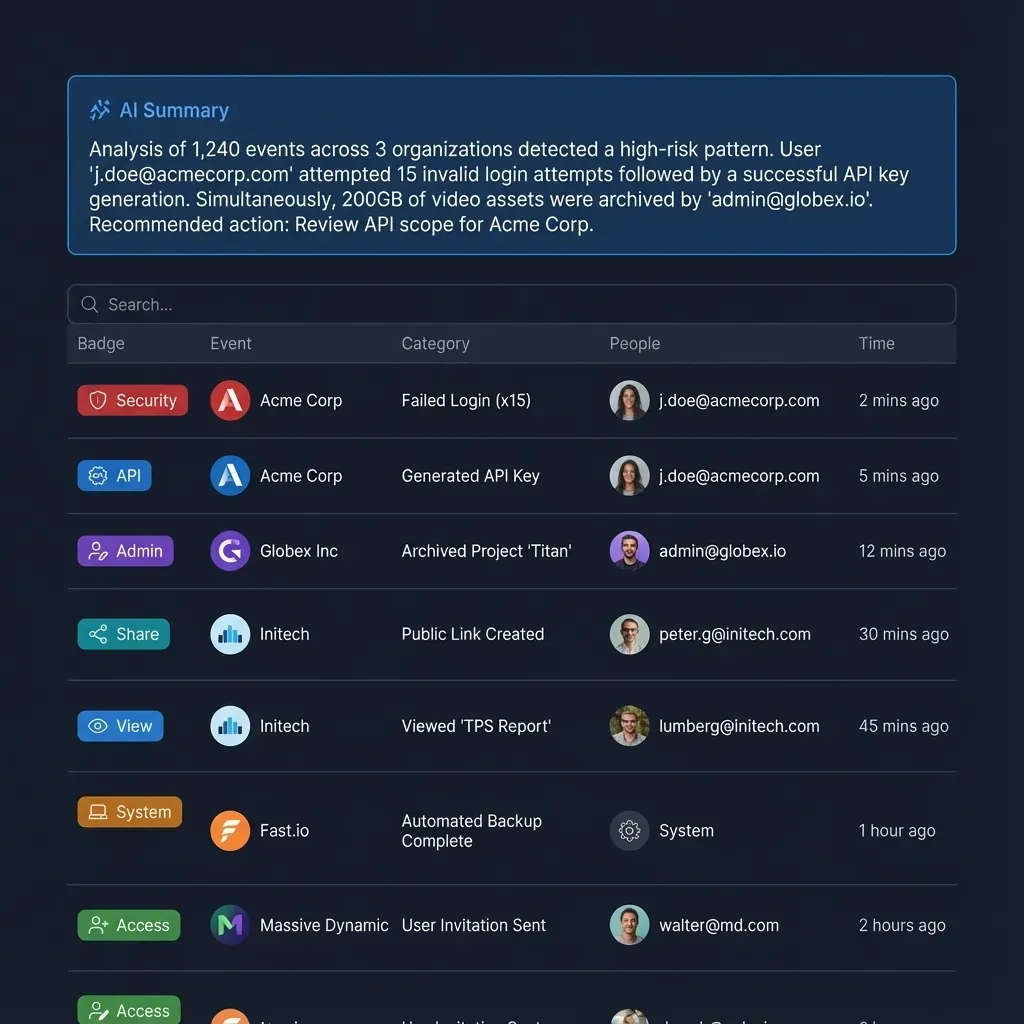
Fast.io provides a detailed activity log of changes across organizations and workspaces. The activity log records file creations, uploads, edits, moves, deletions, membership changes, and share creation. It captures actions executed by human engineers and automated AI agents alike, providing visibility into project asset modifications. The activity log tracks changes only; it does not record read-only events such as views, downloads, or previews.
Every file in a Fast.io workspace maintains a complete per-file version history. When agents write code outputs or update schemas, earlier file versions remain accessible and can be restored at any point.
For multi-agent workflows where multiple automated processes operate concurrently, Fast.io provides advisory file leases. An agent acquires a lease using lock-acquire and releases it with lock-release on the storage_manage tool, while other agents check status with lock-status on the storage tool. A lock expires unless periodically heartbeated, other members can see who holds the lock, and concurrent writes land safely in version history without overwriting history.
When an AI agent scaffolds new repositories, collects assets, or structures workspaces, Fast.io supports ownership transfer: the agent creates the organization and workspaces, then transfers primary ownership to a human team lead while retaining administrative access.
Subscription Plans and Free Trial
Creating an account is free; doing real work requires an organization on a paid subscription. Monthly plans start with a 14-day free trial that requires a credit card. Review the full breakdown on the Fast.io pricing plans page.
Credits meter AI operations, including document indexing and semantic search. Seats count organization members only; external collaborators who open a share do not consume a seat and can access shared links without an account.
Sources
References used to verify factual claims in this guide.
-
Composio provides an MCP toolkit enabling OpenAI Codex to connect with Dropbox tools.
-
Dropbox provides a remote Model Context Protocol server in beta for connecting Dropbox tools directly to MCP clients including Codex.
Frequently Asked Questions
How do I connect OpenAI Codex to Dropbox?
You can connect OpenAI Codex to Dropbox by syncing your Dropbox folders into an intelligent Fast.io workspace and connecting Codex via remote MCP. Fast.io Cloud Sync mirrors your Dropbox files into a cloud workspace on a schedule or on demand. You then install the Fastio plugin in Codex or connect to `https://mcp.fast.io/mcp/operations`. Codex queries the indexed workspace using natural language, retrieving relevant specifications without requiring local file downloads.
Does Dropbox have an official MCP server for Codex?
Yes, Dropbox provides a remote MCP server in beta that supports Codex CLI and other AI clients. Developers can add it using `codex mcp add DropboxMCP --url https://mcp.dropbox.com/mcp` and log in via OAuth. While functional for basic operations like listing folders and retrieving file text, direct connections pull full document payloads and can encounter API rate limits during automated multi-turn coding sessions.
How can Codex search Dropbox files without downloading them?
Codex searches Dropbox files without downloading raw folders by querying a pre-indexed Fast.io workspace. Fast.io ingests Dropbox files through Cloud Sync and builds a hybrid search index combining full-text search and semantic vector embeddings. When Codex prompts the workspace over MCP, Fast.io returns targeted excerpts and document citations directly to the model, avoiding monolithic file downloads.
Why do Dropbox API rate limits affect OpenAI Codex?
During autonomous coding tasks, Codex frequently runs multi-turn loops that inspect folder structures and read files repeatedly. The Dropbox API enforces request rate limits on endpoints such as `/files/list_folder`. High-frequency consecutive requests can trigger HTTP 429 rate limit responses with `Retry-After` headers, stalling the coding assistant mid-task. Pre-indexed retrieval eliminates these live API requests during code generation.
Can I connect Codex to Dropbox using the Fastio plugin?
Yes, the Fastio plugin is the preferred connection method for Codex. In the Codex CLI, run `codex plugin add fast-io@openai-curated-remote` or open `/plugins`. In the ChatGPT desktop app, install Fastio from the Plugins tab. Complete the browser OAuth sign-in to grant Codex access to your synced Dropbox workspaces.
How does Fast.io Cloud Sync differ from real-time desktop synchronization?
Fast.io Cloud Sync connects Google Drive, Dropbox, Box and OneDrive folders to a workspace on a schedule or on demand, never continuous, live or real-time. This server-to-server synchronization operates entirely in the cloud, avoiding local disk bloat, placeholder file corruption, and background daemon CPU overhead.
Related Resources

Ground OpenAI Codex in your team's Dropbox documentation
Connect Codex to an intelligent Fast.io workspace synced with Dropbox. Search technical documentation over remote MCP with hybrid retrieval and version history. Starts with a 14-day free trial.