Clio for Co-Counsel: Setting Up Joint Matter Collaboration and Secure File Sharing
Clio for co-counsel enables law firms to share matter files, notes, and billable time entries with partnering attorneys through an external portal. Setting up outside counsel requires strict permission boundaries to protect firm trust accounts, internal communications, and unrelated client records. While Clio handles core practice management, its 100 MB external portal upload limit requires dedicated workspaces for large discovery bundles.


How Clio for Co-Counsel Segregates Matters and External Access
Sharing a legal matter with outside counsel in practice management software usually breaks at the boundaries: partnering attorneys need access to docket pleadings, deposition transcripts, and shared time tracking, but exposing the primary matter file risks disclosing firm trust balances, internal communications, and unrelated client records. When litigation teams avoid portal setup by falling back to unencrypted email attachments or personal consumer drive links, version control collapses and large evidentiary files fail to transfer.
Clio for co-counsel refers to configuring Clio Manage and external client portals to share select matter documents, billable time, and case communications with partnering attorneys outside the primary firm. Managing multi-firm litigation requires distinguishing between internal staff members who hold paid software licenses and external legal collaborators who require access strictly restricted to a single docket.
Internal Licenses Versus External Portal Access
Law firms frequently make the costly mistake of adding partnering attorneys as standard users within their practice management account. In Clio Manage, an internal user license grants broad firm-level access, consumes a paid subscription seat, and requires careful permission masking to prevent the outside attorney from viewing internal reports or unrelated clients.
Clio for co-counsel resolves this by operating on Clio's external portal architecture, historically rooted in Clio Connect. Instead of provisioning an internal seat, the host firm creates an external contact record for outside counsel and shares specific matters or folders. The outside attorney accesses the matter through a secure portal interface that is completely partitioned from the host firm's administrative controls.
How Account Switching Functions for Partnering Attorneys
A common friction point in joint litigation occurs when the partnering attorney already runs their own practice on Clio Manage. In older portal implementations, attorneys often had to juggle multiple logins, private browser windows, or distinct email addresses to prevent account collisions.
Clio manages this through a unified credential system. When an outside attorney receives an invitation to collaborate on a matter, they can log in using their existing Clio credentials. Once logged in, Clio displays an Account Switcher in the bottom-left corner of the primary navigation panel. Clicking this menu allows the attorney to toggle between their firm's internal Clio Manage account and the host firm's co-counsel portal. This keeps their own firm's operational data separate while giving them instant access to the shared docket.
Related guides
- Case File Management Software: Structuring Digital Matter FilesCase file management software provides structured, matter-centric digital repositories for legal pleadings, discovery...
- Clio Document Management Alternatives: Upgrading Your Firm's File StorageClio document management alternatives are dedicated document management systems that connect to or replace Clio's...
- Docketwise Client Portal: Setup, Document Intake, and Matter CollaborationThe Docketwise client portal provides immigration practices with a centralized interface for distributing...
- HubSpot for Law Firms: Setting Up Legal Intake, Pipelines, and Matter WorkspacesHubSpot for law firms is an inbound marketing and intake management system that tracks prospective clients from inquiry...
- Law Firm Workspace: Centralizing Matter Files, Client Portals, and Team CollaborationManaging active legal matters requires a unified digital environment where attorneys, paralegals, and clients...
- Legal Data Rooms: Secure File Disclosures, Due Diligence, and AuditsA legal data room is a controlled, access-restricted repository used by attorneys and corporate counsel to share...
More on this subject: Legal Teams (247 guides)
Steps to Configure Outside Counsel Permissions in Clio Manage
Setting up outside counsel access demands deliberate configuration before any files or dockets are transmitted. Law firms must maintain clear boundaries between collaborative matter data and proprietary firm finances.
Checklist for Co-Counsel Matter Collaboration
Following a disciplined setup procedure prevents data leakage and ensures clean operational alignment:
- Create a dedicated outside contact record and verify the attorney's professional email address.
- Restrict internal matter visibility using custom permission groups in Clio Manage.
- Initiate matter sharing and verify that trust accounting and general ledgers remain hidden.
- Provision scoped folder structures for work product and use dedicated external workspaces for discovery files exceeding portal upload limits.
Step-by-Step Matter Setup in Clio Manage
Configuring a matter for outside collaboration requires four distinct steps in the Clio Manage dashboard:
First, create the outside attorney as a Contact. In Clio Manage, select Contacts from the left navigation bar, choose New Contact, and select Person. Enter the attorney's full legal name, law firm name, and professional email address. Because portal invitations and secure notifications bind directly to this address, verify that the email matches the credentials they use for legal correspondence.
Second, adjust internal matter permissions. Navigate to Matters, locate the joint litigation matter, and select Edit Matter. Under the Groups and Permissions section, change the default visibility setting from Everyone to a designated internal user group or specific responsible attorneys. Restricting internal access ensures that only attorneys and paralegals assigned to the joint defense or co-counsel arrangement can modify matter details or view communications.
Third, initiate the co-counsel share. From the Matter overview dashboard, select the Share button located in the upper right action bar. In the sharing modal, type the outside counsel contact name. Check the box labeled Notify contacts via email so the system transmits an access link. Select Share to generate the portal instance. If the attorney does not have an active portal account, the invitation prompts them to create a password and set their time zone.
Fourth, configure matter billing preferences. Outside attorneys frequently need to record billable time for fee petitions, fee splits, or client review. In Clio Manage, open the matter's Billing Preferences subtab and assign a specific billing rate for the external attorney. When the co-counsel logs hours through their portal dashboard, those entries flow directly into the host firm's unbilled activities queue without exposing the host firm's internal realization rates or operational accounts.
Preserving Confidentiality Around Trust Accounts and Firm Billing
A primary concern for managing partners is whether outside counsel can inspect the firm's financial standing, client retainers, or trust ledgers. In Clio Manage, trust accounting and billing controls remain internal firm operations. External co-counsel logging into the portal can view only matter details, calendar events, assigned items, and shared communications. They cannot access the firm's main Billing tab, Bank Accounts, Trust Requests, or Three-Way Reconciliation reports.
Firms must still practice data hygiene within matter fields. Custom fields, matter descriptions, and internal notes can be exposed if marked as shared. Never place retainer deposit figures, internal fee-sharing ratios, or client credit card authorizations in open matter description fields or shared communication threads.
Why Discovery Productions Exceed Clio Connect Upload Limits
Document exchange is the most frequent point of interaction between co-counsel, yet it is also where standard practice management portals face technical bottlenecks.
Folder Sharing Versus Single Document Distribution
In Clio Manage, document collaboration is managed through the Documents tab. To share documents, navigate to the Documents tab within the specific matter, locate the relevant file or folder, click the downward arrow next to View, and select Share with contacts. In the dialogue box, select the co-counsel contact, verify that Clio Connect is selected as the sharing method, and confirm.
A critical operational distinction lies between sharing individual files and sharing directories:
- Sharing Individual Documents: Transmits a read-only or download link to specific files. Outside counsel can view and download the selected document, but they cannot upload replacement drafts, exhibits, or new filings back into that directory.
- Sharing Folders: Creates a bi-directional collaboration folder. Outside counsel can inspect existing documents and upload new files directly from their portal interface. The host firm immediately sees those uploads in the matter's document subtab.
For active litigation, sharing a dedicated folder is standard practice. It provides outside counsel with a designated drop location for draft pleadings, deposition notices, and correspondence.
The 100 MB Portal Upload Bottleneck
Although Clio offers unlimited total storage, it imposes an individual file size limit of 5 GB for uploads within Clio Manage and Clio Drive. However, when sharing documents with external users through the portal, the system enforces a strict upload limit of 100 MB per file. Similar upload restrictions apply across other portal features, including document analysis tools, intake form attachments, expense receipts, and electronic signature envelopes.
In civil litigation and criminal defense, a strict 100 MB ceiling creates immediate operational roadblocks:
- Videotaped Depositions: High-definition video depositions recorded during discovery produce multi-gigabyte video files that far exceed portal capacity.
- Electronic Discovery Production Volumes: Document productions exported from discovery review platforms arrive in compressed archives containing TIFF images, multi-page PDFs, and text load files. These bundles routinely measure multiple gigabytes and fail to transfer through standard portals.
- Scanned Medical Records and Diagnostic Imaging: Comprehensive hospital charts, pathology scans, and DICOM radiology packages routinely exceed portal upload limits.
- Trial Demonstratives and High-Resolution Exhibits: Uncompressed court presentation graphics, aerial drone footage, and audio surveillance files quickly surpass portal thresholds.
The Risks of Ad-Hoc File Transfer Workarounds
When legal teams hit the portal restriction, they frequently resort to improvised workarounds that introduce significant risk:
- Splitting Compressed Archives: Dividing discovery productions into sequential segmented archives creates extraction errors and corrupts load file integrity.
- Consumer Cloud Drive Links: Using personal or unvetted Dropbox or Google Drive links scatters client files across personal accounts, bypasses firm governance, and lacks centralized audit logging.
- Unencrypted Email Delivery: Attempting to email large documents leads to bounce-backs, server rejections, and unencrypted transmission of sensitive case data across external mail networks.
How Dedicated Workspaces Resolve High-Capacity Discovery Bottlenecks
To manage complex litigation without hitting file size walls or compromising practice management records, law firms pair Clio with dedicated cloud workspaces. This approach maintains Clio Manage as the system of record for docket deadlines, contacts, and billable time, while running heavy document collaboration in a high-capacity workspace.
Organization-Owned Workspaces and Scoped Access
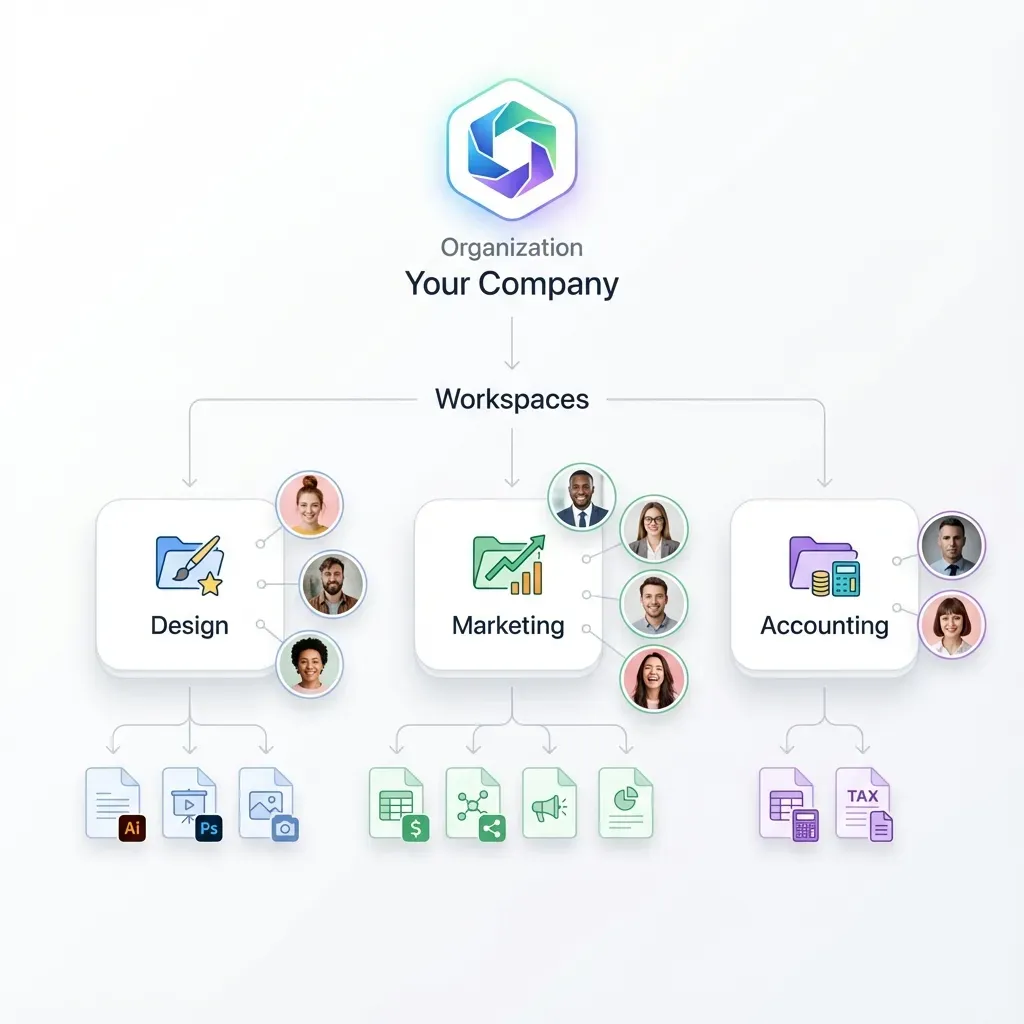
In Fast.io, document collaboration centers on legal workspaces with granular permission controls at the organization, workspace, folder, and file levels. Rather than granting outside counsel access to the broader firm storage environment, the litigation lead creates a dedicated matter workspace.
Inside this workspace, permissions are scoped to match the litigation team's roles:
- Internal Trial Team: Full administrative control to manage files, create shares, and view audit records.
- Co-Counsel and Local Counsel: Read and write permissions restricted to active litigation folders, allowing document review and draft submissions without exposure to internal firm administrative controls.
- Independent Experts and Consultants: Read-only access to designated discovery productions or trial exhibits, with download permissions disabled when reviewing sensitive proprietary materials.
High-Capacity Discovery Transfers and Video Streaming
Fast.io provides upload and storage capacity designed for modern litigation data volumes. On Fast.io pricing, monthly plans start with a 14-day free trial that requires a credit card. Capacity scales across subscription plans as detailed below:
These capacity limits accommodate complete forensic disk images, multi-gigabyte document productions, and full-length deposition videos in a single transfer. Fast.io also supports HLS video streaming. When a court reporter uploads a heavy deposition video, attorneys and litigation paralegals can stream and review the testimony directly in their web browser without waiting for an entire file to download locally.
Branded Delivery Links and Granular Download Controls
Distributing files to outside counsel, courts, and expert witnesses requires professional presentation and strict distribution control. Fast.io provides secure sharing options with three distinct interaction modes:
- Send Shares: Distributes files to recipients with optional expiration dates and download controls.
- Receive Shares: Generates a secure branded upload portal where co-counsel, court reporters, or clients can upload heavy files directly into the matter workspace without creating an account.
- Exchange Shares: Creates a bi-directional workspace where authorized outside participants can both review documents and upload new materials.
To safeguard sensitive draft work product or confidential trade secrets produced under a protective order, administrators can disable file downloads on any share. Outside counsel and experts can inspect documents through the web previewer, but cannot save local copies to unmanaged remote laptops.
Immutable Audit Logs and Version History
Disputes in joint litigation frequently center on whether a partnering firm received a critical pleading draft, production set, or notice before a jurisdictional cutoff. Fast.io maintains a detailed activity log that records every user action, file upload, link access, view, and download event.
The audit log is tamper-evident and cannot be edited or cleared by collaborators. If a question arises regarding document access dates, the litigation lead can inspect the exact timestamp, user identity, and IP address associated with the event. Additionally, per-file version history preserves every iteration of a document. When multiple attorneys edit joint motion drafts, jury instructions, or exhibit lists, prior versions remain fully recoverable, preventing accidental overwrites.


Share Large Discovery Files with Outside Counsel
Pair Clio for co-counsel with high-capacity workspaces built for heavy discovery files, deposition video, and structured document extraction. Monthly plans start with a 14-day free trial that requires a credit card.
Information Governance and File Organization for Joint Defense
Collaborating across law firm boundaries introduces complex professional responsibilities. Managing partners and litigation leads must implement rigorous information governance to maintain confidentiality and protect work-product protections.
Ethical Boundaries and Privilege Preservation
When sharing matters between independent law firms, the participating attorneys must establish clear operational boundaries. Firms should verify that a formal Co-Counsel Agreement or Joint Defense Agreement is executed before granting access to confidential case files. Check with your firm's own counsel or records policy regarding state-specific rules on multijurisdictional practice, fee division disclosures, and client consent requirements.
Access controls must mirror the scope of representation. If outside counsel is retained solely for local court appearances or specialized patent claim construction, their folder access should be limited to those relevant pleadings and technical disclosures. Granting broad access to unrelated litigation files or internal firm discussions risks waiving work-product protections or creating conflict-of-interest exposure across unrelated firm clients.
Standardized Matter Directory Structure
Adopting a uniform directory structure prevents disorganization and simplifies access control. Below is a tested folder hierarchy for joint litigation matters:
01_Pleadings_and_Court_Filings/
    ├── Initiating_Pleadings/
    ├── Court_Orders/
    └── Docket_Index.xlsx
02_Joint_Defense_Strategy/
    ├── Strategy_Memoranda/
    ├── Case_Evaluations/
    └── Privilege_Log.xlsx
03_Discovery_Productions/
    ├── Incoming_Productions/
    ├── Outgoing_Productions/
    └── Subpoenas_and_Third_Party/
04_Depositions/
    ├── Transcripts/
    ├── Exhibits/
    └── Video_Recordings/
05_Motions_and_Briefs/
    ├── Dispositive_Motions/
    ├── In_Limine_Motions/
    └── Research_and_Authorities/
06_Expert_Witnesses/
    ├── Expert_Reports/
    ├── Disclosures_and_CVs/
    └── Working_Files/
07_Trial_Preparation/
    ├── Exhibit_List/
    ├── Witness_Outlines/
    └── Demonstratives/
In this structure, outside co-counsel can be granted full read and write access to 05_Motions_and_Briefs/ and 04_Depositions/, while sensitive internal analyses in 02_Joint_Defense_Strategy/ can be restricted to designated lead attorneys.
Offboarding Outside Counsel and Revoking Access
When a case reaches final judgment, settlement, or when outside counsel withdraws from representation, firms must promptly revoke all external access:
- Sever Clio Portal Access: In Clio Manage, navigate to the matter or document folder share settings, select the co-counsel contact, and click Stop sharing. This terminates their ability to view the matter dashboard, send messages, or upload files through the portal.
- Deactivate Workspace Shares: In Fast.io, expire or delete external share links associated with the outside attorney. If they held direct workspace membership, remove their user account from the matter workspace.
- Archive Matter Records: Move the matter workspace into archive status to freeze modifications. Export the append-only audit log and store it with the permanent matter archive according to your firm's document retention schedule.
Extracting Metadata and Searching Across Multi-Firm Files
Complex litigation frequently produces tens of thousands of pages of discovery, medical chronologies, contracts, and deposition transcripts. When outside counsel joins a case mid-stream, getting them up to speed through manual document review consumes dozens of costly billable hours.
Transforming Discovery Files with Metadata Views
Fast.io provides Metadata Views to convert unstructured litigation documents into organized, queryable databases. Attorneys and paralegals navigate to Metadata Views to define target fields using plain natural language descriptions, such as:
- "Extract contract title, effective date, counterparties, governing law jurisdiction, and limitation of liability amount."
- "Extract patient name, medical provider, treatment dates, diagnosis codes, and billed charges."
- "Extract deponent name, deposition date, examining attorney, exhibit numbers referenced, and key topic objections."
The platform's extraction engine analyzes documents in the workspace, designs a structured schema (supporting Text, Integer, Decimal, Boolean, URL, JSON, and Date & Time formats), and populates a filterable, sortable spreadsheet. It processes scanned PDFs, Word documents, spreadsheets, presentations, and digital images without requiring pre-configured templates or rigid OCR coordinate rules. Legal teams can add new columns at any time without reprocessing existing files, enabling fast cross-examination prep and evidence indexing across multi-firm teams.
Semantic Search Across the Matter Repository
When Intelligence Mode is enabled on a Fast.io workspace, every uploaded document is automatically indexed for hybrid search, combining traditional full-text keyword matching with semantic concept retrieval.
Rather than relying solely on exact Boolean keywords that miss synonymous phrases, attorneys can search using conceptual queries like:
"discussions regarding brake pad overheating prior to the June recall"
The search engine surfaces relevant paragraphs across multi-gigabyte production sets and returns answers backed by citations pointing directly to source documents and page numbers. Outside counsel can independently verify testimony excerpts and factual assertions in seconds.
Real-Time Co-Editing with Collaborative Notes
Drafting joint briefs, summary judgment motions, and witness outlines typically generates confusing email chains with competing file versions. Fast.io includes Collaborative Notes, providing real-time document co-editing within the matter workspace.
Lead trial counsel and local co-counsel can outline opening statements, compile cross-examination points, and annotate exhibit references simultaneously. Every revision is captured within workspace version history, maintaining document integrity while eliminating the confusion of circulating numbered Word documents.
Sources
References used to verify factual claims in this guide.
-
Although Clio offers unlimited total storage, it imposes an individual file size limit of 5 GB for uploads within Clio Manage and Clio Drive.
-
When sharing documents with external users through the portal, the system enforces a strict upload limit of 100 MB per file.
Frequently Asked Questions
How do I share a matter with co-counsel in Clio?
To share a matter with co-counsel in Clio Manage, first add the outside attorney as a Contact under the Person category with their professional email address. Next, open the target matter dashboard and click the Share button in the upper right corner. Search for the outside attorney's contact record, check Notify contacts via email, and select Share. Clio will send an automated invitation creating a secure portal where outside counsel can review shared matter details, record billable time, and communicate.
Can co-counsel view billing and accounting records in Clio?
No. External co-counsel accessing matters through Clio's external portal cannot view your firm's internal billing ledgers, operating bank balances, trust requests, or three-way trust reconciliations. Their access is strictly limited to the shared matter details, calendar events, tasks, and communications. Outside counsel can record their own billable time entries for the matter, but they cannot see the firm's broader financial metrics or realization rates.
What are the file size limits when sharing documents with co-counsel in Clio?
Although Clio offers unlimited total storage, it imposes an individual file size limit of 5 GB for uploads within Clio Manage and Clio Drive. However, when sharing documents with external users through the portal, the system enforces a strict upload limit of 100 MB per file. For heavy files such as videotaped depositions, comprehensive e-discovery production archives, and high-resolution medical imaging sets, firms typically use dedicated cloud workspaces with upload capacities scaling far beyond portal constraints.
Do co-counsel attorneys need their own paid Clio Manage license?
No. Outside co-counsel collaborate through Clio's external portal architecture at no additional software license cost to your firm. You do not need to purchase an extra Clio Manage seat. The outside attorney receives an invitation to a secure portal dashboard that allows them to interact with the shared matter without accessing your firm's internal software environment.
How does outside counsel switch between their firm's Clio account and a co-counsel portal?
If an outside attorney already uses Clio Manage for their own practice, they do not need separate logins or different email addresses. Once logged into Clio, they can click the Switch accounts menu located in the bottom-left corner of the primary navigation panel. This dropdown allows them to switch instantly between their own law firm's Clio Manage account and any shared co-counsel portals.
What is the difference between sharing an individual document and sharing a folder in Clio?
Sharing an individual document in Clio provides outside counsel with access to download or view that specific file, but it does not permit them to upload new files back into the matter. Sharing an entire document folder creates a bi-directional repository: outside counsel can review existing records and upload draft filings, research memos, or exhibits directly into the shared folder, where they immediately appear in the host firm's Clio Manage documents subtab.
What happens when our firm stops sharing a matter with co-counsel?
When your firm selects Stop sharing on a matter or folder in Clio Manage, outside counsel's access is immediately revoked. The shared matter is removed from their portal dashboard, and they can no longer view matter notes, calendar events, or shared documents. Any documents they previously downloaded to their local computer remain in their possession, but they can no longer access or upload files within your firm's portal.
Related Resources

Share Large Discovery Files with Outside Counsel
Pair Clio for co-counsel with high-capacity workspaces built for heavy discovery files, deposition video, and structured document extraction. Monthly plans start with a 14-day free trial that requires a credit card.