Setting Up a Cline Shared Workspace for Teams
Up to 40% of enterprise applications will include task-specific AI agents by the end of 2026, forcing engineering teams to move beyond isolated local developer experiments. Traditional setups isolate Cline configuration and files on individual machines, creating context drift between developers. This guide outlines how to configure Cline Enterprise dashboards and establish shared cloud directories using Fast.io to maintain a unified workspace for both human developers and autonomous agents.


Why Teams Face Developer Context Isolation in AI Projects
Up to 40% of enterprise applications will include integrated, task-specific AI agents by the end of 2026, representing a steep increase from less than 5% in 2025 [Gartner 2024 Press Release]. This platform change means engineering teams are shifting from isolated developer experiments with local tools like Cline to coordinated, multi-developer environments. Yet, most documentation for AI coding assistants focuses on local setup, ignoring how teams can share developer context and files.
In a standard Cline setup, the agent runs inside a local VS Code installation. The configuration files and conversation history remain stored on a single developer's machine. When multiple developers work on the same codebase, this isolation leads to several core issues:
First, context drift occurs when team members update files or dependencies without the agent's knowledge. Because the agent has no visibility into other developers' local changes, it continues writing code based on outdated repository states.
Second, teams duplicate their efforts. If a developer writes a custom rule block to handle API routing, other team members must copy that configuration manually. There is no shared repository of agent instructions.
Third, troubleshooting is difficult. When an agent breaks a build, the debugging logs are local to that specific machine. Other team members cannot access the interaction history to inspect what prompted the error.
To coordinate autonomous agents at scale, engineering teams must move beyond local boundaries. Establishing a unified workspace environment is necessary to keep developer contexts aligned.
How Local Isolation Hinders Developer Agent Collaboration
Local isolation means that each agent instance operates in a vacuum. If Developer A runs Cline to generate database schemas, and Developer B runs a separate Cline instance to build the frontend API routes, the two agents cannot communicate their choices. Developer B's agent will make assumptions about the database schema that may not align with Developer A's actual implementation. This disconnect forces developers to spend hours reviewing code manually and writing corrective prompts.
Without a central files repository, the agent cannot access shared project assets, API specifications, or design mockups. The developer must upload each file manually into the local VS Code chat session, consuming valuable context tokens and increasing the likelihood of errors. To collaborate effectively, teams require an administrative layer to manage the agents and a persistent storage layer to coordinate the files.
Related guides
- How to Create a Claude Cowork Shared Workspace for TeamsA Claude Cowork Shared Workspace lets teams and AI agents manage files together in one place. The standard Claude app...
- Cursor Teams: Setting Up Shared Workspaces for Coding AgentsCursor Teams provides a secure environment for managing coding agents and developer workflows. A major challenge for...
- Cline Multi-Agent Workflows: How to Coordinate Agent TeamsWorkplace usage of AI agents among developers nearly doubled year-over-year from 31% in 2025 to 59% in 2026 [Stack...
- Cline VS Code Extension: MCP Setup and Shared WorkspacesWhile individual developers benefit from local autonomous agents, engineering teams struggle with knowledge silos. By...
- How to Sync Cline Rules Across Teams in VS CodeSyncing Cline rules enables development teams to enforce consistent coding standards, architectural bounds, and agent...
- How to Use Cline with Ollama for Local AI CodingCline reports 4,672,635 Visual Studio Marketplace installs, yet many teams still send proprietary code to cloud APIs...
More on this subject: Cline (105 guides)
How to Configure Cline Enterprise for Team Administration
Cline Enterprise provides administrative tools to manage users and API credentials centrally. Instead of requiring each developer to purchase their own API tokens or manage individual developer accounts, platform teams can control governance through a single administrative portal.
Centralized identity management forms the foundation of Cline Enterprise. The platform connects to enterprise identity providers via WorkOS, enabling automated user provisioning through SCIM. When a developer joins the organization, their account is created automatically, and their access is revoked when they leave the directory.
Another critical feature is Bring Your Own Inference (BYOI). Organizations can connect Cline directly to their existing cloud agreements with providers such as Amazon Bedrock, Google Vertex AI, or Azure OpenAI. This setup allows the team to negotiate custom volume rates and keep all model traffic within their own virtual private clouds. Admins can configure these models from the dashboard, setting global rate limits and model restrictions.
The enterprise dashboard also provides observability. Administrators can track usage budgets across different projects. You can set auto-approval boundaries, defining which command lines require human confirmation and which can run autonomously.
While Cline Enterprise manages authentication and inference access, it does not solve the problem of file persistence. Teams still need a shared storage layer to collaborate on code and active developer context.
Establishing Centralized Inference and Guardrails
Managing API credentials across many developers introduces security risks. Cline Enterprise mitigates this by routing all requests through a central gateway. Developers do not need to handle raw API keys for Anthropic, OpenAI, or Google Vertex AI. Instead, the administrator configures the gateway once, and developers authenticate using their corporate credentials.
Admins can also enforce security guardrails. For example, you can restrict specific models (like Claude Sonnet) to senior developers, while routing junior developer requests to cheaper models. You can also define blocklists for sensitive files, ensuring that agents cannot read environment configuration files or private security certificates. These settings sync across the entire team, establishing a uniform safety baseline.
How to Build a Cline Shared Workspace for Teams using Fast.io
To share files and repository contexts across a team, developers often resort to traditional storage solutions. Local storage is restricted to a single machine, which prevents collaboration. Object storage platforms like Amazon S3 work well for static assets but lack the real-time event triggers needed to orchestrate active developer agents. Cloud drives such as Google Drive or Dropbox are designed for office documents, meaning their APIs are slow and they lack developer-friendly tooling.
An alternative is Fast.io, which serves as a shared workspace platform designed for agentic development. Fast.io provides org-owned workspaces that allow human developers and active agents to access the same files simultaneously. To support agent workflows, teams can connect Cline to /storage-for-agents/ as a persistent storage backend.
Using Fast.io, teams gain per-file version history. When a developer and a Cline agent edit the same file, the platform tracks every modification. This versioning prevents conflict loss and allows team members to revert changes easily. By using Fast.io /product/workspaces/, both humans and autonomous agents can collaborate in real time on the same codebase.
Fast.io also includes Collaborative Notes. These live documents let developers and agents co-edit documentation, project requirements, and API specs in real time. Because the notes update instantly, they serve as a dynamic workspace where humans write instructions and agents read them to build code.
Fast.io also includes an Intelligence Mode that automatically indexes files for semantic search. As soon as you upload a document or code file, it is prepared for retrieval-augmented generation. Agents can query the workspace using both full-text and semantic search, retrieving precise snippets without requiring a separate vector database.
Managing Concurrent Edits and Shared Context
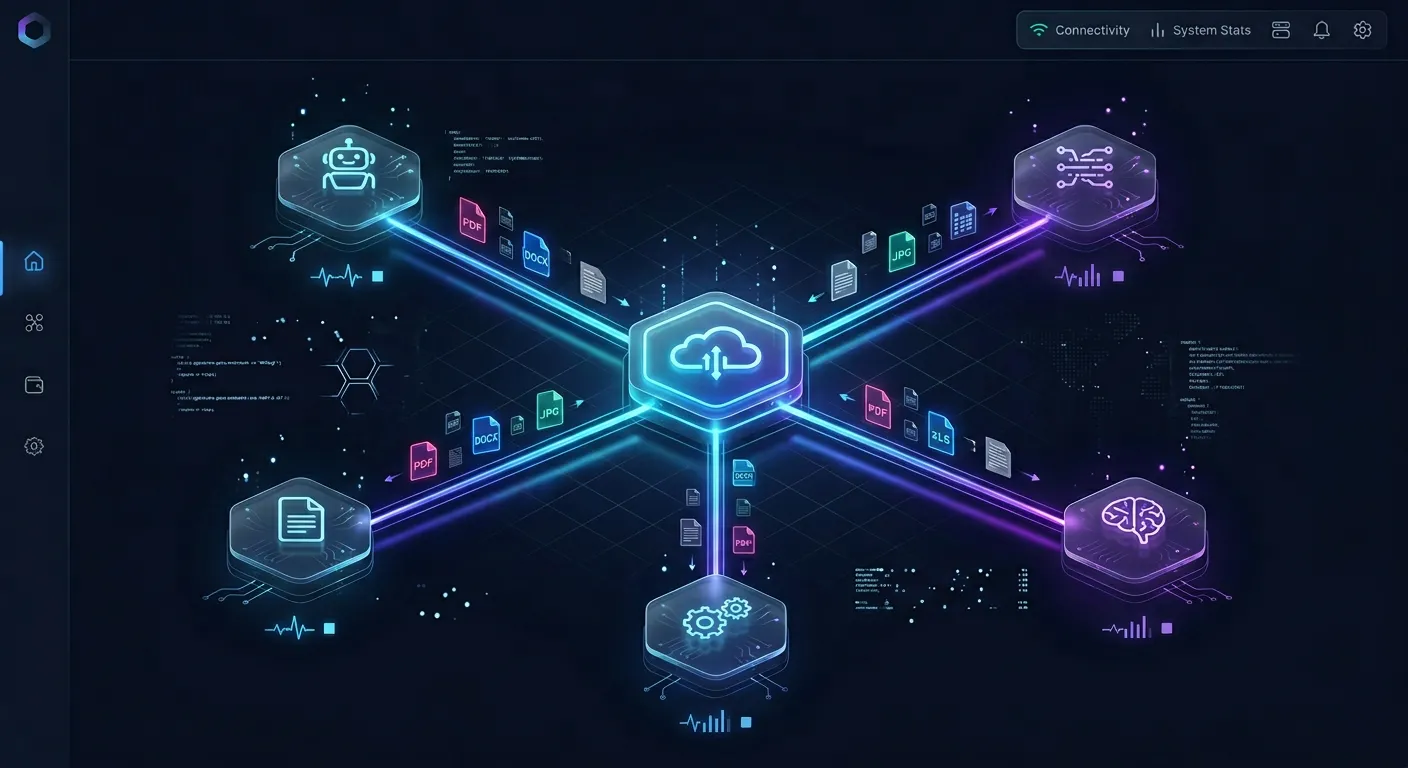
When multiple developers and agents collaborate on a codebase, file conflicts are common. Fast.io solves this by maintaining a detailed version history for every file. If Cline writes a buggy update to a source file while a developer is editing a separate section, the system records both edits as separate versions. You can review the diffs and restore the working version with a single click.
Additionally, Fast.io's Intelligence Mode keeps the entire team's documentation synced. When a developer updates the API specification in a shared folder, Fast.io automatically updates the semantic index. The next time Cline queries the workspace, it retrieves the updated spec without needing a manual upload. This automated indexing ensures that every developer and agent works with the same source of truth.


Coordinate Cline agents with shared developer workspaces
Establish a persistent storage layer with built-in version history, Collaborative Notes, and an MCP server endpoint for your team's autonomous agents. Start with a 14-day Business Trial.
How to Connect Cline to the Fast.io MCP Server
To allow Cline to interact with your shared workspaces, you can connect it via the Model Context Protocol (MCP). Fast.io exposes action-based MCP tools, which allow your agents to read files, write changes, search documents, and query metadata.
Fast.io supports MCP communication through Streamable HTTP at https://mcp.fast.io/mcp/code. For setup instructions, see the Fast.io documentation. To configure Cline to use these tools, you must update your local configuration file.
On macOS, this configuration file is located at:
cline_mcp_settings.json
To register the Fast.io server, add the server details under the mcpServers key. The following example configuration shows how to connect Cline to the remote endpoint:
{
  "mcpServers": {
    "fastio-shared-workspace": {
      "type": "streamableHttp",
      "url": "https://mcp.fast.io/mcp/code"
    }
  }
}
Once this configuration is saved, Cline starts the connection and prompts you to sign in with OAuth in the browser. The Review Permissions screen lets you select Read Only or Read & Write access and choose which organizations and workspaces the connection can reach. After signing in, Cline discovers the available tools. The agent can now use Fast.io's hybrid search (combining full-text and semantic queries) to inspect files in the shared workspace. In addition to simple file reads and writes, the MCP server allows Cline to interact with Metadata Views to query and extract structured data from workspace files.
Because the intelligence layer is built directly into the storage, Cline does not need to download the entire codebase to understand it. Instead, the agent runs queries to find relevant code patterns and retrieves only the necessary lines, saving token usage and improving context window efficiency. To learn more about the structure of the agent instructions, developers can review the Fast.io developer page.
Troubleshooting MCP Connections and Settings
If Cline fails to load the Fast.io tools, verify the path of your configuration file. In some installations of the extension, the settings file is located directly in the user home folder at ~/.cline/data/settings/cline_mcp_settings.json. Make sure the JSON syntax is valid, as a trailing comma or missing bracket will prevent VS Code from reading the file.
You should also confirm your network access. If your team is running behind a proxy, you may need to configure additional environment variables in the settings file. You can test the connection by checking the logs in the Cline output panel in VS Code. The logs will display connection status messages and list the tools exposed by the Fast.io endpoint.
How to Manage Handoff, Review, and Ownership Transfer
A major challenge in team workflows is the transition between automated agent actions and human review. Cline can execute tasks independently, but human developers need to audit the outcomes before they are deployed to production.
Fastio handles this lifecycle through structured ownership transfer. An agent can set up a workspace under their own developer credentials and later transfer ownership of the organization to a human lead. When the organization lead joins, they can select a paid plan (such as Starter at $9.99/mo, Business at $49.99/mo, or Enterprise at $199.99/mo) and start a 14-day Business Trial, which requires a credit card. This trial transition ensures that the agent's work remains active and funded. Admins can choose a paid plan on the /pricing/ page and activate their trial.
To ensure security and code quality, teams rely on granular permissions, file version history, and anchored comments. When Cline uploads code or updates a configuration file, human developers can inspect the file using browser-based previews, view the full diff against previous versions, and leave anchored comments for the agent. File version history allows instant restoration if an unintended change occurs, ensuring a safe human-in-the-loop review process without risking production stability.
Every action performed by developers and agents is captured in a detailed activity log. This activity feed logs file changes, tool calls, and workspace accesses. By keeping a history of operations, the team maintains complete accountability. If an agent introduces a bug, the audit log shows exactly which model called which tool, helping the team debug the issue quickly.
Structuring Human-in-the-Loop Review
Human review relies on file version history, the activity feed, and comments. When Cline updates files in a deployment folder, human reviewers can inspect the file in the browser, review version history with restore capabilities, and leave precise anchored feedback directly on code and assets before merging changes.
To extract structured metadata from workspace files, teams can use Metadata Views. This structured layer allows humans and agents to design custom spreadsheet schemas that automatically parse file attributes, dates, or custom fields from project files.
If the changes look correct, the lead merges them and releases the file to the production server. If they need work, the lead leaves review comments, and the agent picks them up from the activity feed and revises. This feedback loop ensures that no agent-written code goes live without explicit human consent.
Sources
References used to verify factual claims in this guide.
- 1 Gartner Press Release: Gartner Identifies the Top 10 Strategic Technology Trends for 2025 Accessed
Gartner projects that up to 40% of enterprise applications will include integrated task-specific AI agents by the end of 2026, a significant increase from less than 5% in 2025.
-
Fast.io paid subscription plans include Starter at $9.99/mo, Business at $49.99/mo, and Enterprise at $199.99/mo with a 14-day Business Trial.
Frequently Asked Questions
Can multiple developers share a Cline workspace?
Standard setups bind Cline to a local VS Code instance, making direct real-time workspace sharing difficult. However, teams can synchronize their developer contexts by running Cline on top of a shared workspace provider like Fast.io. By connecting the tool to a shared folder, multiple team members and active agents can work on the same files with full version history and real-time activity tracking.
What team features does Cline Enterprise offer?
Cline Enterprise introduces centralized governance and monitoring tools. It includes centralized single sign-on authentication, SCIM provisioning, and a shared organization dashboard. Admins can manage member budgets, restrict model usage, configure centralized inference providers (such as Amazon Bedrock or Google Vertex AI), and audit tool calls across the company.
How do I sync Cline settings across my team?
Admins can configure shared developer profiles using Cline Enterprise dashboards or by version-controlling setting files. By committing rule files (like `.clinerules`) to a shared cloud directory, every team member's local Cline extension reads the same instructions. To sync active Model Context Protocol (MCP) server endpoints, you can share a unified `cline_mcp_settings.json` file through your team's workspace.
Related Resources

Coordinate Cline agents with shared developer workspaces
Establish a persistent storage layer with built-in version history, Collaborative Notes, and an MCP server endpoint for your team's autonomous agents. Start with a 14-day Business Trial.