How Law Firms Deploy Secure Client Document Upload Portals Without Login Walls
Collecting sensitive records from clients is a frequent bottleneck in legal intake, where standard email attachment limits and complex portal logins cause dropped handoffs. Modern law firms use dedicated client document upload portals to provide secure, branded intake destinations that require no account creation. This guide covers portal architecture, large-file handling, automated metadata extraction, and how to structure matter workspaces for litigation and transactional teams.

Why Traditional Legal Document Collection Fails at Intake
Google sets an email attachment limit of 25 MB for personal accounts. When a client attempts to deliver high-resolution medical scans, discovery archives, or multi-page corporate disclosures, Gmail swaps the attachment for a Google Drive link the firm then has to request access to, other mail systems may bounce the message, or the client splits the files into awkward fragments. In legal intake, this basic technical ceiling creates immediate operational friction. Prospective clients seeking legal representation are often facing stressful situations, such as personal injury recovery, pending litigation, or complex business transactions. When their initial attempt to transmit case records bounces back from a law firm's mail server, the onboarding process stalls. Legal assistants and paralegals must then spend billable hours calling clients, diagnosing bounce-back notices, and requesting retransmissions across alternate channels.
Beyond file size restrictions, traditional email delivery exposes law firms to serious operational vulnerabilities. Email messages traverse multiple mail transfer agents in transit, creating unencrypted hops and exposing sensitive client records to interception. Files delivered via email scatter across individual staff inboxes, creating unmanaged silos where documents are separated from the firm's central matter management system. If a paralegal is out of the office, documents sent directly to their inbox remain inaccessible to the rest of the trial team. Email attachments also lack version control, leading to accidental overwrites or confusion when clients submit revised versions of agreements or disclosures.
To circumvent email attachment limits, frustrated clients frequently turn to personal consumer cloud links from services like Google Drive, Dropbox, or OneDrive. While convenient for the sender, consumer cloud shares present distinct governance hazards for legal practices. External links often require the reviewing attorney to log into a consumer platform, request access permissions, or download files from an unvetted personal account. These consumer links may expire unpredictably, break internal security policies, or expose the firm to unauthorized file-sharing permissions. Mid-market practices and boutique firms managing complex dockets adopt dedicated legal solutions to centralize these exchanges into managed project spaces.
A client document upload portal solves this administrative breakdown by establishing a direct, secure bridge between the client and the firm.
A client document upload portal is a secure, branded web destination where clients can upload case files and records directly into a law firm's matter workspace without creating an account or logging in.
An effective client document upload portal provides a secure, web-based upload endpoint where external clients transfer sensitive matter documents directly into an organized legal workspace. It operates over encrypted browser connections, accepts large files without account registration walls, and automatically notifies legal teams upon file receipt.
- Create a dedicated workspace per client matter.
- Generate a branded, password-protected upload share link with anonymous uploads turned on.
- Send the upload link inside client onboarding instructions.
- Monitor arrival activity and verify intake files.
By replacing unencrypted email attachments and unvetted consumer links with a dedicated intake portal, law firms accelerate matter setup, protect confidential information, and present a polished, professional image from the very first client interaction.
Related guides
- An Operations Review of LEAP Legal Software: Document Management and Client PortalsFirm operations leads evaluating practice management systems often focus on billing, overlooking the daily friction of...
- Immigration Client Portals: Secure Document Intake for Law PracticesImmigration client portals replace chaotic email threads with structured digital workspaces for collecting foreign...
- How to Build a Law Firm Client PortalLaw firm client portals give clients secure access to case documents. They replace risky email attachments and personal...
- How to Implement Document Automation for Law FirmsLaw firms can build open document assembly pipelines by storing Microsoft Word templates in Fastio workspaces,...
- How to Set Up an Immigration Document Portal for Your Law FirmImmigration cases generate dozens of documents from petitioners, beneficiaries, employers, and government agencies. An...
- How to Set Up a Secure Legal Document Exchange PortalA step-by-step operational guide to structuring a secure portal for legal document exchange. Learn how to organize...
More on this subject: Legal Teams (211 guides)
How Client Portals Compare with Inbound Upload Portals
Many legal practice management systems, such as Clio and MyCase, offer full two-way client portals. These platforms provide authenticated client dashboards where clients can log in, view invoices, send messages, inspect case calendars, and access shared documents. While comprehensive two-way portals serve ongoing matters well, requiring a full login during initial document collection introduces an adoption wall that can lead to drop-off.
Understanding the operational difference between a two-way client portal and a focused client document upload portal is critical for legal operations managers evaluating intake workflows:
- Account Provisioning Friction: A full two-way portal requires firm administrators to provision user accounts, send invitation emails, and guide clients through password creation and credential management. In contrast, an inbound upload portal functions via a scoped, branded web link that requires no registration.
- Authentication Barriers: When prompted to create a new account, remember complex credentials, and configure secondary authentication steps simply to upload tax returns or medical bills, clients frequently abandon the process and revert to email attachments. A dedicated upload portal eliminates this barrier by allowing drag-and-drop file transfers directly in any standard browser.
- Information Scope and Exposure: A two-way portal exposes documents outward to the client, requiring strict permissions management to prevent unauthorized access to internal attorney notes or work product. An upload portal is inherently unidirectional, serving as a secure deposit box where clients submit files without gaining visibility into the rest of the matter workspace.
- Administrative Overhead: Legal support staff spend substantial time handling portal login resets, locked accounts, and forgotten passwords for clients who only need to transmit documents once. Inbound upload links remove login-related support tickets entirely.
The table below contrasts the operational characteristics of full two-way portals, inbound document upload portals, and ad-hoc consumer cloud links across key legal intake dimensions:
For ongoing case collaboration and billing review, a full two-way portal remains a viable tool. However, for intake, discovery collection, and client document gathering, an inbound upload portal provides the lowest possible friction for the client while maintaining rigorous organizational control for the law firm.
Architecture of a Secure Legal Document Intake Workflow
Deploying a dependable document intake system requires a deliberate workspace architecture. Rather than dumping incoming files into a monolithic firm-wide repository, modern legal practices structure intake around matter-centric shared workspaces. In Fastio, an organization owns the workspaces, and each matter workspace acts as an isolated project container for pleadings, exhibits, discovery materials, and client communications.
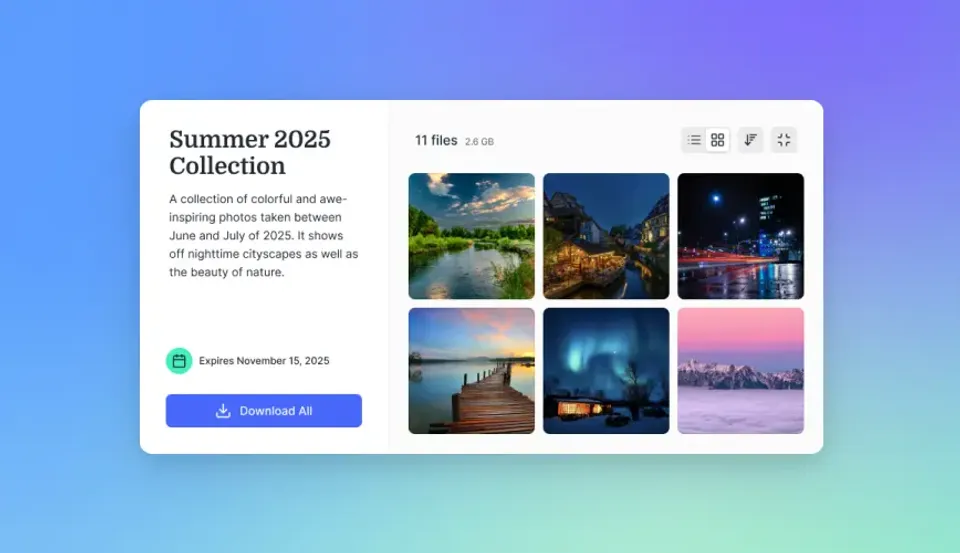
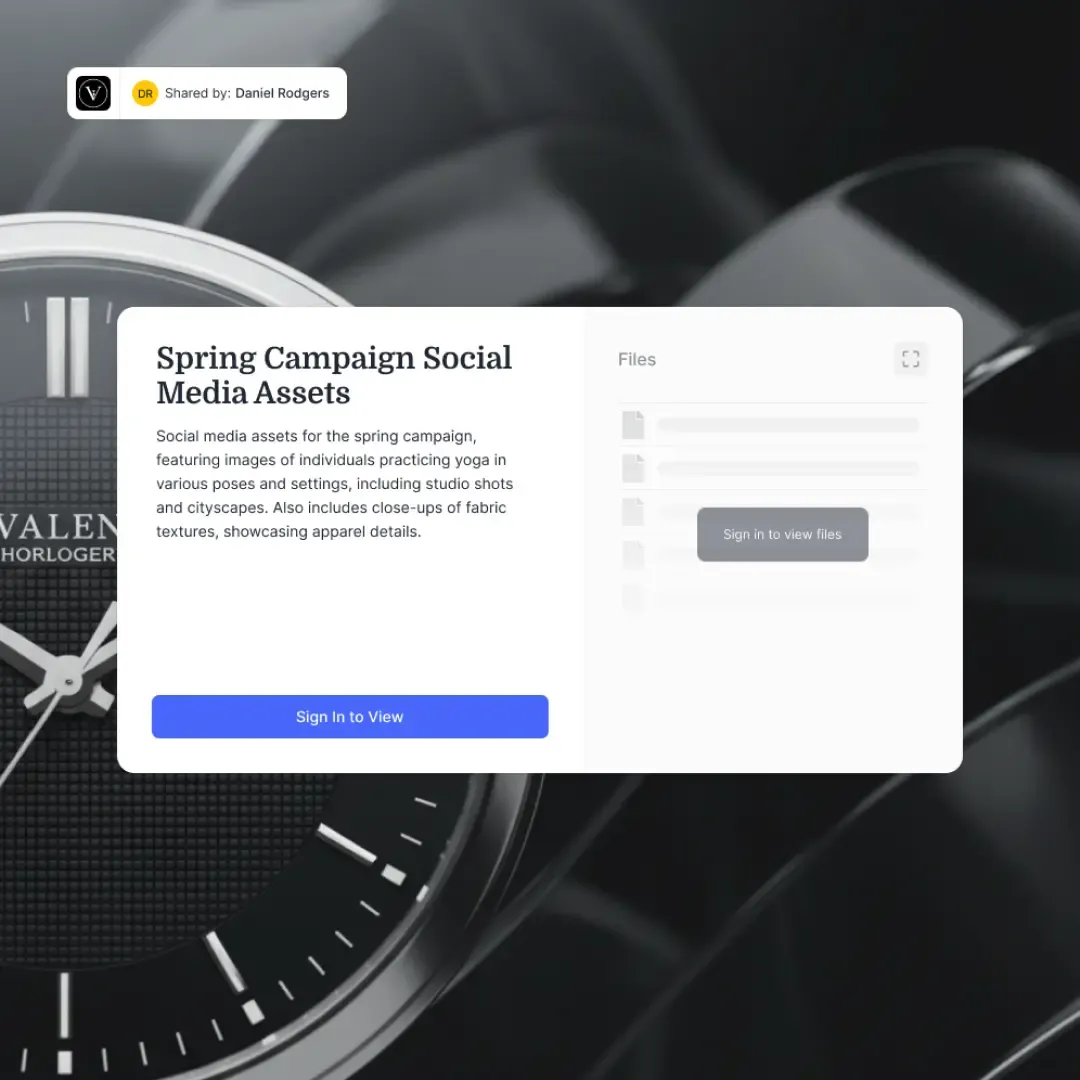
Within this architecture, client document collection is handled through branded shares and Content Portals. A Fastio share can be configured as a Receive share, which serves as a dedicated inbound upload portal. A Receive share is always backed by a live workspace folder, so the firm maps it to an intake folder within the matter workspace, such as /Matter-1042-Doe/Client-Intake/. When the client accesses the share link, they encounter a branded landing page customized with the law firm's logo, colors, and specific intake instructions. Clients drag and drop their files directly into the browser, and the files land immediately inside the firm's matter workspace.
To balance convenience with strict security standards, legal operations teams apply specific controls to each inbound upload portal:
- Passwords and Anonymous Uploads: A Receive share open to anyone with the link can carry an optional password, so only the designated client or authorized representative can deposit files into the intake folder. With anonymous uploads turned on for the share, clients upload without creating an account; without it, guests sign in before uploading.
- Closing the Intake Window: Because a Receive share shows a live workspace folder, it does not take an expiration date. Once the initial onboarding or discovery production window closes, staff delete the share or narrow its access setting, so stale links do not stay open indefinitely.
- Upload-Only Access: A Receive share lets guests upload only, so clients deposit files without downloading anything already in the intake folder. Shares also carry a download security setting that can disable guest downloads entirely.
- Role-Based Workspace Permissions: Access controls in Fastio are configured per organization, workspace, and share through member roles. Every internal team member reaches workspace content according to their role, so access stays predictable from one matter to the next.
Handling large evidentiary files is a routine necessity in legal practice. Personal injury matters require massive medical imaging sets; criminal defense and commercial litigation involve hours of high-definition deposition video; and corporate transactions require gigabyte-scale data dumps. Fastio uses chunked uploads to process massive files reliably. When a client drops a multi-gigabyte video or scanned archive into the portal, the file is split into discrete chunks and uploaded in parts. Because the upload is chunked, an interrupted transfer can resume without re-sending the chunks that already arrived.
Once files arrive, Fastio maintains an automated record of all changes. Every document uploaded to a matter workspace receives per-file version history. If a client uploads an amended disclosure or updated contract draft, previous iterations remain preserved and accessible. Concurrently, Fastio maintains a detailed activity log of changes across the organization and workspace. The activity log records storage modifications, including uploads, edits, file moves, and deletions, alongside administrative events like permission updates and share creation. This gives practice managers a reliable historical record of when client materials were deposited without relying on memory or disorganized email trails.


Collect Legal Records Directly Into Matter Workspaces
Deploy branded, secure upload portals for your clients without forcing them through account creation. Organize incoming case files automatically with version tracking and structured metadata extraction. Monthly plans start with a 14-day free trial, credit card required.
How to Automate Matter Ingestion with Metadata Views
Collecting documents from clients is only the first step in legal intake; the second, often more labor-intensive step is cataloging, reviewing, and extracting critical facts from those documents. In traditional law office environments, paralegals must manually open each incoming PDF, scroll through dozens of pages, and transcribe key data points, such as agreement dates, counterparty names, policy numbers, or claim amounts, into case management software or tracking spreadsheets. This manual transcription creates an expensive operational bottleneck and introduces human data entry errors.
Law firms overcome this friction by deploying Metadata Views to convert incoming case files into live, queryable databases. Rather than building rigid templates or training fragile optical character recognition (OCR) systems, operations leads describe the target data fields in natural language. For example, in an intake workspace for commercial contract disputes, a firm can define columns for Contract Title, Execution Date, Counterparties, Governing Jurisdiction, Dispute Resolution Mechanism, and Termination Notice Period.
Fastio evaluates the documents in the workspace, designs a typed schema across standard data types (Text, Integer, Decimal, Boolean, URL, JSON, and Date & Time), and automatically populates a structured, filterable spreadsheet directly beside the files. Metadata Views process multiple document formats simultaneously, including scanned PDFs, Word documents, TIFF images, spreadsheets, and handwritten notes. If legal counsel later decides to track an additional field, such as Indemnification Caps, attorneys can add the new column to the View without reprocessing the files.
It is important to distinguish Metadata Views from workspace intelligence search:
- Metadata Views: The structured document extraction layer. It turns heterogeneous incoming matter files into a normalized database grid with typed columns, allowing paralegals to sort, filter, and edit case facts in one grid.
- Intelligence Mode: The conversational and semantic search layer. Enabling Intelligence Mode on a matter workspace automatically indexes all documents for semantic discovery, allowing trial teams to perform natural language queries and retrieve citation-backed answers directly from deposition transcripts, exhibits, and client records.
To automate intake pipelines further, legal ops managers can subscribe to the Fastio events feed. Fastio provides an events feed accessible via WebSocket or long-poll subscription that reports workspace activity as it occurs. When a client completes uploading their intake package through the Receive portal, an automation script or integration listener detects the new file events and triggers downstream tasks, such as generating an intake summary note or updating the matter record in practice management software.
When client intake requires formal signatures, such as retainers, medical records authorization forms, or conflict waivers, firms can execute agreements directly from the workspace using Fastio e-signature. Built directly into the platform, e-signature allows attorneys to send agreements for signature in sequence or parallel, complete with an optional one-time passcode per signer. Upon completion, the platform generates a tamper-evident audit certificate and files the fully executed PDF directly back into the matter workspace, providing a complete intake file without manual filing.
Configuring Programmatic Intake Portals via MCP and API
For tech-enabled law firms and legal engineering teams, automating the creation of client upload portals eliminates manual setup steps. When an attorney opens a new matter in a legal CRM or case management system, the firm can automatically spin up a dedicated Fastio matter workspace, create the appropriate intake folders, and generate a branded Receive share link ready for the client.
Fastio provides deep developer and agentic integration through its remote Model Context Protocol (MCP) server over Streamable HTTP. Legal engineering teams connecting AI assistants, intake bots, or automation pipelines can interact with Fastio using dedicated MCP endpoints:
- Claude Apps and General Clients: Connect using
https://mcp.fast.io/mcp/toolsvia OAuth. - Coding Agents and IDEs: Connect using
https://mcp.fast.io/mcp/codefor agents like Cursor, Claude Code, and Cline. - Automated Scripts and Frameworks: Send requests directly with an
Authorization: Bearer <api key>header.
For example, legal ops engineers configuring an AI agent in Cursor can add the Fastio MCP server to ~/.cursor/mcp.json with the following configuration:
{
  "mcpServers": {
    "fastio": {
      "url": "https://mcp.fast.io/mcp/code"
    }
  }
}
In Claude Code, teams configure the remote server using the CLI:
claude mcp add --transport http fast-io https://mcp.fast.io/mcp/code
After adding the server, run /mcp inside Claude Code to complete authentication.
Once connected, legal agents use the consolidated MCP toolset to inspect matter files, manage shares, and trigger metadata extraction. For example, an agent can call share_manage to generate an inbound portal link, or call storage_manage to create folder structures.
Firms integrating portal creation directly into custom intake applications can also interact with the Fastio REST API. The API is located at https://api.fast.io/current/ and requires standard Bearer token authentication. Below is a practical cURL example showing how a legal intake service programmatically creates a Receive share backed by a new intake folder in a matter workspace (the workspace ID is the numeric ID the API returns for that workspace):
curl -X POST "https://api.fast.io/current/workspace/{workspace_id}/create/share/" \
  -H "Authorization: Bearer YOUR_FASTIO_API_KEY" \
  -H "Content-Type: application/x-www-form-urlencoded" \
  -d "intelligence=false&storage_mode=workspace_folder&share_type=receive&create_folder=true&folder_name=Client-Intake&access_options=Anyone+with+the+link&anonymous_uploads_enabled=true&password=YOUR_INTAKE_PASSWORD&title=Doe+Matter+Intake"
When evaluating cloud storage infrastructure for legal practice, data protection governs every system requirement. Fastio runs on cloud infrastructure partners, including Google Cloud Platform and Cloudflare, that are certified to industry security standards. All files are protected with encryption in transit and at rest. Combined with role-based member permissions and a detailed activity log of all modifications, legal teams maintain comprehensive administrative control over their clients' confidential records.
Operational Checklist for Law Firm Intake Portals
Deploying client document upload portals successfully requires more than just software configuration; it demands consistent operational discipline across practice groups. Legal operations managers should establish standardized procedures so intake portals remain organized, secure, and straightforward to use.
Standardize Workspace Taxonomies
Establish a uniform directory hierarchy across all matter workspaces. A standardized layout keeps matter folders predictable so every attorney, paralegal, and support staff member knows precisely where client uploads land. A proven taxonomy includes:
/01-Client-Intake/: The designated landing folder for the Receive share portal. Clients deposit raw documents here./02-Pleadings/: Formal court filings, complaints, answers, and motions./03-Discovery/: Interrogatories, production requests, and verified document productions./04-Work-Product/: Internal research memos, trial outlines, and draft strategy notes./05-Client-Deliverables/: Final executed contracts, closing binders, and court-stamped filings shared outbound with the client.
Craft Clear Client Instructions
While an upload portal eliminates login friction, non-technical clients still benefit from clear, reassuring instructions. When sending the portal link via email or SMS, include a brief explanation outlining what to expect:
- State clearly that the link is an encrypted, private upload channel directly to their legal team.
- Inform the client that they do not need to create an account or download special software, and send the intake password separately if the share has one.
- Provide a checklist of required documents (for example, W-2 forms, prior tax filings, medical billing summaries, or relevant correspondence).
- Reassure the client that large files, including scanned binders or video files, can be dragged directly into their web browser.
Manage File Formats and Messy Uploads
Clients frequently submit documents in unexpected formats, such as mobile phone snapshots of printed contracts (JPEG/HEIC), multi-file ZIP archives, or password-protected PDFs. Establish an intake verification routine:
- Use Metadata Views to instantly identify file types and flag missing fields or unstructured photo uploads.
- Convert mobile snapshots to standardized PDF formats during initial paralegal review.
- Unpack ZIP archives into organized subfolders within the intake directory so documents are immediately indexed by Intelligence Mode.
Establish Link Lifecycle and Closure Protocols
To prevent old links from remaining open indefinitely, enforce strict link lifecycle management. Receive shares are backed by a live workspace folder and do not take an expiration date, so record a target close date for each intake link that matches the onboarding timeline. If a client requires additional time, simply leave the share open longer. Once intake is complete and all requested records have been verified, delete the Receive share or narrow its access setting to close the inbound door; the files stay in the matter workspace folder.
Coordinate File Review with Advisory File Locks
When multiple paralegals or attorneys review incoming document sets simultaneously, coordinating edits prevents conflicting changes. Fastio provides advisory per-file locks in workspace storage. Team members or AI agents acquire a lock lease through MCP actions (lock-acquire on storage_manage) while reviewing or annotating a sensitive record. The advisory lock signals to other team members that someone is actively reviewing the file. Because Fastio advisory locks never grant exclusive write rights, concurrent saves still land safely, and per-file version history preserves every version without data loss.
Sources
References used to verify factual claims in this guide.
-
Google sets an email attachment limit of 25 MB for personal accounts.
Frequently Asked Questions
How do law firms collect documents from clients securely?
Law firms collect documents securely by using encrypted client document upload portals instead of email attachments. A dedicated upload portal provides a branded web page where clients can drag and drop case files directly into an organized matter workspace over an encrypted connection, preventing data leaks and bypassing email attachment caps.
Can clients upload files to a law firm without creating an account?
Yes, clients can upload files without creating an account when law firms use an inbound Receive share link that is open to anyone with the link and has anonymous uploads turned on. The client simply opens the link in any modern web browser, enters the share password if the firm set one, and uploads their documents directly into the matter intake folder without registering a username or password.
What is the difference between a client portal and an upload portal?
A full client portal is a two-way authenticated dashboard where clients log in to view invoices, calendars, and shared files. An upload portal is a focused, frictionless inbound destination designed specifically for document collection, allowing clients to submit files directly to the firm without creating credentials.
What file size limits apply when clients upload through a web portal?
Fastio supports chunked uploads, allowing clients to transfer large files such as high-definition deposition videos, medical imaging files, and multi-gigabyte discovery archives without hitting standard email attachment limits. Maximum upload size depends on the plan: 25 GB on Starter, 50 GB on Business, and 100 GB on Enterprise.
How does a law firm track when a client has submitted their files?
Firms track incoming client submissions through Fastio's detailed activity log and events feed. The activity log captures all upload events with timestamps and file details. Teams can also subscribe to the workspace events feed via WebSocket or long-poll to receive notifications the moment a client uploads records.
Related Resources

Collect Legal Records Directly Into Matter Workspaces
Deploy branded, secure upload portals for your clients without forcing them through account creation. Organize incoming case files automatically with version tracking and structured metadata extraction. Monthly plans start with a 14-day free trial, credit card required.