Claude Code IDE Extensions: VS Code and JetBrains Setup Guide
Claude Code's awareness among developers jumped from 31% to 57% between mid-2025 and January 2026, yet most setup guides cover only the terminal CLI or VS Code in isolation. This guide walks through installing and configuring Claude Code across both VS Code and JetBrains IDEs, compares feature parity with the CLI, and shows how to connect IDE-based agents to persistent workspaces where files survive between sessions.


What Claude Code IDE Extensions Actually Do
Claude Code's developer awareness hit 57% in January 2026, a near-doubling from 31% six months earlier, according to the JetBrains AI Pulse survey of over 10,000 developers. That growth tracks with Anthropic shipping Claude Code across six distinct interfaces: the original terminal CLI, a web app at claude.ai/code, a standalone desktop app, a VS Code extension, a JetBrains plugin, and a Slack integration. But most developers still run Claude Code from only one surface, usually the terminal.
The IDE extensions are not stripped-down wrappers. Both the VS Code extension and the JetBrains plugin connect to the same Claude Code engine that powers the CLI. They share conversation history, respect the same CLAUDE.md project instructions, and use identical permission modes. The difference is in how you interact: the IDE extensions add visual diff review, @-mention file references with line ranges, diagnostic sharing from your editor's language server, and the ability to run multiple conversations in parallel tabs.
Here is what is available on each surface:
The VS Code extension bundles its own copy of the CLI internally, so you do not need a separate CLI install to use the chat panel. The JetBrains plugin, by contrast, requires the standalone CLI installed on your PATH.

Related guides
- OpenClaw JetBrains Plugin: Setup Guide for IntelliJ, PyCharm, WebStorm, and GoLandOnly 22% of developers use AI coding agents daily, yet 66% of companies plan to adopt them this year. JetBrains IDE...
- How to Use OpenRouter with ClineCline lists OpenRouter as a first-class BYOK provider, and OpenRouter routes hundreds of models through one key. This...
- Is Claude Code Free? Free Tier, Credits, and Budget Options ExplainedClaude Code requires a paid Anthropic account or API credits, but "paid" does not have to mean $20 per month. Free API...
- Claude Code Review: How to Use /code-review and UltrareviewClaude Code ships a built-in /code-review command that scans diffs for correctness bugs and improvement opportunities...
- Claude Code Teams: Multi-Agent Orchestration GuideClaude Code agent teams split complex coding tasks across multiple independent AI sessions. Each teammate gets its own...
- How to Use Claude Code on the WebClaude Code authored roughly 4% of all public GitHub commits by February 2026, yet most developer guides treat it as a...
More on this subject: Claude and Claude Code (280 guides)
Installing Claude Code in VS Code
The VS Code extension installs in under a minute and works with VS Code 1.98.0 or higher, Cursor, and other VS Code forks like Devin Desktop and Kiro.
Prerequisites:
- VS Code 1.98.0 or later (check via Help > About)
- A paid Claude subscription (Pro at $20/month, Max at $100 or $200/month, Team, or Enterprise) or a Claude Console account with pre-paid API credits
Install steps:
- Press Cmd+Shift+X (Mac) or Ctrl+Shift+X (Windows/Linux) to open the Extensions view
- Search for "Claude Code" by Anthropic
- Click Install
- Click the Spark icon in the editor toolbar (top-right corner when a file is open) to launch the panel
- Sign in through your browser when prompted
If you use Cursor, install directly with the cursor:extension/anthropic.claude-code URI scheme. For VS Code forks without marketplace access, find the extension on the Open VSX registry.
After signing in, a "Learn Claude Code" checklist walks you through the basics. You can dismiss it and re-enable it later from Extensions > Claude Code > Hide Onboarding in VS Code settings.
Quick configuration:
The extension works out of the box, but a few settings are worth adjusting early:
claudeCode.initialPermissionMode: Set toplanif you want Claude to describe changes before making them. Plan mode opens a full markdown document where you can add inline comments before Claude starts editing.claudeCode.useTerminal: Check this box if you prefer the CLI-style interface over the graphical panel. Both modes share conversation history.claudeCode.autosave: Enabled by default. Auto-saves files before Claude reads or writes them.
VS Code-specific features:
The extension includes capabilities the CLI lacks. You can connect Claude to your Chrome browser with @browser commands for testing web apps. The plugin marketplace (type /plugins in the prompt box) provides a graphical interface for discovering and installing community extensions. And VS Code's native diff viewer makes reviewing multi-file changes faster than scanning terminal output.
Installing Claude Code in JetBrains IDEs
The JetBrains plugin works across IntelliJ IDEA, PyCharm, WebStorm, PhpStorm, GoLand, and Android Studio. Unlike the VS Code extension, it does not bundle the CLI, so you install both pieces separately.
Step 1: Install the Claude Code CLI
If you have not installed the CLI yet, run this in your terminal:
curl -fsSL https://claude.ai/install.sh | bash
On Windows PowerShell:
irm https://claude.ai/install.ps1 | iex
Verify the installation with claude --version. The CLI auto-updates on macOS/Linux. On Windows via WinGet or Homebrew, you will need to update manually.
Step 2: Install the JetBrains plugin
- Open your JetBrains IDE
- Go to Settings > Plugins > Marketplace
- Search for "Claude Code"
- Install the official "Claude Code [Beta]" plugin by Anthropic
- Restart your IDE completely (not just reload)
After restarting, open the integrated terminal and run claude. The plugin detects the running CLI session and activates IDE integration features automatically: diffs open in the IDE's native diff viewer, your current selection context is shared with Claude, and language server diagnostics flow through in real time.
Configuration options:
Go to Settings > Tools > Claude Code [Beta] to customize:
- Claude command: Override the default
claudecommand with a full path if needed. WSL users should set this towsl -d Ubuntu -- bash -lic "claude"(replacing Ubuntu with their distribution name). - ESC key behavior: If ESC does not interrupt Claude Code operations, go to Settings > Tools > Terminal and uncheck "Move focus to the editor with Escape."
- Option+Enter for multi-line: macOS-only setting for inserting new lines in prompts.
Remote development note: When using JetBrains Remote Development, install the plugin on the remote host via Settings > Plugin (Host), not on your local machine.


Give your IDE agents a workspace that outlasts the session
An MCP endpoint your Claude Code extension connects to in one command. Files persist, search works across documents, and ownership transfers when the project is done. Starts with a 14-day free trial.
How to Use Keyboard Shortcuts and Daily Workflow Commands
Both extensions share a core shortcut pattern, with minor differences in key bindings.
Universal shortcuts (both IDEs):
macOS Tahoe users: The system Game Overlay shortcut captures Cmd+Esc by default. Go to System Settings > Keyboard > Keyboard Shortcuts > Game Controllers and clear the checkbox to free the shortcut for Claude Code.
Working with @-mentions:
Type @ followed by a file or folder name in the prompt box. Claude Code supports fuzzy matching, so partial names work. For folders, include a trailing slash. When you select text in the editor, Claude sees it automatically. The prompt box footer shows how many lines are selected, and you can toggle visibility with the eye icon.
For large PDFs, specify page ranges: "explain @report.pdf pages 1-10" reads only those pages instead of the entire document.
Permission modes in practice:
Click the mode indicator at the bottom of the prompt box (VS Code) or use / commands (JetBrains) to switch between:
- Default mode: Claude asks before every file edit and command execution.
- Plan mode: Claude writes a full plan as a markdown document. In VS Code, this opens as an editable document where you can add inline comments. Claude reads your annotations before starting work.
- Auto-accept mode: Claude makes edits without asking. Use this in sandboxed environments or when you are reviewing changes in real time.
Resuming conversations:
Both extensions share conversation history with the CLI. In VS Code, click the Session history button to browse and search past conversations. In JetBrains, run claude --resume in the terminal to open an interactive picker. Cloud sessions from claude.ai/code appear in VS Code's Remote tab if you sign in with a Claude.ai subscription. For teams using AI agents alongside IDE workflows, a persistent workspace layer keeps files accessible across sessions and tools.
Connecting IDE Extensions to Persistent Workspaces
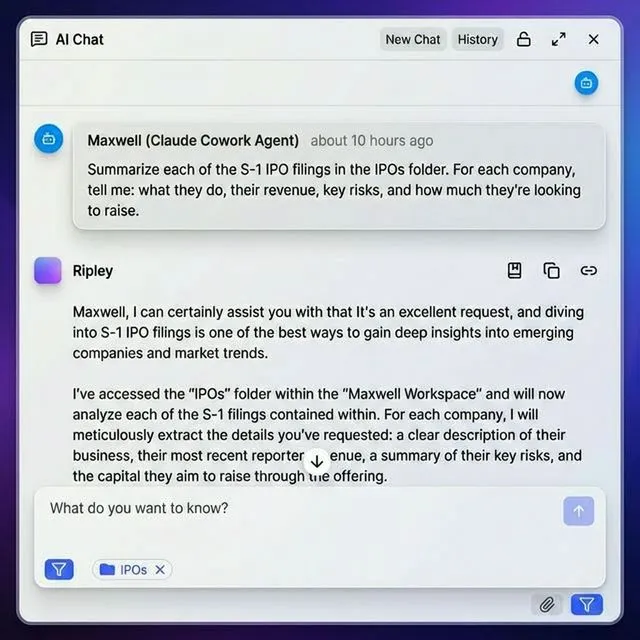
AI coding assistants generate files that often vanish between sessions, scattered across local directories or lost in context resets. The IDE extensions help with in-session persistence through checkpoints and conversation history, but cross-session file management needs a separate layer.
Local storage works for individual projects. S3 or Google Drive handles bulk backup. But when an agent needs to produce deliverables that a client or teammate will access, you need a shared workspace with access controls, not just a file system.
Fast.io provides workspaces where agent output persists and stays accessible to both AI tools and human collaborators. Files uploaded to a workspace are automatically indexed for semantic search when Intelligence Mode is enabled. You can query documents through chat with citations, set granular permissions at the org, workspace, folder, or file level, and create branded shares for external delivery.
The Fast.io MCP server connects directly to Claude Code in both VS Code and JetBrains. Add it via the CLI, then run /mcp inside Claude Code to sign in:
claude mcp add --transport http fastio https://mcp.fast.io/mcp/code
Once connected, Claude can read from and write to Fast.io workspaces during coding sessions. Files persist between conversations, and you can transfer ownership of an entire workspace from an agent account to a human account when the project is ready for handoff.
Monthly plans start with a trial of up to 14 days, with storage, monthly credits, and workspaces scaled to each plan. That covers most prototyping and delivery workflows.
How to Fix Common Claude Code Setup Issues
VS Code: Extension installs but the Spark icon does not appear
The Spark icon in the editor toolbar only shows when you have a file open. Opening just a folder is not enough. If a file is open and the icon is still missing:
- Confirm VS Code version 1.98.0 or higher (Help > About)
- Run "Developer: Reload Window" from the Command Palette
- Temporarily disable other AI extensions (Cline, Continue, Copilot) to check for conflicts
- Check that workspace trust is not set to Restricted Mode
The Status Bar shortcut (click "Claude Code" in the bottom-right corner) works even without a file open and is the most reliable entry point.
JetBrains: "Cannot launch Claude Code" notification
This means the plugin cannot find the claude command on your PATH. Verify with claude --version in a regular terminal. If it works there but not in the IDE, the IDE may use a different shell profile. Set the full path in Settings > Tools > Claude Code [Beta] > Claude command, for example /usr/local/bin/claude.
JetBrains: "No available IDEs detected" in WSL2
WSL2's NAT networking blocks the connection between the Linux environment and the Windows-hosted IDE. Two fixes:
- Firewall rule (recommended): Run
hostname -Iin WSL to find your subnet, then create a Windows Firewall inbound rule allowing TCP traffic from that subnet. - Mirrored networking (Windows 11 22H2+): Add
networkingMode=mirroredunder[wsl2]in your.wslconfigfile and restart WSL.
Both IDEs: Claude stops responding mid-conversation
Check your internet connection first. Then try starting a new conversation. If the issue persists, run claude directly in a terminal to get more detailed error output. Context limits can also cause dropped responses. Run /compact in the prompt box to compress the conversation history and free up context space.
CLI not found after installing the VS Code extension
The VS Code extension bundles a private copy of the CLI for its chat panel. It does not add claude to your shell PATH. To use the CLI in terminals (including VS Code's integrated terminal), install the standalone CLI separately with the curl command above.
Sources
References used to verify factual claims in this guide.
-
Claude Code awareness jumped from 31% to 57% between mid-2025 and January 2026 Claude Code reached 18% adoption among developers with a 91% CSAT score
-
84% of developers use or plan to use AI tools in their development process
Frequently Asked Questions
Does Claude Code work in VS Code?
Yes. Anthropic publishes an official VS Code extension that provides a native graphical chat panel, inline diff review, @-mention file references with line ranges, automatic diagnostic sharing, plan mode with editable markdown documents, and support for multiple parallel conversations in tabs or windows. It requires VS Code 1.98.0 or higher and a paid Claude subscription or Claude Console account.
How do I install Claude Code in JetBrains?
First install the Claude Code CLI (curl -fsSL https://claude.ai/install.sh | bash on macOS/Linux). Then open your JetBrains IDE, go to Settings > Plugins > Marketplace, search for 'Claude Code', install the official plugin, and restart the IDE. Open the integrated terminal and run 'claude' to activate IDE integration features like native diff viewing and selection context sharing.
Is Claude Code better in the terminal or IDE?
The terminal CLI supports all commands and features, including the bash shortcut (!) and tab completion. The IDE extensions add visual diff review, automatic diagnostic sharing from the language server, and multiple conversation tabs. Most developers use both: the IDE extension for day-to-day coding with visual feedback, and the CLI for scripting, CI/CD, and advanced commands not available in the extension.
Which IDEs support Claude Code?
Claude Code has a native extension for VS Code (and VS Code forks like Cursor, Devin Desktop, and Kiro) plus a JetBrains plugin that works with IntelliJ IDEA, PyCharm, WebStorm, PhpStorm, GoLand, and Android Studio. For editors without official extensions, the CLI works in any terminal, including IDEs with built-in terminals like Neovim, Emacs, or Sublime Text.
Can I use the VS Code extension and CLI at the same time?
Yes. They share conversation history, so you can start a conversation in the VS Code extension and resume it in the CLI with 'claude --resume', or vice versa. The VS Code extension bundles its own copy of the CLI internally, but using 'claude' in a terminal requires the standalone CLI install.
Does Claude Code work with third-party LLM providers?
Claude Code supports Amazon Bedrock, Google Vertex AI, and Microsoft Foundry as alternative providers. In VS Code, disable the login prompt in extension settings and configure your provider in ~/.claude/settings.json. The same configuration works for both the extension and CLI.
Related Resources

Give your IDE agents a workspace that outlasts the session
An MCP endpoint your Claude Code extension connects to in one command. Files persist, search works across documents, and ownership transfers when the project is done. Starts with a 14-day free trial.