Anthropic Filesystem MCP Server: Setup, Limitations, and Cloud Storage Workspaces
Anthropic's filesystem MCP server (@modelcontextprotocol/server-filesystem) provides the reference implementation for exposing local directory trees to AI models over standard input and output (stdio). While effective for local development, stdio transport breaks when autonomous agents encounter virtual cloud storage stubs or require concurrent multi-agent access. This guide details setup across MCP clients, examines core failure modes, and outlines the transition to indexed cloud workspaces.

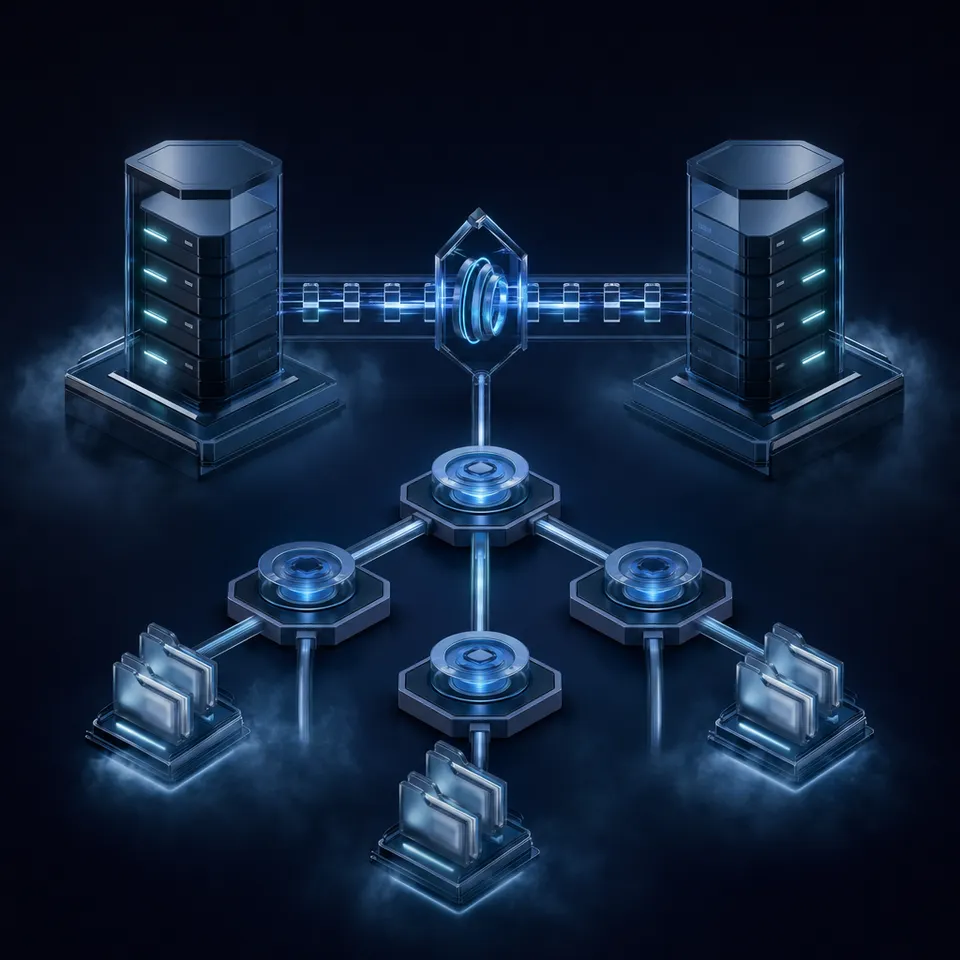
How the Anthropic Filesystem MCP Server Operates Over Stdio
Pointing a local Model Context Protocol filesystem server at a cloud-synchronized folder causes AI agents to freeze because virtual file placeholders break standard POSIX system calls. While local directory access is one of the most common configurations developers explore when adopting AI assistants, bridging local process runtimes to enterprise file stores introduces distinct architectural bottlenecks.
Anthropic's filesystem MCP server (@modelcontextprotocol/server-filesystem) is the official reference implementation for exposing local directory trees and file operations to MCP-compatible AI models via standard input/output (stdio). The Model Context Protocol documentation notes that official reference servers demonstrate core MCP features and SDK usage, providing a baseline that developers can inspect and run on their personal workstations.
When evaluating the reference filesystem server for autonomous agent architectures, engineering teams frequently encounter three core operational limitations:
- Local-only stdio transport: The server runs as a local child process bound to standard input and output streams. This transport restricts tool access to the host machine running the client, preventing distributed agent fleets from sharing file access.
- Absence of semantic search: The server provides low-level file system primitives (such as reading complete files or listing directory trees), but lacks semantic indexing. To answer questions about large documents, agents must ingest raw file contents into active model context windows.
- Incompatibility with cloud sync stubs: Modern desktop sync clients use virtual file hydration. When an agent attempts to inspect unhydrated placeholder files in cloud-synced folders, synchronous file read operations often hang indefinitely or return empty byte buffers.
To understand why these limitations occur, developers must inspect the underlying transport layer. When an MCP host application (such as Claude Desktop, Visual Studio Code, or Cline) connects to @modelcontextprotocol/server-filesystem, the host spawns Node.js as a child process. The client sends JSON-RPC 2.0 requests across the child process standard input (stdin) pipe, and the server returns execution results over standard output (stdout).
Because communication remains confined to operating system process pipes, execution inherits the precise permissions and environmental constraints of the local user account. The server cannot be accessed over a network without wrapping it in an external proxy, nor can multiple workstations share the running process.
To prevent uncontrolled access across the host machine, the filesystem server implements directory-level sandboxing. During startup, administrators must provide one or more directory paths as positional command-line arguments. The server normalizes these paths and maintains an internal allowlist. When an agent requests a file operation, the server checks the resolved target path against the allowed root trees:
/Users/username/Projects/app    <-- Allowed root
├── src/main.ts                 <-- Permitted
└── ../../.ssh/id_rsa           <-- Rejected (Path traversal outside root)
If an agent attempts relative path traversal (../) or specifies an absolute path outside the allowed directories, the server returns an access denied error. When setting up an mcp server filesystem configuration, developers define allowed directory roots explicitly. In addition, modern MCP clients support dynamic root negotiation through the MCP roots protocol, allowing the server to adjust its allowed boundaries dynamically without requiring a manual process restart.
The Mechanics of Stdio Transport and Process Spawning
Standard input and output transport relies entirely on parent-child process relationships. When you launch an MCP client, the application reads its local configuration, resolves the command path for Node.js or npx, and invokes the process manager.
Because standard output serves as the structured JSON-RPC communication channel, any extraneous text written to stdout corrupts message parsing. If an unhandled dependency, shell script, or system utility prints logging statements or warning text to standard output during startup, the host client fails to parse the protocol handshake and abruptly closes the connection. Debugging logs must be redirected to standard error (stderr) to prevent protocol negotiation failures.
Process lifecycles are tied directly to the parent application. If the host client crashes, reloads, or terminates a session, the child process terminates immediately. In-flight write operations that have not been flushed to disk risk partial writes or corrupted file states.
Security Boundaries and the Roots Protocol
The model context protocol filesystem reference server relies on path normalization to enforce security boundaries. Before executing any file read or mutation, the server resolves symbolic links and eliminates redundant directory separators using standard path resolution.
While this sandboxing stops basic path traversal attacks, it delegates all access control decisions to the single local user running the client. The server does not support role-based access control, per-folder user groups, or granular read-versus-write scoping. Any tool connected to the server inherits full write, edit, and deletion rights across every file inside the declared directory roots. For organizations coordinating multiple autonomous agents, this all-or-nothing permission model creates substantial operational risk.
Related guides
- How to Connect Claude Code to Cloud Workspaces with Filesystem MCPFilesystem MCP allows the Claude Code terminal agent to read, search, and edit files across local directories and...
- Claude Cloud Storage: Connecting Multi-Cloud Repositories via MCPClaude cloud storage connects cloud file systems with Anthropic Claude models using Model Context Protocol (MCP)...
- Claude Code Box MCP: Connecting Claude Code CLI to Box Cloud StorageClaude Code Box MCP is an architectural setup enabling Claude CLI coding assistant to search, read, and write files in...
- How to Connect Claude Desktop to Box Storage via MCPClaude Box MCP connects Anthropic Claude Desktop to enterprise Box storage using the Model Context Protocol, giving...
- How to Connect Claude Desktop to OneDrive Storage via MCPClaude Desktop OneDrive integration links Anthropic's desktop app to Microsoft OneDrive via Model Context Protocol,...
- How to Connect Claude to Excel Workbooks in Cloud StorageA Claude Excel connector links Claude AI models to remote Excel files (.xlsx) in cloud storage, allowing Claude to...
More on this subject: Claude and Claude Code (299 guides)
Installing and Configuring the Filesystem MCP Server Across Clients
Integrating @modelcontextprotocol/server-filesystem into local developer tooling requires registering the server command and allowed directories within your client configuration file. Different development environments use specific configuration files and path conventions.
Before configuring the server, verify that Node.js (version 18 or higher) and npx are installed on your workstation. The server package is published on npm under the name @modelcontextprotocol/server-filesystem, allowing clients to execute it on demand via npx without requiring a permanent global package installation.
Configuring the anthropic mcp filesystem package across desktop clients exposes a consolidated MCP toolset covering file inspection and manipulation:
read_file: Reads the complete text content of a single file from disk.read_multiple_files: Reads multiple files concurrently and returns their contents in an array.write_file: Creates a new file or completely replaces the contents of an existing file.edit_file: Applies diff-based string substitutions to modify specific sections of a file.create_directory: Creates new directory paths recursively on the local filesystem.list_directory: Returns entries within a folder, including file names and entry types.directory_tree: Traverses subdirectories recursively, outputting a complete hierarchical tree.move_file: Renames or relocates files and folders between allowed paths.search_files: Searches for files matching specified glob patterns across directory trees.get_file_info: Retrieves file metadata, including byte size, creation time, and last modified date.list_allowed_directories: Lists the active directory paths exposed to the agent session.
Claude Desktop and Portable Client Configuration
To configure the filesystem server in Claude Desktop, edit the application configuration file located at:
- macOS:
~/Library/Application Support/Claude/claude_desktop_config.json - Windows:
%APPDATA%\Claude\claude_desktop_config.json
Add the filesystem server entry under the top-level mcpServers object, providing absolute paths to the directories your agent needs to access:
{
  "mcpServers": {
    "filesystem": {
      "command": "npx",
      "args": [
        "-y",
        "@modelcontextprotocol/server-filesystem",
        "/Users/username/Developer/projects",
        "/Users/username/Documents/specifications"
      ]
    }
  }
}
After saving the configuration, restart Claude Desktop. When you open a conversation, click the tool icon to confirm that tools like read_file, list_directory, and directory_tree appear in the active tool inventory.
Configuring Filesystem MCP in Visual Studio Code and Cline
AI coding extensions in Visual Studio Code use distinct configuration files to register MCP servers. In Visual Studio Code, project-scoped MCP servers are configured in .vscode/mcp.json using a top-level servers key:
{
  "servers": {
    "local-filesystem": {
      "type": "stdio",
      "command": "npx",
      "args": [
        "-y",
        "@modelcontextprotocol/server-filesystem",
        "/Users/username/Developer/projects/core-api"
      ]
    }
  }
}
For developers using portable agent tools such as Claude Code or repository-level agents, place a .mcp.json file in the root of the repository. This format uses mcpServers as its root key:
{
  "mcpServers": {
    "filesystem": {
      "command": "npx",
      "args": [
        "-y",
        "@modelcontextprotocol/server-filesystem",
        "./src",
        "./docs"
      ]
    }
  }
}
In Cline, open extension settings and locate cline_mcp_settings.json. The syntax matches Claude Desktop, placing the server definition within the mcpServers object.
Windows Path Escaping and Shell Wrappers
Configuring @modelcontextprotocol/server-filesystem on Windows requires addressing process execution mechanics and path syntax. In Windows environments, npx is not a standalone executable binary; it is implemented as a Windows Command script (npx.cmd).
When an MCP host application attempts to spawn npx directly without a shell wrapper, the Windows process manager frequently throws ENOENT process spawn errors. To ensure reliable execution, configure the server to invoke cmd.exe with the /c switch, which instructs the command processor to execute the script and hand control over to the Node.js runtime:
{
  "mcpServers": {
    "filesystem": {
      "command": "cmd.exe",
      "args": [
        "/c",
        "npx",
        "-y",
        "@modelcontextprotocol/server-filesystem",
        "C:/Users/username/Projects",
        "C:/Users/username/Documents"
      ]
    }
  }
}
Path formatting in JSON files presents another frequent failure point. In JSON syntax, a single backslash (\) denotes an escape character. Entering C:\Users\username\Projects corrupts the path or triggers JSON syntax parsing errors when backslashes precede letters like u or n.
To resolve path formatting on Windows, developers can use two approaches:
- Forward slashes: Specify paths using standard forward slashes (
C:/Users/username/Projects). The Windows kernel and Node.js path libraries natively resolve forward slashes. - Double backslashes: Escape each separator with two backslashes (
C:\\Users\\username\\Projects) so the parser evaluates the pair to a single literal backslash.
Why Local Stdio Filesystem MCP Fails on Cloud Sync Drives
Many development and product teams store their architectural documents, product roadmaps, and client requirements in enterprise cloud storage providers such as Microsoft OneDrive, Google Drive, Dropbox, Box, or SharePoint. When developers set up @modelcontextprotocol/server-filesystem, the natural inclination is often to point the allowed directory arguments at a local desktop sync folder, such as ~/OneDrive - Company/Architecture or C:/Users/username/Dropbox/Specs.
While this approach appears convenient, running local stdio filesystem servers against desktop cloud sync folders introduces severe operational failures. Desktop sync clients were designed for interactive human workflows where an operating system pauses an application while downloading a document. Autonomous AI agents, however, issue rapid, automated tool calls across directories without human intervention. When an agent attempts to traverse or inspect folders populated by virtual cloud files, the underlying filesystem APIs behave unpredictably, causing timeouts, corrupted reads, and context overflow. Understanding the operating system mechanisms behind virtual files explains why local stdio servers cannot reliably interface with synchronized enterprise storage.
Virtual File Reparse Points and Dataless Stubs
Modern cloud storage clients conserve local workstation disk space by using virtual file synchronization. Microsoft implements this capability as Files On-Demand in OneDrive, Apple provides FileProvider in macOS, and Dropbox offers Smart Sync.
Under default operating system configurations, cloud files appear in the local filesystem tree as placeholders rather than fully downloaded payloads. As Microsoft documentation notes regarding Files On-Demand, online-only files don't take up space on your computer.
Instead of storing complete file contents locally, the sync engine creates virtual stubs:
- Windows NTFS Reparse Points: In Windows 10 and Windows 11, the Cloud Files Filter Driver (
CldFlt.sys) attaches reparse tags (IO_REPARSE_TAG_CLOUD) to directory entries. The file appears in directory listings with its real filename, extension, and nominal file size, but physical disk allocation remains zero bytes. - macOS APFS Dataless Files: On macOS, Apple FileProvider marks online-only items with dataless file attributes. The operating system recognizes file metadata, but file blocks reside exclusively in cloud object storage until hydrated.
When an interactive user double-clicks an online-only document in File Explorer or Finder, the operating system pauses the process, sends an asynchronous download request to the sync engine, writes file blocks to disk, and opens the document once hydration completes.
Hydration Deadlocks and Empty Buffer Reads
The reference filesystem MCP server runs as a headless, non-interactive Node.js child process. When an AI agent executes read_file or get_file_info on a path backed by a virtual stub, standard POSIX system calls (fs.readFile, fs.open) interact with the operating system storage stack:
- Hydration Deadlocks: When Node.js requests file descriptors for an unhydrated stub, the file system filter driver intercepts the call and attempts to pull bytes over the network. If the local sync client is paused, throttling network bandwidth, offline, or awaiting user authentication, the system call blocks indefinitely. Because
stdiocommunication operates sequentially over a single pipe, the blocked call freezes the entire MCP server, triggering client timeouts and dropping the tool session. - Accidental Mass Hydration: Tools like
directory_treeand pattern-basedsearch_filestraverse directory hierarchies recursively. If an agent executes a recursive search across a synchronized directory containing gigabytes of shared assets, the traversal can inadvertently trigger background hydration across thousands of files. This unintended cascade consumes workstation network bandwidth, exhausts local disk capacity, and degrades machine performance. - Silent Zero-Byte Truncation: Certain cloud sync drivers return an immediate end-of-file (zero bytes) when non-interactive background processes attempt to read virtual stubs before network hydration completes. The AI model receives an empty string, concludes the document contains no relevant text, and hallucinates inaccurate code implementations or product facts.
Context Window Saturation from Unindexed Ingestion
Even when files in a local sync folder are fully downloaded and hydrated, local filesystem MCP servers lack semantic indexing capabilities. The server cannot search documents by conceptual meaning, extract structured entities, or return focused paragraphs.
When an AI agent needs information regarding an architecture standard, authentication scheme, or data model, it must call read_file to ingest complete documents into its working prompt. Dumping complete architectural specifications, database schemas, and multi-megabyte API contracts into model context windows rapidly consumes available token allowances.
Passing hundreds of thousands of raw tokens increases processing latency, inflates model inference costs, and dilutes the model's attention. Critical instructions and recent code changes get pushed out of the active context window, leading to degraded reasoning and tool execution errors. While an mcp filesystem server handles local operations reliably, distributed workflows require an architecture designed for remote collaboration.
Decoupling Agent Storage: Remote MCP and Cloud Workspaces
Solving virtual stub deadlocks and context window saturation requires decoupling agent file operations from local workstation disk constraints. Rather than forcing agents to interact with local desktop sync folders through workstation-bound child processes, engineering teams can connect AI agents to remote cloud storage workspaces over Streamable HTTP.
In a remote MCP architecture, files reside in an organized cloud workspace where they are indexed automatically upon arrival. Autonomous agents query the workspace remotely over encrypted HTTP channels, retrieving concise semantic search results and structured metadata without downloading files to local drives. This decoupled architecture separates execution from storage. Instead of requiring developers to mirror corporate repositories to local hard drives or run fragile desktop sync processes, the cloud workspace acts as an intelligent coordination substrate. Agents access centrally managed documents, share unified context across team members, and query pre-indexed files through dedicated MCP tools without consuming workstation memory or storage bandwidth.
Transitioning from Local Stdio to Streamable HTTP
Remote Model Context Protocol servers run as cloud web services rather than local child processes. The client communicates with the server using Streamable HTTP, transmitting JSON-RPC tool calls over standard HTTP POST requests and receiving responses over HTTP streams.
This architectural transition provides immediate operational benefits:
- Workstation Independence: Agents executing in terminal environments, continuous integration pipelines, or cloud sandboxes connect to the exact same storage endpoints without requiring local folder mirroring or desktop sync clients.
- Secure Network Isolation: The remote MCP server authenticates requests over encrypted TLS connections using bearer tokens. The local development machine does not need to execute arbitrary local binaries or expose local file system trees.
- High Availability: Cloud-hosted workspaces operate independently of workstation sleep states, network interruptions, or laptop battery constraints.
Connecting an agent to a Fastio workspace over Streamable HTTP takes minutes. For example, in Visual Studio Code (.vscode/mcp.json), developers configure the remote server under servers using https://mcp.fast.io/mcp/code:
{
  "servers": {
    "fastio-workspace": {
      "type": "http",
      "url": "https://mcp.fast.io/mcp/code"
    }
  }
}
Interactive clients sign in with OAuth in the browser and carry no API key in configuration. When connecting, sign in to Fastio in the browser window that opens. Sign-in shows a Review Permissions screen where you choose Read Only or Read & Write and select which organizations and workspaces the connection can reach.
Developers can consult the Fastio storage for agents guide and the Fastio MCP documentation for technical specifications and setup instructions.
Connecting Existing Storage Repositories via Cloud Sync
Transitioning to intelligent cloud workspaces does not require migrating off established enterprise storage platforms. Development teams, legal departments, and marketing groups can keep their existing repositories in Dropbox, Box, Google Drive, or Microsoft OneDrive.
Fastio bridges existing storage repositories through Cloud Sync. Cloud Sync connects Google Drive, Dropbox, Box, and OneDrive folders directly into shared workspaces. Sync runs one-way or two-way, on a schedule or on demand, keeping workspace content aligned with enterprise repositories without requiring continuous local file system monitoring.
For organizations managing enterprise documentation in Microsoft SharePoint, document libraries connect directly through the OneDrive connector. Teams utilizing Google Drive can sync folders with Cloud Sync, just as they would with Dropbox, Box, or OneDrive. In addition, URL Import enables agents to pull remote documentation packages, code archives, and specifications directly into workspace storage without routing traffic through local workstation connections.
In benchmark testing against native cloud connectors, the connector comparison published at Fast.io benchmarks measured Fastio as the fastest and the lowest cost of the providers tested. By offloading indexing and retrieval to dedicated cloud infrastructure, workspaces eliminate the latency and overhead associated with traversing raw third-party storage APIs.
Hybrid Semantic Search and Structured Document Views
Once files arrive in a Fastio workspace, Intelligence Mode auto-indexes content for hybrid search, combining full-text indexing, semantic search, and metadata value filtering.
This indexing layer changes how autonomous agents retrieve project context:
- Semantic Retrieval: When an agent requires context regarding an API error handling pattern or database schema, it calls the workspace search tool. The search engine inspects indexed documents, returning concise, relevant paragraphs alongside exact source citations instead of pulling raw multi-megabyte files.
- Token Preservation: Receiving targeted excerpts rather than full raw files keeps the active context window clean. Models retain context capacity for active code files, unit tests, and conversational history.
- Structured Document Extraction: Workspaces provide Metadata Views to convert unstructured files into queryable tabular data. Users define schemas covering fields like contract counterparties, renewal dates, invoice totals, or release versions in natural language. Workspaces extract those typed values across PDFs, Word documents, scanned files, and spreadsheets without manual templates or OCR configuration. Agents can query Metadata Views through MCP to inspect high-level project status without parsing individual documents.


Upgrade from Anthropic Filesystem MCP to Cloud Workspaces
Move beyond local Anthropic filesystem MCP limits with persistent, indexed cloud storage. Enable hybrid semantic search, advisory file locking, and per-file version history across your agent fleet. Every organization starts with a 14-day free trial, which requires a credit card.
Multi-Agent Coordination and Persistent Workspace Storage
When engineering teams scale beyond a single developer prompt to deploy multi-agent systems, file persistence and concurrency management become critical. When multiple autonomous agents (such as Claude Code, Cursor, terminal agents, and automated test runners) read and write to the same local directory over stdio, version conflicts, race conditions, and accidental overwrites quickly emerge.
Intelligent cloud workspaces provide a shared coordination substrate where people and autonomous agents collaborate safely within structured workspace boundaries. In a production environment, different agents often handle specialized roles. A research agent might ingest technical specifications, an architecture agent drafts code interfaces, and an automated review agent tests implementations. When these agents share a local folder through separate stdio connections, neither agent has visibility into concurrent edits or active file locks. Cloud workspaces introduce multi-tenant isolation, immutable version tracking, and structured handoff mechanisms that keep multi-agent workflows auditable and resilient.
Scoped Permissions and Workspace Boundaries
Local filesystem MCP servers grant all-or-nothing access to the specified folder trees. If an agent executes an unvetted script or misinterprets an instruction, it can alter or delete critical files across the host machine.
Fastio workspaces enforce granular permissions across four distinct levels:
- Organization Level: Governs team membership, administrative roles, and organization-wide storage policies.
- Workspace Level: Segregates projects, repositories, or business units into isolated data domains.
- Folder Level: Establishes distinct read and write boundaries within a workspace, allowing administrators to restrict agents to specific output directories while protecting core architectural documentation.
- File Level: Controls individual document sharing and access permissions.
Agents access workspaces using scoped API keys, ensuring that an agent assigned to frontend development cannot inspect or modify sensitive legal contracts or human resources documentation stored in adjacent workspaces.
Advisory File Locks and Per-File Version History
Coordinating concurrent writes across multiple autonomous agents requires reliable concurrency primitives. Rather than enforcing rigid operating system file locks that cause worker threads to crash, Fastio provides advisory per-file leases.
Agents acquire, heartbeat, and release advisory file leases through the MCP storage tool using lock-acquire, lock-status, and lock-release actions. An advisory lock signals to other agents and human collaborators that an active modification is underway. Advisory locks expire automatically unless heartbeated by the holder. Crucially, advisory locks never block concurrent writes: if two agents submit updates simultaneously, both writes land safely, and the workspace preserves complete per-file version history.
Every file in a workspace maintains an immutable, append-only version history. If an agent refactors an API contract improperly or introduces a regression, developers can inspect prior revisions, compare diffs, and restore earlier versions with a single click. Workspaces also maintain an append-only audit log, recording every upload, download, edit, and permission change across the organization.
Collaborative Notes, Event Feeds, and Ownership Transfer
Beyond static file storage, workspaces provide interactive collaboration tools designed for human-agent teams:
- Collaborative Notes: Team members and AI agents can co-author project specifications and implementation plans within real-time Collaborative Notes. Agents can draft technical documentation while human engineers refine requirements simultaneously in the shared canvas.
- Workspace Events Feed: Autonomous agents can react to workspace changes by subscribing to the workspace events feed. Agents listen over WebSocket connections or long-poll HTTP requests (
GET /current/activity/poll/{entity_id}?wait=95&lastactivity={timestamp}) to detect when new design assets, client uploads, or test logs arrive. - Ownership Transfer: In agency, consultancy, and client-delivery workflows, developers frequently use AI agents to assemble project workspaces, ingest documentation, and establish branded client shares. Fastio supports ownership transfer, allowing an agent or developer to build an organization and assemble all necessary workspaces and shares, then transfer primary ownership to a client or non-technical stakeholder while retaining administrative access.
Creating an account is free, while real team operations run on organization subscriptions. Every organization starts with a 14-day free trial, which requires a credit card. Organizations can choose between Starter, Business, and Enterprise subscription tiers to support their storage and agent capacity needs.
Sources
References used to verify factual claims in this guide.
-
Official reference servers demonstrate core MCP features and SDK usage.
-
Online-only files in cloud storage do not consume local drive space until opened.
Frequently Asked Questions
What is the Anthropic filesystem MCP server?
Anthropic's filesystem MCP server (@modelcontextprotocol/server-filesystem) is the official reference implementation for exposing local directory trees and file operations to MCP-compatible AI models via standard input and output (stdio). It runs as a local child process and requires explicit directory path arguments to define allowed file boundaries.
How do I install and configure @modelcontextprotocol/server-filesystem?
You can configure the server in your MCP client configuration file, such as claude_desktop_config.json or .vscode/mcp.json. Define a server entry with command set to npx and args set to ["-y", "@modelcontextprotocol/server-filesystem", "/path/to/allowed/directory"]. On Windows, wrap the command using cmd.exe with the /c flag and use forward slashes or escaped backslashes for directory paths.
Can Anthropic's filesystem MCP access cloud storage like Google Drive or OneDrive?
While you can technically point the server at a local desktop sync folder, doing so frequently fails because cloud sync providers use virtual files and placeholder stubs. When an agent attempts to read an unhydrated file, the local stdio process can deadlock waiting for network downloads, return empty buffers, or crash the tool session. Connecting cloud storage to an indexed remote workspace over Streamable HTTP provides a reliable alternative.
Why does local stdio MCP fail for distributed agent teams?
Local stdio transport requires the MCP server to run as a child process on the same machine as the AI client. It cannot be accessed remotely across a network, lacks native concurrency management, and cannot coordinate file access across multiple agents operating on different workstations. Remote MCP endpoints operating over Streamable HTTP allow distributed agents to collaborate within shared, versioned cloud workspaces.
How does Streamable HTTP differ from stdio transport in Model Context Protocol?
Standard input and output (stdio) runs an executable directly on the developer's local machine, passing JSON-RPC messages through standard input and output streams. Streamable HTTP connects MCP clients to remote cloud servers using HTTP POST requests for requests and responses. Streamable HTTP enables centralized authentication, workspace-level permissions, and offloads file processing from local hardware.
Related Resources

Upgrade from Anthropic Filesystem MCP to Cloud Workspaces
Move beyond local Anthropic filesystem MCP limits with persistent, indexed cloud storage. Enable hybrid semantic search, advisory file locking, and per-file version history across your agent fleet. Every organization starts with a 14-day free trial, which requires a credit card.