AI Tools for Beginners: Where to Start in 2026
Only one in five American workers uses AI on the job, even though the best tools are free and require no technical background. This guide covers seven beginner-friendly AI tools and gives you a practical plan for building real habits in your first week.


The Starting-Line Problem
Only 21% of U.S. workers report using AI on the job, according to a March 2026 Pew Research survey. That number is growing (it was 16% in 2024), but it means roughly four out of five workers still haven't tried AI in their daily routine.
The gap isn't about access. ChatGPT, Claude, Gemini, and Perplexity all offer free tiers that cover most everyday tasks. The real barrier is that most guides assume you already know what you want AI to do, or that you're comfortable with jargon like "prompt engineering."
This guide skips all of that. Here are five tools to start with today, rated by how fast you can get something useful done:
- ChatGPT (Easy) - General-purpose assistant for writing, brainstorming, and answering questions
- Perplexity (Easy) - Research tool that gives answers with source links you can check
- Google Gemini (Easy) - Free assistant that connects to your Google apps
- Claude (Easy) - Long-form writing and document analysis
- Gemini Notebook (formerly NotebookLM) (Easy) - Turn your own documents into a searchable knowledge base
Each of these works in your browser, requires no downloads, and lets you accomplish something real within ten minutes of signing up. The sections below cover all seven recommended tools in detail, plus a practical plan for your first week.
Related guides
- AI Tools List 2026: A Practical Guide to Every CategoryThe number of active AI tools hit 14,200 in 2026, but the average company uses fewer than five. This directory covers...
- EXIF Data Viewer and Editor: Online Tools for Photo MetadataA practical guide to online EXIF data viewers and editors. Covers how to inspect camera settings, GPS coordinates, and...
- Autonomous AI Agent Tools: Essential Software for Building AI AgentsAutonomous AI agent tools are software platforms that enable developers to build, deploy, and manage self-directed AI...
- Best AI Dropshipping Tools in 2026The global dropshipping market reached $543 billion in 2026. Sellers who automate product research and fulfillment with...
- Best AI Assistants for Business in 2026: 8 Tools We Actually Tested91% of Fortune 500 companies now run at least one generative AI project in production, yet most teams still struggle to...
- How to Describe AI Tools in Federal Proposals Under Executive Order 14434Executive Order 14434 instructs federal agencies to use Super Intelligence in place of Artificial Intelligence in...
More on this subject: AI Agents: General Guides (190 guides)
Seven Free AI Tools Worth Trying First
These tools were selected based on three criteria: a usable free tier, no coding or technical knowledge required, and the ability to produce useful output within your first session. They're listed roughly in order of versatility.
A quick example of what "useful output within your first session" looks like: paste a 2,000-word report into Claude, ask for a five-bullet summary, and you'll have a usable draft in under a minute. That kind of immediate payoff is the bar every tool on this list clears. The one constraint worth noting is that free tiers limit how many times you can do this per day, so pick the tool that matches your most frequent task and save your free queries for that.
1. ChatGPT
OpenAI's chatbot is the most widely used AI tool in the world, and it's where most beginners start for good reason.
What works well:
- Handles the widest range of tasks: writing, brainstorming, coding help, summarizing, and explaining concepts
- Free tier includes GPT-4o, web browsing, and image generation
- Thousands of community-built custom GPTs in the GPT Store for specific use cases
Where it falls short:
- Rate limits on the free tier can be restrictive during peak hours
- Ads appear on the free plan as of early 2026
Difficulty: Easy
Best for: Your first AI tool. Good at everything, especially when you're not sure what you need yet.
Free tier: GPT-4o access, web search, limited image generation, GPT Store access.
2. Claude
Anthropic's assistant is particularly strong at longer writing tasks and working with uploaded documents.
What works well:
- Handles file uploads up to 500MB, ideal for analyzing long PDFs and reports
- Produces writing that tends to sound more natural than most competitors
- Includes memory across conversations, web search, and code execution on the free plan
Where it falls short:
- Message limits on the free tier vary by complexity (roughly 30 to 100 messages per day)
- The most capable model, Opus, requires a paid plan
Difficulty: Easy
Best for: Drafting longer documents, analyzing uploaded files, and getting writing help that sounds less formulaic.
Free tier: Claude Sonnet 4.5, file uploads, projects, artifacts, web search.
3. Google Gemini
Google's AI assistant integrates directly with Gmail, Drive, Docs, and the rest of the Google ecosystem.
What works well:
- Completely free with any Google account, no separate signup needed
- Connects to your existing Google apps for context-aware help
- Available as a mobile app for on-the-go use
Where it falls short:
- Responses can be less precise than ChatGPT or Claude for complex reasoning
- Quality of Google Workspace integration varies depending on your setup
Difficulty: Easy
Best for: People already using Gmail, Drive, and Docs who want AI help without switching apps.
Free tier: Full Gemini access with any Google account.
4. Perplexity
Perplexity works more like a research engine than a chatbot. Every answer includes clickable source citations you can verify yourself.
What works well:
- Automatically searches the web and cites sources for every response
- Clean interface built for research questions rather than open-ended conversation
- Free tier includes Pro searches and Deep Research queries daily
Where it falls short:
- Not designed for creative writing or brainstorming
- Heavy researchers hit the Trial limits quickly
Difficulty: Easy
Best for: Fact-checking, quick research, and anyone who wants sourced answers instead of unsourced text.
Free tier: Unlimited standard searches, 5 Pro searches per day, 5 Deep Research queries per day.
5. Gemini Notebook (formerly NotebookLM)
Google's research tool turns your own documents into an AI-powered knowledge base. Upload PDFs, lecture notes, or web pages, then ask questions grounded in that material.
What works well:
- Answers come from your uploaded sources, not the open internet, which reduces made-up information
- Audio Overview feature generates podcast-style summaries of your documents
- Generous free tier: 100 notebooks with 50 sources each
Where it falls short:
- Only useful if you have documents to upload (it doesn't browse the web)
- Limited to 50 chat queries per day on the free plan
Difficulty: Easy to Medium
Best for: Students, researchers, and anyone who needs to quickly understand large document sets.
Free tier: 100 notebooks, 50 sources per notebook, Audio and Video Overviews, Deep Research.
6. Canva
Canva was already the go-to design tool for non-designers. Its AI features now let you generate professional visuals from a text description.
What works well:
- Text-to-image generation, automatic background removal, and AI-powered layout suggestions
- Thousands of templates for presentations, social posts, videos, and print materials
- No design experience needed
Where it falls short:
- Free tier restricts some AI features to limited monthly uses
- Output quality depends heavily on your template choice
Difficulty: Easy
Best for: Creating presentations, social media graphics, and marketing materials without hiring a designer.
Free tier: Basic AI design features, thousands of templates, limited image generation.
7. Grammarly
Grammarly checks your writing for grammar, clarity, and tone across nearly every app where you type.
What works well:
- Browser extension checks your writing automatically in emails, documents, and web forms
- AI suggestions go beyond grammar to improve clarity and phrasing
- Catches mistakes that standard spell-check misses
Where it falls short:
- Tone and advanced clarity suggestions require the Premium plan
- Less useful for languages other than English
Difficulty: Easy
Best for: Improving everyday writing quality across email, documents, and the web without thinking about it.
Free tier: Grammar, spelling, and punctuation checks. Browser extension and mobile keyboard.
How to Pick Your First Tool
Start with the tool that matches something you already do every day. Connecting AI to a familiar task removes the "what do I even use this for?" question that stops most people before they start.
If you write more than a few emails a day, start with ChatGPT or Claude. Ask either one to draft a reply to a message you received, or to rewrite a paragraph you've been struggling with.
If you spend time searching for answers to specific questions, try Perplexity. Paste in a question you'd normally type into a search engine and compare the experience.
If you're a student or regularly work with documents, start with Gemini Notebook. Upload a textbook chapter or a set of meeting notes and ask it to pull out the key points.
If you create any kind of visual content, even basic slide decks, try Canva's AI features on your next project.
The common thread: don't try to learn AI as an abstract skill. Give it a real task you need to finish this week. You'll learn more from one practical session than from hours of reading about prompt strategies.
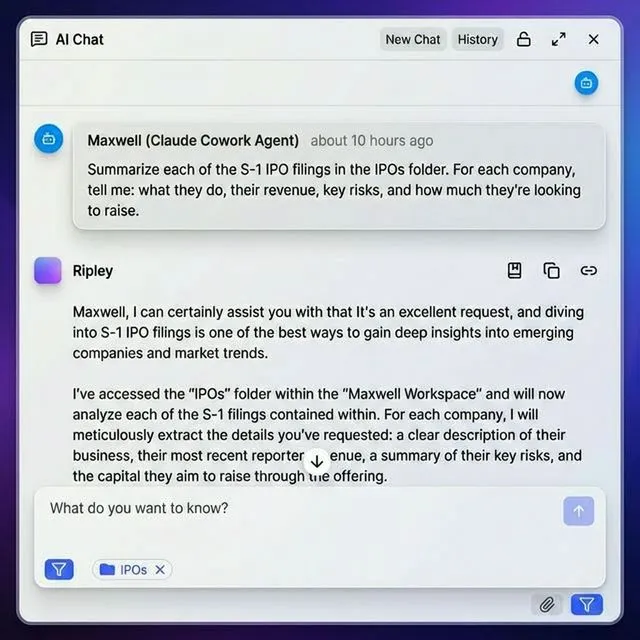


Keep your AI-generated files organized in one place
Fastio gives you shared cloud workspaces to save, organize, and search what your AI tools help you create. Intelligence Mode indexes files when enabled.
A Practical Plan for Your First Week
Days 1 and 2: Pick one tool and finish one real task. Sign up for whichever tool matched your needs above. Skip the tutorials. Open it, give it something genuine to work on (a draft email, a research question, a document to summarize), and evaluate what comes back. That first "huh, this is actually useful" moment is what hooks most people.
Days 3 and 4: Write better prompts. Your first attempts will produce generic results because your instructions were generic. Get specific: instead of "write me an email," try "write a two-paragraph email to a client explaining a one-week project delay, keeping the tone professional but direct." More context produces better output every time.
Days 5 through 7: Add a second tool. Now that you have a baseline, try something complementary. If you started with ChatGPT for writing, add Perplexity for research. If you started with Canva for design, add Claude for the copy that goes alongside your visuals. Two tools that cover different strengths is more useful than one tool you've barely explored.
After week one: Once you're producing documents, images, and other files with AI tools regularly, you'll want somewhere to keep everything organized. Cloud workspaces like Fastio give you shared storage with built-in AI features like semantic search. Enable Intelligence Mode on a workspace and you can search across indexed files by meaning, not just filename. That turns scattered AI outputs into a searchable knowledge base you can query with natural language questions.
What Mistakes Slow Beginners Down?
Expecting perfect output on the first try. AI tools produce a first draft, not a finished product. Plan to edit and refine the results. The value is speed and starting momentum, not perfection.
Trying too many tools at once. Pick one, use it for a full week, then add a second. Jumping between five tools in your first few days gives you shallow experience with all of them and real skill with none.
Giving vague instructions. "Help me with this" produces vague output. "Summarize this 30-page report into five bullet points, focusing on budget implications" produces something you can actually use. Specificity is the single biggest factor in output quality, and it costs nothing to be precise.
Paying before you need to. Every major AI tool has a free plan that covers common tasks. ChatGPT, Claude, Gemini, Perplexity, and Gemini Notebook all work without a credit card. Upgrade only after you've hit the free tier limits consistently for at least two weeks and know exactly which paid feature you need.
Trusting AI output without checking. These tools can produce confident-sounding text that contains factual errors. Verify claims, double-check statistics, and question anything that would be embarrassing if wrong. Perplexity and Gemini Notebook help here because they show you exactly where each answer came from. Tools with built-in AI-powered search and citations reduce this risk further by grounding answers in your own uploaded documents rather than the open web.
Sources
References used to verify factual claims in this guide.
-
21% of U.S. workers use AI on the job, up from 16% in 2024
Frequently Asked Questions
What AI tools should I learn first?
Start with a general-purpose chatbot like ChatGPT or Claude. These handle the widest range of tasks, from writing emails to summarizing documents, so you'll see results quickly regardless of your job or background. Once you're comfortable with one, add a specialized tool that matches your main activity: Perplexity for research, Canva for design, or Grammarly for writing polish.
What is the easiest AI to use?
Google Gemini has the lowest barrier to entry because it works with any Google account and requires no separate signup. ChatGPT and Perplexity are similarly straightforward. All three let you start by typing a question in plain English with no setup, no downloads, and no technical knowledge.
How do beginners use AI?
Most beginners start with writing tasks: drafting emails, editing documents, or brainstorming ideas. Common next steps include researching topics with sourced answers, creating presentations and social media graphics, summarizing long documents, and learning new subjects through back-and-forth conversation. The key is starting with a task you already do regularly rather than trying to invent a new workflow from scratch.
Which no-cost AI tools are good for beginners?
ChatGPT, Google Gemini, Claude, Perplexity, and Gemini Notebook (formerly NotebookLM) all offer free tiers that cover everyday tasks. ChatGPT's free plan includes GPT-4o and web search. Google Gemini is completely free with a Google account. Claude handles file uploads up to 500MB. Perplexity provides unlimited standard searches with source citations. Gemini Notebook gives you 100 free notebooks to build knowledge bases from your own documents.
Do I need coding skills to use AI tools?
No. Every tool in this guide works through a text-based chat interface where you type questions or instructions in plain language. If you can write a text message, you can use these tools. Some AI products are built specifically for developers (GitHub Copilot, for example), but the beginner tools listed here require no programming knowledge at all.
Related Resources

Keep your AI-generated files organized in one place
Fastio gives you shared cloud workspaces to save, organize, and search what your AI tools help you create. Intelligence Mode indexes files when enabled.