Building an AI Knowledge Assistant with a Unified Company Brain
Connecting an AI knowledge assistant to a central company brain replaces pasting context by hand with retrieval that follows workspace permissions. With files in shared cloud workspaces, indexing turned on, and Model Context Protocol endpoints, tools like Claude, ChatGPT, and custom agents can answer questions from the company's own documents with checkable citations.


What an AI Knowledge Assistant Requires Architecturally
Point two different AI agents at a collection of raw company folders, and they can give contradictory answers depending on which outdated draft each one finds first. Chatbots without a shared, persistent document store force team members into repetitive copy-pasting, can answer from incomplete context, and leave copies of sensitive data scattered across chat histories. Connecting an AI knowledge assistant to a central company brain replaces pasting context by hand with retrieval that follows workspace permissions.
Most consumer chatbot interfaces treat AI assistance as a transient text box. In contrast, an enterprise-grade AI knowledge assistant relies on four distinct architectural components:
- A persistent document store. Rather than caching files in ephemeral browser storage or local developer machines, documents live in shared, organization-owned cloud workspaces. Because the files persist in one place, agents and teammates work from the same documents.
- On-arrival indexing. Ingestion must happen automatically the moment files land in a workspace. Text extraction, vector embedding, and keyword tokenization run without requiring engineers to trigger manual batch scripts or manage vector databases.
- Citation-backed inference. Retrieval-augmented generation (RAG) must provide provenance. Answers include references to the source file, page, and passage, which makes them checkable: users can open the source and read each statement in context.
- Model Context Protocol (MCP) tool integration. Agents must interact with storage through standardized protocol endpoints over Streamable HTTP. Standardized tool contracts allow frontier models to list workspaces, search semantic indexes, and inspect files without custom API glue code.
A company brain built on these four layers changes how teams interact with internal documentation. Instead of maintaining fragmented wikis that fall out of date, organizations point their AI assistants at the actual working files where business happens: contracts, architecture designs, customer onboarding checklists, and meeting summaries. Glean and Guru search and answer across the apps a company already uses, Notion AI answers across Notion pages and connected apps, and all three run MCP servers. The difference with Fastio Workspaces and the Fastio Company Brain is that the working files themselves (contracts, PDFs, spreadsheets) live in the workspace, so agents search them, take file locks, co-edit Notes, and save outputs beside the sources under one set of workspace and share permissions.
Related guides
- AI Knowledge Management: Strategies for Human and Agent TeamsAI knowledge management unifies operational documentation, vector indexing, and autonomous AI agents inside a shared...
- How to Build and Organize an Internal Knowledge LibraryAn internal knowledge library centralizes authoritative documents into partitioned workspaces for reference,...
- Knowledge Management Framework: A Practical Guide for AI-Era TeamsA knowledge management framework defines how implicit and explicit knowledge is captured, structured, verified, and...
- Knowledge Management System Example: Building an Agent-First WikiEstablishing a modern knowledge management system example requires moving from static folders to queryable workspaces...
- Best AI Knowledge Management Tools for Teams in 2026AI knowledge management tools organize and retrieve organizational knowledge using natural language, semantic search,...
- How to Build an AI Agent Knowledge Vault for Secure StorageAn AI agent knowledge vault is a centralized, secure storage system designed specifically for autonomous agents....
More on this subject: Agent Infrastructure and Deployment (61 guides)
How On-Arrival Indexing Prepares Documents for Agents
An internal assistant is only as useful as the freshness of its source documents. If adding a file requires manually running chunking scripts, updating embedding databases, and deploying vector store indexes, documentation goes stale. A company brain removes that work: files come in from several sources, and with Intelligence on, they are indexed as they arrive.
Connecting Upstream Storage with Cloud Sync
Files originate across multiple operational drives. To build a unified company brain without forcing teams to abandon their existing habits, Cloud Sync connects Google Drive, Dropbox, Box, and OneDrive folders to a workspace, one-way or two-way, on a schedule or on demand. It is never continuous, live, or real-time. For teams managing corporate intranets on Microsoft infrastructure, SharePoint document libraries connect directly through the OneDrive connector.
When remote folders sync into a workspace, the files become immediately accessible to both human collaborators and connected AI agents. Teams can also bring in files through one-time cloud imports or upload assets directly using the web console, desktop applications, or the official @vividengine/fastio-cli command-line tool.
Ingestion Under Intelligence Mode
When you enable Intelligence Mode on a workspace, the platform automatically indexes incoming documents for hybrid search. Hybrid search combines full-text keyword matching with semantic vector analysis. Combining the two covers the main weaknesses of pure vector search:
- Exact keyword fidelity. Queries seeking specific contract numbers, employee IDs, product codes, or legal clauses match directly via full-text token matching.
- Conceptual understanding. Queries phrased in plain English match conceptually relevant sections even if the document uses different terminology.
Because the workspace does the indexing itself, teams do not need to run a separate document pipeline and vector database for common retrieval work.
Extracting Structured Records with Metadata Views
Conversational questions represent only half of what an AI knowledge assistant does. Teams also need structured, queryable data from documents without writing custom optical character recognition pipelines.
For structured extraction, Metadata Views turn unstructured documents into a live database. Users describe the fields they want extracted in natural language, and the system designs a typed schema across Text, Integer, Decimal, Boolean, URL, JSON, and Date & Time formats, matches files in the workspace, and populates a sortable, filterable spreadsheet.
This extraction works across PDFs, Word documents, spreadsheets, presentations, and scanned pages. For example, an insurance team can automatically extract policy numbers, effective dates, and coverage limits, while a finance team extracts invoice line items and payment terms. AI agents can then query these structured fields directly through MCP tools, pairing conversational document search with precise tabular queries.


Deploy an AI Knowledge Assistant on Your Company Brain
Connect Claude, ChatGPT, and coding agents to indexed workspaces with MCP, citation-backed retrieval, and workspace-level permission boundaries. Monthly plans start with a 14-day free trial (credit card required). Plans are Starter at $29/mo, Business at $99/mo, and Enterprise at $299/mo.
How to Connect Claude, ChatGPT, and Coding Agents via MCP
A common gap in early enterprise AI assistants was connectivity: many chatbots could not read or write the files teams actually work in. The Model Context Protocol (MCP) is an open standard for connecting AI clients to data sources and tools, and remote servers use its Streamable HTTP transport.
Fastio hosts a remote MCP server over Streamable HTTP, with one address per kind of client. Rather than running local daemon bridges or maintaining brittle custom integrations, agents connect directly to hosted endpoints designed for their specific client runtime.
Client Endpoints and Authentication Patterns
Different AI clients interact with tools in distinct ways. Fastio exposes three specialized endpoints to match client capabilities:
Connecting an assistant to the workspace over MCP removes the need to paste context by hand. Once configured, an assistant searches the company brain on demand, pulling only the relevant snippets needed to answer the user prompt. For complete installation walkthroughs and protocol parameters, consult the Fastio MCP documentation.
Setting Up Claude Desktop and Claude Web
For general business users asking questions in Claude, setup needs no configuration file:
- Open Claude and navigate to Customize, then select Connectors.
- Click Add Custom Connector and paste the server address:
https://mcp.fast.io/mcp/tools. - Select Connect. A browser window opens prompting you to sign in to Fastio and review permissions.
- Choose whether to grant Read Only or Read & Write access, and pick the specific organizations and workspaces the connector can reach.
- In your Claude chat window, open the + menu under Connectors and enable Fastio.
Setting Up ChatGPT
When connecting ChatGPT, install the plugin from the directory first:
- Open the plugin directory at
chatgpt.com/plugins. - Locate Fastio and select Install plugin.
- Sign in to Fastio when prompted to authenticate the session.
- In any conversation, mention
@Fastioto query your workspaces.
If your organization requires a custom server connection instead of the directory plugin, open Settings, select Security and login, and enable Developer mode. Then return to chatgpt.com/plugins, select the plus button, name the server Fastio, and enter https://mcp.fast.io/mcp/operations as the MCP server URL.
Configuring Coding Assistants (Cursor and Claude Code)
Developers working in Cursor or terminal agents like Claude Code connect to the code-optimized endpoint at https://mcp.fast.io/mcp/code. This endpoint offers a compact search-and-execute interface over the Fastio API: search finds workspace content or API endpoints, execute runs read calls, and execute_manage and the upload tools handle writes, so the assistant can read project documentation and save generated files back to a shared workspace.
To connect Claude Code, run the command in your terminal:
claude mcp add --transport http fast-io https://mcp.fast.io/mcp/code
Then run /mcp inside Claude Code to complete the sign-in step.
For Cursor, open ~/.cursor/mcp.json or .cursor/mcp.json in your project root and add the server definition:
{
  "mcpServers": {
    "fast-io": {
      "url": "https://mcp.fast.io/mcp/code"
    }
  }
}
When using coding agents that run headless or in continuous integration pipelines, pass an API key by setting Authorization: Bearer <api key> on the connection headers. An API key carries scopes and acts with the permissions of the user who created it.
How Workspace-Level Access Boundaries Limit What an Assistant Can Reach
Giving an AI assistant unfettered access to company files introduces critical security risks. If an assistant can inspect every document across an entire enterprise, a junior employee could query executive compensation, pending acquisition targets, or sensitive employee health records simply by asking the chatbot.
Explicit Workspace Boundaries
Fastio enforces permission boundaries strictly per organization, workspace, and share by member role. There are no folder-level or file-level permissions inside a workspace. Every member of a workspace has access to all documents within that workspace according to their assigned role.
To isolate sensitive material, organizations create dedicated workspaces for specific teams or projects:
- Executive and Board Workspace: Restricted to company executives and board members for governance, cap tables, and strategy documents.
- Finance and Accounting Workspace: Dedicated to payroll records, tax filings, and audit working papers.
- Human Resources Workspace: Isolated for personnel files, benefits documentation, and disciplinary reviews.
- Company-Wide Knowledge Base: Open to all employees for standard operating procedures, handbook policies, product roadmaps, and technical specifications.
Workspace-level permissions ensure AI assistants only retrieve content from workspaces the authenticated user or agent belongs to. Search and Intelligence Mode query only across authorized workspaces and shares. If an employee queries an AI knowledge assistant about executive bonuses, but only holds membership in the general engineering workspace, the assistant returns zero results from the executive workspace.
Managing Membership and Source Permissions
A workspace join setting defaults to letting any member of its organization join. To keep a sensitive workspace to the people and agents you choose, set the join setting to "No one can join automatically" so only members added directly get in, and limit member management to admins and owners, since by default any workspace member can add members.
Workspace roles include owner, admin, member, guest, and view. Organization roles include owner, admin, and member. A workspace owner can transfer workspace ownership to another member, and the previous owner becomes an admin.
When syncing files from upstream cloud drives like Google Drive or Dropbox, imported files take the Fastio workspace permissions, not the source drive sharing settings. A link share that was set too broadly in the source drive therefore does not widen who can reach the file in Fastio.
Auditing Changes with the Detailed Activity Log
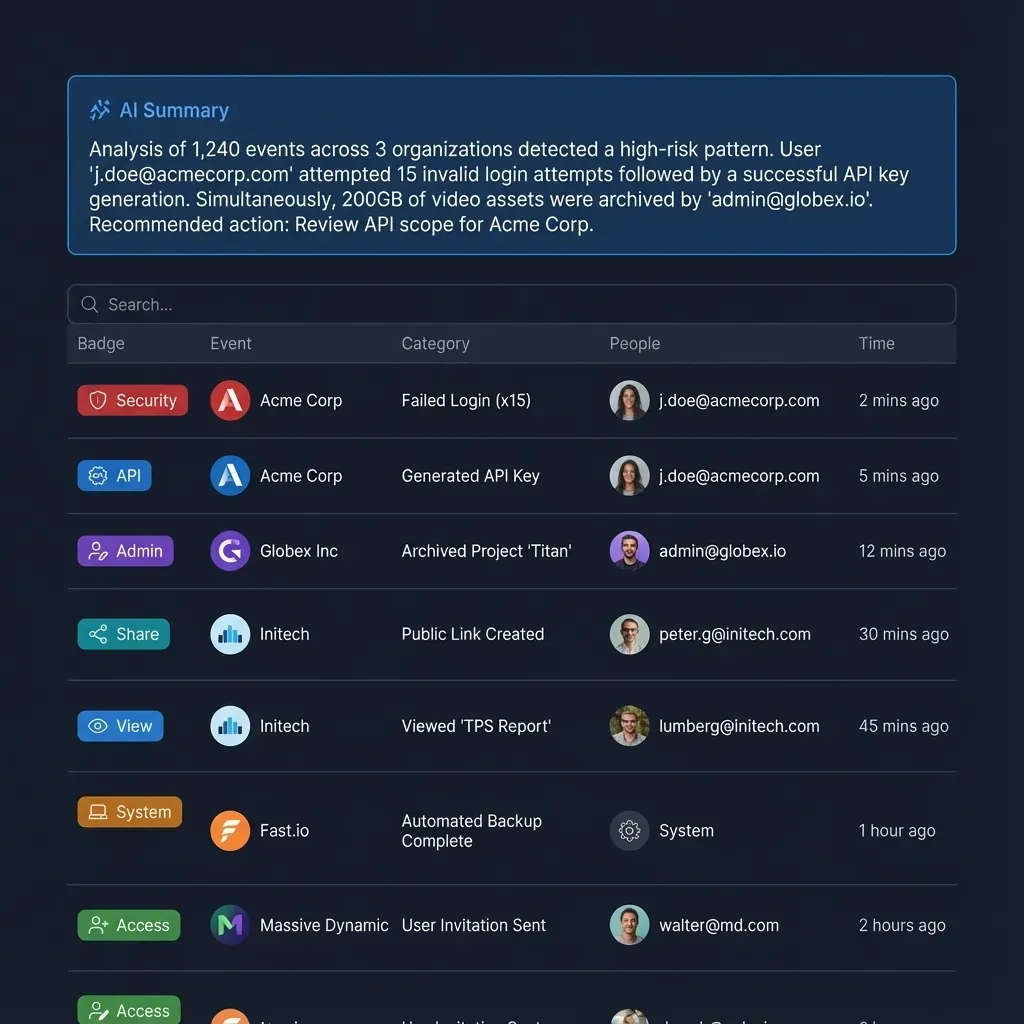
Knowing how company documents evolve is essential when autonomous agents participate in document editing. Fastio maintains a detailed activity log that records operational changes across the organization. The log captures uploads, file edits, moves, deletions, membership updates, permission adjustments, and share creations for people and agents alike. Administrators can check the log to see which agent or person changed a document.
Steps to Deploy an AI Knowledge Assistant Across Teams
Rolling out an internal AI knowledge assistant requires a structured progression from document organization to agent configuration and team verification. Following a systematic deployment model keeps retrieval results relevant and makes answers easier to check.
1. Establish Workspace Boundaries
Begin by mapping internal knowledge domains to distinct Fastio workspaces. Group documents by confidentiality and function rather than file type. Keep customer-facing documentation, product specifications, engineering designs, and company policies in distinct workspaces so member roles govern access cleanly.
2. Ingest Existing Knowledge Repositories
Turn on Intelligence for each workspace, then connect your existing document repositories with Cloud Sync, syncing relevant folders from Google Drive, Dropbox, Box, or OneDrive. With Intelligence on, Fastio indexes files as they arrive for full-text and semantic search, and synced folders update on a schedule or on demand.
3. Extract Tabular Records with Metadata Views
For operational files containing structured fields, such as vendor agreements, invoices, customer renewals, or compliance certificates, create Metadata Views. Define the typed fields you need, such as renewal dates, contractual liability caps, and counterparty entities. The platform extracts these values across files, creating queryable tables that assistants can cross-reference alongside unstructured prose.
4. Connect Team AI Clients via MCP
Provide team members with instructions for connecting their preferred AI clients. Business users connect Claude to https://mcp.fast.io/mcp/tools with browser OAuth, and ChatGPT through the Fastio plugin (or https://mcp.fast.io/mcp/operations as a custom server). Software engineers and technical writers connect Cursor or Claude Code to https://mcp.fast.io/mcp/code. When the person signing in chooses Read Only on the Review Permissions screen, tools that change data are not offered, so that connection cannot change files.
5. Check Citations and Maintain Collaborative Notes
Train team members to check source citations on every complex query. Fastio answers include direct file names, page numbers, and text snippets. When teams need to summarize decisions or draft living project guides, they use Collaborative Notes kept directly beside the files. They co-edit live: people and agents with the same note open see each other's labeled cursors and edits as they type.
For teams building custom tools or exploring persistent agent storage, detailed technical guides are available on the Fastio Storage for Agents hub.
Frequently Asked Questions
What is an AI knowledge assistant?
An AI knowledge assistant is an intelligent agent capable of understanding conversational queries, retrieving relevant passages from company documents, and citing exact sources so answers are checkable. Unlike standalone consumer chatbots, a knowledge assistant connects to persistent workspaces and answers from indexed internal files.
How do you connect an AI assistant like Claude to company documents?
You connect Claude to company documents using the Model Context Protocol (MCP). In Claude, navigate to Customize, select Connectors, add a custom connector pointing to `https://mcp.fast.io/mcp/tools`, and authenticate via browser OAuth. Once connected, Claude searches your authorized workspaces on demand and cites specific file excerpts.
How do you control what an AI knowledge assistant has access to?
Access is controlled through workspace-level permissions set per organization, workspace, and share by member role. AI assistants only search and retrieve documents from the specific workspaces and shares the authenticated user or agent belongs to. Keep sensitive documents in separate workspaces whose join setting lets in only members added directly, and the assistant cannot retrieve them for anyone who is not a member.
How do citations make an AI knowledge assistant's answers checkable?
Answers include citations to the source file name, page number, and text snippet, so team members can check each claim against the original company record.
Does Fastio sync with Google Drive, OneDrive, Dropbox, and Box?
Yes. Cloud Sync connects Google Drive, Dropbox, Box, and OneDrive folders to a Fastio workspace, one-way or two-way, on a schedule or on demand. It is never continuous, live, or real-time. SharePoint document libraries also connect directly through the OneDrive connector.
Can an AI knowledge assistant extract structured tables from unstructured documents?
Yes. Fastio provides Metadata Views, which turn unstructured files like PDFs, Word documents, and spreadsheets into sortable, filterable databases. Users define typed fields in natural language, and the system extracts structured records that AI assistants can query via MCP alongside conversational search.
Related Resources

Deploy an AI Knowledge Assistant on Your Company Brain
Connect Claude, ChatGPT, and coding agents to indexed workspaces with MCP, citation-backed retrieval, and workspace-level permission boundaries. Monthly plans start with a 14-day free trial (credit card required). Plans are Starter at $29/mo, Business at $99/mo, and Enterprise at $299/mo.