MOV vs MP4: Which Video Format Should You Use?
Choosing between MOV and MP4 depends on your workflow: MOV offers higher quality for editing on Apple devices, while MP4 provides universal compatibility and smaller file sizes for sharing. This guide compares both formats to help you decide which is best for your project.

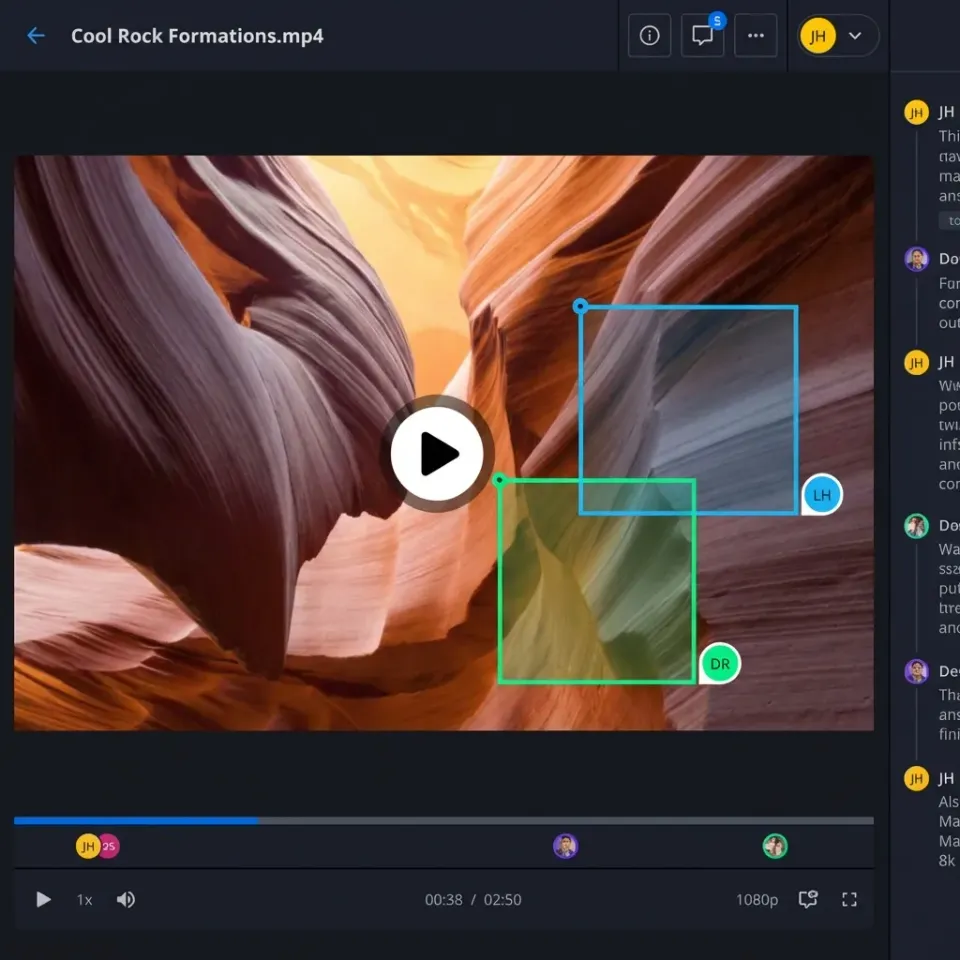
The Short Answer: MOV or MP4?
If you are in a rush, here is the quick breakdown of when to use each format:
- Use MOV if you are editing on a Mac, shooting professional footage (ProRes), or need the highest possible quality for an intermediate master file.
- Use MP4 if you are uploading to YouTube, sharing video with clients, sending files over the web, or need playback on Windows and Android devices.
MOV is Apple's proprietary container, often less compressed and higher quality but larger in size.
MP4 is the universal industry standard, offering the best balance of quality and file size for distribution. Consider how this fits into your broader workflow and what matters most for your team. The right choice depends on your specific requirements: file types, team size, security needs, and how you collaborate with external partners. Testing with a free account is the fast way to know if a tool works for you.
Helpful references: Fastio Workspaces, Fastio Collaboration, and Fastio AI.
Related guides
- How to Upload Video to Link: The Secure Way to Share Large FilesUploading a video to a link is the fast way to share large footage without email bounce-backs or long download times.
- Best Cloud Storage for Video: 7 Options for Production TeamsVideo files demand more from cloud storage than documents or photos. You need large file support, fast transfers, and...
- How to Send MOV Files Without Losing QualityMOV files from modern cameras and phones routinely exceed email attachment limits, forcing video professionals to find...
- How to Share Uncompressed Video Without Quality LossSharing uncompressed video means transferring video files in their original, lossless format without applying...
- How to Set Up Video Asset Management for Your TeamVideo asset management is the system for organizing, storing, and distributing video files so teams can find what they...
- YouTube Upload Limits: Maximum File Size, Video Length, and Daily QuotasThe YouTube upload limit restricts verified creators to a maximum file size of 256 GB or 12 hours per video, while...
More on this subject: File Sharing (155 guides)
What Is an MOV File?
MOV is a digital multimedia container format developed by Apple for use with the QuickTime framework. Because it is native to macOS, it works smoothly with Apple software like Final Cut Pro and QuickTime Player. MOV files often use high-quality codecs like Apple ProRes, which preserve extensive detail and color data. This makes MOV the preferred format for professional videographers who need to retain maximum quality during the editing process. However, this quality comes at a cost: MOV files are much larger than their MP4 counterparts. The features that matter most depend on your specific use case. Rather than chasing the longest feature list, focus on the capabilities that directly impact your daily workflow. A well-executed core feature set beats a bloated platform where nothing works particularly well.
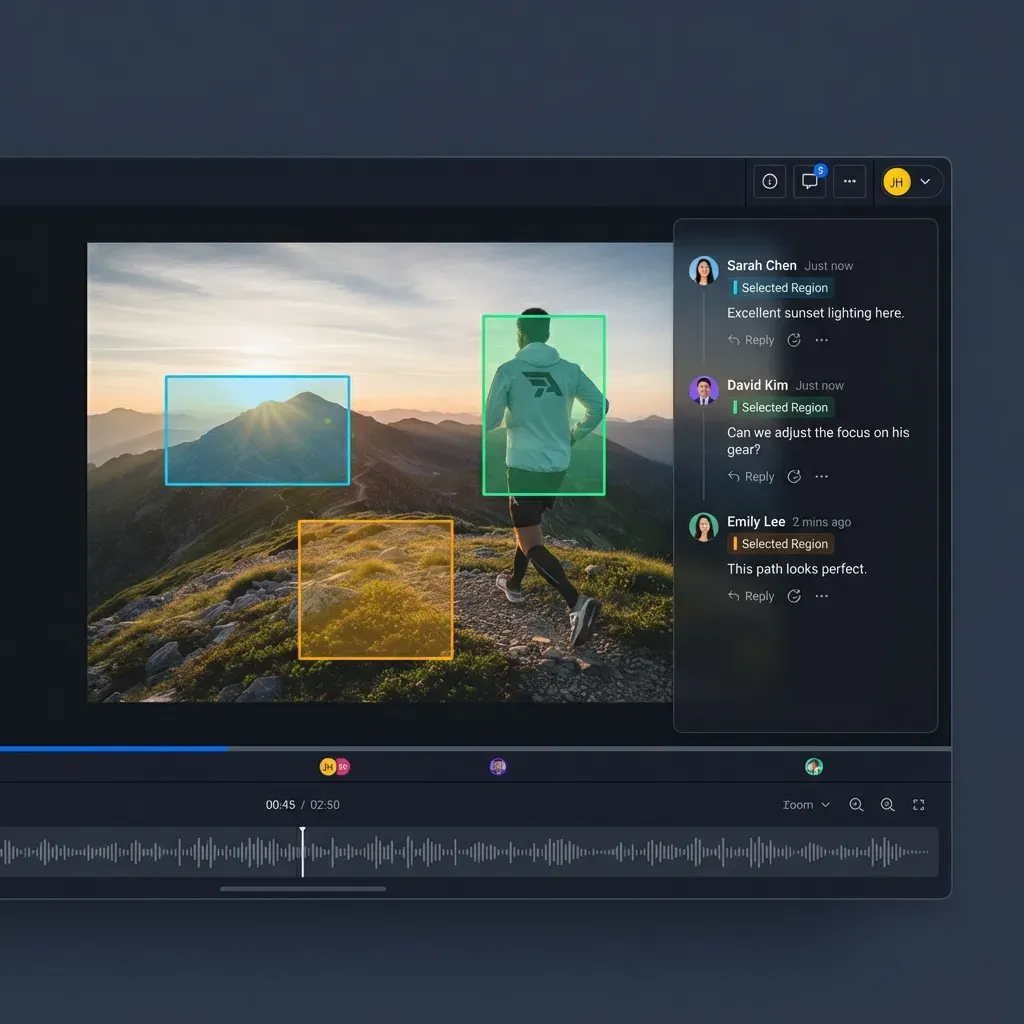
What Is an MP4 File?
MP4 (MPEG-4 Part 14) is the international standard for digital video. Developed by the International Organization for Standardization (ISO), it is designed to be universally compatible across all platforms, including Windows, macOS, Android, iOS, and Linux. MP4 files typically use H.264 or H.265 (HEVC) compression. These algorithms are highly efficient, discarding invisible data to reduce file size while maintaining high visual quality. This efficiency makes MP4 the default choice for streaming services like Netflix, social media platforms like Instagram and TikTok, and general web usage. According to recent data, MP4 is supported by over 99% of all video playback devices and browsers.
MOV vs MP4: Head-to-Head Comparison
Here is a direct comparison of the two formats:
The Bottom Line: MOV wins on raw editing potential, especially in the Apple ecosystem. MP4 wins on practically everything else, particularly distribution and compatibility.
Which Format is Better for Editing?
For professional video editing, MOV is usually superior, especially with a codec like ProRes. When you edit video, your computer has to process multiple streams of high-resolution data in real-time. Highly compressed formats like MP4 (H.264) force the CPU to work harder to decode the video on the fly, which can cause lag or "stuttering" on the timeline. MOV files using intra-frame codecs (like ProRes) are larger but easier for the computer to process, resulting in smoother scrubbing and faster rendering. However, if you are a casual editor or storing archived footage, converting to MP4 saves a lot of drive space without a noticeable drop in visual quality.


Share Large Files on Fastio
Fastio streams your professional video files to clients in the browser, with no conversion on your side.
The Challenge of Sharing Large Video Files
While MOV files are great for quality, they are a nightmare to share. A 5-minute 4K ProRes MOV file can easily be large. Most email servers cap attachments at 25MB, and standard file transfer tools often fail with files of this size or require the recipient to download the entire file before they can watch a single second. This creates a bottleneck: you want to shoot and edit in high-quality MOV, but your clients and team members need to view the work instantly without waiting hours for a download. Video files demand more from your storage platform than documents do. You need adaptive bitrate streaming for smooth playback, frame-accurate commenting for precise feedback, and enough bandwidth to handle large uploads without timeouts. Progressive download is not good enough for professional review workflows.
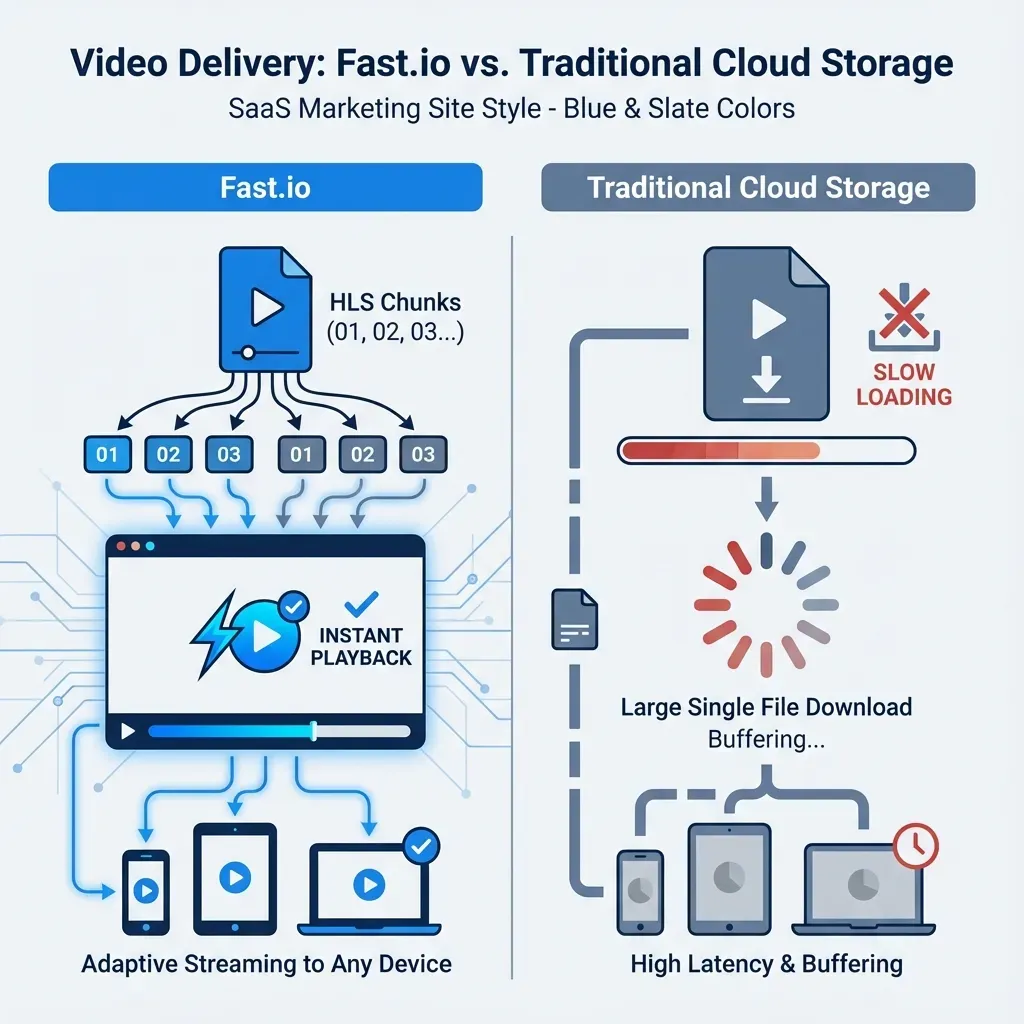
How HLS Streaming Solves the Problem
Modern cloud storage platforms like Fastio bridge this gap using HLS (HTTP Live Streaming). When you upload a large MOV file to Fastio, the platform automatically generates web-optimized streaming versions in the background. Instead of forcing your client to download your entire MOV file, you send them a secure link. They click it and the video plays instantly in their browser, adapting to their internet speed just like Netflix or YouTube. They can scrub through the timeline and leave comments anchored to timestamps. If they need the original high-quality MOV for their own editing, they can still download the source file.
How to Convert MOV to MP4
If you have an MOV file that you need to share directly on social media or play on a specific device that doesn't support QuickTime, you may need to convert it.
1. Using HandBrake (Free & Open Source):
- Download and open HandBrake. * Drag your MOV file into the window. * Select a preset (e.g., "Fast 1080p30"). * Click "Start Encode."
2. Using Adobe Media Encoder:
- Queue your MOV file. * Choose "H.264" as the format (this creates an MP4). * Select "Match Source - High Bitrate" for the best quality. * Run the queue.
3. Using Cloud Transcoding: Upload your MOV to a platform like Fastio, and it will automatically create a streamable version compatible with any browser, handling the compatibility issue for you without manual conversion software.
Sources
References used to verify factual claims in this guide.
-
MP4 is the MPEG-4 Part 14 international standard for digital video
-
H.265 (HEVC) is an advanced video compression standard
-
MP4 format is supported by over 99% of video playback devices and browsers
-
H.264 decoding requires significant CPU resources and can cause lag or stuttering during editing H.264 forces the CPU to work harder to decode the video on the fly, causing lag or stuttering on the timeline
-
Most email servers limit attachments to 25MB
-
H.264 compatible changing the extension might work
-
H.264 MOV easier to edit on older computers
-
A 5-minute 4K ProRes MOV file can easily be large
-
Choose "H.264" as the format (this creates an MP4)
Frequently Asked Questions
Is MOV better quality than MP4?
Usually, yes. MOV files often use less compression or high-bitrate codecs like ProRes, retaining more visual data. However, a high-bitrate MP4 can look nearly identical to the naked eye while being much smaller.
Can I just rename .mov to .mp4?
Sometimes, but it's risky. Both are container formats, and if the video stream inside is compatible (like H.264), changing the extension might work. However, if the MOV uses a codec MP4 doesn't support (like ProRes), the file will become unplayable. It is always safer to use conversion software.
Why does YouTube process my MOV files so slowly?
Because MOV files are much larger than MP4s, they take longer to upload. Also, YouTube has to transcode (convert) that massive file into its own streaming formats. Uploading a compressed MP4 allows for faster uploads and quicker processing times.
Which format is best for iPhone recording?
iPhones default to High Efficiency (HEVC) in an MOV container for maximum quality and modern compression. However, you can switch to 'Most Compatible' in settings to record in standard H.264 MOV, which is easier to edit on older computers.
Related Resources

Share Large Files on Fastio
Fastio streams your professional video files to clients in the browser, with no conversion on your side.