SharePoint API Download File: REST, Graph API & Agent Storage Patterns
Downloading a file via SharePoint API involves requesting the binary stream from a driveItem content endpoint using Microsoft Graph or legacy SharePoint REST endpoints. While direct GET requests handle single files, production agent workflows must navigate Entra ID application permissions, 302 redirect locations, and HTTP 429 rate-limiting backoff. This guide covers Graph and REST endpoint mechanics, Python download scripts, and remote workspace indexing architectures.


When to Choose Microsoft Graph vs SharePoint REST for File Downloads
Downloading files directly from SharePoint document libraries using REST or Graph APIs creates an immediate operational split between lightweight metadata calls and streaming binary payloads. If an enterprise pipeline or automated agent issues naive HTTP GET requests across high-volume document libraries, requests quickly trigger HTTP 429 throttling thresholds or fail silently when socket connections drop midway through a large binary transfer.
Downloading a file via SharePoint API involves requesting the binary stream from a driveItem content endpoint using Microsoft Graph or legacy SharePoint REST endpoints. Developers and data engineers building file synchronization pipelines encounter two separate API generations across Microsoft 365: the modern Microsoft Graph REST API and the legacy SharePoint REST interface.
Microsoft Graph (https://graph.microsoft.com/v1.0/) is the unified API endpoint for Microsoft 365 services. Within Microsoft Graph, SharePoint document libraries are modeled as drives, and files within those libraries are modeled as driveItem resources. The API uses Microsoft Entra ID (formerly Azure AD) OAuth 2.0 bearer tokens and handles file downloads by returning an HTTP 302 redirect pointing directly to a high-throughput content delivery network (CDN) URL.
In contrast, the legacy SharePoint REST API (https://{tenant}.sharepoint.com/sites/{site}/_api/web/...) dates back to SharePoint 2013. Legacy endpoints address files through server-relative folder paths using methods like GetFileByServerRelativeUrl. Rather than redirecting to preauthenticated storage addresses, the legacy REST API streams file contents directly through the SharePoint web front-end server or returns binary payloads wrapped in Client-Side Object Model (CSOM) wrappers.
Structural Tradeoffs Across File Download Interfaces
Choosing between Microsoft Graph, legacy REST, and higher-level workspace synchronization determines how your application manages authentication, redirect handling, and network capacity:
Modern cloud architectures should standardize on Microsoft Graph whenever direct programmatic access to SharePoint Online is necessary. Legacy SharePoint REST remains relevant only for specialized maintenance of on-premises SharePoint Server deployments, historical CSOM script migrations, or SharePoint List item attachments that are not supported by the Microsoft Graph driveItem resource.
Microsoft Graph Content Endpoint Mechanics
The primary Microsoft Graph download endpoint targets the /content path of a driveItem resource:
GET https://graph.microsoft.com/v1.0/sites/{site-id}/drive/items/{item-id}/content
Authorization: Bearer {token}
When an HTTP client issues a GET request to this endpoint, Microsoft Graph does not stream the file payload directly across the API gateway. Instead, the server returns an HTTP/1.1 302 Found status code. The Location header contains a preauthenticated download URL hosted on Microsoft's cloud storage infrastructure (such as *.sharepoint.com or *.1drv.com).
This preauthenticated URL contains a temporary signed security token that is valid for a short duration, usually expiring within minutes. Because authentication is embedded directly inside the URL query string, your client application must not send the original Entra ID Authorization: Bearer header to the download URL. Forwarding the bearer token to the storage CDN endpoint causes authentication errors or triggers Cross-Origin Resource Sharing (CORS) preflight failures in web applications.
If your client runs in a browser or JavaScript runtime where CORS prevents automatic 302 redirection, you can bypass the redirect by reading the @microsoft.graph.downloadUrl property on the driveItem metadata record:
GET https://graph.microsoft.com/v1.0/drives/{drive-id}/items/{item-id}?$select=id,name,@microsoft.graph.downloadUrl
Authorization: Bearer {token}
The resulting JSON payload provides the exact preauthenticated link in the @microsoft.graph.downloadUrl field, allowing your application to fetch the raw bytes directly without traversing a 302 redirect.
Legacy SharePoint REST Addressing and Limitations
The legacy SharePoint REST API requires applications to know the exact server-relative URL of the file inside the site collection:
GET https://{tenant}.sharepoint.com/sites/{site-name}/_api/web/GetFileByServerRelativeUrl('/sites/{site-name}/Shared Documents/{folder}/{filename}')/$value
Authorization: Bearer {token}
Accept: application/json;odata=verbose
Appending /$value to the GetFileByServerRelativeUrl endpoint instructs the SharePoint web front end to stream the raw binary content rather than returning file metadata.
While functional, this legacy interface introduces distinct operational problems for enterprise developers:
- Path Encoding Vulnerabilities: Server-relative URLs must strictly encode special characters (such as
%20for spaces,%23for hashes, and%26for ampersands). Misencoded strings result inHTTP 404 Not FoundorHTTP 400 Bad Requesterrors. - Web Front-End Bottlenecks: Because legacy requests stream bytes through the SharePoint application tier rather than offloading transfers to a CDN, bulk downloads consume web front-end connection pools, triggering rapid throttling.
- Site Migration Fragility: If a SharePoint site collection or document library is renamed, all hard-coded server-relative paths break immediately. Microsoft Graph avoids this issue by identifying items via immutable, unique driveItem IDs.
Related guides
- How to Download Files via OneDrive API: Microsoft Graph GuideDownloading a file via the OneDrive API requires requesting the binary stream from a driveItem content endpoint using...
- How to Create Folders with SharePoint API: REST, Graph, and Agent WorkspacesCreating folders across SharePoint environments requires choosing between legacy REST endpoints and modern Microsoft...
- How to Upload Files to SharePoint via API: Graph vs REST MethodsUploading files to SharePoint via API involves choosing between modern Microsoft Graph endpoints and legacy SharePoint...
- How to List Files with SharePoint API: REST, Graph, and Agent WorkspacesListing files across SharePoint environments requires choosing between legacy REST endpoints and Microsoft Graph drive...
- How to Download Files with Google Drive API: Media vs Export MethodsDownloading files through the Google Drive API requires using files.get with alt=media for binary files or files.export...
- How to Connect Python to SharePoint: Native Graph API vs Intelligent WorkspacesConnecting Python to SharePoint via the Microsoft Graph API requires handling MSAL authentication, tenant permissions,...
More on this subject: Agent File and Document Workflows (394 guides)
How to Configure Authentication and Scopes for File Downloads
Accessing files through Microsoft Graph or SharePoint REST requires authenticating through Microsoft Entra ID. Production scripts, daemon processes, and autonomous backend services require an application registration that grants specific OAuth 2.0 permission scopes.
Microsoft Entra ID distinguishes between two core permission models:
- Delegated Permissions: The application acts on behalf of a signed-in human user. The application can only access files that the specific user has permission to read in SharePoint. Relevant scopes include
Files.Read,Files.Read.All, andSites.Read.All. - Application Permissions (App-Only): The application runs as an autonomous background daemon without user interaction. The application authenticates using its own client credentials (client ID and client secret, or a client certificate). Relevant scopes include
Files.Read.AllandSites.Read.All.
Scoping Application Permissions with Sites.Selected
Granting Files.Read.All or Sites.Read.All as an application permission gives the script read access to every document library across your entire enterprise Microsoft 365 tenant. Security teams frequently block broad application permissions because they violate the principle of least privilege.
To restrict access, Microsoft provides the Sites.Selected application permission scope. When an app registration holds Sites.Selected, it cannot access any SharePoint sites by default. A tenant administrator must explicitly grant the application read permissions on specific site collections using Microsoft Graph:
POST https://graph.microsoft.com/v1.0/sites/{site-id}/permissions
Authorization: Bearer {admin-token}
Content-Type: application/json

{
  "roles": ["read"],
  "grantedToIdentities": [
    {
      "application": {
        "id": "{client-app-id}",
        "displayName": "Enterprise File Sync Agent"
      }
    }
  ]
}
Once granted, the backend service can download files from that specific site collection while remaining completely blocked from confidential human resources, finance, or legal libraries across the tenant.
Acquiring an App-Only OAuth 2.0 Bearer Token
To authenticate an autonomous Python script or service worker, request a bearer token from the Entra ID OAuth 2.0 token endpoint using the Client Credentials Flow:
pip install requests
import requests

def get_entra_app_token(tenant_id: str, client_id: str, client_secret: str) -> str:
    """Acquire an application-only OAuth 2.0 access token from Microsoft Entra ID."""
    url = f"https://login.microsoftonline.com/{tenant_id}/oauth2/v2.0/token"
    payload = {
        "client_id": client_id,
        "client_secret": client_secret,
        "scope": "https://graph.microsoft.com/.default",
        "grant_type": "client_credentials",
    }
    headers = {"Content-Type": "application/x-www-form-urlencoded"}

    response = requests.post(url, data=payload, headers=headers, timeout=30)
    response.raise_for_status()
    data = response.json()
    return data["access_token"]
The scope parameter must be set to https://graph.microsoft.com/.default. This tells Entra ID to issue a token containing all static application permissions consented to by your administrator in the Azure portal.
How to Call the SharePoint API to Download File Streams in Python
Downloading files via Python requires managing HTTP redirects, streaming raw bytes directly to disk, and avoiding in-memory buffer exhaustion. Loading multi-hundred megabyte files entirely into Python memory using standard HTTP response content methods causes garbage collection stalls and crashes containerized worker processes.
When writing production ingestion pipelines, developers must account for socket timeouts, directory structure initialization, and redirect handling. By configuring the standard Python requests library with stream mode enabled, bytes pass sequentially from the network socket to persistent local disk storage in fixed-size blocks. This approach keeps runtime memory usage flat and predictable regardless of whether the downloaded file is a small text document or a massive archive.
Downloading Files via Microsoft Graph API
To download a file using Microsoft Graph, provide the target Drive ID and DriveItem ID. The following script handles the 302 redirect automatically and streams data to disk in 8 KiB chunks:
import os
import requests

def download_file_microsoft_graph(
    access_token: str,
    drive_id: str,
    item_id: str,
    destination_path: str,
    chunk_size: int = 8192,
) -> str:
    """Download a file from SharePoint via Microsoft Graph API using stream iteration."""
    url = f"https://graph.microsoft.com/v1.0/drives/{drive_id}/items/{item_id}/content"
    headers = {
        "Authorization": f"Bearer {access_token}",
    }

    with requests.get(url, headers=headers, stream=True, timeout=120) as response:
        response.raise_for_status()

        os.makedirs(os.path.dirname(destination_path), exist_ok=True)

        with open(destination_path, "wb") as f:
            for chunk in response.iter_content(chunk_size=chunk_size):
                if chunk:
                    f.write(chunk)

    return destination_path
When requests.get encounters the HTTP 302 redirect from Microsoft Graph, it automatically follows the Location header to the preauthenticated CDN address. The binary stream passes directly to the local file handle.
Downloading Files via Legacy SharePoint REST API
When integrating with legacy SharePoint sites or environments where drive IDs cannot be resolved, query the server-relative path with /$value:
import os
import requests

def download_file_sharepoint_rest(
    access_token: str,
    tenant_name: str,
    site_path: str,
    server_relative_file_path: str,
    destination_path: str,
    chunk_size: int = 8192,
) -> str:
    """Download a file from legacy SharePoint REST API using server-relative path."""
    base_url = f"https://{tenant_name}.sharepoint.com/{site_path}"
    endpoint = f"{base_url}/_api/web/GetFileByServerRelativeUrl('{server_relative_file_path}')/$value"

    headers = {
        "Authorization": f"Bearer {access_token}",
        "Accept": "application/json;odata=verbose",
    }

    with requests.get(endpoint, headers=headers, stream=True, timeout=120) as response:
        response.raise_for_status()

        os.makedirs(os.path.dirname(destination_path), exist_ok=True)
        with open(destination_path, "wb") as f:
            for chunk in response.iter_content(chunk_size=chunk_size):
                if chunk:
                    f.write(chunk)

    return destination_path
In the legacy REST endpoint, the server responds with a direct binary stream. An HTTP 404 status code indicates that either the server-relative path was misformed or the authentication identity lacks site-level read rights.
Partial Range Downloads for Large Assets
When an application needs only a specific section of a large file (such as reading the header of a video or parquet dataset), Microsoft Graph supports HTTP range requests.
Range headers cannot be sent directly to the /content endpoint because the 302 redirect target may drop or reject non-standard headers. Instead, fetch the @microsoft.graph.downloadUrl first, then issue an HTTP GET containing the Range header against the preauthenticated URL:
def download_file_byte_range(
    access_token: str,
    drive_id: str,
    item_id: str,
    start_byte: int,
    end_byte: int,
) -> bytes:
    """Download a specific byte range from a SharePoint file."""
    meta_url = f"https://graph.microsoft.com/v1.0/drives/{drive_id}/items/{item_id}?$select=@microsoft.graph.downloadUrl"
    headers = {"Authorization": f"Bearer {access_token}"}

    meta_resp = requests.get(meta_url, headers=headers, timeout=30)
    meta_resp.raise_for_status()
    download_url = meta_resp.json()["@microsoft.graph.downloadUrl"]

    range_headers = {"Range": f"bytes={start_byte}-{end_byte}"}
    range_resp = requests.get(download_url, headers=range_headers, timeout=60)
    range_resp.raise_for_status()

    return range_resp.content
This pattern returns HTTP 206 Partial Content and delivers only the requested byte slice, saving substantial bandwidth when inspecting large remote datasets.
How to Handle HTTP 429 Throttling and Rate Limits During Downloads
Enterprise document libraries contain thousands of files. When an automated script, indexing crawler, or AI agent attempts to iterate through a library and download documents in parallel, Microsoft Graph triggers dynamic rate limiting.
Microsoft Graph evaluates request volume across multiple dimensions, including total requests per application, total requests across the tenant, and CPU utilization on underlying SharePoint storage partitions. When thresholds are exceeded, the API responds with HTTP 429 Too Many Requests.
HTTP/1.1 429 Too Many Requests
Content-Type: application/json
Retry-After: 12

{
  "error": {
    "code": "TooManyRequests",
    "message": "Please retry again later.",
    "innerError": {
      "code": "429",
      "date": "2026-10-05T08:14:22",
      "message": "Please retry after"
    }
  }
}
Implementing Resilient Backoff Logic
Ignoring HTTP 429 errors and issuing immediate retries compounds the penalty. Microsoft Graph continues to log resource consumption while a client is throttled, resetting and extending the throttling window.
The fastest way to recover from rate limiting is to parse the Retry-After response header and pause execution for the requested duration. If the Retry-After header is missing or returns a value of zero, the client should apply exponential backoff with randomized jitter.
The following Python helper wraps file download calls with automated 429 recovery:
import time
import random
import requests

def download_with_throttling_recovery(
    url: str,
    headers: dict,
    destination_path: str,
    max_retries: int = 5,
    base_backoff: float = 2.0,
) -> bool:
    """Execute a streaming download with resilient HTTP 429 backoff handling."""
    attempt = 0
    while attempt < max_retries:
        response = requests.get(url, headers=headers, stream=True, timeout=120)

        if response.status_code == 200:
            with open(destination_path, "wb") as f:
                for chunk in response.iter_content(chunk_size=8192):
                    if chunk:
                        f.write(chunk)
            return True

        elif response.status_code == 429:
            attempt += 1
            retry_after_str = response.headers.get("Retry-After")

            if retry_after_str:
                wait_seconds = float(retry_after_str)
            else:
                jitter = random.uniform(0.5, 1.5)
                wait_seconds = (base_backoff ** attempt) + jitter

            time.sleep(wait_seconds)

        elif response.status_code == 503:
            attempt += 1
            wait_seconds = (base_backoff ** attempt) + random.uniform(1.0, 3.0)
            time.sleep(wait_seconds)

        else:
            response.raise_for_status()

    raise RuntimeError(f"Download failed after {max_retries} attempts due to sustained throttling.")
Read vs Write Throttling Profiles
Microsoft Graph evaluates read and write requests independently. In high-density SharePoint environments, document library downloads may encounter throttling while metadata reads or folder listings succeed.
To maximize throughput without triggering rate limits:
- Avoid Parallel Download Floods: Restrict concurrent download threads to modest thread pools (such as 3 to 5 workers) rather than spinning up dozens of asynchronous downloaders.
- Batch Metadata Lookups: Retrieve item IDs and file metadata in batches using Microsoft Graph JSON batching before initiating binary streams.
- Cache Download URLs: If multiple workers require access to the same file within a two-minute window, reuse the
@microsoft.graph.downloadUrlinstead of calling/contentmultiple times.


Connect SharePoint Files to Your Agent Workspaces
Sync SharePoint document libraries into intelligent workspaces with hybrid search and remote MCP tools. Monthly plans start with a 14-day free trial.
Why Agent Storage Workspaces Replace Direct File Downloads
Software engineers developing AI agents with frameworks like Claude Code, Codex, OpenClaw, CrewAI, or LangGraph frequently face an architectural bottleneck when connecting agents to SharePoint document libraries.
The naive implementation has the agent query Microsoft Graph, download full binary files (PDFs, presentations, spreadsheets) to a local temp folder, run local text extractors, and feed the extracted text into the language model's prompt.
This direct download pattern creates severe operational drawbacks in production:
- Token and Compute Inefficiency: Agents waste context window tokens reading entire documents when only two paragraphs contain the relevant business answer.
- Local Disk and Memory Bloat: Ephemeral agent containers and serverless functions quickly exhaust storage when downloading large file batches.
- Persistent Throttling Overhead: High-frequency document parsing quickly triggers Entra ID HTTP 429 throttling thresholds across the organization.
- Stale Context: Local file caches fall out of sync the moment another employee edits the document in SharePoint.
The Fastio Architecture: Synchronize Once, Search Over MCP
The modern alternative decouples file synchronization from agent execution. Instead of building custom download daemons, teams keep SharePoint as their primary document system of record while synchronizing folders into an intelligent workspace.
+-------------------------------------------------------------------+
|                     SharePoint Online Tenant                      |
|            Corporate Document Libraries & Client Files            |
+-------------------------------------------------------------------+
                                  |
                                  | Cloud Sync via OneDrive Connector
                                  | (Scheduled or on-demand sync)
                                  v
+-------------------------------------------------------------------+
|                          Fastio Workspace                         |
|  - Automatic Background Hybrid Indexing (Full-Text + Semantic)    |
|  - Per-File Version History & Detailed Activity Log               |
|  - Structured Document Data Extraction via Metadata Views         |
+-------------------------------------------------------------------+
                                  |
                                  | Streamable HTTP (/mcp/tools)
                                  v
+-------------------------------------------------------------------+
|                     Autonomous AI Agent                           |
|  - Queries Workspace via Consolidated MCP Toolset                 |
|  - Retrieves Exact Citations and Text Passages                    |
|  - Zero Local Binary File Downloads                               |
+-------------------------------------------------------------------+
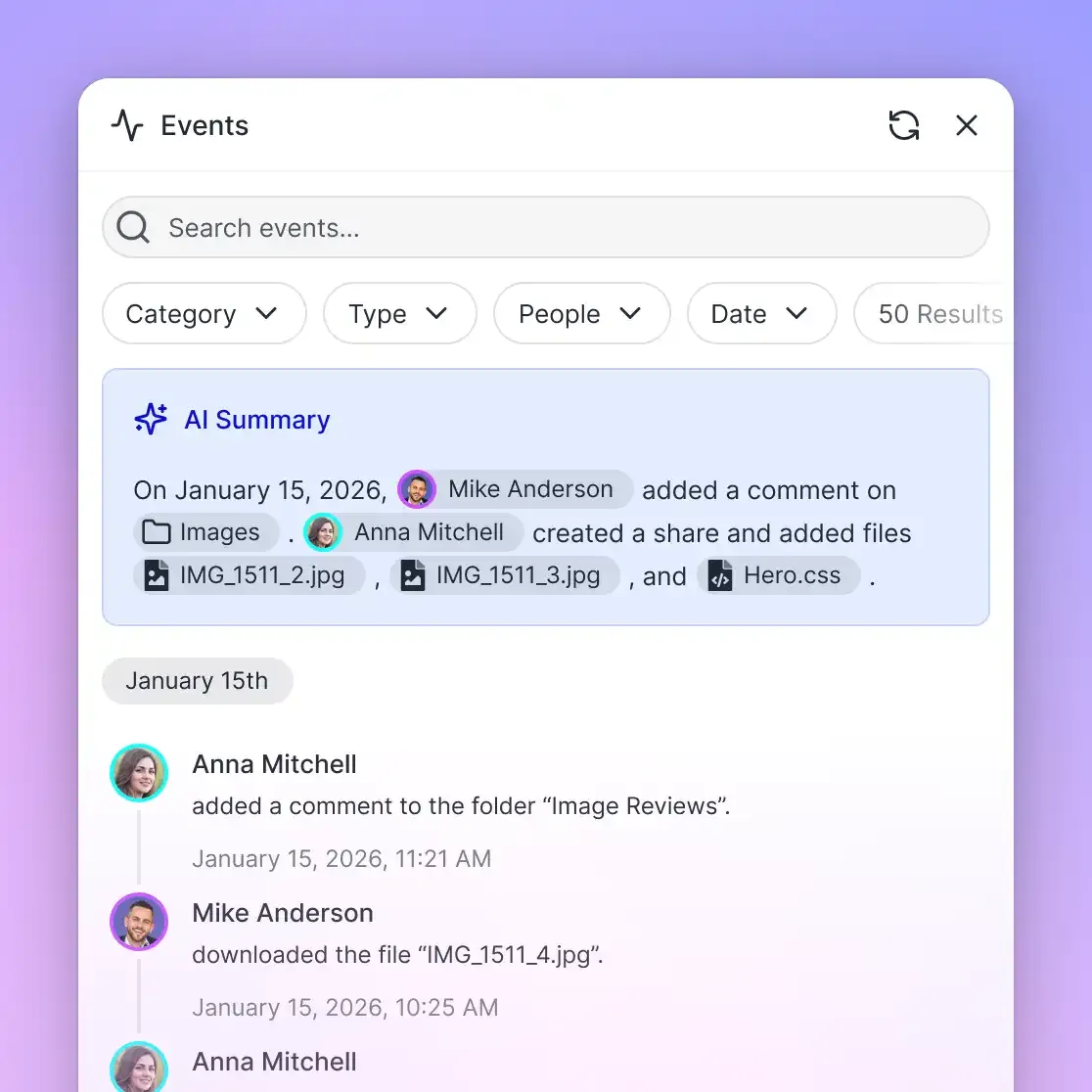
Fastio provides shared, organization-owned workspaces designed for collaboration between humans and AI agents. Through Cloud Sync (available for Google Drive, Dropbox, Box, and OneDrive, supporting SharePoint document libraries through the OneDrive connector), folders synchronize one-way or two-way, on a schedule or on demand (never continuous, live, or real-time).
Automatic Hybrid Indexing and Semantic Retrieval
Once SharePoint folders sync into a Fastio workspace, Intelligence Mode automatically indexes documents upon arrival. Rather than requiring developers to configure external vector databases, chunking pipelines, and embedding models, Fastio builds a hybrid search index combining full-text search, semantic search, and search-by-metadata-value filtering.
AI agents connect directly to the workspace through the remote MCP server: Claude apps and general MCP clients at https://mcp.fast.io/mcp/tools, and coding agents such as Claude Code and Cursor at https://mcp.fast.io/mcp/code. Using a consolidated MCP toolset, agents issue semantic queries to retrieve targeted passages and file citations without downloading whole documents to local disk.
Structured Document Extraction with Metadata Views
When business workflows require extracting operational data from documents (such as contract clauses, policy numbers, or financial line items), Fastio offers Metadata Views.
Users describe the fields they want extracted in natural language. AI designs a typed schema supporting Text, Integer, Decimal, Boolean, URL, JSON, and Date & Time formats. Metadata Views populate a structured, filterable table directly from PDFs, Office files, and scanned documents without rigid templates or manual OCR rules. Agents can trigger schema extraction and query structured results directly via MCP tools.
Governance, Versioning, and Performance
Workspaces provide enterprise-grade governance including access granted per organization, workspace and share through member roles, per-file version history, and a detailed activity log. When an agent creates and configures workspaces, ownership transfer allows the agent account to hand the organization over to human administrators while maintaining administrative access.
In third-party evaluations published in the Fastio benchmark comparison, Fastio was measured the fastest and the lowest cost of the providers tested. (Note that every measured row in that evaluation was that provider's native connector in Claude Cowork; no row was a local stdio server, a Files-On-Demand stub or SharePoint, and SharePoint was not measured at all).
Monthly plans start with a 14-day free trial, which requires a credit card.
Architectural Implementation Summary
Use the direct Microsoft Graph API when building administrative services that manage item permissions, modify site hierarchies, or perform occasional single-file transfers.
Choose intelligent workspace synchronization via MCP when deploying AI agents, RAG workflows, or automated document extraction pipelines. By syncing SharePoint libraries into Fastio workspaces, you eliminate local download overhead, prevent Entra ID API throttling, and provide agents with instant, citation-backed access to enterprise knowledge.
Sources
References used to verify factual claims in this guide.
-
Microsoft Graph returns a 302 Found response redirecting to a preauthenticated download URL when requesting file contents.
-
Backing off requests using the Retry-After delay is the fastest way to recover from throttling in Microsoft Graph.
Frequently Asked Questions
How do I download a file from SharePoint using Microsoft Graph API?
To download a file from SharePoint using Microsoft Graph API, send an HTTP GET request to https://graph.microsoft.com/v1.0/sites/{site-id}/drive/items/{item-id}/content with an Entra ID bearer token in the Authorization header. The API returns an HTTP 302 Found redirect containing the temporary preauthenticated download URL in the Location header. Follow this redirect without forwarding the Authorization header to download the binary file stream.
What is the endpoint to get file content in SharePoint REST API?
To retrieve raw file content using the legacy SharePoint REST API, issue an HTTP GET request to https://{tenant}.sharepoint.com/sites/{site}/_api/web/GetFileByServerRelativeUrl('{server_relative_path}')/$value. Providing the $value segment instructs the SharePoint endpoint to stream the binary content directly in the response body rather than returning XML or JSON metadata.
How do I authenticate to SharePoint API to download files?
Automated scripts and backend agents authenticate to SharePoint API using Microsoft Entra ID OAuth 2.0 Client Credentials Flow. Register an application in the Entra ID portal, generate a client secret or certificate, and grant application permission scopes such as Files.Read.All or Sites.Selected. Request an access token from https://login.microsoftonline.com/{tenant_id}/oauth2/v2.0/token with scope https://graph.microsoft.com/.default, and pass the resulting token in the Authorization Bearer header.
How should applications handle HTTP 429 throttling when downloading SharePoint files?
When Microsoft Graph returns an HTTP 429 Too Many Requests status code, inspect the response headers for the Retry-After value, which indicates how many seconds to pause before retrying. Backing off using the Retry-After delay is the fastest way to recover because Microsoft Graph continues to log resource consumption while requests are throttled. If Retry-After is absent, apply exponential backoff with randomized jitter.
Why does Microsoft Graph return a 302 redirect instead of file content directly?
Microsoft Graph returns an HTTP 302 Found redirect to offload heavy binary file streaming from the central Microsoft Graph API gateway onto distributed cloud storage content delivery networks. This design improves download speeds, isolates API gateway performance from large file transfers, and allows client applications to read partial byte ranges directly from storage endpoints.
Can AI agents query SharePoint documents without downloading full files?
Yes. Instead of writing custom download and chunking scripts that draw down Entra ID API quotas, teams can synchronize SharePoint document libraries into a Fastio workspace using Cloud Sync via the OneDrive connector. Fastio automatically indexes files upon arrival with Intelligence Mode, allowing AI agents to perform hybrid semantic search and retrieve exact text citations over the remote MCP server without downloading binary files.
Related Resources

Connect SharePoint Files to Your Agent Workspaces
Sync SharePoint document libraries into intelligent workspaces with hybrid search and remote MCP tools. Monthly plans start with a 14-day free trial.