Connecting Semantic Kernel to SharePoint: Architecture and Setup
A Semantic Kernel SharePoint connector enables enterprise AI agents to access, search, and extract document content from Microsoft SharePoint libraries. Development teams can choose between building custom native plugins that call the Microsoft Graph API or syncing document libraries to Fastio workspaces with built-in hybrid search and remote MCP connectivity. This guide details authentication lifecycles, permissions scoping, context window management, and production retrieval patterns.


How to Architect a Semantic Kernel SharePoint Integration
When an autonomous AI agent connects directly to enterprise SharePoint document libraries via the Microsoft Graph API, it immediately encounters three architectural roadblocks: complex Microsoft Entra ID tenant permission scoping, recursive directory crawling that triggers Graph API rate limits, and prompt context bloat caused by dumping raw multi-megabyte binary documents directly into the language model context window. The obstacle that stalls enterprise agent initiatives is rarely the reasoning ability of the underlying model, but rather the data transfer and retrieval architecture connecting the agent to existing Microsoft 365 storage repositories.
In modern enterprise IT environments, organizational knowledge, contracts, product specifications, and operational manuals reside across Microsoft 365 services, particularly SharePoint sites and OneDrive libraries. At the same time, engineering teams rely on Semantic Kernel, Microsoft's primary enterprise AI orchestration SDK for C# and Python developers building Copilot-like agents, to automate internal research, customer support, and operational analysis.
A Semantic Kernel SharePoint connector is an integration plugin that enables Semantic Kernel agents to access, search, and extract document content from Microsoft SharePoint libraries. Semantic Kernel operates by exposing native code and external APIs to language models as structured plugins. When an agent processes a user prompt, the model reviews available function descriptions, determines whether SharePoint access is necessary, and formats the function call arguments. Semantic Kernel coordinates the invocation, issues the underlying storage calls, and returns the response payload to the agent reasoning loop.
Direct Graph Plugins Versus Workspace Coordination
Developers connecting Semantic Kernel to SharePoint typically choose between two architectural patterns:
Native Microsoft Graph API Plugin Pattern: The engineering team creates a custom C# or Python plugin that issues calls directly to Microsoft Graph API endpoints, such as
/sites/{site-id}/drives/{drive-id}. The host application manages OAuth 2.0 client credentials, parses nested drive items, handles pagination tokens, and downloads document streams into memory.Workspace Synchronization and Remote MCP Pattern: The organization maintains its existing SharePoint document libraries as the primary interface for human teams, while synchronizing target folders into an intelligent Fastio workspace using Cloud Sync, with SharePoint libraries connecting through the OneDrive connector. Semantic Kernel agents then connect to the workspace through a remote Model Context Protocol (MCP) server over Streamable HTTP, executing targeted hybrid semantic searches without transferring raw file contents into prompt context.
Architectural Breakdown of Integration Paths
To understand how these two integration paths operate under production workloads, compare their core architectural dimensions:
Three-Phase Walkthrough for Enterprise SharePoint Access
An effective architecture for connecting Semantic Kernel to SharePoint requires three discrete phases:
- SharePoint permissions scoping: Configure Microsoft Entra ID application registrations with scoped permissions, restricting the connector to designated document libraries rather than granting broad tenant-wide authority.
- Workspace indexing via Cloud Sync: Synchronize target document libraries into an intelligent workspace on a schedule or on demand, where files are automatically parsed and indexed for hybrid search.
- Invoking search tools from Semantic Kernel plugins: Register the remote MCP toolset within the Semantic Kernel kernel builder, allowing the agent to retrieve precise, cited excerpts on demand instead of ingesting entire binary files.
Both patterns enable agents to read and search files, but they place very different maintenance burdens on the engineering team.
Related guides
- Connecting AutoGen Multi-Agent Systems to SharePoint: Architecture and SetupAn AutoGen SharePoint connector enables Microsoft AutoGen agent teams to authenticate against Microsoft Graph and query...
- ChatGPT SharePoint Connector: Enterprise Setup vs. Fast.io MCP WorkspacesConnecting ChatGPT to SharePoint document libraries gives conversational models access to enterprise knowledge. While...
- How to Connect ChatGPT to SharePoint Document LibrariesConnecting ChatGPT to SharePoint allows conversational AI models to query enterprise document libraries through...
- How to Connect Dify AI to Microsoft SharePointConnecting Dify to SharePoint enables agentic workflows and LLM applications to retrieve, cite, and analyze enterprise...
- How to Connect n8n Workflow Agents to SharePoint FilesAn n8n SharePoint integration links workflow automation pipelines and AI agent nodes with Microsoft SharePoint document...
- How to Query a SharePoint Document Library with AI AgentsQuerying a SharePoint document library with AI agents involves indexing document text and metadata so agents can...
More on this subject: Agent File and Document Workflows (325 guides)
How to Build Native Microsoft Graph Plugins for Semantic Kernel
The traditional method for connecting Semantic Kernel to SharePoint involves building a native C# or Python plugin that interacts directly with the Microsoft Graph API. Semantic Kernel plugins encapsulate APIs and native functions into collections that AI models can invoke through function calling.
In this approach, developers expose specific methods, such as searching document libraries, reading file metadata, and downloading document content streams, to the kernel using function annotations.
Implementing a Native SharePoint Plugin in C#
In C#, a native plugin wraps the Microsoft Graph SDK GraphServiceClient and exposes methods decorated with the KernelFunction and Description attributes. The LLM relies on these descriptions during planning to select the appropriate tool and generate valid arguments:
using System;
using System.ComponentModel;
using System.IO;
using System.Linq;
using System.Threading;
using System.Threading.Tasks;
using Azure.Identity;
using Microsoft.Graph;
using Microsoft.Graph.Models;
using Microsoft.SemanticKernel;

public class SharePointPlugin
{
    private readonly GraphServiceClient _graphClient;
    private readonly string _siteId;
    private readonly string _driveId;
//
    public SharePointPlugin(GraphServiceClient graphClient, string siteId, string driveId)
    {
        _graphClient = graphClient;
        _siteId = siteId;
        _driveId = driveId;
    }
//
    [KernelFunction(Name = "SearchLibraryFiles")]
    public async Task<string> SearchLibraryFilesAsync(
        [Description(Description = "Keyword search query for SharePoint document library items")] string query,
        CancellationToken cancellationToken = default)
    {
        var searchResults = await _graphClient.Drives[_driveId]
            .Search(query)
            .GetAsSearchGetResponseAsync(cancellationToken: cancellationToken);
//
        if (searchResults?.Value == null || searchResults.Value.Count == 0)
        {
            return "No matching documents found in the specified SharePoint library.";
        }
//
        var results = searchResults.Value.Select(item =>
            $"- Name: {item.Name} | ID: {item.Id} | Size: {item.Size} bytes | WebUrl: {item.WebUrl}");
//
        return string.Join(Environment.NewLine, results);
    }
//
    [KernelFunction(Name = "ReadDocumentContent")]
    public async Task<string> ReadDocumentContentAsync(
        [Description(Description = "Unique identifier of the document to retrieve")] string itemId,
        CancellationToken cancellationToken = default)
    {
        using var stream = await _graphClient.Drives[_driveId]
            .Items[itemId]
            .Content
            .GetAsync(cancellationToken: cancellationToken);
//
        if (stream == null)
        {
            return "Unable to retrieve document content stream.";
        }
//
        using var reader = new StreamReader(stream);
        var text = await reader.ReadToEndAsync(cancellationToken);
//
        // Return truncated content to mitigate immediate context window overflow
        return text.Length > 8000 ? text.Substring(0, 8000) + "... (truncated)" : text;
    }
}
Microsoft Entra ID App Registration and Permission Scoping
Registering the application in Microsoft Entra ID (formerly Azure Active Directory) requires configuring specific authentication and API permissions. In Microsoft Graph, the drive resource represents a top-level storage container such as a user OneDrive or a SharePoint document library. Document libraries return a driveType of documentLibrary.
Most tutorials show complex Azure App Registration setups that expose raw file contents directly to LLM prompts without semantic pre-indexing or access controls. When following standard online guides, developers frequently encounter severe permission pitfalls:
- Application Versus Delegated Permissions: Delegated permissions require an active user interactive login context, making them unsuitable for unattended background agents, worker services, or scheduled batch jobs. Unattended agents must use application permissions (
ClientCredentialsCredential). - The Over-Privilege Trap of
Sites.Read.All: AssigningSites.Read.Allgrants the agent application read access to every SharePoint site collection, document library, and list across the entire corporate Microsoft 365 tenant. If the agent is compromised through prompt injection or malicious input, it can inspect and exfiltrate sensitive files across human resources, executive planning, and legal directories. - Scoping Access via
Sites.Selected: To implement least-privilege access, security teams should configure theSites.Selectedapplication permission in Entra ID. After grantingSites.Selected, an administrator executes a Microsoft Graph API request (POST /sites/{site-id}/permissions) to explicitly grant read or write permissions only to the specific site collection containing the target document library.
Resolving Site and Drive Identifiers
Microsoft Graph does not accept human-readable SharePoint URLs directly. Instead, developers must resolve URLs into composite site identifiers and drive identifiers:
- Resolving the Composite Site ID: Make a request to
GET /sites/{tenant}.sharepoint.com:/sites/{SiteName}to obtain the compositesite-idformatted ashostname,spsite-guid,spweb-guid. - Resolving the Document Library Drive ID: Query
GET /sites/{site-id}/drivesto list all document libraries in the site collection. Locate the target library by name and extract its uniquedrive-id.
Three Common Failure Modes in Native Plugins
Building and maintaining custom Graph API plugins introduces ongoing operational friction:
- Token Expiration in Unattended Daemon Agents: Access tokens acquired via MSAL expire after 60 to 90 minutes. If the application does not implement a persistent in-memory token cache with automatic background renewal, the agent experiences sudden HTTP 401 Unauthorized exceptions during extended task execution.
- Microsoft Graph Throttling and HTTP 429 Errors: Microsoft Graph enforces strict per-app and per-tenant rate limits. When an agent recursively traverses directory trees, lists thousands of folder items, or issues rapid concurrent requests, Graph returns HTTP 429 Too Many Requests responses. Custom plugins must parse the
Retry-Afterheader and execute exponential backoff retries. - Binary File Parsing Overhead: SharePoint document libraries store files in proprietary binary formats, including Microsoft Word (
.docx), PDF (.pdf), PowerPoint (.pptx), and Excel (.xlsx). Native plugins must incorporate third-party parsing libraries to extract raw text streams in memory before the language model can read them.
Why Direct Document Ingestion Strains Agent Context Windows
Finding a document in SharePoint is only the first step in an agent workflow. The primary reason developers connect Semantic Kernel to SharePoint is to allow the agent to extract information, answer factual questions, and synthesize business data. This is where direct Microsoft Graph API integrations encounter fundamental limits.
Connecting via remote MCP allows Semantic Kernel agents to perform targeted semantic searches without downloading multi-gigabyte document libraries. When agents interact directly with raw storage APIs, they face significant context window bloat and reasoning degradation.
The Document Payload Problem
When a native plugin retrieves a file from SharePoint, it downloads the entire file payload over HTTP into application memory. A standard corporate contract, product specification, or compliance report typically spans thirty to eighty pages.
Converting an eighty-page document into text yields tens of thousands of tokens. Injecting this raw text payload directly into the language model prompt context causes several immediate problems:
- Context Window Exhaustion: While modern frontier models feature large context windows, filling working memory with entire documents leaves little room for conversation history, intermediate tool schemas, and multi-step reasoning traces.
- Attention Degradation: Language models experience reduced recall accuracy when searching for specific facts in bloated prompts. When relevant details are surrounded by hundreds of pages of boilerplate text, the model can overlook important clauses or produce incomplete summaries.
- Compounding Token Costs: In multi-turn agent loops, prompt tokens accumulate on every consecutive turn. An agent that reads a 50,000-token document during step two must process that entire payload again during step three, step four, and step five, dramatically increasing inference latency and operational API costs.
Substring Matching Versus True Semantic Search
The Microsoft Graph drive item search endpoint performs basic lexical substring matching and metadata filtering. It does not perform semantic vector search, conceptual indexing, or semantic proximity scoring.
Consider a user asking a Semantic Kernel agent: "What are our regulatory compliance obligations under the vendor security policy?"
If the SharePoint document phrases these controls as "mandatory audit standards" or "third-party risk management protocols", Microsoft Graph lexical search returns zero results because the exact keywords "compliance obligations" do not appear in the text. The agent concludes that the policy does not exist, leading to hallucinations or aborted workflows.
The Maintenance Burden of Self-Hosted RAG
To solve context bloat and substring search limitations, engineering teams often attempt to build a custom Retrieval-Augmented Generation (RAG) system beside Semantic Kernel.
This approach requires deploying and maintaining an extensive secondary data pipeline:
- Provisioning and configuring a dedicated vector database, such as Azure AI Search, Pinecone, or Qdrant.
- Developing document chunking microservices that extract text, split paragraphs, and generate dense vector embeddings.
- Implementing change-tracking workers using Microsoft Graph webhooks or delta queries (
/delta) to detect file updates and re-index modified documents. - Managing database migrations, index schema updates, and embedding model version upgrades.
For most engineering teams, maintaining a dedicated vector database and synchronization infrastructure just to make SharePoint files searchable by agents introduces unnecessary complexity and recurring cloud hosting expenses.


Connect Semantic Kernel to Unified Workspace Storage
Give your Semantic Kernel agents persistent file storage, automatic semantic indexing, and remote MCP connectivity. Monthly plans start with a 14-day free trial, which requires a credit card.
How to Connect Semantic Kernel to SharePoint Through Fastio Remote MCP
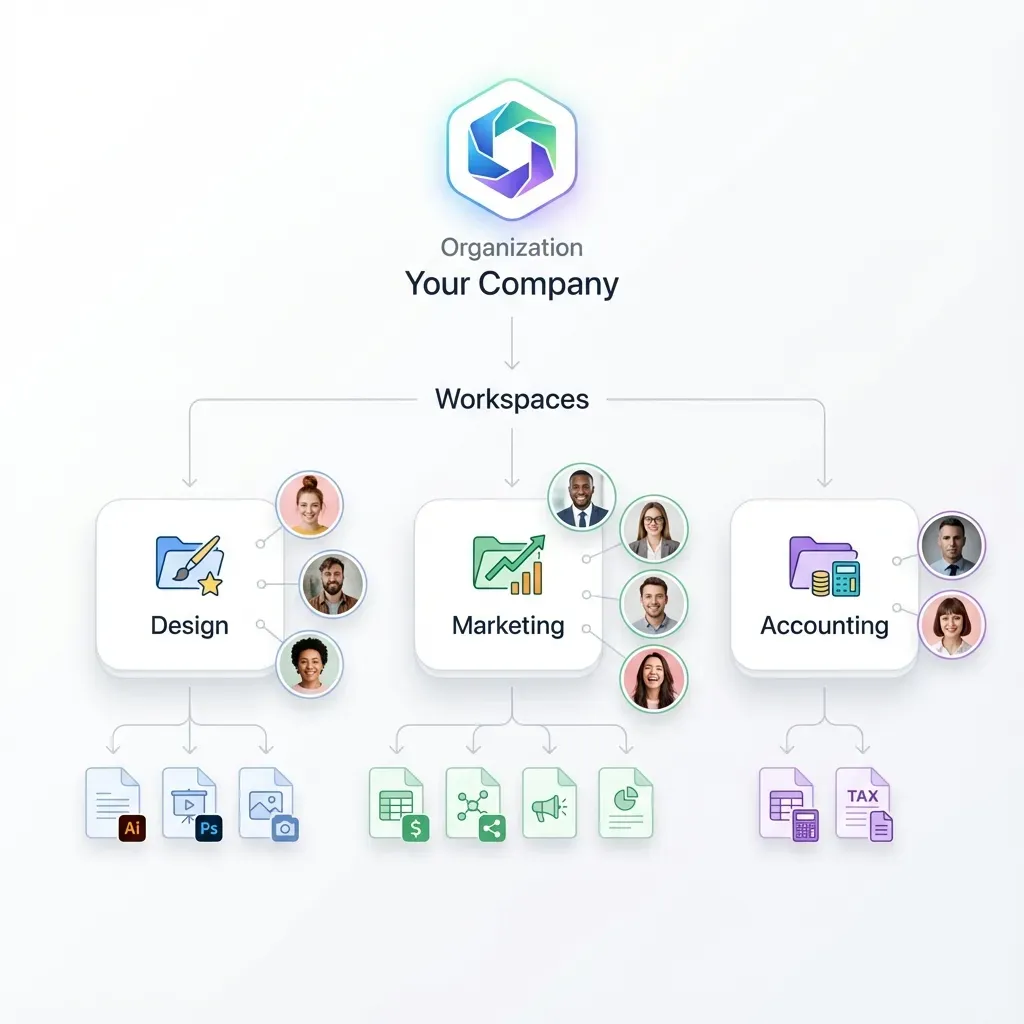
A more dependable architectural pattern decouples the enterprise storage repository from the agent retrieval engine. Instead of forcing Semantic Kernel to act as a custom SharePoint document parser and sync client, organizations maintain SharePoint as their existing human document interface while synchronizing relevant folders into an intelligent Fastio workspace.
Scheduled Folder Synchronization
Cloud Sync connects Google Drive, Dropbox, Box and OneDrive folders to a workspace, one-way or two-way, on a schedule or on demand. SharePoint document libraries synchronize through the OneDrive connector, transferring files into an isolated workspace on a designated schedule without custom token refresh scripts or live Graph API rate limit exposure.
Because synchronization occurs in the background, agents avoid executing live, slow Graph API calls during user interactions. Files remain versioned and auditable within the workspace.
Built-In Intelligence and Hybrid Search
When documents arrive in the workspace, Fastio Intelligence Mode automatically indexes files for hybrid search. This integrates full-text keyword indexing, semantic vector search, and search-by-metadata-value without requiring external vector databases or embedding pipelines.
When an agent needs information from a document, it queries the workspace search tool. Intelligence Mode returns the precise paragraphs and text excerpts relevant to the query, complete with document citations. The agent receives only the context necessary to formulate an accurate answer, keeping prompt tokens small and response latency low.
Structured Document Extraction with Metadata Views
For workflows requiring structured data extraction from SharePoint assets, Fastio provides Metadata Views. Metadata Views turn unstructured documents into live, queryable tables. Users or agents describe the fields they want extracted in natural language, and the system designs a typed schema (Text, Integer, Decimal, Boolean, URL, JSON, Date & Time), matches workspace files, and extracts structured data from PDFs, scanned pages, spreadsheets, and presentations.
Agents can query these structured views directly via MCP to retrieve precise data fields, such as invoice totals, contract expiration dates, or policy numbers, without loading full documents into prompt context.
Connecting Semantic Kernel via Streamable HTTP Remote MCP
Semantic Kernel agents connect to Fastio through the Model Context Protocol (MCP) using Streamable HTTP. Fastio hosts a remote MCP server, eliminating the need to install local daemon processes, manage Docker containers, or configure complex bridge packages.
For general agent clients and application backends calling named tools, the connection endpoint is https://mcp.fast.io/mcp/tools. Coding agents connect through https://mcp.fast.io/mcp/code. Agents authenticate by providing a scoped workspace API key as a Bearer token in the connection header: Authorization: Bearer <FASTIO_API_KEY>. For detailed client configuration steps, consult the Fastio MCP documentation or the storage for agents guide.
The following C# example demonstrates how to integrate the Fastio remote MCP search action into Semantic Kernel:
using System;
using System.ComponentModel;
using System.Net.Http;
using System.Net.Http.Headers;
using System.Text;
using System.Text.Json;
using System.Threading.Tasks;
using Microsoft.SemanticKernel;

public class FastioWorkspacePlugin
{
    private readonly HttpClient _httpClient;
    private const string McpEndpoint = "https://mcp.fast.io/mcp/tools";
//
    public FastioWorkspacePlugin(string fastioApiKey)
    {
        _httpClient = new HttpClient();
        _httpClient.DefaultRequestHeaders.Authorization =
            new AuthenticationHeaderValue("Bearer", fastioApiKey);
        _httpClient.DefaultRequestHeaders.Accept.Add(
            new MediaTypeWithQualityHeaderValue("application/json"));
    }
//
    [KernelFunction(Name = "SearchWorkspace")]
    public async Task<string> SearchWorkspaceAsync(
        [Description(Description = "Natural language search query to locate relevant document excerpts")] string query)
    {
        var rpcRequest = new
        {
            jsonrpc = "2.0",
            id = Guid.NewGuid().ToString(),
            method = "tools/call",
            @params = new
            {
                name = "storage",
                arguments = new
                {
                    action = "search",
                    search = query
                }
            }
        };
//
        var content = new StringContent(
            JsonSerializer.Serialize(rpcRequest),
            Encoding.UTF8,
            "application/json");
//
        var response = await _httpClient.PostAsync(McpEndpoint, content);
        response.EnsureSuccessStatusCode();
//
        var responseJson = await response.Content.ReadAsStringAsync();
        return responseJson;
    }
}
Measured Connector Performance
In third-party testing documented in the published connector benchmarks, Fastio was measured the fastest and the lowest cost of the providers tested. Tests evaluated native connectors in Claude Cowork, while SharePoint was not measured in that test suite. By executing semantic searches against pre-indexed workspace documents instead of pulling entire files over live cloud storage APIs, agents retrieve exact cited excerpts with minimal token overhead.
Workspace Capacity and Plans
Fastio provides predictable capacity for team and agent workflows. Storage and member seats are bundled into monthly plans:
Monthly plans start with a 14-day free trial, which requires a credit card. Credits meter AI search and document extraction, while storage and seats come included with each subscription.

What Enterprise Deployments Require: Scoping, Concurrency, and Audit Logs
Deploying a Semantic Kernel storage connector in enterprise production requires strict controls around access scoping, multi-agent concurrency, and compliance visibility.
Enforcing Scoped Workspace Boundaries
A primary vulnerability in custom SharePoint agent connectors is assigning the agent a broad application credential with tenant-wide read access. If the agent encounters prompt injection or misinterprets user intent, it can access and expose confidential files across unrelated business departments.
Fastio permissions are set per organization, workspace, and share through member roles. There are no folder-level or file-level permissions; every workspace member reaches the whole workspace according to their role. To isolate an agent, create a dedicated workspace containing only the specific project assets the agent requires, and sync only relevant SharePoint document library folders into that workspace. This sandboxes the agent, ensuring it cannot access or exfiltrate unrelated organizational data.
Concurrency and Per-File Version History
When multiple Semantic Kernel agents or human team members collaborate on the same file repository, race conditions occur. Two agents attempting to update a shared project log or analysis document simultaneously can cause silent overwrites.
Fastio protects concurrent workflows through per-file version history and advisory file locks. Agents acquire, heartbeat, and release advisory file leases through MCP actions (lock-acquire and lock-release on the storage_manage tool, and lock-status on the storage tool). Other members can see who holds the lock. Locks never grant exclusive write rights; concurrent writes both land, and version history preserves every version, allowing teams to review changes or restore prior copies without data loss.
Detailed Activity Log and Audit Tracking
Enterprise security teams require visibility into agent modifications. Fastio maintains a detailed activity log of changes across the organization, recording file uploads, edits, moves, deletions, membership adjustments, and share creation by humans and agents alike. The activity log records modifications rather than read-only file views or downloads, providing a clean audit trail of workspace state changes without noise.
Fastio also supports ownership transfer from agent to human. An agent can be programmed to initialize an organization, construct workspaces, sync SharePoint document libraries, and build Metadata Views, then transfer organization ownership to a human administrator while retaining administrative access for ongoing maintenance.
Integrated Document Signing Workflows
When agent workflows produce or manage finalized legal contracts, vendor statements of work, or onboarding agreements stored in SharePoint, Fastio e-signature allows teams to send documents for signature directly from a workspace. The feature supports signers in sequence or parallel, optional one-time passcodes per signer, a tamper-evident audit certificate, and the executed copy filed back into the workspace. Detailed workflows are documented at /product/e-signature/.
Choosing the Right Integration Architecture
Use a direct native Microsoft Graph plugin when building simple internal tools that only need to list a handful of files by name or inspect basic metadata properties in a single, well-known SharePoint library.
When building production agents that must search large document collections, answer complex questions using semantic retrieval, extract structured records, or collaborate safely across multi-agent environments, synchronizing SharePoint libraries into Fastio workspaces and connecting Semantic Kernel via remote MCP provides a more secure, scalable, and cost-effective foundation.
Sources
References used to verify factual claims in this guide.
-
Semantic Kernel plugins encapsulate APIs and native functions into collections that AI models can invoke through function calling.
-
In Microsoft Graph, the drive resource represents a top-level storage container such as a user OneDrive or a SharePoint document library.
Frequently Asked Questions
How do I connect Microsoft Semantic Kernel to SharePoint?
You can connect Semantic Kernel to SharePoint through two main patterns. The first is a native C# or Python plugin that queries the Microsoft Graph API using Microsoft Entra ID credentials. The second is using Fastio Cloud Sync to sync SharePoint document libraries (via the OneDrive connector) to an intelligent workspace, allowing agents to query pre-indexed files over remote MCP.
Can Semantic Kernel search SharePoint document libraries?
Yes. A Semantic Kernel agent can search SharePoint document libraries using Microsoft Graph search endpoints for basic keyword filtering. For conceptual queries, syncing document libraries into a Fastio workspace provides automatic hybrid semantic search, full-text indexing, and metadata filtering without needing a separate vector database.
What is the best way to give Semantic Kernel agents access to Microsoft 365 files?
The most reliable pattern decouples file storage from agent execution. Synchronizing targeted SharePoint libraries or OneDrive folders to a Fastio workspace isolates the agent into a dedicated workspace with scoped role-based access. The agent queries pre-indexed excerpts over remote MCP, avoiding context bloat and rate limits.
What Microsoft Graph API permissions are required for a SharePoint connector?
Native plugins typically require Sites.Read.All or Files.Read.All application permissions in Microsoft Entra ID. To avoid granting tenant-wide access, organizations configure the Sites.Selected permission, which restricts the application registration to explicitly authorized SharePoint site collections.
How does Fastio Cloud Sync connect to SharePoint document libraries?
Cloud Sync connects Google Drive, Dropbox, Box and OneDrive folders to a workspace, one-way or two-way, on a schedule or on demand. SharePoint document libraries synchronize through the OneDrive connector, transferring files into an isolated workspace where documents are pre-indexed for agent retrieval.
Does Fastio provide semantic search without a separate vector database?
Yes. Fastio Intelligence Mode automatically indexes uploaded and synchronized documents for hybrid search, combining full-text keyword indexing, semantic vector search, and search-by-metadata-value without requiring external vector databases, embedding models, or custom chunking scripts.
What causes Microsoft Graph API searches to return HTTP 429 errors?
Microsoft Graph enforces per-tenant and per-app request rate limits. When an agent recursively traverses deep directory trees or issues rapid concurrent queries across large document libraries, Graph returns HTTP 429 Too Many Requests responses. Connectors must parse the Retry-After header and apply exponential backoff.
Does Fastio sync with Google Drive?
Yes. Cloud Sync connects Google Drive, Dropbox, Box and OneDrive folders to a workspace, one-way or two-way, on a schedule or on demand, allowing teams to preserve existing storage while giving AI agents unified MCP access.
Related Resources

Connect Semantic Kernel to Unified Workspace Storage
Give your Semantic Kernel agents persistent file storage, automatic semantic indexing, and remote MCP connectivity. Monthly plans start with a 14-day free trial, which requires a credit card.