How to Run Database Migrations with Cline via MCP
Using Cline with database MCP servers enables developers to inspect schemas, draft SQL scripts, and run database migrations directly from the IDE. By incorporating strict MCP execution rules and Cline's approval gates, teams can execute schema changes safely. When integrated with persistent, intelligent workspaces like Fast.io, migration logs and documentation remain centralized, searchable, and collaborative.

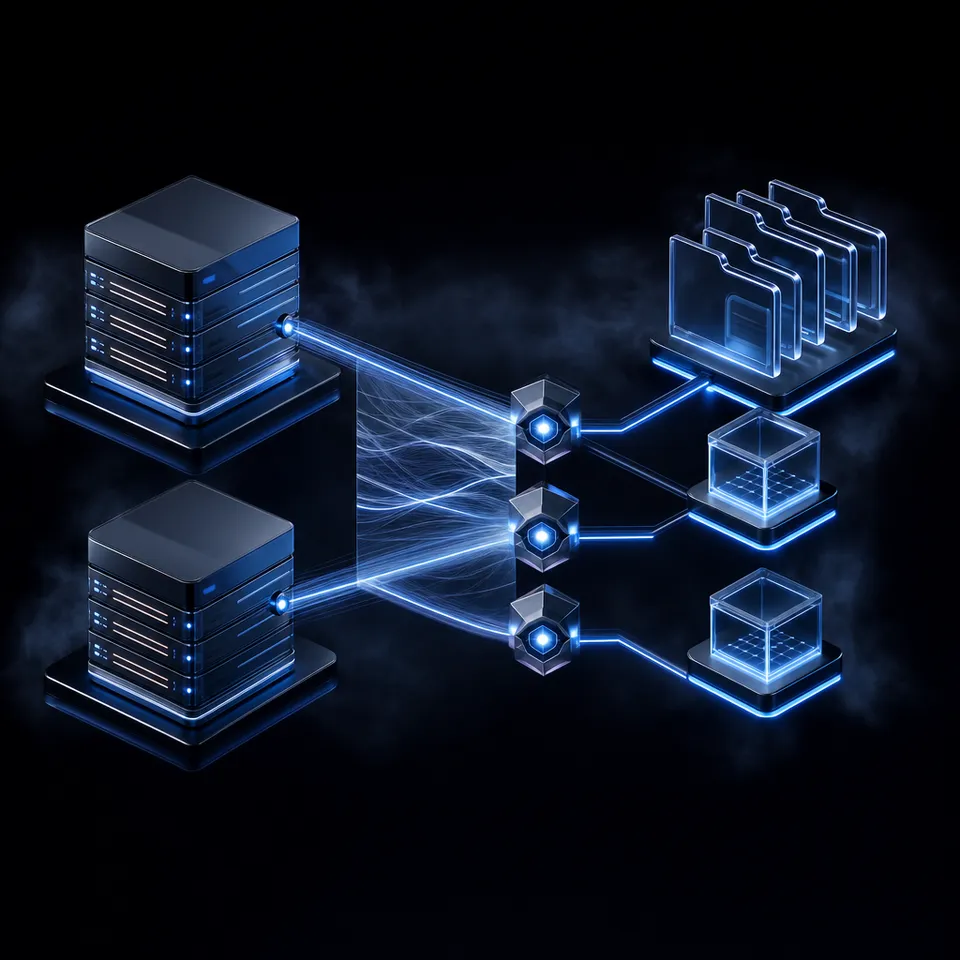
Why Database Migrations Need Secure Agent Workspaces
Allowing an autonomous coding agent to execute database migrations directly in an IDE introduces a severe risk of catastrophic data loss if the agent runs unvalidated DDL scripts or drops the wrong tables. The solution is not to block AI access to the database entirely, but to implement structured Model Context Protocol (MCP) connections combined with Cline's built-in approval gates.
Traditional migration workflows require developers to copy database schemas, write SQL scripts manually, and run them using local command-line tools. When developers introduce an AI assistant like Cline to speed up this process, the agent needs a way to query the database structure and execute queries. The Model Context Protocol establishes a standard, secure way to expose database tools directly to Cline. By using an MCP server, Cline can read schemas and execute SQL statements.
However, security must remain the primary consideration. Exposing database credentials to an AI model means the model can perform any action allowed by those credentials. If the database role has administrative privileges, a simple prompting error could lead to a dropped schema or leaked table data. To prevent these outcomes, developers must enforce strict credential scoping and rely on client-side safety measures, such as Cline's manual approval settings, before any statement runs.
Related guides
- How to Connect Copilot to Google Drive via MCPA Copilot Google Drive MCP setup connects GitHub Copilot agent runtime to Google Drive files via the Model Context...
- How to Connect GitHub Copilot to OneDrive via MCPConnecting GitHub Copilot to OneDrive via MCP enables developers to query enterprise specifications and technical...
- How to Connect Cline to Supabase: Database Migrations and Schema Inspection via MCPConnecting Cline to Supabase through the Model Context Protocol gives the autonomous coding agent real-time access to...
- How to Connect Cline to Google Drive via MCP ServersConnecting Cline to Google Drive allows the autonomous coding agent to retrieve, modify, and store assets in a...
- How to Connect Cline to Jira: Automating Ticket Context and Bug Fixes via MCPThe Cline Jira MCP integration connects your coding assistant directly to Atlassian Jira, enabling the agent to ingest...
- How to Integrate Cline with GitLab: Repositories, MRs, and CI/CD via MCPConnecting Cline to GitLab through the Model Context Protocol gives your autonomous coding agent direct access to...
More on this subject: Cline (105 guides)
How to Configure Postgres and Supabase MCP Servers in Cline
To execute database migrations, Cline must connect to an MCP server that speaks to the target database. Developers can configure these connections in the local configuration file named cline_mcp_settings.json. By defining the server execution commands, arguments, and environment variables in this file, you establish a direct communication channel. The extension handles launching the server process in the background and querying its tools when analyzing your codebase.
Once configured, Cline gains access to a specific database toolset. The Postgres server provides tools such as list_objects and get_object_details to inspect relations, plus execute_sql to run statements. The Supabase server includes tools like list_migrations and apply_migration to manage schema states. This setup allows the assistant to understand your database architecture before drafting changes, ensuring that all proposed migrations match your current schema definitions.
Configuration File Paths by Operating System
Cline 4.x keeps MCP settings in one shared file used by both the VS Code extension and the command-line interface. On macOS and Linux, that file is ~/.cline/data/settings/cline_mcp_settings.json. On Windows, it is %USERPROFILE%\.cline\data\settings\cline_mcp_settings.json.
Earlier Cline releases stored the file inside the VS Code extension's globalStorage directory: ~/Library/Application Support/Code/User/globalStorage/saoudrizwan.claude-dev/settings/cline_mcp_settings.json on macOS, %APPDATA%\Code\User\globalStorage\saoudrizwan.claude-dev\settings\cline_mcp_settings.json on Windows, and ~/.config/Code/User/globalStorage/saoudrizwan.claude-dev/settings/cline_mcp_settings.json on Linux.
Those are legacy locations. Cline 4.x migrates them into the shared settings file on first launch, so edit the shared file rather than the old ones.
Postgres MCP Server Settings
To connect a standard PostgreSQL database, use an actively maintained package such as Crystal DBA's postgres-mcp (Postgres MCP Pro). Avoid deprecated reference implementations, and avoid SELECT-only servers, which cannot run DDL at all. Open the configuration file and add the server definition to the mcpServers object, providing the connection string in the environment variables:
{
  "mcpServers": {
    "postgres-migrations": {
      "command": "uvx",
      "args": [
        "postgres-mcp",
        "--access-mode=unrestricted"
      ],
      "env": {
        "DATABASE_URI": "postgresql://migration_user:secure_password@localhost:5432/dev_db"
      }
    }
  }
}
Two details matter here. The environment variable is DATABASE_URI, not DATABASE_URL. And --access-mode=unrestricted is required for migrations, because the default restricted mode limits the server to read-only transactions and cannot execute DDL. Because unrestricted mode allows full read and write access to data and schema, point it at a development database and rely on Cline's approval gates for every statement.
Supabase MCP Server Settings
If your project uses Supabase, connect via the official Supabase MCP server. This server exposes specialized tools for managing migrations, tables, and Edge Functions. The connection is established by defining a remote HTTP server in your settings:
{
  "mcpServers": {
    "supabase-mcp": {
      "type": "http",
      "url": "https://mcp.supabase.com/mcp"
    }
  }
}
After saving the configuration, Cline automatically initializes the servers. When connecting to Supabase for the first time, Cline will open a browser window prompting you to complete an OAuth authentication flow to link the extension with your Supabase organization.
Steps for Drafting and Verifying SQL Migrations
Once Cline is connected to the database MCP server, the migration workflow begins by drafting the schema changes. The developer directs Cline to create a new SQL migration file in the local project directory. Rather than letting the agent write directly to the database, the recommended approach is to have the agent write the migration script to a file first. This step decouples the drafting process from execution and allows for developer review.
Before applying this change, the developer must review the generated SQL file. AI agents can sometimes make assumptions about data types or trigger naming conventions that do not align with your database architecture. Manually verifying the file ensures that constraints are correct and that database defaults are set properly before execution. This verification step prevents syntax errors and logical conflicts that could disrupt your database state.
Drafting Schema Changes
For example, you can instruct Cline to create a migration script that adds a new table with specific columns and constraints. Cline will inspect the existing database schema to ensure the new table does not conflict with existing tables. Using the list_objects or get_object_details tool, the agent reads the current table list and drafts the SQL query.
A prompt to Cline might look like this:
'Review our current database schema and write a migration script to add a profiles table. The profiles table must link to our existing auth users table with a foreign key, include columns for display name and avatar URL, and set up a updated_at trigger.'
Writing the SQL Migration File
Cline processes this instruction, reads the schema, and writes a new SQL file to your migrations folder (for instance, migrations/0001_create_profiles.sql).
-- migrations/0001_create_profiles.sql
CREATE TABLE public.profiles (
    id UUID PRIMARY KEY REFERENCES auth.users(id) ON DELETE CASCADE,
    display_name TEXT,
    avatar_url TEXT,
    updated_at TIMESTAMP WITH TIME ZONE DEFAULT timezone('utc'::text, now()) NOT NULL
);

CREATE INDEX idx_profiles_display_name ON public.profiles(display_name);


Centralize database schemas and migration logs
A shared workspace with an MCP-ready endpoint for your agent's reads and writes, with versioning and search built in. Starts with a 14-day free trial.
How to Run Database Migrations with Cline via MCP
Applying migrations to a database requires execution tools, but running them in production presents safety concerns. Cline mitigates this risk by using built-in approval gates. Whenever Cline attempts to run a write or execute command, such as calling execute_sql or run_sql, the extension pauses. It displays the exact query to the user and requires a manual click to approve or reject the action. This gate prevents the agent from running destructive commands without human oversight.
In a team environment, managing migration scripts and DDL logs becomes a coordination challenge. While local storage works for individual developers, it fails when multiple team members or secondary agents need access. Cloud storage alternatives like Google Drive or AWS S3 can store files, but they lack optimization for agentic workflows. For example, AWS S3 requires manual bucket policy configuration and does not index documents automatically. Google Drive imposes API rate limits that frequently throttle developer agents.
Fast.io solves this coordination problem by providing persistent, shared workspaces for agentic teams. Developers can store DDL files and migration logs in a shared Fast.io workspace. The platform exposes a dedicated MCP server, allowing Cline and other agents to read and write directly to the workspace. You can learn more about configuring agent connections on the Fast.io Agent Workspace page.
Cline Approval Gates for DDL Operations
The approval dialog in Cline allows you to inspect the raw SQL query, see which database MCP tool is calling it, and view the associated database target. If the query contains errors or unexpected changes, you can reject the execution. You can then instruct the agent to modify the DDL script. This manual checkpoint ensures that the final schema update matches your architectural requirements exactly before touch the database.
Centralized Schema Logs in Fast.io Workspaces
Fast.io solves this coordination problem by providing persistent, shared workspaces for agentic teams. Developers can store DDL files and migration logs in a shared Fast.io workspace. The platform exposes a dedicated MCP server, allowing Cline and other agents to read and write directly to the workspace.
When files are saved to Fast.io, the built-in Intelligence Mode automatically indexes them. This enables hybrid search (combining semantic meaning and full-text keyword matching) across all migration logs and database documentation. If a teammate or another agent needs to understand the database structure, they can query the workspace using natural language. Fast.io provides answers backed by direct citations to the source files.
Fast.io preserves a complete per-file version history, allowing developers to track modifications and rollback scripts if conflicts arise during concurrent agent sessions. A detailed activity log records every file access and modification, ensuring that all agent actions remain transparent and reviewable. Real-time co-editing of migration plans is supported through Collaborative Notes, which allows humans and agents to edit DDL proposals simultaneously. Once a migration set is finalized, the developer can initiate an ownership transfer to pass control of the workspace to the client or internal team lead.
Database Connection and Permission Troubleshooting Guide
When running migrations through Cline via MCP, developers frequently encounter configuration or network errors. Addressing these issues requires systematic verification of settings and connectivity.
One common issue is database connection timeouts. If your database is hosted behind a virtual private cloud (VPC) or uses strict firewall rules, the MCP server running on your local machine will fail to connect. Verify that your database provider allows connections from your local IP address. If the database is hosted on a service like Neon or Supabase, check that you are using the correct connection pooling URL and that SSL is enabled in your connection string.
Another frequent failure is permission errors. If the database role specified in DATABASE_URI does not have DDL privileges, running migrations will fail with a permission denied error. Ensure that the migration user has the necessary permissions to create tables and alter columns in the target schema. To prevent the agent from accessing sensitive production data, developers should configure separate roles: a migration role with DDL permissions for schema changes, and a read-only development role with Row Level Security (RLS) active for regular querying.
Finally, path resolution errors can cause Cline to fail to locate migration files. If Cline is running commands in a nested project folder, it may write migrations to a different folder than expected. Ensure that the project path is explicitly defined in your workspace settings and that relative paths in migration scripts match the working directory of the MCP server. Developers can find more database configuration patterns in the official Supabase documentation.
Sources
References used to verify factual claims in this guide.
-
Cline can use MCP servers to connect to databases and other external systems.
-
Model Context Protocol is an open standard for connecting AI applications to external systems such as databases.
Frequently Asked Questions
Can Cline run database migrations?
Yes, Cline can run database migrations by connecting to database MCP servers such as Supabase or Postgres. The agent can read existing schemas, draft SQL migration scripts, and apply the DDL commands directly to local or remote database instances using SQL execution tools.
How do I connect Postgres to Cline using MCP?
You connect PostgreSQL to Cline by installing a compatible database MCP server and declaring it in your local `cline_mcp_settings.json` file. You must configure the server with a connection string environment variable, which allows Cline to connect, inspect tables, and execute queries.
Is it safe to let AI run database migrations?
Letting an AI run migrations is safe if you enforce strict permissions and use Cline's manual approval settings. Cline requires developers to approve every SQL execution tool call before it runs, which prevents the agent from executing accidental or destructive schema changes without human validation.
Related Resources

Centralize database schemas and migration logs
A shared workspace with an MCP-ready endpoint for your agent's reads and writes, with versioning and search built in. Starts with a 14-day free trial.