How to Integrate Cline with GitLab: Repositories, MRs, and CI/CD via MCP
Connecting Cline to GitLab through the Model Context Protocol gives your autonomous coding agent direct access to repositories, merge requests, and CI/CD pipelines. This guide covers configuring MCP connections for both GitLab.com and self-managed instances, automating code reviews, and resolving pipeline failures. Teams also learn how to persist build traces and multi-agent context across sessions.

Why AI Coding Agents Require Dedicated GitLab MCP Integration
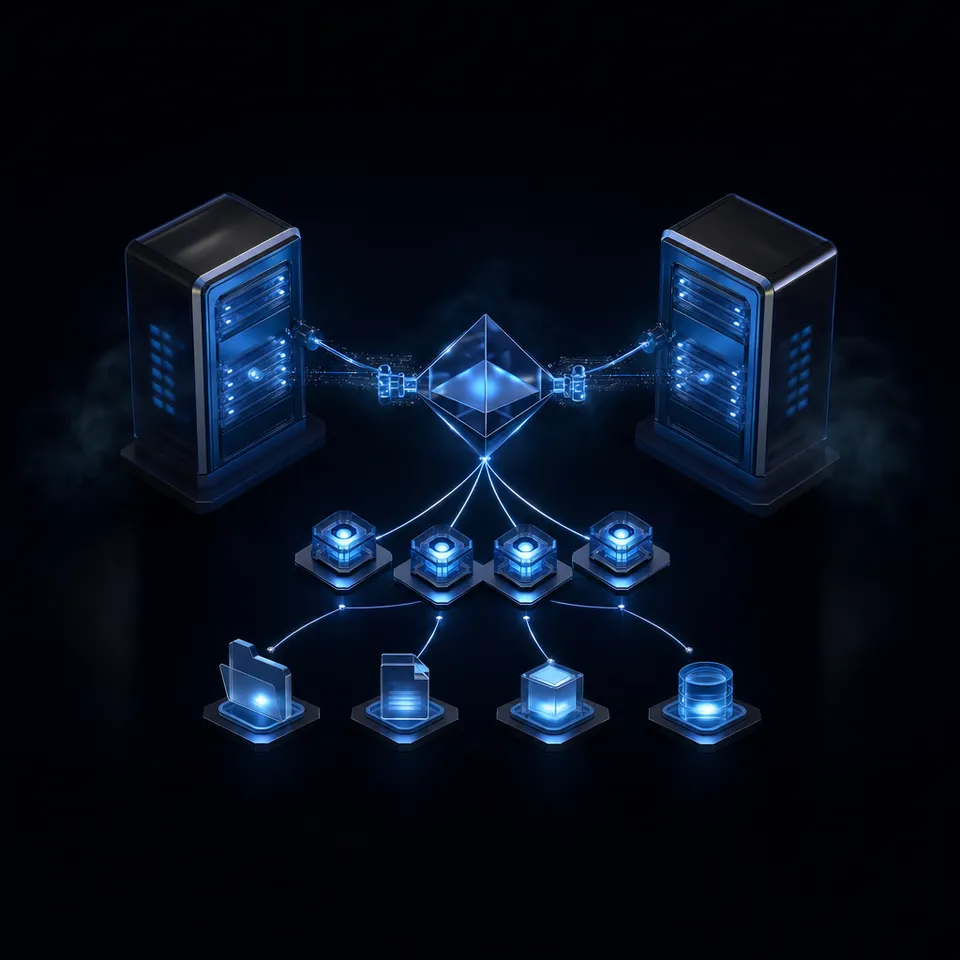
Most AI coding agent setups focus almost entirely on GitHub, leaving engineers on private repositories and self-managed GitLab instances to manually shuttle context between terminal windows, browser tabs, and failing CI pipelines. That manual loop breaks developer flow: when an agent cannot inspect project issues, read merge request review comments, or parse CI pipeline failures directly, developers spend more time copying stack traces and diffs than solving architecture problems. Connecting Cline to GitLab through the Model Context Protocol replaces that fragmented routine with a direct, agent-native control plane across codebases, review discussions, and continuous integration.
Integrating Cline with GitLab via MCP connects your autonomous coding agent to GitLab repositories, issues, and merge requests, streamlining code reviews and pipeline fixes directly in the IDE.
Enterprise teams face distinct integration constraints compared to public open-source projects. Organizations typically run GitLab Enterprise Edition (EE) or GitLab Community Edition (CE) behind corporate firewalls, custom domain names, and strict network perimeters. While conventional IDE chat plugins assume simple repository access over public endpoints, enterprise GitLab deployments require precise token scoping, support for nested group hierarchies, and compatibility with internal continuous integration runners.
The Model Context Protocol solves this disconnect by establishing a standardized, client-server contract between the Cline extension and external developer platforms. Instead of relying on brittle terminal scripts or manual web scraping, Cline connects to an MCP server that translates natural-language agent instructions into authenticated GitLab API operations. Cline can read file trees, query issue requirements, commit code modifications to feature branches, open merge requests, and inspect pipeline logs without forcing the developer to leave Visual Studio Code.
Related guides
- Claude Cloud Storage: Connecting Multi-Cloud Repositories via MCPClaude cloud storage connects cloud file systems with Anthropic Claude models using Model Context Protocol (MCP)...
- How to Integrate the Best MCP Servers for Manus AI AgentsModel Context Protocol serves as an open standard for connecting artificial intelligence agents to external...
- How to Connect Cline to Jira: Automating Ticket Context and Bug Fixes via MCPThe Cline Jira MCP integration connects your coding assistant directly to Atlassian Jira, enabling the agent to ingest...
- How to Connect Cline to Supabase: Database Migrations and Schema Inspection via MCPConnecting Cline to Supabase through the Model Context Protocol gives the autonomous coding agent real-time access to...
- How to Query Fastio Metadata Views in Cline via MCPQuerying unstructured files via conversational search is slow and resource-heavy for coding agents. Fastio Metadata...
- Cline VS Code Extension: MCP Setup and Shared WorkspacesWhile individual developers benefit from local autonomous agents, engineering teams struggle with knowledge silos. By...
More on this subject: Cline (105 guides)
Step-by-Step Configuration: Connecting Cline to GitLab via MCP
Connecting Cline to GitLab requires four clear steps to establish secure communication between your local editor and your GitLab projects:
Generate a GitLab Personal Access Token (PAT) with appropriate API scopes, or configure OAuth dynamic client registration on your GitLab instance.
Open Cline MCP settings in your IDE and add the GitLab MCP server configuration to your
cline_mcp_settings.jsonfile.Verify that the GitLab server connects successfully in the Cline interface and inspect the active tools.
Query repository context, issues, or merge requests directly from the Cline prompt to begin your development session.
Generating a Personal Access Token
To allow Cline to interact with your projects, create a dedicated Personal Access Token in GitLab. In GitLab, navigate to your user avatar, select Preferences, and open Access Tokens. Select Add new token and assign a descriptive name such as cline-mcp-integration.
Configure the token with the following scopes depending on your team's security requirements:
api: Grants full read and write access to the GitLab API. Required if you want Cline to create branches, commit code, open merge requests, and manage pipeline runs.read_api: Grants read-only access to project metadata, issues, merge requests, and pipeline statuses. Recommended for audit-first evaluation.read_repositoryandwrite_repository: Grants access to repository contents, commit trees, and file diffs.
Copy the generated token string immediately. GitLab displays the raw secret only once.
Configuring cline_mcp_settings.json
Cline manages its MCP servers through a central configuration file named cline_mcp_settings.json. To access this file in Visual Studio Code, open the Cline side panel, click the MCP Servers icon in the top toolbar, and select Configure MCP Servers. This opens cline_mcp_settings.json in your editor.
You can configure the connection using one of two proven approaches: the native GitLab MCP HTTP endpoint or the local stdio transport server.
Option A: Native GitLab MCP Server over HTTP Transport
GitLab provides native Model Context Protocol server support accessible via HTTP transport at /api/v4/mcp. This connection requires no local Node.js proxy processes:
{
  "mcpServers": {
    "gitlab": {
      "type": "streamableHttp",
      "url": "https://gitlab.com/api/v4/mcp",
      "headers": {
        "Authorization": "Bearer YOUR_GITLAB_PAT"
      }
    }
  }
}
If you run self-managed GitLab, replace gitlab.com with your fully qualified instance domain, such as https://gitlab.example.com/api/v4/mcp. You can also configure an optional X-Gitlab-Mcp-Server-Tool-Name-Prefix header (for example, "gitlab_") to avoid tool naming collisions with other active MCP servers in your environment.
Option B: Local Stdio Transport with @zereight/mcp-gitlab
For environments where direct outgoing HTTP connections from IDE tools are restricted or where developers prefer local process execution, the open-source @zereight/mcp-gitlab server runs locally over standard input and output:
{
  "mcpServers": {
    "gitlab": {
      "command": "npx",
      "args": ["-y", "@zereight/mcp-gitlab@latest"],
      "env": {
        "GITLAB_PERSONAL_ACCESS_TOKEN": "YOUR_GITLAB_PAT",
        "GITLAB_API_URL": "https://gitlab.com/api/v4",
        "GITLAB_READ_ONLY_MODE": "false"
      }
    }
  }
}
For self-hosted installations, update GITLAB_API_URL to point to https://gitlab.example.com/api/v4. If you want to prevent Cline from making accidental remote modifications, set GITLAB_READ_ONLY_MODE to "true".
Verifying Connection and Tool Availability
Save the configuration file and return to the Cline panel. The MCP Servers tab displays a green indicator beside the gitlab entry once the handshake completes. Click on the server name to review the list of registered tools, which include get_project, create_issue, save_merge_request, get_merge_request_diffs, and get_pipeline.
Querying Context from the Prompt
Test the integration by asking Cline a direct question in the chat panel:
What are the open merge requests assigned to me in the backend/auth-service project?
Cline invokes the appropriate GitLab MCP tool, retrieves the current merge request list, and summarizes the results in the chat.
How to Automate Merge Requests and Context Retrieval in Cline
Once connected, Cline transforms everyday software development tasks by combining local file manipulation with remote GitLab operations. Instead of manually cross-referencing task descriptions from browser windows, developers can delegate end-to-end implementation workflows directly to the agent.
Autonomous Issue-to-Branch Implementation
Consider a typical task: implementing an API validation check outlined in a GitLab issue. With MCP tools enabled, you can prompt Cline:
Inspect issue #87 in project core/payment-gateway. Create a feature branch named feature/87-webhook-validation, implement the requested signature verification, run local tests, and open a merge request targeting main.
Cline executes this workflow systematically:
Issue Analysis: Cline calls
get_issueto retrieve the issue title, specification, and acceptance criteria.Branch Creation: Cline creates a local git branch or invokes
add_branchthrough the GitLab API, branching from the latest commit onmain.Code Modification: Cline edits the target files in your local workspace, adding the necessary HMAC verification logic and unit test cases.
Local Verification: Cline executes local test commands in the terminal to verify that the implementation passes before committing.
Commit and Merge Request: Cline commits the changes and invokes
save_merge_request(orcreate_merge_request), providing a comprehensive description that details the changes made and includesCloses #87to automate issue closing upon merge.
Two-Step Merge Request Self-Reviews
A major advantage of integrating Cline with GitLab is the ability to run automated self-reviews before requesting human feedback. Code review bottlenecks often trace back to trivial issues: missing error handling, unformatted docstrings, or overlooked configuration flags.
Using the GitLab MCP toolset, Cline performs a two-step review pattern:
Diff Enumeration: Cline calls
list_merge_request_changed_filesorget_merge_request_diffsto determine exactly which files were modified between the source branch and the target branch.Batched Inspection: Cline inspects each diff chunk in sequence, comparing the modifications against project coding conventions, type definitions, and security guidelines.
If Cline discovers an unhandled edge case or an unformatted file, it can edit the file locally, amend the commit, and update the merge request notes automatically. This self-review cycle reduces merge request turnaround time by allowing Cline to catch common defects before human maintainers begin their formal code review.
How to Debug Failing GitLab CI/CD Pipelines with Headless Cline
Continuous integration failures represent one of the most repetitive interruptions in software engineering. When a GitLab CI/CD pipeline fails, an engineer normally navigates to the GitLab web UI, locates the failed job, scrolls through thousands of lines of raw build logs, reproduces the failure locally, and pushes a patch.
With GitLab MCP integration, Cline handles this remediation loop directly inside your editor or headlessly inside the pipeline itself.
In-IDE Pipeline Diagnostics
When a pipeline fails on your current branch, prompt Cline to diagnose the issue:
The CI pipeline for my active merge request in core/payment-gateway failed. Retrieve the latest pipeline status, identify the failed job, inspect the error output, and apply the required fix.
Cline queries the GitLab API using get_pipeline and get_pipeline_jobs to identify which stage failed, such as test:integration or lint:typescript. It then calls get_job to extract the exact error traceback. Because Cline has simultaneous access to your local workspace files, it locates the failing test file, diagnoses the root cause (such as an outdated mock response or an unhandled null value), updates the source code, runs the test suite locally to verify the resolution, and pushes the fix to the merge request branch.
Headless Cline in GitLab CI Pipelines
Cline is not confined to interactive IDE sessions. Teams can also execute Cline headlessly inside GitLab CI/CD jobs using the official CLI package npm i -g cline.
Below is an example .gitlab-ci.yml configuration that runs headless Cline on pipeline failure to generate automated diagnostic reports:
stages:
  - test
  - triage

run-tests:
  stage: test
  image: node:20
  script:
    - npm ci
    - npm test 2>&1 | tee test-output.log
  artifacts:
    when: on_failure
    paths:
      - test-output.log

ai-pipeline-triage:
  stage: triage
  image: node:20
  rules:
    - if: '$CI_PIPELINE_SOURCE == "merge_request_event"'
      when: on_failure
  script:
    - npm i -g cline
    - cline -y "Inspect test-output.log, identify the root cause of the test failure, and draft a markdown diagnosis in triage-summary.md"
  artifacts:
    paths:
      - triage-summary.md
In this setup, when the test stage fails, the triage job runs headless Cline with the -y flag (auto-approving read actions) to parse test-output.log and produce a structured root-cause summary.
Security Boundaries for Automated CI Agents
When running autonomous agents in automated continuous integration workflows, enforce strict operational boundaries:
Read-Only Default Tokens: Use GitLab project access tokens restricted to
read_repositoryfor automated triage jobs. Never grant unmonitored write tokens to unattended runners.Protected Branch Controls: Ensure target branches like
mainorproductionremain protected. Require human approval on merge requests even if Cline opens the merge request or provides the patch.Ephemeral Workspace Isolation: Run CI agent containers in isolated environments with short execution timeouts to prevent runaway API loops.


Coordinate Cline Outputs in Persistent Agent Workspaces
Connect Cline to a shared workspace with remote MCP endpoints for persistent log storage, per-file version history, and built-in semantic search across repos. Monthly plans start with a trial of up to 14 days (credit card required); annual plans have no trial.
Why Multi-Agent Workflows Require Persistent Fast.io Workspaces
As development teams scale their use of AI agents across multiple repositories, managing persistent context becomes an urgent challenge. Standard developer tooling offers limited options for retaining and sharing agent-generated artifacts:
Local Disk Storage: Files saved on a developer's machine stay trapped in that single environment. Other developers or automated agents cannot inspect the context.
CI Runner Scratch Disks: Containers running automated GitLab CI jobs terminate upon completion. Intermediate test analysis, execution traces, and diagnostic summaries are deleted unless explicitly captured.
Raw Object Stores: Cloud storage buckets hold raw files but lack automatic content indexing, per-file version history, and interactive human collaboration interfaces.
Fast.io provides dedicated cloud workspaces for agentic teams, giving Cline and human teammates a shared environment to coordinate work. Fast.io exposes a remote Model Context Protocol server that coding agents such as Cline can access directly over Streamable HTTP at https://mcp.fast.io/mcp/code, signing in to Fast.io through the browser.
You can configure Fast.io alongside GitLab in your cline_mcp_settings.json file:
{
  "mcpServers": {
    "gitlab": {
      "type": "streamableHttp",
      "url": "https://gitlab.example.com/api/v4/mcp",
      "headers": {
        "Authorization": "Bearer YOUR_GITLAB_PAT"
      }
    },
    "fastio": {
      "type": "streamableHttp",
      "url": "https://mcp.fast.io/mcp/code"
    }
  }
}
With both servers configured, Cline can pull issue context and pipeline logs from GitLab, synthesize architectural proposals or migration plans, and write those artifacts directly to an organization-owned Fast.io workspace.
Key capabilities supported in Fast.io workspaces include:
Shared Workspaces: Create persistent project workspaces where Cline deposits build reports, performance profiles, and API specifications for the entire team to review.
Per-File Version History: Fast.io automatically versions every file written to the workspace. If an agent updates an architectural brief or data contract, developers can inspect prior iterations and restore earlier versions whenever necessary.
Intelligence Mode: When workspace intelligence is active on a workspace, files are indexed upon arrival. Agents and team members can query documents using hybrid full-text and semantic search, retrieving relevant system documentation through chat.
Collaborative Notes: Real-time co-editing documents where human engineers and AI agents collaborate on design decisions, release checklists, and postmortems.
Agent-to-Human Ownership Transfer: An autonomous agent can initialize a shared organization, build out required workspaces, configure access rules, and transfer organization ownership to a human team lead while retaining administrative access.
To learn more about connecting AI agents to persistent workspaces, explore the Fast.io for agents documentation and the official agent onboarding specifications. Monthly plans start with a trial of up to 14 days (credit card required); annual plans have no trial. Plans are Starter at $9.99/mo, Business at $49.99/mo, and Enterprise at $199.99/mo. Review plan options and feature limits on the Fast.io pricing page.
How to Troubleshoot and Harden Enterprise GitLab MCP Connections
Operating AI coding agents in enterprise GitLab environments occasionally introduces network, security, and configuration challenges. The following solutions address the most common operational issues.
Resolving Self-Signed Certificate Errors
Self-managed GitLab instances frequently operate behind corporate firewalls with private certificate authorities (CAs) or enterprise proxy inspection. If Cline fails to connect with a DEPTH_ZERO_SELF_SIGNED_CERT or SELF_SIGNED_CERT_IN_CHAIN error, configure the Node runtime to recognize your internal root certificates.
Set the NODE_EXTRA_CA_CERTS environment variable in your shell configuration or pass it to the stdio server definition:
{
  "mcpServers": {
    "gitlab": {
      "command": "npx",
      "args": ["-y", "@zereight/mcp-gitlab@latest"],
      "env": {
        "GITLAB_PERSONAL_ACCESS_TOKEN": "YOUR_GITLAB_PAT",
        "GITLAB_API_URL": "https://gitlab.internal.company.com/api/v4",
        "NODE_EXTRA_CA_CERTS": "/etc/ssl/certs/corporate-root-ca.pem"
      }
    }
  }
}
Avoid setting NODE_TLS_REJECT_UNAUTHORIZED=0 in production, as disabling certificate validation exposes your agent traffic to man-in-the-middle interception.
Handling API Rate Limits and Large Diffs
GitLab applies rate limits to API requests across its REST and MCP interfaces. When Cline reviews large merge requests containing dozens of modified files, making individual API calls for each file diff can exhaust request quotas.
To prevent rate limit throttling:
Use batched diff retrieval tools like
get_merge_request_diffsrather than fetching individual file contents in separate prompt steps.Exclude auto-generated files (such as
package-lock.json, minified bundles, or schema snapshots) from Cline's review scope by defining prompt instructions or workspace rules.If you encounter
429 Too Many Requestsresponses, introduce a short pause in automated scripts before retrying.
Correcting 403 Forbidden Scope Errors
If Cline can read project files but fails when creating a branch or opening a merge request, the issue usually stems from token scopes or project role permissions:
Verify that your Personal Access Token includes the
apiscope orwrite_repositoryscope. Tokens scoped only toread_apicannot write commits or create merge requests.Confirm your user account holds at least the Developer role in the target GitLab project. Users with Reporter or Guest roles cannot push branches or open merge requests directly.
Enforcing Human-in-the-Loop Safeguards
While Cline can execute terminal commands and API actions autonomously, enterprise governance requires strict controls over repository state:
Tool Auto-Approval Settings: In the Cline MCP Servers panel, avoid enabling auto-approval for destructive actions like
accept_merge_requestor direct commits to protected branches.Merge Request Approvals: Configure GitLab branch protection rules to require at least one human peer approval before any merge request can be merged into production branches.
Audit Logging: Maintain a complete record of agent activities by monitoring GitLab's audit events log and using persistent Fast.io workspace audit trails to verify what actions your coding agents perform.
Frequently Asked Questions
How do I connect Cline to GitLab?
You connect Cline to GitLab by adding a GitLab MCP server configuration to your cline_mcp_settings.json file. You can connect directly to the native GitLab MCP HTTP endpoint at /api/v4/mcp using your GitLab Personal Access Token, or run a local stdio server like @zereight/mcp-gitlab using npx. Once configured, Cline discovers GitLab tools and executes repository operations directly from chat prompts.
Can Cline create merge requests in GitLab?
Yes. When supplied with a Personal Access Token that has the api scope, Cline can create a feature branch, commit code modifications, and invoke the save_merge_request tool to open a new merge request with a complete title, description, and issue reference.
Can Cline run in a GitLab CI/CD pipeline?
Yes. You can install the Cline CLI in your GitLab CI/CD runner environment using npm i -g cline and run it headlessly with the -y flag. This setup allows Cline to analyze build logs upon job failure, produce triage reports, and suggest code fixes automatically.
What token scopes does Cline need for GitLab?
For full functionality including branch creation, commits, and merge requests, Cline requires a Personal Access Token with the api scope. For read-only inspection of repositories, issues, and pipelines, the read_api and read_repository scopes provide sufficient access.
Does Cline work with self-managed GitLab EE and CE instances?
Yes. Cline connects to self-managed GitLab Enterprise Edition and Community Edition instances. Set the GITLAB_API_URL or the MCP HTTP endpoint to your custom instance domain (for example, https://gitlab.example.com/api/v4/mcp). For instances using private root certificates, set NODE_EXTRA_CA_CERTS to ensure trusted SSL verification.
Related Resources

Coordinate Cline Outputs in Persistent Agent Workspaces
Connect Cline to a shared workspace with remote MCP endpoints for persistent log storage, per-file version history, and built-in semantic search across repos. Monthly plans start with a trial of up to 14 days (credit card required); annual plans have no trial.