Perplexity Pro File Limits: Upload Caps, Formats & Workspace Sync
Perplexity Pro caps each uploaded file at 40 MB and counts uploads against a rolling weekly allowance rather than a fixed daily number. While these allowances handle routine document review, session attachments expire after a retention period and cannot be searched across separate threads. For multi-file collections, connecting external cloud workspaces via MCP provides indexed, cross-query retrieval without repeated file attachments.

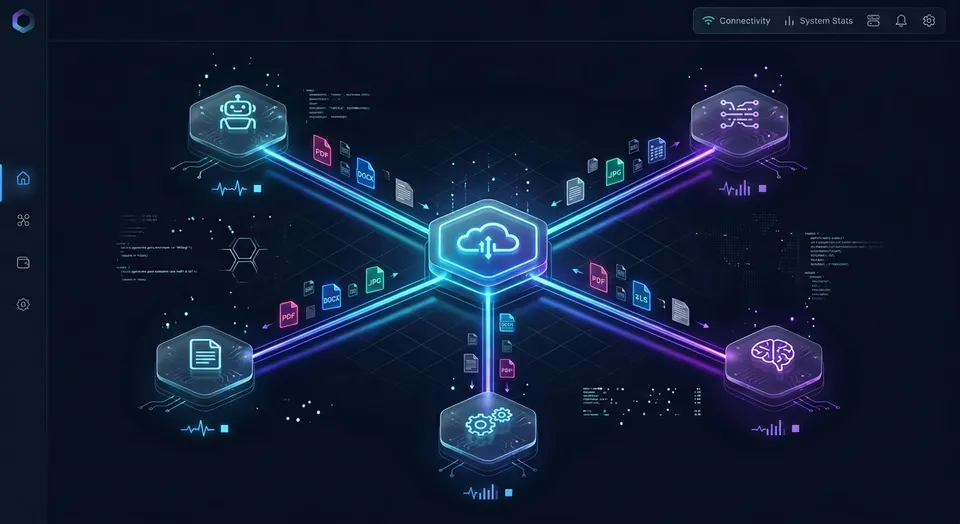
What Are the Perplexity Pro File Upload Limits?
Perplexity Pro caps each uploaded file at 40 MB and counts uploads against a rolling weekly allowance. The Perplexity Help Center states that file size is limited to 40 MB for all file types, and that file uploads are not unlimited on Free, Pro, or Max plans: each plan includes an upload allowance that resets on a rolling weekly basis, with Max offering a higher allowance than Pro. Perplexity does not publish the exact number of uploads in each allowance. Projects accept larger files, up to 100 MB each, on every plan.
When researchers and engineers analyze dense technical manuals, regulatory filings, or large spreadsheets, these boundaries create immediate friction. Uploaded files provide context for individual prompts, but conversational chat windows are not persistent databases. Understanding the precise upload caps across each tier prevents broken research sessions and unexpected upload rejections.
These limits balance compute overhead with interactive responsiveness. Extracting text layers, parsing embedded tables, generating vector embeddings, and inserting document chunks into active model prompts requires heavy infrastructure resources. While an individual file ceiling accommodates most single-document inquiries, managing collections of dozens or hundreds of documents demands a different architectural approach.
How the Rolling Weekly Upload Allowance Works
The Perplexity Pro file upload limit is counted through a rolling weekly attachment allowance rather than a daily reset. Documents, images you attach or paste into a search, and files attached from a connected app such as Google Drive all count toward the same allowance.
Perplexity tracks attached files over a rolling window with no fixed reset day. Each upload stops counting toward your allowance about one week after you attached it, so capacity frees up gradually. If you use up your allowance, Perplexity shows a pop-up when you try to attach another file, and on Pro that pop-up may suggest upgrading to Max. Remaining upload capacity is not displayed in account settings, which makes tracking usage difficult during intense research sprints.
Claude Projects vs. Perplexity Context Boundaries
Perplexity is not alone in enforcing strict file boundaries. Claude also manages document collections through explicit limits. In Anthropic's documented Claude mechanics, chat sessions and projects enforce file size boundaries where the true ceiling is Claude's active context window.
Claude Projects enforces no fixed file-count cap, making the context window the true ceiling. Reaching that context ceiling forces users to prune reference files or split projects into fragmented workspaces. Perplexity faces the same structural challenge: attaching files directly to prompts consumes model context tokens, leaving less room for detailed reasoning, long-form citations, and multi-step analysis.
Related guides
- Perplexity Spaces File Limit: Upload Caps, Supported Formats, and Storage WorkaroundsPerplexity Spaces enforces a 25MB per-file upload limit and a 50-document ceiling per project on Pro accounts. While...
- Gemini Attachment Limit: File Caps and Multi-Document WorkaroundsThe Gemini attachment limit restricts uploads to 10 files per prompt (subject to availability) in the Gemini web and...
- NotebookLM PDF Limit: Word Caps, Page Limits, and Gemini Notebook RulesGoogle's Gemini Notebook, formerly NotebookLM, enforces a strict limit of 500,000 words and 200MB per uploaded PDF,...
- How to Fix NotebookLM Upload Failed Errors and Source CapsA NotebookLM upload failed error occurs when a notebook reaches its 50-source ceiling, an individual source exceeds...
- CSV File Size Limits: AI Assistant Upload Caps, Parsing Ceilings, and FixesCSV file size limits vary from strict row boundaries in spreadsheets to memory and token constraints in AI chat...
- Google Gemini Document Upload Limits: 10-File Caps, Sizes, and WorkaroundsThe Google Gemini document upload limit restricts web interface users to a maximum of 10 attached files per prompt up...
More on this subject: Agent File and Document Workflows (325 guides)
Supported Formats and Document Processing Constraints
Perplexity accepts text, code, PDF, image, audio, and video files through its web interface, mobile applications, and cloud connectors. The formats named in Perplexity's help center include:
- Text and Documents: PDF, DOCX, PPTX, TXT, and Markdown (MD), plus Google Docs and Slides through connectors.
- Data and Spreadsheets: CSV, XLSX, and JSON, plus Google Sheets through connectors.
- Code Files: Plain-text source files.
- Images: JPEG and PNG (analyzed for visual content, charts, and diagrams).
- Audio and Video: MP3, WAV, AIFF, OGG, FLAC, MP4, MPEG, MOV, AVI, FLV, WEBM, WMV, and 3GPP.
When an audio or video file is uploaded, Perplexity automatically transcribes spoken audio into searchable text and labels distinct speakers. However, visual scenes and motion inside video files are not indexed. If a presentation video contains diagrams on slides without accompanying spoken explanation, the visual data remains inaccessible to the model.
Spreadsheet and Structured Data Extraction Pitfalls
Tabular data formats like CSV and XLSX introduce specific processing risks. Perplexity's help center notes that short files can be analyzed in their entirety, while for a long file it extracts the most important parts to answer the query. A dense table with thousands of rows can therefore be read selectively, and header information and column associations can be lost along the way, leading to inaccurate numerical summaries.
Workbooks that depend on formulas, macros, or live external data connections are a further risk: what an AI tool reads is the stored values, not the logic behind them, and Perplexity's Microsoft 365 connector does not retrieve macro-enabled workbooks (.xlsm) at all. Converting critical tables into clean, flat CSV files or concise Markdown tables before uploading reduces parsing errors.
Why Perplexity Throws Attachment and Processing Errors
Upload failures in Perplexity generally stem from four root causes:
- File Size Violations: Attempting to attach a file larger than 40 MB in standard sessions or 100 MB in Projects is rejected.
- Weekly Allowance Exhaustion: When your rolling weekly attachment allowance is used up, Perplexity shows a pop-up instead of accepting the file until older uploads age out.
- Scanned PDFs Without a Text Layer: PDFs made of scanned page images have no selectable text, so long scans can come back with partial or missing content.
- Corrupted, Encrypted, or Unsupported Files: Encrypted files, password-protected PDFs, and proprietary binary formats may not be readable.
When a file fails to upload, check that it is under 40 MB, verify that its text is selectable, and confirm your rolling allowance has not been used up.
The Thread-Isolation Problem: Why Session Uploads Break Knowledge Retrieval
The primary operational limitation of Perplexity file uploads is thread isolation. When you attach a dense legal contract or technical manual to a search prompt, Perplexity uses that document as context for follow-up questions within that session. Once you open a new session or start another research topic, the file is not available unless you attach it again.
This thread-bound architecture creates workflow bottlenecks for teams:
- Repeated Uploads: An analyst investigating five related questions across five threads must upload the same large reference document five separate times, rapidly burning through the rolling weekly upload allowance.
- Ephemeral Storage: Perplexity retains uploaded session files for 30 days (7 days on Enterprise plans). After that, the file contents are no longer available for follow-ups, even though the conversation history remains.
- Static File Snapshots: According to Perplexity's help center, every Project supports up to 10,000 files, 5 GB of total storage, and 100 MB per file on every plan, but files added from connected apps are one-time copies. If a team updates a specification in Google Drive or OneDrive, the copy inside Perplexity does not update. To work from current data, users must ask Perplexity to fetch the latest version through the connector or add the file again.
- Diluted Cross-File Synthesis: When multiple long files are attached to a single prompt, each one competes for limited context, and evidence from one document can crowd out relevant passages from the others.
Context Window Degradation Across Multi-Document Sessions
Attaching multiple files directly to an AI chat prompt forces the platform to pack document excerpts into the model context window. Even with modern long-context models, context saturation degrades output quality. As prompt token counts climb toward context thresholds, language models suffer from recall degradation, often missing critical details located in the middle of long documents.
Instead of attaching raw files directly to chat sessions, production research workflows decouple document storage from conversational prompting. By indexing reference materials in an external repository, an assistant retrieves only the specific sentences or tables needed to answer the current question, preserving context space for reasoning and synthesis.
The Limits of Built-in Cloud Connectors
Perplexity offers file connectors that link cloud storage platforms like Google Drive, OneDrive, and SharePoint. While connectors simplify browsing files, a connected file added to a Project is a one-time copy taken at the moment it is added.
For active projects where engineering documents, financial models, or legal briefs change daily, relying on static copies leads to stale conclusions. Team members risk making decisions based on obsolete document versions unless someone remembers to refresh the copy.


Bypass Perplexity Pro File Limits with Indexed Workspaces
Connect your AI assistant to a shared Fastio workspace through the remote MCP server to search deep document archives without hitting Perplexity Pro file upload limits. Monthly plans start with a 14-day free trial.
Connecting External Workspaces via MCP for Deep Document Retrieval
The Model Context Protocol (MCP) provides an open standard for connecting AI assistants directly to external data systems. Instead of uploading large files into chat boxes or copying static documents into closed project spaces, teams connect their assistants to an intelligent workspace that manages storage, indexing, and retrieval externally.
Under this architecture, the full document library lives in a shared workspace. When an assistant needs factual background, it queries the workspace through standardized MCP tool calls, pulls relevant passages with document citations, and generates answers without holding the entire corpus in active prompt context.
Fastio intelligent workspaces deliver this external workspace layer for agentic teams and research workflows. Rather than functioning as bare object storage or a consumer sync drive, Fastio provides shared org-owned workspaces equipped with Intelligence Mode. When Intelligence Mode is enabled, uploaded documents are automatically parsed and indexed for hybrid search, combining full-text keyword matching, semantic vector retrieval, and structured metadata queries.
{
  "mcpServers": {
    "fast-io": {
      "url": "https://mcp.fast.io/mcp/tools"
    }
  }
}
How Remote MCP Tooling Replaces Prompt Attachments
Connecting an AI assistant to Fastio via the remote MCP server at https://mcp.fast.io/mcp/tools (see MCP setup documentation) takes the documents out of Perplexity's per-file and weekly upload caps, since they are stored and indexed in the workspace instead of attached to each prompt. The assistant interacts with workspace files through consolidated MCP tools:
storage(read actions likesearch,list,details): Execute hybrid searches across indexed documents, inspect directory structures, and retrieve relevant text passages without loading whole files.storage_manage(write actions likemove,delete,lock-acquire): Organize workspace files, manage leases, and maintain project structure.workspaceandworkspace_manage: Manage shared team environments, invite collaborators, and isolate project assets.
Because search queries return focused excerpts backed by source citations, the AI assistant operates with minimal prompt token overhead. A research corpus containing extensive documentation remains fully searchable without triggering Perplexity file upload limit ceilings or exhausting rolling attachment allowances.
Synchronizing Team Repositories Across Google Drive, Dropbox, Box, and OneDrive
Unlike static connector snapshots, Fastio Cloud Sync maintains active connections with external storage platforms. Cloud Sync connects Google Drive, Dropbox, Box, and OneDrive folders to a workspace, one-way or two-way, on a schedule or on demand. Teams can also use Cloud Import for immediate one-time data transfers.
When a teammate updates a contract in Google Drive or saves a new design brief in Dropbox, Cloud Sync updates the file in the Fastio workspace according to your configured schedule. Fastio automatically indexes the updated text, so AI assistants querying the workspace retrieve the most recently synced version. Every file maintains full per-file version history, allowing teams to review previous iterations or audit modifications over time.
Best Practices for Managing Large Research Corpora with AI Assistants
Scaling research beyond single-file chat interactions requires disciplined document organization. Teams that handle complex investigations, regulatory reviews, or product documentation follow a structured multi-tier storage workflow:
- Isolate Projects into Dedicated Workspaces: Group related research into distinct workspaces rather than mixing client files or technical domains in one bucket. Fastio enforces role-based permissions at the organization, workspace, and share levels, so team members and assistants access only authorized materials.
- Pre-Process Scanned and Image-Heavy Documents: Ensure all uploaded PDFs contain clear digital text layers. If working with paper records, run OCR preprocessing before ingestion to prevent parser timeouts.
- Extract Structured Records with Metadata Views: For collections of invoices, legal agreements, or technical specs, use Metadata Views to extract structured fields (such as renewal dates, counterparty names, or financial values) directly into a queryable table without manual schema design.
- Automate Repository Refreshes: Use scheduled Cloud Sync to mirror active folders from Google Drive, Box, Dropbox, or OneDrive into your indexed workspace, preventing stale document references.
- Maintain Human Audit Trails: Fastio records workspace modifications in a detailed activity log that tracks uploads, edits, moves, and deletions made by both human collaborators and AI agents.
Structuring Document Libraries for Optimal AI Retrieval
To maximize retrieval accuracy, keep document collections modular. Storing a 500-page operational manual as five distinct 100-page chapter files improves semantic retrieval precision compared to indexing a single monolithic document. Use consistent naming conventions and clear directory structures to help both human users and AI assistants filter search scopes effectively.
When sharing research deliverables with external clients or stakeholders, use branded shares. Fastio shares (Send, Receive, Exchange) allow teams to distribute curated research packets with custom branding, optional expiration dates, and access controls that can disable direct file downloads when review-only access is required.
Subscription Plans and Workspace Capacity
Fastio provides predictable storage and indexing capacity designed for teams and multi-agent systems using dedicated storage for agents. Monthly plans start with a 14-day free trial, which requires a credit card.
Credits meter AI indexing and search queries, while additional storage is available at 1.5 cents per GB per month and extra bandwidth at 4 cents per GB.
Sources
References used to verify factual claims in this guide.
-
Perplexity limits uploaded files to 40 MB for all file types.
-
Every Project in Perplexity supports up to 10,000 files, 5 GB of total storage, and 100 MB per file, the same on every plan.
-
Perplexity retains uploaded session files for 30 days, or 7 days for Enterprise Pro users.
Frequently Asked Questions
How many files can I upload to Perplexity Pro per day?
Perplexity does not publish a daily upload number for Pro. Uploads count against a rolling weekly allowance, and each file stops counting about one week after you attach it. Perplexity does not state the size of the allowance, says Max includes a higher one than Pro, and shows a pop-up once the allowance is used up.
What is the maximum file size in Perplexity Pro?
The maximum file size for direct uploads in Perplexity Pro is 40 MB for all file types. Projects accept individual files up to 100 MB on every plan, and on Enterprise plans Perplexity Computer accepts files up to 200 MB.
Can Perplexity Pro search across multiple uploaded files simultaneously?
Perplexity Pro can examine multiple files attached to a single prompt, but retrieval performance degrades as token counts approach context window limits. Files uploaded to one chat thread remain isolated and cannot be queried from separate threads. Persistent cross-file searching requires organizing files in Perplexity Projects or connecting an indexed external workspace via MCP.
How long does Perplexity keep session file uploads?
Files attached directly to Perplexity chat sessions are intended for temporary prompt context rather than long-term archiving. Perplexity's help center says uploaded files are retained for 30 days (7 days on Enterprise plans), after which their contents are no longer available for follow-ups. To keep documents longer, save them in Projects, which retain files until they are deleted, or store them in an external workspace.
What is the difference between Perplexity Projects and search attachments?
Search attachments are temporary files bound to a single conversation that expire after the retention period (30 days, or 7 days on Enterprise plans). Perplexity Projects are shared workspaces that store up to 10,000 files and 5 GB of total data with a 100 MB per-file limit. Project files remain stored indefinitely until deleted, though files imported from cloud connectors remain static one-time copies.
How can teams query document collections that exceed Perplexity upload caps?
When a document collection exceeds Perplexity file upload limits or weekly upload caps, teams store their corpus in an external workspace like Fastio. By enabling Intelligence Mode and connecting through the remote MCP server (see [MCP setup documentation](https://mcp.fast.io/docs)), AI assistants perform semantic and keyword searches against the indexed files, pulling only relevant passages without uploading massive files to the chat window.
Related Resources

Bypass Perplexity Pro File Limits with Indexed Workspaces
Connect your AI assistant to a shared Fastio workspace through the remote MCP server to search deep document archives without hitting Perplexity Pro file upload limits. Monthly plans start with a 14-day free trial.