How to Build an OpenClaw SharePoint Document Agent
The OpenClaw SharePoint skill connects agents to enterprise document libraries through the Microsoft Graph API using certificate-based authentication. It supports text extraction from .docx.xlsx.pptx.pdf.txt, and .md files, scoped to a single SharePoint site via Sites.Selected permissions. This guide walks through Azure app registration, certificate setup, skill installation, document extraction workflows, and how to persist extracted data in shared workspaces.


What a SharePoint Document Agent Does
SharePoint holds documents for over 200 million monthly active users across Microsoft 365 tenants. Most of that content sits in document libraries where it is searchable within SharePoint but largely invisible to external automation. Power Automate and custom Graph API scripts handle basic file moves and notifications, but they do not read document content or reason about it.
An OpenClaw SharePoint document agent changes this. The openclaw-skill-sharepoint skill, built by Abdelkrim Boujraf at ALT-F1 SRL in Brussels, gives OpenClaw agents direct access to SharePoint document libraries through the Microsoft Graph API. The agent can list files, read document content, upload new files, search by filename, create folders, and delete items.
The skill extracts text from six file formats: Word (.docx), Excel (.xlsx), PowerPoint (.pptx), PDF, plain text (.txt), and Markdown (.md). Each format uses a dedicated parsing library. Word documents go through mammoth, Excel through exceljs, PowerPoint through pptxgenjs, and PDFs through pdf-parse. The extracted text is returned in a format suitable for AI processing, so the agent can summarize contracts, pull data from spreadsheets, or compare slide decks without manual intervention.
Authentication uses X.509 certificates rather than client secrets. This is a deliberate security choice. Certificate-based auth is harder to leak accidentally in logs or environment dumps compared to a shared secret string. Combined with Sites.Selected permissions, the agent can only access the specific SharePoint site you authorize during setup, not every site in your tenant.

Related guides
- Copilot Agents in SharePoint: How to Build, Configure and Ground AgentsA Copilot agent in SharePoint provides a scoped AI assistant grounded on specific document libraries to answer queries...
- How to Build Base44 Metadata Views for Document ExtractionBase44 metadata views automatically parse file attributes to populate structured database tables and search filters....
- How to Build RAG Pipelines with OpenClawOpenClaw RAG pipelines index documents into embeddings for semantic retrieval. This helps agents be more accurate with...
- How to Build a Web Scraping Agent with OpenClawOpenClaw's browsing skill turns your AI agent into a web scraper that can navigate pages, handle JavaScript rendering,...
- How to Build Custom Agents in OpenClawOpenClaw hit 3.2 million monthly active users in April 2026, yet most deployments still run a single default agent...
- Best OpenClaw Projects to Build: Beginner to Advanced Ideas for 2026OpenClaw crossed 250,000 GitHub stars faster than any software project in history, but most developers stall after the...
More on this subject: OpenClaw Setup and Guides (199 guides)
How to Register an Azure Entra App for SharePoint Access
Before installing the skill, you need a registered application in Microsoft Entra ID (formerly Azure AD) with the right permissions and a certificate for authentication.
Create the App Registration
Sign in to the Azure Portal and navigate to Microsoft Entra ID, then App registrations. Click "New registration," give it a descriptive name like "OpenClaw SharePoint Agent," and set the account type to "Accounts in this organizational directory only." No redirect URI is needed since this is a daemon-style application.
Generate and Upload a Certificate
You need an X.509 certificate pair: a public certificate to upload to your Entra app registration and a private key stored on the machine running the agent. Use OpenSSL or any certificate tool to generate a self-signed certificate with an RSA 2048-bit key. Set the expiry to match your rotation schedule (365 days is common). If your deployment requires a PFX bundle, combine the key and certificate into a single .pfx file.
Upload the public certificate to your app registration under Certificates & Secrets. Keep the private key file permissions restricted to the user account running the OpenClaw agent, and never commit it to version control. The openclaw-skill-sharepoint repository documents the expected certificate format and configuration variables.
Configure Sites.Selected Permission
Under API Permissions, add the Microsoft Graph application permission Sites.Selected. This permission does not grant blanket access to all SharePoint sites. Instead, it requires a separate site-level grant that an admin creates using the Graph API or PowerShell.
After adding the permission, click "Grant admin consent" for your organization.
Then grant the app access to your specific SharePoint site. A tenant admin does this through the Graph API or PowerShell by creating a site-level permission that maps your app's Client ID to either a "write" or "read" role on that site. The "write" role includes read access. Use "read" if the agent should only extract documents without uploading or modifying files. Microsoft's Graph API documentation for site permissions covers the exact request format and required fields.
Collect Your Configuration Values
You need four values for the skill configuration:
- Tenant ID: Found on the Entra ID overview page
- App Client ID: From the app registration overview
- Certificate path: Where you stored key.pem and cert.pem on disk
- Site ID: The SharePoint site identifier, retrievable via
GET https://graph.microsoft.com/v1.0/sites/{hostname}:/{site-path}
Install and Configure the OpenClaw Skill
The skill is available on ClawHub under the identifier sharepoint-by-altf1be. Install it with a single command:
clawhub install sharepoint-by-altf1be
Alternatively, clone the repository directly for local development:
git clone https://github.com/ALT-F1-OpenClaw/openclaw-skill-sharepoint.git
cd openclaw-skill-sharepoint
npm install
After installation, configure the environment. Copy the example environment file and fill in the values from the previous step:
cp .env.example .env
The .env file needs your Tenant ID, App Client ID, certificate file paths, and the target SharePoint Site ID. The skill reads these at startup and initializes a Graph API client authenticated with your certificate.
Verify the Connection
Run a quick test to confirm the agent can reach your SharePoint library:
node scripts/sharepoint.mjs list
This returns the top-level contents of the default document library. If authentication fails, check that the certificate uploaded to Entra matches the private key on disk and that the Sites.Selected permission grant targets the correct site.
Using the Skill Through OpenClaw
Once installed as a ClawHub skill, the agent can invoke operations using natural language. Ask "List files in SharePoint" and the skill translates that into a Graph API call. Ask "Read the meeting notes from today" and it locates the file, extracts the text content, and returns it for the agent to process.
The skill registers as a tool in OpenClaw's tool registry, so it appears alongside other skills when the agent lists available capabilities. No additional routing or configuration is needed beyond the initial .env setup.



Give Your Document Agent Persistent Storage
Extract documents from SharePoint, process them with OpenClaw, and store the results where any agent or human can find them, with remote MCP access for reads and writes.
Extract and Process SharePoint Documents
The core value of the skill is turning SharePoint documents into text that an AI agent can work with. Each supported format has its own extraction path.
Word documents (.docx) are parsed with mammoth, which converts the document into clean text while preserving structural elements like headings and lists. This works well for contracts, proposals, and reports where the agent needs to understand document hierarchy.
Excel spreadsheets (.xlsx) go through exceljs, which reads cell values, formulas, and sheet names. The agent can extract specific columns, compare data across sheets, or summarize financial tables. For large spreadsheets, consider targeting specific sheets rather than extracting the entire workbook.
PowerPoint presentations (.pptx) are handled by pptxgenjs. The skill extracts text from slides, speaker notes, and text boxes. This is useful for summarizing training materials, extracting action items from meeting decks, or comparing versions of a presentation.
PDF files use pdf-parse for text extraction. Scanned PDFs without embedded text will return empty or minimal content since pdf-parse works with the text layer, not OCR.
Plain text and Markdown (.txt.md) are read directly without a parsing library.
Common Extraction Workflows
A practical extraction workflow chains several operations. Start by listing the contents of a specific folder to find relevant documents. Then read each document and pass the extracted text through a processing prompt.
For example, an agent processing quarterly reports might:
- List all files in the "Reports/Q1-2026" folder
- Read each .docx and .xlsx file
- Summarize key findings per document
- Extract revenue figures from the spreadsheets
- Compile a cross-document analysis
The skill supports file uploads too. After the agent generates its analysis, it can push the output back to SharePoint as a new document, keeping everything in the same library where the source files live.
AI-Powered Document Intelligence
Beyond raw text extraction, the skill enables higher-level document intelligence. An agent can process raw meeting notes into formatted professional documents, generate business or technical summaries of long reports, extract action items from documents into structured Excel files, or create PowerPoint slide decks from aggregated notes. Each of these workflows combines the skill's file operations with the agent's language capabilities.
Persist Results in Shared Workspaces
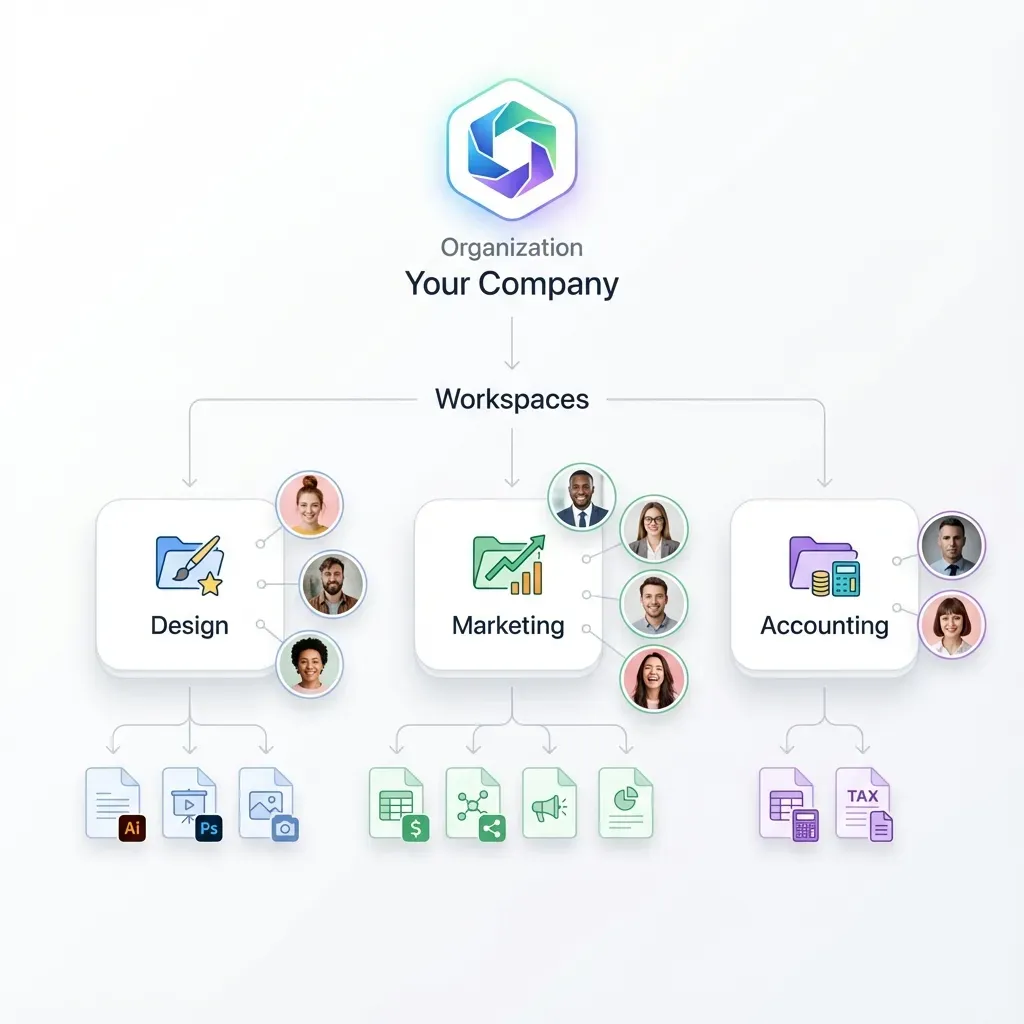
SharePoint stores the source documents, but the extracted data, summaries, and analysis files need a home too. Writing everything back to SharePoint works if your entire team lives in Microsoft 365. But when agents from different systems need access, or when you want to hand processed results to someone outside your tenant, a neutral workspace layer helps.
Writing back to SharePoint is the simplest option. The skill's upload command pushes files to any folder in the authorized site. This keeps source documents and derived outputs in the same library with familiar SharePoint permissions and search.
Local storage works for single-agent prototypes. Save extracted JSON or CSV to a project directory and version it with Git. This breaks down when a second agent needs the same data or a non-technical stakeholder needs to review results.
Fastio workspaces provide a neutral collaboration layer. Create a workspace, upload extracted data, and any agent or human with access can browse, preview, and search the files. With Intelligence Mode enabled, uploaded documents are automatically indexed for semantic search and RAG chat. Ask "What were the key contract terms across all uploaded vendor agreements?" and get an answer with citations pointing to specific files and pages.
For structured extraction at scale, Metadata Views turn a workspace full of documents into a queryable database. Describe the fields you want (vendor name, contract value, renewal date) and the system extracts them into a sortable, filterable spreadsheet. No extraction code required.
Fastio connects to OpenClaw through the remote MCP server, which exposes a consolidated toolset for storage, sharing, and AI queries. A 14-day Business Trial lets your team evaluate features before selecting a plan starting at $9.99/month. When the extraction project is complete, ownership transfer hands the workspace to a client or team lead while keeping admin access for the agent.
This pattern separates concerns cleanly: SharePoint remains the system of record for enterprise documents, while the workspace holds the agent's derived intelligence, shareable with anyone regardless of their Microsoft 365 status.

How to Secure and Troubleshoot Your SharePoint Agent
Certificate-based authentication combined with Sites.Selected creates a narrow access surface, but there are still operational concerns to address.
Certificate Management
Certificates expire. The self-signed certificate generated earlier has a 365-day lifetime. Set a calendar reminder to rotate it before expiration. When rotating, upload the new public certificate to Entra before removing the old one so there is no authentication gap. Store private keys outside of version control and restrict file permissions to the user account running the agent.
Permission Auditing
Sites.Selected grants are invisible in the standard SharePoint admin center. Use the Graph API to list permissions on your site:
GET https://graph.microsoft.com/v1.0/sites/{site-id}/permissions
Review this periodically. Remove grants for decommissioned agents. If you need read-only access for an extraction-only agent, use the "read" role instead of "write" to follow least-privilege principles.
Common Issues
Authentication failures usually mean the certificate on disk does not match what is uploaded to Entra. Regenerate and re-upload if the thumbprints do not align.
Empty extraction results from PDFs typically indicate scanned documents without an embedded text layer. The pdf-parse library works with text-based PDFs only. For scanned documents, consider routing through a vision-capable model's PDF tool before passing to the SharePoint skill.
Rate limiting from the Graph API affects high-volume extraction. Microsoft throttles per-app and per-tenant. If the agent processes hundreds of documents, add delays between read operations and implement exponential backoff on 429 responses.
Site ID lookup trips up many first-time users. The site ID is not the same as the site URL. Retrieve it with a Graph API call using your site's hostname and path. The response includes the site ID in the format {hostname},{site-collection-id},{web-id}.
Sources
References used to verify factual claims in this guide.
-
SharePoint has over 200 million monthly active users in the cloud
-
The openclaw-skill-sharepoint is an MIT-licensed skill by ALT-F1 SRL supporting certificate auth and Sites.Selected permissions
-
The skill is available on ClawHub as sharepoint-by-altf1be and on the LobeHub skills marketplace
Frequently Asked Questions
How do I connect OpenClaw to SharePoint?
Install the sharepoint-by-altf1be skill from ClawHub and configure it with your Microsoft Entra app credentials. The skill needs a Tenant ID, App Client ID, certificate file paths, and a SharePoint Site ID. Authentication uses X.509 certificates with Sites.Selected permissions, which restricts the agent to a single authorized site.
Can OpenClaw read SharePoint documents?
Yes. The OpenClaw SharePoint skill extracts text from six file formats stored in SharePoint document libraries. Word documents (.docx), Excel spreadsheets (.xlsx), PowerPoint presentations (.pptx), PDFs, plain text (.txt), and Markdown (.md) files are all supported. Each format uses a dedicated parsing library for accurate extraction.
What is the OpenClaw SharePoint skill?
It is an MIT-licensed Node.js skill (sharepoint-by-altf1be) built by Abdelkrim Boujraf at ALT-F1 SRL. It gives OpenClaw agents the ability to list, read, upload, search, create folders, and delete files in SharePoint document libraries. The skill communicates through the Microsoft Graph API using certificate-based authentication and Sites.Selected permissions for security.
How do I set up certificate auth for the SharePoint API?
Generate a self-signed X.509 certificate using OpenSSL, upload the public certificate to your Microsoft Entra app registration, and store the private key on the machine running the agent. Configure the skill's .env file with the certificate path. This replaces client secret authentication with a more secure approach that is harder to leak accidentally.
What file formats does the SharePoint skill support?
The skill supports .docx (via mammoth).xlsx (via exceljs).pptx (via pptxgenjs).pdf (via pdf-parse).txt, and .md files. Text-based PDFs work well, but scanned PDFs without embedded text produce minimal output since the skill does not include OCR.
Can I restrict the agent to one SharePoint site?
Yes. The Sites.Selected Microsoft Graph permission does not grant tenant-wide access. After adding the permission and getting admin consent, you create a site-level grant through the Graph API that authorizes the agent for a specific site only. Other sites remain inaccessible.
Related Resources

Give Your Document Agent Persistent Storage
Extract documents from SharePoint, process them with OpenClaw, and store the results where any agent or human can find them, with remote MCP access for reads and writes.