How to Set Up OpenClaw Google Workspace Integration for Gmail, Drive, Calendar and Sheets
OpenClaw's Google Workspace plugin connects your AI agent to six Google services through one OAuth authorization. This guide walks through installing the plugin, configuring OAuth credentials, enabling individual services, and building practical automations that span Gmail, Drive, Calendar, Contacts, Tasks, and Sheets.

What the OpenClaw Google Workspace Plugin Does
Most Google integrations for AI agents handle one service at a time. You install a Gmail plugin, then a separate Calendar plugin, then a Drive plugin, each with its own authentication flow and token management. The OpenClaw Google Workspace plugin by TensorFold takes a different approach: one plugin, one OAuth flow, six services.
The plugin covers Gmail, Google Calendar, Google Drive, Google Contacts, Google Tasks, and Google Sheets. It exposes 24 tools total, grouped by service, and all of them share a single set of OAuth tokens. When you authenticate once, every enabled service gets access without additional sign-in prompts.
This matters for practical reasons. An agent that needs to read an email, check the sender's calendar availability, and save an attachment to Drive can do all three without juggling separate auth states. The plugin handles token refresh automatically and stores credentials with restrictive file permissions (chmod 600) so tokens aren't readable by other processes on the machine.
The plugin is MIT-licensed, written in TypeScript, and available on ClawHub. It was released in April 2026 by TensorFold and works with both personal Gmail accounts and Google Workspace domains.
Related guides
- Claude Google Docs Integration: Connecting Claude to Google Workspace DocsSetting up a Claude Google Docs integration allows AI agents and chat assistants to reference Google Workspace...
- How to Connect and Use Google Drive with GitHub CopilotStandard GitHub Copilot configurations lack a native connector for Google Drive, requiring developers to copy context...
- How to Set Up OpenClaw with Google Gemini ModelsOpenClaw's Gemini integration connects your agent to Google's full model family, including Gemini 3.1 Pro for chat,...
- How to Set Up OpenClaw with OpenAI GPT ModelsOpenClaw supports two authentication paths for OpenAI: direct API key billing and Codex subscription OAuth. This guide...
- How to Set Up Shared Workspaces in OpenClawOpenClaw workspace setup provides agents with persistent, shared storage for collaborative projects. Connect to the...
- How to Import Google Drive Files to OpenClawOpenClaw agents pull files from Google Drive into Fastio workspaces. The import handles bulk folders via OAuth and...
More on this subject: OpenClaw Setup and Guides (199 guides)
What You Need Before Installing the Plugin
Before installing the plugin, you need a Google Cloud project configured for OAuth. Here is what to prepare:
- Go to the Google Cloud Console and create a new project (or use an existing one).
- Enable the APIs you plan to use: Gmail API, Google Calendar API, Google Drive API, People API (for Contacts), Tasks API, and Google Sheets API. You can enable all six now or add them later as you expand your agent's capabilities.
- Create an OAuth 2.0 Client ID. Choose "Desktop app" as the application type. Download the credentials JSON file.
- Store the credentials file somewhere your agent can access. The plugin's configuration will need the path to this file during setup.
- If you're using a Google Workspace account (not a personal Gmail), your domain admin may need to approve the OAuth app before users can authorize it.
One thing to watch for: make sure you select "Desktop app" as the client type, not "Web application." CLI-based agents use a redirect flow that expects the Desktop client configuration.

Installing and Configuring the Plugin
The plugin is available on ClawHub under the @tensorfold/openclaw-google-workspace package. Install it through the standard ClawHub plugin workflow, then point the plugin configuration at your downloaded Google OAuth credentials file.
The configuration lets you control which of the six services are active. By default, Gmail, Calendar, and Drive are enabled while Contacts, Tasks, and Sheets are disabled. Drive starts in read-only mode, which is a sensible default since write access to someone's Drive warrants an explicit opt-in.
You can toggle individual services on or off and set per-service options like timezone handling for Calendar or result count limits for Gmail and Drive queries. The TensorFold README covers the full list of available settings and defaults.
For teams that deploy agents across multiple environments, the plugin supports environment variable overrides so you can adjust behavior per deployment without editing config files. Roberto Capodieci's Medium tutorial recommends keeping OAuth secrets out of configuration files entirely and using environment variables or a secrets manager instead.
After updating your configuration, restart the OpenClaw gateway to pick up the changes.


Persist your OpenClaw agent's output where your team can find it
Scalable cloud storage, built-in search and RAG once Intelligence is enabled, and a remote MCP server for your agent.
How to Authenticate Through the Chat Flow
The plugin uses a chat-driven OAuth flow rather than requiring you to paste tokens into a config file. Three dedicated tools handle authentication:
google_workspace_begin_auth generates an OAuth URL. When the agent calls this tool, it computes the required scopes based on which services are enabled and returns a URL. You open that URL in your browser, sign in with your Google account, grant permissions, and receive an authorization code.
google_workspace_complete_auth exchanges that code for access and refresh tokens. Pass the code to the agent and it stores the tokens at the configured tokenPath. From this point forward, the agent can call any enabled Google service.
google_workspace_auth_status shows the current authentication state: which services have valid tokens, when they expire, and whether a refresh is needed. This is useful for debugging when a tool call fails unexpectedly.
The plugin supports incremental scope addition. If you start with just Gmail and Calendar, then later enable Sheets in your config, the next authentication round requests only the additional Sheets scopes while preserving existing grants. You don't need to re-authorize everything from scratch.
For teams running OpenClaw on shared infrastructure, store credentials and tokens as environment variables rather than files. The Medium tutorial by Roberto Capodieci recommends keeping secrets out of configuration files entirely and limiting Drive access to specific folders like /Clients or /Finance rather than granting blanket access.

Available Tools by Service
The plugin provides 24 tools organized into seven groups. Here is what each service gives your agent:
Authentication (3 tools)
google_workspace_begin_auth, google_workspace_complete_auth, and google_workspace_auth_status handle the OAuth lifecycle described above.
Gmail (5 tools)
Search messages, read full message content, list unread messages, filter by label, and send emails. An agent can triage an inbox by reading unread messages, applying labels to routine notifications, and flagging messages that mention specific clients or deadlines.
Google Calendar (5 tools)
List events for a date range, create new events, update existing ones, delete events, and find the next upcoming meeting. Calendar tools accept timezone parameters, so an agent managing schedules across time zones can request events in the user's local time.
Google Drive (4 tools)
List files in a folder, read file content, search across Drive, and create new files. When Drive is in read-only mode (the default), the create tool is disabled. Switch readOnly to false in your config to allow the agent to write files.
Google Contacts (2 tools)
Search contacts by name or email, and retrieve a specific contact's full details. Useful when an agent needs to look up a phone number or address referenced in an email.
Google Tasks (3 tools)
List tasks from any task list, create new tasks with due dates, and mark tasks complete. This pairs well with Calendar for building lightweight project tracking: the agent reads upcoming deadlines from Calendar and creates corresponding tasks.
Google Sheets (2 tools)
Read data from a spreadsheet range and write data to a range. These tools work with cell references (like A1:D10), so the agent can read a report, process the numbers, and write results back to a different sheet.
All tools use distinct prefixes (google_gmail_*, google_calendar_*, and so on), so they coexist with standalone plugins without naming conflicts.
Practical Workflow: Email Triage With Drive Archiving
Here is a concrete example of what a cross-service workflow looks like. Say you want an agent that sweeps your inbox every morning, categorizes messages, saves important attachments to Drive, and creates calendar blocks for meetings that need follow-up.
The workflow uses four services from a single plugin:
Gmail: The agent lists unread messages and reads each one. It categorizes messages based on rules you define in your agent's configuration (SOUL.md or AGENTS.md files, depending on your setup). Routine notifications get archived. Messages from key contacts get flagged.
Drive: When an email contains an attachment worth keeping, the agent saves it to a structured folder on Drive. For example, invoices go to
/Finance/Invoices/2026/, contracts go to/Legal/Contracts/. This requires Drive write access (setreadOnly: false).Calendar: If a message references a meeting or deadline, the agent checks your calendar for conflicts and either creates a new event or flags the conflict for your review.
Tasks: Action items from emails become tasks with due dates, so nothing falls through the cracks.
Roberto Capodieci's tutorial on building this kind of agent recommends starting with read-only operations (listing, searching, labeling) before enabling write access. Start with labeling and archiving, validate the agent's judgment against your own decisions for a week, then expand to sending replies and creating files.
For scheduling recurring sweeps, OpenClaw supports cron-style schedules in a HEARTBEAT.md file. A daily 8 AM sweep with a conservative 100-message batch limit keeps the agent useful without overwhelming your Google API quotas.
One important safety pattern: add human approval gates for bulk operations. If your agent is about to archive more than 50 messages or move files between folders, require explicit confirmation before proceeding.
Storing Agent Output With Fastio
The Google Workspace plugin handles the Google side of the workflow, but your agent also needs somewhere to persist its own output: logs, processed reports, generated summaries, and files it creates for human review.
Local storage works for a single machine but breaks down when you run agents on different servers, share results with teammates, or need to hand off work to someone who doesn't have access to the agent's filesystem.
Cloud storage options like S3 or Google Cloud Storage handle durability but lack collaboration features. Your teammate can download a file, but they can't preview it in the browser, search across documents, or ask questions about the content.
Fastio fills this gap as a workspace layer purpose-built for agentic teams. When your OpenClaw agent processes Gmail attachments, extracts data from Sheets, or generates calendar reports, it can write those outputs to a Fastio workspace using the Fastio MCP server. The workspace provides:
- Persistent storage that outlives agent sessions. Files stay in the workspace whether the agent is running or not.
- Built-in search and RAG. Enable Intelligence Mode on a workspace and every file gets automatically indexed. Your team can ask natural language questions about agent-generated reports without setting up a separate vector database.
- Shareable output. Create a branded share for a client, a receive link for collecting files, or a portal for ongoing collaboration. The agent builds the workspace, and you transfer ownership to a human when it's ready.
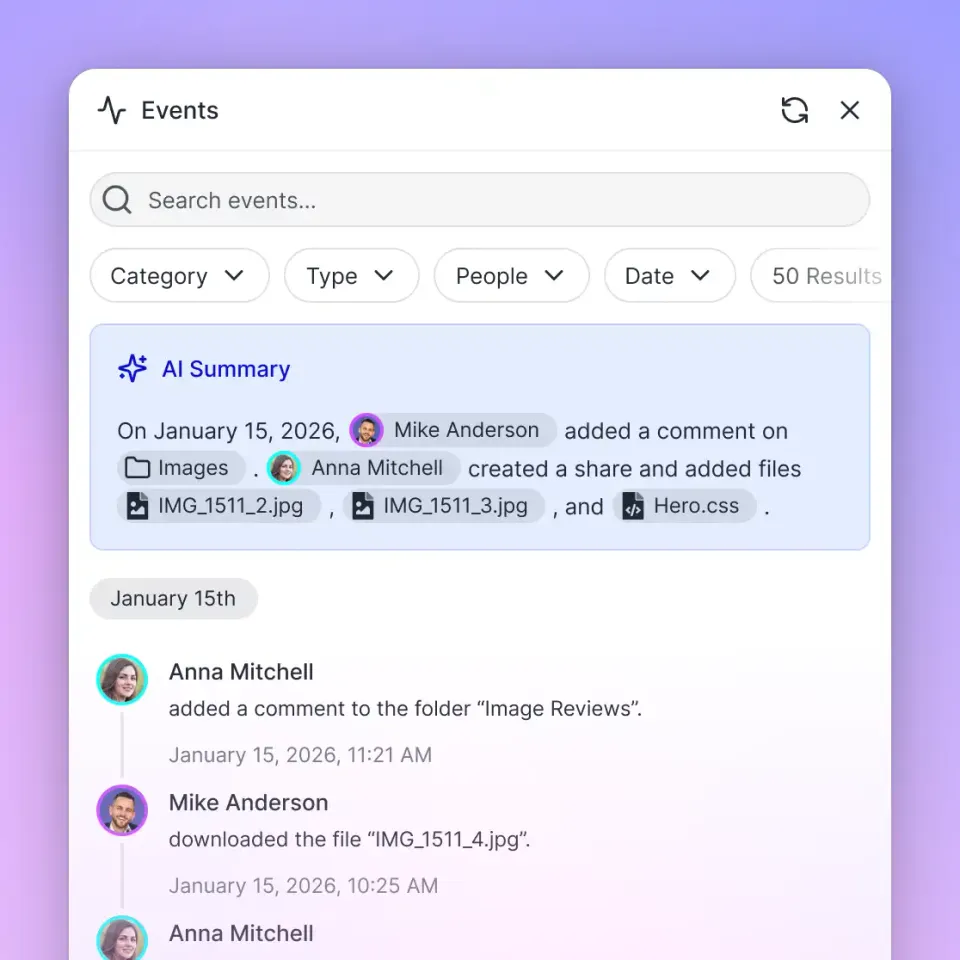
- Audit trails. Every file upload, download, and modification is logged, so you can trace what the agent did and when.
Fastio plans start at $9.99/mo for Starter with 250 GB of storage and 100,000 credits per month, with an official 14-day Business Trial (credit card required). For an agent that processes daily email digests and stores weekly reports, that provides ample capacity.
A typical pattern: the OpenClaw agent reads from Google Workspace (emails, calendar events, spreadsheet data) and writes processed output to Fastio (summaries, extracted data, organized attachments). Humans review the output in the Fastio workspace and add pinned comments. The agent checks for feedback and adjusts its behavior over time.
Sources
References used to verify factual claims in this guide.
-
24 tools across 6 Google services in one plugin MIT-licensed TypeScript plugin released April 2026
-
8-step setup workflow with HEARTBEAT.md scheduling and human approval gates
-
Python alternative routes API calls directly to Google servers without proxies
Frequently Asked Questions
How do I connect OpenClaw to Google Workspace?
Install the @tensorfold/openclaw-google-workspace plugin from ClawHub, create a Desktop OAuth client in Google Cloud Console, point the plugin's credentialsPath setting at your downloaded credentials JSON, and run the chat-based auth flow. The agent generates an OAuth URL, you sign in and grant permissions, then pass the authorization code back to complete the setup.
What Google services does OpenClaw support?
The TensorFold Google Workspace plugin supports six services: Gmail, Google Calendar, Google Drive, Google Contacts, Google Tasks, and Google Sheets. It provides 24 tools total across these services, all authenticated through a single OAuth flow.
Can OpenClaw access Gmail and Google Drive together?
Yes. The unified plugin handles both services with shared tokens, so an agent can read an email, extract an attachment, and save it to a specific Drive folder in a single workflow without re-authenticating between services.
How does OpenClaw authenticate with Google?
The plugin uses OAuth 2.0 with a Desktop application client. It computes the required scopes based on which services you enable, generates an authorization URL, and stores the resulting tokens locally. Tokens refresh automatically, and enabling new services later adds only the incremental scopes without requiring full re-authorization.
Is there an alternative to the TensorFold plugin?
Yes. Arlo Bottman's openclaw-google-workspace repository on GitHub provides a Python-based alternative that covers Gmail, Drive, Sheets, Calendar, and Google Docs. It routes all API calls directly between your machine and Google's servers without third-party proxies. Install it via npx clawhub@latest install google-workspace.
Do I need a Google Workspace account, or does a personal Gmail work?
Both work. Personal @gmail.com accounts and Google Workspace accounts are fully supported. Workspace accounts may require IT admin approval for the OAuth app depending on your organization's security policies.
How do I schedule recurring automations like daily inbox sweeps?
OpenClaw supports cron-style scheduling through a HEARTBEAT.md configuration file. Define the frequency (for example, daily at 8 AM), set batch limits to stay within Google API quotas, and add human approval gates for bulk operations that affect more than a threshold number of items.
Related Resources

Persist your OpenClaw agent's output where your team can find it
Scalable cloud storage, built-in search and RAG once Intelligence is enabled, and a remote MCP server for your agent.