OneDrive for Law Firms: Setting Up a Secure Legal Workspace
Implementing OneDrive for law firms requires strict security configurations and standardized matter templates to protect client confidentiality. This article explains how to secure client folders, design a matter-centric hierarchy, and manage external sharing links. By integrating cloud storage with intelligent workspaces, legal practices can securely exchange large files, track activity logs, and extract metadata automatically.

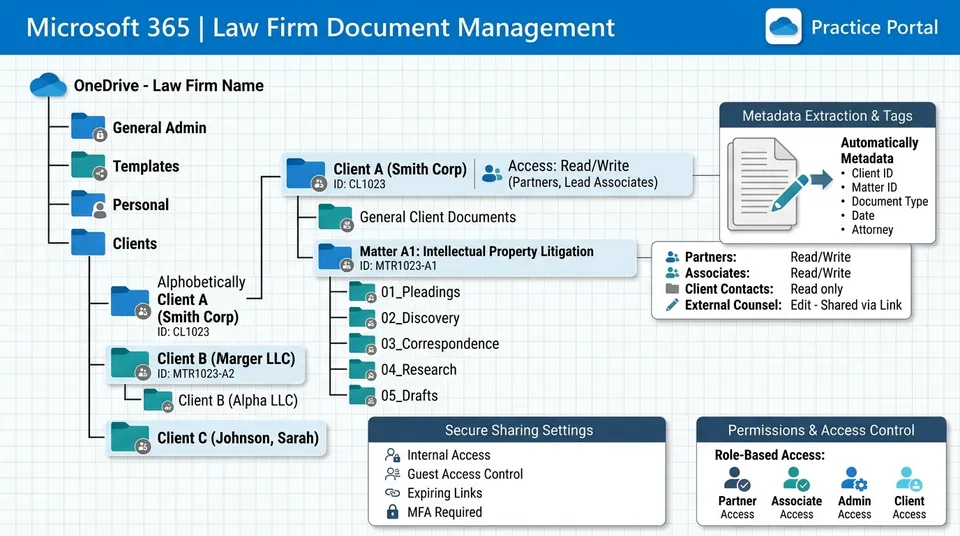
Why OneDrive for Law Firms Requires Centralized Directory Controls
General-purpose cloud storage services are insufficient for legal compliance unless administrators implement strict directory controls and configuration policies. According to the 2024 American Bar Association Cloud Computing TechReport, approximately 75% of attorneys use cloud-based platforms, and most law firms have adopted Microsoft 365 as their primary productivity ecosystem. This widespread adoption shows how central cloud storage has become to modern legal practice. However, using these platforms without standard configurations introduces major risks. When attorneys create folders ad-hoc or share files using default settings, client confidentiality is threatened. To maintain compliance, firms must transition from personal file shares to centralized organization-owned file structures.
Without central control, critical documents get scattered across personal drives. If a partner saves discovery files to a private folder, other team members cannot access them when deadlines approach. This layout is not just inefficient; it makes auditing impossible. Legal practices require a single source of truth where access permissions can be verified. By pairing Microsoft OneDrive with collaborative workspaces, practices can establish controlled environments for collaboration. Standard cloud storage alone does not provide the structure required for complex litigation or transaction management. It requires a layer of administration that actively prevents files from being orphaned in private user accounts.
Under ABA Model Rule 1.6, lawyers have an ethical duty to make reasonable efforts to prevent the unauthorized disclosure of, or unauthorized access to, information relating to the representation of a client. This means that leaving OneDrive at its default, out-of-the-box settings is a regulatory liability. By default, Microsoft 365 tenants allow users to share files externally with minimal restrictions. If an employee accidentally sends a folder link with edit permissions to the wrong email address, the firm has exposed client data. To prevent these incidents, Microsoft 365 allows administrators to enforce tenant-wide security policies that restrict external sharing and require multi-factor authentication for all guest accounts. By disabling broad public sharing at the tenant level, the firm establishes a secure baseline. Attorneys can then collaborate safely, knowing that the platform prevents accidental external exposure.
Related guides
- Google Drive Alternatives for Law Firms: Secure Document ManagementFinding secure google drive alternatives for law firms is essential to protect client confidentiality and organize case...
- Legal Document Repository Software: Top Tools for Modern Law FirmsSelecting the right legal document repository software is critical to resolving document fragmentation and protecting...
- Lightweight eDiscovery for Small Law FirmsTraditional ediscovery software for small law firms is often too complex and expensive for boutique practices. This...
- How to Set Up Google Drive for Law FirmsEstablishing a structured folder hierarchy in Google Drive is essential for legal compliance and efficient retrieval....
- Case Management Software for Law Firms: Document WorkspacesModern legal practice requires moving beyond basic calendaring to centralize sensitive files. This guide explains how...
- Client Intake Software for Law Firms: Automating Onboarding & Case FilesClient intake software for law firms automates client screening, conflict verification, and case file creation. While...
More on this subject: Legal Teams (247 guides)
Five Best Practices for Securing OneDrive Client Folders
Securing client data in Microsoft 365 requires moving beyond default configurations. Because OneDrive uses the same sharing engine as SharePoint, any permission granted in a local client folder can affect the security of the entire practice. To protect sensitive legal documents, firms should implement these five security practices:
- Disable Anonymous Link Sharing. Set default sharing settings in the Microsoft 365 admin center to limit sharing to specific recipients. Anonymous links, which allow anyone with the URL to view or edit files, must be blocked entirely. If a client forwards an anonymous link to a third party, the firm loses control of the document chain of custody.
- Restrict Guest Access Permissions. When sharing files externally, grant the lowest level of access necessary. By default, external links should be set to view-only. Block users from downloading, printing, or copying files unless they need to edit the document. This setting protects intellectual property and prevents opposing parties from distributing discovery materials.
- Force Multifactor Authentication for External Guests. Require all external users, including clients, co-counsel, and expert witnesses, to verify their identity through multifactor authentication before accessing shared folders. This prevents unauthorized access if a guest's email account is compromised.
- Enforce Automatic Link Expiration. Set tenant policies that automatically expire external links after a specific period, such as seven days. This limits the window of exposure for shared files. Once a link expires, the guest must request access again, allowing the firm to re-verify their authorization.
- Prohibit Personal Account Synchronization. Prevent employees from syncing firm OneDrive accounts to personal laptops or mobile devices. If an attorney syncs client folders to a home computer, those files are vulnerable to local malware and unauthorized viewing by family members. Use mobile device management policies to restrict sync actions to firm-owned, encrypted hardware.
Implementing these boundaries protects the firm's client data and prevents accidental sharing leaks. It also ensures that the firm remains in control of its data custody. Administrators must regularly review access lists to ensure that former employees or external contractors no longer have access to client matter files.
How to Structure a Matter-Centric Folder Hierarchy
Standardizing directory layouts is essential for legal document management. Rather than letting staff create folders dynamically, administrators must enforce a flat, predictable structure. This layout ensures that any attorney can find key files instantly.
A standardized folder template structure for a law firm should include four main top-level folders:
- 01_Active Clients. The primary directory containing subfolders for each client.
- 02_Firm Operations. Restricted folders for internal billing, marketing, and human resources.
- 03_Standard Templates. Write-protected templates for retainer agreements, letters, and pleadings.
- 04_Archived Cases. Closed matters moved to archive folders to keep the active space clear.
Within the Active Clients folder, the structure must proceed by client name and then by specific matter. Organizing by matter is critical because a single client may have multiple cases over time:
- Client Name (e.g., Client_Smith_John)
- Matter Name (e.g., Matter_2026_001_BreachOfContract)
- 01_Correspondence. Client emails and internal memos.
- 02_Pleadings. Court filings, complaints, and motions.
- 03_Discovery. Document productions, records, and depositions.
- 04_Drafts. Working files and internal notes.
- 05_Finals. Executed contracts, orders, and signed affidavits.
- Matter Name (e.g., Matter_2026_001_BreachOfContract)
Using numeric prefixes like 01_Correspondence forces the operating system to sort folders numerically rather than alphabetically. This keeps the folder layout identical across all matters, making it easy for paralegals and legal assistants to file documents correctly.
Standardizing file naming is equally important. File names should follow a strict chronological format, such as YYYY-MM-DD_DocumentType_Description. For example, a contract draft sent to a client on August 13, 2026, should be named 2026-08-13_Draft_SmithAgreement.docx. This consistency allows team members to search and sort files by name, reducing search time. The folder naming structure must remain clean and flat. Multi-layered subdirectories should be avoided. Every extra layer of folders creates friction, increasing the probability that files will be misfiled. Limiting nesting to a maximum of three layers ensures that files are easily accessible while maintaining a clean environment.
Why Generic Sharing Links Fail for Secure File Sharing on OneDrive
Sharing case files with clients, opposing counsel, and expert witnesses is a critical workflow. However, standard cloud links are often inadequate for legal work. They lack custom branding, and default settings can lead to accidental data exposure. According to the Verizon Data Breach Investigations Report, improper cloud sharing settings account for 15% of data leaks. When a firm sends a generic link, they lose control of who can access the file once it is forwarded. Furthermore, standard Microsoft sharing links often require recipients to log into a Microsoft account, creating friction for clients who do not use the platform. If opposing counsel receives a link that requires they create a Microsoft account, it delays the transmission of court documents and creates unnecessary professional friction.
To mitigate this risk, firms can connect their cloud storage to secure workspaces. Fast.io supports cloud import, allowing firms to pull files directly from OneDrive into a secure, organization-owned workspace. From there, firms can build custom-branded secure client portals to share files. Fast.io allows administrators to set granular permissions, including password protection and specific expiration dates. Links can be set to expire after a certain number of downloads or on a specific calendar day. This approach keeps client portals isolated from internal OneDrive folders, protecting the integrity of the firm's primary storage. It establishes a secure perimeter where external collaborators only interact with the files they are authorized to see, rather than the firm's broader file structure.
Fast.io also handles large legal files. Legal teams frequently need to share deposition videos, transcripts, and trial exhibits that exceed email attachments or standard cloud limits. Using chunked upload capability, Fast.io ensures reliable transmission of large files over any network connection, preventing timeout errors. For video sharing, Fast.io uses HTTP Live Streaming (HLS) to allow clients or partners to stream deposition recordings directly in the browser, removing the need to download massive files to their local devices. This accelerates review times and prevents sensitive video assets from being copied onto unauthorized hard drives. Branded shares like Send, Receive, and Exchange allow firms to customize the interface for each transaction, ensuring a professional client experience.


Deliver legal documents securely without Microsoft sharing friction
Connect your OneDrive client folders to Fast.io workspaces to build secure client portals, track downloads, and extract metadata automatically. Starts with a 14-day free trial.
Extracting Metadata and Running Semantic Searches on Client Matters
Traditional cloud search engines rely on full-text index lookups. If you search for a term, the system returns every document containing that word, creating a cluttered list during discovery audits. Traditional cloud folders also lack a native method to track custom legal metadata, such as contract values, governing jurisdictions, or termination dates. This limitation forces paralegals to spend hours opening files and manually entering data into spreadsheets.
Firms can resolve this limitation by enabling Intelligence Mode on their Fast.io workspaces. This setting auto-indexes all documents upon arrival, combining full-text search with semantic search and metadata filters. Users can search for files by meaning or ask natural language questions about the workspace, receiving answers backed by precise citations. This capability allows attorneys to quickly find critical clauses across thousands of pages of discovery documents without running complex search queries.
To build structured databases from unstructured folders, firms can use Metadata Views. Administrators describe the information they need in natural language, such as contract parties, agreement dates, or governing law. Fast.io automatically designs a typed schema, reads the files, and populates a filterable spreadsheet view. This structured extraction works with PDFs, Word documents, scanned files, and images, allowing firms to audit contract portfolios without manual entry. This feature accelerates due diligence review in mergers and acquisitions, allowing deal teams to compile disclosures in a fraction of the time.
Security remains a top priority when managing client files. Fastio runs on cloud infrastructure partners, including Google Cloud Platform and Cloudflare, that are certified to industry-leading security standards. Granular access is enforced at the organization, workspace, folder, and file levels, and every upload, download, and permission change is recorded in an append-only audit log. For active collaboration, teams can use Collaborative Notes to draft outlines and case summaries. Every note and file retains a complete version history, allowing users to restore previous versions at any time. This history ensures that no file is permanently overwritten during simultaneous editing sessions.
Every organization starts with a 14-day free trial, which requires a credit card. Subscriptions are billed based on usage, with plans including Starter at $9.99/mo, Business at $49.99/mo, and Enterprise at $199.99/mo.
Sources
References used to verify factual claims in this guide.
-
Approximately 75% of attorneys use cloud computing for work-related tasks.
-
Improper cloud sharing settings account for 15% of data leaks.
Frequently Asked Questions
Is Microsoft OneDrive secure enough for law firms?
Microsoft OneDrive can be secure enough for law firms, but only if configured correctly under a Microsoft 365 business subscription. Firms must disable anonymous sharing, restrict guest folder permissions, and enforce multifactor authentication. However, OneDrive lacks built-in legal document features like automated metadata extraction and frictionless client portals, which require connecting a secure intelligent workspace.
How do I share a OneDrive folder with a client securely?
To share a OneDrive folder securely, administrators should restrict link access to specific email addresses, set an expiration date, and disable downloading. For a better client experience, firms can connect OneDrive to Fast.io, which allows sharing files through branded client portals without forcing clients to log into a Microsoft account.
What is the difference between OneDrive and SharePoint for lawyers?
In a legal practice, OneDrive is typically used for personal draft files and work in progress, whereas SharePoint serves as the central repository for shared client matters and firm-wide archives. Both share the same underlying security infrastructure, but SharePoint is designed for team-wide document management systems (DMS), while OneDrive is for individual storage.
Related Resources

Deliver legal documents securely without Microsoft sharing friction
Connect your OneDrive client folders to Fast.io workspaces to build secure client portals, track downloads, and extract metadata automatically. Starts with a 14-day free trial.