How to Configure the Filesystem MCP Server for AI Agents
The official filesystem MCP server (@modelcontextprotocol/server-filesystem) exposes local directory access to AI agents via read/write file tools. This guide shows you how to configure the server for Claude Desktop, restrict directory scope to prevent security risks, and implement secure cloud-based workspaces using Fastio.


What is the modelcontextprotocol/server-filesystem MCP Server?
Pointing an autonomous agent at a local filesystem with write permissions is the security equivalent of letting a remote contractor run terminal commands without looking. While the Model Context Protocol filesystem server lets models read and write project files, it introduces a massive attack surface if the agent runs malicious code or overwrites system files. Understanding how to configure the server and restrict its scope is essential for any developer using local AI assistants.
The official filesystem MCP server (modelcontextprotocol/server-filesystem) exposes local directory access to AI agents via read/write file tools. The package is hosted under the official modelcontextprotocol GitHub organization as part of the modelcontextprotocol/servers repository. It implements a standard communication channel based on the Model Context Protocol (MCP) specification, enabling LLM clients to discover and run file-based operations.
When an AI agent connects to this server, it receives a capabilities list defining the available file operations. The server exposes the following tools:
read_text_file: Reads the complete contents of a text file. It accepts apathparameter and supports optionalheadandtailparameters to read specific line ranges.read_multiple_files: Reads the contents of multiple files at once.write_file: Creates a new file or completely overwrites an existing file with the provided text content.edit_file: Applies precise changes to a text file by searching for a specific target string and replacing it with new content.create_directory: Creates a new directory path. It operates recursively and succeeds if the directory already exists.list_directory: Lists the files and subdirectories directly inside a specified folder.directory_tree: Generates a recursive JSON tree view of the directory contents, showing files, folders, and nested children.move_file: Relocates or renames a file or directory from a source path to a destination path.search_files: Recursively searches for files and directories that match a glob pattern.get_file_info: Retrieves file metadata, including size, creation time, and last modified date.list_allowed_directories: Lists the absolute paths currently authorized for server access.
Note that the legacy read_file tool is deprecated in the official repository. Developers are encouraged to use read_text_file instead, as it handles text encodings better and supports partial reads. Partial reads prevent large files from filling the model's context window, saving token costs and reducing latency.
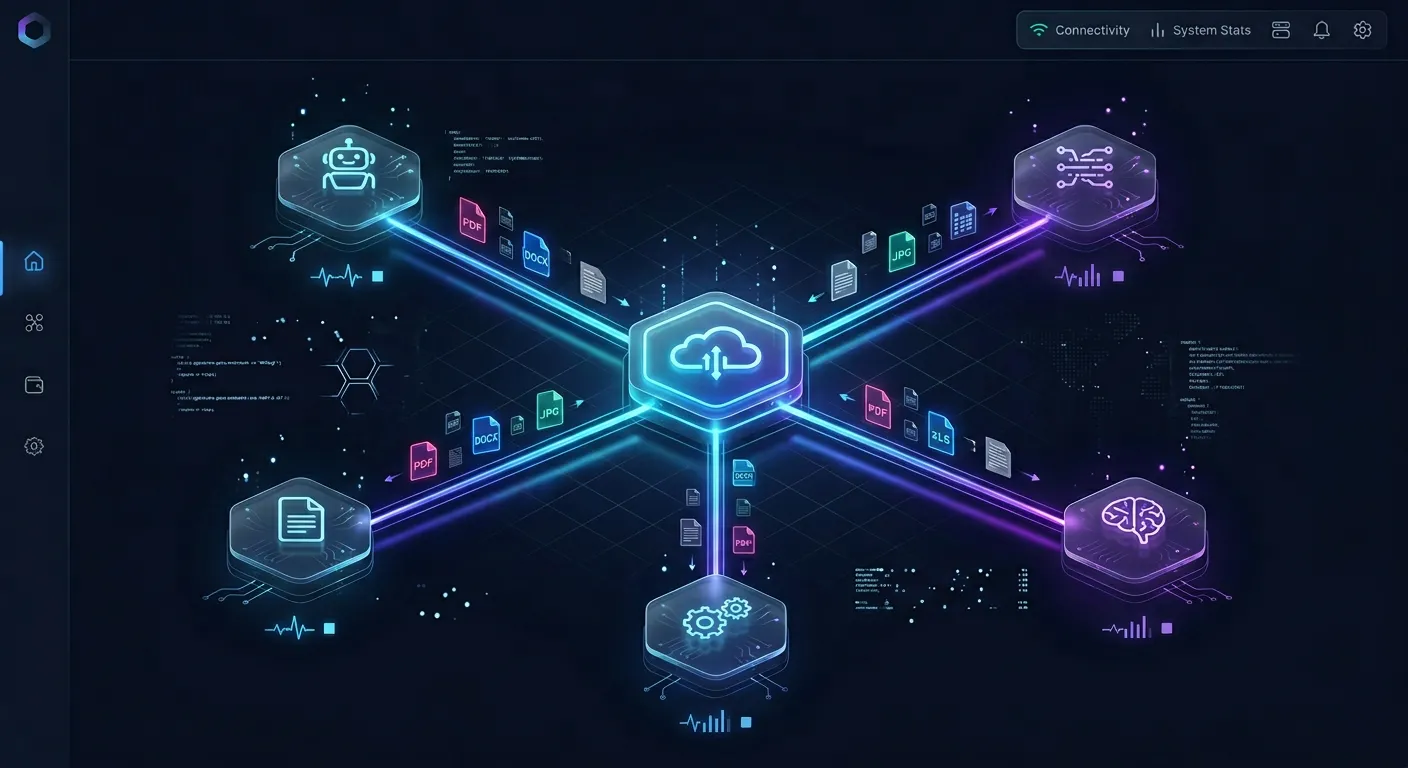
Available Tools and Their Parameters
Understanding the tool schemas is essential for developers building custom integrations. The server defines strict parameters for each operation. For example, the read_text_file tool expects a path argument and optional head or tail integers. The write_file tool requires both path and content strings. By adhering to these schemas, the client validates the inputs before calling the server, ensuring that only properly formatted requests are executed.
The Deprecation of read_file
The legacy read_file tool returned raw data, which could overwhelm the LLM's context window when handling large source files. The modern read_text_file tool addresses this limitation. By allowing developers or agents to request only the first or last few lines of a file, it optimizes token consumption and improves processing speed.
Related guides
- How to Track C++ File Modifications with std::filesystem::last_write_timeTracking file modification times is essential for C++ applications synchronizing local files with shared workspaces....
- ChatGPT SharePoint Connector: Enterprise Setup vs. Fast.io MCP WorkspacesConnecting ChatGPT to SharePoint document libraries gives conversational models access to enterprise knowledge. While...
- Resolving Secure Sandbox Paths with std::filesystem::canonicalThe std::filesystem::canonical function resolves all symbolic links, relative segments, and redundant separators in C++...
- How to Secure C++ Agent Sandboxes With std::filesystem::permissionsDynamic file creation by autonomous coding agents introduces the risk of file corruption and privilege escalation....
- Connecting AutoGen Multi-Agent Systems to SharePoint: Architecture and SetupAn AutoGen SharePoint connector enables Microsoft AutoGen agent teams to authenticate against Microsoft Graph and query...
- Amazon Bedrock SharePoint Connector: Setup, Limitations, and AlternativesThe Amazon Bedrock SharePoint connector allows Amazon Bedrock Knowledge Bases to ingest and index documents stored in...
More on this subject: Agent File and Document Workflows (346 guides)
How to Configure Claude Desktop for Local File Access
To connect Claude Desktop to the filesystem MCP server, you must edit its configuration file. This file is named claude_desktop_config.json and is located in the application support folder of your operating system.
Depending on your environment, you can locate the configuration file at the following absolute paths:
- macOS:
~/Library/Application Support/Claude/claude_desktop_config.json - Windows:
%APPDATA%\Claude\claude_desktop_config.json
If the file does not exist in these directories, you must create a new text file named claude_desktop_config.json and initialize it. Add the filesystem server configuration under the mcpServers block:
{
  "mcpServers": {
    "filesystem": {
      "command": "npx",
      "args": [
        "-y",
        "@modelcontextprotocol/server-filesystem",
        "/Users/username/workspace/project-a",
        "/Users/username/workspace/project-b"
      ]
    }
  }
}
Let's examine how this configuration works:
mcpServers: This is the top-level configuration key that Claude Desktop reads to launch MCP servers at startup.filesystem: The unique identifier for this server instance.command: The executable command used to run the server. We usenpxto execute the Node.js package. This requires Node.js v18 or higher to be installed on your local machine and available in your system path.args: The arguments passed to the command. The-yflag forcesnpxto download and install the@modelcontextprotocol/server-filesystempackage without prompting you for confirmation. The subsequent strings in the array are the absolute paths to the directories you authorize.
Some developers use other coding assistants like the Cline extension in Visual Studio Code. While Cline uses a similar configuration structure, its settings are stored in a file named cline_mcp_settings.json located in its own extension directory. Always ensure you edit the specific settings file for your target client. After editing the configuration file, you must restart Claude Desktop or reload your client application to apply the changes and launch the server.
Prerequisites and Node.js Setup
Before configuring the server, verify that Node.js is installed correctly. Open your terminal and run node -v and npm -v to check the active versions. If Node.js is not present on your system, download the current version from the official website. Running the server via npx ensures you are always using the latest release of the filesystem package.
Troubleshooting Common Connection Failures
If the filesystem tools do not appear in your AI client, check the application logs. Common issues include JSON syntax errors, such as missing commas or unescaped backslashes in Windows folder paths. On Windows, ensure you escape path delimiters using double backslashes, for example C:\\Users\\username\\projects, or use forward slashes.
How to Restrict Directories and Control Permission Scope
The filesystem MCP server requires explicit directory permissions. By default, the server denies access to all paths on your machine. You must define each authorized folder as an absolute path in the server's arguments list. If you do not pass any directory paths during startup, the server initializes with an empty allowed list and rejects all file tools.
When the AI client invokes a tool like read_text_file or write_file, the server performs path validation. This security mechanism operates through the following steps:
- The server receives a target file path from the AI agent.
- It resolves the path to its canonical form using the operating system's realpath function. This step resolves all relative segments, symbolic links, and shorthand references.
- It checks if the resolved canonical path is a child of at least one of the configured allowed directories.
- If the path is within the boundary, the server executes the filesystem operation. If the path falls outside the boundary, the server blocks the operation and returns an access denied error.
This validation mechanism prevents directory traversal attacks. For example, if you allow access only to /Users/username/project, the agent cannot read files in other system folders. If the agent attempts to pass a path like /Users/username/project/../../.ssh/id_rsa, the path validator resolves the relative segments to /Users/username/.ssh/id_rsa and blocks the request.
However, developers must understand how permissions operate. The server process runs as a local child process under your user account. It inherits all of your system permissions. It cannot read files that you do not have permission to read, but it has access to any files you can modify. If you run the client with administrator privileges, or if you include sensitive key folders in the allowed list, the agent can read and modify those critical files.
How Directory Traversal is Prevented
The server's internal path validation logic blocks any relative path modifications that attempt to reach parent directories. By enforcing strict string prefix matching on the resolved canonical path, the server ensures the agent remains jailed within the specified folders.
Windows Path Sensitivity and Symlink Resolution
Path validation can be sensitive to drive letter casing and short path configurations on Windows. Ensure that the paths specified in your configuration match the exact casing returned by the operating system, and avoid using symbolic links that point outside the allowed directories, as these will be resolved and blocked.


Secure your modelcontextprotocol/server-filesystem data in the cloud
Stop running local node servers. Connect your AI agents to Fastio workspaces with per-file version history, granular access controls, and remote MCP endpoints. Start your 14-day free trial today, credit card required.
Why Local Write Access Poses Serious Security Risks
Most guides ignore the security risk of giving an agent full write access to your local workspace, and don't provide a cloud-based sandbox alternative. While restricting directories prevents the agent from reading system configuration files, it does not secure the files within the allowed directories themselves. Once you give an agent access to a project folder, you expose your active code to several security and operational risks.
Consider the primary risks associated with local write access:
- Accidental Deletion of Source Code: AI agents are autonomous and can make errors. If you ask an agent to clean up deprecated modules, a logic error or directory traversal hallucination can cause it to delete active development directories.
- Prompt Injection Vulnerabilities: If the agent reads an external document or source file that contains hidden instructions, it can execute those commands. For example, a file might contain a malicious instruction telling the agent to overwrite your main entry point with empty data.
- Secret and Credential Exposure: Many developers store API keys, database credentials, and private environment variables in
.envfiles inside their project root. If the agent has read access to the project directory, it can read these credentials and print them in logs or send them to external API endpoints. - Infinite Loop Writes: If an agent enters an infinite loop, it can write repetitive data to a log file or create endless subdirectories, consuming local disk space and causing system instability.
These risks highlight the need for isolation. Running agents directly on your development machine with raw write permissions on your active code creates a high probability of file loss or security exposure.

The Danger of Autonomous Deletions and Overwrites
Because the server includes destructive tools like write_file and move_file, a single hallucination can overwrite important source files. The model cannot recover overwritten data unless you use a local version control system and commit your changes regularly.
Indirect Prompt Injections in File Reading
When an agent reads untrusted files, such as downloaded PDFs or scraped web pages, it can ingest hidden text prompts. These prompts can instruct the agent to run local file tools maliciously, using the agent's active filesystem permissions to compromise your project workspace.
How to Mitigate Local Risks with Fastio Workspaces
To protect your local environment from the security risks of direct filesystem access, you can use Fastio as a secure, cloud-based workspace. Instead of running local servers and allowing agents to edit files on your hard drive, you can import your project files into a Fastio workspace. Fastio serves as an intelligent workspace where humans and agents collaborate safely.
Using Fastio provides several security and coordination features:
- Per-File Version History: Fastio automatically maintains a full history of every file in the Fastio workspaces. If an agent writes faulty code, overwrites a configuration file, or deletes an asset, you can view the changes and restore a previous version from the web interface.
- Granular Access Controls: You can configure permissions at the organization, workspace, folder, or file level. This allows you to restrict the agent's write access to specific output directories while protecting your main design documents.
- Append-Only Audit Log: Every file creation, modification, deletion, and import is recorded in an immutable audit log. This log gives you full visibility into exactly what files the agent modified and when.
- Coordination Rooms: Fastio supports Fastio Coordination Rooms, which are shared workspaces carrying a server-owned room flag where humans and agents post messages and files, allowing multiple agents to hand off work without sync conflicts.
- Workspace Intelligence Mode: Fastio automatically indexes your workspace documents for semantic search. Agents can use this search layer to find context across thousands of files without downloading the files locally.
- Remote MCP Server: Connect your agent directly to Fastio remote MCP server or the key-based endpoint at
/storage-for-agents/with an API token in theAuthorization: Bearerheader. The agent executes file tools in the cloud workspace, ensuring your local machine remains isolated.
Getting started is straightforward. Creating a user account is free; doing real work requires an organization on a paid subscription. Every organization starts with a 14-day free trial, which requires a credit card. Fastio plans are Starter at $9.99/mo, Business at $49.99/mo, and Enterprise at $199.99/mo. Once your organization is set up, you can import files from external storage services or URLs, enable workspace intelligence, and point your agent to Fastio remote MCP server. This setup allows you to use agentic workflows without risking your local system files. For detailed subscription terms, check the Fastio pricing page.
Reverting Agent Mistakes with Version History
Fastio's automatic version history acts as a safety net. If an agent produces a corrupted output, you can inspect the file's historical versions in the web UI and roll back the file to its last healthy state in seconds, bypassing complex git rollbacks.
Connecting Remote Agents via Hosted MCP
By connecting Claude Desktop to the Fastio remote MCP endpoint, you remove the need for local Node.js processes. The agent reads and writes inside the versioned cloud sandbox, allowing you to access project assets securely from any machine.
Frequently Asked Questions
What is the official filesystem MCP server?
The official filesystem MCP server, published as @modelcontextprotocol/server-filesystem on npm, is a reference server that exposes local directory read and write tools to AI agents using the Model Context Protocol.
How do I configure modelcontextprotocol/server-filesystem?
Configure the server by adding its package name and directory arguments to your client settings file, such as claude_desktop_config.json for Claude Desktop, using npx to launch it.
How do I restrict directories in MCP filesystem server?
Restrict directories by passing specific absolute folder paths as arguments in the server configuration. The server blocks any attempts to access files outside these designated paths.
Related Resources

Secure your modelcontextprotocol/server-filesystem data in the cloud
Stop running local node servers. Connect your AI agents to Fastio workspaces with per-file version history, granular access controls, and remote MCP endpoints. Start your 14-day free trial today, credit card required.