How to Connect a Linux File Server to Intelligent Agent Workspaces
Connecting a traditional Linux file server to autonomous agents requires a bridge that translates raw directory hierarchies into queryable context. By wrapping standard network shares in a Model Context Protocol endpoint, developer teams can establish shared, collaborative workspaces for multi-agent workflows. This guide covers NFS and Samba setups, custom bash directory indexing, and remote cloud workspace mappings.

Why Networked Linux Storage Requires Semantic Bridges
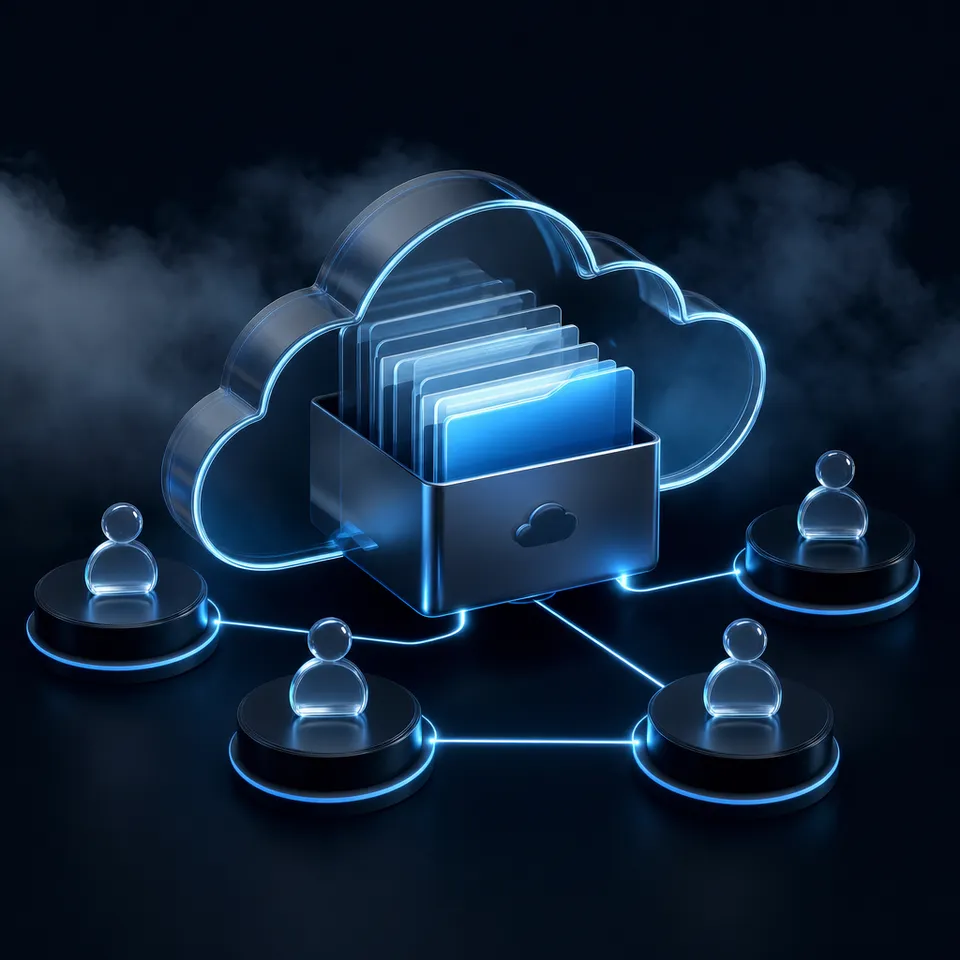
Two coding agents pointed at the same directory will happily overwrite each other's files because they lack a shared, persistent workspace. When developers run autonomous agents across isolated host machines or containers, directories hosted on a traditional Linux file server remain invisible to LLM context windows. Standard network sharing protocols like NFS or Samba coordinate storage at the operating system level, but they lack the semantic indexing necessary for AI reasoning.
A Linux file server coordinates networked storage via protocols like NFS or Samba, but requires an MCP bridge to become queryable by LLM agents. Without this translation layer, an agent cannot inspect directories, search file content, or write outputs without running exhaustive local script loops that waste tokens. Exposing files directly through a dedicated bridge resolves the context barrier, turning a standard directory into an active workspace.
Developers have historically relied on a few common alternatives to share files with agents, including raw local mounts, Amazon S3 buckets, and traditional services like Google Drive or Dropbox. However, local folder mounts cannot scale across multiple physical machines or containers, while Amazon S3 requires managing complex API policies and provides no visual interface for human teammates. Traditional cloud storage folders frequently struggle with concurrent agent read and write operations, which can trigger API throttling and cause version conflicts. Exposing the Linux directories to Fast.io workspaces provides a neutral ground. Fast.io serves as an intelligent coordinate layer where agents from different frameworks, including Claude Code, Codex, and OpenClaw, can read and write files alongside human team members. This setup ensures that your files, code outputs, and project structures remain persistently indexed and visible to the entire team.
Related guides
- How to Give AI Agents Secure Cloud File StorageAutonomous agents need more than vector memory. They need actual file storage to read documents, generate reports, and...
- How to Add Persistent File Storage to Dify AI AgentsDify AI file storage connects the Dify open-source LLM platform to persistent cloud storage. This lets agents read,...
- Fastio vs Amazon S3: Best Storage for AI Agent WorkspacesAmazon S3 provides raw object storage, while Fastio gives AI agents an MCP-ready workspace. S3 requires developers to...
- How to Integrate Langflow File StorageLangflow agents delete files when sessions end. This guide shows three ways to add permanent storage: native local...
- How to Create Fastio Workspaces Programmatically via APIProgrammatic workspace creation allows developers to dynamically spin up isolated, intelligence-ready Fastio...
- How to Add Persistent File Storage to Relevance AI AgentsRelevance AI is a great no-code platform for building agent workflows. But its built-in storage has limits. You get a...
More on this subject: Agent Memory and Storage (263 guides)
How to Configure a Linux File Server with NFS and Samba
Setting up a Linux file server is the standard starting point for coordinating local storage. While Unix-based systems power 91.9% of all websites whose operating system is known, configuring these servers for autonomous agents requires adjusting traditional permission models. Developers typically rely on either Network File System (NFS) for high-performance Unix-to-Unix mounts or Samba for cross-platform compatibility.
For an NFS server setup on Ubuntu, the process begins by installing the kernel server package. The administrator defines the shared directory, creates the export rules, and mounts the share on the client machine. The setup involves editing the exports configuration file to define client IP addresses and write permissions:
sudo apt update
sudo apt install nfs-kernel-server
sudo mkdir -p /srv/shares/agent-data
sudo chown -R nobody:nogroup /srv/shares/agent-data
sudo chmod 777 /srv/shares/agent-data
The /etc/exports file dictates which clients can access the mount, using settings like read-write access and root squashing to manage security boundaries. A typical export configuration block maps the share to a specific local subnet:
/srv/shares/agent-data 192.168.1.0/24(rw,sync,no_subtree_check)
After saving the file, running sudo exportfs -a applies the export configuration immediately.
If the development environment includes macOS or Windows host machines, a Samba file server Linux configuration is a better fit. Samba uses the Server Message Block protocol to handle file sharing. Setting up Samba requires installing the daemon, defining the share path, and configuring authentication in the configuration file:
sudo apt install samba
sudo nano /etc/samba/smb.conf
Within /etc/samba/smb.conf, the configuration block defines the share characteristics:
[AgentShare]
   path = /srv/shares/agent-data
   writable = yes
   guest ok = yes
   read only = no
   force create mode = 0775
   force directory mode = 0775
Restarting the Samba services exposes the folder immediately to the local network. Although these mount points provide network access, they are still simple file directories. If an agent wants to read a file, it must mount the network share and run standard operating system read utilities. This configuration does not support semantic search, semantic indexing, or citation-backed chat on its own. Stack Overflow’s 2024 Developer Survey shows that Ubuntu is used by 27.7% of developers responding about their development environment.
Writing Custom Tooling to Expose Local Directories to MCP
To make the files on your Linux file server visible to LLMs, you must establish an active bridge. The Model Context Protocol (MCP) defines an open standard for connecting foundation models to local or remote data sources. Instead of forcing an agent to run terminal commands to search the filesystem, an MCP server exposes file reading, writing, and searching as tools that the agent can execute programmatically.
For a Linux environment, you can write custom bash tooling that exposes the directory contents to an MCP server. For example, a custom bash script can scan directories, filter specific extensions, and return clean markdown content. This script runs on the file server and communicates with the agent runtime. The following bash utility illustrates how to scan a directory and output file details as a JSON array for an MCP tool:
#!/usr/bin/env bash
set -euo pipefail
TARGET_DIR="/srv/shares/agent-data"

echo "{"
echo "  \"files\": ["
first=true
while IFS= read -r file; do
    if [ "$first" = true ]; then
        first=false
    else
        echo ","
    fi
    size=$(stat -c%s "$file")
    mtime=$(stat -c%Y "$file")
    echo -n "    {\"name\": \"$(basename "$file")\", \"size\": $size, \"modified\": $mtime}"
done < <(find "$TARGET_DIR" -type f -maxdepth 2)
echo ""
echo "  ]"
echo "}"
While this custom bash tooling works well for agents running on the same machine, local stdio-based MCP servers have a major limitation. They run as local processes, meaning the connection is isolated to the active terminal window or IDE session. If you shut down your laptop, switch from an office desktop to a home workspace, or run agents inside separate Docker containers, the agent loses connection to the local server. A remote, cloud-hosted MCP endpoint resolves this boundary by providing a persistent connection that stays online across different machines, environments, and developers.
How to Bridge a Linux File Server to Fast.io Cloud Workspaces
Connecting your Linux file server to Fast.io enables remote MCP access and auto-indexing. Instead of running a local server on your desktop, you can map your local Linux directory directly to a persistent cloud workspace. Fast.io exposes remote MCP tools via Streamable HTTP at https://mcp.fast.io/mcp/tools. This means any agent, running anywhere in the world, can connect to your workspace using standard HTTP headers and an API key.
Uploads run through the MCP toolset rather than a hand-rolled REST client. Point your agent at the named-tools endpoint with your API key as a Bearer header, then have it call the upload_manage tool for each file you want mirrored into the workspace:
{
  "mcpServers": {
    "fastio": {
      "type": "streamableHttp",
      "url": "https://mcp.fast.io/mcp/tools",
      "headers": {
        "Authorization": "Bearer YOUR_FASTIO_API_KEY"
      }
    }
  }
}
For binaries and large files, the upload tool stages bytes through a POST /blob sidecar and hands back a blob_id, which keeps the transfer off the JSON-RPC transport entirely. An agent watching /srv/shares/agent-data can therefore run a scan-and-upload loop on your Linux server without any local sync daemon, and without your writing a bespoke upload client. When files land in the workspace, Fast.io's Intelligence Mode immediately indexes them. The files are parsed for keyword and semantic search, allowing agents to execute RAG queries across the entire folder structure. Because indexing occurs in the cloud, agents do not need to download entire file sets or hit context limits during search tasks. They simply run queries through the remote MCP toolset, retrieving only the precise context blocks and citation references they need.



Expose your Linux file server to autonomous agents
Get a shared cloud workspace with an MCP-ready remote endpoint for your agent team, with version history, semantic search, and metadata views. Starts with a 14-day free trial.
Coordinating Multi-Agent Workspaces with Persistent Context
Once your Linux file server is bridged to Fast.io, you can establish collaborative environments for human-agent teams. Fast.io workspaces are shared spaces where multiple developers and autonomous agents post files, share notes, and review work. Instead of isolating files on a single developer's machine or a local network share, workspaces act as a shared substrate. A research agent can drop raw data into a workspace folder, a writing agent can compile a summary report in the same space, and a human teammate can review the output directly in the browser UI.
Within these shared spaces, team members can collaborate on live documents using Collaborative Notes. Fast.io Notes provides real-time co-editing with multiplayer cursors, treating both humans and agents as first-class editors on a shared canvas. For teams handling complex document sets, Fast.io supports Metadata Views to turn unstructured folder data into a structured spreadsheet database. Users describe the columns they want in plain English, and the platform automatically designs a typed schema supporting Text, Integer, Decimal, Boolean, URL, JSON, and Date & Time fields. For instance, you can extract counterparty names, effective dates, or total values from incoming files, creating a queryable data grid that agents can search via MCP. Learn more about document data extraction by reviewing the Metadata Views overview.
This coordination model ensures that the entire lifecycle of agent outputs remains auditable and secure. Fast.io logs every file operation in a detailed activity log and preserves a detailed, per-file version history. If an agent writes a bug or overwrites a critical file, you can restore previous versions with a single click. When a developer completes setting up the workspace, they can transfer organization ownership to a human administrator. Monthly plans start with a trial of up to 14 days (credit card required); annual plans have no trial. Paid subscriptions include the Starter tier at $9.99 per month, the Business tier at $49.99 per month, and the Enterprise tier at $199.99 per month. This structure allows developers to build and test pipelines before handing control to the client or organization admin. Get started with persistent workspaces by visiting the Fast.io pricing page.
Sources
References used to verify factual claims in this guide.
-
Unix-based systems power 91.9% of all websites whose operating system is known.
-
Ubuntu is used by 27.7% of developers responding about their development environment.
Frequently Asked Questions
How do I create a file server in Linux?
You can create a file server in Linux by installing and configuring network sharing services like Network File System (NFS) or Samba. NFS is ideal for sharing files between Unix-like operating systems, while Samba provides file sharing compatibility with Windows and macOS clients.
Which Linux distribution is best for a file server?
Ubuntu Server and Debian are widely considered the best Linux distributions for a file server due to their stability, long-term support release cycles, and extensive package repositories. Other popular enterprise choices include Red Hat Enterprise Linux and Rocky Linux.
How can AI agents read files on a Linux server?
AI agents can read files on a Linux server by mounting the network directories or by connecting through a Model Context Protocol (MCP) server. Exposing directories via an MCP endpoint allows LLMs to query, search, and edit files using standardized tools instead of executing raw terminal commands.
Related Resources

Expose your Linux file server to autonomous agents
Get a shared cloud workspace with an MCP-ready remote endpoint for your agent team, with version history, semantic search, and metadata views. Starts with a 14-day free trial.