How to Install Claude Code on Mac, Windows, and Linux
Claude Code generated over 400,000 public GitHub commits in a single day by May 2026, making it one of the fastest-adopted developer tools in years. Getting started takes one terminal command on any platform, but picking the wrong installer or missing a WSL gotcha can waste an afternoon. This guide covers every installation method across macOS, Windows, and Linux, with platform-specific troubleshooting for the problems most tutorials skip.


What You Need Before Installing
Claude Code reached 403,712 public GitHub commits in a single day by May 2026, and the average developer using the tool now spends 20 hours per week with it, according to Anthropic CEO Dario Amodei at the Code with Claude conference. That adoption happened fast, partly because installation takes a single terminal command. But developers still stumble when they pick the wrong method for their platform, mix up PowerShell and CMD on Windows, or hit WSL1 compatibility issues that the official docs bury three pages deep.
Before you install, check three things.
Account
You need a paid Claude subscription (Pro, Max, Team, or Enterprise), an Anthropic Console account with pre-paid credits, or access through Amazon Bedrock, Google Vertex AI, or Microsoft Foundry. The free Claude.ai chat plan does not include Claude Code.
Operating system
- macOS 13.0 or later
- Windows 10 (build 1809+) or Windows 11
- Ubuntu 20.04+, Debian 10+, Fedora, RHEL, or Alpine Linux 3.19+
Hardware
4 GB RAM minimum and a 64-bit processor (x64 or ARM64). An internet connection is required for both installation and usage.
You do not need Node.js unless you specifically choose the npm installation method. The native installer, Homebrew, and WinGet all install a standalone binary with zero runtime dependencies.
Related guides
- How to Install OpenClaw on Linux with Systemd and Auto-StartOpenClaw's installer gets the Gateway running in under a minute, but on a headless Linux server the process dies the...
- How to Install and Run OpenClaw in WSL2 on WindowsWSL2 gives Windows users a full Linux kernel for running OpenClaw Gateway without dual-booting, but the official docs...
- Is Claude Code Free? Free Tier, Credits, and Budget Options ExplainedClaude Code requires a paid Anthropic account or API credits, but "paid" does not have to mean $20 per month. Free API...
- Claude Code Review: How to Use /code-review and UltrareviewClaude Code ships a built-in /code-review command that scans diffs for correctness bugs and improvement opportunities...
- Claude Code Teams: Multi-Agent Orchestration GuideClaude Code agent teams split complex coding tasks across multiple independent AI sessions. Each teammate gets its own...
- How to Use Claude Code on the WebClaude Code authored roughly 4% of all public GitHub commits by February 2026, yet most developer guides treat it as a...
More on this subject: Claude and Claude Code (280 guides)
Install Claude Code on macOS
The native installer is the fast path. It downloads a standalone binary, adds it to your PATH, and enables automatic background updates.
Open Terminal and run:
curl -fsSL https://claude.ai/install.sh | bash
The binary installs to ~/.local/bin/claude and auto-updates whenever a new version ships. No Homebrew tap, no npm, no runtime dependency.
Homebrew Alternative
If you prefer managing packages through Homebrew, two casks are available:
brew install --cask claude-code
The claude-code cask tracks the stable release channel, which runs about one week behind the latest and skips releases with known regressions. For the newest version the day it ships:
brew install --cask claude-code@latest
Homebrew installations do not auto-update. Run brew upgrade claude-code or brew upgrade claude-code@latest periodically to stay current.
Verify the Installation
claude --version
If this prints a version number, you are ready to authenticate. If you see zsh: command not found: claude, add ~/.local/bin to your PATH:
echo 'export PATH="$HOME/.local/bin:$PATH"' >> ~/.zshrc
source ~/.zshrc
Install Claude Code on Windows
Windows gives you three paths: native PowerShell, native CMD, and WinGet. Pick the one that matches your terminal.
PowerShell (Recommended)
Open PowerShell (not the x86 version) and run:
irm https://claude.ai/install.ps1 | iex
CMD
If you work in Command Prompt instead of PowerShell:
curl -fsSL https://claude.ai/install.cmd -o install.cmd && install.cmd && del install.cmd
A common mistake: running the PowerShell command in CMD or the CMD command in PowerShell. Your prompt shows PS C:\ in PowerShell and C:\ without the PS in CMD. If you see 'irm' is not recognized, you are in CMD and should use the CMD command. If you see The token '&&' is not a valid statement separator, you are in PowerShell and should use the PowerShell command.
WinGet
winget install Anthropic.ClaudeCode
WinGet installations do not auto-update. Run winget upgrade Anthropic.ClaudeCode to get newer versions.
Git for Windows
Installing Git for Windows is optional but recommended. It gives Claude Code access to the Bash tool, which handles shell commands more reliably than PowerShell for most development workflows. Without Git for Windows, Claude Code falls back to PowerShell as its shell tool.
Install Inside WSL2
If your projects live inside a WSL2 distribution, install Claude Code inside WSL using the Linux native installer:
curl -fsSL https://claude.ai/install.sh | bash
WSL2 provides full Linux binary compatibility and sandboxing support. WSL1 has a known regression that causes cannot execute binary file: Exec format error with the native binary. Check your WSL version in PowerShell:
wsl --list --verbose
The VERSION column shows 1 or 2 for each distribution. To convert from WSL1 to WSL2:
wsl --set-version <DistroName> 2
When authenticating from WSL2, the browser often cannot redirect back to Claude Code's local callback server. If the browser shows a login code after sign-in instead of redirecting, paste that code into the terminal prompt. If the browser does not open at all, set the BROWSER variable to your Windows browser path:
export BROWSER="/mnt/c/Program Files/Google/Chrome/Application/chrome.exe"


Give your Claude Code agent persistent storage
A shared workspace with MCP access. Upload project files, query them with AI, and share outputs with your team. Starts with a 14-day free trial.
Install Claude Code on Linux
The native installer works on all supported distributions:
curl -fsSL https://claude.ai/install.sh | bash
For teams that manage software through system package managers, Claude Code publishes signed repositories for apt, dnf, and apk. Each offers both a stable channel (about one week behind, skips broken releases) and a latest channel.
Debian and Ubuntu (apt)
sudo install -d -m 0755 /etc/apt/keyrings
sudo curl -fsSL https://downloads.claude.ai/keys/claude-code.asc \
  -o /etc/apt/keyrings/claude-code.asc
echo "deb [signed-by=/etc/apt/keyrings/claude-code.asc] https://downloads.claude.ai/claude-code/apt/stable stable main" \
  | sudo tee /etc/apt/sources.list.d/claude-code.list
sudo apt update
sudo apt install claude-code
Upgrade later with sudo apt update && sudo apt upgrade claude-code.
Fedora and RHEL (dnf)
sudo tee /etc/yum.repos.d/claude-code.repo <<'EOF'
[claude-code]
name=Claude Code
baseurl=https://downloads.claude.ai/claude-code/rpm/stable
enabled=1
gpgcheck=1
gpgkey=https://downloads.claude.ai/keys/claude-code.asc
EOF
sudo dnf install claude-code
Upgrade later with sudo dnf upgrade claude-code.
Alpine Linux (apk)
wget -O /etc/apk/keys/claude-code.rsa.pub \
  https://downloads.claude.ai/keys/claude-code.rsa.pub
echo "https://downloads.claude.ai/claude-code/apk/stable" >> /etc/apk/repositories
apk add claude-code
Alpine and other musl-based distributions require extra dependencies:
apk add libgcc libstdc++ ripgrep
Then set USE_BUILTIN_RIPGREP to 0 in your Claude Code settings file.
npm (All Platforms)
If you already have Node.js 18+ installed, the npm package works on macOS, Windows, and Linux:
npm install -g @anthropic-ai/claude-code
The npm package installs the same native binary as other methods. Do not use sudo with this command since it creates permission issues. To update, run npm install -g @anthropic-ai/claude-code@latest rather than npm update -g, which respects the semver range from the original install and may not move you to the newest release.
Authenticate and Verify Your Setup
After installation, start an interactive session:
claude
On first launch, Claude Code prompts you to log in. Follow the browser prompts to authenticate with your Claude subscription or Console account. Your credentials are stored locally after the first login, so you only authenticate once. If you need to switch accounts later, type /login inside a running session.
To verify everything works:
claude --version
For a deeper diagnostic check that inspects your PATH, binary integrity, and authentication status:
claude doctor
Keep Claude Code Updated
Native installations auto-update in the background. You can control which releases you receive through the autoUpdatesChannel setting:
- latest (default): new features ship as soon as they are released
- stable: versions about one week old that skip releases with known regressions
To force an immediate update rather than waiting for the background check:
claude update
Homebrew users run brew upgrade claude-code. WinGet users run winget upgrade Anthropic.ClaudeCode. Linux package manager users run the standard upgrade command for their distribution (apt upgrade, dnf upgrade, or apk upgrade).
Connect to a Persistent Workspace
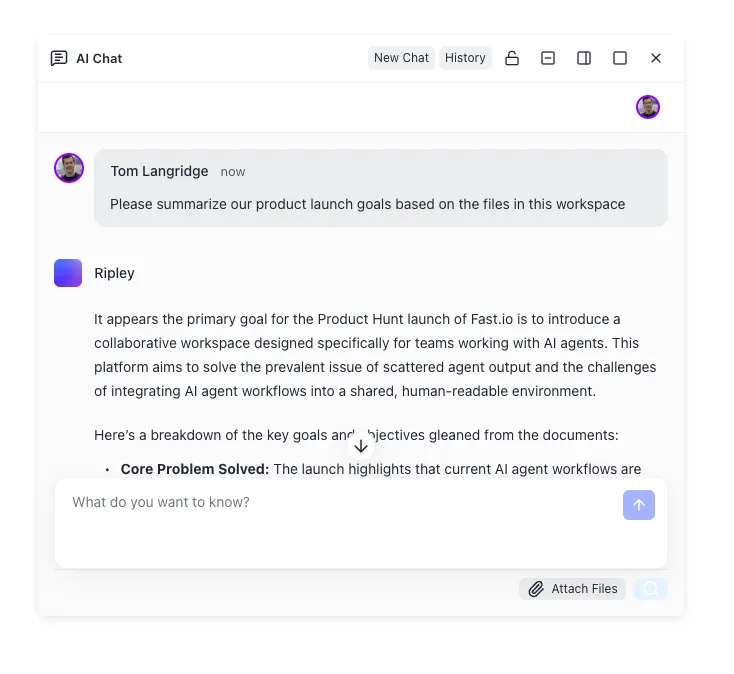
Local files work fine for solo projects. Teams that share Claude Code output between agents and humans often need a shared storage layer. Options range from Git repositories and S3 buckets to purpose-built agent workspaces like Fast.io, which provides persistent storage with a built-in MCP server that Claude Code can connect to directly. Fast.io auto-indexes uploaded files for semantic search through its Intelligence Mode, so agents can query project context without managing a separate vector database. Monthly plans start with a trial of up to 14 days (credit card required); annual plans have no trial.
How to Fix Common Installation Problems
Most installation failures fall into a handful of categories. Run claude doctor first for automated diagnostics, then check the specific error below.
command not found After Installation
The binary installed but your shell cannot locate it. Add ~/.local/bin to your PATH.
On macOS (Zsh):
echo 'export PATH="$HOME/.local/bin:$PATH"' >> ~/.zshrc
source ~/.zshrc
On Linux (Bash):
echo 'export PATH="$HOME/.local/bin:$PATH"' >> ~/.bashrc
source ~/.bashrc
On Windows, add %USERPROFILE%\.local\bin to your User PATH through System Settings > Environment Variables, then restart your terminal.
Conflicting Installations
If claude --version shows an unexpected version, you may have both a native install and an npm install. Check with:
which -a claude
Keep only one. The native install at ~/.local/bin/claude is recommended. Remove an npm install with:
npm uninstall -g @anthropic-ai/claude-code
Remove a legacy local install with rm -rf ~/.claude/local. Remove a Homebrew install with brew uninstall --cask claude-code.
WSL1 Exec Format Error
WSL1 cannot run the current native binary due to a program header change. The cleanest fix is converting to WSL2 from PowerShell:
wsl --set-version <DistroName> 2
If you need to stay on WSL1, add a wrapper function to ~/.bashrc:
claude() {
  /lib64/ld-linux-x86-64.so.2 "$(readlink -f "$HOME/.local/bin/claude")" "$@"
}
Then run source ~/.bashrc and retry.
TLS and SSL Errors
Corporate proxies that perform TLS inspection can block the installer. Set your proxy variables before installing:
export HTTPS_PROXY=http://proxy.example.com:8080
curl -fsSL https://claude.ai/install.sh | bash
If you see unable to get local issuer certificate after installation, point Claude Code at your corporate CA bundle:
export NODE_EXTRA_CA_CERTS=/path/to/corporate-ca.pem
Installation Killed on Low-Memory Servers
The Linux OOM killer terminates the process when available RAM drops below 4 GB. Add swap space and retry:
sudo fallocate -l 2G /swapfile
sudo chmod 600 /swapfile
sudo mkswap /swapfile
sudo swapon /swapfile
curl -fsSL https://claude.ai/install.sh | bash
For any issue not covered here, check the Claude Code GitHub repository for known issues or run /feedback inside a Claude Code session to report a problem.
Sources
References used to verify factual claims in this guide.
-
Claude Code reached 403,712 public GitHub commits in a single day by May 2026 The average developer using Claude Code now spends 20 hours a week with the tool (Dario Amodei, Code with Claude conference, May 2026)
-
Five installation methods including native curl/irm, Homebrew, WinGet, apt/dnf/apk, and npm
Frequently Asked Questions
How do I install Claude Code on Windows?
Three methods are available. In PowerShell, run `irm https://claude.ai/install.ps1 | iex`. In CMD, run `curl -fsSL https://claude.ai/install.cmd -o install.cmd && install.cmd && del install.cmd`. Or use WinGet with `winget install Anthropic.ClaudeCode`. You can also install inside a WSL2 distribution using the Linux native installer for full sandboxing support.
Can I install Claude Code with Homebrew?
Homebrew provides two casks. The `claude-code` cask tracks the stable release channel, which runs about one week behind the latest and skips releases with major regressions. The `claude-code@latest` cask ships new versions as soon as they are released. Install with `brew install --cask claude-code` and upgrade later with `brew upgrade claude-code`. Homebrew does not auto-update Claude Code, so you need to run the upgrade command manually.
How do I update Claude Code to the latest version?
Native installations auto-update in the background without any action required. To force an immediate update, run `claude update`. Homebrew users run `brew upgrade claude-code` or `brew upgrade claude-code@latest` depending on which cask they installed. WinGet users run `winget upgrade Anthropic.ClaudeCode`. Linux package manager users run their distribution's standard upgrade command.
Does Claude Code work on Linux?
Claude Code runs on Ubuntu 20.04+, Debian 10+, Fedora, RHEL, and Alpine Linux 3.19+ with x64 or ARM64 processors. Install with the native curl script, or through signed apt, dnf, and apk repositories. Alpine and other musl-based distributions require libgcc, libstdc++, and ripgrep as additional dependencies.
Do I need Node.js to install Claude Code?
Only if you choose the npm installation method, which requires Node.js 18 or later. The native installer, Homebrew, WinGet, and all Linux package managers install a standalone binary with no runtime dependencies. The native installer is the method Anthropic recommends and tests against.
How do I install Claude Code in WSL?
Open your WSL distribution's terminal and run the Linux native installer: `curl -fsSL https://claude.ai/install.sh | bash`. WSL2 is recommended because it provides full binary compatibility and sandboxing support. WSL1 has a known binary regression that causes exec format errors. Check your WSL version with `wsl --list --verbose` in PowerShell and convert with `wsl --set-version <DistroName> 2` if needed.
How do I uninstall Claude Code?
For native installations on macOS and Linux, delete the binary and version files with `rm -f ~/.local/bin/claude && rm -rf ~/.local/share/claude`. On Windows, remove `%USERPROFILE%\.local\bin\claude.exe` and `%USERPROFILE%\.local\share\claude`. For Homebrew, run `brew uninstall --cask claude-code`. For WinGet, run `winget uninstall Anthropic.ClaudeCode`. For npm, run `npm uninstall -g @anthropic-ai/claude-code`. To also remove settings and session history, delete the `~/.claude` directory.
What do I do if the installer returns HTML instead of a script?
This usually means your network returned an error page instead of the install script. If the HTML says 'App unavailable in region,' Claude Code is not available in your country. Otherwise, try an alternative installer: Homebrew on macOS (`brew install --cask claude-code`) or WinGet on Windows (`winget install Anthropic.ClaudeCode`). Corporate firewalls and regional routing can also cause this, so trying a different network or VPN may help.
Related Resources

Give your Claude Code agent persistent storage
A shared workspace with MCP access. Upload project files, query them with AI, and share outputs with your team. Starts with a 14-day free trial.