How to Build an MCP Server for Dropbox Integration
Building an MCP server for Dropbox enables AI agents to access, manage, and analyze files stored in Dropbox directly through the Model Context Protocol. This guide walks through the architecture, implementation steps, and practical workflows for connecting agents to Dropbox storage with Fastio's MCP server.

What Is an MCP Server for Dropbox?
An MCP server for Dropbox is a bridge that allows AI agents to interact with Dropbox storage using the Model Context Protocol. Instead of building custom Dropbox API integrations from scratch, MCP provides a standardized way for any MCP-compatible AI assistant to perform file operations, search content, and manage shares.
The Model Context Protocol defines how agents communicate with external tools and data sources. When configured for Dropbox, the MCP server translates agent requests into Dropbox API calls, handling authentication, file transfers, and response formatting automatically. This means you can write prompts like "Find the Q3 report in Dropbox" without worrying about OAuth tokens or API endpoints.
Fastio provides an MCP server that not only connects to its own storage but also supports importing files from Dropbox through URL Import. This hybrid approach lets agents work with both Fastio workspaces and external Dropbox content in the same workflow.
Helpful references: Fastio Workspaces, Fastio Collaboration, and Fastio AI.
Related guides
- Cloud Storage MCP: Connecting AI Agents to Drive, Dropbox, and OneDriveAI agents require access to files stored across Google Drive, Dropbox, Box, and OneDrive, but local filesystem...
- How to Connect Gemini to Dropbox via MCPConnecting Gemini to Dropbox via MCP allows Google Gemini models and agents to interact with Dropbox storage through...
- How to Build an MCP Server in GoGo is a strong fit for MCP servers thanks to its compiled performance, lightweight goroutines, and simple deployment as...
- Fastio MCP Server Integration Guide for DevelopersThe Fastio MCP server is a remote server. Your client connects to it over a URL, which means there is no package to...
- How to Build an MCP Server with FastAPI and PythonGuide to mcp server fastapi python: You can use FastAPI to turn Python code into standardized tools for AI agents like...
- How to Build an MCP Server with Java Spring BootBuilding an MCP server with Java Spring Boot lets you use the Model Context Protocol within the Spring ecosystem....
More on this subject: MCP and Model Context Protocol (238 guides)
Why Connect AI Agents to Dropbox?
Dropbox serves users worldwide, making it one of the most common file repositories teams encounter. When building AI agents that need to work with existing client or team data, you'll frequently encounter Dropbox-backed workflows. The challenge is that most agent frameworks don't natively understand how to navigate Dropbox structures or handle OAuth authentication flows. By implementing an MCP server for Dropbox, you solve three core problems. First, agents gain authenticated access to Dropbox without you building OAuth handling from scratch. Second, file operations become declarative rather than imperative, you tell the agent what you want, not how to call the API. Third, the MCP protocol means your agent works with any MCP-compatible LLM, whether that's Claude, GPT models, Gemini, or a local model. The practical benefit shows up in workflows like document review pipelines, content management systems, and automated reporting tools. An agent can pull files from a Dropbox folder, analyze them using built-in AI, and deliver insights, all without manual file transfers or custom API code.


Give Your AI Agents Persistent Storage
Get persistent storage, included credits, and a consolidated MCP toolset.
Fastio MCP Architecture for Dropbox Integration
Fastio's MCP server exposes a consolidated toolset that covers storage, collaboration, and AI search. While Fastio provides its own cloud storage, the platform also supports importing files from external providers including Dropbox, Google Drive, OneDrive, and Box. The architecture works like this: You authenticate your agent with Fastio, enable cloud import on a workspace, and then configure the Dropbox connection. The system provisions a service account email that you share your Dropbox folder with. Fastio then imports those files into your workspace storage, where they become available through Fastio's consolidated MCP toolset. This differs from direct Dropbox API integration in an important way. When you import from Dropbox, files exist in Fastio storage with import metadata attached. They work with Fastio's AI features, semantic search, auto-summarization, RAG queries, and intelligent chat. You get the benefits of Fastio's workspace intelligence while maintaining the source of truth in Dropbox. The MCP server runs over Streamable HTTP, with an address for each kind of client: https://mcp.fast.io/mcp/tools for Claude and most MCP clients, and https://mcp.fast.io/mcp/code for coding agents, while ChatGPT connects through the Fastio plugin, with https://mcp.fast.io/mcp/operations as an alternative custom MCP server. Older addresses keep working for existing setups.
Setting Up Dropbox Integration in 5 Minutes
Getting started with Fastio's MCP server and Dropbox integration takes about five minutes. Here's the step-by-step process: Step 1: Create an Account and Authenticate Sign up at Fastio and begin your 14-day Business Trial. Authenticate your agent using a human-granted, scoped API key or PKCE browser login.
Step 2: Create a Workspace Create a workspace and enable Intelligence Mode once files are ready so your content becomes searchable with citations.
Step 3: Enable Cloud Import Use Fastio's cloud import feature to initiate a one-time import from Dropbox into your workspace.
Step 4: Connect Your Dropbox Files Authorize access to your Dropbox folder to import documents directly into your Fastio workspace without local file downloads.
Step 5: Verify the Import Inspect your workspace contents using Fastio's consolidated MCP toolset. Imported files appear alongside native Fastio files and are fully searchable, previewable, and ready for agent operations. Once connected, your agent can query Dropbox files using natural language chat with citations.
Agent Workflow Examples with Dropbox Files
The real value of MCP integration shows in practical workflows. Here are three examples of how agents use Dropbox-connected storage: Document Review Pipeline An agent monitors a Dropbox folder for new contracts. When files arrive, it imports them to Fastio, runs AI analysis to extract key terms and dates, creates a summary share with the client, and logs everything in the activity log. The human receives a branded portal link with all documents previewable in the browser, no downloads required.
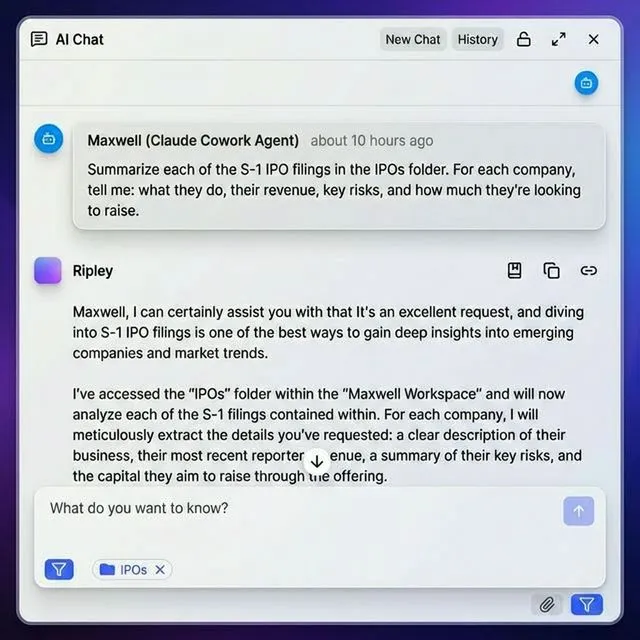
Research Synthesis A team stores research materials across multiple Dropbox folders. The agent imports all materials into a workspace, enables semantic search, and then answers questions from stakeholders like "What do we have on competitor X's recent product launch?" The agent retrieves relevant passages from across all imported files and compiles a synthesis with citations.
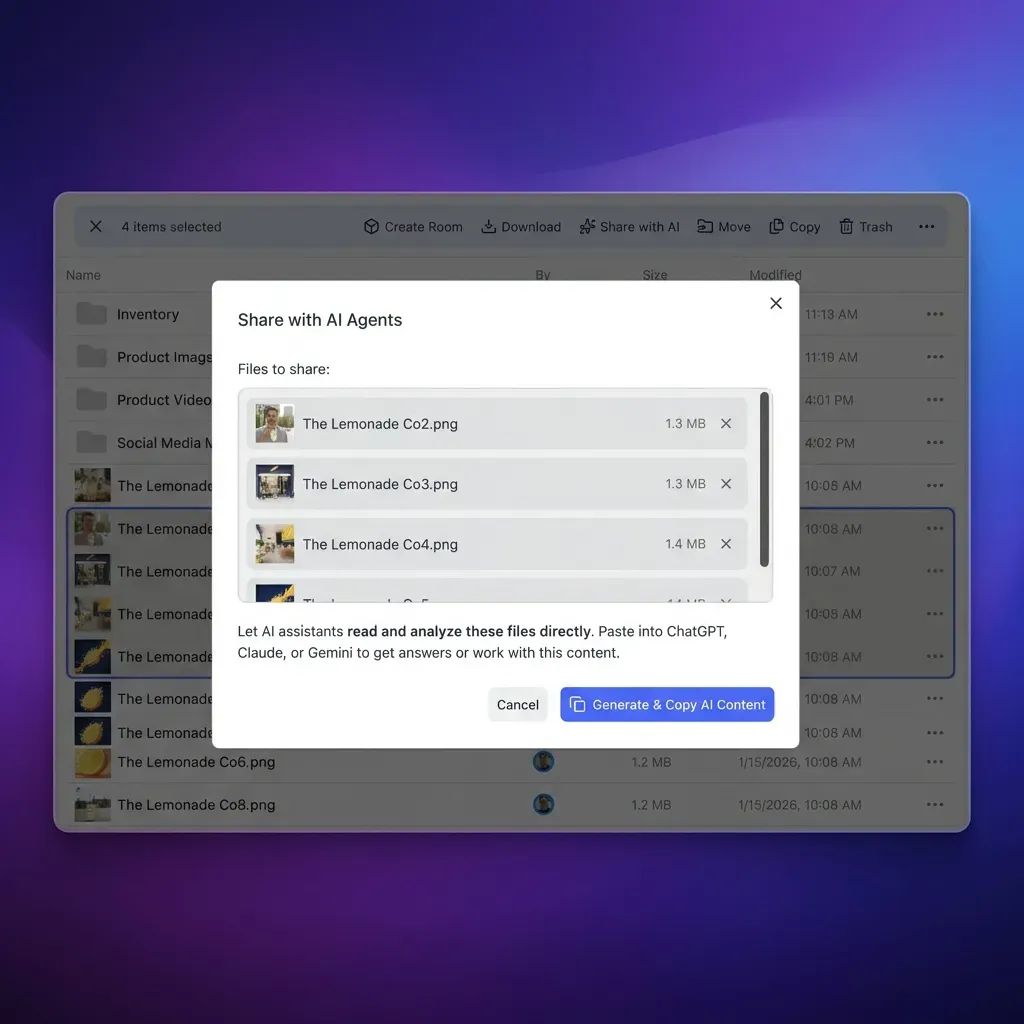
Automated Reporting Monthly data exports land in Dropbox. The agent imports them, runs analysis using Fastio's AI chat with file attachments, generates a summary report, creates a time-limited share with expiration, and updates the workspace activity feed. The share auto-expires after its set period, maintaining security without manual cleanup. Each workflow demonstrates how MCP tools let agents operate declaratively. You describe the outcome, and the tools handle the implementation details, the file moves, the AI queries, the share creation, the notifications.
Comparing MCP Server Options for Dropbox
If you're evaluating MCP servers for Dropbox integration, consider these factors:
Fastio offers a consolidated MCP toolset with native workspace intelligence and RAG capabilities. The Dropbox integration pulls files into Fastio storage, enabling AI features on imported content. The trade-off is that files exist in both systems after import.
Direct Dropbox API gives you full control over Dropbox-native operations and keeps files in a single system. However, you lose built-in AI features, need to implement your own search and summarization, and must handle OAuth flows manually. This option works better when you specifically need Dropbox-only storage.
Hybrid approaches using Fastio's URL import feature provide the best of both worlds. Files are imported from Dropbox as needed, becoming available in Fastio for AI-powered workflows. This fits teams that want intelligent workspace features without migrating away from Dropbox as their primary storage.
For most agent use cases, Fastio's approach makes sense because AI capabilities are built in. Building RAG pipelines, semantic search, and summarization from scratch adds significant development time that the MCP server eliminates.

Best Practices for Production Deployments
When deploying MCP servers for Dropbox in production, follow these guidelines: Use scoped access: Instead of granting full Dropbox permissions, create specific Dropbox folders for agent access. This follows least-privilege principles and prevents accidental exposure of sensitive files.
Enable workspace intelligence strategically: Intelligence mode auto-indexes files and enables AI features, but consumes credits (ingestion is metered per page). For large workspaces, consider disabling intelligence on folders that don't need search or chat capabilities.
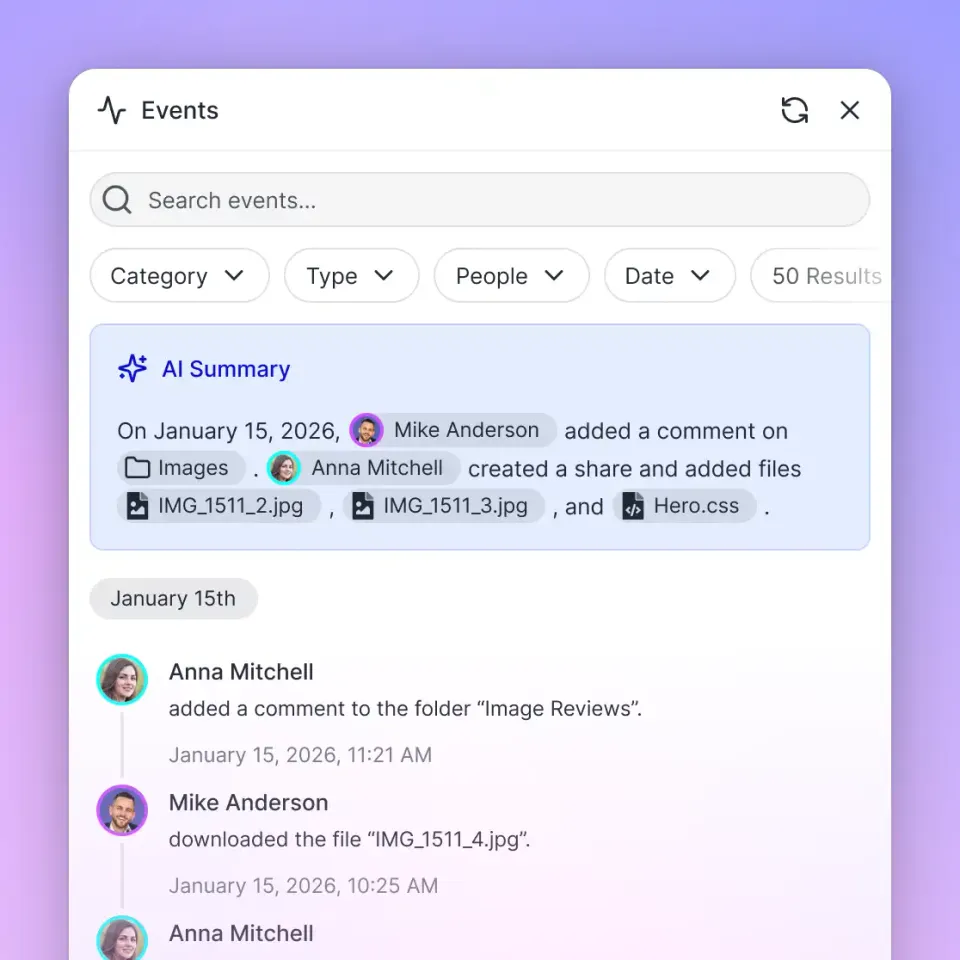
Rely on the audit log: Fastio's detailed activity log records file operations by humans and agents. This creates an audit trail that humans can review, critical for compliance and collaboration in multi-agent systems.
Handle credit limits proactively: Fastio plans include monthly credits for AI work. Monitor usage via the dashboard and plan for upgrades or ownership transfers when needed.
Track real-time activity: Use the WebSocket events feed or poll the activity feed for file change notifications so agents react to events without polling overhead. This reduces API calls and keeps workflows responsive. These practices ensure your Dropbox-connected agents operate reliably at scale while maintaining security and cost efficiency.
Frequently Asked Questions
How do I connect Dropbox to an MCP server?
With Fastio, enable cloud import on a workspace using the workspace tool with the enable-import action. The system provides a service account email, share your Dropbox folder with that email, and Fastio automatically syncs files into the workspace. Once imported, files work with Fastio's consolidated MCP toolset.
Can AI agents search Dropbox files using natural language?
Yes, when files are imported into Fastio with intelligence mode enabled, you can use semantic search and AI chat to find content by meaning rather than keywords. Ask questions like 'Find contracts mentioning liability clauses' and the agent retrieves relevant passages across all imported Dropbox files.
What's the difference between Fastio MCP and direct Dropbox API?
Fastio MCP provides a consolidated toolset with built-in AI features like RAG, summarization, and semantic search. Direct Dropbox API gives full control but requires building AI capabilities separately. Fastio imports files from Dropbox so they work with its workspace intelligence, useful for teams that want intelligent features without migrating from Dropbox.
What plans are available on Fastio?
Fastio offers Starter at $9.99/mo (3 seats, 250 GB, 100,000 credits/mo), Business at $49.99/mo (10 seats, 5 TB), and Enterprise at $199.99/mo (30 seats, 25 TB), with a 14-day Business Trial available requiring a credit card.
Can I transfer a workspace to a human after building it with an agent?
Yes, use the ownership transfer feature. The agent creates an org, builds workspaces and shares, then generates a transfer token. Send the claim URL to the human, once they claim it, they become the owner while the agent retains admin access. This is the recommended pattern for delivering completed projects.
Related Resources

Give Your AI Agents Persistent Storage
Get persistent storage, included credits, and a consolidated MCP toolset.