How to Connect Cursor to Dropbox via MCP: Step-by-Step Setup
Connecting Cursor to Dropbox via MCP allows Cursor agent mode to retrieve documents and code assets directly from cloud storage using structured tool calls without requiring full local disk synchronization. While local syncing clutters developer workstations and direct API connectors risk rate limiting, syncing Dropbox folders into an indexed Fast.io workspace gives Cursor high-speed hybrid search across project documentation without context window bloat.

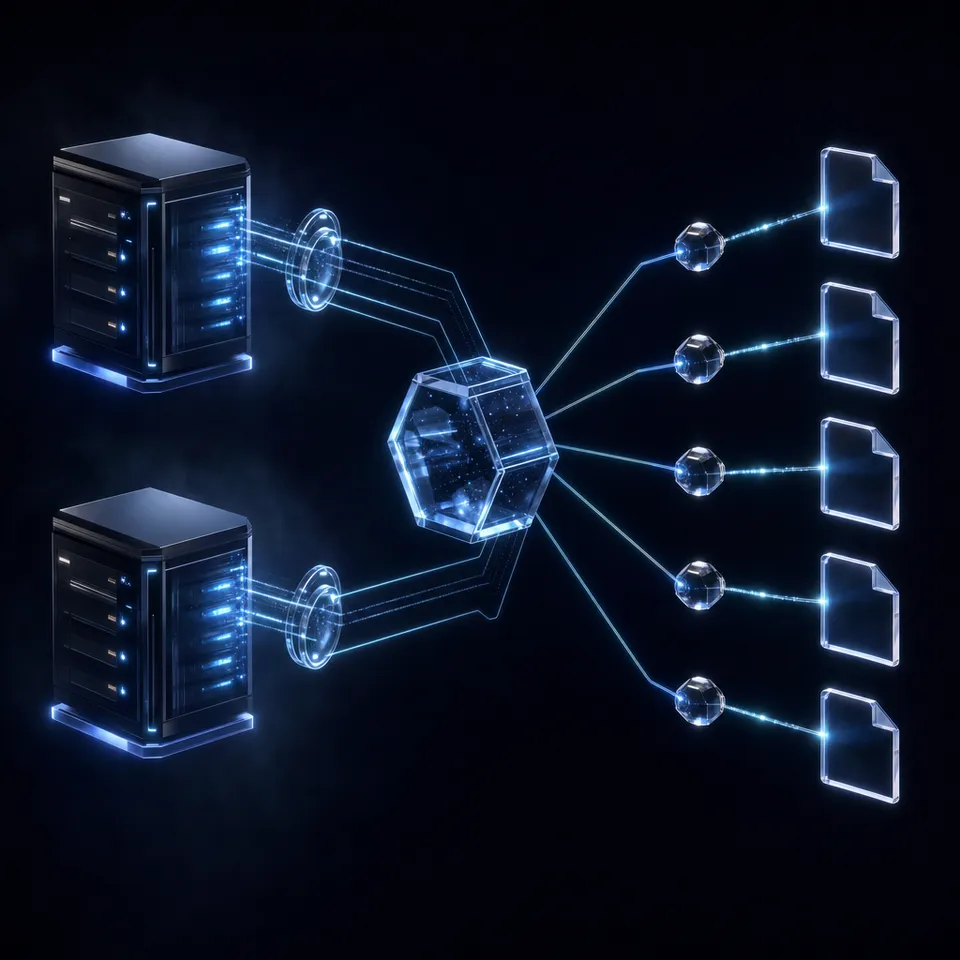
The Context Bottleneck: Grounding Cursor in Enterprise Dropbox Storage
Connecting an AI code editor like Cursor to cloud storage should allow agent mode to ground code generation in product specifications, architecture decision records, and API contracts without forcing gigabytes of non-code assets onto local disks. When developers attempt to bridge Cursor to Dropbox using local filesystem sync or direct file downloads, Cursor either chokes on offline placeholder files or floods its context window with complete document payloads. Resolving this context bottleneck requires connecting Cursor to remote Model Context Protocol (MCP) endpoints that query pre-indexed cloud workspaces directly.
In modern software engineering, critical system requirements live outside the Git repository. Product requirement documents, compliance guidelines, database schema diagrams, OpenAPI specifications, and customer bug reports often reside in team cloud storage platforms like Dropbox, Box, Google Drive, and OneDrive. When engineers prompt Cursor Composer or Agent mode to build a complex feature, the underlying language model needs access to those external requirements to write correct code.
Traditionally, developers tried to solve this problem with two problematic workarounds: manual copy-pasting or workstation file synchronization.
The Hidden Friction of Local Dropbox Desktop Synchronization
The default advice on developer message boards suggests installing the Dropbox desktop client, syncing the target project folders to local disks, and adding those folders to the Cursor workspace or referencing them via symbolic links. While this appears convenient initially, it introduces severe operational friction into the development environment:
- Workstation Storage Depletion: Team Dropbox repositories frequently contain dozens of gigabytes of media assets, binary spreadsheets, and archival project folders. Syncing these folders locally consumes drive space and limits developer mobility.
- Codebase Indexer Pollution: Cursor includes a background vector indexer designed specifically for source code files. When an external folder containing large binary files, slide decks, and multi-megabyte PDFs enters the project workspace, Cursor's background indexing consumes heavy CPU and memory resources attempting to parse non-code blobs. The resulting noisy embeddings degrade semantic code search across the entire project.
- File Watcher Overhead: Cloud synchronization daemons continuously update file metadata, local access timestamps, and sync state flags. Cursor's file watchers detect these background writes, triggering repetitive re-indexing passes that cause noticeable editor latency and battery drain on developer laptops.
- Git Repository Contamination: Keeping local document mirrors adjacent to code trees increases the risk of committing sensitive corporate documentation, client data, or heavy binaries into version control repositories.
Context Window Dilution and Token Waste
When developers avoid local syncing by attaching complete documents directly to Cursor chat prompts using @file mentions, they encounter context window dilution. Adding an 80-page system specification or a complex architecture plan into the prompt injects tens of thousands of tokens into the model's active buffer.
Modern frontier models experience attention degradation, known as the lost-in-the-middle effect, when processing massive context prompts. Key technical constraints placed in the middle of a voluminous document receive less attention than instructions placed at the beginning or end. As a result, the model frequently hallucinates function signatures, misses edge cases, and invents deprecated interface parameters. Furthermore, processing bloated document payloads on every interaction rapidly exhausts token allowances and introduces inference latency that interrupts active development.
Related guides
- How to Connect Claude to Dropbox: Step-by-Step Setup GuideConnecting Claude to Dropbox enables Claude models to read, analyze, and query documents stored across Dropbox team...
- How to Connect Claude Desktop to Dropbox Storage via MCPClaude Desktop Dropbox integration connects Anthropic's desktop client to Dropbox cloud storage via Model Context...
- How to Connect Cursor to Dropbox Storage via MCP: Integration GuideConnecting Cursor to Dropbox allows AI coding agents to search and reference project documentation, specs, and design...
- How to Connect Cursor to Cloud Workspaces with Filesystem MCPCursor Filesystem MCP connects Cursor's AI Composer and Agent mode to file trees and cloud repositories through Model...
- How to Connect Cursor to Box Storage via MCP: Integration GuideConnecting Cursor to Box allows AI coding agents to search and reference enterprise documentation, specs, and design...
- Cursor Google Drive Integration: Connect Specs via MCPConnecting Cursor to Google Drive through the Model Context Protocol gives coding agents direct access to technical...
More on this subject: AI Coding Assistants (80 guides)
Why Direct Dropbox MCP Connectors and Local Filesystem Bridges Fail in Cursor
To bridge external knowledge into AI coding tools, Anthropic introduced the Model Context Protocol (MCP). The protocol establishes an open standard for connecting AI coding assistants to external applications, development tools, and storage systems using structured JSON-RPC messages.
Developers looking to integrate Cursor with Dropbox typically encounter two primary integration models: local filesystem bridges and direct cloud API connectors. Both models exhibit operational limitations during everyday development.
The Breakdown of Local stdio Filesystem Bridges
Many community tutorials recommend running a local stdio MCP server, such as @modelcontextprotocol/server-filesystem, pointed at the local directory path where the Dropbox desktop client synchronizes files (for example, /path/to/project/Dropbox).
This approach fails in real-world corporate environments because of Dropbox Smart Sync and macOS File Provider mechanics. To conserve disk space, Dropbox marks infrequently accessed files as online-only. These files appear in the local filesystem directory as zero-byte stubs or extended-attribute pointers.
When a local stdio MCP server attempts to read one of these files on behalf of Cursor, the operating system attempts to hydrate the file on demand. If network connectivity is slow, or if the operating system blocks synchronous hydration during process execution, the local MCP server returns an empty buffer, encounters an I/O read timeout, or crashes. Cursor's agent mode receives a broken file descriptor and fails the task.
The Limitations of Direct Dropbox Cloud Connectors
To avoid local disk dependencies, teams evaluate direct cloud integrations. Dropbox provides the official Dropbox Dash remote MCP server located at https://mcp.dropbox.com/dash, alongside managed integration platforms like Composio.
The Dropbox Dash MCP server connects directly over remote HTTP and surfaces tools such as dash_search for locating content, dash_read_document for inspecting files, and dash_read_markdown_content for converting supported files into text.
While direct remote connectors eliminate local filesystem stubs, direct cloud storage traversal introduces three persistent bottlenecks during iterative coding loops:
1. API Rate Limits and Connector Throttling
Dropbox enforces platform rate limits to ensure service stability across its infrastructure. When an automated coding agent issues repetitive discovery requests across nested folder structures, it quickly consumes transactional quotas.
According to the official Dropbox developer performance guide, rate limits apply per user for user-linked applications. When an application exceeds these thresholds, the Dropbox API returns an HTTP 429 error with an explicit Retry-After header.
When Cursor encounters an HTTP 429 response during an automated Composer session, execution halts. The agent must wait for the duration specified in the Retry-After header before re-attempting the query. In continuous agentic coding workflows, these back-off delays cause IDE timeouts and break autonomous execution.
2. Full File Streaming Versus Targeted Semantic Retrieval
Direct cloud connectors typically operate at the file payload boundary. When an agent requests information from a file, the connector fetches the entire document stream and passes the complete raw text into the editor.
If an engineer asks Cursor to check database migration rules inside a 60-page architectural PDF, a direct connector downloads and transmits all 60 pages. The editor's context window becomes crowded with introductory summaries, table layouts, and irrelevant appendixes. This wastes prompt tokens and increases the risk of hallucination.
3. High Latency from Recursive Directory Traversal
Direct storage APIs are designed for user-facing file management rather than autonomous agent discovery. When an agent needs to locate an unknown specification, it must invoke tools to list top-level directories, inspect folder contents, query child directories, and fetch candidate files individually. Executing multiple network round trips across deep directory trees introduces several seconds of latency before Cursor can read a single relevant sentence.
How Fast.io Indexed Workspaces Compare with Direct Storage APIs
To bypass the rate limits of direct API polling and the disk clutter of local synchronization, engineering teams deploy a two-tier storage architecture. Teams keep Dropbox as their primary corporate system of record where human collaborators manage, organize, and share documents. They then connect designated project folders to Fast.io through Cloud Sync, establishing an intelligent workspace that indexes document contents for instant MCP retrieval.
Fast.io Cloud Sync connects directly to Dropbox using server-to-server OAuth. The synchronization runs one-way or two-way, on a recurring schedule or on demand, preserving folder hierarchies without requiring local file downloads. Cloud Sync ships for Google Drive, Dropbox, Box, and OneDrive. Synchronization executes reliably in the background and is never real-time, protecting underlying storage providers from excessive transactional polling.
Hybrid Search and Intelligence Mode
When files synchronize into a Fast.io workspace, Intelligence Mode automatically processes documents into an optimized retrieval index. Intelligence Mode employs hybrid search, combining full-text exact keyword matching with semantic vector search and structured metadata values.
Instead of downloading raw 40-page documents into Cursor's prompt buffer, an agent connected to Fast.io invokes semantic search tools. The workspace searches the indexed corpus, extracts the exact paragraphs matching the developer's query, and returns concise snippets accompanied by verified document citations. Cursor receives the necessary technical constraints without wasting context tokens on irrelevant boilerplate text.
What a Measured Comparison Shows
The operational difference between querying raw storage APIs and querying an indexed workspace has been measured rather than argued. Fast.io publishes a head to head benchmark of agent file work that puts one agent through the same multi-document audit over an identical corpus held in Fast.io and in each of the major cloud storage providers, recording completion time, tool calls, token consumption and cost per task. Fast.io completed the audit fastest and at the lowest cost of the storage layers tested.
By serving pre-indexed passages rather than requiring recursive file downloads, the intelligent workspace also shields Dropbox from high-frequency API polling while giving coding agents immediate, grounded answers.
Architectural Comparison: Direct Storage vs Indexed Workspaces
The architectural differences between querying Dropbox directly and querying an indexed Fast.io workspace in Cursor are summarized below:
Structured Document Extraction with Metadata Views
Technical documentation often contains structured parameters that standard keyword search fails to organize cleanly: API schema versions, database connection parameters, compliance requirements, and hardware configuration tables.
Fast.io provides Metadata Views to convert unstructured technical documents into live, queryable data grids without writing custom extraction scripts or defining manual OCR templates.
Users define the target attributes in plain language. AI analyzes the synchronized files, generates a typed schema (supporting Text, Integer, Decimal, Boolean, URL, JSON, and Date & Time fields), and populates a filterable spreadsheet across PDFs, presentations, and technical documentation. Cursor agent mode can query these structured columns directly over MCP, retrieving specific parameter values without opening individual files.



Connect Cursor to Cloud Storage Workspaces
Connect your Dropbox folders to Cursor through an intelligent workspace that indexes specifications automatically, eliminates rate limits, and returns exact citations. Monthly plans start with a trial of up to 14 days (credit card required); annual plans have no trial.
Step-by-Step Setup: Connecting Cursor to Dropbox via Fast.io MCP
Connecting Cursor to your Dropbox documents through Fast.io follows four practical configuration steps:
- Isolate the target Dropbox folder
- Synchronize the folder to a Fast.io workspace
- Register the Fast.io remote MCP server in Cursor
- Query project specifications in Cursor Composer and Chat
1. Isolate the Target Dropbox Folder
Maintain Dropbox as your authoritative corporate file repository. Identify the specific Dropbox folder containing the engineering specifications, design assets, and architectural documents your coding agent needs to reference. Grouping active project materials into a designated directory establishes clear permission boundaries and prevents unrelated personal or administrative files from entering the agent's search index.
2. Synchronize the Folder to a Fast.io Workspace
Log into your Fast.io account and create a workspace for your software project. From workspace settings, navigate to Cloud Sync and configure the Dropbox connection:
- Authenticate your Dropbox account through the standard OAuth prompt.
- Select the isolated project folder identified in Step 1.
- Choose the sync direction: select one-way read-only sync if coding agents should only reference documents without altering source files, or two-way sync if agents should save compiled build reports back to Dropbox.
- Set a recurring sync schedule, such as an hourly update or on-demand refresh.
Fast.io immediately begins parsing and indexing the synchronized files in the background, preparing vector embeddings and full-text indexes for hybrid search.
3. Register the Fast.io Remote MCP Server in Cursor
Fast.io provides a remote Model Context Protocol server accessible over Streamable HTTP, and coding agents such as Cursor connect at https://mcp.fast.io/mcp/code. You can review setup patterns on the storage for agents documentation page.
Cursor signs in to Fast.io with OAuth in the browser, so there is no API key to generate. To configure Cursor, open your project repository and create or edit the .cursor/mcp.json file in the project root:
{
  "mcpServers": {
    "fastio": {
      "url": "https://mcp.fast.io/mcp/code"
    }
  }
}
Alternatively, you can register the server globally in the Cursor user interface:
- Open Cursor Settings (gear icon or
Cmd+,on macOS,Ctrl+,on Windows/Linux). - Navigate to Tools and MCP in the settings sidebar.
- Click Add New MCP Server.
- Set the Server Name to
fastio, select the remote HTTP transport, and enterhttps://mcp.fast.io/mcp/code. - Save the configuration and sign in to Fast.io in the browser window that opens, choosing Read Only or Read & Write and the workspaces Cursor can reach. Cursor will verify the connection and display green status indicators next to Fast.io's consolidated MCP tools.
4. Query Project Specifications in Cursor Composer and Chat
With the MCP connection active, Cursor Agent mode and Composer can query your Dropbox documents directly. During interactive coding sessions, invoke the workspace tools using natural language prompts:
- "Check the synchronized Dropbox requirements folder for the user authentication specification and verify our password hashing configuration matches the architecture guidelines."
- "Find the database schema document in our project workspace and generate an updated Prisma migration matching the new billing tables."
- "Search the API contract documentation for the payment webhook payload structure and implement the corresponding TypeScript interface."
Cursor queries the indexed workspace, retrieves relevant passages with page-level citations, and writes code grounded in your team's documented requirements without exhausting context window tokens.
Governance, Audit Trails, and Multi-Agent Collaboration
Connecting AI coding tools to organizational file storage introduces operational risks that development teams must manage. Automated agents must not read unauthorized directories, overwrite production assets, or obscure audit histories. Fast.io provides enterprise governance controls designed specifically for human-agent collaboration over synced cloud files.
Activity Logging
Every interaction within a Fast.io workspace is captured in the activity log. When Cursor agent mode executes a search query, retrieves a specification passage, or writes an artifact, Fastio logs the timestamp, actor identity, and operation details. This activity log gives engineering leaders visibility into which models accessed specific project documents, providing a record of who accessed each file and when for compliance and security reviews.
Granular Access Controls
Permissions can be configured granularly across organizations, workspaces, folders, and individual files. Engineering managers can restrict a developer's Cursor API credentials to read-only access on a single specification folder while maintaining full collaboration permissions for human architects. Scoping permissions prevents automated tools from accessing unrelated repositories or sensitive corporate records.
Advisory File Locks and Version History
When multiple developers and automated agents collaborate within shared workspaces, accidental overwrites represent a real hazard. Fast.io provides advisory per-file leases that can be acquired before writing, signaling to other agents and team members that an active edit is in progress. The lease expires automatically unless heartbeated and can be taken over by any collaborator with write permission.
Furthermore, every file preserves full per-file version history. If an agent updates a document or writes an incomplete configuration file, previous versions remain accessible and restorable with a single click. This versioning layer ensures that concurrent development remains reversible and safe.
Ownership Transfer to Human Stakeholders
Autonomous agent setups often require programmatic creation followed by human administration. Fast.io supports ownership transfer from agents to human team members. An automated setup script or agent can initialize an organization, configure workspaces, connect Dropbox folders via Cloud Sync, and transfer organization ownership to a human administrator via a claim link. The agent retains administrative access to execute ongoing tasks while the human stakeholder retains legal and billing authority.
Pricing and Free Trial Structure
Fast.io operates on a transparent subscription model. Creating an account is free; doing real work requires an organization on a paid subscription. Monthly plans start with a trial of up to 14 days (credit card required); annual plans have no trial. Plans are Starter at $9.99/mo, Business at $49.99/mo, and Enterprise at $199.99/mo.
User seats and storage capacity are included with each subscription plan, alongside a monthly credit allowance that meters artificial intelligence operations. Explore deployment patterns on the storage for agents page and evaluate tier specifications on the pricing page. By pairing Dropbox's established file management with Fast.io's intelligent workspace MCP endpoints, engineering teams provide Cursor with instant, governed access to project knowledge.
Sources
References used to verify factual claims in this guide.
-
Dropbox API rate limits apply per user for user-linked apps and return an HTTP 429 error when exceeded.
Frequently Asked Questions
How do I connect Cursor to Dropbox using MCP?
You can connect Cursor to Dropbox using MCP either through the official Dropbox Dash remote MCP server at `https://mcp.dropbox.com/dash` or by syncing Dropbox folders into an indexed Fast.io workspace. To connect via Fast.io, configure Cloud Sync in your Fast.io workspace, register `https://mcp.fast.io/mcp/code` in your Cursor `.cursor/mcp.json` file, and sign in to Fast.io in the browser when Cursor connects.
Can Cursor read files from Dropbox without local sync?
Yes, Cursor can read files from Dropbox without local disk synchronization by connecting to a remote Model Context Protocol server. Fast.io Cloud Sync mirrors your Dropbox folders directly in the cloud, indexes the contents for hybrid semantic search, and exposes the files through a remote Streamable HTTP MCP endpoint. Cursor queries the index directly, eliminating the need to download files to your local workstation.
What is the best way to give Cursor access to team Dropbox folders?
The best way to give Cursor access to team Dropbox folders is through an intelligent cloud workspace. Syncing Dropbox folders into Fast.io pre-indexes all documents using hybrid search. Cursor then retrieves targeted semantic passages and citations via Fast.io's remote MCP tools, preventing context window bloat, avoiding Dropbox API rate limits, and keeping local disks completely free of non-code clutter.
Why do local stdio filesystem servers fail with Dropbox online-only files?
Local stdio filesystem MCP servers fail with Dropbox online-only files because Dropbox Smart Sync replaces unsynced cloud content with zero-byte local stubs. When an MCP process attempts to read these placeholder files without triggering immediate operating system file hydration, the read operation returns an empty payload, times out, or crashes the server process.
How does Fast.io hybrid search prevent context window exhaustion in Cursor?
Direct storage connectors download entire raw document payloads into the model's active context window, consuming tens of thousands of tokens per query. Fast.io Intelligence Mode combines exact full-text matching with semantic vector search to extract only the specific paragraphs that answer Cursor's query, returning concise text snippets and source citations rather than whole files.
Does syncing Dropbox folders to Fast.io alter the original files in Dropbox?
No, syncing Dropbox folders to Fast.io does not alter the original files in Dropbox when configured with one-way sync. Fast.io reads the designated Dropbox folder via OAuth and creates an indexed mirror in the cloud workspace. Source files, permissions, and directory structures in your Dropbox account remain completely unchanged.
Related Resources

Connect Cursor to Cloud Storage Workspaces
Connect your Dropbox folders to Cursor through an intelligent workspace that indexes specifications automatically, eliminates rate limits, and returns exact citations. Monthly plans start with a trial of up to 14 days (credit card required); annual plans have no trial.