How to Enable and Manage File Uploads in Copilot Studio
Copilot Studio file upload allows end-users to attach documents directly in conversational chat sessions for immediate document analysis and summarization. Enabling this feature requires configuring generative AI capabilities and handling strict runtime caps on file size, character counts, and Dataverse storage. Directing user uploads into external persistent workspaces maintains searchable document access without exhausting tenant Dataverse capacity.


What Are Copilot Studio Conversational File Upload Limits?
Direct file attachments in Copilot Studio require Dataverse file storage capacity and are capped by strict per-session upload limits. Allowing chat users to attach documents directly into an AI assistant creates an operational balance between conversational utility and tenant storage governance. In Microsoft Copilot Studio, runtime document uploads write directly into Microsoft Dataverse file capacity while enforcing strict boundaries of 15 MB per file and 30,000 characters of extracted text. When multiple users upload uncompressed PDF manuals and spreadsheets across concurrent sessions, tenant storage capacity drains while repetitive conversational context risks hitting model token limits.
Copilot Studio file upload allows end-users to attach documents directly in conversational chat sessions for immediate document analysis and summarization. The assistant inspects the uploaded file, extracts textual content from supported document structures, and supplies those passages as grounding context to synthesize generative answers. Rather than requiring administrators to pre-load every piece of documentation into static knowledge bases, conversational uploads allow users to bring their own source material to the interaction, such as an employee uploading an expense receipt or a customer attaching an invoice for review.
Supported Channels and Deployment Boundaries
File attachment capabilities are not uniformly available across every Copilot Studio deployment channel. The platform enforces channel-level support boundaries that dictate where users see the file attachment paperclip icon:
- Supported Channels: Users can upload documents when interacting through Teams chats, custom website embeds, demo website portals using Direct Line or web chat, Facebook Messenger, Omnichannel for Customer Service, Microsoft Copilot, and the authoring test canvas.
- Unsupported Channels: Telephony and voice channels do not accept file attachments. Furthermore, if you publish an agent to a SharePoint page placement, user file uploads are disabled by the channel wrapper.
Accepted File Formats and Structural Constraints
Copilot Studio accepts a defined set of document and image formats for conversational analysis:
- Text and Document Files: DOCX, CSV, PDF, and TXT files. Support for XLSX spreadsheets and PPTX slide decks is restricted to experimental mode and requires Microsoft tenant enablement.
- Image Formats: JPG, PNG, WebP, and nonanimated GIF files. Images must be clear and legible, as OCR quality degrades on low-resolution or skewed captures.
- Document Structure Constraints: For Word documents (.docx), the parser reads text solely from standard paragraphs and native table cells. Text positioned within floating text boxes, graphic shapes, WordArt, SmartArt diagrams, running headers, running footers, or embedded spreadsheet objects is ignored by the extractor. If critical details reside in floating callouts, the model responds as though the file is empty.
- Security Restrictions: Files protected by passwords, cryptographic encryption, or Microsoft Purview Information Protection sensitivity labels marked Confidential or Highly Confidential cannot be parsed. The agent alerts the user that the document is protected or returns an ungrounded processing failure.
Platform Ingestion Pathways and Capacity Boundaries
Copilot Studio handles files differently depending on whether they serve as persistent knowledge sources, conversational chat attachments, or external enterprise repositories.
Understanding these architectural boundaries prevents configuration dead-ends and ensures that conversational agents remain responsive under high concurrency.
Related guides
- How to Manage OpenClaw Agents with Studio's Web DashboardOpenClaw Studio is a community-built Next.js dashboard that connects to your OpenClaw Gateway over WebSocket, adding...
- How to Manage Files Generated by Devin AIDevin AI generates dozens to hundreds of files per session, but its workspace resets between runs. This guide covers...
- How to Configure Copilot Studio SharePoint Authentication and PermissionsCopilot Studio SharePoint authentication governs how an AI agent proves user identity through Entra ID to honor...
- How to Connect Copilot Studio to an MCP ServerAdding an MCP server to Microsoft Copilot Studio turns a basic chatbot into an agent that can store files, query...
- How to Connect Microsoft Copilot Studio to Google DriveA Copilot Studio Google Drive connector enables Microsoft Copilot agents to ground generative responses on Google...
- Copilot Studio SharePoint Connector: Limitations & Faster WorkspacesThe Copilot Studio SharePoint connector links custom AI agents to Microsoft 365 document libraries using Microsoft...
More on this subject: GitHub Copilot (148 guides)
How to Configure File Uploads in Copilot Studio Topics
Enabling conversational file uploads requires activating tenant-level generative settings and authoring topic logic to capture, validate, and process incoming attachments. Follow these concrete configuration steps to build a functional document intake flow.
Step 1: Enable File Processing in Agent Settings
Before individual topics can accept files, you must activate the global file upload capability within Copilot Studio:
- Open your agent in Microsoft Copilot Studio.
- In the top navigation bar, select Settings, then click Generative AI.
- Scroll down to the File processing capabilities section.
- Toggle the File uploads switch to the On position.
- Select your preferred content moderation strictness (Low, Medium, or High). Content moderation evaluates both the user's uploaded text and the agent's synthesized response.
- Select Save to apply the configuration.
Step 2: Capture User Attachments with a Question Node
To prompt the user for a document during a specific conversation path:
- Navigate to the Topics tab and open your target topic canvas.
- Select the plus icon (+) to add a node, then choose Ask a question.
- In the Identify dropdown menu, select File instead of multiple-choice options or plain text.
- Select the node's More icon (...) and open the Question properties panel.
- Under the Entity recognition section, check the box labeled Include file metadata.
- The node saves the user's uploaded document into a record variable. This variable contains the
.Nameproperty (the original filename string) and the.Contentproperty (the base64-encoded binary data).
Step 3: Inspect Pre-Attached Files with Power Fx
Users often attach documents directly to their opening trigger phrase rather than waiting for an explicit prompt. You can inspect incoming message payloads using Power Fx to avoid redundant questions:
- Add a Set variable value node at the top of your topic.
- Set the variable value to the Power Fx formula
First(System.Activity.Attachments). - Add a Condition node immediately following the variable assignment to test whether an attachment is present:
If(IsEmpty(System.Activity.Attachments), false, true). - If the condition is false, route execution to the Question node requesting a file upload. If true, route directly to your document analysis logic using the attachment's
.Contentand.Nameproperties.
Step 4: Test Document Analysis in the Authoring Canvas
Verify your configuration before deploying to production users:
- Open the Test your agent panel located on the right side of the Copilot Studio workspace.
- Select the paperclip attachment icon adjacent to the chat input box.
- Select a local PDF or DOCX test document.
- Enter a test query, such as "Summarize the primary deliverables listed on page 2".
- Review the generated response to confirm that the agent cites information directly from the uploaded file text.
Step 5: Prevent Context Bloat with Session Hygiene
Every file uploaded during a conversational session remains in the model's active working memory. When users upload multiple documents across an extended conversation, the cumulative token volume can degrade response times or trigger model context overflow errors.
To maintain performance, insert a Clear variable values node at the conclusion of document processing branches. Configure the node to clear the topic-level file record and reset the conversation history buffer, ensuring subsequent questions start with clean context.
Why Dataverse Storage Accumulation Creates Governance Challenges
While enabling the file upload control in Copilot Studio is technically straightforward, managing the operational aftermath introduces significant enterprise governance challenges. Industry tutorials frequently explain the authoring clicks but overlook the underlying storage mechanics: where user files land, how they consume tenant capacity, and what happens when storage limits are breached.
The Dataverse File Capacity Model
Files uploaded directly through conversational chat sessions do not exist in temporary server RAM. Every attached PDF, Word document, and image is written directly into your environment's Microsoft Dataverse File capacity. Dataverse storage is divided into three distinct tenant-pooled quotas:
- Database Capacity: Houses entity tables, transactional records, system configuration metadata, and conversational transcripts.
- File Capacity: Houses binary document attachments, embedded chat images, custom icons, and raw knowledge files.
- Log Capacity: Houses administrative audit trails and security change logs.
Power Platform subscription plans grant a baseline capacity allocation across the tenant, supplemented by incremental allocations per licensed user. In high-traffic deployments where thousands of end-users attach multi-megabyte documents, Dataverse File capacity depletes rapidly.
Operational Risks of Unmonitored Storage Growth
When an organization exhausts its pooled Dataverse storage, the platform enforces strict administrative penalties:
- Administrative Lockout: Microsoft places the tenant into an over-capacity state. System administrators cannot provision new environments, import solution packages, or publish updates to existing Copilot Studio agents until capacity is restored.
- Premium Add-On Expenses: Procuring supplementary Dataverse File storage capacity requires purchasing recurring capacity add-ons, which represent a substantial ongoing operational expense compared to general cloud object storage.
- Orphaned File Governance: Files deposited into Dataverse via conversational chat sessions rarely map to corporate document retention schedules. Attachments lack folder structures, versioning metadata, or automatic deletion policies, creating compliance liabilities and unmanaged data sprawl.
Downstream Routing via Power Automate Flows
To prevent user files from permanently congesting Dataverse capacity, makers frequently pass uploaded attachments to Power Automate flows for external filing. In the topic canvas, an action node invokes a cloud flow, passing the file record using the Power Fx formula:
{ contentBytes: Topic.userReceipt.Content, name: Topic.userReceipt.Name }
The cloud flow accepts the binary payload and writes the file into an external system, such as a departmental SharePoint library or an Azure Blob container. However, this workflow introduces technical bottlenecks:
- Gateway Payload Ceilings: Standard Power Platform connectors enforce payload size thresholds on individual file transfers. Files approaching the upper boundary of the Copilot Studio upload limit can trigger gateway timeouts.
- Execution Latency: Invoking a Power Automate flow introduces multi-second orchestration latency. Users remain waiting on the chat interface while the flow negotiates authentication, creates the external file, and returns confirmation back to Copilot Studio.
- Connector Fragility: If the downstream connector experiences rate-limiting or authentication renewal failures, the user's conversational turn fails silently or displays a generic execution error.
How to Connect Enterprise Repositories via MCP and Intelligent Workspaces
Organizations often reach a scaling ceiling with native chat uploads: users need answers from broad document archives, yet uploading individual files into chat sessions drains Dataverse capacity and hits strict per-file limits. The reader already keeps files in Dropbox, Google Drive, OneDrive, Box or SharePoint, and bridging those repositories to conversational assistants requires a dependable architectural pattern.
Native connectors provide standard search across SharePoint document libraries and OneDrive folders, but they face documented operational limitations. In Copilot Studio, standard SharePoint connectors operate within worker node memory boundaries, introduce Graph search latency, and require lengthy index synchronization cycles. When an agent queries a large SharePoint library, pulling complete folder structures or raw binary streams risks saturating connector rate limits and producing slow conversational responses.
A cleaner architectural path keeps your existing enterprise storage while routing document retrieval through a persistent, intelligent workspace layer.
The Fast.io Architecture: Synchronized Storage and Remote MCP Retrieval
With Fast.io, teams maintain their existing primary storage while eliminating Dataverse storage congestion. Files remain organized in their original repositories, while folders sync into a Fast.io workspace. Fast.io provides Cloud Sync for Google Drive, Dropbox, Box, and OneDrive (one-way or two-way, on a schedule or on demand; SharePoint libraries through the OneDrive connector; never continuous, live, or real-time).
Rather than pulling entire directories into Copilot Studio or forcing users to manually upload 15 MB chunks, conversational agents connect to Fast.io through a remote Model Context Protocol (MCP) server. The agent issues targeted semantic and full-text queries against indexed workspace files, retrieving compact text snippets and citations without transferring multi-megabyte binaries over the chat wire.
The connector comparison is published at https://fast.io/benchmarks/.
Connecting Copilot Studio to Fast.io via Remote MCP
Fast.io hosts a remote Streamable HTTP MCP endpoint at https://mcp.fast.io/mcp/tools. Integration steps and endpoint specifications are detailed in the official setup documentation at https://mcp.fast.io/docs.
When Copilot Studio or custom agent flows connect to the MCP server, they access a consolidated MCP toolset:
- Intelligence Mode: When Intelligence Mode is activated on a workspace, incoming documents are automatically indexed on arrival for hybrid search (combining full-text lexical search, semantic vector matching, and metadata filtering). When an agent queries the workspace, Fast.io returns relevant passages accompanied by verifiable document citations.
- Metadata Views: For structured document processing, Metadata Views turn unstructured documents into live, queryable database schemas. Users describe desired extraction fields in natural language, and AI populates typed columns (Text, Integer, Decimal, Boolean, URL, JSON, Date & Time) across PDFs, spreadsheets, presentations, and scanned pages without requiring rigid OCR templates. Agents query structured extraction tables directly through MCP actions.
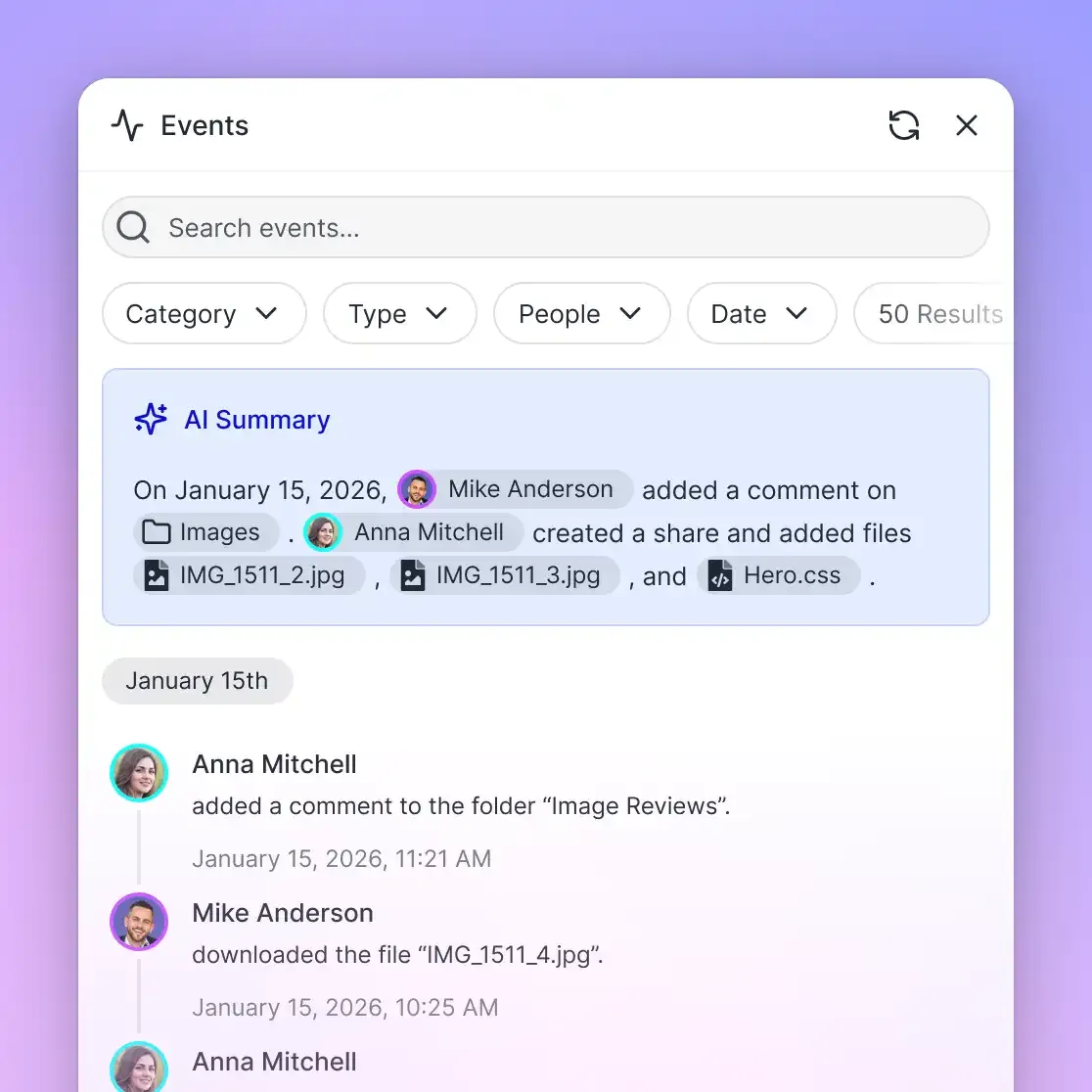
- Enterprise Governance and Auditing: Fast.io grants access per organization, workspace and share through member roles. Uploads, edits, moves and deletions made by team members and AI assistants are recorded in a detailed activity log. Per-file version history tracks every document change, allowing teams to review revisions or roll back modifications.
Workspace Plans and Predictable Capacity
Offloading document storage from Dataverse to Fast.io provides predictable storage economics without sudden administrative lockouts.
Monthly plans start with a 14-day free trial, which requires a credit card. Organizations can choose across three subscription tiers:
Credits meter AI work. Storage and seats come with the plan. Fast.io accommodates large multi-gigabyte files and deep directory archives across Starter, Business, and Enterprise plans, far exceeding native chat platform limits.


Manage Conversational Document Uploads in Persistent Workspaces
Connect your conversational agents to persistent cloud workspaces with automatic indexing, granular permissions, and remote MCP retrieval. Start your 14-day free trial on monthly plans with a credit card.
Production Best Practices for Chat File Processing and Document Hygiene
Deploying conversational file uploads into production environments requires disciplined pre-processing and session management. Applying these operational practices ensures consistent agent accuracy and protects runtime stability.
1. Pre-Flight PDF Formatting to Avoid Request Body Errors
One of the most frequent errors encountered during Copilot Studio file uploads is the "Request body too large" failure. In Microsoft Copilot Studio, this error occurs when conversational user file uploads remain under the 15 MB limit on disk, but the processed content exceeds internal platform runtime boundaries.
Scanned documents are the primary culprit. When a user uploads a scanned PDF consisting of raw page images, Copilot Studio decompresses each bitmap during ingestion, causing processed payload size to balloon. To prevent this failure mode:
- Convert scanned paper documents to text-searchable PDFs using desktop or server OCR before upload.
- Verify that PDF documents remain strictly under the 40-page threshold.
- Downsample embedded high-resolution graphics, keeping image resolution at 150 to 300 DPI.
- Split multi-chapter reference manuals into modular sections before presenting them to chat users.
2. Tabular Data Preparation and Structured Extraction
Users often attach multi-tab financial models or inventory spreadsheets to chat prompts. Without the code interpreter enabled, Copilot Studio reads up to 30,000 characters of text sequentially across the file and discards any content beyond that threshold. Complex cell formulas, merged headers, and hidden columns frequently confuse generative answers.
For reliable tabular analysis:
- Convert multi-tab workbooks into focused, single-table CSV files before uploading.
- Remove decorative formatting, blank spacer rows, and merged cells.
- Use Metadata Views in persistent workspaces to automatically extract structured line items and numerical fields into typed schemas before querying them with conversational agents.
3. Handling Dual-Pass Content Moderation Interruptions
Copilot Studio applies dual-pass content moderation to every conversational turn. The safety filter inspects the user's uploaded text upon ingestion, and evaluates the agent's synthesized response prior to output.
If an uploaded document contains restricted terminology, proprietary code blocks, or phrasing that triggers moderation filters, the agent terminates the turn with an error. Because Copilot Studio includes recent conversation turns in its generative prompt context, subsequent queries often continue to trigger moderation failures even after the user enters a benign prompt. When a moderation error occurs, instruct users to restart the chat session to flush the flagged conversational history.
4. Implementing Granular Access Control and Audit Trails
When agents process sensitive business documents, maintaining an audit trail of file interactions is essential for enterprise security. Direct chat uploads stored in Dataverse often lack clear audit linkage back to departmental records.
By routing critical documents into shared Fast.io Workspaces with Fast.io AI indexing, organizations grant access per organization, workspace and share through member roles. Uploads, edits, deletions and permission changes are logged in a detailed activity log, ensuring comprehensive operational visibility across human team members and automated agents.
Sources
References used to verify factual claims in this guide.
-
Microsoft Copilot Studio limits conversational user file uploads to 15 MB per file. Uploaded PDF documents in Copilot Studio chat sessions cannot exceed 40 pages.
Frequently Asked Questions
How do I allow users to upload files in Copilot Studio?
To allow users to upload files, open your agent in Microsoft Copilot Studio, select Settings in the top menu, and click Generative AI. Under the File processing capabilities section, toggle the File uploads switch to On and select Save. In your topic canvas, you can then add a Question node with the Identify property set to File and enable Include file metadata to capture uploaded documents.
Where do uploaded files go in Copilot Studio?
Files uploaded by end-users during conversational chat sessions are stored directly in your environment's Microsoft Dataverse File capacity. They do not reside in temporary browser memory. Unmonitored user uploads accumulate in Dataverse File storage and consume pooled tenant capacity, which can lead to administrative environment lockouts if tenant capacity is exhausted.
Can Copilot Studio analyze uploaded PDFs in chat?
Yes, Copilot Studio can analyze uploaded PDF documents in conversational sessions, provided the file size does not exceed 15 MB and the document contains 40 pages or fewer. The file must not be password-protected or encrypted with Purview sensitivity labels. Complex scanned PDFs with high-resolution images can trigger a Request body too large error if the processed content exceeds internal platform runtime boundaries.
What file formats are supported for user chat attachments in Copilot Studio?
Copilot Studio supports user uploads in DOCX, CSV, PDF, TXT, JPG, PNG, WebP, and nonanimated GIF formats. Support for XLSX spreadsheets and PPTX slide decks is currently restricted to experimental mode and requires tenant enablement. Audio, video, and executable files are not supported for chat uploads.
What is the text character limit for documents uploaded to Copilot Studio?
Without the code interpreter enabled, Copilot Studio enforces a limit of 30,000 characters of extracted text per file and 30,000 characters total across multiple files in a single conversation. Enabling the code interpreter removes the character extraction ceiling for supported structured data scenarios.
How can organizations prevent Dataverse storage exhaustion from conversational file uploads?
Organizations can prevent Dataverse storage exhaustion by routing uploaded files out of chat sessions using Power Automate flows, or by maintaining enterprise document archives in persistent cloud workspaces like Fast.io. Connecting agents to external workspaces through remote Model Context Protocol endpoints allows assistants to query indexed documents via hybrid search without depositing raw files into Dataverse.
Related Resources

Manage Conversational Document Uploads in Persistent Workspaces
Connect your conversational agents to persistent cloud workspaces with automatic indexing, granular permissions, and remote MCP retrieval. Start your 14-day free trial on monthly plans with a credit card.