How to Connect Copilot Studio to an MCP Server
Adding an MCP server to Microsoft Copilot Studio turns a basic chatbot into an agent that can store files, query documents, and use external tools. This guide walks through connecting Copilot Studio to MCP servers like Fastio, step by step.


What is Copilot Studio MCP Integration?
Microsoft Copilot Studio lets you build custom AI agents with low code, but its built-in connectors don't cover every use case.
MCP server integration with Copilot Studio allows Microsoft's low-code AI agent builder to connect to external tools and data sources through the Model Context Protocol, extending agent capabilities beyond built-in connectors. Instead of writing one-off API integrations for each external system, MCP gives you a single, standardized connection layer. In early 2025, Microsoft added support for the Model Context Protocol (MCP), an open standard originally proposed by Anthropic that lets AI models talk to external systems in a consistent way. The protocol solves the "integrations fatigue" that developers hit when trying to give LLMs access to specific data silos or legacy systems. By adding an MCP server connection, you give your Copilot agent a standard "socket" to plug in thousands of tools, from file storage to database access, without writing custom API wrappers for each one. An MCP server built for one agent (like Claude Desktop) can be reused within Copilot Studio with no changes, so your investment in tool development stays platform-agnostic. MCP uses a JSON-RPC-based transport to negotiate capabilities between the client (Copilot Studio) and the server (Fastio). When the connection is established, the server advertises its available tools, resources, and prompts. Copilot Studio then reads these definitions so the agent knows what each tool does, what parameters it needs, and what data it returns. This self-documenting design cuts down on manual configuration and speeds up development.
Helpful references: Fastio Workspaces, Fastio Collaboration, and Fastio AI.
Related guides
- How to Connect Hermes Agent to the Fast.io MCP ServerConnecting Nous Research Hermes Agent to the Fastio Model Context Protocol (MCP) server enables autonomous systems to...
- How to Configure and Use the Devin AI MCP ServerThe official Devin MCP server enables external AI clients to control Devin programmatically. This step-by-step guide...
- How to Connect Microsoft Copilot Studio to Google DriveA Copilot Studio Google Drive connector enables Microsoft Copilot agents to ground generative responses on Google...
- How to Configure Fastio MCP Integration with Microsoft Copilot StudioIntegrating Fastio MCP with Microsoft Copilot Studio lets enterprise chat assistants search, read, and manage workspace...
- Copilot Studio SharePoint Connector: Limitations & Faster WorkspacesThe Copilot Studio SharePoint connector links custom AI agents to Microsoft 365 document libraries using Microsoft...
- How to Connect Copilot to SharePoint: Copilot Studio and MCPConnecting Copilot to SharePoint links enterprise document libraries to Microsoft Copilot Studio and GitHub Copilot for...
More on this subject: GitHub Copilot (137 guides)
Why Use the Fastio MCP Server?
You can build and host your own MCP server using the MCP SDK, but a managed provider like Fastio gives your Copilot agents ready-to-use infrastructure. Building a custom server means managing authentication, handling infrastructure, and ensuring high availability. The remote Fastio MCP server provides a consolidated toolset accessible via a single endpoint, so you skip the plumbing work. * Persistent File Storage: Give your agent persistent cloud storage that persists between sessions. LLM context windows get cleared after every conversation. Fastio gives agents long-term memory where they can save state, store logs, and manage user documents across interactions. * Intelligence (Managed RAG): Setting up a vector database and retrieval pipeline for RAG is notoriously hard. Once Intelligence is enabled for the workspace, Fastio handles this by indexing your files, letting your agent query documents with citations without managing embeddings, chunking, or similarity search. * Consolidated Toolset: The Fastio MCP toolset covers file operations, search, document Q&A, and metadata extraction. Your Copilot agent can work with your workspace data directly. * Cloud-Native Remote Transport: Most MCP servers rely on stdio (standard input/output), which works for local desktop apps but not with cloud platforms like Copilot Studio. Fastio provides a Streamable HTTP endpoint built for cloud-to-cloud AI communication. No local server hosting, no SSL certificate management, no fragile ngrok tunnels. Agents with persistent storage and data extraction tools can complete multi-step workflows more reliably than those relying on ephemeral context alone. Offloading data processing to the MCP server also keeps the agent's context window lean, which reduces latency and token costs.
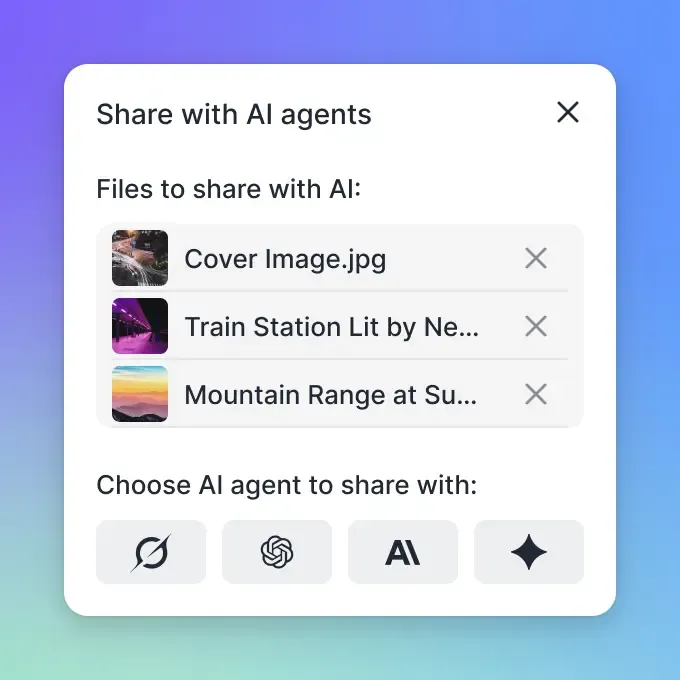


Give Your AI Agents Persistent Storage
Connect your Microsoft Copilot Studio agents to Fastio's remote MCP server for persistent storage and a consolidated toolset.
How to Add an MCP Server to Copilot Studio
Adding an MCP server to Copilot Studio takes about five minutes. Here's how to connect your agent to external tools through the MCP protocol.
1. Get Your MCP Endpoint First, you need a valid MCP server endpoint that supports the Streamable HTTP transport. If you are using Fastio:
- Log in to your Fastio account (or create a Business Trial account at Fastio). 2. Use the Fastio MCP address for general MCP clients,
https://mcp.fast.io/mcp/tools. There is nothing to copy from a dashboard and the address holds no secret: the connection signs in to Fastio with OAuth 2.0, and you choose what it can reach on the Review Permissions screen.
2. Configure the Connection in Copilot Studio
- Open your agent in Microsoft Copilot Studio (formerly Power Virtual Agents). 2. Go to the Tools page for your agent, select Add a tool, then New tool, and choose Model Context Protocol to open the MCP onboarding wizard. 3. Fill in Server name, Server description, and Server URL, pasting your Fastio endpoint URL. Ensure there are no trailing spaces, as this can cause authentication errors. 4. Select OAuth 2.0 as the authentication type, choose Dynamic discovery, and select Create. 5. On Add tool, select Create a new connection, sign in to Fastio when prompted, and select Add to agent.
3. Enable and Test Tools Once the connection is established, Copilot Studio will display a list of all tools exposed by the Fastio server. You will see Fastio's consolidated MCP toolset, covering file storage, search, and sharing. 1. Toggle on the tools you want your agent to use. We recommend starting with a focused set of tools to avoid overwhelming the model's reasoning engine. 2. Use the Test Agent pane in Copilot Studio to verify the connection. Try a command like "List the files in my root directory" or "Create a new folder named 'Reports'". 3. Check the "Output" or "Trace" logs in the test pane to see the raw MCP JSON-RPC messages being exchanged. These logs are the fast way to troubleshoot when a tool doesn't behave as expected.
Best Practices for MCP-Enabled Agents
A few things to keep in mind when configuring your MCP-enabled Copilot agent.
Limit Tool Scope: It's tempting to enable every available tool, but "tool sprawl" confuses LLMs. If your agent handles document review, enable only the tools it needs. Fewer tools means fewer tokens spent on tool selection, which leads to faster responses and fewer cases where the agent picks the wrong tool.
Handle Errors in Topics: MCP tool calls can fail because of network timeouts, invalid file paths, or permission issues. Use Copilot Studio's "Topic" logic to catch tool execution errors. Program your agent to give useful feedback (e.g., "I couldn't find that file, would you like me to list the files in the directory instead?") rather than failing silently.
Use Intelligence for Large Datasets: Don't make the agent read every file one by one. Fastio's document Q&A uses the internal RAG pipeline once Intelligence is enabled to find the most relevant snippets before passing them to the agent. This approach is more efficient than loading entire documents into the agent's context window.
Isolate Workspaces for Security: Your Fastio MCP connection reaches only the workspaces you grant when you sign in. If you're deploying an agent for public or external use, use one workspace per agent for strict data isolation, and grant the connection only that workspace.
Write Better System Prompts: Help your agent understand when and how to use its tools by updating the "System Instructions" or "Base Prompt." For example: "Whenever you need to store data for future reference, save the file in your Fastio workspace. Always check if a file exists before trying to overwrite it." This kind of guidance connects the agent's general knowledge with its specific tool capabilities.
Sources
References used to verify factual claims in this guide.
-
Microsoft added support for the Model Context Protocol (MCP) in Copilot Studio in early 2025
-
Fastio MCP server provides managed infrastructure with a consolidated toolset via Streamable HTTP Fastio agents can store state, save logs, and manage user documents across interactions with persistent storage
-
Fastio MCP server provides a consolidated toolset accessible via a single endpoint Query documents with citations without managing embeddings, chunking, or similarity search MCP servers like Fastio provide a consolidated toolset accessible via a single endpoint Fastio indexes files for semantic search and RAG once Intelligence is enabled for the workspace Fastio MCP server offers a consolidated toolset for file operations and metadata extraction It's tempting to enable all tools, but tool sprawl confuses LLMs
-
Fastio provides persistent file storage for agent workspaces Fastio offers a 14-day Business Trial with access to workspaces and the remote MCP server
Frequently Asked Questions
Does Copilot Studio support MCP?
Yes, Microsoft added support for the Model Context Protocol (MCP) in Copilot Studio in 2025. This allows agents to connect to external MCP servers via Streamable HTTP to access tools and data sources.
Does Fastio offer a trial for the MCP server?
Yes, Fastio offers a 14-day Business Trial that includes full access to the remote MCP server and workspaces. A credit card is required to start; see /pricing/.
Can I use local MCP servers with Copilot Studio?
Connecting a cloud-based Copilot Studio agent to a local MCP server (running on localhost) is difficult without tunneling. A cloud-hosted MCP server like Fastio is the easier option for stable, persistent connections.
What capabilities does the Fastio MCP server provide?
The Fastio MCP server provides a consolidated toolset for file management, search, document Q&A, and metadata extraction, all accessible through a single connection.
Related Resources

Give Your AI Agents Persistent Storage
Connect your Microsoft Copilot Studio agents to Fastio's remote MCP server for persistent storage and a consolidated toolset.