How to Connect Microsoft Copilot Studio to Dropbox
A Copilot Studio Dropbox connector enables custom copilots to search, retrieve, and ground generative responses on Dropbox files. Direct cloud folder indexing introduces administrative overhead, crawl delays, and context bloat from unindexed files. By synchronizing Dropbox folders into an indexed workspace, teams ground Copilot agents using hybrid semantic search over remote MCP without per-turn Dropbox API calls.

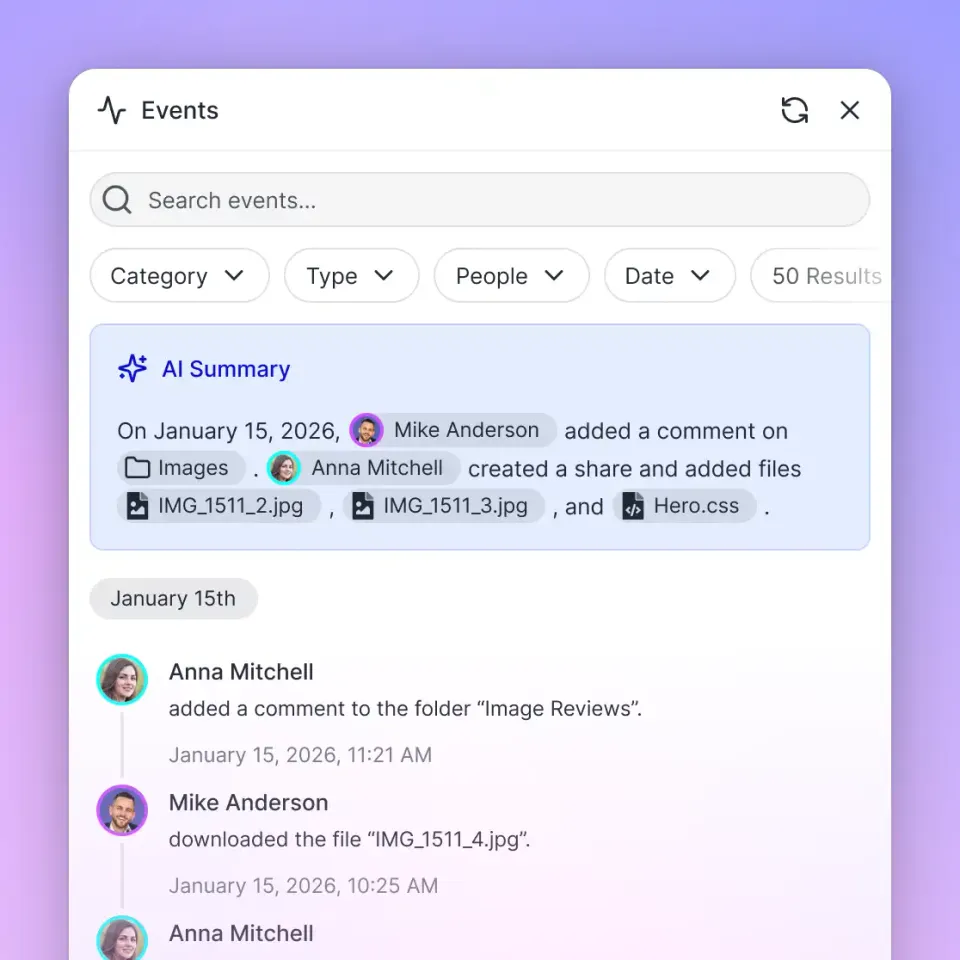
How Copilot Studio Interacts with Dropbox Files
Connecting Microsoft Copilot Studio directly to Dropbox folders treats an archival file repository like a real-time conversational database, introducing administrative friction, crawl latency, and prompt token bloat. The breakdown stems from the architectural gap between hierarchical cloud file storage designed for human navigation and the token-constrained semantic retrieval required by autonomous generative copilots. A Copilot Studio Dropbox connector enables Microsoft Copilot Studio custom copilots to search, retrieve, and ground responses using files stored in Dropbox directories.
In modern corporate IT environments, cross-platform collaboration is standard practice. Product teams maintain design files and technical requirements in Dropbox, marketing groups share campaign assets through team folders, and operations teams archive vendor contracts and legal disclosures across shared directories. When engineering and operations teams attempt to ground Copilot Studio agents on this corporate knowledge base, they encounter two primary integration patterns:
- Native Microsoft Graph Connectors: The official Microsoft 365 Copilot Dropbox connector that synchronizes file contents into the Microsoft 365 semantic index on scheduled crawl cycles.
- Custom Power Automate Flow Actions: An action-driven integration inherited from Power Virtual Agents where Copilot Studio topics invoke cloud flows using the Power Platform Dropbox connector to list folders, find files, and retrieve raw content during a live conversation.
Both approaches introduce operational friction. The enterprise connector requires administrative delegation across both Dropbox Business and Microsoft Entra ID, combined with multi-hour crawl delays that prevent copilots from referencing current revisions. Meanwhile, runtime Power Automate actions suffer from file size limits, rigid rate quotas, and the latency of extracting and streaming raw file contents across services.
Related guides
- How to Connect Claude to Dropbox: Integration GuideA Claude Dropbox integration links Anthropic Claude models and Claude Code CLI to Dropbox folders, allowing agents to...
- How to Connect Devin AI with Microsoft OneDriveConnecting Devin AI to Microsoft OneDrive allows developers to make large datasets and design documents accessible to...
- How to Connect Microsoft Copilot Studio to Google DriveA Copilot Studio Google Drive connector enables Microsoft Copilot agents to ground generative responses on Google...
- How to Connect Microsoft Copilot to Box for Enterprise Search and WorkspacesA Copilot Box connector links Microsoft Copilot to Box cloud storage, letting enterprise teams search and ground...
- Top Integrations for Microsoft Copilot StudioMicrosoft Copilot Studio lets businesses build custom AI agents, but its real power comes from connecting to external...
- How to Connect Copilot Studio to an MCP ServerAdding an MCP server to Microsoft Copilot Studio turns a basic chatbot into an agent that can store files, query...
More on this subject: GitHub Copilot (137 guides)
How to Configure the Native Microsoft 365 Copilot Dropbox Connector
The standard enterprise integration between Microsoft Copilot and Dropbox relies on the official Dropbox Microsoft 365 Copilot connector. This mechanism operates as a synchronized Graph connector, extracting content from Dropbox team accounts and indexing the text so declarative agents and custom Copilot Studio bots can query external documents as a registered knowledge source.
Step 1: Dropbox Developer Portal and App Configuration
To allow Microsoft Graph to crawl Dropbox content securely, an administrator must create an automated application identity in the Dropbox App Console:
- Sign in to the Dropbox developer portal using an administrator account on an active Dropbox Advanced or Enterprise subscription.
- Select Create app, choose Scoped access, and select Full Dropbox access permissions.
- Enter a distinct application name, such as
M365-Copilot-Dropbox-Connector. - In the
OAuth 2.0configuration section, add the Microsoft 365 redirect URI:https://gcs.office.com/v1.0/admin/oauth/callback(orhttps://gcsgcc.office.com/v1.0/admin/oauth/callbackfor government tenants). - Navigate to the Permissions tab and enable individual file scopes:
files.metadata.read,files.content.read,sharing.read, andfile_requests.read. - Enable team administrative scopes:
team_info.read,team_data.member,team_data.governance.write,team_data.governance.read,team_data.content.read,files.team_metadata.read,members.read,groups.read, andevents.read. - From the Settings tab, copy the generated App Key and App Secret.
Step 2: Deploy the Connector in Microsoft 365 Admin Center
With the Dropbox developer application credentials secured, a Microsoft 365 tenant administrator completes deployment in the cloud management portal:
- In the Microsoft 365 admin center, in the left pane, choose Copilot > Connectors.
- Choose the Gallery tab and select Dropbox from the catalog of available data connectors.
- Set a clear display name for the connection. This label identifies reference citations in Copilot chat responses.
- Select Next to continue to authentication.
- Enter the app key and app secret from the Dropbox App Console. OAuth 2.0 authentication is required for this connector.
- Configure identity mapping: If user email addresses in Dropbox match User Principal Names (UPNs) in Microsoft Entra ID, select Microsoft Entra ID mapping. If email addresses differ across domains, supply regular expression rules to map user attributes.
Step 3: Configure Crawl Schedules and Content Filters
Once authenticated, administrators configure indexing boundaries and refresh frequencies:
- Set crawl schedules for incremental and full refreshes.
- Set content filters: By default, files that were last updated within the past three years are indexed. You can restrict the crawl to team folders only if private member folders should remain excluded from copilot indexing.
Step 4: Add Dropbox as a Knowledge Source in Copilot Studio
After the initial full crawl completes and the status indicates active indexing, bot authors attach the repository to custom copilots:
- Open Microsoft Copilot Studio and select your target copilot.
- Navigate to the Knowledge tab and choose Add knowledge.
- Select the deployed Dropbox connector from the enterprise data sources list.
- Save the configuration to allow the copilot generative answers component to ground responses on indexed Dropbox documents.
Limitations of the Native Connector Architecture
While the native Graph connector provides governed enterprise discovery, it imposes rigid architectural constraints:
- Read-Only Surface: The connector is strictly read-only. Copilot Studio agents cannot write research summaries, update project files, or create delivery folders in Dropbox.
- Omitted Content Types: Content in Dropbox Paper is not crawled, and Google documents (Docs, Sheets, Slides) stored inside Dropbox are skipped. Folders, comments, and inline replies are not indexable.
- Permission Restrictions: Access control lists based on shared file links are not supported. Only files governed by direct team membership or explicit folder sharing map to Graph access permissions.
- Synchronization Lag: Data discovery depends on scheduled crawl cycles.
Why Power Automate Flow Connectors Face Throttling and Latency
Departmental developers who lack tenant global administrator permissions often bypass the native Graph connector by building custom Power Automate cloud flows. In this design, Copilot Studio invokes a cloud flow as a conversational plugin or topic action whenever a user asks about Dropbox files.
How Power Automate Bridges Copilot Studio and Dropbox
The flow-based architecture operates synchronously during conversation execution:
- The user asks a question in Copilot Studio regarding a project document stored in Dropbox.
- The copilot triggers a cloud flow, passing search parameters or folder paths as input variables.
- The flow calls standard Power Platform Dropbox connector actions, such as 'List files in folder', 'Get file metadata using path', and 'Get file content using path'.
- The flow extracts raw text from the retrieved document and returns it as a string variable to Copilot Studio.
- Copilot Studio generative answers injects the text string into the model prompt context to synthesize a reply.
Adaptive Rate Limiting and Throttling Failures
While cloud flows allow quick departmental prototyping, they can fail in production environments due to throttling. Microsoft documents a limit of 100 API calls per connection every 60 seconds for the Power Platform Dropbox connector, and the Dropbox API applies its own rate limits. When multiple users or autonomous copilots issue parallel conversational queries that list folders and fetch files, requests return HTTP 429 rate-limiting responses, and the flow fails that conversational turn.
File Size Boundaries and Binary Handling
The standard Power Platform Dropbox connector enforces a 50 MB maximum file size on individual file actions. Enterprise technical manuals, architectural design PDFs, high-resolution media decks, and historical record sets routinely exceed this transfer threshold. When a flow encounters a file exceeding the connector ceiling, the action terminates with a payload overflow error. Also, the connector cannot parse complex binary formats or scanned pages natively. The flow must either incorporate optical character recognition connector steps or skip non-text files entirely, creating knowledge blind spots for the copilot.
Context Window Saturation and Token Inflation
Even when flow actions succeed without hitting rate limits, passing raw document content directly into Copilot Studio degrades response quality:
- Prompt Token Inflation: Injecting unindexed document strings into frontier models inflates input token counts, driving up operational inference expenses.
- Attention Degradation: Business documents contain extensive headers, legal disclaimers, tabular boilerplate, and formatting artifacts. Dumping entire files into a conversation context dilutes model attention, causing copilots to overlook precise operational details buried within long text passages.
- Response Latency: Extracting, transferring, and injecting tens of thousands of raw words across multiple cloud hops introduces multi-second conversational delays that frustrate business users.
How Workspace Sync and Remote MCP Decouple Storage from Retrieval
To avoid rate throttling and context bloat without forcing teams to migrate off Dropbox, organizations adopt a decoupled storage architecture. In this model, Dropbox remains the primary system of record where human teams create and collaborate on files, while Fastio provides an intelligent workspace layer where agents perform targeted search.
The Fastio Decoupled Pathway
Cloud Sync connects Google Drive, Dropbox, Box and OneDrive folders to a workspace, one-way or two-way, on a schedule or on demand. Synchronization operates in the background on configured schedules or on demand, and is never continuous, live, or real-time. Target Dropbox directories sync server-to-server directly into an organization-owned Fastio workspace without draining local network bandwidth or desktop storage.
Once files land in the workspace, Fastio Intelligence Mode automatically parses and indexes the documents. Files are indexed using hybrid search, which combines exact full-text keyword matching, dense semantic vector retrieval, and search-by-metadata-value into a unified retrieval engine.
Instead of making recursive directory calls across Dropbox APIs or passing raw file payloads through Power Automate flows, Microsoft Copilot Studio connects to Fastio's remote Model Context Protocol (MCP) server over Streamable HTTP at https://mcp.fast.io/mcp/tools.
When a user asks a question, Copilot Studio calls the Fastio MCP search tool. The search engine executes hybrid semantic retrieval inside the workspace and returns only the precise paragraphs that answer the inquiry, complete with source document titles and page citations. The copilot context window ingests concise factual excerpts rather than sprawling multi-page documents.
Retrieval Performance Across Cloud Storage Connectors
Decoupling primary file storage from agent search produces measurable operational advantages. In connector benchmarks published at Fastio Benchmarks, Fastio was measured the fastest and the lowest cost of the providers tested.
Structured Extraction with Metadata Views
Business files frequently contain structured tabular data that general semantic search cannot query cleanly, such as contract renewal dates, invoice totals, policy numbers, or equipment serial codes.
To handle these requirements, Fastio provides Metadata Views. Metadata Views turn unstructured documents into live, queryable tables. Users describe the fields they want extracted in natural language, and the system populates a typed schema across PDFs, spreadsheets, presentations, and scanned pages.
Copilot Studio agents can query these structured Metadata Views directly via the MCP server, retrieving exact numerical values and contract dates without relying on custom regex scripts or fragile text parsing flows.



Ground Copilot Studio on Dropbox storage without crawl delays
Synchronize Dropbox directories into persistent Fastio workspaces using scheduled Cloud Sync, then query indexed files via remote MCP tools to avoid per-turn Dropbox API calls and context bloat. Monthly plans start with a 14-day free trial.
Connecting Copilot Studio to Fastio via the MCP Onboarding Wizard
Connecting Microsoft Copilot Studio to a Fastio workspace via Model Context Protocol gives copilots direct access to indexed Dropbox files. Copilot Studio supports remote MCP servers over the Streamable transport, which is how Fastio's server runs.
Step 1: Prepare the Workspace and Configure Cloud Sync
- Sign in to Fastio and create a workspace for your target department or project.
- Configure Cloud Sync to connect the relevant folders from Dropbox. Select one-way or two-way synchronization on your required schedule.
- Enable Intelligence Mode in the workspace settings to activate automatic document parsing and hybrid search indexing.
Step 2: Choose How the Agent Signs In
Fastio's MCP server uses OAuth 2.0, and clients that support MCP authorization discover the sign-in flow automatically. For agents where each user should sign in with their own Fastio account, plan to use OAuth. For a shared, headless connection, create an API key scoped to the workspace that holds your synced Dropbox documents (the Fastio CLI can do this with fastio auth api-key create --name "Copilot Studio"), and keep it ready to send as Authorization: Bearer <api key>.
Step 3: Add Fastio as an MCP Tool in Copilot Studio
Microsoft recommends the MCP onboarding wizard for connecting an agent to an existing MCP server:
- Open Microsoft Copilot Studio, select your agent, and go to its Tools page.
- Select Add a tool, then New tool, then Model Context Protocol. The MCP onboarding wizard appears.
- Enter a Server name (for example, Fastio), a Server description that tells the orchestrator the server searches your synced Dropbox documents, and the Server URL
https://mcp.fast.io/mcp/tools. - Choose the authentication type. Select OAuth 2.0 with Dynamic discovery for per-user sign-in, or select API key, choose Header, and enter
Authorizationas the header name. - Select Create. On the Add tool dialog, create a new connection (with an API key, enter
Bearer <api key>as its value), then select Add to agent.
Microsoft also documents a second route, a custom connector created in Power Apps from an OpenAPI file whose operation carries x-ms-agentic-protocol: mcp-streamable-1.0. Because MCP servers in Copilot Studio connect through Power Platform connectors, your organization's data policies for connectors also govern this connection. For setup details on the Fastio side, refer to the Fastio MCP documentation and storage for agents.
Step 4: Test the Agent
Once the Fastio tools are added, the agent's orchestrator decides when to call them based on the server description. Ask a question about a synced Dropbox document in the test pane: the agent calls Fastio's storage search, receives the relevant excerpts with document citations, and grounds its response without fetching whole files.
Sources
References used to verify factual claims in this guide.
-
The standard enterprise integration between Microsoft Copilot and Dropbox relies on the official Dropbox Microsoft 365 Copilot connector to index content.
-
In the Microsoft 365 admin center, in the left pane, choose Copilot > Connectors.
Frequently Asked Questions
Can Microsoft Copilot Studio use Dropbox as a knowledge source?
Yes. Microsoft Copilot Studio can use Dropbox as a knowledge source through the enterprise Microsoft 365 Copilot Dropbox connector or by syncing Dropbox folders into an intelligent workspace like Fastio. The native Graph connector crawls team folders on scheduled intervals, while an indexed workspace provides hybrid semantic search via remote MCP without Power Automate flow actions.
How do I connect Dropbox files to a Copilot Studio bot?
You have three integration paths. An administrator can deploy the native Microsoft 365 Copilot Dropbox Graph connector in the Microsoft 365 admin center. Alternatively, developers can build custom Power Automate cloud flows using the Power Platform Dropbox connector to query files on demand. For lower latency and granular retrieval, you can sync Dropbox folders into a Fastio workspace using Cloud Sync and add Fastio's remote MCP server to the agent with Copilot Studio's MCP onboarding wizard.
Why are some Dropbox documents skipped during Copilot Studio indexing?
The native Microsoft 365 Copilot Dropbox connector skips Dropbox Paper docs, Google Workspace files stored in Dropbox, and files not modified within the last three years by default. Permissions assigned only through shared web links cannot be mapped by Microsoft Graph. In Power Automate flows, documents exceeding file size limits or complex binary formats are also skipped unless optical character recognition steps are configured.
Does Fastio Cloud Sync provide real-time updates from Dropbox?
No. Cloud Sync operates on configured schedules or on demand, never as a continuous, live, or real-time sync. It connects Dropbox, Google Drive, Box, and OneDrive folders directly to your workspace server-to-server. Once a sync run completes, Intelligence Mode automatically indexes new and updated files for hybrid semantic search.
How does querying indexed excerpts differ from passing whole Dropbox files?
Passing entire files into a conversation context window consumes excessive prompt tokens, raises inference costs, and can dilute model attention across long documents. In contrast, querying an indexed workspace via remote MCP retrieves only the specific paragraphs and structured metadata attributes needed to answer the prompt, returning concise factual excerpts with source citations.
Related Resources

Ground Copilot Studio on Dropbox storage without crawl delays
Synchronize Dropbox directories into persistent Fastio workspaces using scheduled Cloud Sync, then query indexed files via remote MCP tools to avoid per-turn Dropbox API calls and context bloat. Monthly plans start with a 14-day free trial.