How to Connect Claude to Google Drive: A Complete Guide
Getting your Google Drive files into Claude's context is more annoying than it should be. This guide covers the main approaches, from manual uploads and the official Google Drive connector through to an MCP bridge, so you can choose based on what you actually need Claude to do.

Can Claude Access Google Drive?
Yes, but what "access" means depends on the method. Manual uploads give Claude a static snapshot of a specific file. The official Google Drive connector reads Google Docs and keeps them in sync. An MCP server setup lets Claude actively search, read, write, and organize files without you doing anything manually.
One thing worth flagging upfront: granting an AI agent broad access to your entire Drive is riskier than scoping access to specific files or folders. The MCP bridge approach handles this naturally, you import specific files rather than handing Claude the keys to everything.

Related guides
- How to Connect Devin AI to Google DriveConnecting Devin AI to Google Drive allows the autonomous engineer to parse and edit your organization's documentation...
- How to Connect CrewAI to Google Drive FilesConnecting CrewAI agents directly to Google Drive often floods prompt context windows and triggers API rate limits...
- Claude Code Google Drive MCP: Connecting Terminal Agents to DriveClaude Code Google Drive MCP connects Anthropic's command-line agent to Google Drive files through the Model Context...
- How to Connect Claude to Google Drive: Native Setup vs Fast.io MCP WorkspacesAnthropic provides a native Claude Google Drive connector for Team and Enterprise tiers, but administrative gates and...
- How to Connect Claude to Google Drive: Setup, MCP, and Team WorkspacesA Claude Google Drive integration enables Anthropic models to query, read, and cross-reference documents stored across...
- Can Claude Edit Google Docs? Native Connector Limitations vs. Workspace SyncClaude cannot natively edit existing Google Docs in place through its default Google Drive connector. While the...
More on this subject: Claude and Claude Code (207 guides)
Method 1: Manual Uploads (Best for One-Off Tasks)
The simplest approach is to download the file from Google Drive and upload it directly into a Claude chat. This requires no setup and works on any plan.
How to do it:
- Download the specific file from Google Drive to your local machine.
- Open Claude.ai or the Claude desktop app.
- Upload the file using the paperclip icon in the chat.
Pros: Zero setup; you control exactly what gets shared.
Cons: Tedious for repeated workflows; creates version control problems; Claude sees a static snapshot and cannot detect updates to the original.
Method 2: Official Google Drive Connector (Best for Text Analysis)
Anthropic added Google Workspace integration to Claude on February 24, 2026. The connector is available for all Claude users and allows Claude to read Google Docs directly in chats and projects. Google Docs added to projects sync from Drive, so Claude always works with the latest version.
How to set it up:
- Go to Settings in your Claude account.
- Navigate to Integrations (or Connectors).
- Select Google Drive and authenticate.
Once connected, you can reference Google Docs in chats using the @ symbol.
What it does well: Reading and summarizing Google Docs, drafting content based on existing documents, syncing updates automatically for projects.
What it does not do: This connector extracts text content. It does not give Claude file system control, so you cannot ask Claude to organize folders, move files, or work with non-text assets like video, raw code archives, or large binary files. For autonomous workflows where Claude needs to find, edit, and manage files programmatically, you need an MCP setup.
Method 3: Automation Platforms (Best for Triggers)
Zapier and Make (formerly Integromat) offer another way to connect Claude to Google Drive. These platforms set up triggers (for example, "New file added to folder") and actions ("Send file contents to Claude").
Pros: Good for linear, repetitive tasks where the workflow is predictable.
Cons: Rigid structure; complex to debug when something goes wrong; can get expensive at volume.
The key difference is that automation platforms push data to Claude on a schedule or trigger. Claude is passive, waiting for data to arrive. With the MCP approach, Claude actively explores the file system to find what it needs. If your workflow requires Claude to search for relevant files based on a question it is trying to answer, the MCP approach is the better fit.
Method 4: The Fastio MCP Bridge (Best for AI Agents)
For autonomous workflows, using Fastio as an MCP bridge is the most capable approach. You import specific files from Google Drive into a Fastio workspace (cloud-to-cloud, no local download), then connect Claude to that workspace via MCP. Claude can read, write, search, and organize files, all without touching your primary Drive.
The advantages over the official connector:
- Files persist in an agent workspace, not a temporary chat window. The agent builds on previous work.
- Claude only has access to what you explicitly imported. Your full Drive isn't exposed.
- Works across sources, so you can pull from Drive, Dropbox, Box, or OneDrive into one workspace.
- Claude can write files back, not just read them.
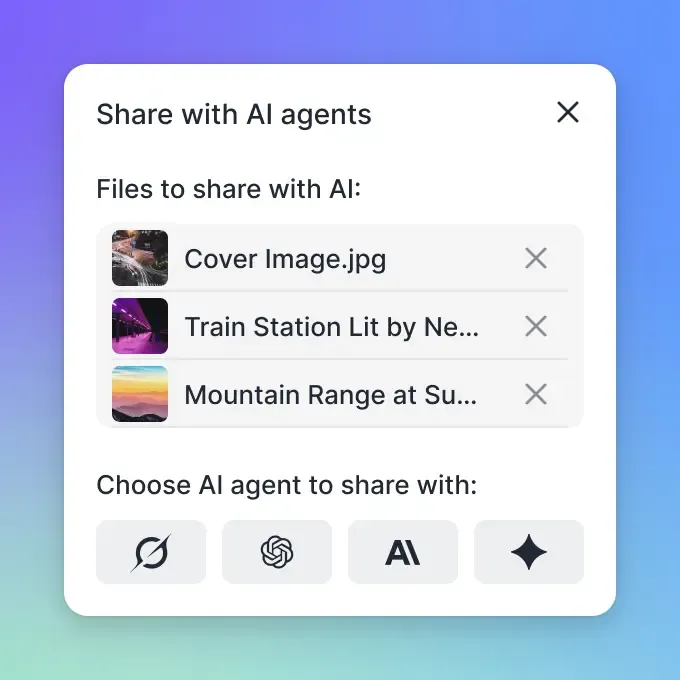


Give Claude a Secure, Controlled Workspace for Your Files
Stop manual uploads. Connect Claude to an organization-owned workspace with version history and audit logs.
Step-by-Step: Connecting Claude via Fastio MCP
Step 1: Create an account Sign up at Fastio. Creating a user account is free, but running real work needs an organization on a paid subscription, which starts with a 14-day trial and requires a credit card.
Step 2: Import your Drive files In the Fastio dashboard, use Cloud Import to pull in specific folders or files from Google Drive. It copies them cloud-to-cloud, with no local download needed, and nested folder structure is preserved.
Step 3: Add the MCP server to Claude Desktop
The Fastio MCP server is remote. It is served from mcp.fast.io over Streamable HTTP, with a legacy Server-Sent Events transport also available. Open your Claude Desktop config file (on macOS: ~/Library/Application Support/Claude/claude_desktop_config.json) and add:
{
  "mcpServers": {
    "fastio": {
      "url": "https://mcp.fast.io/mcp"
    }
  }
}
Step 4: Restart Claude and test it After restarting, try: "Check the 'Marketing' folder for the latest PDF, summarize it, and save the summary as a new text file." Claude will find the file, read it, and write the output, without you doing anything manually.
Why Local MCP Configurations Break Down Across a Team
A single developer's MCP setup works well until a second person, or a second agent, needs the same files. Configuration lives in a local config file on one machine, and the files an agent produces land wherever that machine happens to point. Nothing another teammate runs can see them.
This is the practical limit of connecting an agent straight to a personal Drive. Access is scoped to one person's account, so the agent inherits one person's permissions, and the output of an agent run is invisible to everyone else until somebody manually shares it. When a second agent starts writing to the same folder, there is no version history to fall back on if the two disagree.
Pointing agents at an organization-owned workspace instead of a personal drive changes the shape of the problem. The workspace is the shared surface: agents and teammates read and write the same files, per-file version history preserves every revision so a bad agent write can be rolled back, and an append-only audit log records what each agent read and wrote. Permissions are set per folder, so an agent working a single project cannot reach the rest of the organization's files.
Security: Why Scoped Access Matters
Giving an LLM direct access to your entire file storage is a real risk. A misconfigured agent, or a carefully crafted prompt injection attack, could delete or corrupt files you didn't intend to share. This isn't theoretical, and it is why security researchers consistently flag broad file access as a concern with agentic AI systems.
The practical approach is to create a staging workspace. Import only the files a specific project needs into the agent's environment. If something misbehaves, the damage is contained to that workspace. Your main Google Drive is unaffected.
Fastio generates audit logs for every file operation, recording what Claude read, wrote, and when. Direct Google Drive integrations typically provide no equivalent visibility into what an agent actually did.
Sources
References used to verify factual claims in this guide.
-
Anthropic added Google Workspace integration (Drive, Gmail, Calendar) to Claude on February 24, 2026. Google Drive Cataloging with RAG is only available on Claude Enterprise plans.
Frequently Asked Questions
Can Claude edit files in Google Drive?
The official Google Drive connector is primarily read-only for text documents. Using the Fastio MCP bridge, Claude can edit copies of files stored in its dedicated workspace and save new versions, giving you a functional editing workflow without touching your original files.
How much does the Fastio MCP server cost?
The MCP server is included with a Fastio subscription rather than sold separately. Creating a user account is free, but doing real work requires an organization on a paid plan. Plans are Starter at $9.99/mo, Business at $49.99/mo, and Enterprise at $199.99/mo, and every organization starts with a 14-day trial that requires a credit card.
Does this work with the Claude Free version?
The MCP integration requires the Claude Desktop app, which works with Free and Pro accounts. Pro accounts have higher rate limits, which matters for heavy file processing.
What file types can Claude read via Fastio?
Through the MCP server, Claude can read any text-based file (code, markdown, txt, logs) and access metadata for binary files. With Intelligence Mode enabled, Fastio auto-indexes PDFs and documents for semantic search.
Should I connect Claude to my personal Drive or to a shared workspace?
Use a personal Drive connection for solo, read-only analysis of your own documents. Use a shared workspace when more than one person or agent needs the files, when you need version history to recover from a bad agent write, or when you need an audit trail of what the agent touched.
Related Resources

Give Claude a Secure, Controlled Workspace for Your Files
Stop manual uploads. Connect Claude to an organization-owned workspace with version history and audit logs.