How to Use Git Worktrees with Cline for Parallel AI Coding
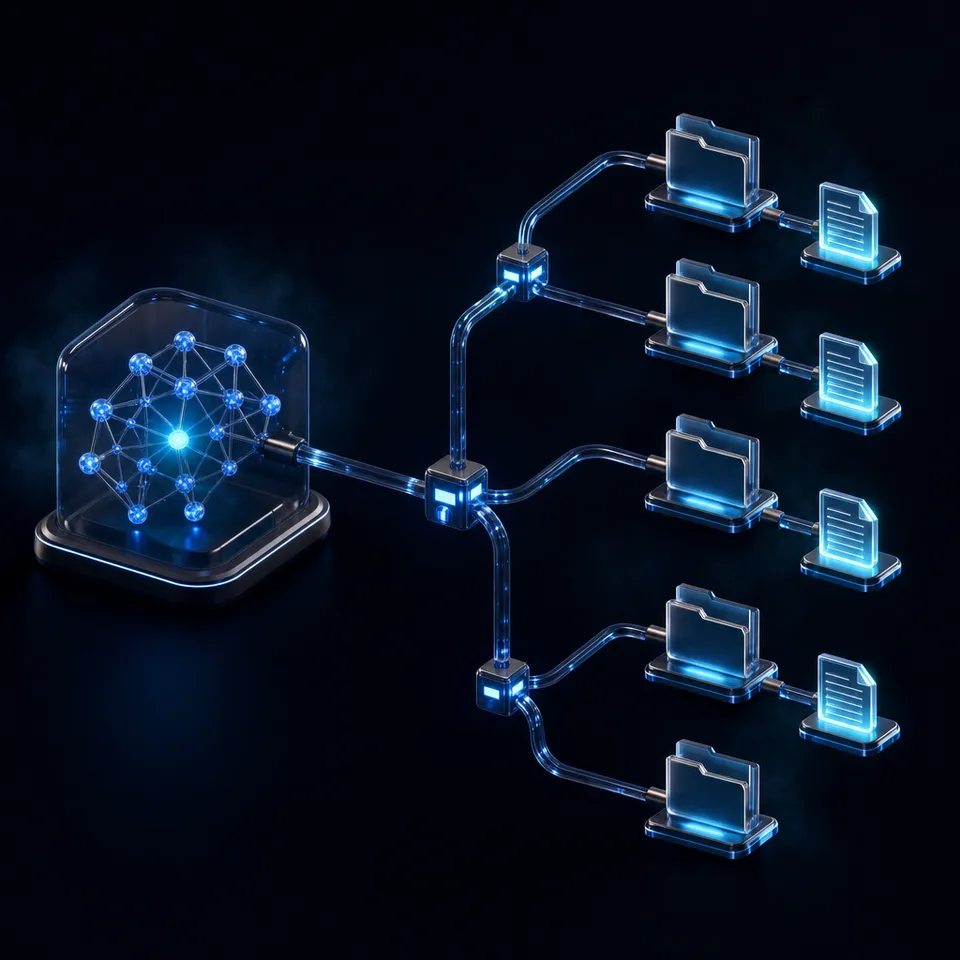
Running multiple autonomous AI coding agents in a single Git directory causes file collisions, test port contention, and index lock failures. Git worktrees eliminate these concurrency bottlenecks by attaching isolated working directories to a shared repository history. Combining Git worktree workflows and Cline Kanban with persistent cloud workspaces enables developers to build features in parallel, verify diffs cleanly, and persist deliverables without repository bloat.

Why Parallel Coding Agents Break Without Workspace Isolation
Two coding agents pointed at the same repository will happily overwrite each other's work, and neither will notice. When autonomous coding assistants modify files, run background builds, and stage git commits simultaneously in a single working directory, they trigger file collisions, corrupted intermediate states, and index lock failures.
Assigning two Cline agents tasks in parallel within the same directory illustrates the problem clearly. Suppose one agent refactors authentication middleware while a second agent implements a billing webhook. Both agents locate shared entry points like src/app.ts and begin editing. Agent A rewrites import paths to accommodate a new provider. Seconds later, Agent B formats the file and appends webhook routes. Because neither agent tracks background disk writes made by another process, Agent B overwrites Agent A's uncommitted edits. The codebase enters a broken state that fails type checking, and both agents waste tokens debugging syntax errors caused by the other.
Git's internal architecture enforces single-process locks that compound these collisions. Whenever a tool stages files or writes commits, Git creates an administrative lock file at .git/index.lock to ensure atomicity. When two parallel agents execute git add or git commit at the same instant, one process fails immediately with a fatal index lock error. The failing agent halts its workflow or enters an expensive retry loop, assuming the repository is corrupted.
Local testing environments present another concurrency hazard. Modern web frameworks bind to deterministic local ports during automated testing. If Agent A launches a test suite on port 3000, and Agent B starts an integration test that attempts to bind to the same port, one test runner crashes with EADDRINUSE. The failure has nothing to do with code correctness, yet the agent interprets the port collision as a test regression and attempts unnecessary code rewrites.
"A Cline worktree is an isolated Git working tree spawned by Cline to allow autonomous AI agents to build, test, and commit features in parallel without overwriting active repository files."
Understanding this definition clarifies why parallel AI development demands isolation at the filesystem level. To run multiple autonomous agents effectively, teams must give each agent its own independent directory, staging index, and execution boundary.
The Mechanics of Git Worktrees Across Multiple Agent Sessions
Git worktrees decouple a repository's version history from the physical folder where source code is edited. In a conventional Git repository, a single working tree surrounds the hidden .git folder, which houses commit graphs, branch heads, and the staging index (.git/index).
When you create a Git worktree, Git creates an additional working directory linked to the primary repository. Instead of containing an independent .git directory with its own object database, the new worktree contains a .git text pointer file that references an administrative subdirectory within the main repository's .git/worktrees/ path.
This separation offers three concrete advantages for AI agent concurrency:
- Independent Staging Indexes: Each worktree maintains its own index file (
.git/worktrees/<name>/index). When Agent A runsgit add .in its worktree, it acquires a dedicated lock file scoped exclusively to that worktree. Agent B can stage and commit files in its own worktree at the exact same moment without index contention. - Shared Object Database: Every worktree reads from and writes to the common
.git/objectsstore. Commits created by an agent in one worktree are immediately accessible to all other worktrees on your machine without runninggit pushorgit fetch. - Zero Disk Redundancy for History: A full
git cloneduplicates an entire project's commit history, branch references, and packfiles, which consumes gigabytes in large repositories. A Git worktree checks out only the files required for the target branch, leaving the heavy object history shared on disk.
Because each worktree is a standard filesystem directory with an isolated index, AI agents can run build tools, edit source files, and execute terminal commands without cross-agent interference.
Concurrency Bottlenecks in Single-Directory Agent Workflows
Single-directory agent workflows force developers into sequential execution. When an engineer delegates a task to an autonomous agent, the agent spends minutes analyzing code, generating diffs, installing packages, running linters, and executing test suites.
In a sequential workflow, the developer must sit idle or manually switch contexts while waiting for the agent to finish. If the developer opens a second terminal or editor window to start another agent on a separate feature in the same folder, both agents collide on Git status and file states.
The following table summarizes how single-directory workflows fail compared to worktree-isolated environments:
By isolating each agent session in a dedicated worktree, developers unlock true parallelism. Multiple features, bug fixes, and refactoring tasks can proceed simultaneously on a single workstation.
Related guides
- Top OpenClaw Tools for Coding AgentsOpenClaw tools give coding agents the libraries and access they need to write software. With AI now handling about 45%...
- Cline vs. Cursor vs. Claude Code: Best Coding Agents ComparedAn in-depth comparison of Cline, Cursor, and Claude Code coding agents. Choosing the right tool depends on your team's...
- Kilo Code vs Cline: Open-Source Coding Agent ComparisonCline is free for individual developers under Apache 2.0, with its public repo past 64,000 GitHub stars, while pairwise...
- Cline vs Aider: IDE Agent vs Git CLI PairingCline vs Aider is less a quality contest and more a control-model choice. Cline is an approval-gated multi-surface...
- Cline vs Trae: Open-Source Coding Agent vs ByteDance AI IDE ComparedCline and ByteDance's Trae represent two divergent philosophies for agentic software engineering. Cline embeds a...
- Cline vs OpenCode: In-Editor Agent or Terminal Agent?Cline and OpenCode represent two distinct design models for open-source AI coding agents: in-editor assistance and...
More on this subject: Cline (105 guides)
How to Configure Git Worktrees Manually for Cline Sessions
Developers can create and manage Git worktrees directly from the terminal to run multiple Cline instances in VS Code or CLI mode. Setting up manual worktrees provides complete transparency into how branches, directories, and dependencies are structured before introducing automated orchestration tools.
To begin, verify that your current repository is clean and inspect any existing worktrees using the Git command line:
cd /path/to/your/project
git status
git worktree list
The output of git worktree list displays the main repository path, the current commit hash, and the active branch.
To keep your project clean, designate a dedicated folder for all agent worktrees, such as .worktrees/. Add this folder to your root .gitignore so that untracked agent directories never get committed to source control:
echo ".worktrees/" >> .gitignore
git add .gitignore
git commit -m "chore: ignore agent worktrees directory"
Next, create isolated worktrees for each task you plan to delegate to Cline. When running git worktree add, pass the -b flag to create a new branch and specify the destination path followed by the base branch:
git worktree add -b feat/user-auth .worktrees/user-auth main
git worktree add -b feat/billing-stripe .worktrees/billing-stripe main
Git checks out the specified branches into the respective folders under .worktrees/. Running git worktree list will now display three distinct working directories sharing the same repository database.
Managing Dependencies and Environment Files in Worktrees
A newly created worktree checks out only the tracked files from your Git branch. Ignored assets, such as node_modules, virtual environments (.venv), compiled binaries, and .env files, do not exist in the new directory.
Running package managers like npm install in every worktree wastes disk space and delays agent startup. To resolve this, symlink heavy dependency directories directly from the primary repository into each worktree:
ln -s ../../node_modules .worktrees/user-auth/node_modules
ln -s ../../node_modules .worktrees/billing-stripe/node_modules
Symlinking allows the agent to execute build tools and linters immediately. Be mindful of an important operational boundary: if an agent executes a package manager command to install a new dependency, it will modify the symlink target in your main repository. If your agent task involves upgrading or adding dependencies, create an isolated directory copy rather than a symlink.
For environment variables, avoid symlinking sensitive credentials. Copy your .env.example template into the worktree and configure isolated development values:
cp .env.example .worktrees/user-auth/.env.local
cp .env.example .worktrees/billing-stripe/.env.local
Assign different local ports (such as port 3001 for user-auth and port 3002 for billing-stripe) in each worktree's .env.local file to prevent port collisions during parallel test runs.
Launching Cline and Integrating Feature Branches
Once the worktree directories and dependencies are prepared, launch separate Cline sessions in each folder. If you use the VS Code extension, open each worktree in an independent editor window:
code .worktrees/user-auth
code .worktrees/billing-stripe
Within each VS Code window, activate Cline from the sidebar or command palette. Each instance of Cline runs in the context of its specific workspace root, reading files, executing terminal commands, and applying diffs strictly within its assigned worktree.
Alternatively, if you run the Cline CLI or compatible command-line coding agents, open split terminal panes and start the agents directly:
cd .worktrees/user-auth
cline
In your second terminal pane, start the other feature agent:
cd .worktrees/billing-stripe
cline
Each agent works concurrently on its designated feature. When an agent finishes its assignment, inspect the git status and diffs from your terminal:
git -C .worktrees/user-auth status
git -C .worktrees/user-auth diff
Once you review and approve the agent's work, push the feature branch to GitHub or merge it into main from your root directory:
git checkout main
git merge feat/user-auth
git push origin main
Because each feature was developed in an isolated branch and worktree, your main branch remains clean and stable throughout the process.
Automating Parallel Execution with Cline Kanban
While manual Git worktree management is reliable, configuring directories, symlinks, and terminal windows for several concurrent tasks creates friction. To automate this setup, the Cline team released Cline Kanban, a local web application that automates worktree creation, terminal execution, and diff reviews for parallel AI agents.
Cline Kanban is published on npm under the official package name kanban. You can run it directly from the root of any Git repository using npx:
cd /path/to/your/project
npx kanban
Alternatively, install the launcher globally for immediate command-line access:
npm i -g kanban
kanban
When launched, Kanban inspects your project, detects installed CLI agents (including Cline CLI, Claude Code, Codex, and OpenCode), starts a local HTTP server, and opens the board interface in your default browser. The entire application runs locally on your workstation without requiring third-party accounts, cloud servers, or external telemetry.
Cline Kanban provides an intuitive board where each card represents a discrete programming task. When you click the play button on any card, Kanban automatically provisions an ephemeral Git worktree in the background, symlinks ignored dependencies like node_modules, and launches an autonomous agent terminal attached to that directory. Multiple tasks run concurrently across separate worktrees, allowing agents to write code, execute linters, and run test suites without interfering with one another.
Task Chaining and Autonomous Dependency Pipelines
Cline Kanban allows engineers to structure multi-step development pipelines through card linking. In complex projects, tasks frequently depend on the output of prior steps. For example, generating a database migration must complete before an agent can write API route handlers that query the new tables.
Kanban enables dependency chaining through a simple keyboard shortcut:
- Link Tasks: Hold
⌘ + clickon macOS orCtrl + clickon Linux and Windows to connect two cards with a dependency link. - Autonomous Execution: When a completed task card is moved to the trash, any linked dependent task automatically initializes its worktree and starts the assigned agent.
- Auto-Commit Automation: Enabling auto-commit or auto-PR in Kanban settings allows an agent to commit verified changes to the branch automatically upon finishing.
This task-chaining mechanism turns Cline Kanban into an autonomous local pipeline. You can define sequential subtasks, link them together, and let the agents execute the full sequence from migration to frontend integration without manual intervention between steps.
Kanban includes a sidebar chat where you can converse with an orchestrator agent. You can paste a technical specification into the chat and instruct the agent to break the specification into modular task cards, link their dependencies, and prepare them on the board. The orchestrator agent creates the cards automatically, establishing clear task boundaries for the parallel workers.
Reviewing Changes with Checkpoints and Inline Diff Steering
Monitoring parallel agents requires fast, granular visibility into what each agent is modifying. Clicking on any card on the Kanban board opens a comprehensive detail view that includes the agent's full terminal output and a live diff viewer.
Kanban enhances standard Git diffs with an intelligent checkpoint system:
- Message-Scoped Diffs: Rather than presenting only a cumulative diff of the entire session, Kanban allows developers to inspect diffs scoped to specific message ranges. You can verify exactly what the agent modified in response to a particular prompt or tool invocation.
- Inline Feedback Comments: If you spot an issue in the generated code, click directly on the offending diff line to open an inline comment box. Type your feedback, such as requesting parameterized queries or asking for an explicit return type.
- Targeted Steering: Kanban feeds your inline comment directly back into the agent's conversational loop. The agent reads the file location, line number, and instructions, immediately generating a corrective patch without requiring you to restate the entire task prompt.
Once an agent finishes and tests its implementation, the detail view offers two primary completion actions: Commit (which merges the worktree changes into a commit on your base branch) or Open PR (which pushes the branch and creates a pull request). Kanban prompts the agent to handle the Git operation and resolve merge conflicts automatically if the base branch has progressed.


Coordinate parallel coding agents in shared workspaces
Connect Cline and other autonomous AI agents to persistent workspaces with version history, semantic search, and branded client delivery through the Fast.io MCP server. Start with a 14-day free trial.
How to Clean Up Worktrees and Resolve Orphaned States
Because Git worktrees check out real files on your local filesystem, running multiple parallel agents can rapidly consume disk space and leave behind stale branch references if worktrees are not cleaned up after completion.
In Cline Kanban, worktree lifecycle management is built into the board's columns. When a feature has been committed or pushed as a pull request, moving the task card into the Trash column triggers an automated cleanup sequence:
- Kanban terminates the background agent terminal process running in that directory.
- It removes the ephemeral working directory from your filesystem.
- It unlinks temporary symlinks created for
node_modulesor build caches. - It records a unique resume ID in Kanban local storage, allowing you to restore the task and re-checkout the branch if further revisions are needed later.
When developers terminate terminal sessions abruptly, kill processes with SIGKILL, or manage worktrees manually from the command line, orphaned worktree registrations can linger in Git's administrative files. Understanding how to inspect and prune these orphaned states ensures your local Git environment remains healthy.
Removing Stale Working Trees and Administrative Metadata
When a worktree directory is deleted using standard shell commands like rm -rf rather than git worktree remove, Git does not automatically delete the corresponding metadata folder under .git/worktrees/. As a result, Git continues to believe the worktree exists and locks the associated branch.
To identify stale or orphaned worktrees, execute git worktree list from your repository root:
git worktree list
If a worktree's physical directory has been deleted, Git flags the path with a [prunable] label.
To clean up stale administrative records, run git worktree prune:
git worktree prune --verbose
The --verbose flag prints each administrative directory that Git removes from .git/worktrees/, confirming that stale metadata has been cleared.
If an orphaned worktree directory still exists on disk and you wish to delete it cleanly, use the official removal command:
git worktree remove .worktrees/user-auth
If the worktree contains uncommitted scratch files or untracked test logs generated by an agent, Git will refuse to delete the directory to prevent data loss. If you are certain the changes can be discarded, pass the --force flag:
git worktree remove --force .worktrees/user-auth
Resolving Checked-Out Branch Conflicts
One of Git's fundamental safety rules is that a specific branch can only be checked out in one working tree at a time. This rule prevents two working directories from writing diverging commits to the same branch ref simultaneously.
If an agent or developer attempts to check out a branch that is already active in another worktree, Git aborts with a clear error:
fatal: 'feat/user-auth' is already checked out at '/path/to/.worktrees/user-auth'
To resolve this conflict, follow a three-step diagnosis:
- Locate the Active Worktree: Run
git worktree listto identify which directory currently holds the branch checked out. - Switch the Inactive Worktree: If the previous worktree is still needed for reference, navigate into it and check out a detached commit or an alternative branch:
git -C .worktrees/user-auth checkout --detach
- Re-attempt Branch Checkout: Return to your primary working directory or new worktree and check out the desired branch.
By maintaining disciplined worktree hygiene, developers can run dozens of parallel Cline tasks throughout a development sprint without encountering repository corruption or disk bloat.
Coordinating Agent Deliverables with Persistent Cloud Workspaces
Git worktrees provide effective local isolation for parallel agents running on a single development machine. However, modern software engineering workflows require coordination that extends far beyond an individual laptop's local disk.
When autonomous Cline agents build complex features, they frequently generate outputs that do not belong in a Git repository. Committing architecture diagrams, test coverage reports, benchmark logs, database dumps, and customer-facing deliverables directly into Git bloats repository history permanently. External stakeholders, engineering managers, and clients cannot easily clone branches, inspect local terminal outputs, or navigate raw code diffs to verify progress.
Teams often turn to generic file storage services like Google Drive or Dropbox to share project assets. While these platforms support manual file uploads, they are designed for human desktop sync rather than autonomous AI agents. They lack programmatic Model Context Protocol integration, do not index files for semantic retrieval, and fail to provide the structured auditability that engineering teams need when deploying autonomous agents.
Fast.io provides an intelligent workspace substrate designed specifically for agentic teams. By combining shared org-owned workspaces with an integrated Model Context Protocol (MCP) server, Fast.io allows Cline agents to persist artifacts, share documentation, and collaborate with human reviewers seamlessly.
Key capabilities for AI agent teams include:
- Consolidated MCP Toolset: Fast.io exposes an action-based MCP server via Streamable HTTP at
https://mcp.fast.io/mcp/code, enabling agents to list workspaces, upload files, read documents, and manage folder structures programmatically. - Per-File Version History: Every file uploaded to a workspace retains a complete version history. If an agent refines a design document or updates a test report, prior versions remain fully auditable and restorable.
- Intelligence Mode and Semantic RAG: Once enabled on a workspace, Intelligence Mode auto-indexes incoming documents, test summaries, and schemas, allowing humans and other agents to query team knowledge through natural language search with verifiable citations.
- Metadata Views: For structured data extraction, Metadata Views transform uploaded documents, logs, and benchmark reports into typed, queryable spreadsheets without rigid OCR templates.
- Collaborative Notes: Real-time co-editing surfaces where developers, clients, and AI agents can collaboratively draft technical specifications, release notes, and deployment checklists.
- Branded Client Shares: Secure Send, Receive, and Exchange portals equipped with custom branding, password protection, and expiring links for presenting finished deliverables to clients.
Fast.io operates on a transparent subscription model. Monthly plans start with a trial of up to 14 days (credit card required); annual plans have no trial. Plans are Starter at $9.99/mo, Business at $49.99/mo, and Enterprise at $199.99/mo on Fast.io pricing, providing scalable storage, team seats, and MCP-enabled agent coordination for teams building with modern AI tools.
Connecting Cline to Fast.io via the Model Context Protocol
Connecting Cline to Fast.io requires only a simple entry in your Cline MCP configuration file (cline_mcp_settings.json). For complete setup guidance, refer to the Fast.io documentation. Because Fast.io provides a remote MCP server over Streamable HTTP, configure the endpoint directly:
{
  "mcpServers": {
    "fastio": {
      "type": "streamableHttp",
      "url": "https://mcp.fast.io/mcp/code"
    }
  }
}
When Cline connects, sign in to Fast.io in the browser window that opens. The Review Permissions screen lets you select Read Only or Read & Write access and choose which organizations and workspaces the connection can reach. Once configured, Cline gains immediate access to the consolidated Fast.io MCP toolset. An agent working inside an isolated Git worktree can invoke MCP tools to pull architecture requirements from the team workspace before writing code, upload generated test summaries upon task completion, or query project documentation using semantic search.
For example, when an agent finishes an implementation task, you can instruct it:
Run the test suite, compile the coverage report, and upload the coverage summary to the 'Sprint 24 Review' folder in our Fast.io workspace.
The agent executes the tests locally in its isolated worktree, captures the output, and calls the Fast.io MCP upload tool. The deliverable is immediately available to the entire engineering team in the cloud without polluting the Git commit log.
Handoff and Client Delivery Without Git Clutter
Persistent cloud workspaces bridge the communication gap between technical developers and non-technical stakeholders. When a parallel Cline agent generates user manuals, API documentation, or interactive prototypes, sharing those assets via a branded Fast.io portal simplifies the review process.
Developers can create branded Send links for client presentation or Receive links to collect customer feedback files directly into the workspace. Fast.io's activity log records every upload, download, and modification event, ensuring complete operational transparency.
Fast.io supports ownership transfer, allowing an agent or consultant to initialize a workspace, structure project assets, configure permissions, and transfer full administrative ownership to a client while retaining access. By coupling local Git worktree isolation for code execution with persistent cloud workspaces for deliverable handoff, development teams build an efficient, scalable foundation for parallel AI development.
Sources
References used to verify factual claims in this guide.
-
Use Cline Kanban to run multiple coding agents in parallel with isolated git worktrees.
-
Multiple tasks run in parallel, each in their own worktree, so agents never create merge conflicts with each other.
Frequently Asked Questions
What is a Cline worktree and how does it prevent file conflicts?
A Cline worktree is an isolated Git working directory linked to the primary repository database, allowing an autonomous coding agent to check out branches, edit files, and run tests independently. Because each worktree maintains its own staging index and file tree while sharing the underlying object history, multiple Cline agents can work simultaneously without overwriting active repository files or triggering index lock errors.
How does Cline Kanban create and manage git worktrees automatically?
When you click play on a task card in Cline Kanban, the local launcher automatically runs git worktree add to provision an ephemeral working directory. It symlinks gitignored dependencies like node_modules into the new directory to avoid redundant package installations, spawns an agent terminal inside that directory, and removes the worktree when the card is moved to trash.
What happens to symlinked files like node_modules in an ephemeral worktree?
Symlinks allow the agent in the worktree to read existing node_modules from the parent repository, saving time and disk space. However, if the agent runs an install command that adds or modifies packages, those changes will affect the shared node_modules directory in the main repository. If a task requires modifying dependencies, create a dedicated copy of the package directory instead of a symlink.
How do I remove orphaned git worktrees after an agent session?
To clean up orphaned worktrees after an agent session, run git worktree list to view all registered directories. Delete any unwanted worktree directory using git worktree remove <path> (or git worktree remove --force <path> if untracked files exist). If a directory was previously deleted from disk, run git worktree prune to clear stale administrative records.
Can I run different LLM models simultaneously across multiple worktrees?
Yes. Each worktree functions as an independent workspace with its own agent process. In manual setups or within Cline Kanban, you can configure different models or runtime providers for each card or editor window, such as running a reasoning model for complex architectural refactoring in one worktree while using a faster model for test generation in another.
How do I persist agent deliverables without cluttering git repository history?
Rather than committing transient test summaries, benchmark logs, and build artifacts into Git, connect Cline to a persistent cloud workspace like Fast.io using the Model Context Protocol. The agent can upload deliverables directly to a shared workspace via MCP tools, where files are versioned, indexed for semantic RAG search, and shareable through branded client portals.
Related Resources

Coordinate parallel coding agents in shared workspaces
Connect Cline and other autonomous AI agents to persistent workspaces with version history, semantic search, and branded client delivery through the Fast.io MCP server. Start with a 14-day free trial.