Choosing the Best Storage Architecture for Cline Agent Workflows
Selecting the best storage for cline workflows is critical for keeping task history, shadow git repository states, and memory bank contents intact. This guide compares local disks, Docker volumes, and cloud workspaces like Fastio to prevent state loss across developer workstations.

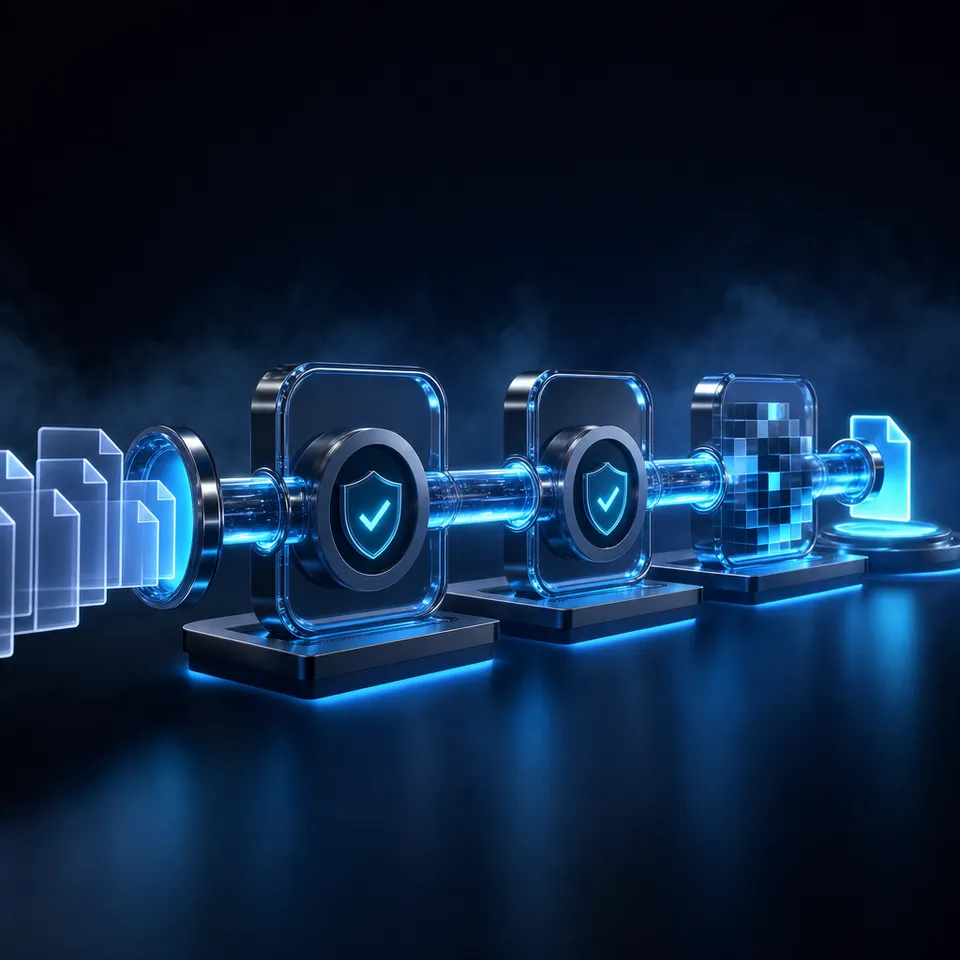
The Architecture Challenge of Agent Workspace Storage
When an autonomous developer agent like Cline writes a bug, it relies on standard checkpoints to undo the damage. Because Cline generates local checkpoints after every file modification block to enable quick rollbacks, the storage layer is under constant read and write pressure. When this data resides only on a single laptop's disk, switching machines or collaborating with a colleague breaks the agent's context and isolates the task history.
Workspace storage for Cline refers to the filesystem backend where the agent reads project context, saves settings, and serializes state checkpoints. Historically, developers have treated agent storage as a minor implementation detail, relying on simple local folders. However, as coding agents take on more complex tasks, local disk boundaries become a major bottleneck. If you switch from an office desktop to a home laptop, the agent loses access to its previous conversation logs and shadow repositories.
To solve this persistence issue, teams are moving toward remote cloud storage architectures. Platforms like Fastio serve as a central coordinate layer where developers and autonomous agents share the same files, notes, and workflows. Instead of locking agent state to a single physical disk, you can connect your agent to a persistent cloud repository. This configuration keeps the agent's files and task history accessible across different physical devices and team collaborations.
Related guides
- Best Storage Solutions for Base44 WorkflowsAccording to the Flexera 2025 State of the Cloud Report, 84% of organizations identify managing cloud spend and...
- The Best Storage Solutions for Manus AI WorkflowsManus AI agents execute complex multi-step tasks inside isolated, ephemeral cloud sandboxes that automatically recycle...
- How to Connect Cline to MCP Storage for Persistent MemoryWhile 90% of developers run Model Context Protocol (MCP) servers locally, this local storage restriction locks AI agent...
- How to Build and Configure Custom Cline Tools in 2026A study analyzing bug reports in Model Context Protocol reference servers found that 21% of issues relate to file...
- How to Set Up Cline in Visual Studio CodeSetting up Cline in Visual Studio Code turns your local editor into an autonomous workspace. This guide explains how to...
- How to Set Up MCP Servers in Cline: Configuration and Remote SetupsWhile most developers configure Model Context Protocol (MCP) servers locally, local setups restrict AI agents to a...
More on this subject: Cline (105 guides)
How Cline Saves Task History, Checkpoints, and Memory
To design a resilient storage architecture, you must first understand where the Cline VS Code extension saves its files locally. Cline is stateless at the LLM level, meaning it does not carry over context from one chat thread to another unless that context is written down. It stores its operational data in two distinct places on your computer: global extension storage and workspace files.
The global storage directory contains the active task history, conversation logs, and checkpoints. Depending on your operating system, this directory is located at:
- On macOS:
~/Library/Application Support/Code/User/globalStorage/saoudrizwan.claude-dev/ - On Windows:
%APPDATA%\Code\User\globalStorage\saoudrizwan.claude-dev\ - On Linux:
~/.config/Code/User/globalStorage/saoudrizwan.claude-dev/
Inside this directory, Cline creates three primary folders:
- The
state/directory containing the maintaskHistory.jsonmetadata index. - The
tasks/directory containing subfolders for each unique task ID, housing the raw conversation histories inapi_conversation_history.jsonand UI messages. - The
checkpoints/directory containing the hidden shadow Git repositories that track file changes.
To enable safe rollbacks, Cline creates a shadow Git repository inside the global storage folder. Every time the agent modifies a file, it commits a snapshot to this shadow repository. This keeps your main project's Git commit history clean while providing a forensics-grade history of what the agent did. If the agent makes a mistake, the extension can check out the last commit from the shadow repository to restore the file state.
For project context that persists across tasks, developers use the Memory Bank methodology. This involves creating a memory-bank/ directory in the project root containing markdown files such as activeContext.md, projectbrief.md, and progress.md. Custom system instructions (often placed in a .clinerules file) direct the agent to read these documents at the beginning of each session and update them before finishing.
It is important to note that VS Code Settings Sync does not synchronize your global storage folder or your workspace memory bank files. It only syncs extension settings, such as your selected API provider or global custom rules. If you move to a new computer, your task history, checkpoints, and local memory banks will be left behind unless you manually move the folders or commit the files to a remote repository.
Compare Workspace Storage Options: Local, Docker, Git, and MCP
Developers must select a storage architecture that matches their workflow requirements. The table below compares the four primary options for managing Cline workspaces:
Let's look at the details of each approach. When running Cline in a Docker container or a Dev Container, the default local storage is ephemeral. When the container stops, the task history and checkpoints are deleted. To prevent this, you must configure persistent volume mounts that bind the container's global storage path back to your host machine's physical drive. While this preserves data across container rebuilds, it still limits access to that single physical computer.
Using Git repositories to sync files is standard practice for code, but it is not built for active task state. If you try to sync the global storage directories using Git, you will run into issues with large JSON files and frequent merge conflicts. Additionally, committing raw conversation logs and checkpoints to your public repository poses a security risk if api keys or private client details are accidentally saved in the history.
Model Context Protocol (MCP) remote servers offer a clean alternative. By moving the storage interface to a remote protocol, Cline can read and write files over standard network APIs. This decouples the agent's workspace from the local machine's disk, allowing the same files to be accessed from any VS Code instance connected to the server.
Persistent Remote Storage for Cline Workflows
Connecting Cline to a remote workspace platform like Fastio resolves the cross-device sync problem. Fastio acts as an intelligent workspace where humans and agents can share files, notes, and activity feeds. It operates with any LLM, from Claude to local models, and interfaces with Cline using the Fastio MCP server.
For guidance on choosing the most cost-effective models for this setup, refer to the Best Cline Models: Selection and Cost Tuning Guide.
Fastio is designed to serve as a persistent coordination layer. Unlike commodity cloud folders like Dropbox or Google Drive, Fastio is an intelligent workspace. When you write a file to a Fastio workspace, the platform automatically indexes the content for search and AI retrieval.
Key features of this cloud workspace architecture include:
- Per-File Version History: Every write operation is versioned. If an agent writes a bug or overwrites a file, you can view the version history and restore previous versions, ensuring concurrent agent work remains auditable.
- Hybrid Search: The search engine combines exact full-text matching with semantic meaning retrieval. The agent can locate specific variables or search by metadata values, such as identifying unsigned documents.
- Intelligence Mode: Enabling Intelligence on a workspace auto-indexes all documents for Retrieval-Augmented Generation (RAG). Cline can query this index via MCP, fetching only the relevant file chunks instead of loading entire directories into its context window, which reduces token usage.
To begin using this architecture, developers can set up an account and create an organization. Every organization runs on a paid subscription; monthly plans start with a trial of up to 14 days that requires a credit card. Paid plans include Starter at $9.99/mo, Business at $49.99/mo, and Enterprise at $199.99/mo. An agent can sign up, build the workspaces, and then hand over the organization to a human who joins and starts the trial.


Scale your Cline agent workflows in a shared workspace
Connect your AI agent to a persistent cloud workspace with a built-in MCP server, automatic per-file version history, and hybrid search. Starts with a 14-day free trial.
Steps to Configure Remote Workspace Storage with Streamable HTTP
To connect the Cline extension to Fastio's remote storage, you must configure the MCP server configuration file. The settings file is named cline_mcp_settings.json and is located in the user configuration path of the saoudrizwan.claude-dev extension. You can open this file directly from the Cline extension UI by clicking the MCP Servers icon (represented by a stacked server graphic) in the top toolbar, selecting the Configure tab, and clicking the Configure MCP Servers button.
Fastio serves coding agents such as Cline over Streamable HTTP at /mcp/code. Streamable HTTP is the recommended transport method because it maintains a stable, bidirectional connection over a single channel, avoiding issues with local firewalls. To register the Fastio remote storage server, add the following JSON block to the mcpServers object in your cline_mcp_settings.json file:
{
  "mcpServers": {
    "fastio-storage": {
      "type": "streamableHttp",
      "url": "https://mcp.fast.io/mcp/code",
      "disabled": false,
      "autoApprove": []
    }
  }
}
Once saved, Cline will automatically attempt to connect, and a Fastio sign-in window opens in your browser where you choose Read Only or Read & Write and which workspaces Cline can reach. You can check the status in the Cline sidebar panel. A green status indicator confirms that the agent can read and write files to the cloud workspace.
Fastio's MCP server is remote, so there is no local command to run.
When configuring these settings, check for syntax issues. Omitted commas or mismatched brackets in the JSON file will cause Cline to fail to load any MCP servers. On Windows machines, make sure any local paths are escaped with double backslashes to prevent JSON parsing errors.
Managing Handoffs, Collaborative Notes, and Version Control
A resilient storage architecture must support safe handoffs from agents to human developers. Fastio implements an ownership transfer mechanism. Once the agent finishes building files, writing code, or gathering data in the workspace, it can trigger an ownership transfer. This process hands the organization and its workspaces to a human manager, while allowing the agent to retain scoped administrator access to continue updates.
For structured document processing, teams can set up Metadata Views. Unlike unstructured search, Metadata Views turn your files into a queryable database. You define the fields you want extracted in natural language, and Gemini designs a typed schema. The platform then matches files in the workspace (such as PDFs, invoices, or text documents) and extracts the values into a sortable spreadsheet grid. Field types include Text, Integer, Decimal, Boolean, URL, JSON, and Date & Time. You can learn more about this structured extraction on the Metadata Views product page.
This extraction layer works concurrently with Collaborative Notes. Fastio Notes allows real-time multiplayer co-editing inside the workspace. Both humans and agents are first-class editors with visible cursors. An agent can draft system documentation or release notes, and a developer can review and edit the document in real time. Because every file in the workspace has full version history, any accidental edit can be reverted instantly. This provides a transparent, auditable history of the collaborative workflow.
Sources
References used to verify factual claims in this guide.
-
Cline generates local checkpoints after every file modification block to enable quick rollbacks.
-
Fastio organization plans start at $9.99/mo for the Starter plan, $49.99/mo for the Business plan, and $199.99/mo for the Enterprise plan. Every organization runs on a paid subscription; monthly plans start with a trial of up to 14 days that requires a credit card.
-
Choosing cost-effective LLMs for agent workflows reduces API costs while maintaining high execution success rates.
Frequently Asked Questions
Where does Cline save its memory?
Cline saves its memory in two places. Active task history, conversation logs, and file checkpoints are saved globally on your machine in the globalStorage folder of the VS Code extension directory. Project-specific context, or the memory bank, is stored in a `memory-bank/` directory inside your active project workspace.
How do I share Cline history between computers?
Since VS Code Settings Sync does not support synchronizing the extension's globalStorage folder, you cannot share Cline history automatically between computers. To move your task history and checkpoints, you must manually copy the `saoudrizwan.claude-dev` directory to the target machine's globalStorage path or use a persistent cloud MCP server.
What is the best storage setup for autonomous coding agents?
The best storage setup for autonomous coding agents decouples local machine state from the workspace. By using isolated Docker containers for runtime execution and backing the files with a persistent cloud workspace like Fastio, agents can maintain version history and run RAG search queries without hitting local environment limitations.
Related Resources

Scale your Cline agent workflows in a shared workspace
Connect your AI agent to a persistent cloud workspace with a built-in MCP server, automatic per-file version history, and hybrid search. Starts with a 14-day free trial.