7 Best OpenClaw Workflows for AI File Format Conversion
ClawHub lists over 100 document-conversion skills, but most teams still convert files by hand. This guide ranks the seven OpenClaw skills that actually handle batch conversion, from the markdown-converter that ingests 15+ input formats to the pandoc-converter that outputs 40+. Each entry covers supported formats, batch capabilities, and where Fastio fits as the persistent storage layer for agent-driven pipelines.

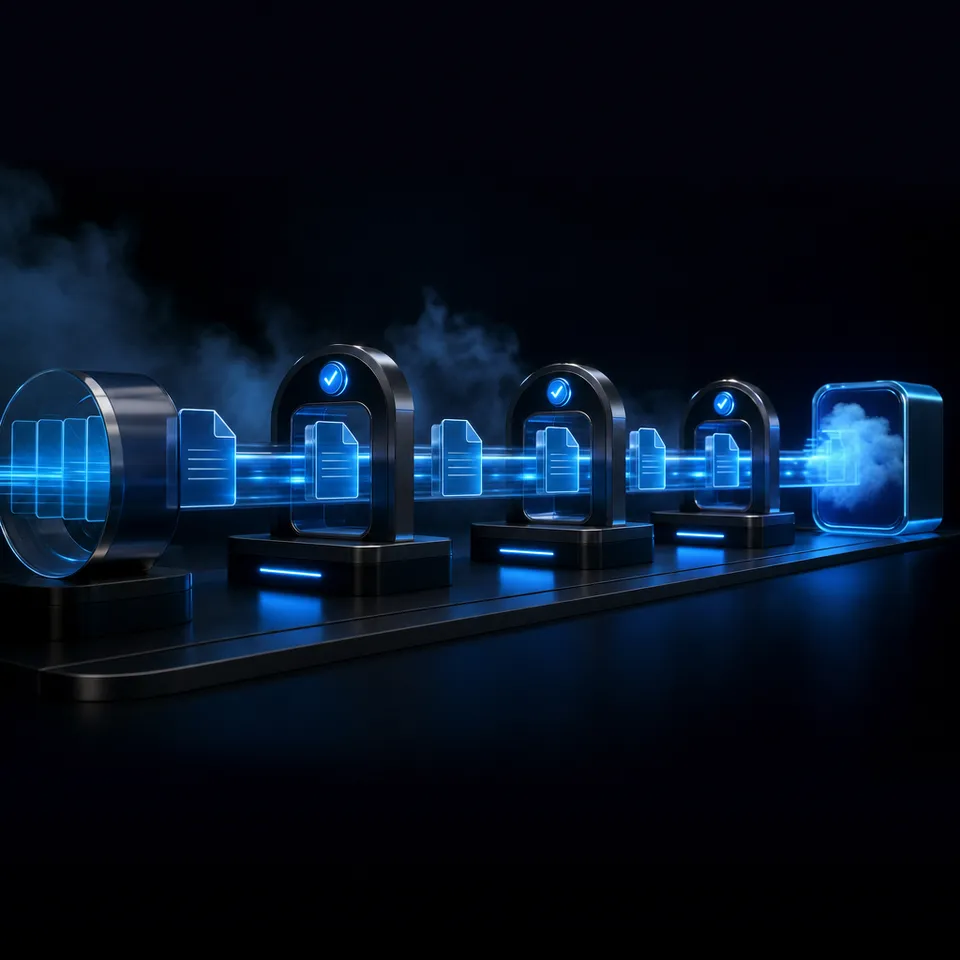
Why Agent-Driven Conversion Beats Web Tools
The keyword "ai file format converter" pulls 1,300 monthly searches, and almost every result points to a web upload form that processes one file at a time. That is the wrong tool for the job when you need to convert a folder of 200 contracts from PDF to Markdown, or transform a quarter's worth of slide decks into a searchable knowledge base.
OpenClaw skills solve this differently. Instead of uploading files to a browser tab, you install a skill on your local machine and tell the agent what to convert. The agent reads a directory, processes every matching file, writes output to a target folder, and logs results. No tab switching, no file-size limits, no waiting for a cloud queue.
The PDF & Documents category on ClawHub alone lists 111 skills. Not all of them handle batch conversion well. This guide narrows the field to seven that do, ranked by format coverage, batch reliability, and how cleanly they fit into an automated pipeline with persistent storage.
Before you start converting, you need a place for agents to read source files and write results. Local folders work, but they break down when multiple agents share the pipeline or when you need to hand results to a client. A workspace like Fastio gives agents a persistent file layer with versioning, permissions, and the ability to share output through branded links.
Related guides
- Automating Base44 File Workflows with WebhooksEvent-driven webhooks allow Base44 applications to initiate instant downstream processing whenever users or AI agents...
- How to Handle File Storage in n8n AI Agent Workflowsn8n AI agents need persistent storage to save files between workflow runs.
- Best OpenClaw Workflows for AI Workflow Automation Builder ToolsClawHub's curated index lists 529 skills across its Browser & Automation and Productivity & Tasks categories, yet most...
- Top OpenClaw Workflows for AI Print-on-Demand Product Design AutomationThe print-on-demand market hit $12.96 billion in 2025, growing at a 24.81% CAGR, yet most sellers still create designs...
- 7 Best OpenClaw Workflows for AI Research Assistant AutomationThe OpenClaw skills registry includes 345 curated search-and-research skills, but most users still run them one at a...
- Best OpenClaw Integrations for DevOps AutomationOpenClaw agents can manage infrastructure, deploy code, and respond to incidents without manual intervention. To build...
More on this subject: OpenClaw Workflows and Integrations (69 guides)
How We Evaluated These Conversion Skills
Not every ClawHub skill labeled "converter" actually handles batch workflows. We tested each skill against four criteria:
- Format coverage: How many input types does it accept? Does it handle edge cases like scanned PDFs, image-heavy slides, or nested ZIP archives?
- Batch capability: Can it process an entire directory in one pass, or do you need to feed files individually?
- Output quality: Does the converted output preserve document structure, tables, headings, and links?
- Pipeline fit: Can the skill run unattended as part of a larger agent workflow, or does it require manual intervention at each step?
We also checked whether each skill works well with external storage. Skills that read and write to local paths integrate naturally with Fastio's MCP server, since agents can download source files from a workspace, run the conversion locally, and upload results back.
The seven skills below earned their spots by scoring well across all four criteria.
Comparison: Top 7 OpenClaw Conversion Skills
Here is a side-by-side view of the skills covered in this guide.
Each skill fills a different niche. The markdown-converter is the widest net for inbound formats. The pandoc-converter is the only skill that converts in both directions across dozens of formats. The marker-pdf-ocr is purpose-built for scanned documents that defeat simpler text extractors.
1. markdown-converter
The markdown-converter is the most versatile inbound skill on ClawHub. It accepts PDF, Word, PowerPoint, Excel, HTML, CSV, JSON, XML, images, audio, ZIP archives, YouTube URLs, and EPUB files, and converts all of them to clean Markdown. Under the hood it uses Microsoft's markitdown library, keeping the dependency footprint small.
Key strengths:
- Accepts 15+ input formats from a single skill, eliminating the need to chain multiple tools for mixed-format directories
- Preserves document structure including headings, tables, lists, and hyperlinks
- Supports an Azure Document Intelligence mode for complex or scanned PDFs where basic extraction falls short
- Processes ZIP archives natively, converting each contained file without manual extraction first
Key limitations:
- Output is Markdown only. If you need DOCX or PDF output, pair this with the pandoc-converter or md-to-office skill.
- Complex table layouts and nested formatting sometimes require manual cleanup after conversion.
Best for: Teams building RAG pipelines or knowledge bases who need to ingest a mixed bag of document types into a single Markdown corpus.
Install: Search for "markdown-converter" on ClawHub and follow the skill's install instructions.
For batch workflows, point the agent at a Fastio workspace containing your source documents. The agent downloads each file via MCP, runs the conversion, and uploads the Markdown output back to a separate workspace folder. This keeps source and converted files versioned and shareable without cluttering a local disk.



Store and search every converted document in one workspace
Upload source files, run conversions, and query the output with AI. Persistent cloud storage, MCP-ready.
2. pdf-converter
The pdf-converter is the skill to reach for when PDFs are your primary source and you need output in something other than Markdown. It converts PDFs to Word, Excel, PowerPoint, images (PNG/JPG), HTML, Markdown, and plain text. More importantly, it handles batch conversion across entire folders with progress tracking and completion summaries.
Key strengths:
- Supports OCR for scanned documents, with resolution options from 72 to 600 DPI
- Three quality modes let you choose between exact layout preservation, editable format, or text-only extraction
- Table detection for Excel output preserves row and column structure from financial reports or invoices
- Folder-wide batch processing with success/failure counts per file
Key limitations:
- Input is PDF only. For Word or PowerPoint sources, use the markdown-converter or office-to-md skill.
- High-DPI image extraction from large PDFs can be slow on machines with limited RAM.
Best for: Legal, finance, and compliance teams that receive large volumes of PDFs and need them in editable formats for review or data extraction.
Install: Search for "pdf-converter" on ClawHub and follow the skill's install instructions.
A practical workflow: upload a batch of contracts to a Fastio workspace, have the agent convert each to DOCX using the pdf-converter skill, then enable Metadata Views on the workspace to extract contract dates, counterparties, and dollar amounts into a sortable spreadsheet. The conversion feeds directly into structured extraction without leaving the workspace.
3. office-to-md
The office-to-md skill focuses specifically on Microsoft Office formats. It converts Word, Excel, PowerPoint, and PDF files to Markdown using the markitdown engine, with particular attention to preserving semantic structure. Headings, lists, tables, images, links, footnotes, and code blocks all survive the conversion.
Key strengths:
- Preserves heading hierarchies and formatting semantics, not just visual layout
- Converts Excel spreadsheets to Markdown tables with proper column alignment
- Extracts speaker notes from PowerPoint presentations, which most converters skip
- Optional LLM integration for enhanced image descriptions and audio transcription
Key limitations:
- Complex nested tables and deeply formatted Word documents may lose some layout nuance.
- No reverse direction. For Markdown back to Office, use the md-to-office or pandoc-converter skill.
Best for: Documentation teams migrating from Office-based workflows to Git-friendly Markdown. Also useful for building AI-ready corpora from existing corporate document libraries.
Install: Search for "office-to-md" on ClawHub and follow the skill's install instructions.
This skill pairs well with Fastio once Intelligence is enabled for the workspace. Convert your Office documents to Markdown, upload them to a workspace, and the files are automatically indexed for semantic search and AI chat. You can then ask questions across your entire document library with cited sources, all without configuring a separate vector database.
4. pandoc-converter
The pandoc-converter wraps Pandoc's full conversion engine into an OpenClaw skill. This is the only skill on this list that supports bidirectional conversion across 40+ formats, including Markdown, HTML, DOCX, PDF, LaTeX, EPUB, CSV, and many more.
Key strengths:
- Converts between 40+ document formats in any direction, not just to Markdown
- Supports branded templates for corporate output. Supply a reference .docx or .pptx file and Pandoc applies its styles to every generated document.
- Includes batch conversion scripts for processing entire directories
- Generates tables of contents, syntax highlighting, and custom margins for PDF output
Key limitations:
- Requires Pandoc installed on the host machine. PDF output also needs a LaTeX distribution or wkhtmltopdf.
- More complex to configure than single-purpose skills. The flexibility comes with a steeper learning curve.
Best for: Technical documentation teams, publishers, and anyone who needs to produce styled output across multiple formats from a single Markdown source.
Install: Search for "pandoc-converter" on ClawHub and follow the skill's install instructions.
For CI/CD documentation pipelines, combine the pandoc-converter with Fastio activity polling or the WebSocket events feed. When an agent uploads updated Markdown files to a workspace, the events feed triggers the conversion to PDF and DOCX, and the agent uploads the formatted output to a separate delivery workspace. Clients receive polished documents through branded share links without seeing the Markdown source.

5. marker-pdf-ocr
The marker-pdf-ocr skill is built for the PDFs that break other converters: scanned documents, image-heavy reports, scientific papers, and archived materials where the text layer is missing or unreliable.
Key strengths:
- Local-first processing with automatic cloud fallback via Datalab.to when local resources are insufficient
- Three output formats: Markdown (clean text), JSON (structured with metadata), and HTML
- Health-check command verifies dependencies and confirms which processing mode will execute before you run a batch
- Handles scientific papers with complex layouts, multi-column text, and embedded equations
Key limitations:
- Local mode requires 4GB RAM and 5GB disk space for the OCR models. Cloud mode needs an API key from Datalab.to.
- Slower than text-based extractors on documents that already have a clean text layer.
Best for: Research teams, legal discovery workflows, and archive digitization projects where source PDFs are scanned or image-based.
Install: Search for "marker-pdf-ocr" on ClawHub and follow the skill's install instructions.
For large-scale digitization, store scanned PDFs in a Fastio workspace and let the agent process them in batches. The agent downloads files via MCP, runs OCR locally, and uploads the Markdown output. Because Fastio versions every file, you can track which documents have been processed and compare OCR output across multiple extraction runs.
6. zerox
The zerox skill converts PDF, DOCX, PPTX, and image files to Markdown using the zerox library. It is lighter and faster than the broader conversion tools on this list, making it a good fit when you need quick extraction without configuring a full pipeline.
Key strengths:
- Supports the four most common document formats: PDF, Word, PowerPoint, and images
- Lighter runtime footprint than Pandoc-based or OCR-heavy alternatives
- Confirmed in the awesome-openclaw-skills curated list
Key limitations:
- No built-in batch mode. You need to script directory iteration yourself or pair it with a workflow orchestrator.
- Limited to Markdown output. No DOCX, PDF, or HTML generation.
Best for: Quick, one-off conversions or lightweight pipelines where the document types are predictable and you do not need OCR for scanned pages.
7. image-ocr
The image-ocr skill extracts text from images using Tesseract OCR. It fills a specific gap: when your source files are screenshots, photographs of whiteboards, or scanned single-page documents rather than multi-page PDFs.
Key strengths:
- Supports PNG, JPEG, TIFF, and BMP input formats
- Multi-language support for extracting text from non-English documents
- Simple one-command interface for default English extraction
Key limitations:
- Single-page image files only. For multi-page PDFs, use the marker-pdf-ocr or pdf-converter skill.
- Output is plain text, not Markdown. No structure preservation for headings or tables.
Best for: Extracting text from screenshots, scanned receipts, whiteboard photos, or individual document pages where full PDF processing is overkill.
Install: Search for "image-ocr" on ClawHub and follow the skill's install instructions.
Combine image-ocr with Fastio for a simple intake workflow. Mobile workers photograph documents and upload images to a shared workspace. An agent monitors the workspace via the realtime activity feed or WebSocket events feed, runs OCR on new images, and stores the extracted text alongside the original. Both the image and the text become searchable once Intelligence is enabled for the workspace.
Choosing the Right Conversion Workflow
The right skill depends on what you are converting and where the output needs to go.
Start with the markdown-converter if your source files are a mix of PDFs, Office documents, and other formats. Its 15+ format coverage means one skill handles most inbound conversion jobs. Pair it with the pandoc-converter when you need to produce styled output in specific formats like DOCX or PDF.
Use the pdf-converter when PDFs are your sole input and you need editable output in Word or Excel. Its batch mode and DPI controls make it practical for high-volume legal or financial document processing.
Reach for marker-pdf-ocr when dealing with scanned documents. It is slower but produces usable output from images that would defeat text-based extractors.
Pick zerox for fast, lightweight Markdown extraction when your documents are already clean and you do not need OCR.
For any of these workflows, persistent storage matters. Local folders work for small jobs, but agent-driven pipelines that process hundreds of files need versioning, access control, and a way to share results. Fastio workspaces provide all three, with a 14-day Business Trial (credit card required) and paid plans starting at $9.99/month. The MCP server gives agents direct access to read, write, and organize files without manual file management.
The practical pattern looks like this: store source documents in one workspace, point your conversion agent at it, and write output to a second workspace. Enable Intelligence Mode on the output workspace to make every converted document searchable by meaning, not just filename. When the job is done, share the output workspace with a client or colleague through a branded link, and they get access to the finished files without needing to install anything.
Sources
References used to verify factual claims in this guide.
-
The proxy keyword 'ai file format converter' receives 1,300 monthly searches
-
ClawHub hosts over 14,700 community-built skills as of March 2026
-
The PDF & Documents category on awesome-openclaw-skills contains 111 skills
-
Multi-agent workflows increase task completion rates by 65% compared to single LLM prompts
Frequently Asked Questions
Can AI convert file formats automatically?
Yes. OpenClaw skills like the markdown-converter and pdf-converter accept source files, process them through conversion engines (markitdown, Pandoc, Tesseract OCR), and write output to a target location. Once configured, the agent handles the full pipeline without manual intervention, including reading directories, converting each file, and logging results.
How do you batch convert PDFs with OpenClaw?
Install the pdf-converter skill from ClawHub, then tell the agent to convert all PDFs in a folder to your target format. The skill supports folder-wide batch processing with progress tracking and a completion summary that reports success and failure counts per file.
What is the zerox skill in OpenClaw?
Zerox is an OpenClaw skill that converts PDF, DOCX, PPTX, and image files to Markdown using the zerox library. It is listed in the awesome-openclaw-skills curated collection and works well for quick, lightweight document-to-Markdown extraction where you do not need OCR for scanned pages.
How do you convert documents to Markdown with AI?
The markdown-converter skill accepts 15+ input formats, including PDF, Word, PowerPoint, Excel, HTML, CSV, JSON, XML, images, audio, ZIP archives, and EPUB. Install it from ClawHub and point the agent at your source files. For scanned or image-heavy PDFs, use the marker-pdf-ocr skill instead, which applies OCR before generating Markdown output.
Which OpenClaw skill converts the most file formats?
The pandoc-converter supports 40+ formats in both directions, making it the widest-coverage skill available. It converts between Markdown, HTML, DOCX, PDF, LaTeX, EPUB, CSV, and many more. The markdown-converter covers the most inbound formats (15+) but outputs Markdown only.
How do you store converted files for a team?
Upload source documents to a Fastio workspace, run conversion via an OpenClaw agent, and write output to a second workspace. Fastio versions every file, indexes content for semantic search once Intelligence is enabled, and lets you share results through branded links. Fastio offers a 14-day Business Trial (credit card required), with paid plans starting at $9.99/month.
Related Resources

Store and search every converted document in one workspace
Upload source files, run conversions, and query the output with AI. Persistent cloud storage, MCP-ready.