Map Cloud Storage as a Network Drive: Architecture, Pitfalls & Modern Sync
When teams map cloud storage as a network drive, they use filesystem emulation protocols to present remote object stores as local or networked volumes. While tools like FUSE, WebDAV, and Mountain Duck enable desktop file browsing, high-latency metadata checks and API rate limits cause frequent desktop freezes. For automated pipelines and AI agents, scheduled workspace sync combined with remote MCP indexing provides a resilient alternative to fragile drive mounts.

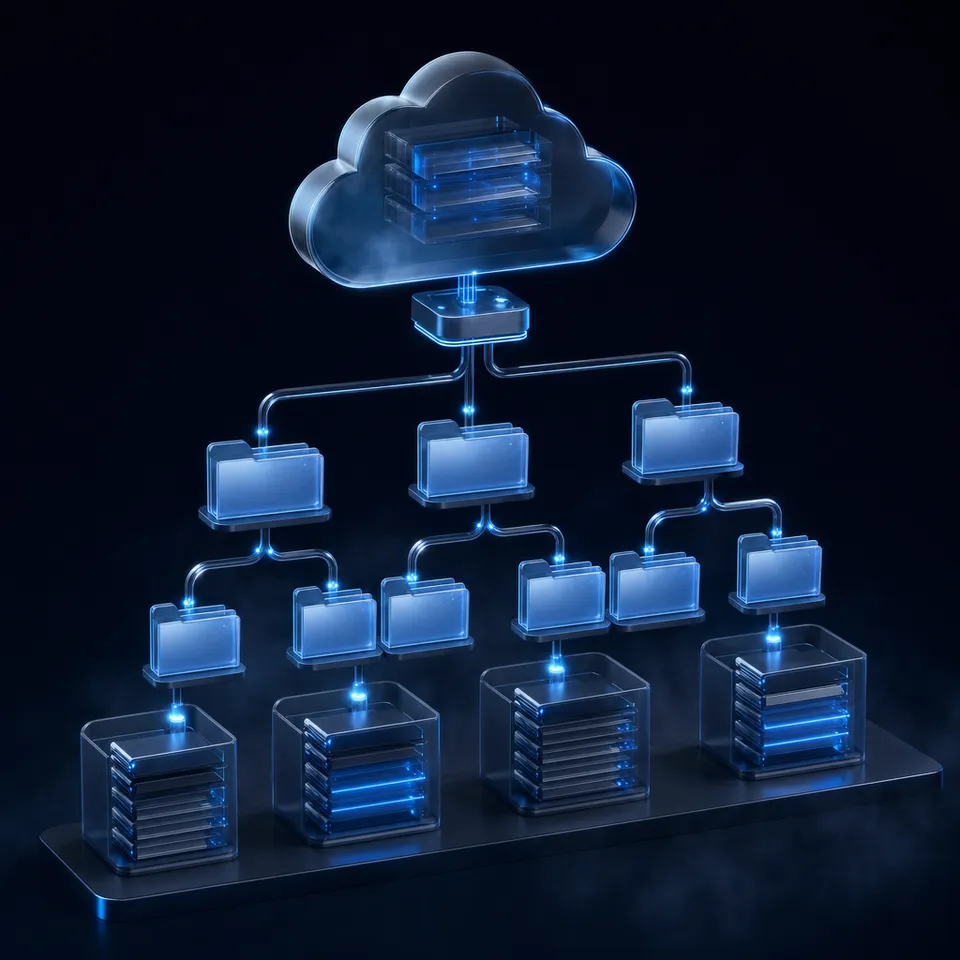
How Filesystem Emulation Maps Cloud Storage as a Network Drive
Operating systems expect filesystem system calls to resolve in microseconds, but wide-area network requests to cloud storage take tens of milliseconds. Bridging that five-order-of-magnitude latency gap through virtual drive emulation is the root cause of desktop freezes, locked explorer windows, and corrupted save states when mounting cloud storage locally.
Mapping cloud storage as a network drive uses filesystem emulation protocols to present remote cloud object stores as local or networked filesystems to operating systems and applications. Instead of synchronizing whole directories to local disks, software utilities create a virtual volume that appears in Windows File Explorer as a drive letter or in macOS Finder as a mounted volume.
+-------------------------------------------------------------------+
|               User Application / OS Desktop Shell                 |
|             (POSIX syscalls: open, stat, readdir, write)          |
+-------------------------------------------------------------------+
                                  |
                                  v
+-------------------------------------------------------------------+
|                   Kernel Virtual File System (VFS)                |
+-------------------------------------------------------------------+
                                  |
                                  v
+-------------------------------------------------------------------+
|            Virtual Filesystem Driver (FUSE / WinFsp / Dokan)      |
+-------------------------------------------------------------------+
                                  |
                                  v
+-------------------------------------------------------------------+
|         Userspace Mount Daemon (rclone, Mountain Duck, RaiDrive)   |
|         (Directory caching, chunk staging, rate limiting)         |
+-------------------------------------------------------------------+
                                  |
                                  v
+-------------------------------------------------------------------+
|            Transport Layer (HTTPS REST APIs / WebDAV / SMB)       |
+-------------------------------------------------------------------+
                                  |
                                  v
+-------------------------------------------------------------------+
|      Remote Cloud Provider (Google Drive, OneDrive, Box, Dropbox) |
+-------------------------------------------------------------------+
When an application accesses a file path on a mapped drive, the request follows a multi-tier path:
- The application makes a standard POSIX system call, such as
readdir()to list a directory orstat()to retrieve metadata. - The operating system kernel routes the call through its Virtual File System (VFS) interface to a virtual filesystem driver.
- On Linux and macOS, this driver is typically FUSE or MacFUSE; on Windows, utilities rely on WinFsp or Dokan.
- The driver forwards the low-level call across the kernel-userspace boundary to a running mount daemon, such as rclone, Mountain Duck, StableBit CloudDrive, or RaiDrive.
- The mount daemon translates the filesystem request into HTTP REST calls (such as Google Drive API, Microsoft Graph API, or Box API) or network file-sharing commands (such as WebDAV or SMB).
- The remote cloud provider processes the request and streams the response back across the wide-area network.
Subsystem Architecture: Translating POSIX Syscalls to Cloud APIs
The fundamental architectural friction in network drive mapping lies in impedance mismatch. Traditional filesystems like NTFS, ext4, and APFS treat storage as block devices with deterministic access latencies, direct byte-level seek capabilities, and atomic locking primitives. Cloud storage providers operate as distributed object stores behind stateless REST HTTP APIs.
In an object store, there is no native concept of a directory hierarchy or byte-range overwrite. Folders are simulated through object key prefixes (for example, marketing/assets/brief.pdf). Modifying a single byte in the middle of a large file in object storage requires rewriting the entire object or managing complex multi-part chunk assemblies.
Virtual drive software bridges this divide by intercepting POSIX system calls and mapping them to corresponding API endpoints:
opendirandreaddirmap to paginatedGETrequests listing resources with parent folder filters.statmaps to resource metadata lookups returning timestamps, MIME types, and file sizes.readmaps to HTTPGETrequests withRange: bytes=start-endheaders to pull specific chunks.writemaps to local buffer accumulation followed by chunkedPOSTorPUTupload sequences.unlinkmaps to HTTPDELETEcalls against the unique item identifier.
When network connectivity drops, or when the cloud provider takes hundreds of milliseconds to respond, the virtual driver holds the calling thread open. If the invoking program runs on the main user interface thread, the entire application becomes unresponsive.
Caching Models: Write-Through vs Write-Back Buffering
Because direct network calls for every disk operation would render desktop operating systems completely unusable, mount daemons implement local disk caching. Two primary caching models exist:
Write-Through Caching: In this model, every write operation made by an application must successfully transfer across the network and receive an HTTP confirmation from the cloud provider before the operating system considers the write complete. While write-through caching prevents data loss during sudden power outages or software crashes, it introduces massive latency penalties. Saving a multi-page spreadsheet or compiling code freezes the editor while the system waits on remote upload acknowledgments.
Write-Back Buffering: Most modern cloud drive utilities adopt write-back caching to restore desktop responsiveness. The daemon accepts incoming writes into a fast local staging folder on your local SSD and immediately returns a success status to the operating system. A background worker thread pool queues the modified chunks and uploads them asynchronously to the cloud.
Write-back caching introduces severe operational risks:
- Dirty Cache Loss: If the machine loses power, crashes, or unmounts before background threads complete uploading, dirty blocks in the local staging folder are lost or orphaned.
- Silent Conflict Creation: If a colleague or an automated script edits the same file in the cloud before the local cache flushes its changes, the background worker overwrites the remote file or creates an uncoordinated conflict duplicate.
- Disk Space Saturation: Heavy write workloads can quickly exhaust local disk capacity if write-back queues outpace upload bandwidth.
Related guides
- How to Connect Google Gemini to Cloud Storage: Drive, OneDrive, and BoxGemini cloud storage connectors link Google's Gemini models to enterprise file repositories across providers, indexing...
- Best Cloud Storage for AI Agents: Top 7 Platforms ComparedCloud storage for AI agents provides persistent file access, version control, and API-driven operations that let...
- How to Give AI Agents Secure Cloud File StorageAutonomous agents need more than vector memory. They need actual file storage to read documents, generate reports, and...
- ChatGPT Cloud Storage: Connect Cloud Drives Without Rate LimitsConnecting ChatGPT to cloud storage often triggers strict rate limits and context saturation when querying multi-file...
- How to Connect LangGraph to Cloud StorageA LangGraph storage connector bridges cyclical agent graphs with external cloud storage drives, allowing graph nodes to...
- Top 10 Cloud Storage APIs for AI ApplicationsA cloud storage API for AI is a programmatic interface that lets AI applications store, retrieve, and manage files and...
More on this subject: Agent Memory and Storage (261 guides)
Why Virtual Cloud Drives Suffer From Latency and Throttling
While mounting cloud storage as a local drive provides desktop familiarity, it breaks down quickly in production environments. Operating systems and developer tools were never designed for the realities of wide-area network latency and multi-tenant API throttling.
The primary operational penalty is metadata amplification. When a user opens a folder in Windows File Explorer or macOS Finder, the desktop shell does not issue a single query. It generates dozens of recursive system calls: checking file existence, querying file sizes, reading access permissions, inspecting icons, and pulling extended attributes for thumbnail generation.
On a local SSD, processing hundreds of files takes mere fractions of a millisecond. Over a network drive connection to a cloud provider with non-trivial network latency, issuing hundreds of sequential metadata checks takes tens of seconds. Even with multi-threaded prefetching and directory listing caches, navigating through deeply nested directory structures produces visible lag, delayed file pickers, and frequent application timeouts.
What Happens When Cloud APIs Throttle Network Drive Requests
Public cloud providers enforce strict rate limits to safeguard their multitenant infrastructure against abuse. Google Drive, Microsoft OneDrive, Dropbox, and Box protect their systems through token bucket or leaky bucket throttling algorithms. When client requests exceed allowable thresholds, the service returns an HTTP status code 429 Too Many Requests or 503 Service Unavailable.
When an application interacts with a mapped cloud drive, automated background jobs can easily trigger these rate limits:
- Intensive Operations: Running commands like
git status, searching directory trees withgrep, or pointing an IDE indexing service at a mapped drive generates thousands of filesystem calls within seconds. - Rate Limit Breaches: The cloud provider rejects subsequent requests with HTTP
429responses, providing aRetry-Afterheader specifying the delay before retrying. - Driver Deadlock: The userspace mount daemon pauses its request pipeline to honor exponential backoff. However, the operating system kernel does not understand API rate limits. It sees a file read that has stopped responding.
- Desktop Hangs: The OS kernel blocks the calling thread. The desktop shell displays a spinning cursor, file explorer windows gray out as "Not Responding," and terminal commands freeze. In severe cases, the virtual filesystem driver crashes entirely, disconnecting the virtual drive letter and causing running applications to throw invalid handle errors.
Security Vulnerabilities in Local Mount Daemons and Unencrypted Caches
Connecting cloud storage as a virtual network drive introduces notable security exposures across local endpoints:
- Credential Exposure in Local Configurations: Mount utilities store OAuth access tokens, refresh tokens, and API secret keys on the local endpoint. Tools like rclone save credentials in configuration files (such as
rclone.conf). Unless explicitly encrypted with strong master passwords, these configuration files remain accessible to any process or malware executing under the user's account. - Unencrypted Local Disk Caches: Write-back caches and read-ahead buffers store staging files in local temporary directories (such as
/tmpor%LOCALAPPDATA%). These files often remain unencrypted on disk, bypassing enterprise data loss prevention (DLP) controls and retention policies that protect the central cloud repository. - Permission Divergence: Operating system permissions on a mounted drive do not reflect cloud access policies. A virtual drive mount maps an entire cloud folder under a single authenticated credential. The local operating system cannot enforce cloud member roles, meaning local scripts running on the endpoint gain broad read and write privileges over remote resources.
Virtual Drive Mapping vs Scheduled Workspace Sync
For teams evaluating how to connect cloud files with local workstations and automation tools, virtual drive mapping is only one path. Modern teams increasingly favor scheduled workspace synchronization paired with remote index querying.
Rather than intercepting operating system system calls over high-latency network links, scheduled sync operates at the storage platform layer. Changes synchronize between cloud systems on a defined schedule or on demand, while users and automated agents query indexed data through remote interfaces.
Pros and Cons: Virtual Mapped Drives vs Scheduled Sync
Pros of Network Drive Mapping:
- Displays as a familiar local drive letter or folder in desktop file dialogs.
- Avoids consuming local disk capacity for unread files by streaming content on demand.
- Compatible with older desktop software that only accepts local file paths.
Cons of Network Drive Mapping:
- Network latency causes delays during routine directory navigation.
- Cloud API throttling produces desktop freezes and unexpected drive disconnections.
- Uncoordinated multi-user edits result in conflicted duplicate files or lost changes.
- Incompatible with automated agents that need fast search across large repositories.
Pros of Scheduled Workspace Sync with Remote MCP:
- Eliminates fragile kernel drivers, ensuring rock-solid desktop stability.
- Prevents API rate limit spikes by processing changes on scheduled intervals or on demand.
- Provides complete per-file version history and detailed activity logging across all changes.
- Enables AI tools and agents to search workspace contents without downloading raw files.
Cons of Scheduled Workspace Sync with Remote MCP:
- Does not expose a virtual drive letter in local desktop file explorers.
- Updates occur on scheduled intervals or on demand rather than continuous real-time mirroring.
Why Automated Workflows and AI Agents Fail on Virtual Drives
Software developers and data teams frequently attempt to point automated workflows or AI agents at mounted cloud drives. This almost universally fails due to how automated tools inspect repositories.
When an AI coding assistant (like Claude Code, Cursor, or Devin) analyzes a project, it starts by exploring the environment. The agent executes commands like find . -type f, glob patterns, or recursive text searches with grep or ripgrep.
On a physical drive, an agent finishes indexing a codebase in seconds. On a mounted virtual drive, each directory lookup forces the mount daemon to request metadata from the cloud API over HTTPS. Running grep -rn "config" . on a cloud drive containing hundreds of files forces the daemon to download every file sequentially across the WAN.
This causes three catastrophic failures:
- Bandwidth Depletion: The agent pulls hundreds of megabytes of unnecessary file contents just to read a few lines.
- Immediate Throttling: Cloud providers detect hundreds of requests per minute and throttle the client with HTTP
429errors. - Agent Turn Timeouts: The agent exceeds its execution timeout waiting for directory traversals to finish, failing the prompt before starting real work.
Multi-User Concurrency and Conflicted Copies
In collaborative environments, multiple colleagues or agents often work on files within the same shared folders. Virtual network drives handle concurrent access poorly.
Because object stores and cloud sync APIs operate over stateless HTTP, they lack true distributed byte-range locking. When User A and User B open the same virtual document simultaneously, neither user's local operating system knows the other has the file open.
When both save their modifications, the result depends on the mount software's conflict resolution logic:
- In naive mount tools, the last write to finish simply overwrites the first write, silently destroying changes.
- In more sophisticated sync tools, the daemon detects a revision conflict and generates duplicate files, naming the second file as a conflicted copy.
In automated pipelines, conflicted copy files break scripts, confuse build systems, and leave teams manually reconciling edits.


Upgrade Beyond Fragile Mapped Network Drives
Connect Google Drive, Dropbox, Box, and OneDrive to an intelligent workspace with scheduled Cloud Sync and remote MCP search for your team and AI agents. Monthly plans start with a 14-day free trial, which requires a credit card.
Connecting AI Agents to Cloud Storage Without Virtual Drives
The modern alternative to mounting cloud storage as a virtual drive is connecting repositories directly to intelligent cloud workspaces. Instead of forcing an operating system to simulate local disk blocks over a wide-area network, files stay in their primary storage locations and sync cleanly into an org-owned workspace.
In Fast.io, Cloud Sync connects Google Drive, Dropbox, Box and OneDrive folders to a workspace, one-way or two-way, on a schedule or on demand. If your team maintains files in SharePoint, document libraries connect smoothly through the OneDrive connector. Because sync runs on scheduled batches or manual triggers, it never triggers continuous API churn or rate limits.
Once files reside in a shared workspace, team members and AI agents interact with the exact same data through appropriate interfaces. Humans manage files using modern web workspaces and branded share links, while AI agents connect directly through the remote Fast.io Model Context Protocol (MCP) server over Streamable HTTP.
For performance evaluations across cloud environments, see the benchmarks page.
Scheduled Cloud Sync for Existing Enterprise Storage
Adopting an intelligent workspace does not require migrating away from existing storage investments. Your organization keeps its existing Google Drive, OneDrive, Box, or Dropbox deployments intact.
Fast.io Cloud Sync establishes server-to-server synchronization between external cloud folders and Fast.io workspaces:
- Configurable Directionality: Configure one-way sync to pull source materials into a read-only research workspace, or two-way sync to let agent deliverables flow back into corporate drives.
- Controlled Schedules: Synchronization runs on defined schedules or on demand, preventing the API exhaustion common to real-time mount tools.
- Granular Access Control: Role-based permissions are configured per organization, workspace, and share. Every workspace member accesses workspace files according to their designated role, avoiding complex and fragile folder-level permission setups.
- Detailed Activity Logging: Changes across the workspace are tracked in a detailed activity log. The activity log captures uploads, edits, moves, deletions, permission updates, and share creations, giving administrators complete visibility into organizational activity.
Querying Workspace Intelligence Over Streamable HTTP
When AI agents need information from workspace documents, they do not mount a filesystem or download raw file archives. Instead, agents connect to the remote Fast.io MCP server over Streamable HTTP.
The Fast.io MCP server provides specialized endpoints for different runtime environments:
https://mcp.fast.io/mcp/toolsfor Claude desktop, web, mobile, and general agent runtimes.https://mcp.fast.io/mcp/codefor coding agents such as Claude Code, Cursor, Devin, and VS Code.https://mcp.fast.io/mcp/operationsfor custom ChatGPT and Codex connections.
When an agent needs context, it executes hybrid search queries that combine full-text keywords, semantic vectors, and metadata values. Rather than burning context tokens on massive PDFs or video files, the agent retrieves exact passages with document citations.
For teams handling structured documents like invoices, contracts, or reports, Metadata Views automatically extract document data into typed, queryable tables. Users define fields in natural language, and the system extracts values into structured columns without requiring custom OCR rules.
How to Configure Cloud Storage for Developer and Agent Workflows
Depending on your operational requirements, you can choose between mounting a temporary virtual drive for human exploration or deploying structured workspace sync for automated systems.
If an individual developer needs quick read-only access to browse remote files from their desktop terminal, utilities like rclone paired with FUSE or WinFsp provide a functional manual path. However, when building repeatable workflows for teams or AI agents, connecting storage to an intelligent workspace eliminates driver instability. Virtual drives excel when an individual engineer needs to inspect an occasional configuration file using local command-line tools. Conversely, automated agent pipelines demand stable server-side endpoints that provide structured query capabilities without placing continuous demands on the host operating system kernel.
Let us review both configurations: setting up a virtual drive mount manually using local userspace daemons, and configuring an intelligent workspace for automated agent access over Streamable HTTP.
Manual Mounting with Virtual Filesystem Daemons
To mount cloud storage as a local drive using rclone, you must first install the appropriate virtual filesystem driver:
- On Windows: Install WinFsp (
winget install WinFsp.WinFsp). - On macOS: Install MacFUSE.
- On Linux: Verify that
fuse3is installed via your system package manager.
Next, configure your remote storage provider using rclone config to complete the OAuth authorization flow. Once authenticated, execute the mount command with write caching enabled:
# mount remote cloud storage bucket as a local filesystem directory
rclone mount remote-storage:documents /mnt/cloud-drive \
  --vfs-cache-mode writes \
  --vfs-cache-max-age 2h \
  --vfs-read-chunk-size 32M \
  --vfs-read-chunk-size-limit 256M \
  --dir-cache-time 10m \
  --buffer-size 16M
Key flags in this configuration include:
--vfs-cache-mode writes: Buffers written files locally on disk to ensure applications can save edits without stalling the interface.--dir-cache-time 10m: Caches directory contents to minimize repetitive metadata queries against the cloud API.--vfs-read-chunk-size 32M: Reads files in discrete chunks to balance throughput against API request counts.
While this setup works for browsing files in a personal terminal session, leaving the mount active during intensive automated batch scripts will eventually trigger API rate limits.
Connecting Agents to Cloud Workspaces via Fast.io MCP
For developer pipelines and AI agent workflows, connecting agents via the Model Context Protocol delivers superior reliability.
To connect Claude Code to your Fast.io workspace, run the following command in your terminal:
claude mcp add --transport http fast-io https://mcp.fast.io/mcp/code
After adding the connector, execute /mcp inside Claude Code to complete the OAuth authorization in your browser. Detailed setup instructions and client configurations are available in the Fast.io MCP documentation.
When multiple agents or human collaborators interact with files simultaneously, Fast.io provides advisory file locking to coordinate active writers. Agents acquire and release locks using the consolidated MCP toolset:
- Acquire a lock: Call
storage_managewith actionlock-acquireto establish an advisory lease on a file. - Inspect lock status: Call
storagewith actionlock-statusto identify who holds an active lease. - Release a lock: Call
storage_managewith actionlock-releaseonce modifications are complete.
Advisory locks expire automatically unless heartbeated, which avoids deadlocks if an agent process terminates unexpectedly. Fast.io maintains full per-file version history for every file, guaranteeing that concurrent writes never destroy prior revisions.
Frequently Asked Questions
How can I map any cloud storage as a network drive?
You can map cloud storage as a network drive using client utilities like rclone, Mountain Duck, or RaiDrive. These tools require a virtual filesystem driver such as WinFsp on Windows or FUSE on macOS and Linux. After authenticating your cloud account via OAuth, the software mounts the remote storage as a local drive letter or directory path.
Is mapping cloud storage as a network drive secure?
Mapping cloud storage presents security risks if not managed carefully. Mount utilities frequently store OAuth tokens or API credentials in unencrypted local configuration files. Local write-back caches also store staging files in temporary directories on disk, and local operating system permissions frequently bypass granular cloud access controls.
What happens to network drives when cloud storage APIs throttle requests?
When an application issues rapid requests that exceed cloud provider rate limits, the API returns HTTP status code `429 Too Many Requests`. The mount daemon applies exponential backoff, delaying responses. Because the operating system kernel is waiting for filesystem replies, desktop file explorers freeze, applications hang as unresponsive, or the virtual drive disconnects.
Does Fast.io sync with Google Drive?
Yes. Fast.io Cloud Sync connects Google Drive, Dropbox, Box and OneDrive folders to a workspace, one-way or two-way, on a schedule or on demand. Document libraries in SharePoint can also be connected through the OneDrive connector.
Why do AI coding agents struggle with mounted cloud drives?
AI coding agents inspect projects using recursive commands like directory listings and grep searches. On a mounted cloud drive, searching a directory forces the daemon to make hundreds of sequential HTTP calls and download full file contents over the network, causing rapid API throttling and agent timeouts.
How does scheduled workspace sync differ from continuous drive mapping?
Scheduled workspace sync transfers files server-to-server in controlled batches or on demand, avoiding local kernel drivers and preventing API rate limit spikes. Drive mapping attempts to emulate synchronous local disk operations on every filesystem call, creating significant latency overhead.
Related Resources

Upgrade Beyond Fragile Mapped Network Drives
Connect Google Drive, Dropbox, Box, and OneDrive to an intelligent workspace with scheduled Cloud Sync and remote MCP search for your team and AI agents. Monthly plans start with a 14-day free trial, which requires a credit card.