How to Connect Devin AI to Box Storage
Devin AI operates in ephemeral sandbox environments, meaning all local state is destroyed when a session ends. For developers who need Devin to interact with files stored in Box, this guide explains how to use Fast.io as a persistent cloud workspace. By connecting Box via OAuth Cloud Import and configuring Fast.io's remote Model Context Protocol (MCP) server, you can give Devin persistent access to your enterprise storage.


Devin Ephemeral Sandboxes and the Box Persistence Problem
A coding agent running inside an ephemeral sandbox container will destroy its local filesystem state the moment the session ends, leaving developers to find their own solutions for file persistence. If you need Devin to read or write persistent assets in Box storage, pointing the agent directly to the cloud will fail because Devin lacks a native Box integration.
Cognition's autonomous developer agent, Devin AI, is built around a split architecture. The agent's reasoning engine, or Brain, resides in the cloud, coordinating task planning and logical operations. The execution layer runs inside a containerized sandbox environment, often referred to as a Devbox. Within this sandbox, the agent has a terminal, a browser, and a local directory where it clones repositories and runs tests.
However, because this sandbox container is ephemeral, any file generated during the session, such as test execution reports, database dumps, build logs, or intermediate project artifacts, is deleted when the session terminates. Source code changes are pushed back to repositories using Git version control, but non-code files and raw assets have no native destination. When Devin needs to access shared documentation or upload intermediate outputs to Box storage, there is no built-in link between the two. The sandbox's filesystem is completely isolated, requiring a persistent storage bridge to prevent critical business documents and data files from disappearing.
Related guides
- How to Connect Manus AI to MCP StorageConnecting Manus AI to MCP storage enables the autonomous agent to securely read, write, and persist files within a...
- How to Connect Hermes Agent to MCP StorageOnly 57. This guide explains how to connect the Hermes Agent to MCP storage servers, enabling durable reads, writes,...
- How to Connect Devin AI to Google DriveConnecting Devin AI to Google Drive allows the autonomous engineer to parse and edit your organization's documentation...
- Aider vs Devin: Comparing Coding Workspaces and File Storage PatternsAider achieved a score of 26.3% on SWE-bench Lite and 18.9% on the main dataset, while Devin scored 13.9% at the time...
- How to Connect Devin AI to Bitbucket Repositories and Manage Pull RequestsThe Devin AI Bitbucket integration links Cognition's autonomous software engineer directly to Atlassian Bitbucket...
- How to Connect Devin AI to GitLab and Fast.io WorkspacesLearn how to configure the Devin AI GitLab integration to enable coding agents to modify repositories and open merge...
More on this subject: Devin (103 guides)
Connecting Box Storage to Devin using Alternative Methods
Before implementing an intermediary workspace, it is helpful to evaluate alternative methods for connecting Box files to Devin's sandbox, along with their associated tradeoffs.
The first alternative is writing custom Python scripts or shell commands that Devin executes inside the sandbox using the Box SDK. In this scenario, you prompt Devin to install Box packages and authenticate with Box using JWT or OAuth client credentials. The agent then runs scripts to download specific directories, processes the files, and runs upload scripts before the session closes. While this keeps the files within the container, it introduces security risks. Storing API tokens, private keys, or client credentials in Devin's shell history exposes secrets to the agent loop. Additionally, writing custom transfer code adds setup overhead to every task. The agent must re-download large directories at the start of every session, consuming API request limits and slowing down execution.
The second alternative is Box's own remote MCP server at https://mcp.box.com. Pointing Devin at it gives the agent Box tools directly, which is the shortest path if all you need is read and write against Box itself. It does not give you a place where humans and several agents work on the same files with version history and an activity trail, which is the gap the rest of this guide covers.
The third alternative is using the Devin Attachments API. If you need Devin to read a specific document, you can upload it manually via the Devin web interface or API, which generates a secure URL. You then reference the file in your prompt using the specific format:
ATTACHMENT:"file_url" on its own line.
This prompts Devin to download the file into its sandbox. While this works for reading individual files, it is not practical for large datasets, multi-folder projects, or bidirectional workflows. Devin cannot use the Attachments API to write files back to Box or update existing directories. This leaves you with a one-way path that requires manual developer intervention to retrieve output files and upload them back to Box.
Because of these limitations, developers need a durable storage layer that is both persistent and accessible to Devin.
How Fast.io Resolves the Box Integration Gap
Fast.io serves as an intelligent cloud workspace and persistence layer for agentic teams. Instead of treating storage as a simple repository, Fast.io organizes files into shared directories where human developers and AI coding agents interact. When you integrate Fast.io into your workflow, the platform acts as the persistent bridge between Box and Devin.
Connecting Devin AI to Box storage involves using an intermediary workspace platform like Fast.io to bring the Box folder in as a Cloud Import source and expose the directory to the agent through the Model Context Protocol (MCP).
Through an OAuth-based Cloud Import, Fast.io grafts a Box folder into your workspace. This runs cloud to cloud, so it does not tax the memory or CPU of Devin's sandbox. A source can be created read only, or with two-way write-back so that changes made in the workspace are pushed back to the Box folder. Sync runs on a schedule and can be refreshed on demand, so treat it as a channel between the two systems rather than instant mirroring. Once the files are in the workspace, enable Intelligence Mode and Fast.io indexes them for semantic and full-text search. This built-in Retrieval-Augmented Generation (RAG) system allows Devin to search and query your Box documents by meaning, returning answers with clear source citations.
Instead of writing custom API code or managing shell scripts, Devin accesses Fast.io using a consolidated Model Context Protocol (MCP) server. Fast.io exposes action-based MCP tools over Streamable HTTP. When Devin connects to this server, it can read and write files directly in the workspace. Everything the agent produces lands in Fast.io, and if the source was created with write-back the workspace pushes those changes out to Box on its next sync pass.
Security is managed through granular permissions at the organization, workspace, folder, or file level. Because Fast.io records a complete, per-file version history, you can audit the agent's changes and restore prior versions if Devin writes corrupt files or overwrites existing configurations. This setup provides an auditable paper trail of agent actions, which is monitored via the activity feed.
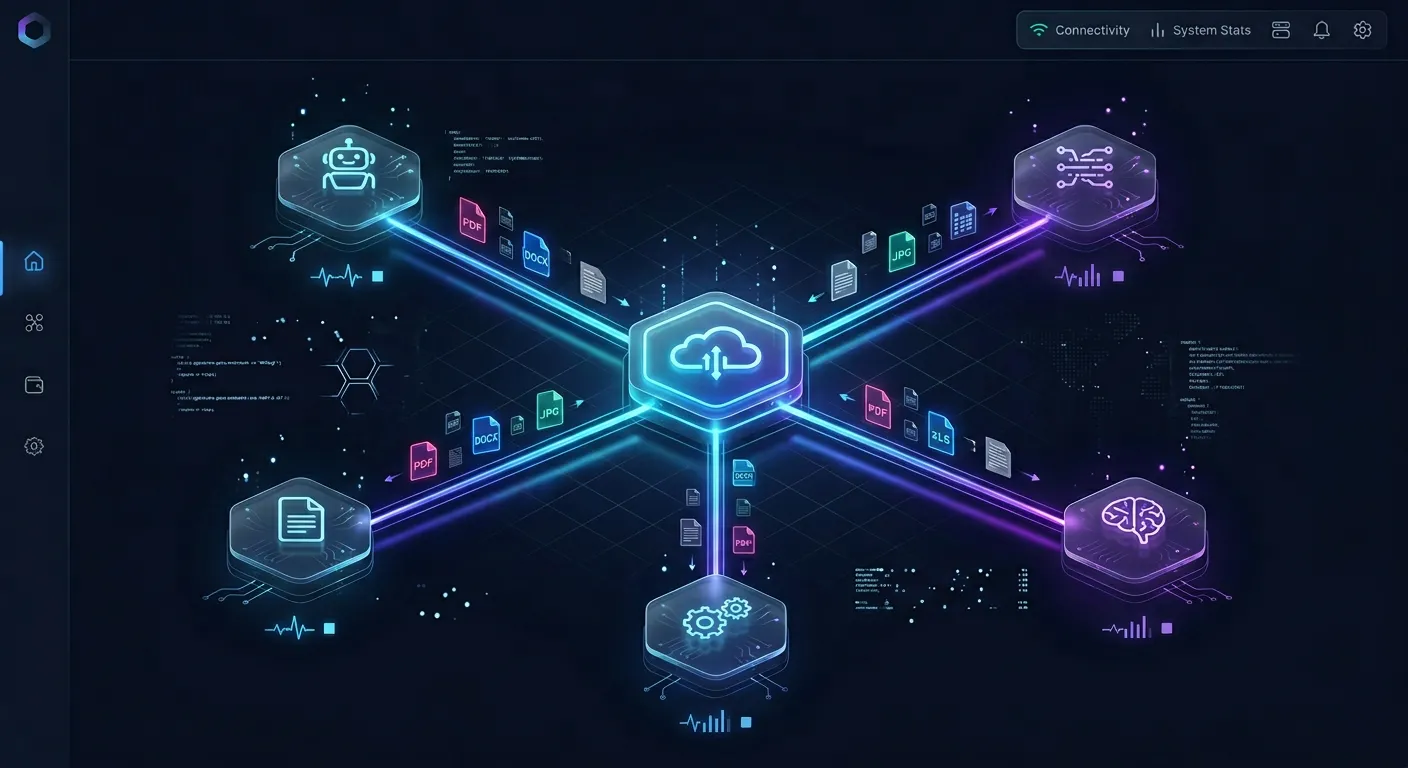
Setup Guide for Connecting Devin AI to Box via Fast.io
Setting up the connection between Devin AI and Box storage requires configuring a Fast.io workspace, establishing the Box import, and registering the Fast.io MCP server in Devin's configuration.
Set Up a Fast.io Organization and Workspace To begin, create a paid account or sign up for a 14-day free trial on the Fast.io Pricing Page. Monthly plans start with this trial, which requires a credit card; annual plans have no trial. Plans include Starter at $9.99/mo | Business at $49.99/mo | Enterprise at $199.99/mo. Once your organization is active, create a new workspace for your project and toggle on Intelligence Mode to allow automatic indexing of your documents.
Connect Box via Cloud Import Navigate to your workspace settings and select the cloud import option. Choose Box from the list of cloud storage providers and authenticate using your Box credentials via the OAuth gateway. Pick the folder containing the documentation or assets you want Devin to work with, and choose read only or two-way write-back for the source. The files populate your workspace, and if Intelligence Mode is on for that workspace they are indexed as they arrive. The Box identity belongs to the person who authorised it, so create the source under an account that will stay on the team.
Generate a Fast.io Developer Key Go to your user settings in Fast.io and generate a developer API key. This key will authorize Devin's MCP client to read and write files within your workspace. Keep this key secure, as it grants access to your workspace directories.
Register the Fast.io MCP Server in Devin Where this goes depends on which Devin surface you run. For cloud Devin, the sandboxed product described above, an organization admin adds a custom HTTP MCP server under Settings, Connections, MCP servers, with the URL
https://mcp.fast.io/mcp/codeand an authorization header. For Devin CLI, open your project directory and locate or create the.devin/mcp_config.local.jsonfile. This file is git-ignored and is where you store credentials. Add the remote Fast.io MCP endpointhttps://mcp.fast.io/mcp/codeto the configuration, passing your API key in the headers.
Your .devin/mcp_config.local.json file should match the following format:
{
  "mcpServers": {
    "fastio": {
      "url": "https://mcp.fast.io/mcp/code",
      "headers": {
        "Authorization": "Bearer YOUR_FASTIO_API_KEY"
      }
    }
  }
}
If you are running Devin via the command line interface, you can also add the server by running this command in your project terminal:
devin mcp add fastio https://mcp.fast.io/mcp/code
Note that running the CLI command will create the entry in your local configuration, but you must still open .devin/mcp_config.local.json to paste the Authorization header.
By following these configuration steps, you establish a persistent connection. Devin's sandbox can now write straight into the workspace instead of holding output on a disk that disappears when the session ends.


Create persistent workspaces for Devin AI
Start your 14-day free trial to link Box files to a persistent cloud workspace and expose them to your coding agents via Streamable HTTP. Every organization plan includes full MCP access and version history.
Verifying and Running the Integration in Devin
Once you have saved your configuration, Devin automatically initializes the Fast.io MCP client at the start of the next session. You can verify the connection by prompting Devin to list its available tools. The agent will confirm it has loaded the Fast.io server, exposing capabilities for directory exploration, file reading, file writing, and semantic search.
With the integration active, Devin can read and write files directly in your Fast.io workspace. If your workflow requires the agent to parse files, Devin can search the workspace using semantic queries rather than downloading the entire directory. The built-in RAG system retrieves the most relevant snippets, providing citation-backed answers to the agent's reasoning loop.
This connection simplifies collaborative tasks. If Devin generates log files or test reports, it writes them to the Fast.io workspace. The files are visible to human developers in the Fast.io UI straight away, and if the Box source was created with write-back the workspace pushes them out to Box on the next sync pass.
Structured Extraction with Metadata Views
When dealing with large volumes of business files, you can use Fast.io Metadata Views to turn folders into a queryable database. For example, if Devin is reviewing Box files containing contract records, invoices, or log reports, you can define an extraction schema in natural language. Fast.io automatically classifies the documents and populates a spreadsheet view with typed columns, such as Dates, Decimals, or Boolean flags. Devin can query these Metadata Views via the MCP server, enabling the agent to run complex data analyses without parsing raw PDFs manually.
Project Handover and Ownership Transfer
When you are building workspaces or portals for external clients, Devin can lay out the structure and then transfer control. In Fast.io, ownership of an organization or workspace can be transferred when a project concludes. If the agent created the organization itself, it generates a claim link, and the human sponsor uses that link to take over ownership and billing while the agent keeps the access it needs to continue running updates. If a person set the organization up in the first place, as in the setup above, the same handoff happens by moving workspace ownership rather than by claim link. The Box source itself is tied to the identity that authorised it, so it needs to be recreated under the new owner's Box account when the original owner leaves.
Sources
References used to verify factual claims in this guide.
-
Devin AI can run its sessions within Namespace Devboxes using Devin Outposts.
Frequently Asked Questions
Does Devin AI natively support Box storage?
No, Devin AI does not have a native Box integration. You can point Devin at Box's own remote MCP server, or route through a workspace platform like Fast.io when you also want version history, shared human access and an activity trail. Connect Box to Fast.io via OAuth Cloud Import, configure the Fast.io remote MCP server in Devin, and the agent reads and writes in the shared workspace. Create the Box source with write-back if you also want those changes pushed out to the Box folder.
How do I sync files between Box and Devin AI?
Set up a Cloud Import source in Fast.io pointing at the Box folder. That brings your Box files into a persistent Fastio workspace, and if you create the source with two-way write-back, changes made in the workspace are pushed back to Box on the sync schedule. You then connect Devin to the workspace using the Fast.io remote MCP server (`https://mcp.fast.io/mcp/code`), so every file the agent writes is saved and versioned rather than lost with the sandbox.
How does Devin authenticate with the Fast.io MCP server?
Devin authenticates using a developer API key generated in Fast.io. This key is added as an Authorization header in Devin's `.devin/mcp_config.local.json` file. The local configuration points to the remote MCP URL `https://mcp.fast.io/mcp/code`, allowing Devin to securely run file operations and semantic searches.
Related Resources

Create persistent workspaces for Devin AI
Start your 14-day free trial to link Box files to a persistent cloud workspace and expose them to your coding agents via Streamable HTTP. Every organization plan includes full MCP access and version history.