GitHub Copilot Personal Access Token Permissions for MCP
Setting up a GitHub Model Context Protocol (MCP) server with administrative credentials exposes your entire account history to an AI agent. This guide provides a secure, minimal-scope checklist for configuring personal access token permissions across fine-grained and classic tokens.

What Is the MCP Security Model for GitHub Copilot?
Setting up a GitHub Model Context Protocol (MCP) server with standard administrative credentials exposes your entire account history to an AI agent, including credentials, workflows, and private gists. The correct path is a secure, minimal-scope profile checklist that limits access to only the repositories and tools the AI actually needs.
GitHub Copilot previously relied on a proprietary, app-based extension framework to interact with third-party tools. To unify the developer ecosystem, GitHub officially sunset legacy App-based Copilot Extensions on November 10, 2025. In their place, the development team prioritized the Model Context Protocol (MCP) as the universal standard for sharing context between applications and large language models (LLMs). Developers now connect their IDEs, CLIs, and cloud agents to local or remote MCP servers that execute tasks directly against APIs. According to the official GitHub Copilot documentation, MCP is an open standard that defines how applications share context with large language models.
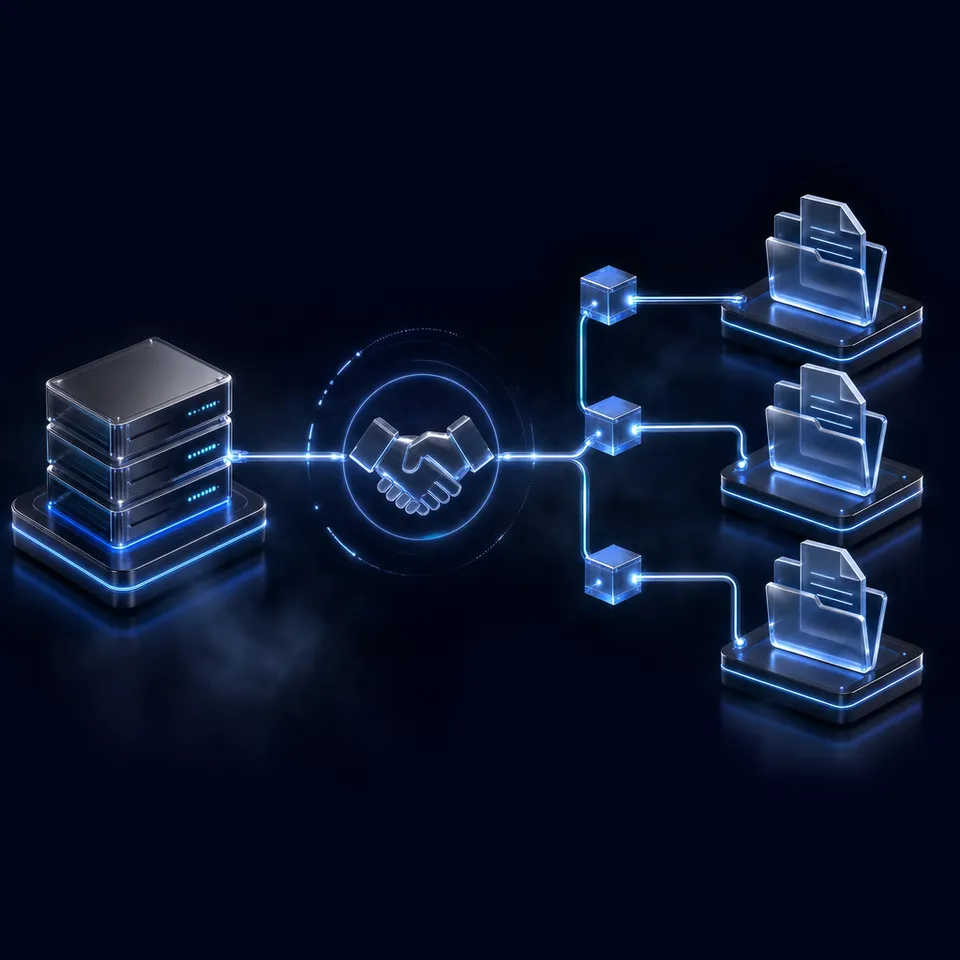
When you connect the GitHub MCP server, you must provide it with access credentials. Because the server runs as a separate process, it relies on a Personal Access Token (PAT) passed via environment variables. This token serves as the gatekeeper. The scopes you assign to the token dictate the absolute bounds of what the coding agent can see, modify, or delete in your repositories. Over-provisioning this token introduces immediate security risks. If you assign full administrative permissions, the agent could overwrite production branches, expose sensitive secrets in workflows, or delete active codebases. Adhering to the principle of least privilege ensures your code remains secure while enabling the agent to execute its work.
Related guides
- Can Claude Access SharePoint? Permissions, Security, and WorkspacesClaude cannot browse Microsoft SharePoint without administrative setup, but teams have two primary integration paths....
- Can Claude Access Dropbox? Native Connectors vs Workspace MCPClaude can access Dropbox files through direct chat attachments, the native Claude Cowork connector, or via remote...
- GitHub Personal Access Token vs. Fine-Grained Token for GitHub CopilotChoosing between classic and fine-grained personal access tokens determines the security boundary of GitHub Copilot CLI...
- How to Connect GitHub Copilot to Dropbox Files via MCPConnecting GitHub Copilot to Dropbox via MCP equips VS Code Copilot agent mode with direct semantic search over cloud...
- How to Query the GitHub Copilot API with External Tool ContextQuerying the Copilot API with external context allows developers to pass custom file systems, test outputs, and...
- GitHub Copilot Limits: Plan Quotas, Rate Caps, and Context BoundariesUnderstanding GitHub Copilot limits requires tracking how monthly quotas, chat throttling, and workspace indexing rules...
More on this subject: GitHub Copilot (137 guides)
How Classic and Fine-Grained Tokens Differ
When generating a Personal Access Token (PAT) on GitHub, you can choose between two main token types: classic tokens and fine-grained tokens. Both options serve different developer needs and offer distinct security behaviors.
Classic tokens (which begin with ghp_) apply to every repository your GitHub account has access to. When configuring the GitHub MCP server with a classic token, the server checks the token metadata at startup. Classic PATs automatic filtering hides tools that the token does not have permission to access. When a classic Personal Access Token is used, the server performs a self-check. By querying the GitHub API, it inspects the X-OAuth-Scopes header returned in the API response. This header lists the exact scopes associated with the token. The server then compares this list against the requirements of its tools. If the gist scope is missing, the server filters out and hides all Gist-related tools, such as create_gist or update_gist. This automatic filtering ensures that the AI model does not attempt to execute functions that would result in a permission error, keeping the conversation stream focused and efficient.
Fine-grained tokens (which begin with github_pat_) offer a much tighter security boundary. Fine-grained PATs provide the highest security by limiting access to specific repositories. Instead of exposing your entire account, you can select a single project repository for the agent. However, fine-grained tokens do not support the same automatic scope-detection metadata endpoints as classic tokens. The MCP server cannot query the specific scopes of a fine-grained token at startup. Consequently, all tools will still appear in the agent's tool list. If the agent attempts to call a tool for which the token lacks permission, the GitHub API will return an authentication error. To prevent this, developers must manually align their token scopes with the tools they expect the agent to use.
Secure GitHub Copilot Personal Access Token Permissions for MCP Checklist
Many general setup tutorials suggest granting full admin permissions or selecting every checkbox to prevent setup errors. This guide provides a secure, minimal-scope profile checklist to help you configure your token without exposing sensitive infrastructure. Use this list of required scopes to configure your token.
Repository Contents: Select Read-only or Read & Write access to repository contents, metadata, and pull requests. Read-only is appropriate if the agent only needs to analyze code, while Read & Write is necessary if the agent must push commits or open pull requests.
User Data: Select Read-only access to user email addresses and profile metadata. The server needs this scope to verify commit signatures and identify authorship.
Gists: Select Read & Write access to Gists if you want the agent to save code snippets, output logs, or scrapings to public or private gists.
Workflows: Select Read & Write access to Actions Workflows only if you expect the agent to modify build scripts or inspect run logs. This scope allows the agent to update files in the
.github/workflows/directory.Organization Members: Select Read-only access to organization members if your project resides in a shared organization workspace. The server uses this to check team memberships.
Avoid granting administrative permissions like Organization Administration or Repository Deletion. An administrative token can be intercepted if the host machine is compromised. Keeping the token limited to contents and basic metadata protects your repositories while maintaining full agent functionality.


Secure GitHub Copilot MCP token permissions with Fast.io
Connect GitHub Copilot using secure token permissions to a shared workspace with a remote MCP endpoint, version history, and automatic RAG indexing. Starts with a 14-day free trial.
Steps to Configure the GitHub MCP Server in Your Environment
After generating your Personal Access Token, you must configure the GitHub MCP server in your local host environment. The configuration format depends on the specific client or IDE you use to run GitHub Copilot or other AI tools.
To configure Claude Desktop, add the server details to your configuration file. On macOS, this file is located at your user library path. Open the file and insert the configuration block under the main server key.
{
  "mcpServers": {
    "github": {
      "command": "npx",
      "args": ["-y", "@modelcontextprotocol/server-github"],
      "env": {
        "GITHUB_PERSONAL_ACCESS_TOKEN": "github_pat_your_actual_token_here"
      }
    }
  }
}
If you use Cursor, configuration is managed via the developer settings menu or the dedicated JSON configuration file. While Claude Desktop utilizes the mcpServers key, other clients like VS Code declare servers under the servers key in mcp.json. Ensure the environment variables are nested inside the server object, as explained in GitHub's guide to extending Copilot Chat with MCP.
If the server fails to load, verify the following configuration points.
Environment Variable Nesting: The token variable must reside inside the
envobject. Placing it in the root of the server configuration will cause the server to fail to authenticate.Docker Container Paths: If you choose to run the GitHub MCP server in a Docker container, pass the token using the run command flags. Verify that the Docker daemon is active on your host system before starting the server.
Token Expiration: GitHub tokens carry an expiration date. If your server suddenly returns unauthorized errors, check your Developer Settings to confirm if the token has expired.
Why Integrate GitHub Copilot with Fast.io Workspaces?
Running coding agents locally provides immediate feedback, but it isolates the agent's work from the rest of the team. When multiple agents and developers work on the same codebase, they need a shared space to persist files, verify histories, and coordinate output.
Many teams default to standard cloud storage tools or raw object storage to hold agent deliverables. However, local storage isolates team members. Standard services like Google Drive or Dropbox were built for human file sync and lack native indexing for AI tools. Raw object storage like Amazon S3 provides persistence but lacks a collaborative user interface or built-in version tracking.
Fast.io bridges this gap by serving as an intelligent workspace where coding agents and developers coordinate. Instead of treating storage as a simple folder, Fast.io provides a persistent workspace equipped with consolidated MCP tools.
Developers can connect GitHub Copilot or other assistants directly to the workspace. Fast.io exposes a remote MCP server via Streamable HTTP. Coding agents such as GitHub Copilot connect at https://mcp.fast.io/mcp/code and sign in through the browser, and other assistants use https://mcp.fast.io/mcp/tools. For more details, refer to the storage for agents guide and the pricing guide. Securely manage your documents with Metadata Views and collaborate in shared workspaces.
Integrating your agent workflows with Fast.io provides several distinct benefits.
Intelligence Mode: Every file uploaded to the workspace is automatically indexed on arrival. The workspace performs hybrid search, combining full-text and semantic search. This provides a built-in RAG layer, allowing agents to query files and retrieve answers with clear citations.
Per-File Version History: AI agents can run concurrently and overwrite files. Fast.io maintains a complete history for every file, allowing team leads to audit modifications and restore previous versions.
Shared Workspaces: Agents and humans can interact on neutral ground. In a shared workspace, agents upload files, leave comments, and hand files off to human colleagues, and the activity feed shows each change as it happens.
Metadata Views: Fast.io also supports structured document processing through Metadata Views, located at
/product/document-data-extraction/. If your coding agent generates structured reports, documentation schemas, or build metrics, it can write these files to the workspace. Fast.io automatically extracts structured fields into a filterable database view without complex OCR rules. Once the agent completes its build, it can transfer ownership of the workspace directly to a human coordinator, ensuring that assets are safely handed off and preserved in the team's shared repository.
Monthly plans start with a trial of up to 14 days (credit card required); annual plans have no trial. Paid subscriptions include Starter, Business, and Enterprise tiers. Creating a user account is free, while active project work requires a paid subscription for the organization.
Sources
References used to verify factual claims in this guide.
-
GitHub transitioned from proprietary, app-based extensions to the Model Context Protocol in late 2025.
-
The Model Context Protocol acts as an open standard for sharing context between applications and large language models.
Frequently Asked Questions
What scopes does a GitHub MCP server need?
To interact with your repositories, the GitHub MCP server typically requires permissions for repository contents, metadata, and user info. If you are using a classic token, you must enable the `repo` scope for private repositories, or `public_repo` for public ones. You can optionally add the `gist` scope if you want the agent to save code snippets, and the `workflow` scope if it needs to inspect or update GitHub Actions files.
How do I configure a PAT for GitHub Copilot MCP?
To configure a Personal Access Token (PAT) for GitHub Copilot's MCP server, you must pass the token as an environment variable named `GITHUB_PERSONAL_ACCESS_TOKEN`. This environment variable is defined within your IDE's MCP configuration JSON file, such as `mcp.json` or `claude_desktop_config.json`, nested inside the server's environment configuration block.
Is a classic PAT or fine-grained PAT better for MCP?
A fine-grained Personal Access Token is better because it follows the principle of least privilege, allowing you to restrict the AI agent's access to specific repositories. Classic tokens grant access to all repositories associated with your account, which introduces broader security risks. While classic tokens support automatic scope detection and tool filtering, fine-grained tokens provide the highest level of repository isolation.
Related Resources

Secure GitHub Copilot MCP token permissions with Fast.io
Connect GitHub Copilot using secure token permissions to a shared workspace with a remote MCP endpoint, version history, and automatic RAG indexing. Starts with a 14-day free trial.