Gemini Advanced Limits: 2M Context Quotas, Upload Caps, and Rate Limits
Gemini Advanced limits define the operational parameters of Google's $19.99/mo tier, including 2M token context, 10-file upload caps, and model request quotas. While Gemini Pro processes massive document context, chat sessions cap uploads at 10 files up to 100MB each and enforce 5-hour rolling compute windows. Teams working with large document collections avoid upload ceilings by connecting external assistants to indexed Fast.io workspaces through MCP.


What Are the Documented Gemini Advanced Limits for Files, Context, and Rate Quotas?
According to Google's official documentation for Gemini Apps, Gemini Advanced limits file uploads to a maximum of 10 files per prompt, caps individual non-video files at 100 MB, and enforces compute-based usage windows that refresh every 5 hours. While Google highlights an active context window reaching up to 2 million tokens with Gemini 1.5 Pro and Gemini 2.0 Pro models, subscribers discovering these boundaries quickly find that context window memory and file attachment allowances operate under distinct rules. Understanding these parameters prevents broken automation pipelines, aborted data uploads, and unexpected session lockouts.
Gemini Advanced limits define the operational parameters of Google's $19.99/mo tier, including 2M token context, 10-file upload caps, and model request quotas.
Google packages Gemini Advanced under the Google AI Pro tier for individual power users and developers, alongside an entry-level Google AI Plus plan and high-capacity Google AI Ultra subscriptions. While the marketing emphasizes the ability to ingest complete books or massive codebases, the operational constraints of the consumer web and mobile interfaces establish concrete boundaries for daily work.
The table below summarizes verified operational limits across Google Gemini subscription tiers as of October 2026:
Context Window Memory vs File Upload Caps
A common point of confusion among technical teams is the distinction between model context capacity and file upload quotas. A 2-million-token context window represents the model's working memory: the combined volume of system prompts, dialogue history, retrieved grounding chunks, and extracted file text that the model can inspect in a single inference pass. In theory, Gemini Advanced 2 million tokens of context corresponds to roughly 3,000 pages of text or 60,000 lines of code.
However, the file upload ceiling dictates the ingestion doorway. Google restricts direct uploads in the Gemini web interface to 10 files per prompt, regardless of whether those 10 files consume 20,000 tokens or 1.8 million tokens. You cannot upload a 50-file legal matter, a 40-document technical manual, or a 100-file folder of receipts in one prompt. The interface will reject any bundle exceeding 10 files before tokenization begins.
Code Folders and GitHub Repository Ingestion
For software engineers, Google allows adding code folders and GitHub repositories directly into chat conversations. This feature carries its own strict thresholds:
- Repository and folder caps: Users can attach only one code folder or one GitHub repository per chat session.
- File count limits: The attached folder or repository can contain up to 5,000 files in developer previews (standard Gemini apps cap general folders at 1,000 files).
- Aggregate size ceiling: Gemini Advanced limits the entire repository or code directory upload to 100 MB of uncompressed code.
- File type filtering: Binary assets, compiled executables, and unsupported file extensions inside the repository are skipped during ingestion.
Related guides
- Gemini CLI Token Limits: Context Windows, Piping Caps, and File ArchitectureA Gemini CLI token limit is the operational ceiling on input prompt tokens, terminal pipe payloads, and context window...
- Trae AI Limits: Request Caps, Model Quotas, and Codebase ContextTrae AI limits govern monthly Dollar Usage balances, concurrent cloud tasks, and model availability across free and...
- Salesforce Agentforce Limits: Tokens, Context Windows, and Grounding File CapsAgentforce limits establish operational boundaries for autonomous AI across Salesforce, including a 1.5 million hourly...
- DeepSeek Message Limit: Web Chat Quotas, Rate Limits, and WorkaroundsThe DeepSeek message limit is the dynamic ceiling on consecutive chat turns and daily queries enforced across DeepSeek...
- NotebookLM Token Limit: Gemini Notebook Caps, Context Windows, and ScalingGoogle renamed NotebookLM to Gemini Notebook on July 16, 2026, while maintaining its standalone document interface. The...
- ChatGPT Conversation Too Long: Fixes, Limits, and Context WorkaroundsThe conversation too long error in ChatGPT occurs when an ongoing thread exceeds the model working memory context...
More on this subject: AI Agents: General Guides (218 guides)
How Do Gemini Advanced File Upload Caps and Media Ingestion Work?
File ingestion in Gemini Advanced supports a wide variety of formats, but the processing mechanics differ sharply across documents, spreadsheets, and media files. Understanding how Google extracts and evaluates each format helps avoid failed uploads and corrupted context.
Supported document formats include PDF, DOC, DOCX, TXT, RTF, HTML, Markdown, and EPUB. When you attach text-based documents, Gemini parses the text directly into prompt tokens. For spreadsheets and tabular datasets, Gemini Advanced accepts CSV, TSV, XLS, and XLSX files. Direct spreadsheet analysis requires the Advanced tier because processing tabular data relies on Google's automated Python sandbox. Instead of converting hundreds of thousands of spreadsheet cells into text tokens, Gemini Advanced executes Python scripts to filter, aggregate, and visualize rows programmatically.
The 10-File Upload Ceiling per Prompt
The 10-file upload limit applies per prompt. If you upload a compressed ZIP archive containing 14 text documents, the upload handler inspects the contents of the archive: because the internal file count exceeds 10, the upload fails. Similarly, uploading a folder containing nested subdirectories counts every individual file toward the 10-file quota.
Furthermore, files uploaded to a Gemini chat session do not persist across conversations. Unlike platforms that provide a persistent project workspace, Gemini treats attachments as temporary session inputs. When you start a new conversation to explore a different angle of your project, you must re-upload your files, consuming time and re-ingesting duplicate data.
Video, Audio, and Multimodal File Constraints
Multimodal inputs enable Gemini to reason across audio recordings, recorded presentations, and visual assets alongside text:
- Video files: Gemini Advanced accepts MP4, MOV, MPEG, and WebM video files up to 2 GB per file. On the free tier, video analysis is capped at 5 minutes of footage. On Gemini Advanced (Google AI Pro and Ultra), the allowable duration expands to 1 hour of video.
- Audio recordings: Gemini prompt uploads accept audio files (WAV, MP3, AAC, FLAC) up to 100 MB each. The allowable audio duration is 10 minutes on the free tier, expanding up to 3 hours on Gemini Advanced.
- Image uploads: Gemini Apps prompt uploads support JPEG, PNG, WebP, and GIF files up to 100 MB each. Images are broken down into vision tokens based on resolution and aspect ratio.
PDF Page Thresholds and Context Degradation
PDF documents represent the most frequent file type uploaded to Gemini Advanced, and they follow a two-tier evaluation process:
- Short PDFs (up to 100 pages): Gemini Advanced models process short documents multimodally, evaluating both raw text and visual layouts like charts and diagrams.
- Long PDFs (101 to 1,000 pages): Gemini drops visual layout parsing and falls back to plain text extraction. Images and formatting are omitted to conserve compute, while raw text passes into the token context.
- Oversized PDFs (exceeding 1,000 pages or 100 MB): Gemini Advanced models reject the file upload at the document processing boundary.
While Gemini Advanced models can accept over 1 million tokens within the context window, retrieval precision drops when searching for specific figures across hundreds of pages of unstructured text. Needle-in-a-haystack performance remains strong for clean text, but complex cross-document queries often hallucinate or miss peripheral details.
How Do Gemini Advanced Message Limits, Compute Quotas, and Code Timeouts Operate?
Subscribers frequently search for a specific Gemini Advanced daily message limit, expecting a fixed counter similar to traditional API rate limits. Google does not enforce a rigid calendar-day prompt cap. Instead, Gemini Advanced operates on a dynamic, compute-based quota system that balances model capacity, prompt length, and operational load.
Under this compute-based architecture, your usage allocation is evaluated over rolling 5-hour windows alongside a broader weekly threshold. Sending short, simple prompts consumes minimal compute, allowing dozens of interactions within a single session. In contrast, uploading five dense PDF files and asking the model to perform multi-step comparative analysis consumes a massive block of compute in a single turn.
The 5-Hour Rolling Refresh Window and Weekly Ceilings
The primary usage barrier in Gemini Advanced is the 5-hour rolling refresh window. When you submit your first request, a 5-hour session timer begins:
- Token accumulation: Each message you send in a thread forces Gemini to re-read the accumulated conversation history. By message 15 in a deep technical discussion, every new prompt carries thousands of prior tokens, accelerating your compute burn rate.
- Model-specific consumption: Requests routed to Gemini 3.1 Pro consume quota far faster than requests sent to Gemini 3.6 Flash. Reasoning-heavy tasks, Canvas generation, and Deep Research tasks draw from your highest-tier compute allocation.
- Approaching capacity: When your session consumption nears its ceiling, the interface notifies you of remaining capacity. If you exhaust your 5-hour allocation, the system temporarily restricts access to flagship Pro models.
- Fallback behavior: Rather than severing all access, Gemini typically downgrades subsequent prompts to Gemini 3.6 Flash until the 5-hour window resets.
- Weekly volume caps: Users who consistently consume maximum compute across multiple consecutive 5-hour windows can collide with a secondary weekly ceiling, requiring a longer cooldown period before full Pro capacity resumes.
Python Sandbox Constraints and the 60-Second Execution Cutoff
When you ask Gemini Advanced to analyze spreadsheets, calculate statistics, or manipulate data files, the model writes and executes Python code in an isolated Google sandbox. This environment operates under strict technical guardrails:
- 60-Second execution timeout: The Python runtime enforces an execution limit. Python data analysis sandboxes terminate processes exceeding 60 seconds of execution. Scripts running complex nested loops, iterative machine-learning training, or heavy numeric simulations are killed automatically with a timeout notification.
- Memory and compute caps: The execution sandbox provides limited RAM and CPU allocations suitable for data filtering and chart plotting, not distributed data processing.
- Package restrictions: Users cannot install arbitrary third-party Python packages using pip. The sandbox comes pre-configured with core data science libraries, including NumPy, Pandas, Matplotlib, SciPy, and SymPy. If your analysis requires specialized domain libraries, the script will fail.
- No network access: The sandbox has no outbound internet connectivity, preventing scripts from making external API calls, downloading supplemental datasets, or communicating with remote servers.


Overcome Gemini Advanced limits with indexed workspace storage
Connect your AI assistants to persistent Fast.io workspaces where documents stay searchable via MCP without prompt file caps. Starts with a 14-day free trial.
The Large-Corpus Problem: Why 2M Context Windows Still Hit Upload Walls
Competitors highlight Gemini Advanced 2M context window limits but omit the 10-file upload ceiling and lack of persistent shared workspace storage. Marketing materials present a 2-million-token window as a replacement for databases and file servers, leading teams to believe they can drop their entire organization's documentation into an AI prompt. In practice, relying on prompt-level attachments creates immediate operational bottlenecks.
The primary breakdown occurs at the persistence layer. In consumer AI tools like Gemini Advanced, files uploaded to a chat session exist only for the lifespan of that specific thread. If three colleagues need to analyze the same set of vendor contracts, clinical trials, or design specifications, each person must independently locate, verify, and upload those documents into their own chats. There is no shared, persistent repository where a team maintains a single version of truth.
Traditional Ingestion (Prompt Stuffing):
[ 10 Files Max ] -> [ Raw Chat Prompt (1M+ Tokens) ] -> High Latency / Rate Limits
                                                        -> Ephemeral (Lost on New Chat)
                                                        -> Team Cannot Share Context

Decoupled Architecture (Fast.io + MCP):
[ Large Corpus ] -> [ Fast.io Workspace ] -> [ Auto-Indexed Hybrid Search ]
(No 10-file cap)    (Persistent & Shared)        |
                                                 v
                                    Gemini Agent via MCP Search
                                    (Lean Prompts, Precise Citations)
The Cost and Latency of Context Bloat
Attempting to stuff hundreds of thousands of tokens into every chat prompt introduces three distinct technical penalties:
- Inference latency: Processing a 1-million-token prompt takes tens of seconds before the model generates its initial token. Iterative back-and-forth dialogue becomes sluggish and disruptive.
- Accelerated quota exhaustion: Because Gemini re-reads every token in the conversation history on every subsequent turn, carrying a 500,000-token file payload burns through your 5-hour compute allowance in just two or three messages.
- Attention degradation: Even with advanced needle-in-a-haystack retrieval, long-context models suffer from position bias. Critical facts located in the middle of a massive context window receive lower retrieval fidelity than facts positioned at the beginning or end of the prompt.
Conventional Workarounds and Their Shortcomings
Teams encountering these boundaries typically attempt two intermediate workarounds:
- Local Python extraction scripts: Engineers write custom scripts using LangChain, LlamaIndex, or ChromaDB on local laptops. While this bypasses web upload caps, the data remains trapped on individual machines. Team members cannot search the corpus, version control is nonexistent, and maintaining local vector databases creates ongoing overhead.
- Standard cloud drives: Storing files in Google Drive, Dropbox, or Box provides cloud persistence, but these platforms were designed for human file sharing rather than agentic retrieval. When an AI tool connects to a standard cloud drive, it receives unindexed binary files, requiring custom embedding pipelines and vector indexing to become useful.
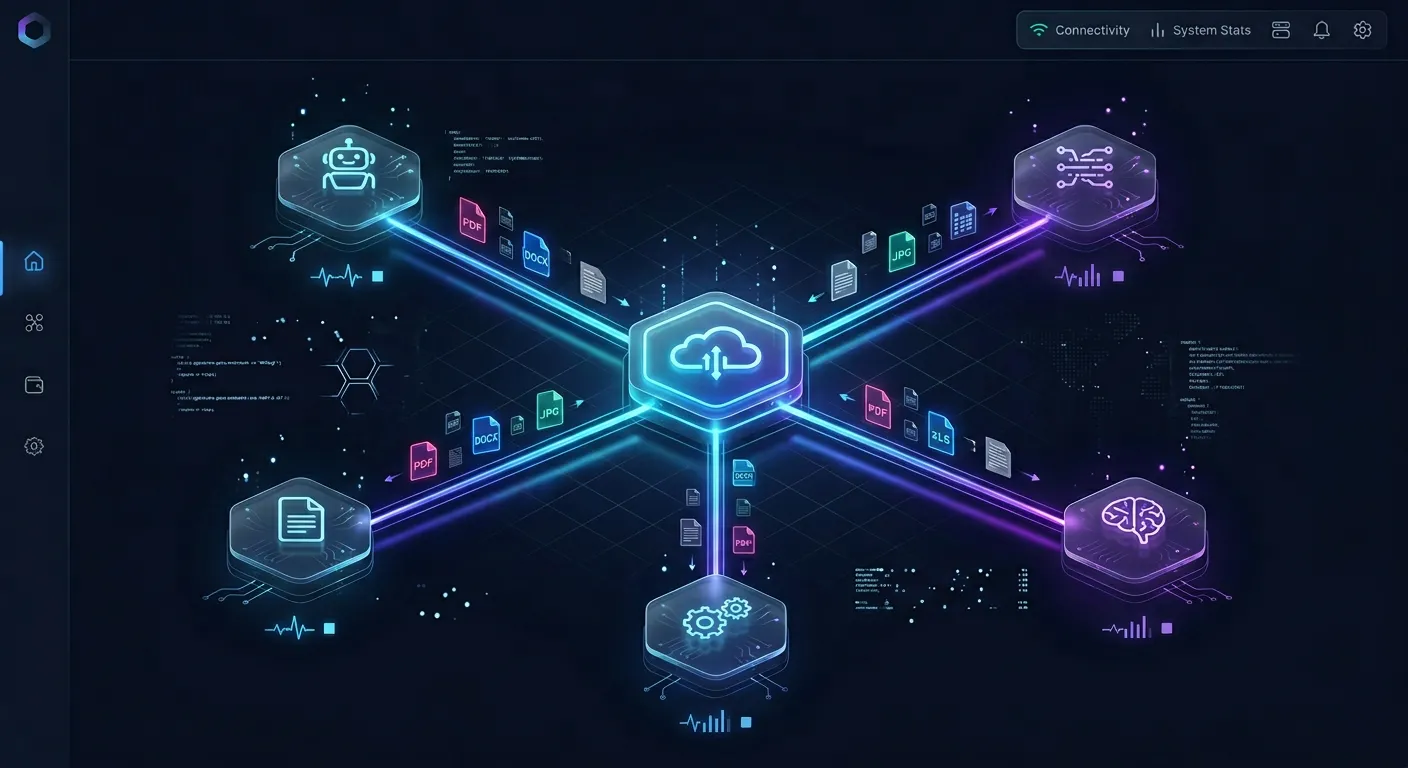
Architecting Large-Document Workflows with Gemini and Fast.io Workspaces
The solution to Gemini's 10-file upload cap and session limits is architectural: keep Gemini as the reasoning engine, but move corpus storage, indexing, and retrieval to an external layer. Instead of forcing files through prompt attachments, you place your entire document library into an intelligent cloud workspace.
Fast.io provides shared workspaces designed specifically for agentic teams and AI assistants. Explore technical agent architecture at Fast.io Storage for Agents and review agent onboarding conventions at fast.io/llms.txt. Rather than wrestling with upload limits, your documents reside in a persistent environment accessible to both humans and AI tools.
1. Ingest Complete Document Libraries Without File Count Ceilings
Fast.io removes the 10-file prompt barrier entirely. You can upload thousands of files directly into an org-owned workspace, with maximum file sizes reaching 25 GB on the Starter plan, 50 GB on Business, and 100 GB on Enterprise.
Alternatively, you can aggregate files from existing platforms without local data transfer:
- Cloud sync: Configure scheduled or on-demand sync from Google Drive, Dropbox, Box, or OneDrive.
- Cloud import: Import document folders directly from Google Drive via OAuth without consuming local disk space or network bandwidth.
- Per-file version history: Every document retains complete version history, allowing team members and autonomous agents to update files without overwriting prior work.
2. Enable Intelligence Mode for Built-In RAG
Once files land in your Fast.io workspace, enable Intelligence Mode in workspace settings. Fast.io automatically indexes your PDFs, Word documents, spreadsheets, presentations, and code files for hybrid search, combining full-text keyword indexing with semantic search. Learn more about built-in retrieval capabilities at Fast.io AI Features and workspace management at Fast.io Workspaces.
There is no need to configure external vector databases, chunking pipelines, or embedding models. The workspace itself handles extraction and indexing. For structured data extraction from forms, invoices, and contracts, Fast.io Metadata Views automatically extract typed columns from documents into a queryable table.
3. Connect Assistants Through the Remote Fast.io MCP Server
To query the workspace from Gemini developer runtimes, coding agents, or custom automation scripts, connect through Fast.io's remote Model Context Protocol (MCP) server. Fast.io operates a hosted MCP server over Streamable HTTP, requiring no local npm bridges or container deployments:
- For coding agents and developer CLI tools: Connect to
https://mcp.fast.io/mcp/code - For general AI agents and external orchestrators: Connect to
https://mcp.fast.io/mcp/tools
In Gemini CLI or compatible developer environments, declare the server configuration:
{
  "mcpServers": {
    "fastio": {
      "httpUrl": "https://mcp.fast.io/mcp/code"
    }
  }
}
Sign in using OAuth 2.0 or supply an authorized Bearer API key in headless environments. Learn more about setup steps at Fast.io MCP Documentation.
4. Query on Demand to Conserve Context and Compute
With MCP configured, the AI assistant no longer requires attached files. When a user asks a question, the assistant uses the MCP search or storage tool to query the Fast.io workspace. Fast.io retrieves only the relevant paragraphs and data points needed to answer the prompt, returning them with verifiable document citations.
This decoupled architecture delivers three decisive advantages:
- Zero file upload caps: Ingest thousands of documents into Fast.io without hitting Gemini's 10-file prompt limit.
- Persistent team context: When one team member or agent uploads a document to the workspace, it becomes immediately searchable by all authorized users and assistants.
- Preserved compute budgets: Prompts remain lean, eliminating the massive token overhead that triggers Gemini's 5-hour rate limits and long response latencies.
Sources
References used to verify factual claims in this guide.
-
Gemini Advanced limits define the operational parameters and upload ceiling of up to 10 files per prompt, with non-video files limited to 100 MB each. Gemini Advanced models process up to 1,500 pages of text or 30,000 lines of code within a 1M token context window memory, managing request quotas across tiers.
Frequently Asked Questions
What are the limits on Gemini Advanced?
Gemini Advanced limits include an active context window of up to 2 million tokens with Gemini Pro models, a direct file upload cap of 10 files per prompt up to 100 MB each (2 GB for video up to 1 hour), a 60-second execution cutoff in the Python data analysis sandbox, and compute-based usage quotas that refresh on rolling 5-hour windows alongside broader weekly ceilings.
How many files can you upload to Gemini Advanced at once?
Gemini Advanced permits uploading up to 10 files in a single prompt. If you upload a folder or a ZIP archive, each file contained inside counts toward this 10-file ceiling. To analyze larger document libraries, teams decouple storage from prompt context by indexing files in external workspaces like Fast.io and querying them via MCP.
Does Gemini Advanced have a daily message limit?
Gemini Advanced does not enforce a rigid calendar-day message counter. Instead, Google uses a compute-based usage system that evaluates consumption over rolling 5-hour windows. Complex prompts, deep conversation histories, and reasoning-intensive models burn compute faster, temporarily falling back to Gemini Flash models if the 5-hour quota is exhausted.
What happens when Python code execution times out in Gemini Advanced?
Gemini Advanced terminates any Python data analysis process that exceeds 60 seconds of execution time. The sandbox does not support long-running batch jobs, custom pip package installations, or outbound network calls. If a calculation times out, the process halts and returns an execution error.
How does Gemini Advanced handle large PDF files?
Gemini Advanced processes PDFs up to 100 pages using multimodal vision encoders that analyze both text and visual layouts like charts and diagrams. For PDFs between 101 and 1,000 pages, the engine drops visual analysis and extracts plain text only. In Gemini Apps, files exceeding 1,000 pages or 100 MB are rejected at the upload boundary.
Can you share an uploaded document library with teammates in Gemini Advanced?
Files uploaded directly to Gemini chat sessions are ephemeral and isolated to that specific conversation thread. Teammates cannot access or search files uploaded by another user. Teams needing shared, persistent document access connect their AI assistants to shared Fast.io workspaces via MCP.
Related Resources

Overcome Gemini Advanced limits with indexed workspace storage
Connect your AI assistants to persistent Fast.io workspaces where documents stay searchable via MCP without prompt file caps. Starts with a 14-day free trial.