How to Connect Google Drive to Dify Knowledge Bases and Cloud Workspaces
Connecting Google Drive to Dify allows AI applications and autonomous agents to search team documents as structured knowledge base datasets. Native Dify connectors rely on scheduled batch imports that can hit Google Drive API quotas and introduce re-indexing latency across shared drives. Syncing Google Drive folders into an intelligent workspace and querying them through remote Model Context Protocol tools lets agents retrieve exact citations without downloading raw files.

How Dify Ingests Google Drive Files: Architecture and Friction
Pointing a Dify knowledge pipeline directly at an active Google Drive folder breaks as soon as teams collaborate: recursive directory crawling burns through API quota units on folder listings, large PDF re-indexing creates synchronization lag, and Shared Drive permission boundaries leave document gaps in retrieval datasets. The bottleneck is not embedding model capability, but treating an unindexed human file system as a real-time agent knowledge base.
Engineering and product teams store foundational assets across Google Drive, Dropbox, Box, and OneDrive. Architecture designs, vendor agreements, compliance documentation, and technical specifications live in these cloud drives. When configuring Dify to power automated workflows, internal support assistants, or autonomous developer agents, connecting these documents is a core operational requirement. Managing these assets within shared workspaces gives teams a unified foundation where human colleagues and software agents interact with the same underlying material.
A Dify Google Drive connector allows Dify AI workflows and autonomous agents to ingest and search documents residing in Google Drive folders as structured knowledge base datasets.
Standard tutorials suggest pointing a Dify data source plugin at a Google Drive folder and letting Dify ingest everything. While this works for a small folder containing five static text documents, it breaks down quickly under real-world conditions. A production knowledge base requires consistent document updates, reliable error handling, and predictable query performance. Understanding the direct ingestion mechanics of Dify reveals why raw cloud storage connections produce friction.
Direct Ingestion Mechanics in Dify Knowledge Pipelines
Dify approaches document retrieval through two primary structures: Classic Knowledge Bases and Agent Knowledge Bases. In both configurations, external data sources connect through Dify's plugin architecture. When a developer selects Google Drive as a data source, Dify initiates an authorization flow using OAuth 2.0.
Once authorized, Dify does not execute live queries against the Google Drive API during chat inference. Instead, it runs an extraction and indexing pipeline:
- Directory Traversal: Dify queries the Google Drive API to list files, traversing folder hierarchies to collect document metadata.
- Format Conversion: Google Workspace proprietary formats (Google Docs, Google Sheets, and Google Slides) cannot be stored directly as vectors. The integration requests exported formats from Google, converting documents to plain text, PDF, or CSV tables.
- Document Ingestion: Dify downloads binary file payloads (such as PDFs, Markdown files, or spreadsheets) over the network into its local processing cache.
- Text Extraction and Chunking: Text extractors parse the files and segment the text according to configured chunk sizes (such as 500 tokens with a 50-token overlap, or parent-child hierarchical chunks).
- Vector Embedding and Storage: Dify sends each chunk to an external embedding model provider, calculates vector embeddings, and writes the vectors into an internal vector database like Weaviate, Qdrant, or pgvector.
This pipeline creates a standalone vector replica of your cloud files inside Dify. The quality of subsequent retrieval depends entirely on how accurately this replica reflects the current state of your drive.
The Friction of Recursive Directory Crawling
The primary operational issue with direct ingestion stems from how cloud storage organizes content. Google Drive was engineered for people browsing folder trees, not high-speed data ingestion by automated systems.
When an ingestion pipeline begins, it issues API calls to discover subfolders. If a department repository contains deeply nested subdirectories holding hundreds of files, the ingestion script must send recursive requests just to build the target file manifest. Each HTTP round trip introduces network latency and consumes API rate allowances.
Downloading large binary files also ties up Dify worker processes. A large technical manual or compliance audit file requires substantial time to download, parse, and split into chunks. If network connectivity drops or an individual file format fails extraction, the entire batch job can stall, requiring manual intervention to resume synchronization.
Related guides
- How to Connect Dify AI Agents to Google DriveConnecting Dify to Google Drive allows agentic workflows and LLM apps to query Google Drive files as a persistent...
- How to Connect Google Gemini to Google Drive for Agentic WorkflowsConnecting Google Gemini models to Google Drive allows autonomous workflows to inspect document excerpts through...
- How to Connect Perplexity to Google Drive for Agentic SearchConnecting Perplexity to Google Drive lets research teams query private documents alongside live web sources. Direct...
- How to Connect Google Drive to ChatGPT: Setup and Agent WorkspacesConnecting Google Drive to ChatGPT allows the model to access, read, and reason about files stored in your cloud...
- How to Connect Microsoft AutoGen Agents to Google DriveAn AutoGen Google Drive connector registers retrieval functions with AutoGen agents so multi-agent group chats can...
- Unraid Rclone Google Drive: Cloud Sync vs AI Agent WorkspacesMounting Google Drive on an Unraid server with rclone provides local file access, but AI agents scanning recursive VFS...
More on this subject: Agent Integrations and APIs (206 guides)
Overcoming Rate Limits, Shared Drive Blind Spots, and Indexing Latency
Connecting Dify to cloud drives introduces operational hurdles that basic tutorials rarely address. Engineering teams encounter three distinct barriers in production: Google Drive API quota exhaustion, Shared Drive permission boundaries, and high re-indexing latency during dataset updates. When background synchronization runs across large enterprise repositories, these constraints compound, causing ingestion failures, incomplete search indexes, and stale prompt context.
Addressing these failure modes early prevents broken retrieval pipelines and avoids service disruptions in live applications. Evaluating an alternative to Google Drive helps clarify why raw cloud storage needs an intelligent intermediate layer before agents query it. By understanding how quota units accumulate and how directory structures affect retrieval, teams can architect resilient document pipelines that scale gracefully with growing data volumes.
Google Drive API Quota Units and Rate Limits
The Google Drive API protects its infrastructure by enforcing strict usage limits. Rather than counting raw HTTP requests equally, Google Workspace calculates consumption using abstract quota units.
Google Drive API limits are defined in terms of quota units representing resource usage. Different API methods carry different unit weights based on computational intensity:
- Read and Metadata Operations: Inspecting file metadata or verifying permissions costs
5quota units per request. - List and Search Operations: Listing files within a folder or searching directories using
files.listcosts100quota units per request. - Download and Export Operations: Downloading raw binary content or converting Google Docs into downloadable formats costs
200quota units per request.
Google Workspace allocates 1,000,000 quota units per minute per project, and 325,000 quota units per minute per user per project. While these thresholds appear generous for human users clicking in a browser, an automated Dify batch sync scanning twenty directories and downloading dozens of PDFs consumes tens of thousands of quota units within seconds.
When a background sync job exceeds these limits, Google Drive responds with HTTP 403 userRateLimitExceeded or HTTP 429 rateLimitExceeded errors. Without exponential backoff and request spacing, Dify's ingestion worker aborts the job. Dify also enforces workspace-level knowledge request rate limits per minute on document chunking and vector storage writes, compounding the risk of failed updates.
Shared Drive Permissions and Domain Boundaries
In corporate environments, team knowledge rarely lives in personal user directories. Instead, organizations use Google Shared Drives (formerly Team Drives) where files belong to the organization rather than an individual.
Standard OAuth connections configured with personal user scopes often fail to index Shared Drives. By default, API queries target the authenticated user's personal drive space. To access organizational files, the integration must include specific flags, such as enabling support for all drives and including items from shared storage.
If these parameters are missing, the Dify dataset displays empty directories or skips mission-critical files without throwing an explicit error. When using a Google Cloud Service Account instead of user OAuth, the service account email must be added as a member with viewing privileges on each specific Shared Drive, adding administrative maintenance overhead.
The Latency Bottleneck of Full-File Re-Indexing
The most severe constraint in Dify's native connector is dataset synchronization latency. Dify knowledge bases require scheduled batch synchronizations to refresh external cloud storage datasets.
When team members update an engineering specification or add a new pricing schedule in Google Drive, the changes do not appear immediately in Dify. The system relies on scheduled batch runs (such as hourly or daily intervals) to detect file modifications.
During a scheduled refresh, Dify inspects modified files, re-downloads the complete binary documents, re-chunks the text, and calls embedding APIs to generate new vector embeddings. This process introduces notable lag:
- Network Overhead: Re-downloading multi-megabyte PDFs over HTTP consumes unnecessary bandwidth.
- Embedding Costs: Processing hundreds of thousands of words repeatedly through external embedding models increases monthly API expenses.
- Index Lock Contention: While a dataset is rebuilding its vector index, retrieval queries from active chat apps can experience increased response times or inconsistent retrieval results.
For teams running autonomous agents that require current operational context, waiting hours for a scheduled batch synchronization to index a five-line contract amendment creates unacceptable workflow friction.
Step-by-Step: Connecting Google Drive to Dify Knowledge Bases
Setting up a direct connection between Dify and Google Drive requires configuring credentials in Google Cloud Console, authorizing the data source within Dify, and defining document processing rules in a knowledge pipeline. Completing these configuration stages correctly confirms that permissions map accurately, folder hierarchies remain intact, and background workers can traverse shared directory structures without authentication errors.
Before starting, verify that your Google account has administrative privileges on the target Google Cloud project and viewing access across the folders you intend to sync. If your organization uses Google Workspace Shared Drives, coordinate with your Google Workspace administrator to confirm that external API access and third-party application permissions are enabled for your domain.
Follow this procedure to establish the native connector step by step, from cloud project initialization to scheduled ingestion tuning.
Step 1: Configure OAuth in Google Cloud Console
To allow Dify to interact with your drive, create an OAuth 2.0 client credential:
- Open the Google Cloud Console and create a new project dedicated to your Dify integrations.
- Go to APIs & Services > Library, search for Google Drive API, and click Enable.
- Navigate to APIs & Services > OAuth consent screen. Select your user type (Internal for Google Workspace organizations, or External for public testing) and provide application contact details.
- Add the required scope:
https://www.googleapis.com/auth/drive.readonlyis sufficient if Dify only needs to read files. - Go to APIs & Services > Credentials and click Create Credentials > OAuth client ID.
- Set the application type to Web application. Under Authorized redirect URIs, enter your Dify instance callback URL (for self-hosted instances, this follows
https://your-dify-domain/console/api/oauth/data-source/callback/google_drive). - Save the configuration and record the generated Client ID and Client Secret.
Step 2: Authorize the Data Source in Dify
Connect your newly created Google credentials to your Dify workspace:
- In the Dify management console, open Integrations from the left navigation menu.
- Select the Data Source tab and locate Google Drive.
- Click Configure and select Add OAuth.
- Choose Custom client configuration to use your own Google Cloud project credentials.
- Paste your Google Cloud Client ID and Client Secret into the respective fields.
- Click Connect. A Google authorization window opens; log in with the account holding access to the target drive and grant the requested read permissions.
- Once verified, the Google Drive data source displays an active connected status.
Step 3: Create a Synced Knowledge Base Dataset
With authorization active, build the knowledge dataset:
- Navigate to the Knowledge section in Dify and click Create Knowledge Base.
- Under the data source options, select Google Drive from the cloud storage list.
- Browse the directory tree to locate your target folder. If your organization uses team storage, check the option to support all drives so Shared Drives appear in the file selector.
- Select the specific folders or file batches to ingest.
- Configure the text chunking rules. For technical documentation, standard chunking with 500 characters and 50 characters overlap provides balanced context. For complex contracts, consider parent-child hierarchical chunking to retain broader document context.
- Select your embedding model provider and click Save and Process to initiate the initial batch ingestion.
Step 4: Configure Sync Schedules and Rate Limits
Configure how frequently Dify checks for updates:
- In the knowledge base settings, open the Data Source Sync panel.
- Set the synchronization interval. A daily or 12-hour interval is recommended for large folders to stay safely below Google Drive API rate limits.
- If running a self-hosted Dify instance, adjust your Celery worker concurrency to prevent simultaneous file downloads from triggering Google's HTTP 429 errors.
- Test retrieval in the Hit Testing playground to verify that document passages return accurate answers before attaching the knowledge base to live agents.


Query Google Drive files without API quota bottlenecks
Sync your cloud storage folders into an indexed workspace with remote MCP tools, version history, and hybrid search built in. Monthly plans start with a 14-day free trial.
The Intelligent Workspace Architecture: Syncing Storage and Querying via MCP
Rather than pulling raw files directly into Dify and managing custom vector databases, engineering teams can adopt an intelligent workspace model. In this architecture, team documents remain in Google Drive, sync into an intelligent cloud workspace, and expose search tools to Dify agents through the Model Context Protocol (MCP).
Cloud Sync connects Google Drive, Dropbox, Box and OneDrive folders to a workspace, one-way or two-way, on a schedule or on demand. The sync runs without continuous or real-time polling overhead, maintaining stable background transfers. Once files arrive in a Fast.io workspace, the workspace itself acts as the indexing and retrieval layer.
How Cloud Sync Decouples Storage from Agent Ingestion
Direct ingestion forces your AI platform to perform dual roles: file synchronizer and retrieval engine. Decoupling these responsibilities improves operational reliability.
Your human teammates continue drafting, organizing, and collaborating in Google Drive, Dropbox, Box, or OneDrive. Fast.io connects to the chosen drive folder and imports files into an org-owned workspace.
Upon file arrival, Fast.io's Intelligence Mode processes the material automatically:
- Hybrid Search Indexing: Documents are indexed immediately for full-text search, semantic search, and metadata value filtering.
- Elimination of Local Embedding Pipelines: Developers do not need to configure embedding model APIs, select vector dimension sizes, or maintain vector database clusters in Dify.
- Reduced Ingestion Traffic: Because indexing occurs inside the workspace, Dify does not download multi-megabyte binary files over the wire.
Querying Cloud Files Over Remote MCP Tools
Once documents are indexed in Fast.io, Dify agents connect through standard Model Context Protocol tooling. Instead of downloading whole files into prompt context or running vector similarity searches in Dify datasets, the agent queries the workspace directly.
Fast.io provides remote MCP servers over Streamable HTTP. To connect an autonomous workflow or agent:
- Configure an HTTP tool node or MCP client in Dify pointing to
https://mcp.fast.io/mcp/tools. - Provide your workspace API key as an HTTP header:
Authorization: Bearer <api key>. Setup instructions are documented at MCP setup documentation. - When the agent needs information, it calls the
storagetool's search action:
{
  "name": "storage",
  "arguments": {
    "action": "search",
    "search": "indemnification clauses in vendor agreements",
    "workspace_id": "ws_12345"
  }
}
Fast.io searches the indexed files and returns concise, citation-backed excerpts directly to the agent. The agent receives exact passages, document titles, and page numbers. Context windows remain clean, token costs decrease, and the agent avoids recursive directory crawling entirely.
Published Connector Benchmark Results
The architectural advantages of indexed workspaces over native file downloading were evaluated in rigorous testing. The connector comparison is published at fast.io/benchmarks and that page is the only place its numbers live.
In that published report, Fastio was measured the fastest and the lowest cost of the providers tested. Every measured row is that provider's native connector in Claude Cowork; no row is a local stdio server, a Files-On-Demand stub or SharePoint, and SharePoint was not measured at all. Accuracy across providers was parity.
By offloading indexing to a specialized workspace layer and querying via remote MCP, teams eliminate the rate limit bottlenecks and re-indexing latency inherent in direct drive connectors.
Multi-Agent Governance, Structured Extraction, and Troubleshooting
Deploying AI agents across enterprise file collections requires structured governance and reliable document extraction. When multiple software agents and human operators interact with shared files, coordination primitives keep work reliable and auditable across operational cycles. In unmanaged environments, concurrent agent writes can overwrite human edits, schema mismatches can derail downstream workflows, and transient network errors can corrupt dataset synchronization.
Fast.io provides the operational substrate where autonomous agents and human teams collaborate safely. By unifying file versioning, advisory locking, and structured field extraction in a shared workspace, organizations maintain full oversight of agent actions while preserving document integrity across every stage of the project lifecycle.
Extracting Structured Document Data with Metadata Views
While vector search retrieves unstructured text passages, business workflows often require precise structured data: contract effective dates, invoice totals, policy numbers, or counterparty names.
Metadata Views transforms unstructured documents into a live, queryable database. Users describe the desired fields in natural language, and the system generates a typed schema matching Text, Integer, Decimal, Boolean, URL, JSON, and Date & Time formats.
Files imported from Google Drive into the workspace are extracted automatically without templates or brittle OCR rules. Dify workflows can query these structured views through MCP tools, retrieving exact data points instantly without passing entire documents through an LLM extraction prompt.
Version History, Notes, and Advisory File Locks
Multi-agent operations require controls to prevent data loss and conflicting updates:
- Per-File Version History: Every document modified in a workspace retains complete version history. If an agent writes an erroneous summary or updates a file incorrectly, team members can inspect previous states and restore earlier versions.
- Collaborative Notes: Notes kept beside the files for people and agents (version-checked saves, not real-time co-editing) provide a shared location for recording architectural decisions, agent execution logs, or research summaries.
- Advisory File Locks: When multiple agents access the same workspace, advisory file leases coordinate concurrent writers. An agent acquires a lock using
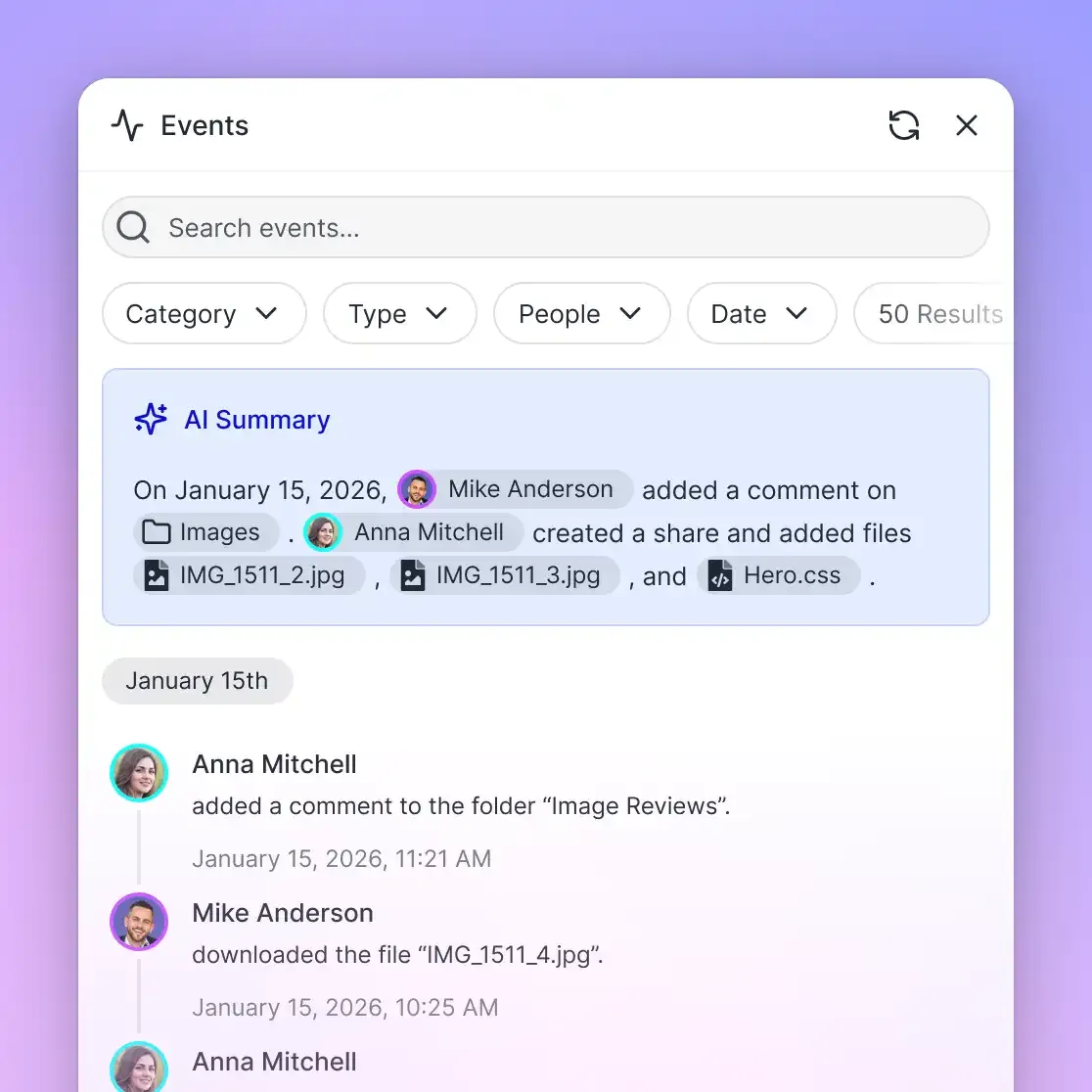
lock-acquireand releases it withlock-releaseon thestorage_managetool, while other processes checklock-statuson thestoragetool. Locks expire automatically unless heartbeated, and locker identities remain visible to collaborators. Concurrent writes land safely in version history without hard deadlocks. - Detailed Activity Log: A detailed activity log records organizational changes, capturing uploads, edits, moves, deletions, permission changes, and share creation across humans and agents alike.
- Permissions and Sharing: Permissions are configured per organization, workspace, and share through member roles, keeping access boundaries straightforward. When sharing deliverables externally, teams create branded Send, Receive, or Exchange shares with password protection and link expiration, with the ability to disable file downloads.
Monthly plans start with a 14-day free trial, which requires a credit card. Subscriptions are Starter at $9.99/mo, Business at $49.99/mo, and Enterprise at $199.99/mo on Fast.io pricing.
Troubleshooting Common Connection and Ingestion Errors
When maintaining Google Drive connections in Dify, address these common operational issues:
- Resolving HTTP 403 Rate Limit Errors: If Dify batch jobs fail with
userRateLimitExceeded, reduce the number of files ingested in a single batch. Implement randomized exponential backoff in your API client, or migrate to scheduled cloud workspace sync where indexing happens outside Google's per-minute quota window. - Missing Shared Drive Files: If target files do not appear in Dify's file picker, verify that your OAuth consent screen includes the full Drive read scope. In Dify's data source configuration, verify that the setting to support all drives is enabled.
- Parsing Failures on Complex PDFs: Scanned documents and multi-column research papers often fail standard text extractors. In an intelligent workspace, background OCR automatically extracts text layers so documents are fully searchable before agent retrieval.
- Handling Expired OAuth Tokens: Direct OAuth tokens expire if the authorizing employee leaves the company or revokes access. Using organization-level service accounts or connecting through scoped Fast.io API keys decouples agent workflows from individual employee credentials.
Sources
References used to verify factual claims in this guide.
-
Google Drive API limits are defined in terms of quota units representing resource usage.
Frequently Asked Questions
How do I add Google Drive as a knowledge base in Dify?
To add Google Drive as a knowledge base in Dify, configure an OAuth 2.0 Web Application in Google Cloud Console with the Google Drive API enabled. Next, open Dify and navigate to Integrations > Data Source to add Google Drive under Custom OAuth using your Client ID and Client Secret. Finally, go to the Knowledge section, create a new knowledge base, select Google Drive from the online drive sources, choose your target folders, and publish the processing pipeline.
Does Dify sync Google Drive files automatically?
Dify does not sync Google Drive files in real time. Changes in Google Drive require scheduled batch synchronizations configured within the knowledge base data source settings, or manual re-sync triggers. During each scheduled sync, Dify identifies modified documents, downloads them, extracts text, and recalculates vector embeddings.
How do you connect Dify to cloud storage without hitting API quotas?
To avoid hitting Google Drive API rate limits, sync your cloud storage folders into an intelligent workspace like Fast.io using scheduled Cloud Sync instead of crawling Google Drive directly. Fast.io indexes files automatically for hybrid search, allowing Dify agents to query specific passages over remote Model Context Protocol (MCP) tools rather than downloading whole files and burning Google Drive quota units.
What happens when Google Drive files in a Dify knowledge base are updated?
When a file is modified in Google Drive, the update remains invisible to Dify until the next scheduled batch synchronization runs. When the sync executes, Dify re-downloads the modified file, chunks the updated content, calls embedding APIs to generate new vector representations, and replaces the old chunks in the vector database.
How does Model Context Protocol improve document retrieval for Dify agents?
Model Context Protocol (MCP) standardizes how AI agents communicate with external tools and indexed storage. Instead of downloading full documents or maintaining local vector stores, a Dify agent calls remote MCP search actions to retrieve exact, citation-backed text passages directly from an indexed cloud workspace. This keeps context windows uncluttered and speeds up response times.
Can Dify access Google Workspace files like Docs and Sheets through the connector?
Yes. The Google Drive connector automatically exports proprietary Google Workspace formats into standard formats during ingestion. Google Docs are exported as plain text or PDF, Google Sheets as tabular CSV or Excel files, and Google Slides as text or PDF representations prior to chunking and vector embedding.
Related Resources

Query Google Drive files without API quota bottlenecks
Sync your cloud storage folders into an indexed workspace with remote MCP tools, version history, and hybrid search built in. Monthly plans start with a 14-day free trial.