How to Generate and Use a Devin AI API Key for Workspaces
According to Cognition, 67% of pull requests generated by Devin AI are merged by human engineering teams without manual code rewrites. This high acceptance rate is why engineering teams are shifting from interactive web chat sessions to headless, automated integrations powered by the Devin API. This guide covers how to generate a service user API key, configure roles, and route session deliverables to persistent workspaces.


Why Devin AI automation requires Service Users
According to Cognition, 67% of pull requests generated by Devin AI are merged by human engineering teams without manual code rewrites. This high acceptance rate is why engineering teams are shifting from interactive web chat sessions to headless, automated integrations powered by the Devin API. Instead of running one-off tasks in a browser dashboard, developers use the API to trigger autonomous coding sessions from GitHub Actions, ticketing systems, and continuous delivery pipelines.
To build these automated workflows, you must authenticate your sessions. Devin separates personal developer access from automated pipeline access. While personal access tokens are suited for local scripts and testing, production integrations must use Service Users. A Service User is a non-human identity created specifically for machines, automated scripts, and software integrations. Using personal tokens for shared pipelines creates security risks, because the integration inherits the full permissions of a single developer's account. If that developer leaves the organization or changes roles, the integration breaks immediately.
All modern Devin API keys associated with Service Users start with the cog_ prefix. Legacy user-specific keys, which used the apk_ prefix, are deprecated in the v3 API and are no longer supported for new integrations. Many developer guides fail to mention this transition, pointing users to personal access tokens instead of Service Users. Service Users solve this by isolating automated tasks under their own role-based permissions, ensuring that automated scripts run under a shared, auditable identity. By using Service Users, teams can implement granular access controls, configure key rotation schedules, and maintain a clear audit trail that distinguishes between actions taken by human developers and those initiated by automated agents.
Related guides
- How to Get and Manage Your Claude API KeyAnthropic's Claude API key authenticates every request to Claude models, and mishandling it is the fast way to rack up...
- How to Set Up API Keys in OpenClawOpenClaw resolves API keys through a four-level environment variable priority chain, checking session overrides first...
- How to Set Up Devin AI Desktop App with Persistent WorkspacesCoordinating local files and cloud agent fleets often leads to overwrites and lost context. This guide explains how to...
- Aider vs Devin: Comparing Coding Workspaces and File Storage PatternsAider achieved a score of 26.3% on SWE-bench Lite and 18.9% on the main dataset, while Devin scored 13.9% at the time...
- How to Connect Devin AI to GitLab and Fast.io WorkspacesLearn how to configure the Devin AI GitLab integration to enable coding agents to modify repositories and open merge...
- How to Sign Up for Devin AI and Configure Developer WorkspacesSigning up for Devin AI provides engineering teams with access to an autonomous AI developer that operates in secure,...
More on this subject: Devin (103 guides)
How to generate a Devin AI API key
To connect Devin to your workspaces and automated pipelines, you must create a Service User and generate an API key. This process requires administrator access to your Devin organization. Follow these steps to generate your key:
- Open the Devin web application and navigate to the Service Users section under Settings. For enterprise accounts, navigate to the Service Users section under Enterprise Settings.
- Click the Create service user button, then enter a descriptive name that reflects its function, such as
ci-agentorpr-reviewer. - Assign the appropriate role. For most automation, select the Member role. The Admin role should be reserved for integrations that must modify organization settings or manage memberships.
- Click Generate API key. The system will display the key once.
- Copy the generated key immediately and save it in a secure vault or secret manager. The key starts with the
cog_prefix. - Copy the Organization ID from the top of the Service Users page, as you will need this identifier for your API requests.
After saving the credentials, you can include the key in the Authorization header of your HTTP requests. For example, to list active sessions within your organization, send a request to the sessions endpoint:
curl -X GET "https://api.devin.ai/v3/organizations/your_org_id/sessions" \
  -H "Authorization: Bearer cog_your_api_key_here"
Always treat the cog_ token as a sensitive credential. If a key is compromised, navigate back to the Service Users section under settings to delete the key and generate a replacement. By managing keys in this centralized dashboard, admins can audit key usage and revoke access instantly without redeploying the entire integration code.
Guide to enterprise roles and session attribution
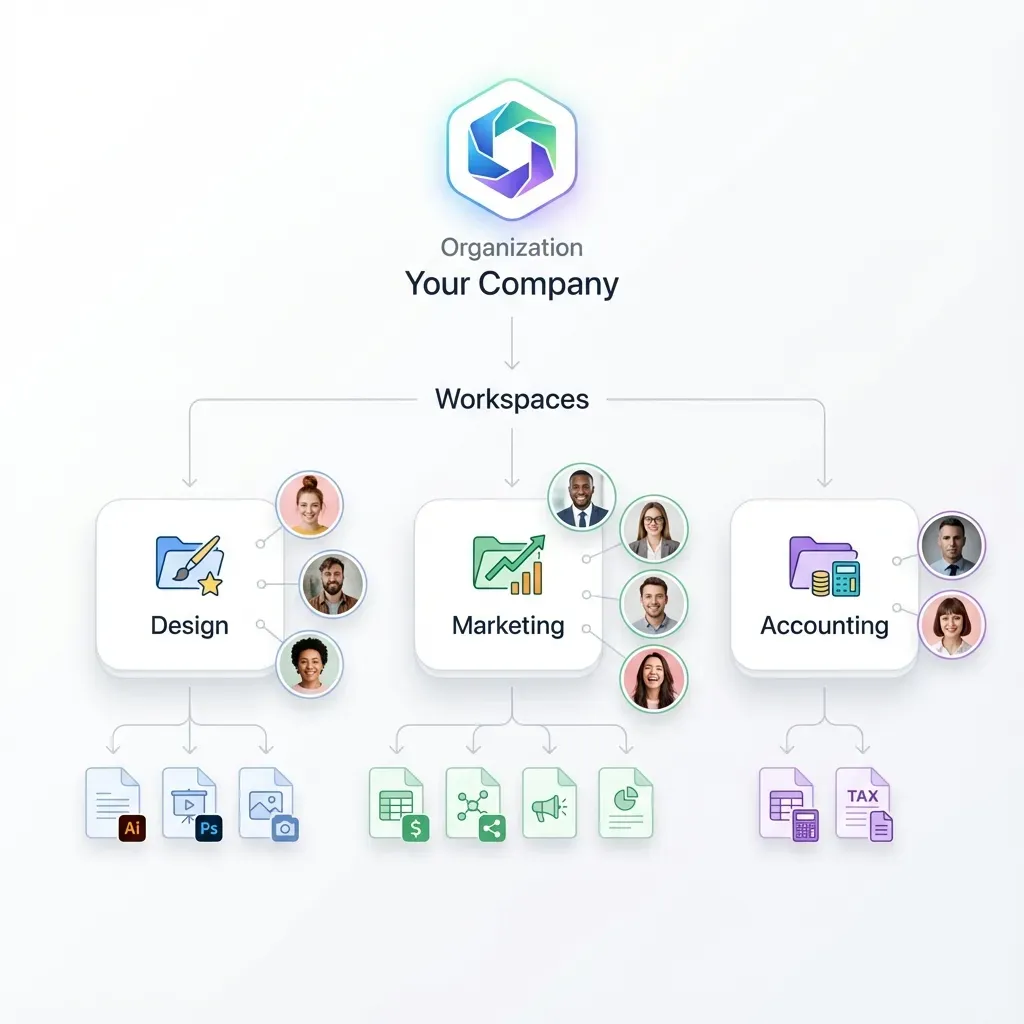
Devin uses Role-Based Access Control to restrict what an automated session can access. When you create a Service User, its role determines which API endpoints it can call. The v3 API uses different base URLs depending on the scope of the integration. For standard organizations, the base URL is https://api.devin.ai/v3/organizations/{org_id}/*. For enterprise accounts managing multiple organizations, the base URL is https://api.devin.ai/v3/enterprise/*, which requires an X-Org-Id header to specify the target organization.
By default, any session created by a Service User key is owned by that Service User. However, this can make it difficult to track which human developer triggered the work. To resolve this, the Devin API allows session attribution. When creating a session, you can pass the create_as_user_id parameter in the JSON payload. This associates the session with a specific developer, allowing it to appear in their personal dashboard and track usage against their limits.
Impersonating a user requires the ImpersonateOrgSessions permission, which is typically granted to the Admin role. By separating the authentication key (owned by the Service User) from the session ownership (attributed to a developer), teams maintain clear audit trails while preserving security boundaries. This attribution system also helps organizations allocate usage-based computing costs, as admins can query session histories and attribute ACU usage directly to individual development teams or business units.


Persist Devin AI files across sessions
Establish a shared workspace with an MCP-ready endpoint for your agent's reads and writes, complete with versioning and search. Starts with a 14-day Business Trial.
Compare workspace storage options for Devin AI deliverables
Devin runs each coding session in an isolated container. Once the session completes or times out, the container is destroyed. This ephemeral design means you must choose where to store the files, logs, and pull request drafts Devin produces.
Developers have several storage options:
- Local storage or S3 buckets: These are common choices for developers, but they lack a simple visual interface. Non-technical stakeholders cannot easily review the outputs, and there is no built-in version control for non-code files. Setting up IAM policies and client applications introduces management overhead.
- Google Drive or Dropbox: These platforms offer simple file sharing, but they are difficult to connect to autonomous agents. They lack native support for the Model Context Protocol and do not track detailed file edit histories for automated accounts. Managing credentials across teams is often manual.
- Fastio workspaces: Fastio provides shared workspaces designed specifically for agentic teams. Fastio supports per-file version history, ensuring that when Devin updates files, every change is tracked and auditable. Humans and agents can collaborate in real time using Collaborative Notes. Fastio also features Cloud Import, allowing you to pull folders from Google Drive, OneDrive, Box, or Dropbox using secure OAuth connections, avoiding local file transfers. Learn more about the Fastio storage for agents layer.
Choosing the right workspace ensures that agent outputs are preserved, searchable, and reviewable by human team members. A persistent, versioned workspace allows team leads to review code changes, logs, and documents side-by-side without needing to access the terminal or rebuild the agent's environment.
Steps to connect Devin AI to Fastio workspaces
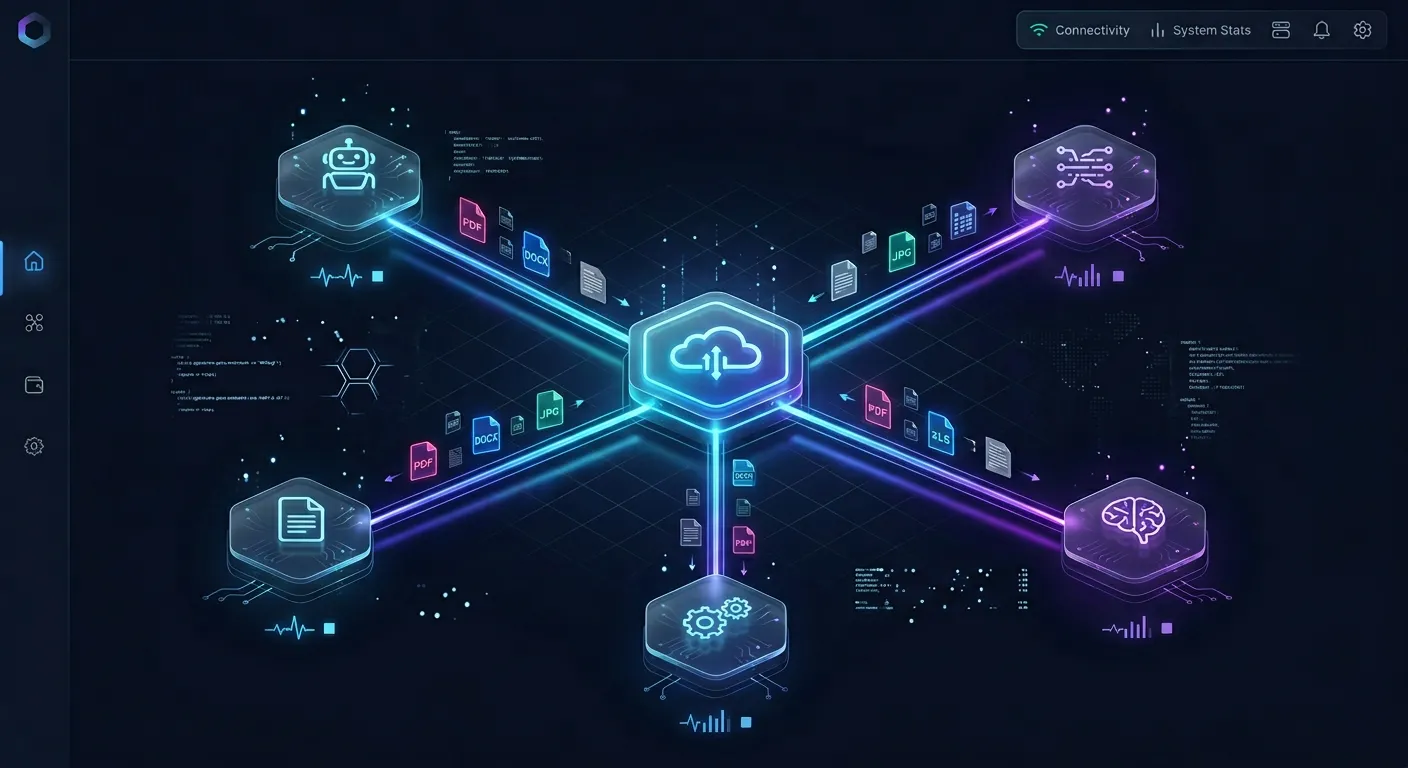
You can connect Devin AI to Fastio workspaces using the Model Context Protocol. Fastio exposes a consolidated MCP server, which you can connect to your agent environments to read, write, and list files inside your shared Fastio workspace. Detailed setup instructions and configuration guides can be found on the Fastio storage for agents page.
When Devin writes files to Fastio, the workspace intelligence layer automatically indexes the content. Once Intelligence is enabled for the workspace, Fastio indexes documents for semantic search and citation-backed Q&A. You can ask questions about the files Devin generated using Ripley, the built-in AI assistant. Fastio also includes Metadata Views, which turn documents into a queryable database. You can define a schema in natural language, and Fastio will automatically extract structured fields like contract dates, invoice totals, or file tags. To learn more about structured extraction, visit the Metadata Views page.
Once Devin completes writing deliverables, team members can collaborate directly inside the workspace using threaded comments anchored to specific file regions, review full version history with one-click restore, and inspect the activity log. Learn more about the onboarding documentation for agentic teams to get started.
To start building with Fastio, you can sign up for a subscription on the Fastio pricing page. Fastio offers three paid plans: Starter at $9.99/mo, Business at $49.99/mo, and Enterprise at $199.99/mo. Monthly plans start with a Business Trial of up to 14 days (credit card required); annual plans have no trial. An agent can register the organization and set up the workspace, then hand it off to a human through an ownership transfer claim link. The human can then activate the Business Trial. This ensures your team has a persistent, intelligent environment for agent collaboration.
Sources
References used to verify factual claims in this guide.
-
67% of Devin's pull requests (PRs) were being merged by human teams.
-
Monthly plans start with a Business Trial of up to 14 days (credit card required); annual plans have no trial. Fastio offers three paid plans: Starter at $9.99/mo, Business at $49.99/mo, and Enterprise at $199.99/mo.
Frequently Asked Questions
How do I generate an API key for Devin?
To generate a Devin API key, navigate to the Service Users section under settings in the Devin application. Click Create service user, assign a name and role, and then click Generate API key. The key starts with the `cog_` prefix and is only displayed once.
Where do I find my Devin Organization ID?
You can find your Devin Organization ID on the Service Users settings page, located directly in the Service Users section under settings in the Devin web app. It is also returned programmatically by calling the `/v3/self` endpoint.
What is a Devin Service User?
A Devin Service User is a non-human identity designed for automated integrations, CI/CD pipelines, and background scripts. It uses its own API keys starting with the `cog_` prefix and operates under its own assigned role.
Related Resources

Persist Devin AI files across sessions
Establish a shared workspace with an MCP-ready endpoint for your agent's reads and writes, complete with versioning and search. Starts with a 14-day Business Trial.