How to Connect Microsoft Copilot to Google Drive
Connecting Microsoft Copilot to Google Drive enables enterprise teams using Microsoft 365 Copilot to search, summarize, and ground responses in documents stored across Google Workspace via remote MCP. Organizations with multi-cloud storage can choose between administrative Graph connectors with rigid crawl schedules and lightweight MCP architectures that query indexed workspaces directly.

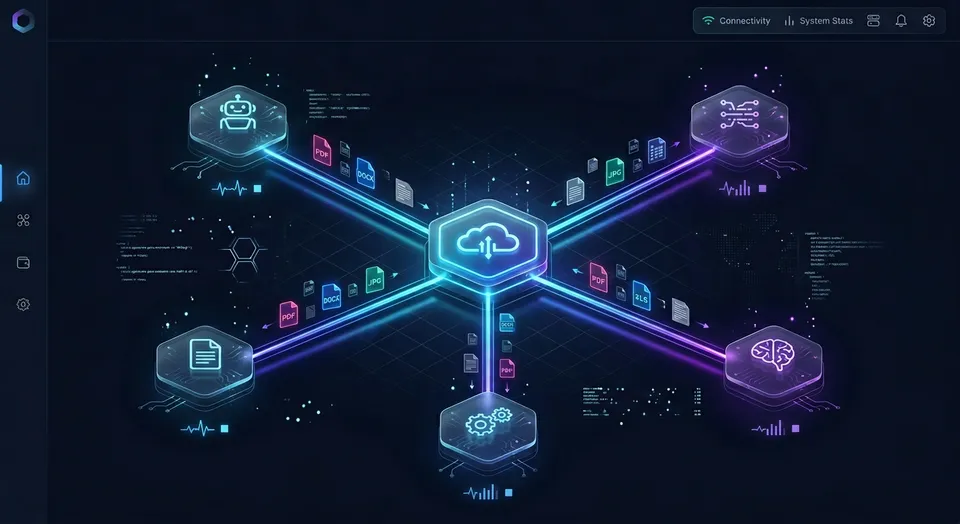
The Multi-Cloud Grounding Challenge in Enterprise Workspaces
An enterprise AI assistant restricted to a single cloud vendor creates blind spots across multi-cloud organizations. When an executive asks Microsoft Copilot for a quarterly strategy update, the assistant can synthesize every slide in SharePoint while remaining completely unaware of the canonical product roadmap and customer research stored in Google Drive.
Modern technology organizations rarely consolidate all document storage under a single vendor umbrella. Engineering, product design, and growth teams frequently standardize on Google Workspace to take advantage of real-time collaborative editing in Google Docs, Sheets, and Slides. Simultaneously, executive management, human resources, accounting, and legal departments operate within Microsoft 365, relying on Outlook, Word, Excel, and Teams. When an organization rolls out Microsoft Copilot to its workforce, this division immediately creates knowledge fragmentation. Copilot grounds prompts effectively against internal Microsoft Graph assets, but it cannot access files stored in Google Drive without deliberate connector configuration.
When cross-cloud access is missing, team members resort to manual workarounds. Employees download PDFs, spreadsheets, and presentation decks from Google Drive and upload copies into SharePoint document libraries or individual OneDrive accounts. This manual duplication pattern creates immediate operational problems. Files quickly fall out of sync as Google Drive originals receive updates that never reach Microsoft 365. Storage footprints expand needlessly, and conflicting document versions accumulate across departments. When an employee asks Copilot a question, the assistant may ground its response in an outdated uploaded copy rather than the active working draft.
Connecting Microsoft Copilot to Google Drive solves this fragmentation by establishing a systematic bridge between Google Workspace assets and Microsoft AI workflows. Rather than treating Google Drive and Microsoft 365 as mutually exclusive environments, organizations can enable Copilot to search, inspect, and extract context from Google Drive files while keeping the original files in their native storage location. Implementing a copilot google drive integration bridges this gap, allowing Microsoft 365 Copilot to search and reference Google Workspace assets without duplicating files across repositories. Exploring Google Drive alternatives often reveals that the core requirement is not replacing established storage, but adding a unified retrieval layer for agents.
Related guides
- How to Connect Devin AI to Google DriveConnecting Devin AI to Google Drive allows the autonomous engineer to parse and edit your organization's documentation...
- How to Connect Claude Code to Google DriveConnecting Claude Code to Google Drive links Anthropic's command-line coding agent to Google Workspace documents,...
- Copilot Dropbox Integration: Microsoft 365 Copilot vs. Fast.io WorkspacesA Copilot Dropbox integration connects Microsoft Copilot to Dropbox repositories via Microsoft Graph connectors or...
- How to Connect Microsoft Copilot Studio to Google DriveA Copilot Studio Google Drive connector enables Microsoft Copilot agents to ground generative responses on Google...
- How to Connect Copilot to Google Drive via MCPA Copilot Google Drive MCP setup connects GitHub Copilot agent runtime to Google Drive files via the Model Context...
- Copilot Box Integration: Microsoft Copilot vs. Fast.io WorkspacesA Copilot Box integration connects Microsoft 365 Copilot to Box content via Microsoft Graph connectors, allowing...
More on this subject: GitHub Copilot (141 guides)
How the Native Microsoft Graph Connector for Google Drive Operates
Microsoft provides an administrative connector for Google Drive designed to ingest third-party data into Microsoft Graph. Native cross-tenant connectors require complex cloud-to-cloud OAuth gateways, enterprise service accounts, and identity mapping configurations between Google Cloud and Microsoft Entra ID. As documented in the official Google Drive connector overview, files stored in Google Drive can appear alongside native Microsoft 365 content in Microsoft Search and Microsoft 365 Copilot queries. Deploying this native copilot google workspace connector enables cross-cloud ingestion, but it imposes administrative prerequisites and operational limits that affect daily grounding performance.
Setting up the native Google Drive connector requires administrative credentials across both cloud ecosystems. An administrator must have a Google Workspace Super Admin account and administrative privileges within the Microsoft 365 admin center. The setup procedure involves several technical configuration steps:
- Google Cloud Platform configuration: The administrator must create or select a dedicated Google Cloud Platform project and enable both the Google Drive API and the Google Workspace Admin SDK API.
- Service account provisioning: The administrator creates a service account in GCP and configures domain-wide delegation in the Google Admin Console. This configuration requires granting specific read-only OAuth scopes:
admin.directory.user.readonly,drive.readonly,admin.directory.group.readonly, andadmin.reports.audit.readonly. - Credential exchange: The administrator generates a private JSON key file for the service account in GCP and uploads that credential file into the Microsoft 365 admin center under Copilot Connectors.
- Identity mapping rules: The setup wizard requires mapping user identities between Google Workspace email addresses and Microsoft Entra ID User Principal Names (UPNs). If an organization uses different email domain formats or user identifiers between Google and Microsoft, administrators must maintain regular expression mapping tables to preserve appropriate access permissions.
Beyond the administrative complexity of establishing cross-tenant service accounts, the native connector introduces operational constraints that directly affect how Copilot interacts with files:
- Content indexing thresholds: If a file in Google Drive exceeds 20 MB, the native Microsoft 365 Copilot connector does not index its content for search. For files above this limit, the connector records only file metadata such as file name, author, creation date, and container URL. Copilot cannot read or search the text inside large PDFs, dense spreadsheets, or slide decks.
- Multimedia exclusion: The native connector indexes textual strings across standard document formats (DOCX, PDF, PPTX, XLSX), but multimedia content within those documents is ignored.
- Scheduled crawling latency: The connector relies on scheduled batch crawls to refresh content. Administrators can configure incremental crawls and full crawls, but indexing does not occur on demand or in real time. When an employee uploads a project brief or modifies a contract in Google Drive, Copilot remains unaware of the changes until the next scheduled crawl cycle finishes.
- Metadata indexing scope: Folder-level metadata is not indexed, restricting Copilot to file-level queries rather than broader directory structure context.
These constraints make the native connector suitable for stable, text-heavy document repositories, but less effective for fast-moving projects, large research files, or cross-functional teams that need immediate access to newly edited materials.
The Remote MCP Architecture: Fast.io Workspace Integration
Connecting Microsoft Copilot to Google Drive enables enterprise teams using Microsoft 365 Copilot to search, summarize, and ground responses in documents stored across Google Workspace via remote MCP. Instead of configuring complex cloud-to-cloud service accounts and waiting for batch crawl schedules, teams can connect Google Drive to Fast.io and expose the files directly to Copilot using the Model Context Protocol (MCP). Fast.io provides an intelligent workspace layer for agentic teams (AI agent storage).
In this architecture, the organization keeps its existing files in Google Drive. Fast.io functions as an intelligent workspace rather than a storage replacement. Cloud Sync connects Google Drive, Dropbox, Box and OneDrive folders to a workspace, one-way or two-way, on a schedule or on demand. When linked to a designated Google Drive folder or Shared Drive, Fast.io syncs file updates according to the schedule chosen by the team.
Once files sync into the workspace, Fast.io Intelligence Mode indexes them for hybrid search. This index combines semantic vector search, full-text keyword matching, and metadata extraction into a unified retrieval layer. When an AI assistant processes a query, it does not download entire folders or pull raw document files across clouds. Instead, it queries the Fast.io remote MCP server over Streamable HTTP.
Fast.io hosts dedicated remote MCP endpoints for different AI clients:
- For coding agents in an IDE, a terminal, or the cloud, including VS Code Copilot agent mode and GitHub Copilot CLI, the endpoint is
https://mcp.fast.io/mcp/code. - For conversational AI clients, Copilot Studio custom connectors, and general enterprise agents, the endpoint is
https://mcp.fast.io/mcp/tools.
When a user prompts Copilot with a question about project documents, Copilot invokes the MCP search action. The MCP server queries the pre-indexed workspace, identifies the most relevant excerpts using semantic similarity, and returns concise, citation-backed context directly to Copilot. Detailed guidance on setup mechanics is available in the Fast.io MCP setup documentation.
In connector evaluations published at fast.io/benchmarks, Fastio was measured the fastest and the lowest cost of the providers tested.


Connect Google Drive to Copilot with Fast.io
Sync Google Drive folders into an intelligent workspace and query indexed files directly through remote MCP. Starts with a 14-day free trial.
Syncing Google Drive and Querying with Copilot in Three Steps
Connecting Microsoft Copilot to Google Drive files through Fast.io requires three primary steps: syncing the storage repository, indexing the workspace content, and configuring the remote MCP connection.
1. Link Google Drive to a Fast.io Workspace via Cloud Sync
Sign in to Fast.io and create a workspace dedicated to your project, department, or client engagement. Inside the workspace, navigate to the Cloud Sync settings:
- Select Google Drive from the available cloud storage providers.
- Authenticate through the Google OAuth prompt and grant Fast.io access to the target Google Drive folder or Shared Drive.
- Choose your synchronization direction. Select one-way sync (Google Drive to Fast.io) if you only need Copilot to read and ground responses against existing documents. Select two-way sync if you want agents to write summaries or deliverables back into Google Drive.
- Set your sync frequency. Cloud Sync connects Google Drive, Dropbox, Box and OneDrive folders to a workspace, one-way or two-way, on a schedule or on demand. Choose a schedule that matches team update cycles, or trigger an on-demand sync whenever new project files arrive.
2. Enable Workspace Intelligence for Automatic Ingestion
Once the initial sync completes, enable Intelligence Mode in the workspace settings. Fast.io automatically processes incoming files, generating embeddings and building a hybrid search index:
- Supported file types include PDFs, Word documents, spreadsheets, presentations, plain text files, and scanned pages.
- Text extraction runs automatically without requiring manual OCR template configuration or external vector databases.
- For structured data extraction across complex document sets, teams can configure Metadata Views to extract specific schema fields such as contract renewal dates, total values, or project owners into a queryable table.
3. Connect Microsoft Copilot to the Fast.io Remote MCP Server
Depending on whether your team uses Copilot within development environments or through Microsoft 365 Copilot Studio, configure the connection to the appropriate MCP endpoint:
Setting Up VS Code Copilot Agent Mode
For developers and technical teams using GitHub Copilot agent mode in Visual Studio Code, add the Fast.io MCP server to your workspace configuration. Open or create .vscode/mcp.json in your project root and declare the remote server:
{
  "servers": {
    "fast-io": {
      "type": "http",
      "url": "https://mcp.fast.io/mcp/code"
    }
  }
}
When Copilot agent mode initializes, it discovers the available Fast.io tools, including semantic search and document execution.
Setting Up Microsoft Copilot Studio and Declarative Agents
For enterprise teams building declarative agents or extending Microsoft 365 Copilot via Copilot Studio:
- In Copilot Studio, open your agent configuration and select Knowledge or Actions.
- Add a new connection and select Model Context Protocol (MCP) as the connector type.
- Enter
https://mcp.fast.io/mcp/toolsas the server URL with Streamable HTTP transport. - Authenticate using OAuth. The sign-in flow displays a Review Permissions screen where you select Read Only or Read & Write access and pick which organizations and workspaces the connector can reach.
- Save the configuration and publish the agent to your Microsoft 365 tenant.
Grounded Querying in Copilot
Once connected, users can prompt Copilot with natural language questions. Copilot automatically decides when to invoke the Fast.io MCP search tool to ground its replies:
- "Search Google Drive for the Q3 customer churn analysis and summarize the top three reasons cited."
- "What technical specifications are required for the API redesign based on the engineering docs in our workspace?"
- "Compare the pricing terms in the draft partner agreement with our standard contract template."
Copilot queries the indexed workspace, receives the most relevant text chunks along with source citations, and generates a grounded response in the conversation interface.
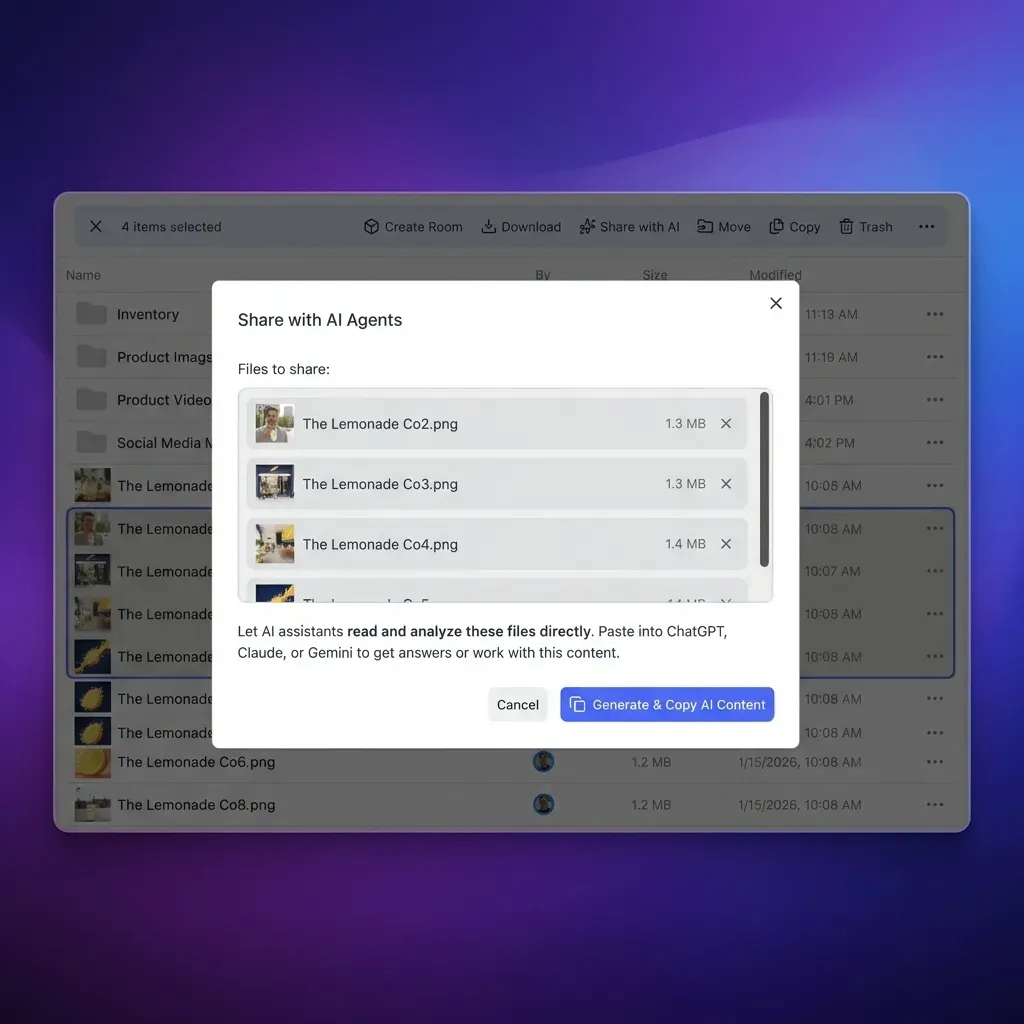
Access Governance, File Versioning, and Activity Tracking
Connecting multi-cloud storage to an enterprise AI assistant requires strict governance for data security, accountability, and permission boundaries. When documents flow between Google Workspace and Microsoft 365, administrators must verify who can access specific files and audit what actions occur.
Role-Based Access Controls
Fast.io manages permissions at the organization, workspace, and share levels through member roles. Permissions are never configured at the individual folder or file level; every member of a workspace accesses files according to their designated workspace role. This clean permission hierarchy avoids the hidden permission inheritance issues common in complex folder trees.
When teams need to share specific files with external partners, contractors, or clients who should not have access to the broader workspace, they create dedicated shares:
- Send shares: Deliver completed files or project outputs with optional download restrictions and link expiration dates.
- Receive shares: Allow external contributors to upload documents directly into a designated workspace folder without viewing other project files.
- Exchange shares: Provide a bidirectional collaboration space for specific external engagements.
Detailed Activity Log of Changes
To provide visibility into workspace operations, Fast.io maintains a detailed activity log of changes across the organization. The activity log records who made modifications and what actions occurred, capturing file uploads, edits, moves, renames, and deletions, as well as membership adjustments and share creation.
The activity log focuses strictly on state changes. It does not record read-only events such as views, previews, opens, or downloads. This distinction gives administrators a focused record of active modifications without clutter from high-volume read operations.
Per-File Version History
When AI agents or automated synchronization workflows interact with project documents, protecting historical versions is critical. Fast.io maintains comprehensive version history for every file stored in a workspace.
If a two-way sync operation updates a spreadsheet from Google Drive, or if an agent writes an edited draft into the workspace, the previous version remains preserved in version history. Team members can inspect earlier revisions, review when changes were made, and restore previous versions if an overwrite or unexpected edit occurs, preventing multi-cloud automation from causing accidental data loss. Concurrent writes to the same file land safely, with version history preserving each iteration.
Comparing Native Graph Connectors and Remote MCP Workspaces
Organizations evaluating how to connect copilot google drive repositories should weigh the trade-offs between Microsoft's native Graph connector and Fast.io's remote MCP workspace pattern. The two approaches differ in administrative overhead, file size support, update latency, and client versatility.
Choosing the Right Integration Pattern
The native Microsoft Graph connector is well suited for organizations that operate strictly within Microsoft 365 and Google Workspace, have dedicated GCP administrators to manage service accounts and domain-wide delegation, and store documents that remain consistently within native limits. It also fits scenarios where IT policy mandates that all indexed data must reside entirely within Microsoft Purview compliance boundaries.
The Fast.io remote MCP workspace pattern is ideal for organizations that:
- Work with large documents: Teams that regularly produce research reports, design presentations, technical documentation, or scanned records that surpass native connector file size limits need full content indexing rather than metadata-only capture.
- Require multi-cloud and multi-agent flexibility: Organizations that use Microsoft Copilot alongside other AI tools (such as Claude Cowork, ChatGPT, Cursor, or custom framework agents) can point all assistants to the same indexed Fast.io workspace using MCP.
- Direct administrative setup: Connecting via OAuth and managing folder sync schedules eliminates the burden of maintaining GCP service accounts, domain delegation scopes, and regex identity mapping tables.
By decoupling document synchronization and semantic indexing from proprietary cloud connectors, teams create a resilient knowledge foundation that serves Microsoft Copilot today while remaining adaptable to future AI tooling.
Sources
References used to verify factual claims in this guide.
-
If a file in Google Drive exceeds 20 MB, the native Microsoft 365 Copilot connector does not index its content for search.
Frequently Asked Questions
Can Microsoft Copilot search Google Drive files?
Yes. Microsoft Copilot can search Google Drive files using either Microsoft's native Google Drive Graph connector or an intelligent workspace bridge like Fast.io. The native connector crawls Google Drive files into Microsoft Graph, while Fast.io syncs Google Drive folders into an indexed workspace and allows Copilot to query documents over remote MCP.
How do I connect Copilot to Google Workspace?
You can connect Copilot to Google Workspace at the enterprise level through the Microsoft 365 admin center using the native Google Drive connector, which requires a Google Cloud service account with domain-wide delegation. Alternatively, you can connect Google Drive folders to a Fast.io workspace using Cloud Sync and query the indexed documents in Copilot via MCP at `https://mcp.fast.io/mcp/tools` or `https://mcp.fast.io/mcp/code`.
What is the best way to give Copilot access to Google Drive?
The best method depends on file sizes and IT workflow requirements. If your organization handles large documents that surpass native indexing thresholds, works across multiple AI tools, or prefers to avoid setting up Google Cloud service accounts with domain-wide delegation, using Fast.io with remote MCP provides faster setup, support for large files, and semantic hybrid search.
What happens if a Google Drive document exceeds the native connector size limit?
If a file in Google Drive exceeds 20 MB, the native Microsoft 365 Copilot connector does not index its content for search. For files above this limit, Copilot only captures basic file metadata such as the file name, author, and modification date, leaving the document body unsearchable.
How often does Fast.io sync files with Google Drive?
Fast.io Cloud Sync connects Google Drive, Dropbox, Box and OneDrive folders to a workspace, one-way or two-way, on a schedule or on demand. Teams can configure synchronization to run at regular scheduled intervals or initiate updates on demand whenever project files change.
Can developers use VS Code Copilot agent mode to query Google Drive files?
Yes. By syncing Google Drive folders into a Fast.io workspace with Intelligence Mode enabled, developers can configure `.vscode/mcp.json` with the Streamable HTTP endpoint `https://mcp.fast.io/mcp/code`. Copilot agent mode can then search and reference Google Drive documentation directly inside the editor.
Related Resources

Connect Google Drive to Copilot with Fast.io
Sync Google Drive folders into an intelligent workspace and query indexed files directly through remote MCP. Starts with a 14-day free trial.