How to Configure GitHub Copilot MCP Support for Custom Database Schemas
This guide explains how to configure github copilot mcp support for custom database schemas, enabling AI agents to ground their SQL generation in database catalogs. Providing direct access to schema structures via the Model Context Protocol changes this dynamic by letting coding tools inspect catalogs before writing a single character.

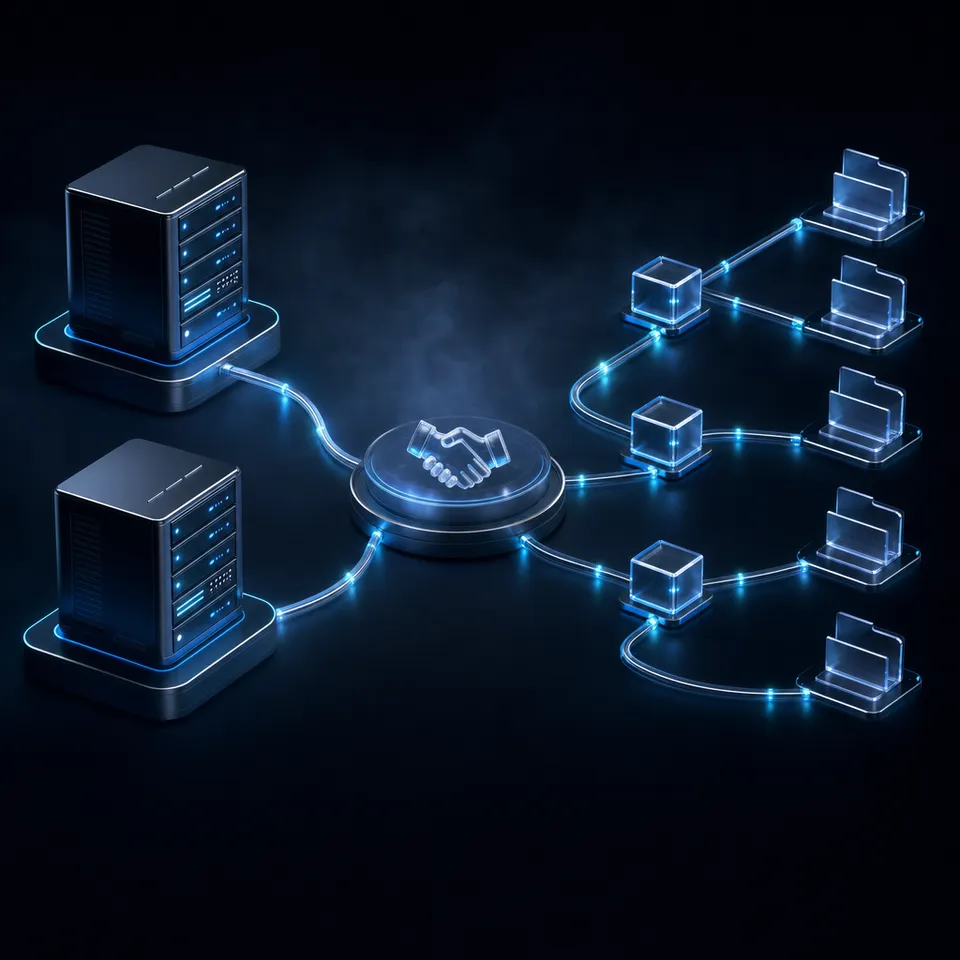
How to Configure GitHub Copilot MCP Support for Custom Database Schemas
When a development agent writes queries for a database without direct structural awareness, the result is database error logs filled with invalid table references. Large language models do not fail at generating SQL syntax; they fail at guessing the naming conventions of specific columns. Providing direct access to schema structure via the Model Context Protocol changes this dynamic by letting the model inspect schema catalogs before writing a single character.
Configuring database schema context via MCP involves creating tool definitions that inspect system catalogs and tables, presenting structural information directly to the AI. When GitHub Copilot operates in Agent Mode, it can call these tools to explore the schema before attempting to write SQL queries. This step eliminates guessing. Instead of generating query logic based on general assumptions, the coding agent can inspect column names, data types, and primary key relationships in real time.
For developers working with custom database schemas, the default model context is often insufficient. Most databases contain specialized schema names, custom metadata fields, and relations that do not follow standard patterns. By establishing an MCP connection between GitHub Copilot and your database, the model can navigate custom structures. This approach ensures that the generated queries match the database configuration, which reduces coding errors.
In typical workflows, developers try to solve this by pasting schema definitions directly into their prompt window. While this works for tiny projects, it quickly becomes unmanageable as the database grows. If your database contains dozens of tables, pasting the schema consumes the model's context window, leaving little room for actual query design. Using MCP replaces this manual process with dynamic, on-demand schema discovery, allowing the model to pull details only when needed.
Related guides
- How to Configure and Use the Devin AI MCP ServerThe official Devin MCP server enables external AI clients to control Devin programmatically. This step-by-step guide...
- How to Configure the Base44 GitHub App IntegrationSetting up the Base44 GitHub App integration enables teams to sync visual configurations to a repository. This guide...
- How to Configure and Use MCP Servers in GitHub CopilotIntegrating the Model Context Protocol (MCP) with GitHub Copilot allows developers to connect their AI assistant...
- The Future of GitHub Copilot Extensions: Transitioning to MCPThe sunsetting of legacy GitHub App-based Copilot extensions has led to a standard architecture. By transitioning to...
- How to Connect and Use Google Drive with GitHub CopilotStandard GitHub Copilot configurations lack a native connector for Google Drive, requiring developers to copy context...
- How to Configure Repository-Level Custom Instructions for GitHub CopilotFailing to guide AI coding assistants leads to code duplication and technical debt. According to GitClear's 2026...
More on this subject: GitHub Copilot (141 guides)
Steps to Build a Custom Database MCP Server in Python
To expose custom schemas to GitHub Copilot, you can build a lightweight MCP server in Python. Using the FastMCP framework, you can define tools that run queries on metadata tables. The following example demonstrates how to implement tools to list tables and retrieve schema details for individual tables using SQLAlchemy to connect to a PostgreSQL database.
When building this server, ensure that the database credentials used by the application have read-only access to the database catalog. This configuration prevents the agent from running destructive commands. By restricting the connection to metadata queries, you maintain a secure environment while providing the agent with the necessary context.
Building tools like these allows GitHub Copilot to gather schema details step-by-step. In Agent Mode, the LLM will first request a list of tables and then inspect the columns of interest, reducing context bloat and improving SQL generation accuracy.
Let's break down how this works. The @mcp.tool() decorator registers the Python function as an executable tool. The docstring of the function is critical because the FastMCP server uses it to generate the JSON description that Copilot reads. Copilot inspects these descriptions to decide when to call list_tables or describe_table. Inside the functions, the SQLAlchemy inspector connects to the target database, runs the system queries, and returns the structural metadata in a clean, text-based format that the LLM can easily parse.
When designing database schemas, developers often use Postgres-specific features like composite types, partitions, or custom schemas outside the public domain. The Python script shown above uses the SQLAlchemy inspector, which automatically handles these details. For example, if you have a multi-tenant database using PostgreSQL schemas, you can modify the inspector to query specific schemas or filter tables dynamically. Exposing these custom structures directly to Copilot ensures that the generated queries correctly specify the schema prefix, avoiding default public schema errors.


Ground your coding tools in versioned workspaces
A shared workspace with an MCP-ready endpoint for your agent's reads and writes, with versioning and search built in. Establish reliable storage when you configure GitHub Copilot MCP support for custom database schemas. Starts with a 14-day free trial.
Registering the Custom Server in GitHub Copilot
Once the MCP server is ready, you must configure Visual Studio Code to connect to it. Visual Studio Code manages MCP configurations in a configuration file located at .vscode/mcp.json in the root of your workspace. This file registers the server and defines how the editor starts the process.
To register your local Python server, add a server definition to the configuration file. The configuration defines the command, arguments, and environment variables required to run the server.
After saving the .vscode/mcp.json file, open the Command Palette in Visual Studio Code and run the Command to start or restart your MCP servers. You can check the connection status by looking at the MCP logs in the Output panel. When you open GitHub Copilot in Agent Mode, the tools you defined, such as list_tables and describe_table, will be available for Copilot to use. When you ask a question about your database structure, Copilot will automatically run the tools to retrieve the schema before generating its response.
The configuration requires that you specify how the environment runs the script. In the JSON block, we use the uv tool because it handles dependencies cleanly without requiring a manually configured virtual environment. If your server script relies on external dependencies like psycopg2 or sqlalchemy, you can specify them within your project file, and uv will resolve them automatically when Copilot starts the server. This setup ensures that your configuration is reproducible across different developer machines in your organization.
After configuring the server, you can test it directly within VS Code by starting a Copilot chat session and using the @mcp trigger. If Copilot needs to reference database tables to answer your question, it will automatically call your Registered Server. You can observe the JSON-RPC messages in the Output panel to trace the queries being executed. This tracing helps you debug any performance bottleneck or authentication error. For team-wide configuration, you can commit this .vscode/mcp.json file to your git repository, allowing other team members to use the same database inspector as long as they have the appropriate database access.
Workspace Handoff: Storing and Sharing Schema Context in Fast.io
While local configuration files are useful for individual developers, team collaboration requires a centralized approach to store database context. Teams often rely on alternatives like local shared drives, Amazon S3 buckets, or Google Drive folders to distribute schema definitions and SQL documentation. However, these tools lack structural intelligence. They store files as static blobs, forcing developers to manually download and parse them for their agents.
Fast.io provides a centralized workspace designed for agentic team coordination. Instead of distributing static text files, teams can upload schema dumps, data dictionaries, and architectural diagrams to a shared workspace in Fast.io. When you upload a file, the platform automatically indexes the content. This auto-indexing feature powers semantic search and RAG queries, making the structural documentation immediately queryable.
When dealing with complex databases, you can also use Metadata Views to convert database documentation and export files into structured, queryable databases. Metadata Views allow you to describe columns and types using natural language, and Fast.io will automatically extract and format the information, providing a clean spreadsheet interface for both human teams and AI agents.
For development agents, Fast.io exposes a remote MCP server at https://mcp.fast.io/mcp/code. By adding this endpoint to your agent's configuration, your tools can query the shared workspaces for schema documents, previous query logs, and documentation. This configuration allows coding agents to search by meaning or metadata values. For example, if a developer uploads a Postgres schema definition, the agent can retrieve the exact SQL structure from the workspace to guide its query generation.
When work is finished, Fast.io supports ownership transfer, allowing an agent to create a schema view or query log and transfer ownership to a human administrator. In addition, every file maintains a detailed version history, which allows teams to trace how database documentation has changed over time. If you need to revert to a previous schema description, you can restore older versions directly. Doing real work in Fast.io requires an organization on a paid subscription. Every organization starts with a 14-day trial, which requires a credit card. Plans are Starter at $9.99/mo, Business at $49.99/mo, and Enterprise at $199.99/mo.
Troubleshooting and Query Safety Best Practices
Integrating coding agents with active database catalogs requires careful management of context limits and security. One common issue when connecting GitHub Copilot to a database is schema bloating. If your database contains hundreds of tables, sending the entire catalog structure in a single request can exceed context limits, causing the model to lose track of the query logic.
To prevent this issue, implement schema filtering in your MCP server. Instead of listing every table by default, design your tools to accept filter parameters or search terms. This optimization ensures that the agent only retrieves schema details for tables relevant to the current query, keeping the context clean.
Security is also a critical consideration. You must configure the database credentials used by the MCP server to restrict access to read-only views. Ensure that the database user cannot execute write operations, alter table structures, or access sensitive tables containing user credentials or personally identifiable information. Implementing these guardrails ensures that you can use the reasoning capabilities of GitHub Copilot without introducing risks to your database infrastructure.
Another best practice is to separate your database credentials from the code. Never write sensitive passwords directly in your .vscode/mcp.json file. Instead, use environment variables or define placeholders that VS Code resolves dynamically. Additionally, monitor the performance of your schema queries. Catalog tables in PostgreSQL and other databases can be slow to query if the database has a large number of schemas or partitions. Caching the schema results locally within the MCP server process can help reduce connection overhead and ensure that Copilot receives the context without latency.
In addition to schema caching, consider how your agent handles database migrations or changes to column definitions. If you alter a table structure, the local MCP server should reflect this change immediately. When using SQLAlchemy, calling metadata.clear() or creating a new inspector instance for each tool execution prevents the agent from reading stale schema versions. This dynamic reload mechanism ensures that the model context is always in sync with the live database structure.
Sources
References used to verify factual claims in this guide.
-
GitHub Copilot supports Model Context Protocol extensions, allowing developer tools to expose database systems and custom structures.
-
Visual Studio supports MCP servers to extend the capabilities of GitHub Copilot.
Frequently Asked Questions
How do I give GitHub Copilot access to my database schema?
You can give GitHub Copilot access to your database schema by configuring a Model Context Protocol (MCP) server. By writing a Python or Node.js server that queries database metadata, and registering it in your workspace settings file, you provide Copilot with tools to inspect tables and columns.
Can GitHub Copilot run SQL queries on custom databases?
GitHub Copilot can run SQL queries on custom databases in Agent Mode if your MCP server exposes a query execution tool. To prevent security risks, you should configure the database credentials to be read-only and restrict query capabilities to SELECT statements.
What is the best database MCP server for Copilot?
The best database MCP server for Copilot depends on your database engine. For SQLite, pre-built explorers are available in the MCP registry, while for PostgreSQL and custom schemas, creating a custom server using Python FastMCP allows you to define precise schema inspection tools.
Related Resources

Ground your coding tools in versioned workspaces
A shared workspace with an MCP-ready endpoint for your agent's reads and writes, with versioning and search built in. Establish reliable storage when you configure GitHub Copilot MCP support for custom database schemas. Starts with a 14-day free trial.