ChatGPT 'No Text Could Be Extracted From This File': Causes and Fixes
Uploading a document to ChatGPT can trigger the error 'No text could be extracted from this file' when the parser encounters a scanned image without an OCR layer, an encrypted header, or corrupted font encodings. Resolving the error requires repairing the character map, running optical character recognition, or flattening security restrictions. For multi-document research, indexing files in an external workspace via MCP bypasses chat upload constraints entirely.

Why ChatGPT Reports 'No Text Could Be Extracted From This File'
OpenAI's help documentation states that all files uploaded to a GPT or a ChatGPT conversation have a hard limit of 512MB per file, and text documents carry an allowance of up to 2 million tokens. In daily operations, however, users regularly encounter an immediate rejection: "No text could be extracted from this file." The error frequently strikes compact PDF files measuring under two megabytes.
The 'No text could be extracted from this file' error in ChatGPT occurs when the document ingestion engine cannot detect or decode an embedded text layer in an uploaded PDF, scanned document, or password-restricted file.
When you attach a file to ChatGPT, the system does not run a full multimodal vision pass across every page. Doing so across multi-page documents would consume heavy GPU resources and slow response latency. Instead, ChatGPT routes the file through a programmatic ingestion parser.
This parser inspects the PDF file structure for text objects enclosed by BT (Begin Text) and ET (End Text) operators. It parses font descriptors, glyph indices, and character mapping tables, specifically ToUnicode CMaps that convert binary glyph identifiers into readable UTF-8 strings.
Digital Documents Versus Image Containers
Digital PDFs generated by modern software like Microsoft Word, Google Docs, or LaTeX compile character codes and font dictionaries directly into the document stream. When the parser reads this structure, it extracts unicode strings cleanly, along with basic layout coordinates.
Scanned documents behave differently. A hardware flatbed scanner, copy machine, or mobile camera produces a bitmap photograph of a physical page. When software saves that scan as a PDF, it wraps the bitmap into an image object dictionary (/XObject with /Subtype /Image). The file contains pixel matrices, but zero typographic characters and zero unicode mappings.
Because the programmatic text parser finds no character streams between text operators, it aborts the ingestion job and returns the extraction error. The document looks complete when opened in a desktop viewer because the viewer displays the visual pixel data, yet programmatic parsers register an empty file.
Font Subsetting and Character Map Corruption
A digital document can also trigger this error when font encodings fail standard decoding. When desktop publishing tools or legacy print spoolers export documents, they frequently subset fonts to reduce file size, embedding only the glyphs used in that specific text.
If the export tool fails to write a compliant ToUnicode mapping table into the PDF structure, character codes inside the content stream map to private-use code points or arbitrary integers. When ChatGPT's ingestion parser processes the file, it extracts empty strings or null characters. If the resulting character count falls below the parser's minimum threshold, the ingestion pipeline flags the document as unreadable.
Related guides
- ChatGPT 'File Not Found' Error: Why Code Interpreter Loses Uploads and FixesThe 'File Not Found' error in ChatGPT occurs when the underlying Python Code Interpreter container shuts down or...
- ChatGPT Attachment Limit: File Sizes, Counts, and Large Corpus WorkaroundsChatGPT caps message attachments at 20 files, enforces a 512 MB file ceiling, and silently truncates documents beyond 2...
- ChatGPT File Upload Limit per Day: Daily Quotas, Rolling Windows, and Reset TimesThe ChatGPT file upload limit per day restricts Free tier users to 3 file uploads every 24 hours, while Plus and Team...
- ChatGPT Free Upload Limit: Daily File Caps, Quotas, and WorkaroundsThe ChatGPT Free upload limit restricts non-paying accounts to 3 file uploads every 24 hours with a 512MB per-file size...
- ChatGPT Max File Size: The 512 MB Upload Limit Across PlansChatGPT enforces a strict maximum file size limit of 512 MB per uploaded file across all subscription plans, alongside...
- ChatGPT PDF Limit: File Size, Page Count, and Large Document WorkaroundsThe ChatGPT PDF limit enforces a 512MB file size ceiling, a 2 million token extraction threshold, and a restriction of...
More on this subject: Agent File and Document Workflows (394 guides)
Four Technical Causes Behind Unreadable Files
Pinpointing why ChatGPT fails to parse a document requires examining how PDF specifications interact with automated ingestion workers. Four technical conditions account for the vast majority of extraction failures.
Missing OCR Layers in Scanned Documents
Documents lacking searchable text layers represent the majority of AI text extraction errors. When an office worker scans a paper agreement, utility bill, or printed report to PDF, the scanner hardware creates a bitmap image at 200 to 300 dots per inch. Unless the scanner software runs an optical character recognition pass to generate an invisible text layer over the image, the PDF remains purely visual.
Human readers rarely notice the absence of a text layer because the rendered page is fully legible. You can verify this condition immediately: open the document in Google Chrome, Safari, or a desktop PDF viewer, and attempt to highlight a single line of text with your mouse cursor. If the cursor draws a selection box across the entire page, or fails to select individual words, the document is an image container lacking a machine-readable text stream.
PDF Security Flags and Encrypted Content Headers
A PDF can restrict programmatic extraction without requiring a password to open the file. The PDF specification defines access controls inside an /Encrypt dictionary, using standard security handlers to evaluate permission flags.
The /P parameter stores a 32-bit signed integer acting as a permission bitmask. Bit 5 (bitmask value 16) governs whether external applications can copy text or extract document contents. When a PDF author, financial institution, or government agency sets this bitmask to prohibit copying, standard document parsers respect the flag and refuse to extract the text stream. The file opens without a password prompt in desktop browsers because viewing permissions are granted, but ChatGPT's ingestion service halts and throws an extraction error.
Broken Linearization and Malformed Cross-Reference Tables
PDFs rely on cross-reference tables (xref) or cross-reference streams (/Type /XRef) that record the exact byte offsets of every indirect object in the file. When web applications stream partial files, or legacy software saves incremental updates without recalculating byte offsets, the cross-reference table falls out of alignment.
Modern desktop browsers like Google Chrome and Apple Safari contain fault-tolerant PDF rendering engines that automatically repair corrupted byte offsets in memory. Automated server-side extraction libraries, however, enforce strict syntax checks to avoid infinite loops and memory exhaustion. When an ingestion worker encounters an unresolvable byte offset or a broken end-of-file (%%EOF) marker, it terminates the extraction job immediately.
Document Ceilings and High-Volume Extraction Timeouts
OpenAI permits file uploads up to 512MB and up to 2 million tokens per document, but server-side extraction sandboxes enforce finite execution timeouts. When an uploaded document contains hundreds of pages, complex multi-column layouts, or heavy embedded vector graphics, extracting and formatting text consumes substantial compute time.
Technical evaluations indicate that the native ChatGPT document ingestion pipeline frequently skips or times out on files exceeding roughly 400 pages or image-only scans. When the ingestion process hits worker timeout limits, the server drops the job. The interface then reports that no text could be extracted, even though the file technically sits within published size thresholds.
Step-by-Step Troubleshooting Procedure
Resolving unreadable file errors requires identifying the root defect, removing restrictive permissions, generating clean character maps, or shifting large document collections to external retrieval systems.
1. Diagnose the Document Layer
Before applying fixes, confirm whether the document contains an embedded text layer or exists solely as a raster image.
Perform a manual cursor test by opening the file in a browser and dragging your cursor across a paragraph. If individual words do not highlight, the file requires character recognition.
For technical users working in a terminal, inspect the file with Poppler's pdftotext command-line tool:
pdftotext sample_document.pdf - | head -n 30
If the command returns blank output or an error indicating missing font descriptors, the document contains no extractable text. If the command outputs legible text locally, the file contains restrictive permission flags or corrupted cross-reference headers that ChatGPT's parser rejected.
2. Strip Security Headers with a Virtual Print Driver
If your document has selectable text locally but ChatGPT refuses to extract it, re-rendering the file through a virtual print driver flattens the internal PDF structure and removes restrictive metadata.
- Open the troublesome PDF in Google Chrome, Microsoft Edge, or Safari.
- Press
Ctrl+Pon Windows orCmd+Pon macOS to open the system print menu. - Select Save as PDF or Microsoft Print to PDF as the printer destination.
- Save the document with a new filename, then upload that fresh copy to ChatGPT.
This virtual print pass re-encodes the entire document. It discards the /Encrypt dictionary, clears restrictive /P copy flags, builds clean /XRef byte offset tables, and standardizes font definitions into TrueType or Type 3 formats. This single step resolves the majority of digital PDF extraction rejections.
3. Generate a Searchable Text Layer via Optical Character Recognition
When dealing with scanned contracts, historical paperwork, or faxes, you must generate a machine-readable text layer before uploading.
In Adobe Acrobat Pro, open the file, select Tools, choose Scan & OCR, and click Recognize Text. Acrobat processes the image layer and embeds an invisible text stream directly beneath the visual elements.
For developers and operations teams handling batches of documents, the open-source ocrmypdf tool provides automated processing backed by the Tesseract engine:
ocrmypdf --deskew --clean input_scan.pdf output_searchable.pdf
This tool detects image-only pages, straightens skewed scans, cleans digital noise, and embeds a valid unicode text layer matching the coordinates of the visual glyphs. Once processed, upload output_searchable.pdf to ChatGPT for normal summarization and analysis.
4. Index Large Document Corpora in an External Workspace
When analyzing lengthy regulatory filings, complex multi-document archives, or files approaching the 400-page operational ceiling, uploading raw attachments into a chat window creates context bloat and parser timeouts.
The durable approach separates document storage and indexing from the conversational interface. Rather than uploading multi-megabyte PDFs into individual chat threads, teams place documents in a persistent workspace that indexes the text automatically. Connecting ChatGPT to the workspace through the Model Context Protocol (MCP) allows the assistant to search the indexed content and retrieve specific excerpts on demand, avoiding raw file upload constraints entirely.


Query Document Collections Without Chat Upload Errors
Store and index your files in persistent Fast.io workspaces with automated hybrid search. Connect ChatGPT through the remote MCP server to search files on demand without hitting conversational upload caps. Monthly plans start with a 14-day free trial (credit card required).
When to Use Manual Pre-Processing Versus Structured Extraction
Troubleshooting individual files with desktop print drivers or local OCR tools works well for occasional one-off documents. In production environments, however, teams regularly process hundreds of incoming invoices, agreements, and technical reports where manual conversion breaks down. Choosing the right processing pattern depends on file structure, volume, and data requirements.
Plain Text and Markdown Conversion
For documents where layout and visual hierarchy are secondary to raw prose, such as essays, interview transcripts, and research articles, converting the PDF to plain text (.txt) or Markdown (.md) before uploading delivers immediate benefits.
Converting to plain text strips out PDF container overhead, damaged font encodings, and malformed object streams. It also maximizes token efficiency: a clean .txt file consumes fewer context tokens than a heavily formatted PDF containing repeated header coordinates and embedded vector lines.
The limitation of plain text conversion appears when documents contain complex multi-column structures or financial tables. Standard conversion tools often merge adjacent table columns into single run-on lines, destroying mathematical alignment and context. If an assistant must evaluate balance sheets or compare structured pricing tiers, flat text conversion frequently degrades accuracy.
Document Chunks and Section Splitting
When an analytical task involves dense technical manuals or multi-hundred-page compliance audits that cause ChatGPT ingestion workers to time out, splitting the source file into modular sections provides a reliable workaround.
Using Python libraries like pypdf or command-line tools like pdfseparate, you can divide a 600-page manual into discrete chapters:
pdfseparate -f 1 -l 50 complete_manual.pdf manual_chapter_1_%d.pdf
Uploading individual 50-page chapters prevents worker timeouts and allows ChatGPT to allocate its attention budget across targeted material. However, this manual partitioning requires tracking which chapter contains the required facts, re-introducing friction when questions require synthesizing information across multiple chapters.
Moving from Raw Parsing to Structured Extraction
When organizations handle recurring document formats like commercial contracts, freight invoices, medical records, or insurance claims, generic conversational parsers are the wrong tool. Chat interfaces extract unstructured text strings, leaving users to write follow-up prompts to organize that text into tables or JSON schemas.
A more effective workflow uses dedicated structured extraction. With Metadata Views, teams turn unstructured document collections into live, queryable databases. Users describe the fields they need in natural language, such as contract effective dates, counterparties, line item totals, or governing laws. The system designs a typed schema (Text, Integer, Decimal, Boolean, URL, JSON, Date & Time), processes PDFs, images, scans, and spreadsheets, and populates a structured spreadsheet view.
Unlike brittle OCR template tools, Metadata Views handle format variations without custom coordinate rules. Connected AI assistants can then query the structured database directly over MCP, retrieving exact records and field values without parsing raw PDF streams in chat.
How to Connect ChatGPT to Pre-Indexed Workspaces via MCP
Attaching raw documents directly to a chat window is ephemeral. Every file you upload to ChatGPT is injected into the active conversational context buffer. Every subsequent prompt re-transmits that entire document payload, consuming context capacity, accelerating token degradation, and rapidly exhausting usage quotas.
Under OpenAI's standard limits, paid ChatGPT subscribers can upload up to 80 files every 3 hours, while free accounts are limited to 3 file uploads per day. For teams conducting extensive research across multiple documents, dragging files into chat conversations creates an operational bottleneck.
Persistent Intelligent Workspaces
The structural solution decouples persistent document storage from LLM inference. In Fast.io, teams organize files in org-owned workspaces equipped with per-file version history and role-based permissions set per organization, workspace, and share. Instead of stranding reference documents in private chat histories or scattered desktop downloads, files remain centrally accessible to team members and connected AI assistants.
When you enable Intelligence Mode on a Fast.io workspace, the platform automatically indexes all uploaded documents for hybrid search. This indexing combines full-text lexical search, semantic vector retrieval, and search by metadata value. Documents become immediately queryable through Fast.io AI capabilities without setting up external vector databases, managing embedding models, or maintaining custom chunking pipelines.
For organizations with active file repositories, Cloud Sync connects Google Drive, Dropbox, Box, and OneDrive folders to a workspace, one-way or two-way, on a schedule or on demand. Reference libraries stay synchronized across platforms without requiring manual local exports or repetitive re-uploads.
Connecting ChatGPT to Fast.io via the Model Context Protocol
Rather than uploading raw files to chat, assistants query Fast.io workspaces directly through the Model Context Protocol (MCP). Connecting ChatGPT takes only a few steps:
- Install the Fastio plugin from the ChatGPT plugin directory at
chatgpt.com/plugins, select Install plugin, and complete the browser sign-in when prompted. - In any ChatGPT conversation, mention
@Fastioto query your indexed workspaces directly. - Alternatively, configure a custom remote MCP server: open ChatGPT Settings, select Security and login, enable Developer mode, and add a custom connection with the server URL set to
https://mcp.fast.io/mcp/operationsover Streamable HTTP. Complete the browser sign-in when prompted.
Detailed configuration steps are documented on the Fast.io MCP setup guide.
When you ask a question, ChatGPT queries Fast.io over MCP to retrieve only the specific paragraphs, data rows, or contract terms necessary to formulate an answer. Every retrieved excerpt includes verifiable source citations. By eliminating full-document re-transmission, your active conversation consumes minimal context tokens, avoiding sliding-window memory degradation and preventing "No text could be extracted from this file" errors entirely.
Team Governance and Transparent Pricing
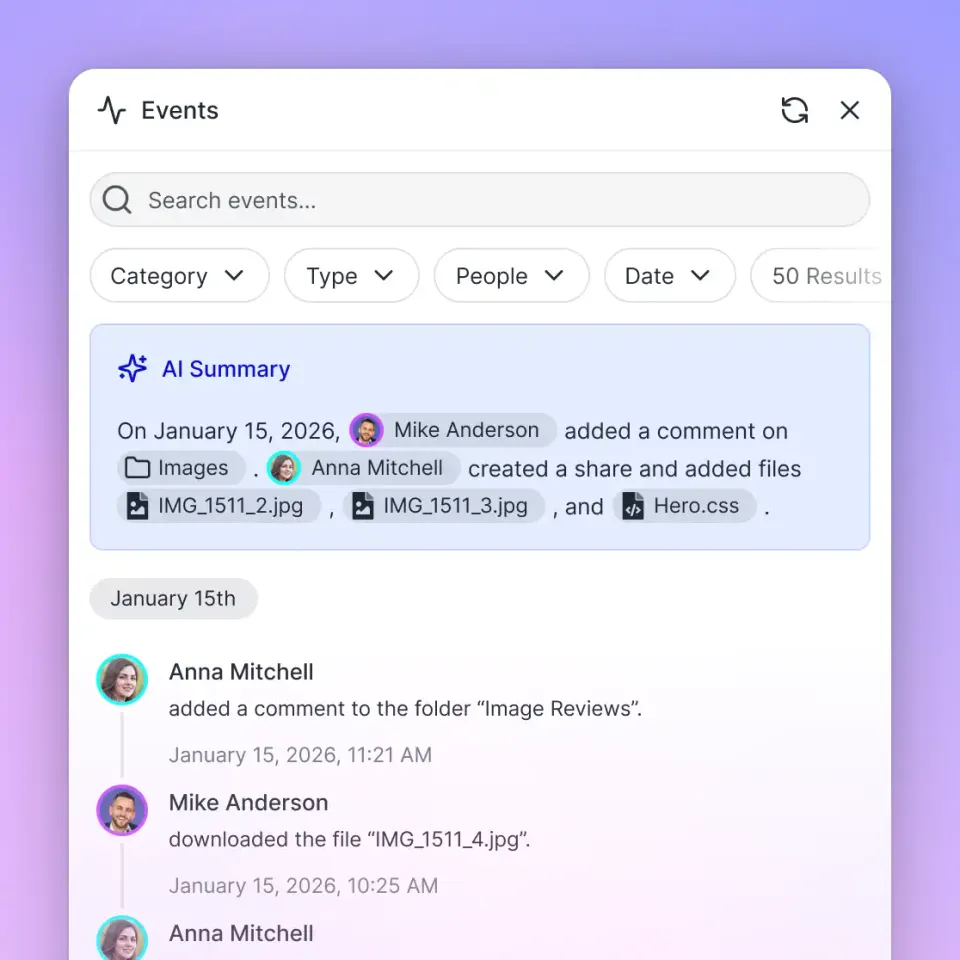
Fast.io maintains a detailed activity log recording what changed across an organization and who changed it, human members and connected agents alike. Uploads, edits, moves, deletions, and permission updates are captured in the log. Per-file version history preserves previous document states, preventing accidental overwrites when multiple assistants and team members collaborate concurrently.
Doing real work in Fast.io requires an organization on a paid subscription. Monthly plans start with a 14-day free trial, which requires a credit card. Plans are Starter at $9.99/mo (3 seats, 250 GB storage, 5 workspaces, 100,000 credits a month), Business at $49.99/mo (10 seats, 5 TB storage, 50 workspaces, 600,000 credits a month), and Enterprise at $199.99/mo (30 seats included, 25 TB storage, 200 workspaces, 3,000,000 credits a month). Maximum upload sizes are 25 GB on Starter, 50 GB on Business, and 100 GB on Enterprise. Credits meter AI operations; overage is billed at $10 per 100,000 credits.
To configure persistent storage for your assistants, review technical architecture on Fast.io Storage for Agents, read agent onboarding specifications at fast.io/llms.txt, and explore plan options on the Fast.io pricing page.
Sources
References used to verify factual claims in this guide.
-
OpenAI enforces a 512MB per-file upload limit on all uploads to ChatGPT conversations.
Frequently Asked Questions
Why does ChatGPT say no text could be extracted from this file?
ChatGPT returns this error when its document parser cannot detect or decode an embedded text stream in an uploaded file. Common causes include scanned documents that contain only bitmap images without an OCR layer, PDF security settings that disable content copying, corrupted font character mapping tables, or broken cross-reference offsets.
How do I make a PDF readable for ChatGPT?
Make a PDF readable by confirming it contains a decoded text layer. For scanned documents, run optical character recognition using Adobe Acrobat or tools like ocrmypdf. For digital PDFs with security restrictions or damaged headers, open the file in a browser, select print, and choose 'Save as PDF' to re-encode the file and strip restrictive permission headers.
Can ChatGPT read scanned PDF documents?
ChatGPT can process scanned PDFs only if the file includes a searchable OCR text layer or if the chat model executes a vision pass on an individual page image. Multi-page scanned documents that lack embedded unicode text layers bypass vision processing and fail at the initial parser stage, triggering the text extraction error.
What is the page limit for ChatGPT PDF text extraction?
OpenAI does not publish an explicit page count limit, but enforces a file ceiling of 512MB and a cap of 2 million tokens per document. In practice, server-side parser timeouts frequently occur on files exceeding 400 pages, especially when documents contain complex multi-column layouts or uncompressed raster images.
Why does printing a PDF to a new file fix ChatGPT extraction errors?
Printing a PDF to a virtual printer and saving it re-renders the document through the operating system print pipeline. This process flattens the file structure, removes restrictive encryption dictionaries, generates valid cross-reference tables, and standardizes font encodings into clean TrueType or Type 3 font definitions that ChatGPT parsers can read.
Related Resources

Query Document Collections Without Chat Upload Errors
Store and index your files in persistent Fast.io workspaces with automated hybrid search. Connect ChatGPT through the remote MCP server to search files on demand without hitting conversational upload caps. Monthly plans start with a 14-day free trial (credit card required).