How to Connect AI Agents to Google Analytics with MCP
The Google Analytics MCP server connects AI agents to GA4 properties through the Model Context Protocol, giving them read access to traffic reports, funnel analysis, and real-time data. This guide covers the official server setup, community alternatives, practical agent workflows, and how to store analytics output where your whole team can access it.


What the Google Analytics MCP Server Does
Google Analytics tracks over 37 million websites globally, making it the most widely deployed web analytics platform. GA4, the current version, exposes traffic, engagement, conversion, and real-time data through the Google Analytics Data API and Admin API. The MCP server wraps both APIs in a standardized protocol so AI agents can query analytics data through tool calls instead of custom REST integration code.
The official Google Analytics MCP server is maintained by Google's analytics team and released under the Apache 2.0 license. It runs locally via pipx and connects to any MCP-compatible client, including Claude Desktop, Gemini CLI, Gemini Code Assist, Cursor, and custom agents built with the MCP SDK.
Seven tools ship with the official server:
get_account_summaries: Lists all Google Analytics accounts and properties the authenticated user can accessget_property_details: Returns configuration details for a specific GA4 propertylist_google_ads_links: Shows linked Google Ads accounts for a propertyrun_report: Executes standard GA4 reports with customizable dimensions, metrics, date ranges, and filtersrun_funnel_report: Runs funnel analysis to track user progression through defined stepsget_custom_dimensions_and_metrics: Retrieves custom dimension and metric definitions for a propertyrun_realtime_report: Pulls real-time data covering the last 30 minutes of activity
All access is read-only. The server cannot modify your Google Analytics configuration, create goals, or change property settings. This is a deliberate design choice that keeps the integration safe to deploy without worrying about accidental data changes.
The practical result: you ask your agent "What were my top landing pages last week?" and it calls run_report with the right dimensions and metrics, then returns the answer in natural language. No manual report building, no CSV exports, no context switching between analytics dashboards and your agent workspace.

Related guides
- How to Connect AI Agents to Google Docs with MCPAn MCP server for Google Docs exposes document read, write, and search capabilities to AI agents through the Model...
- How to Connect AI Agents to Web Analytics (Best MCP Servers)Web analytics MCP servers let AI agents query traffic data and find insights on their own. Instead of manually checking...
- How to Connect AI Agents to Twilio Segment with MCPSegment MCP servers give AI agents direct access to your customer data platform, from firing track calls and...
- How to Connect DocuSign to AI Agents with the MCP ServerDocuSign's official MCP server lets AI agents send envelopes, check signing status, query agreements through Navigator,...
- How to Connect AI Agents to Make.com with an MCP ServerMake.com offers a cloud-hosted MCP server that turns your automation scenarios into tools AI agents can call directly....
- How to Connect AI Agents to Azure Blob Storage via MCPAn Azure Blob Storage MCP server exposes cloud containers and object storage to AI agents using standard Model Context...
More on this subject: MCP and Model Context Protocol (244 guides)
How to Set Up the Official GA4 MCP Server
The official server requires Python 3.10 or higher, a Google Cloud project with the right APIs enabled, and Application Default Credentials (ADC) for authentication. Setup takes about 15 minutes if you already have a Google Cloud project.
Step 1: Enable the Required APIs
Go to console.cloud.google.com and select your project (or create a new one). Navigate to APIs & Services > Library and enable both the Google Analytics Data API and the Google Analytics Admin API. The MCP server calls both APIs, so you need them both active.
Step 2: Create OAuth Credentials
Under APIs & Services > Credentials, click Create Credentials > OAuth Client ID. Choose Desktop Application as the application type. Download the JSON credentials file and save it somewhere accessible.
If your OAuth consent screen is not configured yet, set it up first under APIs & Services > OAuth consent screen. Add the scope https://www.googleapis.com/auth/analytics.readonly. For testing, add your own email as a test user.
Step 3: Authenticate with Google Cloud CLI
Run the following command to set up Application Default Credentials. Replace the path with your downloaded credentials file:
gcloud auth application-default login \
  --scopes https://www.googleapis.com/auth/analytics.readonly,https://www.googleapis.com/auth/cloud-platform \
  --client-id-file="/path/to/your/oauth-credentials.json"
This opens a browser window for Google sign-in. After approval, ADC tokens are stored locally and refreshed automatically.
Step 4: Install and Run the MCP Server
The simplest installation uses pipx, which runs the server in an isolated Python environment:
pipx run analytics-mcp
For a persistent install that you can reference from client configs:
pipx install git+https://github.com/googleanalytics/google-analytics-mcp.git
Step 5: Connect to Your MCP Client
For Claude Desktop, add the server to your claude_desktop_config.json (found at ~/Library/Application Support/Claude/ on macOS):
{
  "mcpServers": {
    "google-analytics-mcp": {
      "command": "google-analytics-mcp",
      "args": [],
      "env": {
        "GOOGLE_CLOUD_PROJECT": "your-project-id"
      }
    }
  }
}
For Gemini CLI or Code Assist, add the server to ~/.gemini/settings.json under the mcpServers key with the same command and environment variables.
Verifying the Connection
Ask your agent "List my Google Analytics properties" or "How many users visited my site yesterday?" If the credentials are valid and the server is running, you should get property data back within a few seconds. Authentication errors usually mean the ADC tokens need refreshing. Run the gcloud auth command from Step 3 again to fix this.
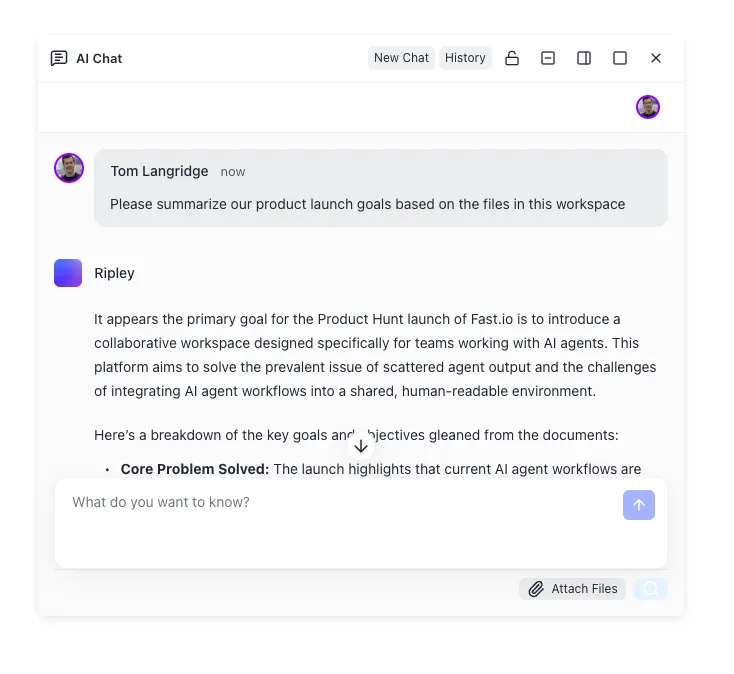


Give your agents a workspace for analytics output
Upload GA4 reports, search across months of data with Intelligence Mode, and share results with stakeholders through branded links. generous storage.
Comparing GA4 MCP Server Options
The official Google server is the most complete option, but several community implementations exist with different trade-offs. Here is how they compare.
Official Google Analytics MCP (googleanalytics/google-analytics-mcp)
This is the primary choice for most setups. Seven tools cover account discovery, standard reports, funnel reports, real-time data, and custom dimension lookups. The v0.4.0 release from May 2026 added stability improvements and expanded dimension support. With over 2,000 GitHub stars, it has the largest community and most active maintenance.
Best for: Production agent workflows that need the full range of GA4 reporting capabilities.
google-analytics-mcp (surendranb)
This community server adds opinionated defaults that reduce the amount of configuration your agent needs to provide for each query. It includes schema discovery (the agent can ask what dimensions and metrics are available before building a report), server-side aggregation, and safe defaults that prevent common mistakes like requesting incompatible dimension/metric combinations.
Best for: Agents that need guardrails against malformed queries, especially when non-technical users are prompting the agent.
mcp-server-google-analytics (ruchernchong)
A lightweight Node.js implementation that covers core reporting and analytics data retrieval. It has a smaller tool surface than the official server but is easier to customize if you need to add project-specific reporting logic.
Best for: Teams that prefer a Node.js stack or want to extend the server with custom tools.
Managed MCP Platforms
Services like Composio and Stape offer hosted MCP integrations for Google Analytics that handle OAuth token management and server hosting for you. These remove the need to run a local server process. The trade-off is less control over the server configuration and potential latency from the additional network hop.
Best for: Teams that want to avoid managing OAuth credentials and server processes directly.
Which One Should You Use?
Start with the official Google server. It covers the widest range of GA4 features, has the most active development, and uses Google's own authentication patterns. Switch to a community server only if you need a specific feature it lacks, like the schema discovery in surendranb's implementation, or if your stack is not Python-based.

Practical Agent Workflows with GA4 Data
Connecting an agent to Google Analytics opens up workflows that go beyond "show me yesterday's traffic." Here are patterns that work well in practice.
Automated Weekly Performance Reports
Your agent runs get_account_summaries to identify all active properties, then calls run_report for each one with consistent dimensions (source/medium, landing page, device category) and the last 7 days as the date range. It compiles the results into a formatted report, compares against the previous week, and flags pages where traffic dropped more than 20%. The entire process runs without manual report building.
Funnel Drop-off Analysis
Use run_funnel_report to define a conversion funnel (homepage visit, product page view, add to cart, checkout, purchase) and identify where users are dropping off. Your agent can run this query across multiple date ranges, compare drop-off rates, and surface the step with the biggest loss. This is particularly useful for e-commerce teams that want to monitor conversion health without logging into GA4 every morning.
Real-Time Campaign Monitoring
When you launch a marketing campaign, run_realtime_report lets your agent check traffic as it arrives. The agent can monitor active users, top referral sources, and geographic distribution in real time. Pair this with a notification system and the agent can alert you if campaign traffic is below expectations within the first hour of launch.
Content Performance Audits
An agent queries run_report with page path as the primary dimension and engagement metrics (average engagement time, bounce rate, conversions) as measures. It can rank all pages by engagement, identify content that gets traffic but poor engagement, and flag pages that might benefit from updates. For content teams publishing regularly, this automates a task that otherwise requires manual dashboard exploration.
Multi-Property Comparison
Organizations with multiple GA4 properties (different brands, regions, or product lines) can use an agent to run the same report across all properties and present a unified comparison. The agent iterates through get_account_summaries, runs identical run_report calls for each property, and normalizes the data into a single table. Manual comparison across properties in the GA4 interface requires switching between properties repeatedly.
Storing and Sharing Analytics Output
GA4 MCP servers return raw report data to your agent, but that data needs to go somewhere useful after the agent processes it. Performance reports, trend analyses, and funnel breakdowns lose their value if they are trapped in a chat transcript that only one person can see.
The simplest approach is writing output to local files. Your agent saves a markdown report or CSV to disk, and you share it manually. This works for solo use but breaks down when multiple team members or stakeholders need access to the same analytics outputs.
Cloud storage services like Google Drive or S3 provide persistence and basic sharing. Google Drive keeps everything in the Google ecosystem, which makes sense if your team already lives there. S3 works for programmatic storage without a collaboration layer.
Fastio fills a different role: it is a workspace where analytics output becomes searchable, shareable, and queryable by both agents and humans. When Intelligence Mode is enabled, uploaded reports are automatically indexed for semantic search and RAG-powered chat. A team member can ask "What was our top converting landing page last quarter?" and get an answer pulled from a stored analytics report, with citations pointing to the specific data.
A practical GA4 + Fastio workflow:
- Agent queries GA4 via the analytics MCP server and generates a weekly performance report
- Agent uploads the report to a Fastio workspace via the Fastio MCP server
- Agent creates a branded share link for stakeholders who need the data
- Stakeholders access the report with in-browser previews, no account required
- Team members search across all historical reports using Intelligence Mode
- When the project wraps up, the agent transfers workspace ownership to the team lead
The Fastio MCP server is available over Streamable HTTP at /mcp and legacy SSE at /sse. It exposes tools for workspace management, file operations, AI queries, and share creation. Your agent can handle the full lifecycle from GA4 data retrieval to stakeholder delivery in a single tool chain.
Fastio offers a 14-day Business Trial, card required; see /pricing/ for details. For teams generating weekly or monthly analytics reports, Starter begins at 250 GB of storage with 100,000 monthly credits.
Metadata Views add another dimension. If your agent produces structured analytics reports in a consistent format, you can define extraction fields (top pages, conversion rates, traffic sources) and Fastio will automatically extract those values into a sortable, filterable spreadsheet across all uploaded reports. That turns a folder of analytics PDFs into a queryable database without manual data entry.

How to Fix Common GA4 MCP Server Problems
The GA4 MCP server is stable for standard reporting, but authentication and API quirks can cause problems during setup.
OAuth Token Expiration
If your Google Cloud project's OAuth consent screen is in "Testing" mode, refresh tokens expire after 7 days. Your agent will suddenly lose access with an authentication error. Fix this by publishing your OAuth consent screen (moving it out of testing mode) to get long-lived tokens. Alternatively, re-run the gcloud auth application-default login command to generate fresh credentials.
"Permission Denied" on Property Access
The authenticated Google account must have at least Viewer access to the GA4 property you are querying. If get_account_summaries returns an empty list, check that the account used during OAuth has the right permissions in the GA4 admin panel under Property Access Management.
Incompatible Dimensions and Metrics
Not all GA4 dimensions work with all metrics. Requesting an incompatible combination returns an API error. Use get_custom_dimensions_and_metrics to check what is available for your property before building complex reports. The GA4 Dimensions & Metrics Explorer at developers.google.com is also a useful reference for valid combinations.
Rate Limits
The Google Analytics Data API enforces quota limits per project. The default is 200 requests per minute per project. If your agent runs reports across many properties in rapid succession, it may hit this limit. Add a short delay between report calls, or request a quota increase through the Google Cloud Console under IAM & Admin > Quotas.
Server Process Not Starting
If pipx run analytics-mcp fails, verify your Python version (python3 --version should show 3.10 or higher). On macOS, the system Python is often older. Install a recent Python via Homebrew (brew install python@3.12) and ensure pipx uses it. Check that the GOOGLE_CLOUD_PROJECT environment variable is set to your project ID, as some MCP clients require it explicitly.
Real-Time Data Limitations
The run_realtime_report tool only returns data from the last 30 minutes. It does not support date ranges or historical queries. For anything beyond the current 30-minute window, use run_report instead. Real-time reports also support a smaller set of dimensions and metrics compared to standard reports.
Sources
References used to verify factual claims in this guide.
-
Google Analytics tracks over 37 million websites globally
-
Official GA4 MCP server v0.4.0 released May 2026, Apache 2.0 license
-
Default API quota is 200 requests per minute per project
Frequently Asked Questions
How do I connect Google Analytics to an AI agent?
Install the official Google Analytics MCP server using pipx, authenticate with Google Cloud Application Default Credentials, and add the server to your MCP client configuration (Claude Desktop, Gemini CLI, or a custom agent). The server exposes GA4 reporting tools that your agent calls directly through the Model Context Protocol.
What can the Google Analytics MCP server do?
The server provides seven tools covering account discovery, property details, Google Ads link listing, standard reports, funnel reports, custom dimension/metric lookups, and real-time reporting. All access is read-only, so agents can query data but cannot modify your GA4 configuration.
Is there an official MCP server for GA4?
Yes. Google's analytics team maintains the official GA4 MCP server at github.com/googleanalytics/google-analytics-mcp. It is open source under the Apache 2.0 license and works with any MCP-compatible client. The latest release is v0.4.0 from May 2026.
How do AI agents access Google Analytics data?
Through the Model Context Protocol. The GA4 MCP server wraps the Google Analytics Data API and Admin API into standardized tool calls. Your agent calls tools like run_report or run_realtime_report, and the server handles the API request, authentication, and response formatting.
Does the Google Analytics MCP server cost anything?
The MCP server itself is free and open source. You pay only for the LLM client you connect it to. Gemini CLI has a free tier, Claude Desktop requires a subscription, and custom agents depend on whatever model API you use. Google Analytics API usage is free within standard quota limits.
Can AI agents modify my Google Analytics settings through MCP?
No. The official GA4 MCP server is read-only. It can query reports, list properties, and retrieve metrics, but it cannot create goals, modify property settings, or change any configuration. This is a deliberate safety decision by the Google Analytics team.
What Python version do I need for the GA4 MCP server?
Python 3.10 or higher. The server uses modern Python features that are not available in earlier versions. On macOS, the system Python is often older, so install a recent version via Homebrew or pyenv before running pipx.
Related Resources

Give your agents a workspace for analytics output
Upload GA4 reports, search across months of data with Intelligence Mode, and share results with stakeholders through branded links. generous storage.