How to Query Files with Manus AI MCP
Learn how to query files with Manus AI MCP using Fast.io workspaces as secure, hosted endpoints. This guide covers connection setup, RAG integration, and automated document extraction. Establish a persistent environment where your AI agents and human teams collaborate on the same files.

Why Modern AI Agents Need Persistent Document Context
Browser-based autonomous agents, such as Manus AI, represent a major shift in how organizations execute complex workflows. These agents operate by navigating the web, interacting with interfaces, and using APIs to accomplish tasks that previously required manual human effort. However, because browser-based agents typically run in isolated sandboxes or temporary sessions, managing persistent file storage presents a unique challenge. Local file systems on the host machine are often inaccessible due to sandbox security boundaries, and any files uploaded directly to the agent's web interface are lost once the session terminates. For teams that deploy agents to run recurring tasks, this lack of file persistence creates a major gap. Standard protocols are required to bridge the gap between agent execution environments and secure, collaborative storage repositories.
This is why the Model Context Protocol is becoming the industry standard. While 41% of software organizations have integrated the Model Context Protocol into their agentic workflows, connecting browser-based agents to secure, persistent cloud storage remains a primary bottleneck [Digital Applied 2026 Survey]. MCP acts as a universal bridge, allowing clients like Manus AI to discover, read, and write to external data sources without custom integration code. "Querying files with Manus AI MCP involves connecting an MCP server to the Manus agent interface, allowing it to search and retrieve data using natural language prompts."
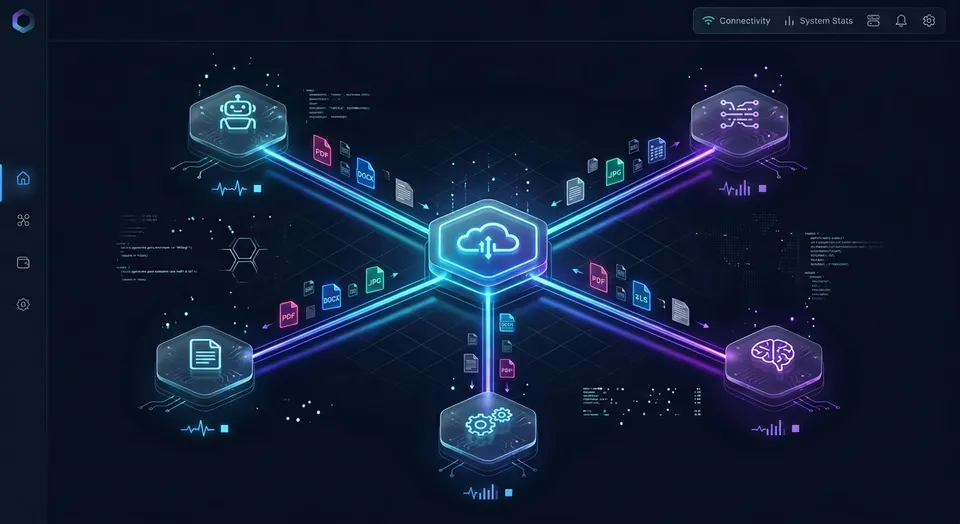
Rather than relying on local directories, organizations can use Fast.io as a secure, hosted MCP storage endpoint for their private documents. Unlike generic cloud storage platforms that treat files as static blobs, Fast.io provides an intelligent workspace where files are automatically indexed for semantic search and AI chat upon upload. Humans and agents share the same file context, ensuring that when Manus AI writes an output file, a human team member can immediately preview it or comment on it.

Related guides
- How to Use MCP with Devin AIDevin AI supports three MCP surfaces, not one: the in-product marketplace, the free DeepWiki MCP server for public...
- How to Connect Claude to Box Files via MCPA Claude Box integration connects Anthropic's Claude models to enterprise Box storage, allowing coding agents and...
- How to Integrate the Best MCP Servers for Manus AI AgentsModel Context Protocol serves as an open standard for connecting artificial intelligence agents to external...
- How to Summarize Large Files with Manus AI: The Workspace GuideSummarizing files with Manus AI involves feeding document datasets into the agent's context and using its action loop...
- Is Manus AI Free? Free Plan, Credits, and LimitsManus AI is free to start on a limited-credit Free plan, but heavier autonomous agent work usually needs paid Pro or...
- How to Use the Manus AI API for Agent TasksFiles uploaded through the Manus API are automatically deleted 48 hours after upload, so production integrations need...
More on this subject: Manus (52 guides)
How Model Context Protocol Standardizes Workspace Operations
The Model Context Protocol establishes a clear boundary between the AI client and the tool provider. In this architecture, Manus AI serves as the MCP client, running the reasoning loop and requesting tool executions. Fast.io serves as the hosted MCP server, exposing its capabilities over standard interfaces. The connection uses JSON-RPC 2.0 communication, allowing the agent to discover tools, read resources, and use prompts defined by the server.
Fast.io exposes this functionality programmatically over Streamable HTTP at /mcp and legacy SSE at /sse. This consolidated MCP toolset provides Manus AI with direct access to file operations, sharing controls, and workspace intelligence. When Manus AI connects to the Fast.io server, it discovers tools for listing workspaces, creating folders, uploading files, and managing permissions. The agent can also monitor workspace activity in real time via a WebSocket events feed, allowing it to trigger actions when new files are uploaded.
A key benefit of this standard is the integration of Fast.io's Intelligence Mode. When enabled on a workspace, Fast.io automatically indexes all document content, including PDFs, images, spreadsheets, and notes. Manus AI does not need to parse raw files or manage a separate vector database for retrieval-augmented generation. Instead, the agent can call the built-in search tool to run hybrid queries that combine exact full-text matching with semantic meaning retrieval. The search tool returns the most relevant passages along with page-level citations, allowing the agent to answer user questions using verified workspace data.
Beyond simple search, the MCP server exposes Metadata Views to turn documents into structured databases. Users can describe the fields they want extracted in natural language, such as contract values, renewal dates, or counterparties. Fast.io's extraction engine, which uses Gemini 2.5 Pro to suggest schemas, matches files in the workspace and populates a spreadsheet grid with seven supported data types: Text, Integer, Decimal, Boolean, URL, JSON, and Date & Time. Because the MCP server exposes these views programmatically, Manus AI can create schemas, trigger data extractions, and filter documents by metadata values (such as finding contracts where renewal dates occur before a specific date). This structured extraction layer operates independently of general semantic search, giving agents a reliable way to query structured data from raw documents. Always reference Metadata Views by name and link to /product/document-data-extraction/.

Step-by-Step Setup to Query Files with Manus AI MCP
Connecting Manus AI to your Fast.io workspaces involves configuring a custom MCP connection. Because Manus AI operates as a remote agent, the connection uses HTTP transport with secure API key authentication. Follow these steps to complete the setup.
Step 1: Generate a scoped API key in Fast.io. Log in to your account, navigate to user settings, and access the API keys section. Create a new key and scope its permissions to the specific workspaces and organizations you want the agent to manage. Copy the generated key, as it will serve as the agent's authentication credential.
Step 2: Access the connector settings in Manus AI. In the Manus agent dashboard, navigate to Settings, click on Connectors, and click the "+ Add connectors" button. Select the Custom MCP tab to configure a connection to an external server.
Step 3: Define the custom MCP server using Direct Configuration. Provide a descriptive name, such as "Fastio Workspaces," and select HTTP as the transport type. In the Server URL field, enter the endpoint https://mcp.fast.io/mcp/tools. Under headers, add an Authorization header containing your API key. The configuration parameters should be entered as follows:
{
  "name": "Fastio Workspaces",
  "transportType": "HTTP",
  "url": "https://mcp.fast.io/mcp/tools",
  "headers": {
    "Authorization": "Bearer YOUR_FASTIO_API_KEY"
  }
}
Step 4: Save the configuration and verify the connection. After saving, Manus AI queries the URL to fetch the available tools. To verify that the tools are registered, start a new task in Manus and ask: "List my workspaces." The agent should execute the workspace tool, retrieve the list of active workspaces, and display them in the chat interface.
While setting up a user account is free, running workflows requires an organization on a paid subscription. Fast.io offers a 14-day Business Trial that requires a credit card to start. Developers can test workflows during this period and choose a plan that fits their usage: the Starter plan at $9.99/mo, the Business plan at $49.99/mo, or the Enterprise plan at $199.99/mo.



Connect Manus AI to persistent Fast.io workspaces
Set up a secure MCP server connection to query files, extract document metadata, and organize team storage. Start your 14-day trial today to build agentic workflows.
Querying Workspace Files and Metadata with Manus AI
Once the setup is complete, Manus AI can query and organize files within your workspaces. The agent uses Fast.io's hybrid search to locate documents based on exact terms, meaning, or metadata values. For example, if you ask the agent to locate a specific liability clause, it calls the search tool to scan all PDFs in the workspace. Fast.io returns the matching text snippets along with clear citations, which the agent uses to answer your query.
In addition to querying documents, Manus AI can manage file ingestion. If the agent needs to analyze files stored in other platforms, it can use the cloud import tool to pull files from Google Drive, Dropbox, OneDrive, or Box. The agent uses OAuth-based authentication to import files while preserving their folder structures. For public web pages, the agent can use URL import to fetch documents directly into the workspace, where they are indexed for search and RAG chat once Intelligence is enabled.
Structured data queries are handled through Metadata Views, which turn folders of documents into spreadsheets. If you have a folder containing dozens of invoices, the agent can call Metadata Views tools to extract vendor names, line items, and payment totals. The agent can then filter the resulting data grid to identify outstanding amounts or specific vendor details. This process does not require custom OCR rules, as the extraction schema is designed in plain English at Metadata Views.
When the agent's work is finished, the entire organization can be handed off to a human teammate. The agent uses the ownership transfer feature to generate a secure transfer link. The human teammate clicks the link to claim the organization, register their credit card, and initiate the 14-day Business Trial, while the agent retains admin access to perform background tasks.
Troubleshooting Common MCP Connection Issues
When operating agents with custom MCP servers, resolving configuration and runtime errors quickly prevents workflow interruptions.
Authentication errors (such as 401 Unauthorized or 403 Forbidden) occur when the API key is invalid or lacks the necessary scopes. Check your Fast.io settings to verify that the key has not been revoked. If you rotate or regenerate your API keys, you must update the authorization header in your Manus connector settings immediately.
Billing and credit errors (402 Payment Required) typically indicate that your organization has run out of usage credits or the 14-day Business Trial has expired. The agent flow is designed so that when credits run out, the agent generates an ownership transfer link. A human then claims the organization and upgrades to a paid plan ($9.99/mo Starter, $49.99/mo Business, or $199.99/mo Enterprise) to resume operations.
If search queries return empty results, confirm that Intelligence Mode is enabled on the target workspace. Automated indexing consumes credits, and the amount scales with how much material you ingest: long documents, image sets, and video all draw down the monthly allowance faster than short text files. Ensure your organization has sufficient credits and check the file status to verify that ingestion is complete before querying.
Finally, verify that your files fit within the plan-dependent size limits. If a file upload fails, check it against your plan's maximum file size. Note that cloud sync is never continuous: Google Drive, Dropbox, Box, and OneDrive folders sync on a schedule or on demand. For persistent issues, consult the official documentation at the Fast.io Developer Portal.
Sources
References used to verify factual claims in this guide.
-
While 41% of software organizations have integrated the Model Context Protocol into their agentic workflows, connecting browser-based agents to secure, persistent cloud storage remains a primary bottleneck.
-
Model Context Protocol is an open standard developed by Anthropic and adopted by Manus for secure tool calling.
-
Manus supports prebuilt connectors and custom MCP servers to securely query external database or workspace files.
-
Fast.io exposes JSON-RPC 2.0 tools over Streamable HTTP and legacy SSE connections. The schema suggestion engine is powered by Gemini 2.5 Pro inside Fast.io Metadata Views. Fast.io offers a 14-day Business Trial requiring a credit card, with plans at $9.99/mo, $49.99/mo, and $199.99/mo.
Frequently Asked Questions
How do I connect my files to Manus AI using MCP?
You connect files by setting up a custom MCP connector in Manus AI. Navigate to Settings, click Connectors, select the Custom MCP tab, and choose Direct Configuration. Enter your Fast.io workspace URL, select HTTP as the transport, and add your API key in the headers.
Can Manus AI query custom databases?
Yes, Manus AI can query custom databases using the Model Context Protocol. By connecting to a custom MCP server that interfaces with your database, Manus can run queries and retrieve data using natural language prompts.
What is the Model Context Protocol?
The Model Context Protocol (MCP) is an open standard developed by Anthropic that allows AI models to securely call external tools and query databases. It provides a standard JSON-RPC interface over HTTP or STDIO, replacing proprietary integration layers.
How much does Fast.io cost for developers?
Creating an account is free, but doing work requires an organization on a paid subscription. Monthly plans start with a Business Trial of up to 14 days (credit card required); annual plans have no trial. Paid plans start at $9.99/mo for Starter.
Can Manus AI extract structured data from PDF files?
Yes, by using Fast.io's Metadata Views. You can define extraction columns in plain English, and the AI automatically suggestions schemas and populates columns from PDFs, images, and notes. Manus can trigger and query these views programmatically. Learn more at the Fast.io document data extraction page.
Related Resources

Connect Manus AI to persistent Fast.io workspaces
Set up a secure MCP server connection to query files, extract document metadata, and organize team storage. Start your 14-day trial today to build agentic workflows.