How to Configure Filesystem MCP in Gemini CLI for Cloud Storage
Configuring a filesystem MCP server in Gemini CLI enables Google's command-line assistant to inspect local directory trees and read workspace files using standardized Model Context Protocol tools. When project assets reside in cloud storage services like Google Drive or OneDrive, standard local stdio filesystem servers encounter zero-byte placeholder stubs and context window bloat. Connecting Gemini CLI to an indexed cloud workspace resolves these bottlenecks through targeted semantic retrieval.

Why Command-Line Agents Struggle with Unindexed Cloud Storage
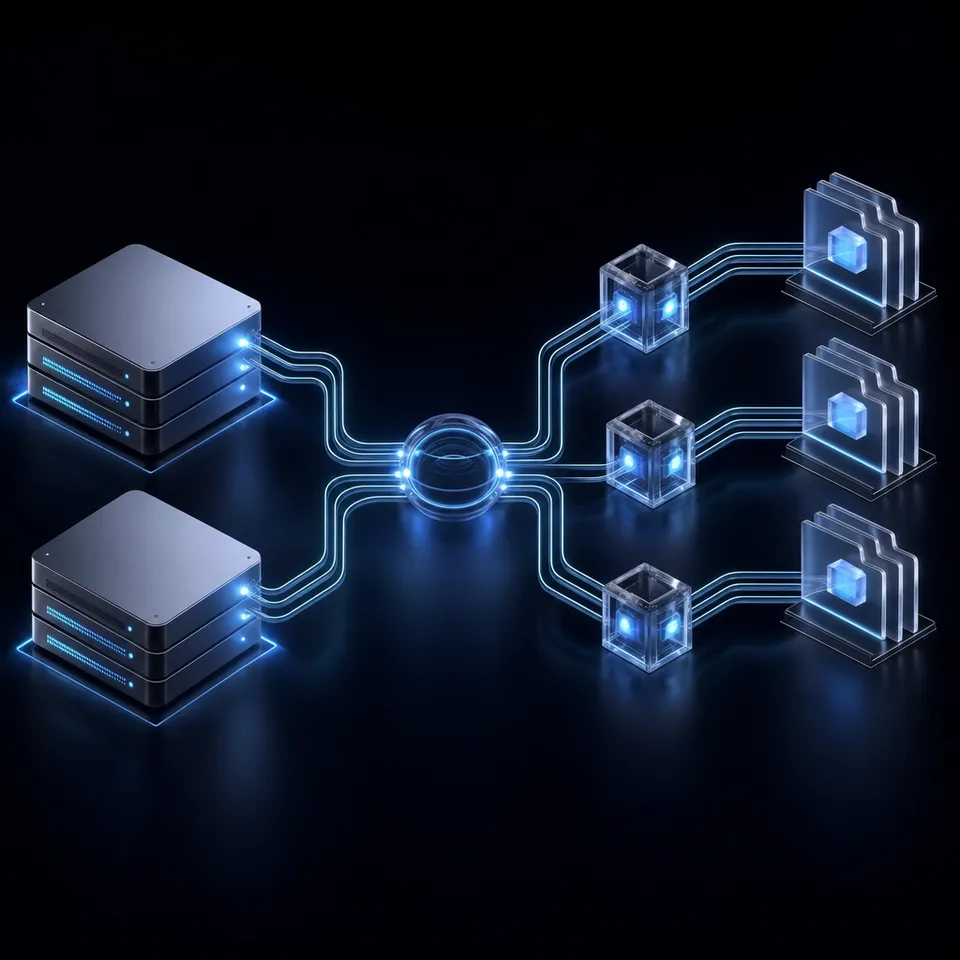
When developers point Gemini CLI at cloud-synced local folders using a standard filesystem MCP server, the command-line assistant encounters unhydrated zero-byte placeholder stubs or triggers recursive directory crawls that choke the terminal context window. The failure stems from treating virtualized cloud drives as if they were physical local disks.
Configuring a filesystem MCP server in Gemini CLI enables Google's command-line assistant to inspect local directory trees and read workspace files using standardized Model Context Protocol tools. In practical software engineering workflows, terminal agents need access to context beyond the immediate Git repository. Developers regularly consult product requirement documents, system architecture diagrams, database schemas, and client API contracts to guide code generation and debugging. In enterprise environments, these assets rarely live in Git repositories. Instead, teams store them across centralized cloud platforms such as Google Drive, Microsoft OneDrive, Dropbox, and Box.
Standard command-line workflows break down when bridging local terminal sessions to these cloud stores. While local file reading works well for small, static directories on a physical drive, modern cloud storage clients use virtual file systems to conserve local disk space. Files appear in local directory listings, but their binary contents remain on remote servers until an application requests them.
According to Google Drive technical documentation, if you convert a text document to Google Docs format, it can be up to 50 MB. Passing unindexed documents or multi-page technical exports directly into interactive CLI prompts floods the model's context window. When a local filesystem MCP server traverses these directories, standard file system calls trigger uncoordinated background downloads or return empty file buffers. Furthermore, reading entire multi-megabyte specification files directly into the CLI prompt wastes the model's token capacity on irrelevant tables and headers. Solving these operational bottlenecks requires understanding how the filesystem MCP server interacts with local sync clients, and when to replace local folder mounts with remote indexed workspaces.
Related guides
- Dropbox MCP Architecture: Two-Way Workspace Sync vs Direct API Tool CallsConnecting autonomous AI agents to cloud storage requires evaluating Dropbox MCP architecture tradeoffs between direct...
- How to Configure Filesystem MCP in Smolagents for Document StorageConnecting Hugging Face smolagents to document storage requires balancing programmatic tool execution with context...
- Cloud Storage MCP: Connecting AI Agents to Drive, Dropbox, and OneDriveAI agents require access to files stored across Google Drive, Dropbox, Box, and OneDrive, but local filesystem...
- How to Configure Filesystem MCP in Continue.devThe Continue.dev filesystem MCP integration allows the Continue IDE extension to access, search, and edit files across...
- Emacs MCP Guide: Connecting gptel to Cloud Storage WorkspacesGNU Emacs can query external cloud documents without freezing buffers by integrating the Model Context Protocol. By...
- How to Connect Gemini to Storage via MCP ServerConnecting Google Gemini to persistent storage through a Model Context Protocol server replaces clumsy context-window...
More on this subject: MCP and Model Context Protocol (277 guides)
How to Configure Local Filesystem MCP in Gemini CLI
The Model Context Protocol defines a standardized JSON-RPC interface that connects AI models to external tools and data sources. Anthropic open-sourced the reference filesystem server, published on npm as @modelcontextprotocol/server-filesystem. This package runs as a local process over standard input and output (stdio), granting the AI client controlled access to specified directory paths.
Registering the Server in Settings
Gemini CLI reads MCP configurations from settings.json. You can define servers globally for all terminal sessions in ~/.gemini/settings.json or isolate configuration to a specific repository by adding .gemini/settings.json to the project root.
To register the reference filesystem server, add an entry to the mcpServers object:
{
  "mcpServers": {
    "filesystem": {
      "command": "npx",
      "args": [
        "-y",
        "@modelcontextprotocol/server-filesystem",
        "/Users/username/projects"
      ]
    }
  }
}
In this configuration:
command: Specifies the executable runtime. Usingnpxautomatically downloads and executes the package without requiring a global installation.args: Passes arguments to the process. The-yflag skips confirmation prompts, followed by the package name and one or more absolute directory paths that the server is permitted to access.- Directory isolation: The server restricts file operations strictly to the paths declared in
args. Attempts to access parent directories or traverse outside these boundaries fail with access violations.
After saving the file, restart your Gemini CLI session or run /mcp list in the terminal to inspect the newly discovered tools.
Available Filesystem MCP Tools
Once registered, @modelcontextprotocol/server-filesystem provides eight core tools to the Gemini model:
read_file: Reads the complete text content of a single file.read_multiple_files: Reads the content of several files in parallel, returning combined file bodies.write_file: Creates a new file or overwrites an existing file with provided content.create_directory: Creates a new folder or nested directory path.list_directory: Lists files and subdirectories located within a target path.move_file: Renames or relocates an existing file or directory.search_files: Recursively searches for files matching a pattern within the directory tree.get_file_info: Retrieves file metadata including size, creation time, and modification timestamps.
Comparing Local Folder Mounts with Remote Workspace Indexing
Choosing between a local stdio filesystem mount and a remote indexed workspace depends on where files reside and how frequently they change:
- Storage location: Local mounts require files to reside physically on the developer workstation. Remote indexing queries files hosted in cloud infrastructure directly.
- Disk overhead: Local mounts consume local drive storage and local cache space. Remote indexing offloads file storage to cloud workspaces.
- Hydration behavior: Local mounts trigger operating system file downloads when encountering cloud placeholders. Remote indexing processes files on server infrastructure without touching developer machines.
- Context consumption: Local
read_filecalls inject entire document bodies into the prompt window. Remote indexed search extracts only the specific paragraphs relevant to the developer's query. - Multi-agent access: Local mounts isolate file state to a single machine. Remote workspaces provide shared access for multiple agents and human engineers.
The Failure Modes of Synced Cloud Storage: Reparse Points and 0-Byte Stubs
Pointing @modelcontextprotocol/server-filesystem at directories managed by Google Drive, Microsoft OneDrive, Dropbox, or Box creates acute operational failures.
Modern cloud desktop clients save local disk space using on-demand synchronization features, such as OneDrive Files On-Demand and Google Drive streaming. These clients rely on operating system filter drivers and reparse points (such as NTFS reparse tags on Windows and file provider attributes on macOS). In this virtual state, files appear in directory listings and file explorers with correct file names and apparent sizes, but the actual file on disk is an unhydrated, zero-byte placeholder stub.
When Gemini CLI attempts to inspect a cloud-synced folder through the filesystem MCP server, four specific failures occur:
- Zero-byte buffer reads: The Node.js filesystem implementation executes standard file reads against placeholder files. Depending on the operating system filter driver state, the read call may return an empty buffer instead of triggering on-demand hydration. The model receives an empty string and reports that the specification or schema document contains no data.
- Process deadlocks and stdio timeouts: When an unhydrated file does trigger hydration, the operating system pauses the file system read thread while the desktop client fetches the file from the cloud over the network. Because stdio MCP servers rely on responsive JSON-RPC message exchanges, network latency during hydration causes the reading thread to stall. This leads to
EDEADLKerrors, broken stdio pipes, and terminal freezes in Gemini CLI. - Hydration storms from recursive searches: If the model invokes
search_filesor recurses through directories usinglist_directory, the operating system driver may attempt to hydrate dozens of large cloud files simultaneously. This saturates workstation network bandwidth, exhausts local disk capacity, and triggers operating system rate-limiting. - Context window dilution: Even when files are fully hydrated locally, reading raw PDFs, architecture documents, or API schemas dumps thousands of lines of boilerplate text into the prompt. A massive PDF or an extensive OpenAPI document consumes a large portion of the model's active token budget, degrading reasoning quality on subsequent coding turns.
How to Bridge Cloud Storage to Gemini CLI via Fast.io Workspaces
To bypass the limitations of local filesystem mounts, engineering teams can decouple cloud storage from developer laptops. Instead of syncing heavy corporate drives to individual workstations, teams connect their cloud storage directly to a Fast.io workspace.
How Cloud Sync Replaces Local Mounts
Cloud Sync connects Google Drive, Dropbox, Box and OneDrive folders to a workspace, one-way or two-way, on a schedule or on demand. SharePoint libraries connect through the OneDrive connector. Because synchronization runs directly between cloud infrastructure services, files transfer without consuming developer bandwidth or local disk space.
This architecture completely avoids the zero-byte stub problem. Fast.io syncs the genuine file payload in the cloud. When a new product specification, database schema, or design document updates in Google Drive or OneDrive, the synchronized workspace updates in the cloud without requiring developer machines to run sync daemons or maintain local copies.
Built-In RAG via Intelligence Mode
When documents arrive in a Fast.io workspace, Intelligence Mode auto-indexes them for retrieval-augmented generation. The indexing engine parses complex formats, including PDF technical manuals, Markdown notes, Word documents, Excel spreadsheets, and scanned architectural drawings.
Fast.io builds a hybrid search index combining three retrieval mechanisms:
- Full-text lexical matching: Finds exact variable names, function identifiers, API route paths, and error codes.
- Semantic vector search: Discovers conceptual explanations and architectural patterns even when prompt keywords do not match exact document phrasing.
- Search-by-metadata-value: Filters document sets by custom properties, dates, authors, or extracted tags.
Instead of forcing Gemini CLI to read a massive document to find one database schema definition, the model queries the workspace index and receives the four relevant paragraphs with source citations.
Step-by-Step Workspace Setup
Setting up an indexed cloud workspace for Gemini CLI takes four steps:
- Provision a workspace: In the Fast.io administrative interface, create an organization and create a dedicated workspace for your project technical specifications (for example,
backend-architecture). - Link existing storage in Cloud Sync: Open workspace settings, select the Cloud Sync tab, choose your cloud provider (Google Drive, OneDrive, Dropbox, or Box), authenticate the connection, and pick the root folder holding your project documentation.
- Select sync direction and schedule: Choose one-way sync to provide read-only reference documentation to development agents, or two-way sync if you want agents to write generated summaries and specs back to your corporate drive. Set the schedule to run automatically or trigger updates on demand.
- Enable Intelligence Mode: Toggle Intelligence Mode in workspace settings. Fast.io automatically generates embeddings and lexical indexes for all incoming files.



Connect Gemini CLI to your team cloud storage
Give Gemini CLI fast access to indexed documents across Google Drive, OneDrive, and Dropbox through remote MCP. Monthly plans start with a 14-day free trial.
How to Configure Gemini CLI for Remote Streamable HTTP MCP
With the cloud workspace indexed, Gemini CLI connects directly to Fast.io using a remote Model Context Protocol endpoint over Streamable HTTP.
Fast.io provides dedicated MCP endpoints tailored to different client architectures. For terminal coding assistants and IDE tools like Gemini CLI, Claude Code, Cursor, and Qwen Code, the designated server address is https://mcp.fast.io/mcp/code. Setup procedures and protocol specifications are documented at Fast.io MCP Documentation.
Declaring the Remote Server in Settings
Open your global configuration file at ~/.gemini/settings.json or your project file at .gemini/settings.json. Add the Fast.io server configuration to the mcpServers object:
{
  "mcpServers": {
    "fast-io": {
      "httpUrl": "https://mcp.fast.io/mcp/code"
    }
  }
}
Configuration keys in Gemini CLI and its forks dictate transport protocols. Declaring the property as "url" instructs Gemini CLI to negotiate using the legacy Server-Sent Events (SSE) transport. Because Fast.io operates over Streamable HTTP, you must declare the endpoint using "httpUrl". Using "url" will produce connection handshake failures. Streamable HTTP handles bidirectional communication over standard HTTP POST requests with no local bridge process required.
Authenticating the Terminal Session
Launch Gemini CLI in your terminal and initiate the OAuth authorization flow:
/mcp auth fast-io
Gemini CLI opens your default web browser to the Fast.io authorization portal:
- Review the requested permissions and select either Read Only or Read & Write.
- Choose which organizations and workspaces the CLI integration can access.
- Approve the connection.
Once approved, Fast.io issues an OAuth token that Gemini CLI persists across terminal sessions. To confirm that the server is active, execute:
/mcp list
The terminal displays the active fast-io server alongside its exposed toolset.
Available Tools on the Code Endpoint
On the /mcp/code endpoint, Fast.io exposes a consolidated toolset structured for coding workflows:
search: Executes hybrid semantic and keyword queries across workspace documents, returning relevant excerpts with file citations.execute: Performs read-only inspection operations against workspace resources using HTTP GET requests.execute_manage: Executes write and update operations against workspace resources.upload: Initiates file upload sessions for transferring assets into the workspace.upload_manage: Finalizes chunked uploads and manages uploaded file state.auth: Checks current session authentication status and organization scope.auth_manage: Manages active authentication tokens and permission boundaries.how-to: Returns product usage recipes and tool parameter documentation.
Querying Indexed Cloud Documents from Gemini CLI
During development sessions, Gemini CLI queries your cloud storage files through the search tool rather than reading raw files:
{
  "query": "PostgreSQL connection pool limits and retry policy in staging"
}
Fast.io scans the indexed workspace and returns a concise payload containing the exact paragraphs from the synced Google Drive or OneDrive architecture specification. Gemini CLI ingests only those paragraphs into its context window, avoiding the context expansion caused by reading raw files.
To revoke access, remove the fast-io entry from settings.json. Within Fast.io, navigate to Settings, select Devices & Agents, open Connected Devices, and click Revoke.
Comparing Context Efficiency, Governance, and Metadata Views
Decoupling file retrieval from local machine disks changes how command-line agents consume resources and interact with team assets.
Benchmark Performance and Context Efficiency
In standardized evaluations measuring remote agent storage connectors, Fast.io demonstrates lower latency and reduced operational overhead compared to legacy cloud storage connectors. The connector comparison is published at https://fast.io/benchmarks/ and that page is the only place its numbers live.
The primary technical reason for this efficiency is retrieval precision. Streaming file queries through indexed remote MCP endpoints reduces agent token consumption compared to scanning recursive raw directories. When a local filesystem MCP server reads an entire specification document to answer a single question about API rate limits, the full text consumes thousands of prompt tokens. That token penalty persists across every subsequent turn in the CLI session. By contrast, Fast.io's hybrid search extracts only the specific paragraphs relevant to the query, preserving the model's context window for source code and compiler diagnostics.
Multi-Agent Governance and Operational Safety
When multiple developers and automated agents interact with shared documentation, file systems require governance mechanisms to prevent accidental data loss:
- Per-file version history: Every file update in a Fast.io workspace creates a discrete version entry. If an automated script or agent modifies a shared document incorrectly, prior versions can be inspected and restored immediately.
- Role-based permissions: Permissions are configured at the organization, workspace, and share levels through member roles. Fast.io does not enforce permissions at the individual folder or file level; every workspace member accesses the workspace according to their assigned role.
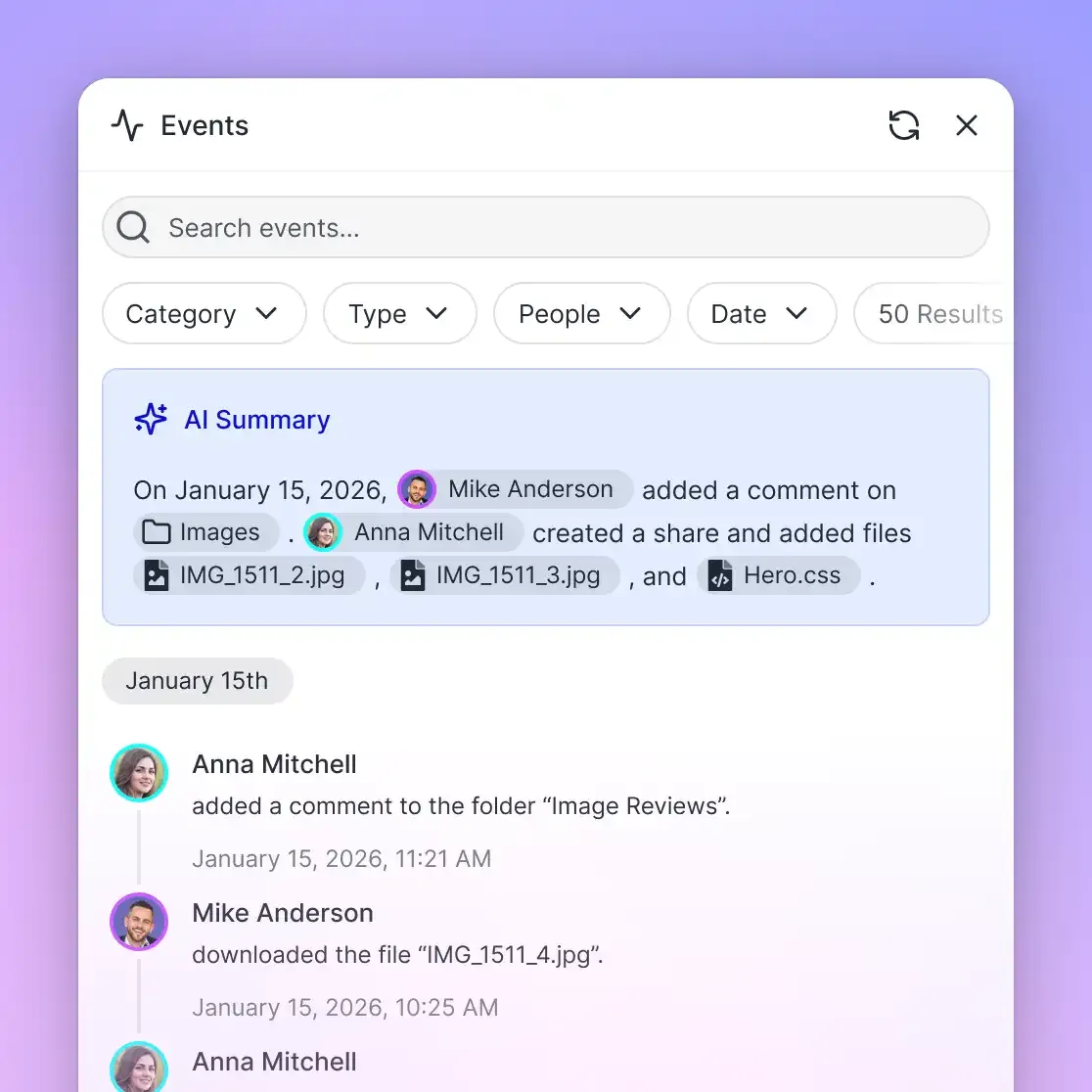
- Detailed activity log of changes: Fast.io records a detailed activity log tracking storage changes, including uploads, edits, moves, and deletions, alongside membership updates and share creation. The activity log tracks changes made by human members and AI agents, but does not track read-only actions like file views or downloads.
- Advisory file locks: To coordinate multi-step document writes, agents acquire advisory leases using MCP actions. An agent calls
storage_managewithlock-acquireto reserve a file, checkslock-statuson thestoragetool, and releases the lock withlock-releaseonstorage_manage. Because locks are advisory leases that expire unless heartbeated, concurrent writes both land safely in version history without blocking human collaborators.
Extracting Tabular Properties with Metadata Views
Beyond unstructured text retrieval, technical teams often need to parse structured records from large batches of cloud files. Metadata Views transform unstructured document collections into structured, queryable tables.
Users define extraction schemas using natural language descriptions. The extraction engine automatically creates typed schemas supporting Text, Integer, Decimal, Boolean, URL, JSON, and Date & Time data types. As files synchronize from Google Drive or OneDrive into the workspace, the engine processes PDFs, spreadsheets, presentations, and images, extracting targeted fields without requiring custom OCR rules or rigid document templates. Developers can query these structured records directly from Gemini CLI via MCP.
Commercial Plans and Getting Started
Fast.io operates on a subscription model for team organizations. Monthly plans start with a 14-day free trial that requires a credit card. Fast.io plans include Starter at $9.99/mo (3 seats, 250 GB storage, 5 workspaces, 100,000 credits monthly), Business at $49.99/mo (10 seats, 5 TB storage, 50 workspaces, 600,000 credits monthly), and Enterprise at $199.99/mo (30 seats included, expandable at $1 per additional seat up to 200, 25 TB storage, 200 workspaces, 3,000,000 credits monthly).
Credits meter AI work only, with overage billed at $10 per 100,000 credits. Storage beyond the plan is $0.015 per GB a month and extra bandwidth $0.04 per GB, billed in money.
Sources
References used to verify factual claims in this guide.
-
If you convert a text document to Google Docs format, it can be up to 50 MB.
Frequently Asked Questions
How do I configure the filesystem MCP server in Gemini CLI?
To configure the reference filesystem MCP server in Gemini CLI, open ~/.gemini/settings.json or your project's .gemini/settings.json file. Inside the mcpServers object, declare a server entry specifying npx as the command, followed by args containing -y, @modelcontextprotocol/server-filesystem, and the absolute local path to your allowed directory. Restart Gemini CLI and run /mcp list to verify discovered tools.
Can Gemini CLI access Google Drive or OneDrive files through filesystem MCP?
Gemini CLI cannot reliably read Google Drive or OneDrive files through local filesystem MCP when on-demand synchronization is active. Cloud sync desktop clients use reparse points and virtual file filters that leave unhydrated files as zero-byte stubs on local disk. Reading these stubs through stdio filesystem tools can return empty file buffers or cause process deadlocks. Connecting cloud storage to an indexed Fast.io workspace and querying via remote MCP provides reliable file access.
Why does Gemini CLI return errors when reading synced cloud storage folders?
Errors occur because local filesystem MCP servers rely on standard Node.js filesystem calls like fs.readFile. When an agent touches an unhydrated cloud placeholder, the operating system pauses the read thread to download the file over the network. This delay frequently triggers JSON-RPC timeouts and broken stdio pipes. In other cases, the filesystem returns an empty buffer, causing the model to misinterpret the file as blank.
How do I connect Gemini CLI to a remote MCP storage server?
To connect Gemini CLI to a remote MCP storage server like Fast.io, add an entry under mcpServers in settings.json using the httpUrl property set to `https://mcp.fast.io/mcp/code`. Using httpUrl ensures Gemini CLI uses Streamable HTTP instead of legacy SSE. After saving, run /mcp auth fast-io inside Gemini CLI to complete the browser OAuth sign-in and authorize workspace permissions.
Does Fast.io sync with Google Drive?
Yes. Cloud Sync connects Google Drive, Dropbox, Box and OneDrive folders to a workspace, one-way or two-way, on a schedule or on demand. SharePoint document libraries can also connect through the OneDrive connector. Files synchronize directly across cloud infrastructure without passing through developer workstations or consuming local disk space.
What tools are available on the Fast.io coding MCP endpoint?
The `https://mcp.fast.io/mcp/code` endpoint provides a consolidated toolset for coding agents, including search for hybrid semantic queries, execute for read-only inspection operations, execute_manage for write and update actions, upload and upload_manage for transferring assets, auth and auth_manage for session verification, and how-to for usage documentation.
Related Resources

Connect Gemini CLI to your team cloud storage
Give Gemini CLI fast access to indexed documents across Google Drive, OneDrive, and Dropbox through remote MCP. Monthly plans start with a 14-day free trial.