How to Build a Canva Agency Collaboration Workflow
Canva agency collaboration workflow simplifies design reviews for remote teams. Agencies use Canva Teams for real-time editing, brand kits, and shared templates to get creative work done faster. This guide outlines setup steps, best practices, and workflow processes. It also covers limitations like client portal integrations and how tools like Fastio fill those gaps.

What Is Canva Agency Collaboration?
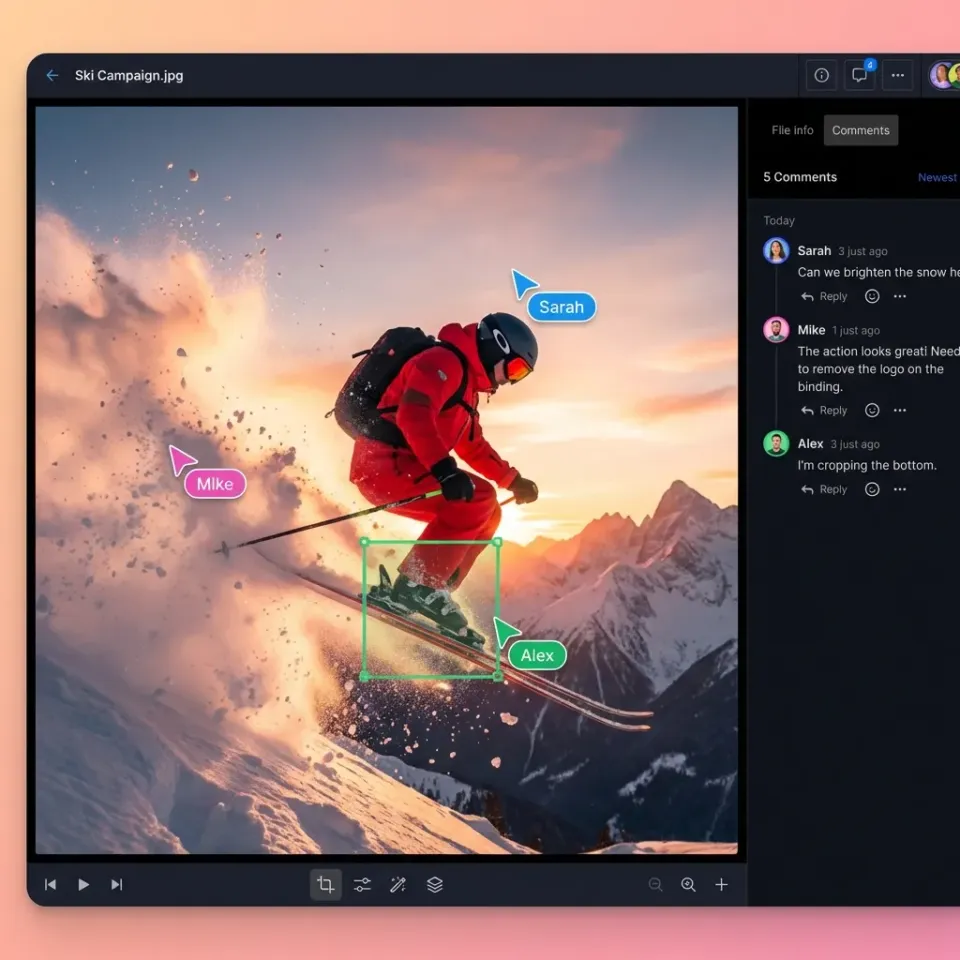
Canva agency collaboration workflow uses Canva's Teams features to manage design projects across agency members and clients. Core elements include shared folders, real-time editing, threaded comments, and approval workflows.
Teams start with brand kits to enforce consistency across all designs. Designers create reusable templates that team members duplicate and customize. Clients receive view-only or commenter links for feedback without editing capabilities. The system supports role-based access at both folder and individual file levels, giving agencies granular control over who can view, comment, or edit.
This approach reduces email chains and version confusion. For example, a social media agency can maintain a single folder for each client's campaign, where designers iterate on posts while account managers collect client notes. According to a Forrester TEI study commissioned by Canva, organizations using Canva Enterprise achieve 414% ROI over three years, including $2.2 million in agency cost savings and a 300% increase in marketer productivity. Visual content specifically shows 74% faster memory recall compared to text-heavy communications, making the collaborative design process more effective for client presentations and marketing materials.
One constraint is that client feedback links often expire or require Canva accounts, limiting seamless external collaboration. Agencies frequently report challenges with long-term client reviews where stakeholders need ongoing access to past campaigns without creating new accounts. Fastio addresses this with persistent, branded portals that maintain access without requiring external users to sign up.
Beyond basic collaboration, Canva offers integrations with popular tools. The Canva Apps Marketplace extends functionality with automation tools, allowing agencies to customize their workflow to match specific operational needs.
Helpful references: Fastio Workspaces, Fastio Collaboration.
Related guides
- How to Build a Content Production Workflow That ScalesMost content workflow guides stay abstract. This one walks through the actual steps to build a repeatable production...
- How to Set Up Remote InDesign Collaboration for TeamsInDesign collaboration remote lets design teams review layouts from anywhere without chasing file versions through...
- How to Do Concept Art Review CollaborationConcept art review collaboration refers to the structured process of sharing visual concepts for iterative feedback in...
- 7 Best Logo Design Client Feedback Tools for 2026A logo design client feedback tool helps designers share drafts and collect specific client input to cut down revision...
- How to Set Up a Content Marketing Platform for Your TeamA content marketing platform is an integrated workspace where teams create, store, collaborate on, and distribute...
- How to Manage Marketing Campaigns with the Right Software StackMarketing campaign management software helps teams plan, execute, and measure campaigns by coordinating tasks, assets,...
More on this subject: Creative and Marketing Teams (27 guides)
Setting Up Canva Teams for Your Agency
Setting up Canva Teams for your agency is straightforward, but strategic planning prevents scaling headaches later.
Step 1: Choose the Right Plan Start with Canva Teams for basic collaboration or Enterprise for SSO, advanced admin tools, and higher limits. Enterprise is ideal for agencies managing multiple clients with sensitive data. The Enterprise tier includes priority support, custom brand controls, and advanced analytics that agencies handling 10+ concurrent projects typically need.
Step 2: Admin Setup and Invites The admin dashboard allows inviting members by email. Assign roles strategically: Admin (full control and billing), Template Creator (manages brand assets), Editor (creates and modifies designs), Reviewer (provides feedback), Viewer (observe only). For client collaboration, use the "guest" designation which limits access to specific folders without exposing your full team structure.
Step 3: Build Brand Kit Upload logos in multiple formats (PNG for transparency, SVG for scalability), define colors using exact HEX codes for digital and CMYK values for print, add fonts with proper licensing documentation. This kit applies automatically to new designs, ensuring consistency across pitches, social media, and advertising. Canva's brand kit centralizes these assets so updates propagate instantly across all templates.
Step 4: Folder Structure Create a hierarchy that supports both organization and access control. Top-level folders include 'Clients', 'Templates', 'Internal'. Under Clients, create subfolders organized by project phase: 'Briefs', 'Mood Boards', 'Drafts', 'Finals', 'Exports'. This structure lets team members find assets quickly while maintaining clear project boundaries.
Step 5: Enable Controls and Integrations Turn on Brand Controls to restrict users to approved palette colors and elements. Set up approval workflows that require senior designer sign-off before client delivery. Connect Slack or Microsoft Teams for @mentions and comment alerts, ensuring nothing falls through the cracks during fast-moving projects.
Step 6: Pilot Test Run a test project with multiple team members across different roles to refine permissions and folder structures. Document what works and create internal playbooks before rolling out agency-wide. This pilot phase typically reveals 2-3 workflow adjustments needed before full deployment.
This setup prepares your agency for smooth, scalable design production. The key is thinking ahead about client handoffs and permission changes that happen throughout project lifecycles.
Role Assignments
Assign admin for oversight, template creators for assets, and reviewers for approvals. Clients stay as guests with comment access. Consider creating a "Senior Designer" role that has approval authority for final deliverables, distinguishing from standard editors who can create but not finalize.
Core Steps in a Canva Agency Workflow
The core Canva agency collaboration workflow follows these six steps. Each leverages specific features to minimize friction and accelerate delivery.
Brief and Planning: Start projects on Canva Whiteboards for visual brainstorming of mood boards and concepts. Account leads create Canva Docs with detailed project goals, target audience insights, key assets needed, and deadlines. Embed reference images, videos, and competitor examples for context. This step ensures alignment before design begins, reducing major revisions later.
Template Creation: Senior designers build reusable templates in the Brand Folder. Integrate Magic Studio AI for quick iterations like auto-resize, background removal, or text generation. Lock brand elements such as logos and colors to prevent deviations. Templates serve as starting points for all deliverables, saving hours per project.
Design Assignment: Use @mentions in comments or built-in tasks to assign work. Designers duplicate templates, customize with client data, and update progress status. Integrate with Slack or Microsoft Teams for instant notifications, keeping project managers informed without app-switching.
Internal Review: Schedule live editing sessions where multiple designers work simultaneously. Use Follow mode to shadow the lead designer. Add threaded comments with @mentions for targeted feedback. Resolve issues in real-time, and use version history to revert if needed. This collaborative review cuts internal iterations.
Client Feedback: Share secure folder links with 'Commenter' access. Clients annotate directly on designs without editing power. Implement approval stages like Draft > Internal Approve > Client Review > Final Approved. Automated notifications ensure prompt responses, streamlining the feedback loop.
Finalize and Export: Upon final approval, use Magic Resize to generate all required formats (Instagram square, LinkedIn banner, email header). Create export packs including PDFs, source files, and activity logs. Archive to a completed folder for easy reference.
This structured workflow minimizes emails and version chaos. A Forrester study shows significant productivity gains for Canva users. Track performance with Canva's activity history, custom reports, and integrated analytics to continuously improve.


Improve Agency Client Reviews
Use Fastio branded portals for secure asset delivery and client feedback. No accounts needed for clients, with full audit logs. Built for Canva agency collaboration workflows.
Best Practices for Sharing and Permissions
Effective sharing and permissions prevent leaks and maintain control while keeping projects moving efficiently.
Folder Permissions Apply permissions at the folder level rather than individual files. Team folders should grant 'Editor' access so designers can work freely. Client-facing folders should use 'Commenter' or 'Viewer' roles, limiting external users to feedback without accidentally exposing edit capabilities. This scaled approach reduces management overhead as projects grow.
Secure Sharing Always password-protect client links for sensitive campaigns and set expiration dates appropriate to the project timeline. A 30-day expiration works well for campaign reviews, while shorter 7-day windows suit quick approvals. Avoid 'Anyone with the link' settings for pitches or confidential client work—these create security blind spots.
Approval Workflows In Enterprise plans, define multi-stage approvals: Submit > Internal Review > Client Approve > Final Publish. Assign specific approvers for each stage, ensuring nothing moves forward without appropriate sign-off. This structure prevents the common agency problem of designs advancing before they're ready.
Access Audits Conduct monthly reviews of member lists and folder shares. Remove access for departed team members within 24 hours. Archive completed projects to a separate 'Archive' folder with viewer-only access, preserving historical work while reducing active workspace clutter. Use this audit to identify stale client folders that should be archived.
Integration with Project Management Use Canva's activity log to track changes and downloads, then cross-reference with agency PM tools like Asana or Monday.com for task synchronization. When a design moves to client review, automatically create a task for the account manager to follow up within 48 hours. This prevents work from stalling in review limbo.
Pro Tip: For high-value clients, implement a dedicated "Client Portal" folder structure where only approved assets appear. This controlled view prevents clients from accessing work-in-progress drafts that might confuse them or create misunderstandings about project direction.
These practices cut errors and build client trust with strong security. The goal is making collaboration easy for authorized users while keeping unauthorized access mathematically impossible.
Advanced Canva Features for Agencies
Canva's advanced features boost agency workflows significantly when teams understand how to leverage them effectively.
Magic Studio AI Tools Use AI for Magic Resize to instantly adapt a single design across Instagram, LinkedIn, Facebook, and Twitter formats—tasks that previously took 20+ minutes per platform. Background Remover handles product photography quickly, while Magic Write generates copy variations for headlines and calls-to-action. These tools typically reduce repetitive production tasks significantly.
Implementation Constraint: AI tools work best for initial drafts and variations. Complex branded designs still require senior designer oversight to maintain quality standards. Agencies should establish internal guidelines for when AI assists versus when human polish is required. These tools typically reduce repetitive production tasks significantly, according to agency reports.
Multimedia Docs and Whiteboards Canva Docs replace scattered Google Docs and attachment chains by keeping briefs, embedded designs, and videos in one place. Whiteboards support infinite ideation sessions with sticky notes, shapes, and real-time collaboration—useful for strategy sessions and campaign brainstorms. A practical example: start client kickoff meetings on Whiteboard to visually map campaign concepts before committing to specific designs.
Presentations and Videos Build pitch decks with presenter notes, animations, and transitions that impress clients. Video editing includes timeline controls, stock audio library access, and auto-captions for social media accessibility. Video content with captions shows improved engagement in scroll-heavy feeds.
Brand Hub Templates with locked elements ensure on-brand output regardless of which team member creates the design. Folders group assets by type—social media, email marketing, print collateral—so designers find appropriate starting points quickly. This organization reduces "where do I start?" delays that plague agencies managing multiple concurrent client accounts.
For agencies, these tools cut creation time while maintaining quality. Combine with integrations like Google Workspace for smooth day-to-day work. The key is establishing standard procedures for each feature so the entire team benefits from time savings, not just early adopters.
Canva Limitations and Fastio Complements
Canva excels at creation and internal collaboration, but agencies often hit limits in client delivery and advanced file handling.
Common Canva Gaps for Agencies
- Client shares typically require Canva sign-up or expire after short periods, disrupting long-term reviews.
- No custom-branded portals; clients are exposed to Canva's UI, diluting agency branding.
- Limited native support for professional formats like PSD, AI, RAW files—previews are basic or absent.
- Analytics focus on activity, lacking detailed client engagement metrics like time spent or scroll depth.
- Video reviews lack frame-accurate feedback, common in creative agencies.
Fastio as the Perfect Complement for Creative Agencies Fastio provides intelligent workspaces with branded data rooms designed for creative workflows. Clients access secure links without accounts, viewing files in a customized portal matching your agency's brand.
Key features from Fastio's creative toolkit:
- Branded Portals: Upload your logo, set colors, and restrict to your domain for professional client experiences.
- Universal Media Engine: Instant browser previews for PSD, AI, INDD, RAW, CAD, and videos—no software needed. HLS streaming loads 50-60% faster than progressive download.
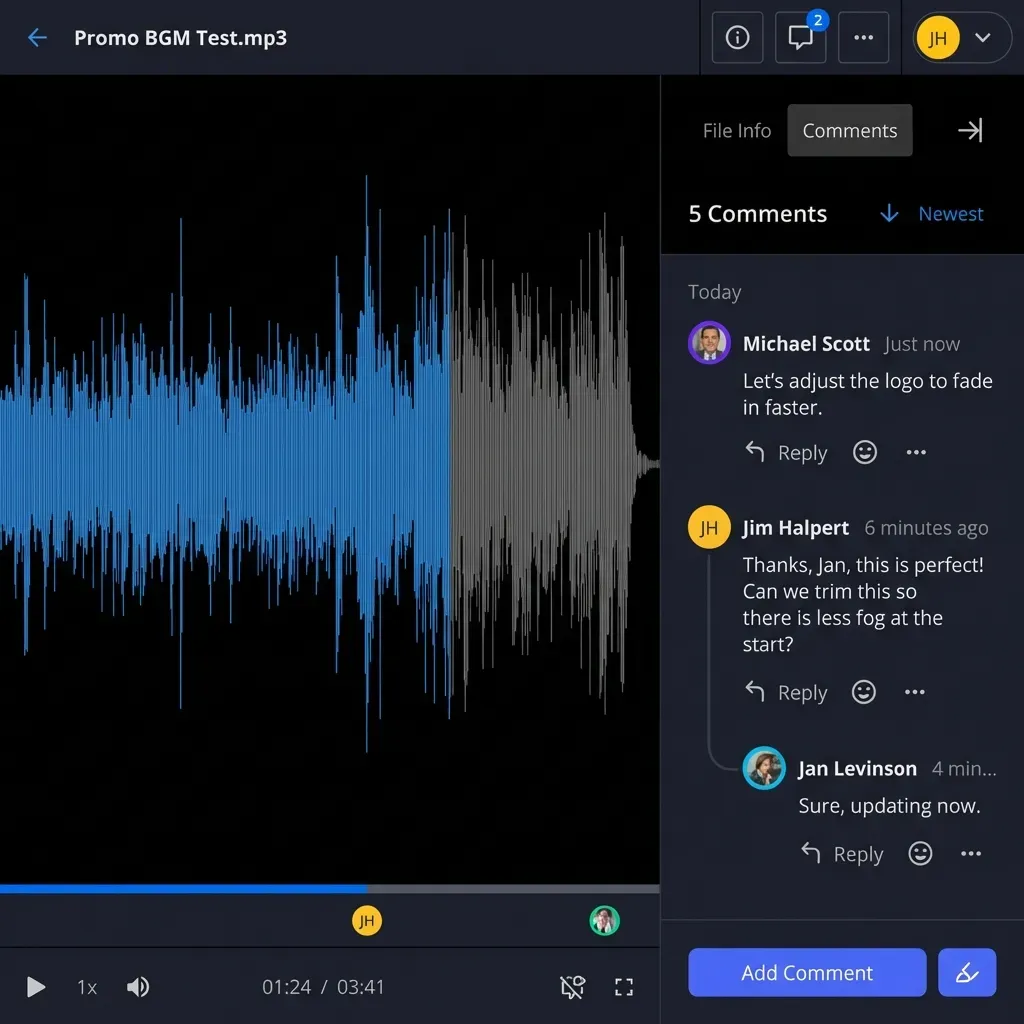
- Frame-Accurate Comments: Pin precise feedback to video frames, image regions, or document pages for exact revisions.
- Full Audit Logs: Track every view, download, comment, and session duration for compliance and insights.
- Granular Permissions: Passwords, expirations, view-only modes, and organization-wide controls.
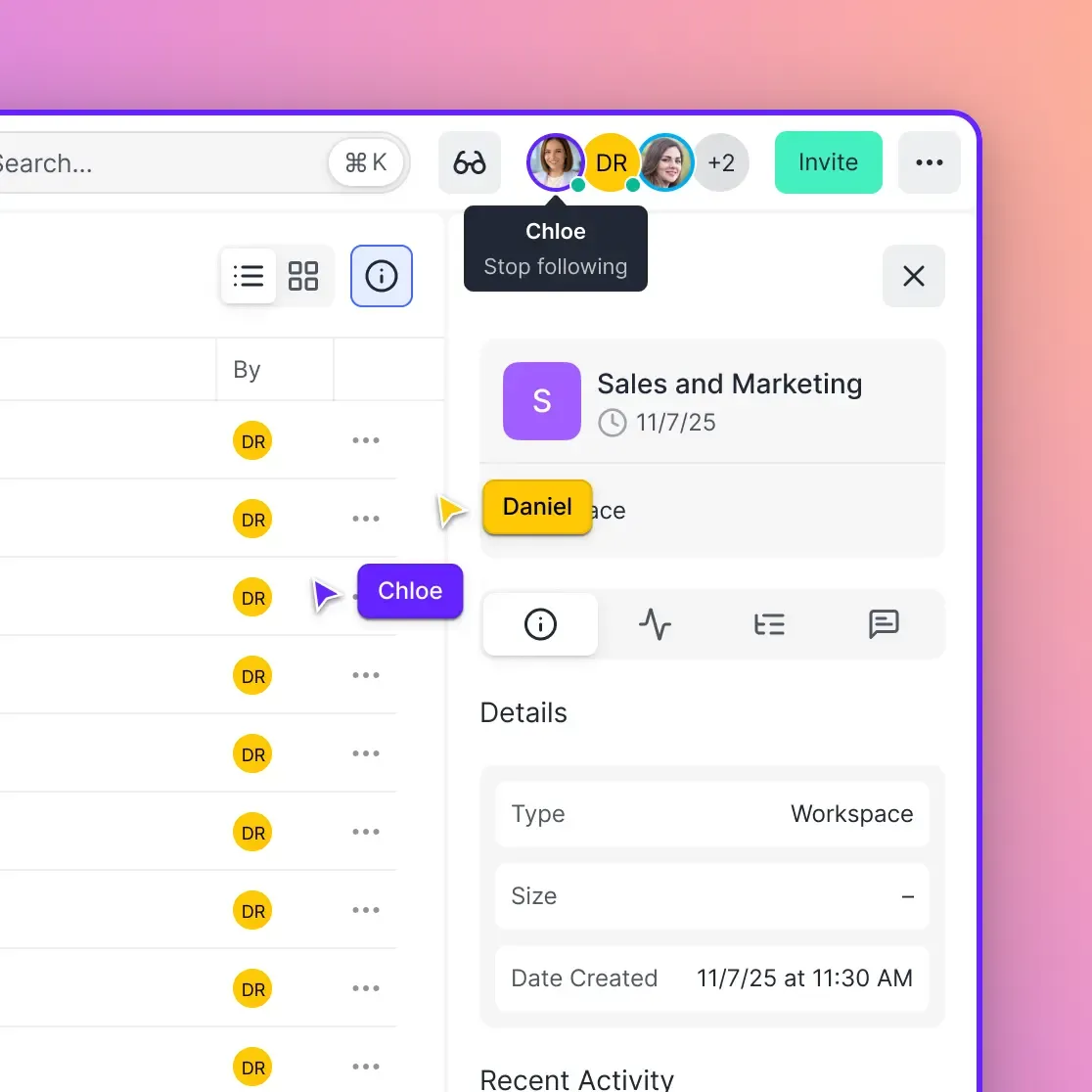
- Real-Time Presence: See clients viewing files live, with follow mode for guided reviews.
Detailed Hybrid Workflow Example
- Create and export designs from Canva (PNG, MP4, PDF).
- Upload originals to a Fastio workspace organized by client/project.
- Generate a branded data room link and share with client—no signup required.
- Client provides frame-anchored feedback; agency gets notifications.
- Revise in Canva using precise notes, re-upload updated versions.
- Client approves finals; download packs with full logs for records.
This integration closes Canva's gaps, enabling pro-level delivery. Creative agencies using Fastio report fewer revision cycles and higher client satisfaction due to professional presentation and analytics.
Measuring ROI and Tracking Performance
Agencies need quantifiable metrics to justify tool investments and optimize workflows. Canva provides several built-in analytics options plus integration with external tracking.
Canva Analytics Overview Canva's analytics show design views, downloads, and engagement metrics for shared designs. Enterprise plans unlock custom reporting with team-level breakdowns. These metrics help account managers understand which client presentations resonate and which need follow-up.
Activity Logging Every edit, comment, and access event logs with timestamps. Use this audit trail to resolve disputes about version history and demonstrate agency responsiveness to clients. When a client asks "when was this changed?", the exact answer takes seconds to retrieve.
Integration with Agency Dashboards Connect Canva data to agency business intelligence tools via Zapier or API. Track metrics like designs-per-client, revision counts, and time-to-approval. These numbers feed into quarterly business reviews and help identify workflow bottlenecks.
Practical Metrics to Track Focus on four key performance indicators: average revision cycles per project (target: under 3), time from brief to first draft (target: under 48 hours), client approval rate by project type, and designer utilization across client accounts. Benchmark these monthly and share improvements in team retrospectives.
Outcome Example One agency tracked revision cycles after implementing structured approval workflows and reduced average revisions significantly. This translated to substantial time savings per client account monthly. These efficiency gains compound across larger client portfolios.
Regular performance measurement transforms collaboration from an abstract improvement into demonstrable business value that justifies tool investments and informs future workflow decisions.

Sources
References used to verify factual claims in this guide.
-
Canva's brand kits centralize logos, fonts, and icons for easy access and updates. Canva's real-time collaboration allows co-designing, feedback, and task assignment.
-
Organizations using Canva Enterprise achieved 414% ROI, $7.5M total benefits, 300% increase in marketer productivity, and $2.2M agency cost savings over three years.
-
74% faster memory recall with creative assets over dull ones.
-
HLS streaming delivers content 50-60% faster than progressive download.
Frequently Asked Questions
Canva collaboration for agencies?
Yes, Canva Teams enables agency collaboration through real-time editing, shared brand kits, and role-based access. Folders organize projects by client, with comments for feedback.
Best Canva agency workflow?
Optimal workflow: Plan on whiteboards, build templates in brand folder, assign via comments, review live, share for client input, finalize with resize/export. Track via activity logs.
How do agencies share Canva designs with clients?
Generate shareable links or folder invites with 'comment' or 'view' permissions. Add passwords, set expirations, and use approval stages for controlled access.
Does Canva have client approval workflows?
Canva offers basic comment-based approvals and roles, but lacks branded portals. Pair with Fastio data rooms for account-free client reviews and analytics.
What are Canva Teams storage limits?
Teams: large storage, Enterprise: Unlimited. Member limits scale; Enterprise supports SSO, custom controls, and priority support.
How to set up brand kits in Canva?
Admin uploads logos/colors/fonts in Brand Hub. Apply controls to restrict usage. Templates auto-pull from kit for consistency.
Can Canva works alongside agency tools?
Yes, connect Slack, Microsoft Teams, Google Workspace for notifications. Apps marketplace adds Zapier, Airtable for automation.
What's the difference between Canva Teams and Enterprise?
Teams for small-mid agencies (multiple), Enterprise for large (generous storage, SSO, advanced admin, multiple/multiple support).
Related Resources

Improve Agency Client Reviews
Use Fastio branded portals for secure asset delivery and client feedback. No accounts needed for clients, with full audit logs. Built for Canva agency collaboration workflows.