Video Editing Storage Solutions: Best Options for Editors
Video editing storage solutions are specialized systems designed to handle the massive bandwidth and file sizes required for modern video production. This guide compares NAS, SAN, cloud, and hybrid storage options to help editors choose the right setup for their workflow.

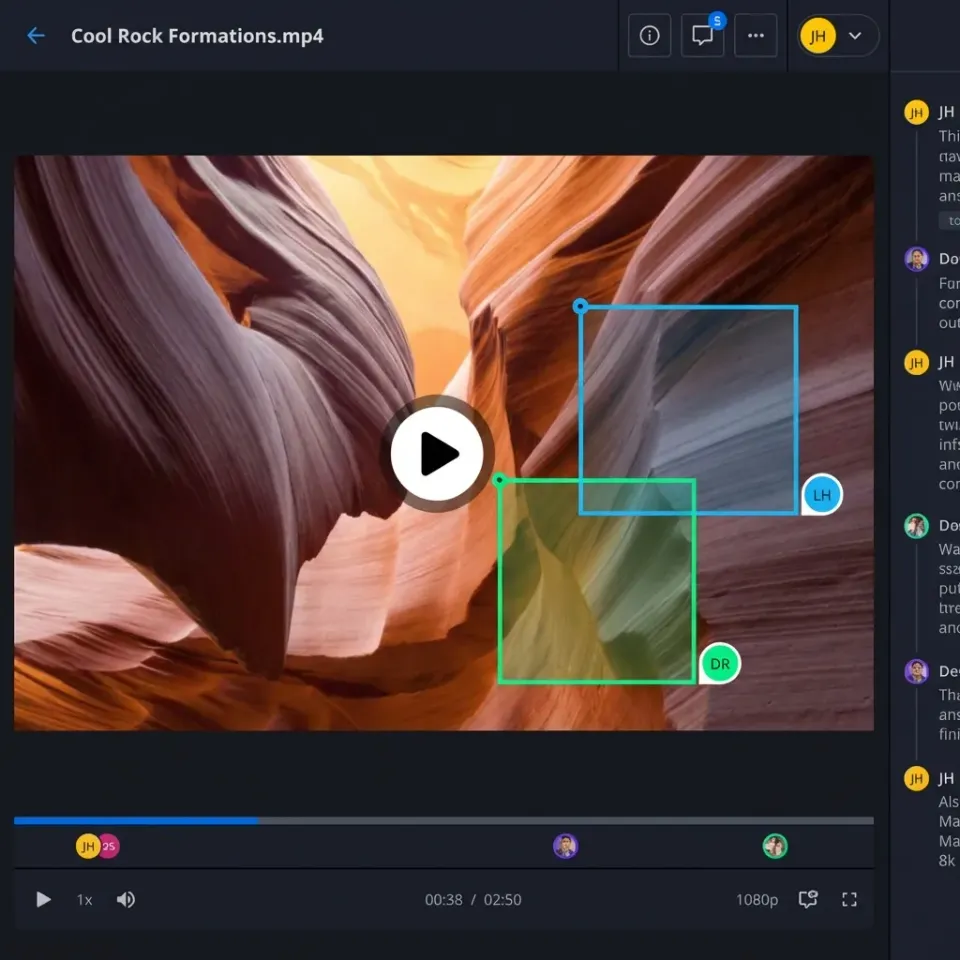
How to implement video editing storage solutions reliably
Video editing places extreme demands on storage systems. A single minute of 4K video requires 375-750MB of storage space, while 8K footage can reach 6GB per minute. According to industry standards, the average feature film generates several TB of raw footage before any editing begins. These numbers mean editors need storage that delivers on three fronts: capacity, speed, and reliability. Running out of space mid-project is one problem. Waiting for clips to buffer or losing work to drive failure creates much bigger headaches.
Modern video formats create specific challenges:
- ProRes 422 HQ (4K): 737MB per minute
- ProRes RAW (4K): 625MB per minute
- RED 8K (compressed): 300-600MB per minute
- Uncompressed 4K DPX: 2-4GB per minute
Your storage needs scale with resolution, bit depth, and codec choice. An hour of 1080p H.264 might fit in 10GB, but an hour of 4K ProRes 4444 XQ consumes over 300GB.
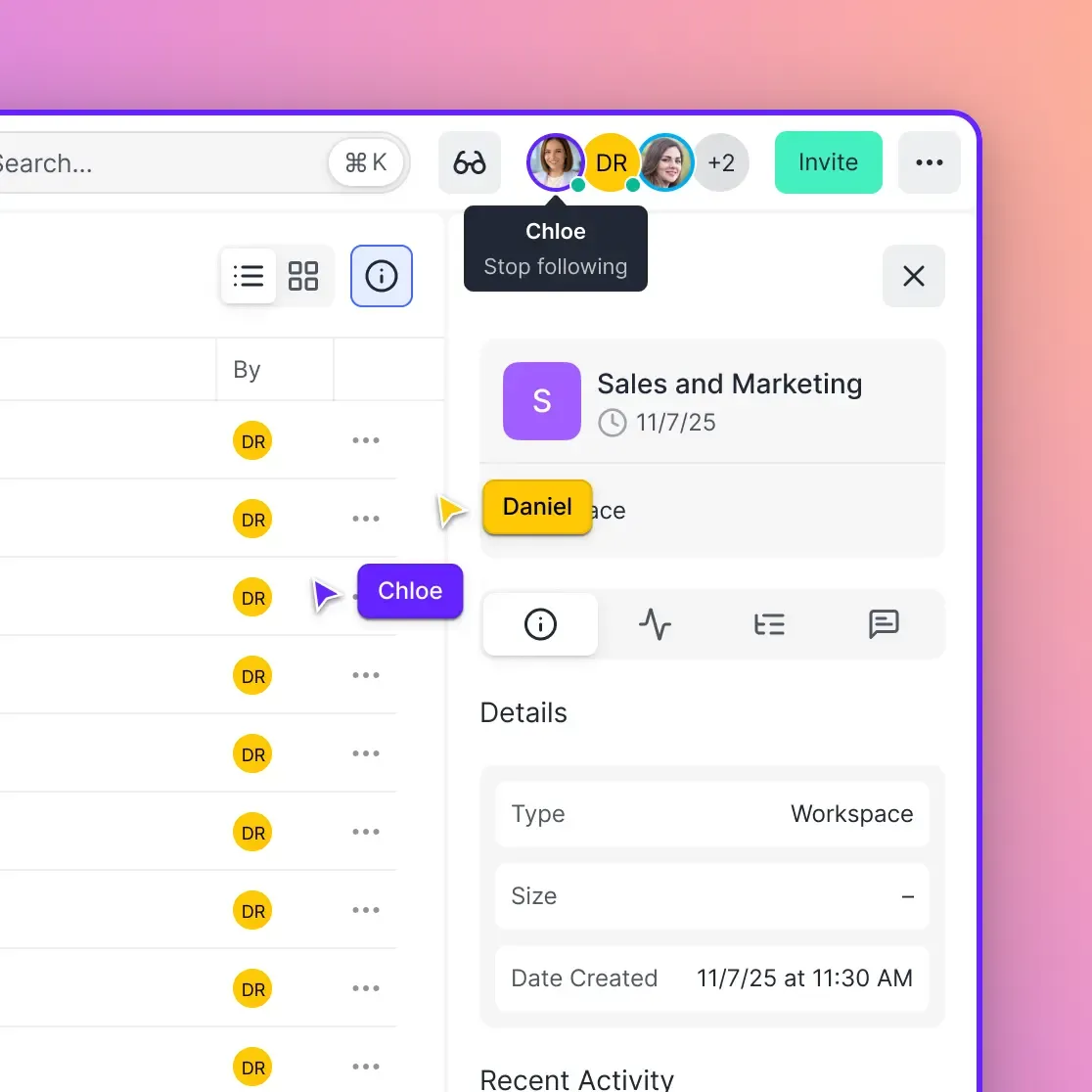
Helpful references: Fastio Workspaces, Fastio Collaboration, and Fastio AI.
Related guides
- Animation Pipeline: How Studios Manage and Share Animation AssetsAn animation pipeline is the structured workflow that animation studios use to move projects from concept through...
- How to Review and Share Film Dailies During ProductionManaging terabytes of raw footage daily is one of the biggest logistical challenges in film production.
- Building AI-Native Video Storage InfrastructureGuide to native video storage infrastructure: Traditional storage treats video as a playback stream. AI agents treat it...
- How to Build Branded Stakeholder Portals for Video Review and ApprovalStakeholder video approval portals are secure, white-labeled web environments where clients and executives can review...
- VFX Pipeline: File Management and Sharing GuideA VFX pipeline is the end-to-end workflow that visual effects studios use to manage assets, shots, and renders from...
- How to Share and Manage EXR Files in VFX WorkflowsEXR files are the standard for high-end visual effects, but sharing image sequences that total terabytes is a...
More on this subject: Video and Media Production (36 guides)
What to check before scaling video editing storage solutions
Local drives serve as your primary workspace. SSDs deliver the speed needed for smooth 4K playback and real-time effects, while HDDs offer affordable bulk storage for archiving finished projects.
Solid State Drives (SSD)
SSDs read and write at 500-7000MB/s, making them essential for active editing. NVMe drives over PCIe 4.0 or Thunderbolt 4 can handle multiple streams of 4K footage without stuttering.
Best for: Working files, current projects, render cache, preview files
Typical setup: 2TB internal NVMe for operating system and applications, 4TB external SSD for active project files
According to storage benchmarks, 4TB SSDs hit the sweet spot in 2026 at around $250, delivering 1,000MB/s sustained speeds with 600TBW endurance. Larger capacities carry premium pricing without proportional performance gains.
Hard Disk Drives (HDD)
HDDs cost less per terabyte but read at lower speeds. This speed works fine for 1080p editing or storing completed projects you're not actively accessing.
Best for: Archives, backups, proxy storage, finished renders
Typical setup: 8-16TB external HDD array for long-term project archives
Many editors use a tiered approach: work on fast SSDs, move finished projects to HDDs, and keep backups on a third set of drives stored separately.
Network Attached Storage (NAS) for Team Workflows
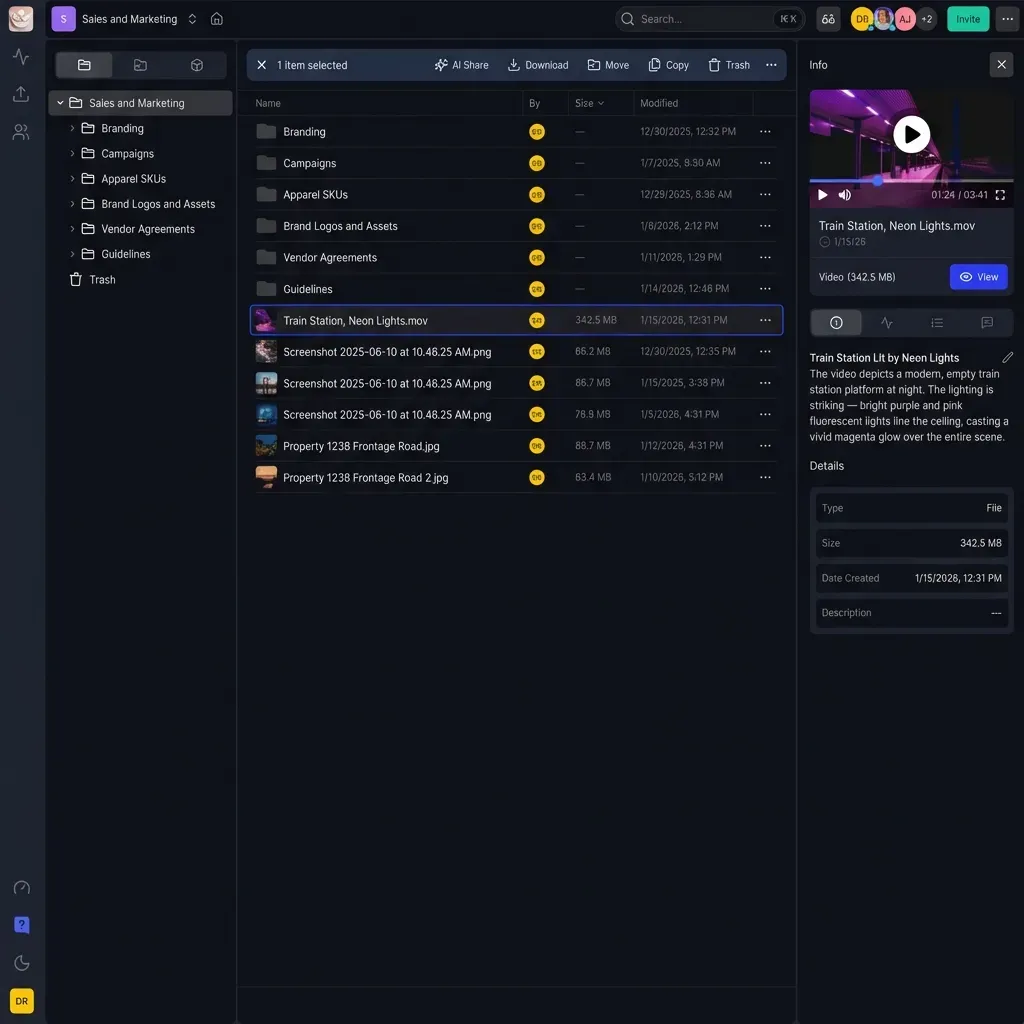
NAS systems allow multiple editors to access the same media library over a network. This shared storage model works well for production teams editing different sequences from the same source footage.
How NAS works for video editing:
A NAS box contains multiple drives configured in RAID arrays, connected to your network via Ethernet. Editors mount the NAS as a network drive and work with files as if they were local.
Performance depends on three factors:
- Network speed: 10 Gigabit Ethernet (10GbE) delivers 1,250MB/s theoretical maximum, sufficient for 2-3 simultaneous 4K streams
- Drive configuration: RAID 5 or RAID 6 balances speed with redundancy
- NAS processor: Hardware transcoding and caching improve playback performance
Pros
- Centralized media library accessible by entire team
- Built-in redundancy protects against drive failures
- Scales from 4TB to 100TB+ with drive upgrades
- Lower cost per terabyte than cloud storage
Cons
- Requires networking expertise to configure properly
- Network congestion can cause playback issues
- Limited to office or studio location
- Upfront hardware costs range from hundreds to several thousand dollars
Storage Area Networks (SAN) for High-End Production
SAN systems deliver the highest performance for video post-production, using fiber channel or high-speed Ethernet to connect storage directly to editing workstations. Major studios and post-production facilities rely on SANs to enable 8K workflows and real-time collaborative editing.
What makes SAN different from NAS:
SANs provide block-level storage access, allowing workstations to interact with shared drives as if they were local volumes. This architecture eliminates the file system overhead that slows NAS performance.
Performance characteristics:
- 16-32Gbps Fiber Channel connections
- 5,000-10,000MB/s sustained throughput
- Sub-millisecond latency
- Supports 10+ simultaneous 8K editing streams
When to choose SAN
SANs make sense when you're working with uncompressed or minimally compressed formats, handling ultra-high resolution projects, or need multiple editors working in the same timeline simultaneously. The cost and complexity only justify themselves at enterprise scale.
Budget considerations: Entry-level SAN configurations start in the tens of thousands and scale into six figures. You also need fiber channel adapters for each workstation ($500-1,500 per editor).
Cloud Storage for Remote Video Editing
Cloud storage solutions let editors access project files from anywhere, collaborate with remote teams, and scale storage capacity on demand. However, most cloud platforms weren't built for the specific demands of video production.
The cloud storage challenge for video:
Google Drive, Dropbox, and OneDrive use sync-based models that download files to local storage before you can edit them. A single 100GB project folder takes hours to sync, and any changes trigger re-uploads that consume bandwidth and time.
Cloud-native video collaboration
Modern video-focused cloud platforms stream media directly to editing software without local sync. This approach delivers three key advantages:
Instant access: Editors preview and work with footage immediately without waiting for downloads. Adaptive streaming loads only the portions of files actively being viewed.
Version control: Cloud platforms automatically track file versions, allowing editors to roll back to previous renders or compare different cuts side-by-side.
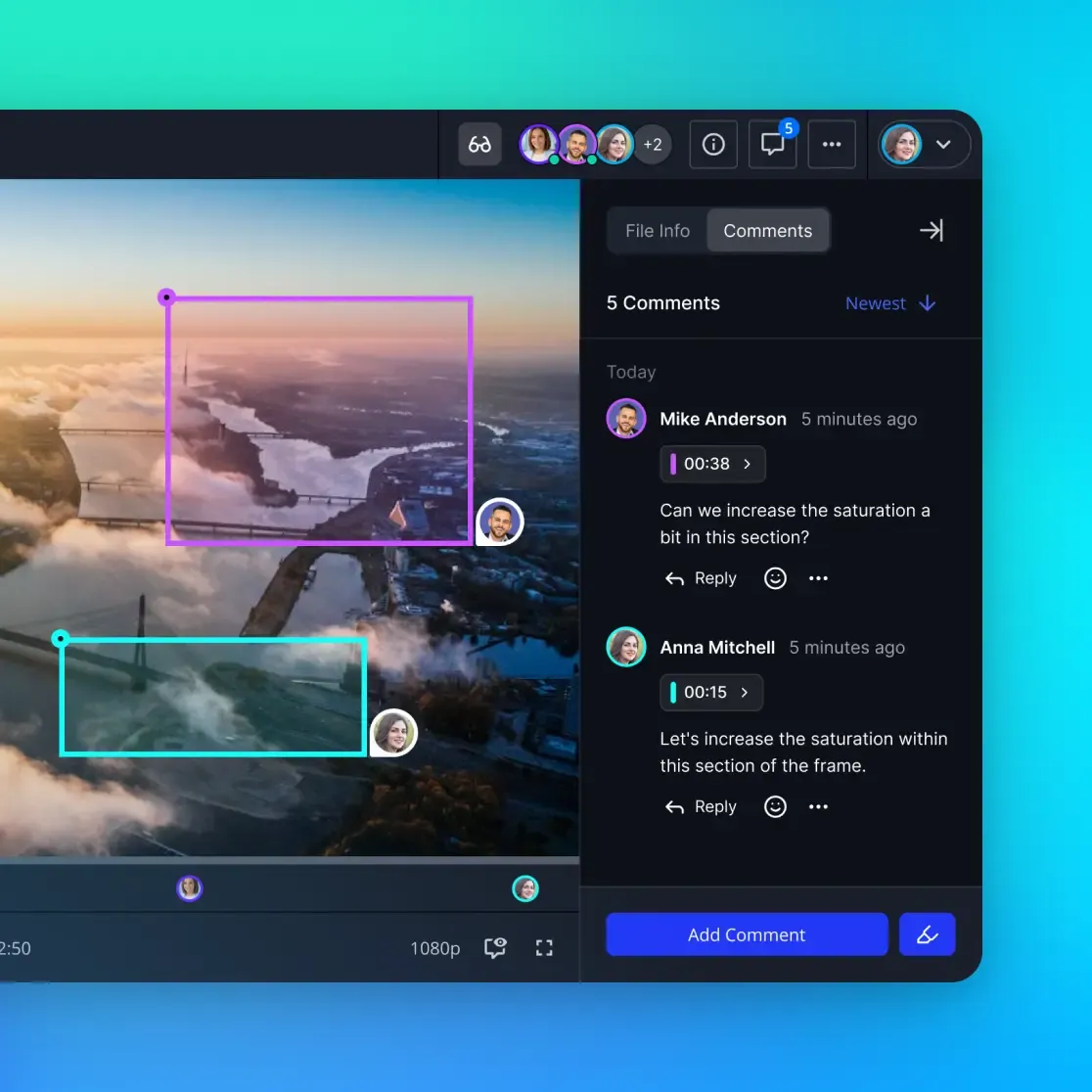
Distributed collaboration: Producers in Los Angeles review footage shot in New York while editors in London assemble sequences, all accessing the same source files in real-time. Fastio uses HLS streaming instead of progressive downloads. The platform transcodes uploaded video into adaptive bitrate HLS streams, up to 4K HEVC, enabling smooth scrubbing and frame-accurate review in any browser.
Remote workflow considerations
Bandwidth requirements: Uploading a 100GB shoot over a 100Mbps connection takes approximately 2 hours. Fastio's chunked upload API lets agents and automated workflows resume interrupted transfers.
Proxy workflows: Smart editors upload camera originals to cloud storage, generate optimized proxies for editing, then conform final renders to the high-resolution masters. This approach minimizes bandwidth while maintaining quality.
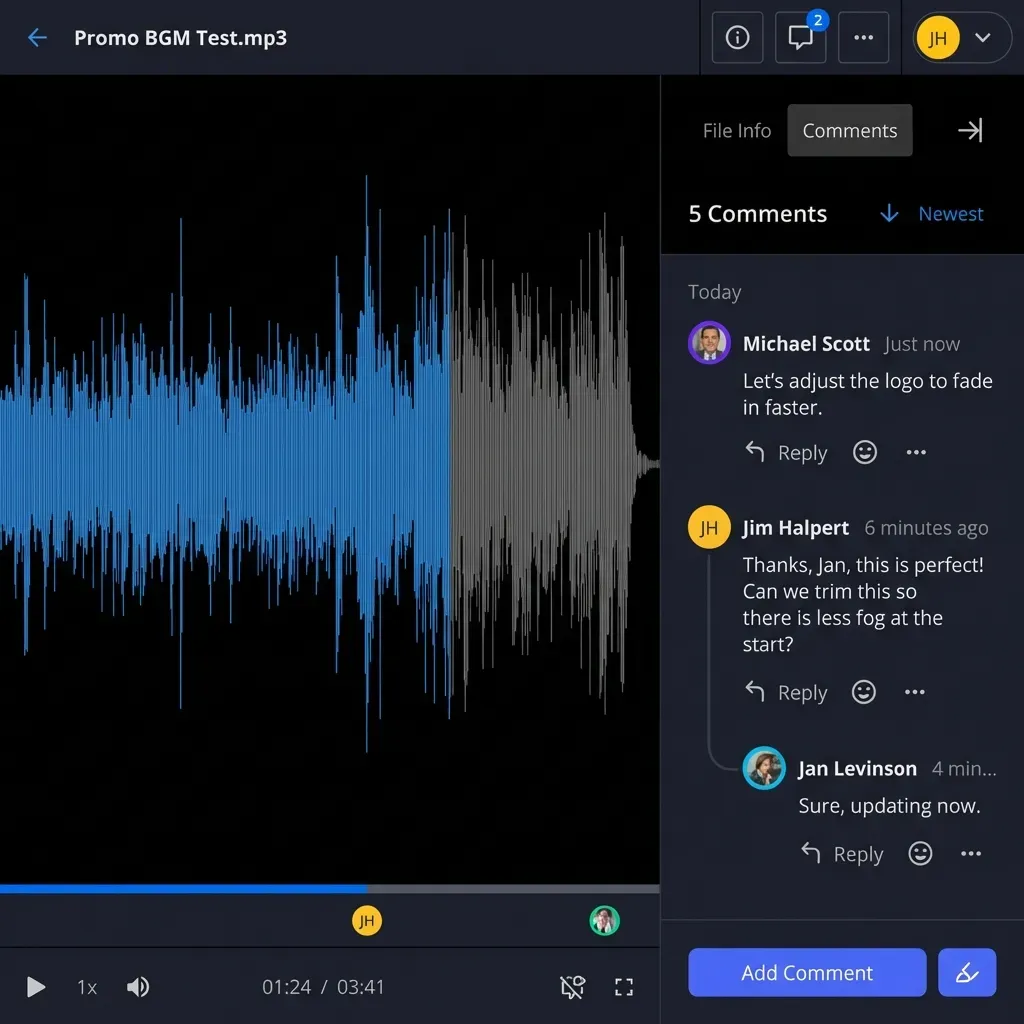
Client review: Cloud platforms excel at sharing cuts for feedback. Fastio's frame-accurate commenting allows directors and producers to annotate specific video timestamps, eliminating vague email feedback.


Start with video editing storage solutions on Fastio
Fastio delivers HLS streaming, frame-accurate collaboration tools, and storage from 250 GB to 25 TB that scales with your production needs. No sync, no waiting, seats included.
Hybrid Storage: Combining Local and Cloud
Hybrid setups use local storage for active editing and cloud storage for distribution, archiving, and collaboration. This approach balances the speed of local drives with the accessibility of cloud platforms.
Common hybrid configurations:
Edit locally, deliver via cloud: Work on NVMe SSDs for maximum performance, then upload finished renders to cloud storage for client review and distribution
Cloud library, local cache: Store your complete media library in the cloud but maintain a local cache of current project files on fast SSDs
Multi-site production: Each location has local NAS for daily editing, syncing finished sequences to centralized cloud storage overnight
Hybrid workflow example
A documentary team shoots on location with local SSDs, uploads daily footage to cloud storage for backup, returns to the studio to edit from a local NAS, and shares rough cuts via cloud links for producer feedback. The final grade and render happens on studio workstations, with delivery copies distributed from cloud storage to broadcasters and streaming platforms. This workflow protects against local drive failures, enables remote collaboration without sacrificing editing performance, and creates an automatic archive of all project materials.
Choosing the Right Storage for Your Projects
Your ideal storage solution depends on resolution, team size, and collaboration needs. Here's how to match storage to common scenarios:
Solo editor, 1080p projects
Setup: 2TB internal SSD + 8TB external HDD backup
Cost: Approximately $400
Rationale: Local SSD provides ample speed for full HD editing. HDD archives completed projects and serves as Time Machine backup target.
Small team (2-4 editors), 4K projects
Setup: Individual 2TB NVMe working drives + 10GbE NAS with 20TB usable storage (RAID 6)
Cost: $2,500-4,000 (NAS + drives + network switches)
Rationale: Editors work from local SSDs for best performance, pulling source media from shared NAS. Finished sequences render back to NAS for team access.
Remote team, 4K/6K projects
Setup: Individual 4TB SSDs for active projects + cloud storage with HLS streaming
Cost: $60-200/month cloud fees + $300 per editor for local SSD
Rationale: Cloud platform eliminates need for shared infrastructure. Team members work globally with Fastio or similar services handling media distribution and review.
High-end facility, 8K/uncompressed
Setup: SAN with 100TB+ raw capacity, 16Gbps Fiber Channel, redundant controllers
Cost: $40,000-150,000+
Rationale: Only SAN delivers the sustained throughput needed for uncompressed ultra-high-res or multiple simultaneous grading sessions. Mission-critical productions require redundancy that enterprise SAN provides.
Storage Performance Optimization Tips
Even with fast storage, editors can encounter bottlenecks. These optimizations improve playback and render performance regardless of your storage type:
Use optimized media and proxies: Premiere Pro, DaVinci Resolve, and Final Cut Pro all generate lower-resolution proxy files for editing. Working with 1920x1080 H.264 proxies instead of 4K ProRes originals dramatically reduces storage bandwidth requirements.
Separate media, cache, and projects: Store source footage on one drive, render cache and preview files on a second drive, and project files on a third. This distribution prevents any single drive from becoming a bottleneck.
Monitor RAID health: NAS and SAN arrays mask drive failures until redundancy is exhausted. Check RAID status weekly and replace failing drives immediately before a second failure causes data loss.
Archive aggressively: Completed projects sitting on fast storage waste expensive capacity. Move finished work to archival HDDs shortly after project delivery. Keep only active projects on premium SSD or SAN volumes.
Test before buying: Before investing in NAS or cloud solutions, run a pilot project. Upload typical footage and test actual editing performance with your software and workflow. Specs tell part of the story, but real-world testing shows how systems actually perform in production.
The Future of Video Storage
Storage technology continues evolving to meet growing demands from high-resolution workflows, virtual production, and AI-assisted editing.
PCIe 5.0 SSDs arriving in late 2026 will deliver 14,000MB/s sequential speeds, enabling uncompressed 8K playback from a single drive. However, most editing software and hardware won't fully use these speeds for several more years.
Cloud storage bandwidth keeps improving. Major cloud providers now offer dedicated connections for enterprise customers, with speeds from 100Gbps to 400Gbps. These connections make cloud-based workflows viable even for high-end theatrical production.
AI-powered storage management is emerging to automatically tier media between fast and slow storage based on access patterns, generate proxies on upload, and predict which assets editors will need next. Storage is moving from individual ownership to shared resources, from on-premise hardware to hybrid cloud systems, and from manual management to intelligent automation. Editors adapting to these changes work faster and collaborate better than those sticking with legacy setups.
Sources
References used to verify factual claims in this guide.
-
hour of H.264 might fit in 10GB hour of 4K ProRes 4444 XQ consumes over 300GB
-
SSDs read and write at 500-7000MB/s essential for smooth 4K playback real-time effects active editing
-
NVMe drives over PCIe 4.0 or Thunderbolt 4 handle multiple streams of 4K footage without stuttering
-
4TB SSDs hit sweet spot in 2026 around $250 delivering 1000MB/s sustained speeds 600TBW endurance
-
fiber channel adapters for each workstation $500-1500 per editor
-
single 100GB project folder takes hours to sync changes trigger re-uploads consume bandwidth time
-
Uploading 100GB shoot over 100Mbps connection takes approximately 2 hours
-
PCIe 5.0 SSDs arriving late 2026 deliver 14000MB/s sequential speeds uncompressed 8K playback single drive
-
Budget 500GB per hour 4K ProRes footage 100GB per hour 1080p H.264 3-6GB per minute 8K workflows 2TB fast SSD storage 8-12TB archival HDD capacity
-
4K editing requires sustained read speeds at least 400MB/s single-stream playback 1000MB/s faster multi-cam effects-heavy timelines fast storage speed requirements for 4K editing NVMe SSDs
-
Professional colorists SAN systems Fiber Channel connectivity 5000-10000MB/s sustained throughput real-time 6K-8K playback
-
Teams sharing storage should use RAID 5 or RAID 6 prevent single drive failure halting production
-
Proxy workflows using lower-resolution files reduce storage and bandwidth requirements compared to high-resolution camera originals 4K editing workflows require high-speed storage to handle multiple streams of high-resolution media without performance issues
-
edit 4K video from cloud storage
Frequently Asked Questions
How much storage do I need for video editing?
Storage needs depend on your video format and project length. Budget 500GB per hour of 4K ProRes footage, 100GB per hour of 1080p H.264, or 3-6GB per minute for 8K workflows. Most editors should start with at least 2TB of fast SSD storage and 8-12TB of archival HDD capacity.
Is SSD or HDD better for video editing?
SSDs are essential for active editing projects because their 500-7000MB/s speeds enable smooth 4K playback and real-time effects. HDDs work fine for archives and backups at a fraction of the cost per terabyte. Use SSDs for current work and HDDs for completed projects.
Can I edit 4K video from cloud storage?
Yes, but performance depends on the platform. Sync-based services like Dropbox require downloading files before editing. Cloud-native platforms like Fastio use HLS streaming to deliver adaptive playback without local sync, enabling high-resolution editing over standard internet connections.
What is the best storage for video editing teams?
Teams working in the same location benefit from 10GbE NAS systems that provide shared access to media libraries. Remote teams perform better with cloud storage platforms that support streaming playback and frame-accurate collaboration. Hybrid setups combine local NAS with cloud distribution.
Do I need RAID for video editing?
RAID provides redundancy that protects against drive failures but isn't required for solo editors who maintain separate backups. Teams sharing storage should use RAID 5 or RAID 6 to prevent a single drive failure from halting production. RAID also improves read performance for multi-stream playback.
How fast should my storage be for 4K editing?
4K editing requires sustained read speeds of at least 400MB/s for single-stream playback. Multi-cam or effects-heavy timelines need 1,000MB/s or faster. Modern NVMe SSDs easily exceed these requirements, while SATA SSDs and 10GbE NAS systems meet the baseline.
What storage do professional colorists use?
Color grading uncompressed or minimally compressed footage demands the highest performance storage available. Professional colorists typically work from SAN systems with Fiber Channel connectivity, delivering 5,000-10,000MB/s sustained throughput needed for real-time 6K-8K playback.
Related Resources

Start with video editing storage solutions on Fastio
Fastio delivers HLS streaming, frame-accurate collaboration tools, and storage from 250 GB to 25 TB that scales with your production needs. No sync, no waiting, seats included.