Sending Large .RAW Images to Clients: A Photographer's Guide
Guide to send large raw images clients: Moving thousands of RAW photos to a client can be a nightmare without the right system. Modern cameras produce massive .CR2, .NEF, and .ARW files that often top 100MB each, causing major delays for photographers. This guide shows you how to send large RAW files without the usual compression errors or timeout limits found in basic cloud storage.

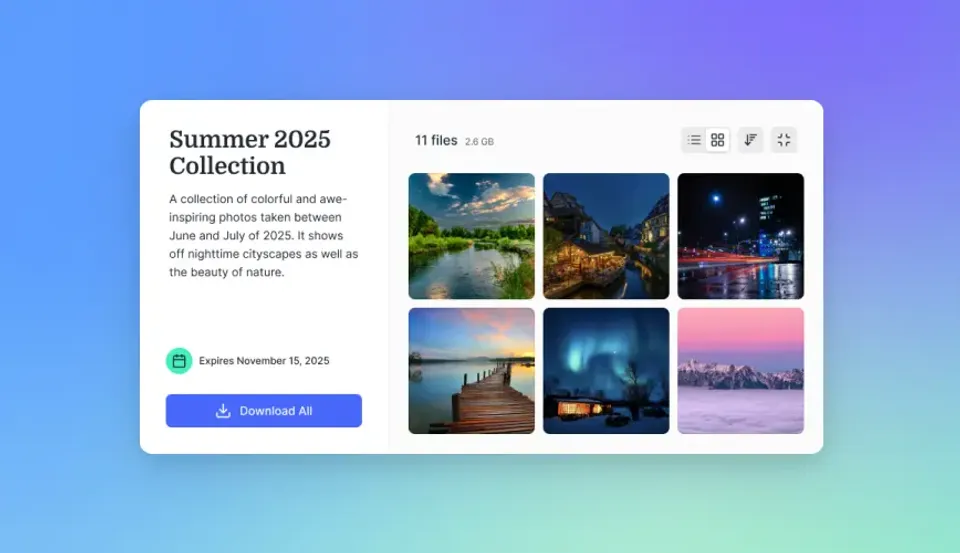
Understanding RAW File Sizes and Handoff Challenges
High-resolution mirrorless cameras capture incredible detail, but they also create a huge problem for the final handoff. A single uncompressed RAW file from a 61-megapixel Sony A7R V averages about 130MB. If you multiply that by the 2,500 to 4,000 images you might shoot at a wedding, you're looking at between 325GB and 520GB for a single event. A professional photographer can generate between 60GB and 150GB of RAW data in a single day of shooting, making efficient delivery essential.
Sending that much data involves more than just hitting an upload button and walking away. You need a system that can handle long transfers without failing halfway through or timing out. Standard cloud services often struggle when they have to manage thousands of individual files. For professional photographers, this delivery is the final touchpoint with a client. A slow or buggy download experience can undo all the hard work you put into the shoot.
You generally have three choices: one-time transfer services, persistent cloud storage, or specialized galleries. Each has trade-offs in speed and cost. The priority is making sure the client gets perfect, bit-for-bit copies of your original sensor data as fast as possible.
Check out our guides on Fastio Workspaces, Fastio Collaboration, and Fastio AI for more details on these workflows.
Related guides
- AirDrop File Size Limit: Does Apple Cap Transfers and How to Send Large FilesAirDrop has no built-in file size limit, allowing users to send files of any size as long as both Apple devices have...
- Yahoo Mail Attachment Size Limit: How to Send Large Files Over 25MBYahoo Mail enforces a strict attachment limit of 25MB per email. Because Base64 encoding inflates binary payloads by...
- How to Send MOV Files Without Losing QualityMOV files from modern cameras and phones routinely exceed email attachment limits, forcing video professionals to find...
- Best Filemail Alternatives for Large File Transfers (2026)Filemail is a popular choice for sending large files, but its restrictive free transfer limits and expiration policy...
- WeTransfer File Size Limit: Free vs Paid Caps and How to Send Larger FilesThe WeTransfer file size limit caps free accounts at 3 GB across a rolling 30-day window, with download links expiring...
- 7 Best SmugMug Alternatives for Photographers & Videographers (2026)SmugMug works well for selling prints and displaying portfolios, but it struggles with large RAW files, video content,...
More on this subject: File Sharing (155 guides)
Why Traditional Cloud Storage Often Fails for RAW Delivery
Most consumer cloud platforms like Google Drive or Dropbox were built for documents and occasional photos, not the massive bulk transfers that pro photographers deal with every day. The biggest issue is often the "zipping" process. When a client tries to download a folder full of .NEF or .ARW files, many services try to compress them into a ZIP archive on the fly. This usually leads to server errors, incomplete files, or downloads that just stop for no reason.
Providers also tend to throttle large transfers. They prioritize smaller files to keep their networks moving, which can turn a short upload into an all-night wait. If your internet connection drops for even a second, basic services often can't resume the transfer, forcing you to start all over again.
Then there's the problem of previews. While these services don't change your original RAW data, the browser previews they generate are often low-quality. If a client sees a pixelated version of your work before they download it, they might think the files are broken. Keeping your work looking professional from start to finish is a top priority.


Share Large Files on Fastio
Stop waiting for your uploads. Send 100GB+ of RAW files at professional speeds. Get generous storage and start delivering faster today. Built for send large raw images clients workflows.
The Best Ways to Send 100GB+ of Photos
When you're moving massive projects, specialized transfer services or high-performance workspaces are your best bet. Services like Smash or WeTransfer Premium are popular because they're built for large media. But if you're doing this every day, a dedicated workspace like Fastio adds more speed and automation to your routine.
Fastio uses the kind of infrastructure usually reserved for broadcast media. Unlike a standard cloud drive, it's designed for "bulk" tasks. You can upload a huge folder of RAW files and the system manages the heavy lifting without the usual lag. For photographers moving hundreds of gigabytes, this can save hours of wait time.
The URL Import tool is particularly helpful. If your RAW files are already sitting in a temporary spot like Google Drive, you can pull them directly into a Fastio workspace without using any of your local bandwidth. This server-to-server transfer is nearly instant. Once they're imported, you can share a high-speed download link through a professional, branded interface.
The Ultimate Guide to Organizing and Delivering RAW Files
Organization is just as important as the transfer itself. A messy folder structure makes it hard for clients to be sure they received everything. We recommend a hierarchy that mirrors the shoot. For a wedding, you might organize folders like "Ceremony_RAW," "Reception_RAW," and "Portraits_RAW."
Before you upload, try grouping large batches of files into several smaller ZIP archives instead of one giant file. This "chunking" strategy makes the download easier for clients with slower internet. If one chunk fails, it's much easier to retry that piece than a massive archive. Use simple names like ProjectName_Part1.zip to keep things organized.
It’s also a good idea to include a "Read Me" file in the main folder. Explain what the RAW formats are and what software the client needs to open them, like Lightroom or Capture One. Providing this context up front cuts down on support questions and shows you're a professional.
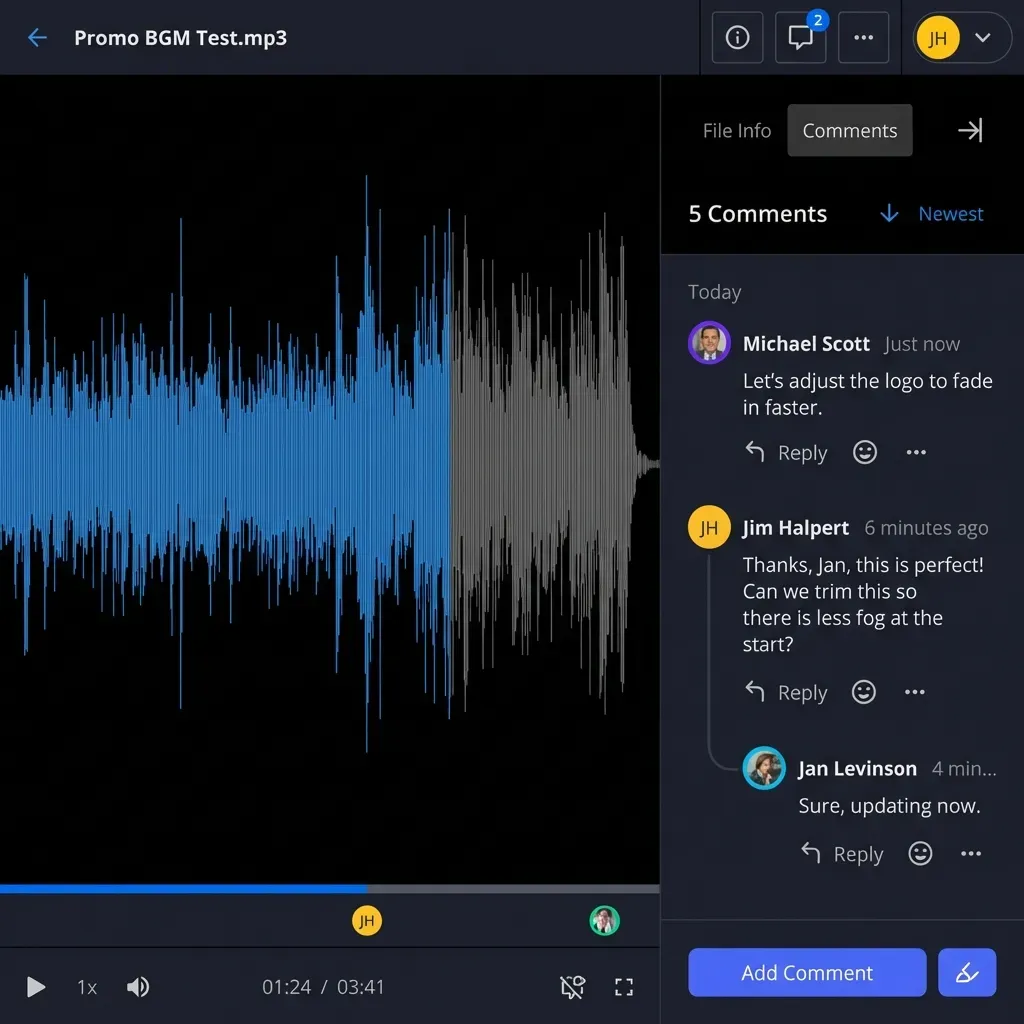
A Step-By-Step Workflow for Professional RAW Delivery
To ensure a smooth delivery, you need a workflow that avoids data corruption. First, always perform a checksum verification before you upload. This confirms the data on your drive is perfectly intact. Software like Hedge or OffShoot can do this automatically when you offload your memory cards, providing a 'hash' that proves the file is identical to the original.
Next, set up your delivery environment. In a Fastio workspace, you can create a 'Client Handoff' folder with your own branding. If your files are already in another cloud service, use the URL Import tool to move them directly to your delivery workspace. This bypasses your local internet entirely. If you're uploading from your studio, use a wired Ethernet connection. Even fast Wi-Fi can suffer from minor packet loss that triggers retries, which slows down a large transfer.
Once the transfer is finished, double-check the total folder size in your workspace against your local drive. Finally, generate a secure, branded sharing link. We recommend using password protection and setting an expiration date. Send the link with a professional email that summarizes the shoot, including the total size and a quick note on the software needed. This structured approach makes sure the client feels supported and the handoff works the first time.
Benchmarks: How Long Does a 100GB Transfer Actually Take?
To understand how your delivery method affects your day, look at the math. A 100GB project involves a massive volume of data. On a home fiber connection with a 50Mbps upload speed, the absolute minimum time to upload 100GB is about 4 hours and 26 minutes. In reality, network overhead usually pushes that closer to 5 or 6 hours.
Your hardware and connection type also matter. Uploading 100GB over 2.4GHz Wi-Fi can take 12 hours or more because of interference. Switching to a Cat6 Ethernet cable can cut this down to your ISP's actual limit. High-performance services like Fastio can use nearly 90% of your available bandwidth, while standard cloud storage often peaks at a fraction of that because they throttle your connection.
Download speed is just as important for the client. If they have a 200Mbps connection, they should be able to get 100GB in about 66 to 68 minutes. But if the hosting service limits download rates to protect its own network, that same client could be stuck waiting for hours. Using tools built on global edge networks ensures the data comes from a server near the client. This reduces the "hops" the data takes across the internet, leading to a faster, more stable connection. For international clients, this is often the difference between a smooth handoff and a failed one.
Improving the Client Experience
The delivery process is part of the overall experience you provide. A simple link to a generic folder can feel a bit impersonal. Whenever possible, use a branded portal with your logo and colors. It looks more professional and makes the experience feel consistent from the initial booking to the final handoff.
Good communication also helps. Once your upload is finished, send an email with the download link, the total size, and an expiration date. This gives the client a clear reason to download and back up their files promptly. We recommend keeping links active for at least several weeks so they have plenty of time to manage the storage.
Think about the post-handoff workflow as well. If you're sending RAW files to an editor, speed is usually the top priority. In those cases, focus on tools that work alongside editing software or offer fast command-line options. By picking the right delivery method for the person receiving the files, you make the next phase of the project easier for everyone.
Managing Post-Handoff Revision Requests
Even after a successful handoff, you might still need to handle revisions or extra requests. It's common for clients to lose files or need a specific shot in a different format later. To manage this without constant manual work, keep your workspace as a "living" archive. If a client asks for a revision, you can just add the new files to the existing workspace and let them know the link is updated. This avoids the confusion of sending multiple separate links for the same project.
Setting clear expectations about how long you'll host the files is also key. Many photographers include a clause in their contract stating that RAW files are only stored for a limited time after delivery. After that, the client is responsible for their own backups. Putting this in writing protects you from long-term storage costs while giving the client a fair window to save their work.
Sources
References used to verify factual claims in this guide.
-
A single uncompressed RAW file from a 61-megapixel Sony A7R V averages approximately 130MB.
-
The total data volume for a wedding shot in high-resolution uncompressed RAW (130MB per file) can range from 325GB to 520GB.
-
A professional photographer can generate between 60GB and 150GB of RAW data in a single day of shooting.
-
The theoretical minimum time to upload 100GB at 50Mbps is approximately 4 hours and 26 minutes. Uploading 100GB over 2.4GHz Wi-Fi can take 8 to 12 hours or more due to interference and network congestion. A client with a 200Mbps connection can theoretically download 100GB in approximately 66 to 68 minutes.
-
Google Drive automatically splits folder downloads into multiple ZIP files if the total size exceeds 2GB.
-
Specialized file transfer services can utilize up to 90% of available network bandwidth by optimizing data transmission.
Frequently Asked Questions
How do I send RAW files to my client?
The best way is to use a high-speed transfer service like Fastio. Organize your files into folders, group them into manageable ZIP chunks (around 2GB each), and upload them. Then, share a professional download link. This keeps the files original and ensures the transfer is handled by fast, reliable servers.
What is the best way to transfer 100GB of photos?
For transfers of 100GB or more, avoid standard email or basic cloud storage. Instead, use a service built for bulk data, like Fastio, which supports high-speed transfers and URL imports. If your internet is slow, the fast 'physical' method is copying the data to a USB-C SSD and using a courier service, though high-speed fiber has made digital transfer the standard for most professionals.
Does Google Drive compress RAW files?
Google Drive doesn't compress the actual .CR2, .NEF, or .ARW files; they stay exactly as they were when you uploaded them. However, the browser previews are heavily compressed. Also, the "zipping" feature for large folders often fails or times out with projects over 2GB, which makes it unreliable for professional handoffs.
How can I share RAW photos without losing quality?
To share RAW photos without losing quality, use a transfer method that doesn't apply lossy compression. Cloud storage and specialized services like Fastio maintain your file integrity. Always avoid sending files via social media, messaging apps, or email attachments, as these platforms almost always apply aggressive compression that strips away the original sensor data.
Related Resources

Share Large Files on Fastio
Stop waiting for your uploads. Send 100GB+ of RAW files at professional speeds. Get generous storage and start delivering faster today. Built for send large raw images clients workflows.