How to Set Up a Scoped MCP Connection for Claude
Connecting Claude to shared documents through Model Context Protocol requires strict boundaries to protect confidential files and prevent unwanted modifications. A scoped MCP connection restricts Claude to designated workspace containers and omits mutating tools from the advertised manifest. By enforcing container-level retrieval and read-only toolsets, teams give Claude contextual search capabilities while keeping production documents secure.

Why Scoped MCP Connections Are Critical for Claude
Connecting an AI assistant like Claude to unpartitioned cloud storage or an open local filesystem creates immediate operational and security risks. In an unpartitioned environment, the model can traverse directory trees, inspect documents across unrelated projects, and make unintended modifications when processing adversarial or ambiguous instructions. Restricting Claude through system prompt instructions alone fails because language model reasoning cannot replace structural security boundaries.
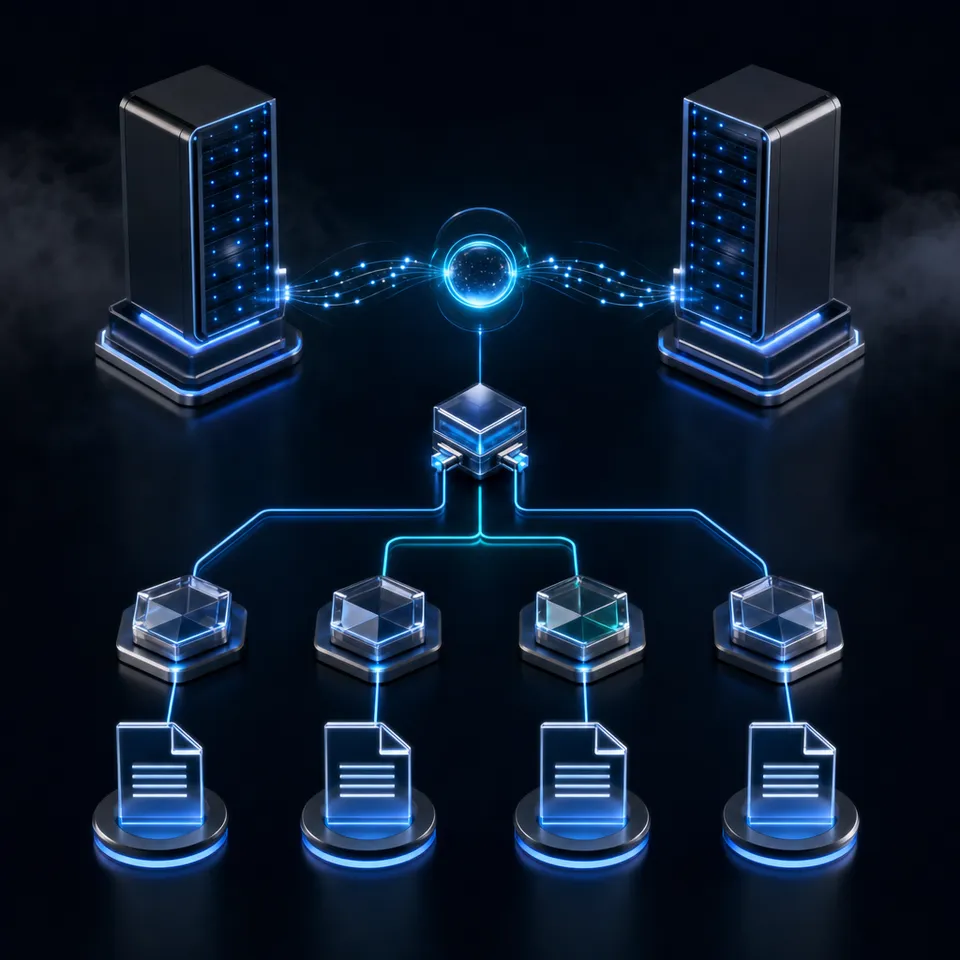
A scoped MCP connection for Claude limits the model's access to designated workspace containers and omits mutating tools, ensuring the assistant can only query approved documents.
Instead of granting Claude broad credentials across an entire organizational account, a scoped connection introduces isolation at the protocol, workspace, and tool levels. With a properly configured scoped MCP connection Claude receives only the context necessary for its active task, without exposing adjacent organizational data stores. By confining Claude to explicit workspace boundaries, teams ensure the assistant cannot retrieve confidential files from adjacent departments. Furthermore, configuring the connection with read-only permissions withholds the write tools, removing the risk of data alteration through the connection and providing persistent storage for agents with deterministic access control.
Vulnerabilities of Unrestricted Model Context Protocol Endpoints
Default installations of Model Context Protocol (MCP) servers often grant excessive operational scope. Developers testing local setups frequently bind servers to root project directories or supply API keys with global administrator privileges. While this permissive posture reduces friction during initial experimentation, it exposes multi-agent and enterprise environments to three critical failure modes:
- The Confused Deputy Problem: When Claude operates with broad organizational credentials, it acts on behalf of any user interacting with the chat window. If a team member without administrative rights asks Claude to locate sensitive operational data, an unpartitioned MCP server evaluates the request using its own high-privilege credentials. Claude returns the matching information, inadvertently bypassing internal organizational policies because the retrieval layer lacked user-aware boundaries.
- Indirect Prompt Injection: AI assistants regularly process untrusted inputs, including vendor invoices, customer support tickets, markdown notes, and public web scrapes. If an ingested document contains malicious instructions directing the model to overwrite files, append fraudulent entries, or wipe directory contents, an assistant equipped with mutating tools may execute those instructions. A Read Only connection removes the write tools such an injection would need.
- Tool Refusal Latency and Token Overhead: When write tools are exposed to an assistant but gated by runtime execution filters, the model attempts to invoke those tools whenever a user request implies a modification. The server then rejects the call, requiring Claude to interpret the error message, formulate an apology, and retry the interaction. Read-only MCP server modes suppress write tools entirely, eliminating tool refusal latency and unnecessary token consumption.
Why Structural Isolation Beats Prompt Guardrails
A common architectural mistake is attempting to control Claude's access using system prompts. Instructions such as "only answer questions about public marketing documents" or "never view files in the accounting folder" offer zero deterministic protection. Natural language guardrails fail because conversational context can be manipulated through prompt injection, context exhaustion, or complex multi-turn reasoning chains.
Security boundaries must exist at the infrastructure layer, completely outside the inference context window. If the MCP server endpoint only exposes a single designated workspace container, Claude cannot retrieve or inspect documents from outside that container, regardless of what prompts it receives. The model cannot leak documents that the server does not serve.
Related guides
- How to Set Up OpenClaw MCP ServerConnect OpenClaw to Fastio's hosted MCP server for consolidated tools covering files, sharing, and AI. Connect directly...
- How to Set Up a Manus AI Persistent Database ConnectionEstablishing a persistent database connection in Manus AI enables agents to write, read, and retain operational data....
- Claude Code Box MCP: Connecting Claude Code CLI to Box Cloud StorageClaude Code Box MCP is an architectural setup enabling Claude CLI coding assistant to search, read, and write files in...
- How to Connect Claude Code to Cloud Workspaces with Filesystem MCPFilesystem MCP allows the Claude Code terminal agent to read, search, and edit files across local directories and...
- Claude Code Google Drive MCP: Connecting Terminal Agents to DriveClaude Code Google Drive MCP connects Anthropic's command-line agent to Google Drive files through the Model Context...
- Claude Code Memory MCP: Configuring Persistent Agent MemoryClaude Code terminal sessions initialize with a fresh context window, requiring external mechanisms to persist project...
More on this subject: Claude and Claude Code (326 guides)
How to Configure Scoped MCP Access in Claude Desktop and Web
Anthropic provides native Model Context Protocol support across Claude Desktop, the Claude web interface, and Claude mobile apps through remote connectors. Rather than running local server daemons or managing complex command-line processes on individual machines, interactive users connect directly to hosted endpoints using the Streamable HTTP transport. This architecture allows teams to centralize authentication, enforce organizational policies, and manage document access without requiring users to maintain local configuration files or handle secret keys.
Managing Claude MCP permissions through the graphical interface allows teams to grant retrieval capabilities while withholding mutating tools. Remote MCP connections to Fast.io operate over Streamable HTTP at https://mcp.fast.io/mcp/tools. Fast.io handles authentication directly through OAuth 2.0. Users should never edit local configuration files like claude_desktop_config.json for Fast.io connections, as interactive clients establish remote sessions entirely through the graphical interface. Following the official Fast.io MCP documentation, setup requires only four straightforward steps.
Step-by-Step Implementation Sequence
Setting up a scoped, secure connection for Claude requires four concrete steps:
- Open Connectors Configuration in Claude: In Claude Desktop or the Claude web application, open the Customize menu and select Connectors. Click to add a custom connector and enter the server URL:
https://mcp.fast.io/mcp/tools. - Authenticate Through the Browser OAuth Window: Select Connect. Claude launches a secure browser window redirecting to the Fast.io sign-in page. Log in with your standard credentials.
- Select Workspace Scope and Toggle Permissions: In the browser, Fast.io displays the Review Permissions screen. Here, you explicitly choose which organizations and workspaces the connection reaches. To enforce strict read access, toggle the permission mode to Read Only. If your workflow requires Claude to generate or save files, select Read & Write. Complete the authorization.
- Verify Active Connector and Tool Manifest in Claude Chat: Return to Claude. Start a new conversation, click the + attachment menu, and locate Connectors. Enable the Fast.io connector for your chat session. Claude confirms the connection and lists the available tools according to the chosen permission scope.
How Read-Only Scopes Suppress Mutating Tools
Configuring a Claude Desktop MCP read only connection ensures that state-changing tools are excluded from the protocol handshake entirely. When you select Read Only during the OAuth authorization flow, the MCP server alters the schema it advertises to Claude during protocol negotiation. On the https://mcp.fast.io/mcp/tools endpoint, operations are cleanly split between read tools and mutation tools.
In a full Read & Write connection, the server advertises paired tools across each domain: storage and storage_manage, workspace and workspace_manage, share and share_manage, and upload and upload_manage. The base tools handle inspection, listing, search, and reading. The _manage variants handle creating, updating, deleting, moving, and locking files.
When configured as Read Only, the server omits the _manage tools that change data from the tool list (auth_manage stays listed). Claude receives read tools such as:
storage: Inspect workspace folders, list directory trees, and read document contents.workspace: View workspace details, member lists, and container properties.share: View existing share links and check share properties.
Because mutating tools do not exist in the schema provided to Claude, the model has no tool it could call to alter or delete files. There is no step-up authentication requirement, no runtime exception, and no confusing refusal error. The assistant simply understands that it operates as an analytical research partner.
How to Set Up Scoped MCP in Claude Code
For software developers, engineers, and technical teams operating in the terminal, Anthropic offers Claude Code. Claude Code connects to Model Context Protocol endpoints to analyze codebases, inspect architecture documentation, query project assets, and run developer workflows directly from the command line. While desktop interfaces rely on interactive graphical authorization, terminal and development environments require flexible configuration options that accommodate personal local testing, repository-level collaboration, and automated server pipelines.
Coding agents require a specialized MCP endpoint optimized for code exploration and repository interaction. Claude Code connects to Fast.io over Streamable HTTP at https://mcp.fast.io/mcp/code. This dedicated surface provides structured search and execution tools designed specifically for terminal and agent workflows, ensuring low latency and consistent schema handling across developer sessions.
Adding the Scoped Server via Terminal CLI
To register the Fast.io MCP endpoint in Claude Code, execute the claude mcp add command in your terminal, specifying the HTTP transport:
claude mcp add --transport http fast-io https://mcp.fast.io/mcp/code
After adding the server, launch Claude Code by running claude in your project directory. Inside the interactive session, execute the /mcp command:
/mcp
Select fast-io from the menu and choose Authenticate. Claude Code prompts you to complete the OAuth browser flow, where you choose the target organizations, specific workspace containers, and toggle between Read Only and Read & Write modes.
Managing Scopes: Local, Project, and User Configuration
Claude Code supports three operational scopes when configuring MCP servers:
- Local Scope (Default): The server configuration is stored privately on your local workstation and applies only to the current repository directory. Use this when testing personal workspaces.
- Project Scope (
--scope project): Claude Code writes the server definition to a.mcp.jsonfile in the root of your repository. This file can be checked into git, allowing your entire engineering team to share consistent tool definitions without sharing secrets. - User Scope (
--scope user): The server is available across every project and repository on your local computer.
When using project scope, the generated .mcp.json file contains a clean HTTP definition:
{
  "mcpServers": {
    "fast-io": {
      "type": "http",
      "url": "https://mcp.fast.io/mcp/code"
    }
  }
}
Because authentication uses OAuth tokens managed per-user, committing .mcp.json to version control does not leak personal credentials. Each developer authenticates independently through /mcp and selects their own authorized workspaces.
Headless and Automated Workflows
In continuous integration pipelines, automated batch scripts, or headless server environments where browser-based OAuth is impossible, Claude Code and developer scripts connect using scoped API keys.
Headless clients provide credentials via an HTTP header:
claude mcp add --transport http fast-io https://mcp.fast.io/mcp/code --header "Authorization: Bearer <your-api-key>"
In Fast.io, API keys carry explicit permission scopes and act with the exact permissions of the user who generated them. API keys do not possess independent roles; they inherit the creator's role within each workspace. If the creating user is restricted to a specific documentation workspace, an API key generated by that user cannot access adjacent project workspaces.
Comparing Claude Desktop and Claude Code MCP Configurations
Understanding the operational differences between interactive and terminal clients ensures proper security deployment across teams:
Both client environments enforce the same container boundaries: Claude can only search, read, and index documents inside the workspace containers explicitly selected during authentication.


Confine Claude to approved workspace containers
Deploy scoped MCP connections over Streamable HTTP with container-level boundaries, citation-backed intelligence, and audit tracking. Monthly plans start with a 14-day free trial, which requires a credit card.
How Container Boundaries Enforce Permission-Aware Retrieval
Restricting Claude at the protocol level is only effective if the underlying storage platform enforces coherent, predictable permission boundaries. Many legacy enterprise storage systems rely on nested folder permissions, broken inheritance trees, or access control lists attached to individual files. These structures create unpredictable retrieval leaks when indexed by AI search engines, as an assistant may inadvertently surface chunks from files whose parent folder was restricted while individual file flags remained permissive.
Fast.io uses a container-based security model. Permissions are set per organization, workspace, and share, through explicit member roles. Inside a workspace, there are no folder-level or file-level permissions. Every member of a workspace reaches all files within that container according to their assigned role: owner, admin, member, guest, or view. Understanding this container architecture is essential for designing secure workspace permissions that isolate company data while enabling efficient AI retrieval.
Enforcing the Workspace as a Hard Retrieval Boundary
Because permissions are container-based, Fast.io's Search and Intelligence features operate strictly within container walls. When Claude issues a search query or asks an analytical question using built-in RAG (retrieval-augmented generation), the indexing engine only scans and returns documents from the workspaces and shares the asking person or agent is an active member of.
If your organization has ten workspaces, and Claude was granted access only to the "Customer Knowledge Base" workspace during OAuth setup, Claude cannot discover or cite files from the "Executive Compensation" or "Product Roadmap" workspaces. The retrieval boundary is enforced at query time.
To restrict Claude MCP access to designated folders or sensitive project assets, administrators isolate those files into dedicated workspace containers or create a dedicated share holding that specific folder. Then limit Claude's connection to that container.
Restricting Default Workspace Join Settings
When setting up workspaces intended for sensitive documents or restricted AI agent access, administrators must review workspace join settings. By default, a newly created workspace allows any member of the parent organization to join.
To ensure that confidential workspaces remain restricted to named personnel and specific agent connections, administrators should open workspace settings and update the join policy from open access to invite-only. Once restricted, only explicitly invited users and scoped Claude connections can access the container.
Permission Inheritance with Cloud Sync
Many organizations maintain existing repositories in Google Drive, Dropbox, Box, or OneDrive. Fast.io's Cloud Sync connects external cloud storage to Fast.io workspaces, operating one-way or two-way, on a schedule or on demand.
A critical security principle of Cloud Sync is that permissions from the source system do not carry over. Files synchronized from an external Google Drive or OneDrive folder immediately take on the Fast.io workspace's permissions. What Claude can retrieve and inspect is determined entirely by its Fast.io workspace membership, not by legacy sharing settings, domain-wide links, or file-level sharing rules configured on the original storage drive.
How to Audit, Verify, and Revoke Claude MCP Access
Deploying autonomous AI agents and intelligent search assistants requires ongoing operational visibility and control. Once a scoped MCP connection is active, teams must verify that permissions behave as expected, monitor organizational modifications, and retain the ability to terminate connections. Establishing an active verification and auditing routine ensures that as team memberships shift, workspaces evolve, and new documents are uploaded, the assistant remains strictly confined to its intended operational scope.
Auditing an AI connection involves confirming that retrieval queries answer only from approved containers, ensuring that write suppression operates deterministically, and reviewing administrative actions in the activity log. When projects conclude or credentials need to be rotated, having clear revocation procedures prevents orphaned tokens from retaining persistent access to company assets.
Verifying Connection Boundaries in Practice
After configuring Claude Desktop or Claude Code, perform practical validation tests before exposing production documents:
- Verify Retrieval Precision: Ask Claude to search for specific documents known to exist in the authorized workspace. Claude should return direct citations with file, page, and snippet references.
- Verify Cross-Workspace Isolation: Ask Claude to locate a document that exists only in an adjacent, unauthorized workspace. Claude should confirm that no matching files exist.
- Verify Write Tool Suppression: If you configured a Read Only connection, prompt Claude to create a new text file or delete an existing document. Claude should immediately state that it does not possess tools capable of modifying storage. Because write tools were omitted during negotiation, no execution error occurs.
Monitoring Workspace Changes in the Activity Log
Fast.io maintains a detailed activity log that records state changes across organizations and workspaces. The activity log captures:
- File creations, uploads, and edits
- File moves, renames, and deletions
- Membership additions, role modifications, and removals
- Share creations, modifications, and revocations
Every entry records the precise timestamp, the target object, and the identity of the person or agent who performed the action.
It is important to understand the precise scope of this record. The activity log records mutations and configuration adjustments; it does not record read-only events, file views, previews, opens, or downloads. It functions as an audit trail of what changed, not an access log of who viewed a file.
Revoking Access
When a project concludes, an external contractor departs, or an AI workflow requires decommissioning, administrators can end Claude's MCP access through two complementary paths:
- From Claude: In Claude Desktop or web settings, open Customize > Connectors, locate the Fast.io connector, and delete it. This disconnects the client from the remote endpoint.
- From Fast.io: In the Fast.io web portal, open Settings, select Devices & Agents, and open the Connected Devices tab. Locate the active Claude OAuth connection and click Revoke.
Revoking the connection in Fast.io ends its access, so later tool calls from Claude fail and it can no longer reach workspace documents. Teams evaluating workspace access and subscription options can review Fast.io pricing across Starter, Business, and Enterprise plans, all supported by a 14-day free trial on monthly plans.
Sources
References used to verify factual claims in this guide.
-
An MCP host creates one MCP client for each MCP server, and each client maintains a dedicated connection with its server.
Frequently Asked Questions
How do I limit Claude's access to specific folders in MCP?
Fast.io enforces permissions at the organization, workspace, and share levels rather than on individual folders or files. To limit Claude's access to specific documents or a single folder, create a dedicated share holding that folder or place the files in a separate workspace container. Then, grant Claude access only to that specific container during OAuth authorization.
Can Claude MCP be configured as read-only?
Yes. When connecting Claude through the OAuth setup screen, select the Read Only permission toggle. In Read Only mode, the Fast.io MCP server omits all mutating and state-changing tools from the advertised tool manifest, leaving only query, search, and inspection tools active.
How do I secure Model Context Protocol connections for Claude?
Secure Claude MCP connections by using remote Streamable HTTP endpoints with OAuth authentication, restricting access to designated workspace containers, choosing Read Only mode to eliminate mutating tools, and setting workspace join policies to invite-only so unapproved users or agents cannot access sensitive data.
What happens when Claude attempts to write over a read-only MCP connection?
Because the MCP server completely suppresses write tools from the advertised schema during protocol initialization, Claude does not attempt to execute a mutating tool call. Instead, Claude informs the user that it does not possess tools to create, modify, or delete files, eliminating tool refusal latency and runtime errors.
Does Cloud Sync preserve external file permissions from Google Drive or OneDrive?
No. When Cloud Sync synchronizes files from Google Drive, Dropbox, Box, or OneDrive, the source permissions and external sharing links do not carry over. Synchronized files inherit the exact permissions of the Fast.io workspace container they inhabit.
How do I revoke Claude's MCP connection when a project finishes?
To revoke access, open Fast.io, open Settings, select Devices & Agents, open Connected Devices, locate the Claude integration, and click Revoke. You can also remove the connector directly in Claude under Customize > Connectors.
Related Resources

Confine Claude to approved workspace containers
Deploy scoped MCP connections over Streamable HTTP with container-level boundaries, citation-backed intelligence, and audit tracking. Monthly plans start with a 14-day free trial, which requires a credit card.