How to Connect Roo Code to Google Drive via MCP
Connecting Roo Code to Google Drive gives autonomous coding agents in VS Code access to external design specifications, database schemas, and API documentation. Synchronizing Google Drive folders into a Fast.io workspace allows Roo Code to search indexed cloud files through a remote Model Context Protocol endpoint, bypassing local sync stubs and keeping prompt context focused on code.

Why Roo Code Cannot Read Google Drive Files From Local Disks
When an autonomous coding agent attempts to inspect an unindexed Google Drive folder through a local filesystem path, it encounters empty shortcut files and web pointers rather than readable specifications. The agent either reads an invalid JSON stub or halts execution entirely, forcing developers to manually copy and paste cloud documentation into editor prompts.
Modern software projects depend on technical documentation that lives outside the Git repository. Engineering specifications, database schemas, product requirements documents, security review questionnaires, and OpenAPI contracts frequently reside in Google Drive shared drives. When developers employ autonomous coding agents like Roo Code inside Visual Studio Code to implement features or refactor code, the agent needs direct access to these authoritative source documents.
Connecting Roo Code to Google Drive enables the autonomous coding agent to retrieve design specifications and schemas directly into programming tasks. Other guides focus on local file trees and fail to explain how Roo Code can access non-repository cloud documentation. When engineering teams attempt to bridge Roo Code to Google Drive using standard workstation file paths or naive local scripts, they encounter three fundamental technical barriers:
Web shortcut files and missing local document bodies: Google Drive for Desktop conserves workstation disk space by streaming files on demand. Native Google Workspace files, including Google Docs, Google Sheets, and Google Slides, do not exist as standard binary office files on the local filesystem. Instead, the desktop client represents them as small metadata files ending in
.gdoc,.gsheet, or.gslides. When Roo Code attempts to read a.gdocfile from a local directory path, it reads a JSON object containing a document identifier and a browser URL rather than the textual specification. The agent cannot parse the technical guidance because the document content exists solely on Google servers.Context window degradation and prompt dilution: Standard file-reading approaches pull entire document payloads into the model context window. When an agent reads an exhaustive 50-page technical specification to extract a single JSON schema or webhook payload format, loading the full document consumes tens of thousands of tokens. This token spike crowds out local source code, degrades reasoning precision, increases per-task inference expenses, and accelerates context window exhaustion.
Desktop synchronization dependency and unhydrated file hangs: Non-native files stored in Google Drive, such as PDF architecture diagrams or spreadsheet data dictionaries, appear in local sync folders as unhydrated virtual files. If the Google Drive desktop client experiences a sync delay, network interruption, or authentication pause, an agent attempting to read that local path hangs while waiting for the operating system to hydrate the file stream. If the read call times out, Roo Code aborts its task execution loop.
Bypassing these issues requires decoupling document synchronization from local editor execution. By keeping existing Google Drive folders as the authoritative source and syncing them into an indexed cloud workspace, developers allow Roo Code to query exact semantic passages over remote Model Context Protocol connections without mounting local virtual filesystems.
Related guides
- How to Connect Roo Code to Box: Remote MCP Setup & Enterprise File SearchConnecting Roo Code to Box storage lets autonomous coding agents search enterprise project documentation directly from...
- ChatGPT Google Drive Sync: How to Connect, Index & Query Drive FilesChatGPT Google Drive sync connects OpenAI models to cloud document folders for fast semantic search and contextual...
- How to Connect Gemini CLI to Google Drive for Terminal WorkflowsConnecting Gemini CLI to Google Drive enables command-line AI workflows to search and inspect documents stored in the...
- LlamaIndex Google Drive Connector: Cloud Sync and MCP IndexingA LlamaIndex Google Drive connector links Google Drive storage to LlamaIndex vector indexes, enabling...
- How to Search Google Drive with ChatGPT: Direct Querying vs Indexed MCPSearching Google Drive with ChatGPT allows teams to query cloud folders and summarize documents without manual file...
- Fixing ChatGPT Google Drive Connector Sync Failed ErrorsA ChatGPT Google Drive connector sync failed error occurs when OpenAI background sync engine fails to traverse,...
More on this subject: Agent Integrations and APIs (228 guides)
Technical Bottlenecks of Direct Google Drive API Connectors
Developers often consider building or running a custom Model Context Protocol server that communicates directly with Google Drive API v3. While a direct API connector appears straightforward, running it inside local developer environments introduces severe operational friction.
The OAuth Consent Screen and Remote Headless Failures
Direct Google Drive API access requires configuring an OAuth 2.0 client credential within the Google Cloud Console. Developers must create a Google Cloud project, enable the Google Drive API, configure an OAuth consent screen, and download a client_secret.json credential file.
This authentication architecture breaks down in modern developer environments:
- Docker development containers: When developers run VS Code inside devcontainers, network isolation prevents the OAuth redirect URI on
http://localhostfrom communicating with the host system browser. - Remote SSH sessions: Developers working on remote cloud instances, virtual machines, or remote compute servers cannot open an interactive local browser window to complete the OAuth consent handshake.
- Short-lived access tokens: Google OAuth tokens require periodic refresh cycles. When an autonomous agent executes a prolonged background coding task, token expiration without interactive re-authentication aborts the agent midway through code generation.
Format Conversion Impedance: Export MIME Types Versus Media Downloads
Google Drive API handles binary assets and native Google Docs through separate endpoints. Binary assets like PDFs or images use files.get with the query parameter alt=media. Native Google Docs, Sheets, and Slides require the files.export endpoint, which demands an explicit target MIME type (such as text/plain, text/markdown, or application/pdf).
A standard file connector must determine the underlying resource type before reading. If an agent attempts to download a Google Doc using files.get, the API returns HTTP 403. If the connector converts every document to raw text on the fly, formatting, tables, and structured data dictionaries degrade into unstructured character blocks that confuse the coding agent.
Quota Consumption and Deep Directory Crawling
Google Drive enforces strict rate quotas, including a limit of 12,000 requests per 100 seconds per user. When an agent searches for an interface definition in a deeply nested shared drive, recursive directory listing queries rapidly exhaust available request quotas. Triggering HTTP 429 rate-limiting responses halts the agent during multi-file refactoring runs.
The connector comparison is published at https://fast.io/benchmarks/.
How Cloud Sync and Intelligence Mode Index Google Drive Content
The pre-indexed workspace pattern solves these limitations by establishing an intermediate cloud retrieval layer. Your engineering team retains Google Drive as its primary collaboration system, while Fast.io handles background synchronization, file parsing, and semantic indexing.
Fast.io provides Cloud Sync for Google Drive, Dropbox, Box, and OneDrive. Cloud Sync connects Google Drive, Dropbox, Box, and OneDrive folders to a workspace, one-way or two-way, on a schedule or on demand (SharePoint libraries connect through the OneDrive connector). Original documentation remains secure in Google Drive, while the Fast.io workspace maintains an indexed retrieval copy.
+---------------------------+        +---------------------------+
|        Google Drive       |        |      Fast.io Workspace    |
|   (System of Record)      | Cloud  |   (Intelligence & Search) |
|                           | Sync   |                           |
| - Architecture Specs      |------->| - Automated Text Parsing  |
| - API Schemas (.json)     | (Sched/| - Hybrid Vector Index     |
| - Database Dictionaries   | Demand)| - Metadata Views          |
+---------------------------+        +---------------------------+
                                                   |
                                                   | Streamable HTTP
                                                   | (https://mcp.fast.io/mcp/code)
                                                   v
                                     +---------------------------+
                                     |    Roo Code in VS Code    |
                                     |   (Autonomous Execution)  |
                                     |                           |
                                     | - Targeted Search Queries |
                                     | - Lean Token Footprint    |
                                     | - Exact File Citations    |
                                     +---------------------------+
Pre-Indexing on Arrival with Intelligence Mode
When files sync from Google Drive into a Fast.io workspace, Intelligence Mode processes them without manual configuration:
- Text extraction: Google Docs, PDFs, Word documents, and spreadsheets are converted into clean textual records. Optical character recognition automatically processes scanned architectural diagrams, whiteboards, and image-based PDFs.
- Hybrid search indexing: The workspace builds parallel inverted full-text indexes and dense vector embeddings across all synchronized assets.
- Granular chunking: The search engine divides long specifications into contextual passages. When Roo Code queries the workspace, the server returns only the specific paragraphs relevant to the coding task, accompanied by source file citations.
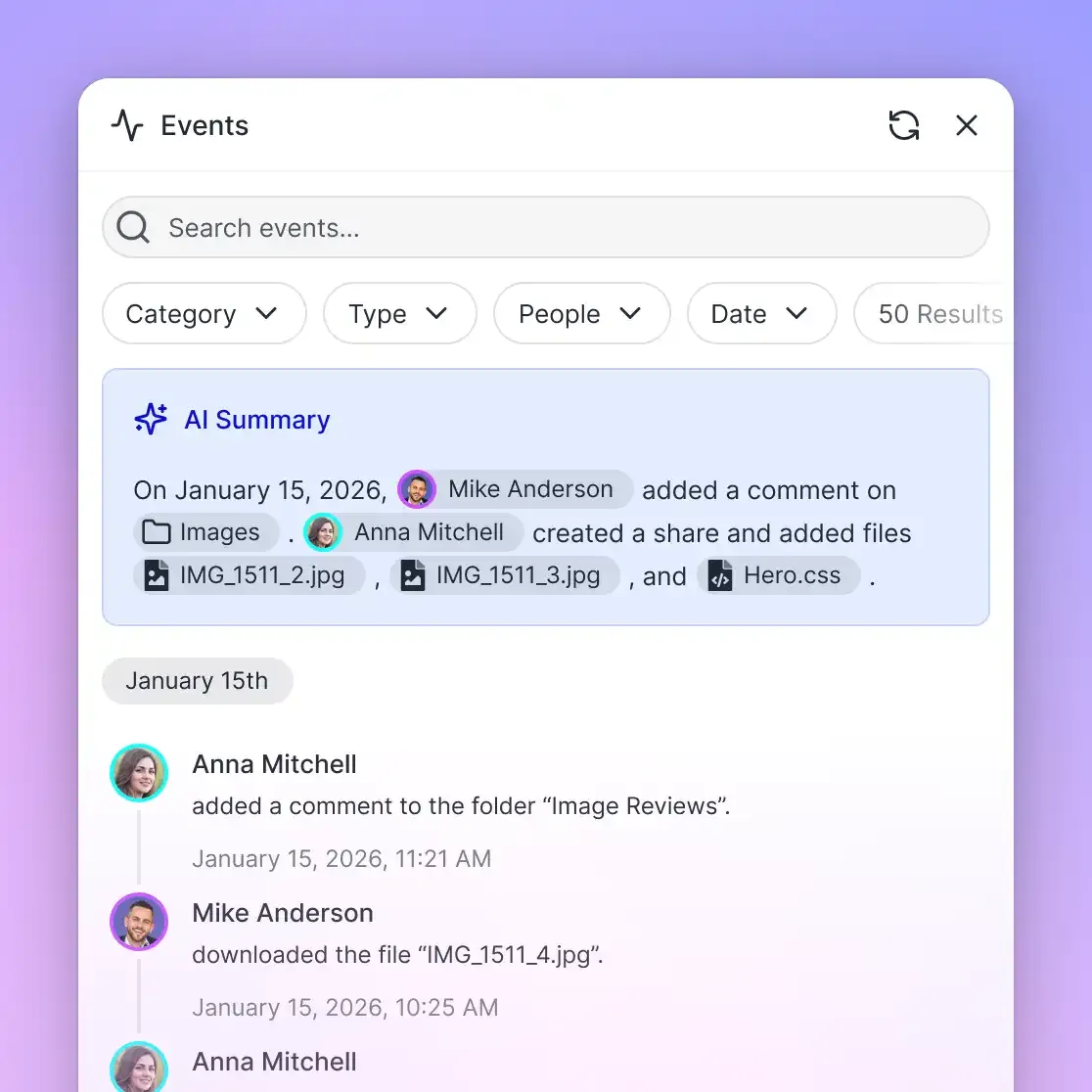
For structured project documentation like database schemas, Metadata Views extract typed attributes into tabular views, allowing agents to query specific columns directly.


Ground Roo Code in Google Drive Specifications
Connect Roo Code to pre-indexed Google Drive documentation over Streamable HTTP without desktop sync stubs or context bloat. Monthly plans start with a 14-day free trial.
How to Configure Streamable HTTP MCP in Roo Code
Roo Code communicates with external tools using the Model Context Protocol. While local servers execute as child processes using standard input and output (stdio), remote endpoints connect over Streamable HTTP. Roo Code supports two configuration locations: global settings and project-scoped settings.
Global Versus Project Configuration Scopes
Roo Code allows developers to define MCP servers globally or within a specific repository:
- Global settings (
mcp_settings.json): Appears in the user configuration directory and provides MCP tools across all Visual Studio Code projects on your workstation. - Project settings (
.roo/mcp.json): Placed directly in the repository root directory. This file can be committed to Git, so every developer on your team shares identical tool configurations.
To open the global configuration directly in VS Code, open the Roo Code panel, select the gear icon to view settings, switch to the MCP Servers tab, and click Edit Global MCP.
Configuration JSON Snippet for Roo Code
In your mcp_settings.json or .roo/mcp.json, register the Fast.io remote endpoint under the mcpServers object:
{
  "mcpServers": {
    "google-drive-docs": {
      "type": "streamable-http",
      "url": "https://mcp.fast.io/mcp/code",
      "headers": {
        "Authorization": "Bearer ${env:FASTIO_API_KEY}"
      },
      "alwaysAllow": ["search", "execute"]
    }
  }
}
Configuration field reference:
type: Set to"streamable-http". Roo Code requires the hyphenated string to establish an HTTP-based MCP connection.url: The remote endpoint for coding agents. Usehttps://mcp.fast.io/mcp/code. Setup procedures for administrators are documented athttps://mcp.fast.io/docs, while agent tooling contracts are detailed athttps://mcp.fast.io/skill.md.headers: Defines authentication parameters. A client without MCP OAuth support, such as Roo Code, keepsAuthorization: Bearer <api key>in its config to authenticate requests. Storing the token in theFASTIO_API_KEYenvironment variable prevents credential leaks in version-controlled repositories.alwaysAllow: Specifies tools that can execute without prompting for manual user confirmation, allowing uninterrupted autonomous coding.
Step-by-Step Walkthrough: Connecting Your Workspace to VS Code
Establishing a live connection between Google Drive and Roo Code requires four straightforward configuration steps.
Step 1: Create a Workspace and Configure Cloud Sync
Log in to your Fast.io organization dashboard and create a dedicated workspace for your project documentation:
- In workspace settings, select Cloud Sync.
- Choose Google Drive from the supported provider list.
- Authenticate with your Google Workspace or personal Google account.
- Select the target folder containing your architectural specifications, API contracts, or schemas.
- Choose your sync direction and schedule. Cloud Sync supports one-way or two-way sync on a schedule or on demand. An hourly or daily interval keeps documents fresh as teammates update them in Google Drive.
Intelligence Mode immediately begins indexing synchronized files in the background.
Step 2: Generate a Scoped Fast.io API Key
Generate an API key with scoped access to the documentation workspace:
- Open your Fast.io account settings and select API Keys.
- Select Create API Key.
- Name your key and restrict its access to your newly created documentation workspace.
- Copy the API token and export it in your shell environment file (such as
~/.zshrcor~/.bashrc):
export FASTIO_API_KEY="your_fastio_api_token_here"
Reload your terminal or restart VS Code so the editor inherits the environment variable.
Step 3: Register the Server in Roo Code
In Visual Studio Code, open the Roo Code side panel:
- Click the gear icon in the top header and select the MCP Servers tab.
- Click Edit Global MCP to open
mcp_settings.json(or Edit Project MCP to create.roo/mcp.json). - Add the
google-drive-docsserver entry pointing tohttps://mcp.fast.io/mcp/code. - Save the file. Roo Code automatically connects to the remote server and displays a green status indicator next to the server entry.
Step 4: Prompting Roo Code with Indexed Documentation
With the MCP connection active, you can instruct Roo Code to reference your Google Drive specifications in natural language:
Review our indexed Google Drive specifications for the user authentication contract.
Identify the required JWT expiration time, refresh token rotation rules, and header requirements.
Then update src/auth/jwtService.ts to match those specifications.
Roo Code calls the search tool over the remote MCP connection. Fast.io returns the exact passages from your synchronized Google Drive files, complete with file names and section titles. Roo Code implements the code changes with full factual grounding while keeping the prompt context uncluttered.
Workspace Scoping, Mode Customization, and Team Best Practices
Operating autonomous coding agents in production codebases requires sound organizational boundaries, prompt guidance, and clarity around subscription resources.
Restricting Access with Dedicated Workspaces
Permissions in Fast.io are set per organization, workspace, and share, through member roles. Every workspace member reaches the whole workspace according to their assigned role. To keep sensitive internal files away from coding agents, isolate resources using distinct workspaces:
- Create a workspace dedicated exclusively to engineering documentation, schemas, and specifications.
- Keep payroll records, executive correspondence, and customer records in separate workspaces.
- Issue scoped API tokens assigned only to the engineering documentation workspace.
Custom Modes in Roo Code for Specification Compliance
Roo Code allows teams to define custom modes in .roomodes to direct agent behavior during specific tasks. You can create a specification architect mode that instructs Roo Code to verify cloud documentation before generating code:
{
  "customModes": [
    {
      "slug": "spec-developer",
      "name": "Specification Developer",
      "roleDefinition": "You are a software engineer who queries indexed Google Drive specifications before implementing code features.",
      "groups": ["read", "edit", "mcp"],
      "customInstructions": "Always query the google-drive-docs MCP server using the search tool to verify API contracts, database schemas, and architectural constraints before editing project files."
    }
  ]
}
Auditing Changes and Managing Freshness
When developers query or update documentation, maintaining visibility into modifications protects the repository:
- Fast.io maintains a detailed activity log recording uploads, edits, moves, and deletions, plus membership and permission changes and share creation.
- Trigger an on-demand sync from the dashboard after team members publish major specification updates to Google Drive.
- If a file needs rollback, per-file version history preserves prior revisions.
Understanding Subscription Plans and AI Resource Metering
Fast.io provides predictable resource tiers for engineering organizations. Monthly plans start with a 14-day free trial that requires a credit card and ends early if trial credits run out:
Credits meter AI operations such as semantic indexing and Intelligence Mode queries. Usage exceeding plan limits is billed directly in currency:
Review setup instructions in the Fast.io agent storage guide and explore tier features on the Fast.io pricing page.
Sources
References used to verify factual claims in this guide.
-
Anthropic designed the Model Context Protocol as an open standard to establish two-way communication between AI assistants and external data systems.
Frequently Asked Questions
How do I connect Roo Code to Google Drive?
To connect Roo Code to Google Drive, synchronize your target Google Drive folder into a Fast.io workspace using Cloud Sync. Then, configure Roo Code's MCP settings (in mcp_settings.json or .roo/mcp.json) with a remote server entry using type streamable-http, url pointing to `https://mcp.fast.io/mcp/code`, and an Authorization Bearer header holding your scoped Fast.io API key.
Can Roo Code read documents from Google Drive?
Roo Code cannot natively read Google Drive cloud documents without downloading them locally or connecting to an external MCP server. Synchronizing your Google Drive folder into a Fast.io workspace automatically indexes all files for full-text and semantic search. Roo Code queries indexed excerpts using the remote search tool, receiving relevant passages with source citations directly in prompt context.
How do I configure MCP in Roo Code for cloud files?
Open the Roo Code panel in VS Code, click the gear icon to open settings, select the MCP Servers tab, and click Edit Global MCP (or Edit Project MCP). Add a server entry with type set to streamable-http, set url to `https://mcp.fast.io/mcp/code`, and provide your API token in the headers block. Once saved, Roo Code can query your synced cloud documents via the search tool.
Why does Roo Code fail to read local .gdoc and .gsheet files?
Google Drive for Desktop stores native Workspace documents like Google Docs and Sheets as local shortcut pointer files ending in .gdoc or .gsheet. These files contain web links and document metadata in JSON format rather than the document body. When Roo Code reads a .gdoc file from a local filesystem path, it reads URL metadata rather than the underlying specification.
Does Fast.io sync with Google Drive?
Yes. Cloud Sync connects Google Drive, Dropbox, Box and OneDrive folders to a workspace, one-way or two-way, on a schedule or on demand (with SharePoint libraries supported through the OneDrive connector). Synced documents are automatically indexed with hybrid search for autonomous agent queries.
What is the difference between mcp_settings.json and .roo/mcp.json in Roo Code?
The mcp_settings.json file defines global MCP servers available across all VS Code projects on your machine. The .roo/mcp.json file defines repository-specific MCP servers at the project root. Project-level configurations take precedence over global settings when server names match and can be checked into Git for team collaboration.
Related Resources

Ground Roo Code in Google Drive Specifications
Connect Roo Code to pre-indexed Google Drive documentation over Streamable HTTP without desktop sync stubs or context bloat. Monthly plans start with a 14-day free trial.