How to Set Up a Local Development Workflow for OpenClaw Agents
A solid local development environment helps you build and debug OpenClaw agents before deployment. This guide covers the full setup, from Docker configuration to installing skills via ClawHub, and shows you how to mock external APIs for safe testing.


Prerequisites for a Local OpenClaw Environment
OpenClaw runs locally, so the execution environment lives on your machine. This gives you speed and privacy, but you need a specific foundation. Before writing your first skill, you need a few core components.
Docker is required because OpenClaw executes agent actions within sandboxed containers. This prevents accidental system damage. Isolation matters when testing new skills that might delete files or execute shell commands. Make sure Docker Desktop is running before starting the OpenClaw gateway.
You also need Node.js 22 or higher. The OpenClaw Gateway and CLI tools rely on modern Node.js features.
Once these are ready, initialize your environment:
# Install the OpenClaw CLI globally
npm install -g openclaw-cli

# Start the onboarding wizard
openclaw onboard
The onboarding process sets up your primary agent profile, configures your LLM provider (Anthropic or OpenAI work best for development), and creates the local directory structure for your agent's memory and skills.
Related guides
- How to Set Up a Manus AI File Handoff WorkflowA Manus file handoff workflow is the automated pipeline that retrieves files from a completed agent task sandbox and...
- How to Set Up a Devin AI Ownership Transfer WorkflowDevin AI operates in sandboxed cloud virtual machines, but their ephemeral nature means files and contexts disappear...
- How to Set Up OpenClaw ACP and Bridge Your IDE to AI AgentsOpenClaw's Agent Client Protocol (ACP) lets you spawn and control external coding tools like Claude Code, Cursor, and...
- How to Set Up OpenAI Codex as an OpenClaw ProviderOpenClaw 2026.4.10 shipped Codex as a bundled provider, and 2026.5.2 added the /goal command for autonomous multi-step...
- OpenClaw vs OpenCode: What Each Tool Actually Does and When to Use ItOpenClaw and OpenCode are the two most-starred open-source AI agent projects on GitHub, and developers keep asking...
- How to Run OpenClaw in VS Code: Three Extension Approaches ComparedThe official OpenClaw extension has nearly 5,000 VS Code installs, but it only covers one of three ways to connect...
More on this subject: OpenClaw Setup and Guides (199 guides)
Managing Skills with ClawHub
Skills are the functions your agent uses to interact with the world. You can write custom skills in TypeScript or connect to external MCP servers.
For file management and persistent storage, connect OpenClaw to Fastio's remote MCP server at https://mcp.fast.io/mcp/tools using a scoped API key as a Bearer token. Fastio requires no local skill installation, giving your agent access to a consolidated MCP toolset to read, write, search, and share files in the cloud.
These tools handle authentication and cloud file operations out of the box, eliminating boilerplate code for storage and permissions.
Pro Tip: Always inspect your agent's tool definitions and schemas before running local workflows. Understanding the input parameters and response shapes helps you debug why an agent might misuse a tool during testing.


Give Your Local Agent a Cloud Drive
Stop storing agent data on your hard drive.
Mocking External APIs for Safe Testing
Testing interactions with live external services is hard. You don't want your agent sending real emails to clients or deleting production database records while you debug logic.
Mocking is essential for a stable workflow. Instead of connecting to live APIs immediately, point your local environment to mock endpoints.
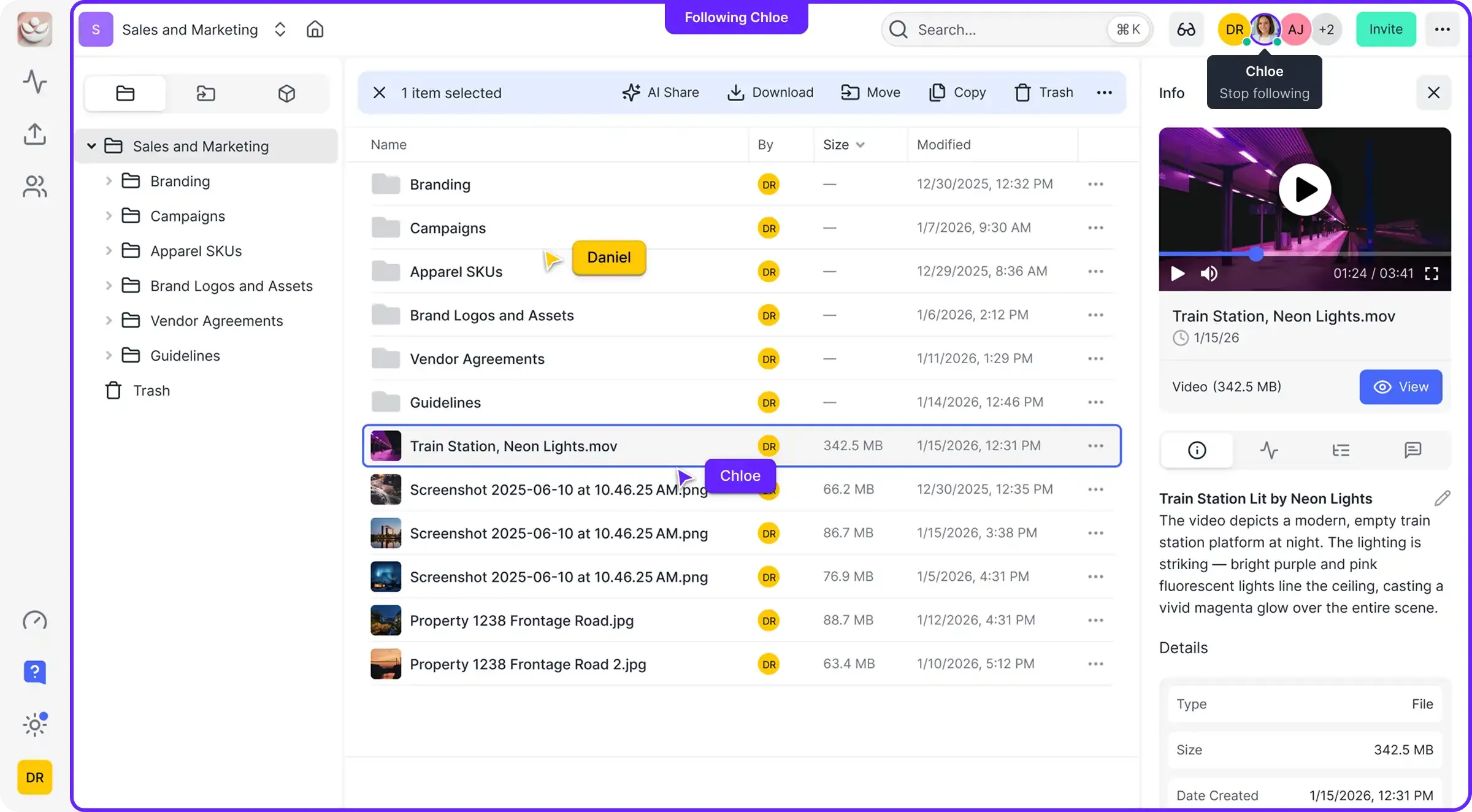
For file operations, use Fastio's realtime activity feed or WebSocket events feed to react to external triggers. Create a "Test" workspace in Fastio and poll the activity feed or listen on the WebSocket feed whenever a file is uploaded. This lets you trigger your agent's file processing logic by dropping a dummy file into the folder, without needing a full production pipeline.
If your agent uses the Fastio MCP server, you can toggle Intelligence on and off for your test workspace. This helps you verify how your agent handles both raw file access (Intelligence OFF) and semantic search results once Intelligence is enabled without changing your code.

Debugging Agent Memory and State
OpenClaw stores conversation history and long-term memory as plain Markdown and YAML files on your local disk. This makes debugging easier than cloud-only agents where state is a black box.
If your agent gets stuck in a loop or hallucinates a fact, check the memory/ directory in your OpenClaw installation. You can edit these files to reset the agent's state or inject context for a test case.
For example, if you are testing a "project handoff" workflow, you can manually insert a memory entry stating that "Project X is complete" and see if the agent suggests transferring workspace ownership to the client. Direct manipulation of memory is a powerful way to test edge cases.
Using Persistent Cloud Storage
Local development is great, but your agent needs a place to store artifacts that persist beyond your local machine. Fastio provides a 14-day Business Trial (credit card required) that serves as your agent's persistent storage backend.
By mounting a Fastio workspace, your local agent gains:
- Persistence: Files survive even if you wipe your local Docker container.
- Search: Built-in RAG once Intelligence is enabled on the workspace means your agent can query documents with citations without loading entire files into context.
- Collaboration: You can log in to the Fastio web UI to inspect exactly what files your agent has created or modified.
This mix of local execution and cloud storage combines the speed of local dev loops with the reliability of cloud persistence.
Handling Authentication Locally
Avoid hardcoding API keys in your agent's config files. Use environment variables or OpenClaw's built-in secrets management to inject keys for Fastio, OpenAI, and other services at runtime. This prevents accidental commits of secrets to your git repository.
Frequently Asked Questions
How do I update OpenClaw skills?
You can update skills using the ClawHub CLI. Run `clawhub update <skill-name>` to fetch the latest version of a specific skill, or `clawhub update --all` to update all installed skills. Always check the changelog for breaking changes before updating in a production environment.
Can I run OpenClaw without Docker?
Technically yes, but it is highly discouraged. Running agents directly on your host machine exposes your system to risks if the agent executes a destructive command. Docker provides a necessary safety layer for local development.
How do I debug OpenClaw network requests?
Since OpenClaw runs locally, you can inspect network traffic using standard tools. The Gateway process logs API calls to the console. For more detailed inspection, you can route traffic through a proxy or use the verbose logging mode in the CLI.
What is the cost of Fastio for agent development?
Fastio offers a 14-day Business Trial (credit card required), and plans range from Starter ($9.99/mo, 250 GB) to Business ($49.99/mo, 5 TB) and Enterprise ($199.99/mo, 25 TB). See /pricing/.
Related Resources

Give Your Local Agent a Cloud Drive
Stop storing agent data on your hard drive.