How to Connect AI Agents to Google Docs with MCP
An MCP server for Google Docs exposes document read, write, and search capabilities to AI agents through the Model Context Protocol standard. This guide covers the available server options, OAuth configuration, document operations, and practical multi-agent workflows that combine Google Docs with persistent storage.


What a Google Docs MCP Server Does
Google Docs is one of the most-requested MCP integrations after GitHub and Slack, and for good reason. With over 3 billion Google Workspace users and roughly 1 billion monthly active Google Docs users, it is the document editor most teams already depend on. An MCP server bridges the gap between that editor and your AI agent by wrapping Google's APIs in a standardized protocol.
Without MCP, connecting an agent to Google Docs means writing custom REST integration code against the Google Docs API, handling pagination, managing OAuth token refresh, and building tool definitions from scratch. An MCP server packages all of that into tools that any MCP-compatible client can call directly.
What agents can do through a Google Docs MCP server:
- Create new documents with specified titles and initial content
- Read full document content for analysis, summarization, or extraction
- Search for specific content blocks within a document
- Update existing documents with new text, formatting, or structural changes
- Manage comments, including creating threads, replying, and resolving
- List and respond to suggested edits from collaborators
- Export documents as markdown or plain text for downstream processing
The practical result is that your agent can draft a report, pull data from a spreadsheet MCP server, insert it into a Google Doc, request a human review via comments, and track when that review is complete. All through tool calls in a single conversation.

Related guides
- How to Connect AI Agents to Azure Blob Storage via MCPAn Azure Blob Storage MCP server exposes cloud containers and object storage to AI agents using standard Model Context...
- How to Connect Google Gemini to Box via MCPA Gemini Box MCP integration exposes Box enterprise folder hierarchies and file contents to Google Gemini agents...
- How to Connect Gemini to Storage via MCP ServerConnecting Google Gemini to persistent storage through a Model Context Protocol server replaces clumsy context-window...
- How to Connect Google Gemini to Microsoft OneDrive via MCPGemini OneDrive MCP is a configuration that bridges Google Gemini AI models with Microsoft OneDrive storage via the...
- Best MCP Clients for 2026: Connect Your AI to Any ToolMCP clients are AI interfaces like Claude Desktop, Cursor, or specialized IDEs that implement the Model Context...
- MCP Server Examples: Practical Implementations for AI AgentsThe Model Context Protocol ecosystem has grown past 1,000 public servers, but finding the right implementation for your...
More on this subject: MCP and Model Context Protocol (238 guides)
What to check before scaling mcp server for google docs
Several MCP server implementations target Google Docs, ranging from focused single-service tools to full Google Workspace suites. Choosing the right one depends on whether you need just Docs access or broader Workspace coverage.
Workato Google Docs MCP Server
Workato maintains a dedicated Google Docs MCP server with 11 tools mapped to core document operations. It covers document creation, content retrieval, block-level search, content updates, comment management, suggestion tracking, and mention discovery. Authentication uses OAuth 2.0 or service accounts with domain-wide delegation for enterprise setups.
This is a good choice when you need clean, Docs-only functionality without the overhead of a broader Workspace integration.
google-docs-mcp (a-bonus)
This community-built server is one of the most popular options on GitHub. It covers Google Docs, Sheets, Drive, Gmail, and Calendar in a single server. For Docs specifically, it supports reading in plain text, JSON, or markdown formats, text insertion and deletion, styling (bold, italic, colors, font sizes), table creation, tab management, and full comment threading.
Setup involves three steps: create OAuth credentials in Google Cloud Console, run an authorization command to save refresh tokens locally, and add the server to your MCP client config. It works with Claude Desktop, Cursor, Devin Desktop (formerly Windsurf), and any other MCP client.
Google Workspace MCP (taylorwilsdon)
The most feature-complete option covers ten Google services: Gmail, Calendar, Docs, Sheets, Slides, Chat, Forms, Tasks, Search, and Drive. It supports OAuth 2.1 with multi-user remote authentication, making it suitable for team deployments. Claude Desktop users can install it as a .dxt extension file with one click.
Three authentication modes are available: single-user OAuth for personal setups, OAuth 2.1 for multi-user hosted deployments, and service account mode for headless server-to-server access.
Composio Google Docs Integration
Composio provides a managed MCP integration layer that handles OAuth credential management and exposes Google Docs tools through its own MCP server. This is useful if you want to avoid managing OAuth tokens yourself. It works with Claude, ChatGPT, Cursor, and the Claude Agent SDK.
Google's Official MCP Servers
Google announced official MCP support for its cloud services in late 2025, starting with Maps, BigQuery, Compute Engine, and Kubernetes Engine. As of early 2026, official MCP servers for Google Workspace apps like Docs are not yet available, though the broader rollout is expected to extend to Workspace services. For now, the community servers above are the practical choice.

Setting Up OAuth and Connecting Your First Agent
Every Google Docs MCP server requires OAuth credentials from Google Cloud Console. The process is similar across implementations. Here is a walkthrough using the google-docs-mcp server as the reference, since it has the widest adoption.
Step 1: Create a Google Cloud Project
Go to console.cloud.google.com and create a new project (or select an existing one). Enable the Google Docs API and Google Drive API under APIs & Services > Library. You need both because document management operations route through the Drive API.
Step 2: Configure the OAuth Consent Screen
Under APIs & Services > OAuth consent screen, set the user type to External (or Internal if you are on Google Workspace and only need org-level access). Add the scopes https://www.googleapis.com/auth/documents and https://www.googleapis.com/auth/drive. For testing, add your own email as a test user.
Step 3: Create OAuth Credentials
Go to Credentials > Create Credentials > OAuth Client ID. Choose Desktop Application as the application type. This simplifies the redirect URI setup since desktop OAuth clients do not require a public callback URL. Download the credentials JSON file.
Step 4: Install and Authorize the MCP Server
git clone https://github.com/a-bonus/google-docs-mcp.git
cd google-docs-mcp
npm install
npm run authorize
The authorize command opens your browser for Google sign-in. After you approve, the server saves a refresh token locally at ~/.config/google-docs-mcp/token.json. This token persists across sessions so you only authenticate once.
Step 5: Add to Your MCP Client
For Claude Desktop, add the server to your claude_desktop_config.json:
{
  "mcpServers": {
    "google-docs": {
      "command": "node",
      "args": ["/path/to/google-docs-mcp/dist/index.js"]
    }
  }
}
Restart Claude Desktop. The Google Docs tools should appear in your tool list when you start a new conversation.
For custom agents using the MCP TypeScript SDK, connect programmatically:
import { Client } from "@modelcontextprotocol/sdk/client";
import { StdioClientTransport } from "@modelcontextprotocol/sdk/transport";

const transport = new StdioClientTransport({
  command: "node",
  args: ["/path/to/google-docs-mcp/dist/index.js"],
});

const client = new Client({
  name: "docs-agent",
  version: "1.0.0",
});

await client.connect(transport);
const { tools } = await client.listTools();
Verifying the Connection
Ask your agent to list your recent Google Docs or read a specific document by name. If the OAuth tokens are valid and the server is running, you should get back document content within a few seconds. If you see authentication errors, delete the token file and re-run the authorize step.
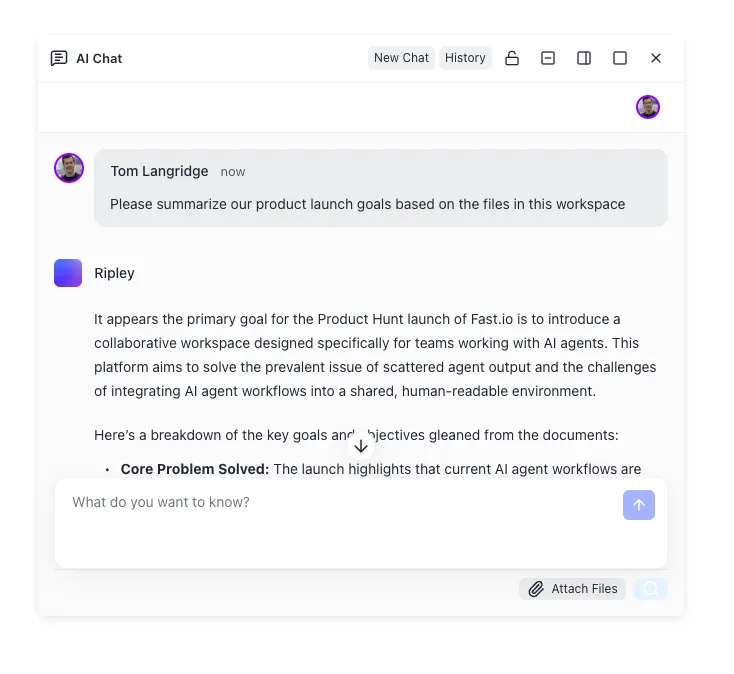


Give Your AI Agents Persistent Storage
Fastio provides intelligent workspaces where agents store, search, and share their output. Persistent storage, built-in RAG, and an MCP server that works alongside Google Docs.
Practical Workflows with Google Docs MCP
Connecting an agent to Google Docs becomes genuinely useful when you combine document operations with other tools. Here are workflows that go beyond basic read/write.
Workflow 1: Research-to-Draft Pipeline
Your agent searches the web for information on a topic, compiles findings, and creates a structured Google Doc. The agent calls create_document with a title and outline, then uses update_document_content to add sections as it completes research. A human collaborator receives a comment notification and reviews the draft inside Google Docs using the familiar editing interface.
Workflow 2: Meeting Notes to Action Items
After a meeting, your agent reads the meeting transcript (from a calendar or transcription MCP server), extracts action items, and appends them to a shared Google Doc that tracks team commitments. The agent uses find_blocks to locate the right section in an existing document, then update_document_content to add new items without overwriting previous entries.
Workflow 3: Document Review Automation
Your agent monitors a Google Doc for unresolved comments using list_comments. When it finds comments tagged with a specific pattern (like "AI: please fact-check this"), the agent reads the surrounding content, verifies claims against source materials, and posts a reply with its findings using reply_to_comment. Once the human author approves, the agent calls resolve_comment to clean up the thread.
Workflow 4: Cross-Platform Content Sync
An agent reads content from a Google Doc using get_document_content, transforms it into a different format (YAML, markdown, HTML), and uploads the result to another system. This is common for content teams that draft in Google Docs but publish through a CMS or static site generator. The agent handles the format conversion and keeps both systems in sync.
Workflow 5: Structured Data Extraction
For documents with consistent formatting, like client intake forms, project briefs, or RFP responses, your agent can extract structured data. It reads the document, parses sections by heading, and outputs the data as JSON or feeds it into a downstream workflow. This turns unstructured Google Docs into structured records without manual copy-paste.
Each of these workflows benefits from combining Google Docs MCP tools with at least one other data source or destination. MCP's value is that agents can chain tools across servers without purpose-built integrations between each service.
Storing Agent Output Beyond Google Docs
Google Docs works well for collaborative drafting and human review, but agents often produce artifacts that need a different kind of home. Generated reports, extracted datasets, processed files, and versioned deliverables all need persistent storage with proper access controls and searchability.
Local filesystems work for single-developer setups, but they break down when multiple agents or team members need access to the same outputs. Cloud storage like S3 or Google Drive provides persistence, but lacks built-in intelligence features like semantic search or AI-powered Q&A over stored content.
Fastio provides intelligent workspaces where agent output stays organized, searchable, and shareable. When Intelligence Mode is enabled, every uploaded file is automatically indexed for semantic search and RAG-powered chat. An agent can upload a report generated from Google Docs data, and any team member can later ask questions about that report through natural language, with citations pointing to specific pages and sections.
A practical Google Docs + Fastio workflow:
- Agent reads a Google Doc containing a project brief via the Docs MCP server
- Agent extracts requirements and generates a deliverable (report, dataset, creative brief)
- Agent uploads the deliverable to a Fastio workspace via the Fastio MCP server
- Agent creates a branded share link and sends it to the client or stakeholder
- The client accesses the share with built-in previews, no account required
- Team members search across all deliverables using Intelligence Mode
Fastio's MCP server is available over Streamable HTTP at /mcp and legacy SSE at /sse. It exposes tools for workspace management, file operations, AI queries, and share creation, so your agent can handle the full lifecycle from Google Docs input to client-ready output in a single tool chain.
The 14-day Business Trial lets teams test persistent workspaces and AI indexing. For teams that already use Google Drive for raw document collaboration, Fastio fills a different role: it is the layer where agent-produced artifacts get organized, reviewed, and handed off to humans.
Other storage options fit different needs. Google Drive MCP servers keep everything in the Google ecosystem. S3 works for programmatic storage without a UI layer. The right choice depends on whether your priority is ecosystem consistency, raw storage, or an intelligent workspace where both agents and humans can search and collaborate on the same files.

Troubleshooting and Limitations
Google Docs MCP servers are stable for core operations, but there are boundaries and common issues worth knowing about.
OAuth Token Expiration
Google OAuth refresh tokens can expire if the user revokes access, the Google Cloud project is in testing mode (tokens expire after 7 days), or the token has not been used for 6 months. If your agent suddenly loses access, check the token file and re-authorize. For production setups, move your OAuth consent screen out of testing mode to get long-lived refresh tokens.
Document Size Limits
Large Google Docs (over 1.5 million characters) can cause timeouts when reading full content. If you are working with long documents, use block-level search tools like find_blocks to retrieve specific sections instead of fetching the entire document. This reduces both latency and token consumption in your agent's context window.
Formatting Fidelity
Most MCP servers return Google
Docs content as plain text or markdown. Complex formatting, like multi-column layouts, embedded drawings, or heavily styled tables, may not round-trip cleanly. If formatting preservation matters, consider working with the Google Docs API directly for those specific operations and using MCP for content-level tasks.
Concurrent Editing Conflicts
Google Docs handles real-time collaboration natively, but MCP-based edits do not participate in the same cursor-tracking and conflict resolution that human editors see. If an agent updates a document while a human is actively editing the same section, the changes merge at the API level but may produce unexpected results. For write-heavy workflows, coordinate timing or use comments and suggestions instead of direct edits.
Rate Limits
Google's API rate limits apply to all MCP server calls. The default quota is 300 requests per minute per user for the Docs API and 12,000 per minute for the Drive API. Agents that loop through many documents quickly can hit these limits. Implement backoff logic in your agent or batch operations where possible.
Service Account vs. User OAuth
Service accounts with domain-wide delegation can access any document in your Google Workspace organization without per-user consent. This is powerful for enterprise automation but requires careful scoping. A misconfigured service account with broad delegation could expose sensitive documents to your agent. Use the narrowest scopes possible and restrict delegation to specific organizational units.
Missing Official Google MCP Support for Docs
Google's official MCP servers currently cover Maps, BigQuery, and infrastructure services but not Workspace apps. Until official Docs MCP support arrives, community servers are the primary option. Keep an eye on Google's MCP documentation for updates on Workspace service coverage.
Sources
References used to verify factual claims in this guide.
-
Google Workspace has over 3 billion users
-
Google Docs has roughly 1 billion monthly active users
-
Google announced official MCP support for cloud services in late 2025
-
Workato Google Docs MCP server provides 11 tools for document operations
Frequently Asked Questions
How do I connect Google Docs to Claude?
Install a Google Docs MCP server like google-docs-mcp or the Google Workspace MCP extension. Create OAuth credentials in Google Cloud Console, authorize the server, and add it to your Claude Desktop configuration. Once connected, Claude can read, create, edit, and comment on your Google Docs through natural language commands.
Is there an official MCP server for Google Docs?
Not yet. Google launched official MCP servers for Maps, BigQuery, and infrastructure services in late 2025, but Workspace apps like Docs, Sheets, and Gmail are not covered yet. Several well-maintained community servers fill this gap, including google-docs-mcp, Google Workspace MCP by taylorwilsdon, and the Workato Google Docs MCP server.
Can AI agents edit Google Docs?
Yes. Through an MCP server, AI agents can create new documents, insert and delete text, apply formatting, manage comments, and track suggested edits. Write operations go through the Google Docs API with the same permissions as the authenticated user, so agents respect the same sharing and access controls as human editors.
What authentication does a Google Docs MCP server need?
All Google Docs MCP servers require OAuth 2.0 credentials from Google Cloud Console. You create a project, enable the Docs and Drive APIs, configure an OAuth consent screen, and generate client credentials. Most servers store refresh tokens locally so you only authenticate once. Enterprise setups can use service accounts with domain-wide delegation instead.
Can I use a Google Docs MCP server with agents other than Claude?
Yes. MCP is an open protocol. Google Docs MCP servers work with any MCP-compatible client, including ChatGPT (Plus and above), Cursor, Devin Desktop, custom agents built with the MCP TypeScript or Python SDK, and other tools that support the Model Context Protocol.
What is the difference between a Google Drive MCP server and a Google Docs MCP server?
A Google Drive MCP server handles file-level operations like listing, uploading, downloading, and organizing files across Drive. A Google Docs MCP server provides document-level operations like reading content, editing text, managing comments, and tracking suggestions within individual documents. Some MCP servers, like the Google Workspace MCP, bundle both capabilities together.
Related Resources

Give Your AI Agents Persistent Storage
Fastio provides intelligent workspaces where agents store, search, and share their output. Persistent storage, built-in RAG, and an MCP server that works alongside Google Docs.