How to Use the LangChain File System for Persistent Data
The LangChain file system integration enables AI agents to read, write, and organize files on local disks or cloud storage. While most tutorials focus on loading data for analysis, this guide covers the essential "write" capabilities that allow agents to save their work, maintain persistent memory, and collaborate with human users.


Why Agents Need a File System
Most AI agents start as stateless entities. They process information but have nowhere to put the results once the session ends. A file system provides the "long-term memory" that transforms a simple chatbot into a productive, autonomous worker capable of handling complex, multi-step tasks. Without persistent storage, an agent can't reference work it did yesterday, share its outputs with other agents, or build upon previous results. This limitation blocks AI from working in enterprise environments where continuity and auditability matter. File management is consistently one of the most requested agent tools. When an agent can interact with a file system, it can generate code documentation, save research reports, log its own audit trails for compliance, and even write and test new software modules without human intervention. The LangChain framework addresses this through its FileManagementToolkit, a set of tools that bridge the gap between the LLM's transient context window and your permanent disk drive.
Helpful references: Fastio Workspaces, Fastio Collaboration, and Fastio AI.
Related guides
- How to Add Persistent File Storage to Replit AgentReplit Agent can build full apps from a prompt, but its file storage resets when containers sleep.
- Manus AI File Storage: Persistent Workspace Best PracticesManus AI runs tasks inside secure cloud sandboxes with isolated, temporary filesystems that automatically recycle after...
- How to Use LangChain Document LoadersDocument loaders are the first step in any RAG pipeline. They pull data from over 100 sources into a standard format...
- LangChain Document Loader Alternatives for Better File HandlingLangChain document loader alternatives let you ingest files for RAG and agent applications without LangChain's...
- LangChain SharePoint Integration: How to Query Enterprise DocumentsA LangChain SharePoint integration connects autonomous agents and retrieval chains to Microsoft SharePoint libraries,...
- Virtual File System in Python: In-Memory VFS, Limits, and Agent SandboxesA Python virtual file system creates an in-memory or abstracted storage layer within the process runtime, but heap...
More on this subject: Agent File and Document Workflows (325 guides)
Setting Up the LangChain FileManagementToolkit
The FileManagementToolkit is the standard way to grant Python-based agents access to local storage. It includes safe, pre-built tools for common operations like reading, writing, and listing files. When you initialize the toolkit, it automatically creates a suite of tools that your agent can use. These typically include:
- ReadFileTool: Allows the agent to open and read the contents of a file.
- WriteFileTool: Lets the agent create new files or overwrite existing ones.
- ListDirectoryTool: Shows the agent what files are in a specific folder.
- CopyFileTool: For duplicating files.
- MoveFileTool: For renaming or moving files.
- DeleteFileTool: For removing unwanted files (use with caution). Here is how to initialize the toolkit and pass it to an agent:
from langchain_community.agent_toolkits import FileManagementToolkit
from tempfile import TemporaryDirectory

### We recommend using a temporary or sandboxed directory for safety
working_directory = TemporaryDirectory()

toolkit = FileManagementToolkit(
    root_dir=str(working_directory.name)
)

### Get all available tools (read, write, list, copy, etc.)
tools = toolkit.get_tools()

### Now these tools can be assigned to your agent
print(f"Loaded {len(tools)} file tools")
The toolkit prevents the agent from accessing files outside the specified root_dir, acting as a basic security sandbox. This is critical for preventing accidental system modifications, such as overwriting system configuration files or deleting important project data. By confining the agent to a specific subdirectory, you ensure that even if the agent hallucinates or makes an error, the damage is contained within a safe environment.
Writing Data: The Missing Link in RAG
Retrieval-Augmented Generation (RAG) pipelines are excellent at reading data, but they often lack a strategy for saving it. A true "LangChain file system" workflow involves both input and output. To enable an agent to save its output, you need to explicitly provide the WriteFileTool. This tool takes a file path and content string as input.
Best Practice for File Writes:
- Structured Naming: Instruct agents to use ISO dates in filenames (e.g.,
report_2025-10-24.md) to avoid overwriting. - Atomic Operations: Agents should write to a temporary file first, then rename it, ensuring partial writes don't corrupt data.
- Format Validation: Always verify that the agent is writing valid JSON, YAML, or Markdown before committing the file.

Moving to Cloud Storage: S3, GCS, and Azure
Local file systems work well for development, but production agents need cloud storage. LangChain supports this via "Document Loaders" for S3, Google Cloud Storage (GCS), and Azure Blob Storage. However, there is a catch: while loading from the cloud is straightforward, writing back often requires custom tools wrapping the AWS boto3 or Google storage SDKs. For example, an S3FileLoader can ingest a bucket's contents for RAG, but if your agent needs to save a generated report back to that bucket, you must build a custom SaveToS3Tool. This asymmetry adds complexity to agent development, forcing developers to manage authentication, multipart uploads, and error handling manually.


Give Your AI Agents Persistent Storage
Stop building custom S3 integrations.
The Unified Solution: Fastio for Agent Storage
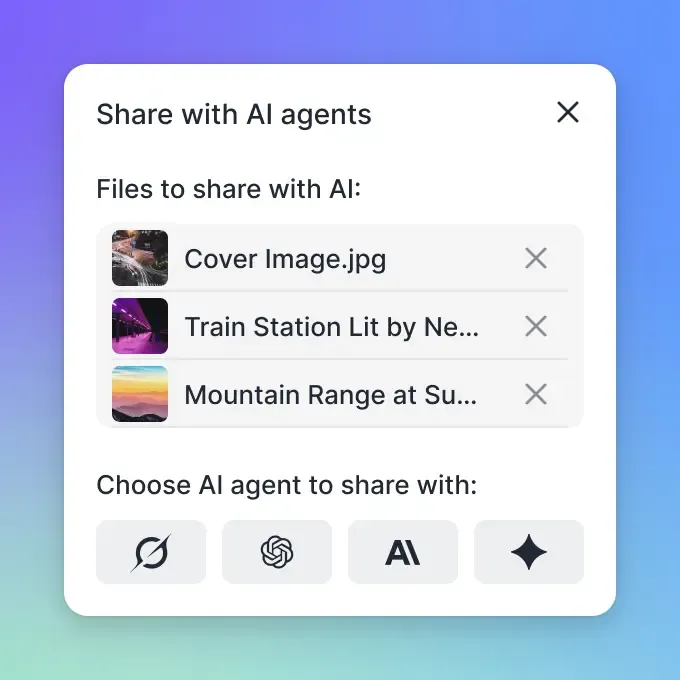
Fastio simplifies the LangChain file system problem by providing a universal storage layer that works for both humans and agents. Instead of managing separate local paths and cloud SDKs, Fastio gives your agents persistent cloud workspaces they reach through the MCP server or REST API.
Why this is better for agents:
- Comprehensive MCP Tools: Through the Model Context Protocol (MCP), Fastio provides a complete set of file operations, far exceeding the capabilities of the basic LangChain toolkit.
- Zero-Config Persistence: Files written by an agent are instantly available to you and your team. There is no need to build "download" features; just log in and see what the agent created.
- Built-in RAG: Fastio's Intelligence Mode automatically indexes files once enabled for the workspace. Your agent doesn't need to run its own vector database; it can ask questions about the storage contents.
How to Connect Fastio to LangChain
Integrating Fastio is straightforward. You can connect via the remote MCP server at https://mcp.fast.io/mcp/tools or use the REST API. This gives any LLM running in LangChain standardized tools to manage files and query workspace context.
- Connect MCP: Point your agent or MCP client at the remote server URL (https://mcp.fast.io/mcp/tools).
- Authenticate: Send your Fastio API key (human-granted and long-lived) as an
Authorization: Bearerheader on the connection. An interactive MCP client signs in through the browser with OAuth instead. - Prompt: Instruct your agent to read, write, or query files in the workspace.
This approach abstracts away the complexity of file streams and permission bits, letting you focus on the agent's logic rather than its plumbing.
Sources
References used to verify factual claims in this guide.
-
structured naming: report_2025-10-24.md
Frequently Asked Questions
How do I give LangChain access to my local files?
You can use the `FileManagementToolkit` from `langchain_community.agent_toolkits`. Initialize it with a `root_dir` to define the safe working area, and then pass the resulting tools (read, write, list) to your agent's tool list.
Can LangChain agents write directly to Amazon S3?
Yes, but not out of the box with the standard toolkit. You typically need to create a custom tool that uses the `boto3` library to upload files. Alternatively, using a dedicated storage platform like Fastio allows agents to read and write files directly via MCP or the REST API without managing bucket infrastructure.
Is it safe to let AI agents delete files?
Granting delete permissions is risky. We recommend initializing the `FileManagementToolkit` with a specific list of tools that excludes `DeleteFileTool` for production environments, or using a versioned file system like Fastio where deleted files can be recovered.
Related Resources

Give Your AI Agents Persistent Storage
Stop building custom S3 integrations.